
Battery Fast Drain Problem Solution – Complete Guide to Improve Android Battery Life
Introduction
Is your phone battery dropping from 80% to 40% within a few hours? Are you constantly searching for a charger?
Battery drain issues are one of the most common smartphone problems today. Many users think their battery is damaged, but in reality, most battery issues are caused by poor settings management, background apps, and network problems.
In this detailed guide, you will learn the complete battery fast drain problem solution, including advanced optimization techniques that most websites do not explain clearly.
If you apply these steps correctly, you can improve your Android battery life by 30% to 50%.
This complete battery fast drain problem solution guide will help you fix the issue effectively and improve your device performance.
Let’s begin.
Why Does Battery Drain Fast?
Understanding the root cause is important before fixing the issue.
The most common reasons include:
Background apps running continuously
5G network consumption
High screen refresh rate (120Hz)
Poor mobile signal strength
GPS and location tracking
Auto-sync enabled for multiple accounts
Software bugs
Aging battery health
Incorrect charging habits
Now let’s solve each issue step by step.
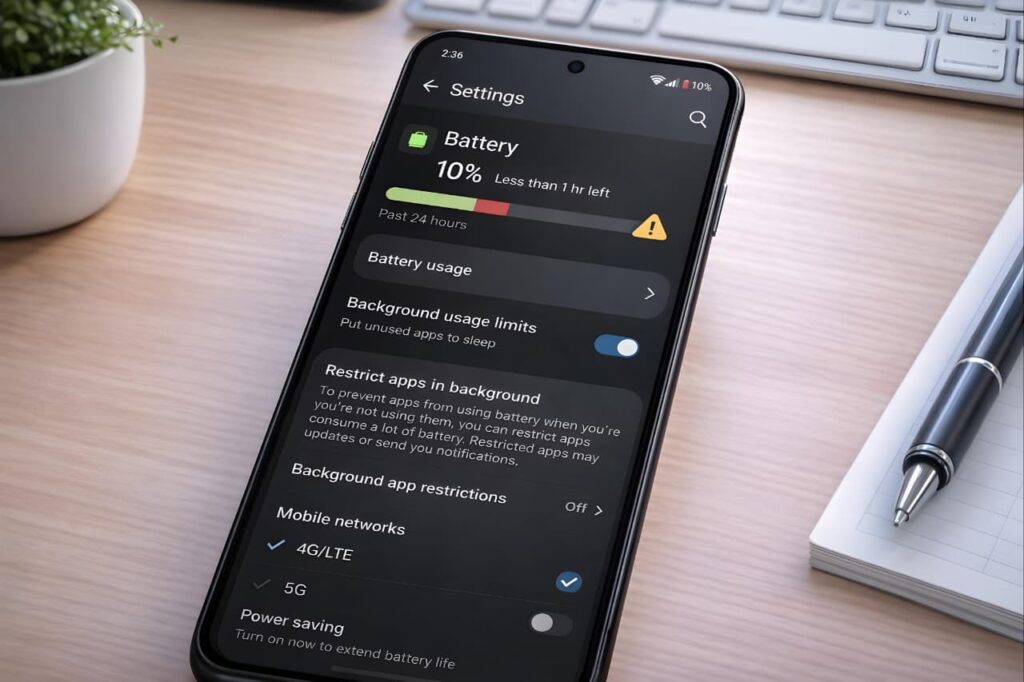
1. Check Battery Usage Statistics
Go to:
Settings → Battery → Battery Usage
Identify which app is consuming the most power.
If social media apps, gaming apps, or unknown apps are draining battery excessively, restrict or uninstall them.
This simple step alone often solves 20% of battery drain problems.
2. Restrict Background Activity Properly
Many apps continue working in the background even when not used.
Go to:
Settings → Apps → Select App → Battery → Background Restriction → Choose “Restricted”
Avoid restricting important apps like messaging apps if you need notifications.
This is a core battery fast drain problem solution that many users ignore.
3. Reduce Refresh Rate from 120Hz to 60Hz
High refresh rate consumes more power.
Go to:
Settings → Display → Refresh Rate → Select 60Hz
Battery improvement is noticeable without major impact on daily use.
4. Switch from 5G to 4G When Not Needed
5G consumes more power, especially in weak signal areas.
Go to:
Settings → Mobile Network → Preferred Network Type → Choose 4G/LTE
If signal strength is low, your phone constantly searches for network towers, increasing battery drain.
Using Wi-Fi in stable areas helps reduce this issue.
5. Disable Always-On Display
Always-On Display continuously consumes power.
Go to:
Settings → Lock Screen → Always-On Display → Turn Off
Standby battery life improves significantly.
6. Optimize Location Settings
Location services are major battery consumers.
Go to:
Settings → Location
Turn off Wi-Fi scanning
Turn off Bluetooth scanning
Set location permission to “Allow only while using the app”
Avoid keeping GPS ON all day.
7. Reduce Screen Timeout
Set screen timeout to 30 seconds or 1 minute.
Settings → Display → Screen Timeout
Longer screen-on time directly increases battery usage.
8. Enable Dark Mode
If your phone has AMOLED display, dark mode saves battery.
Settings → Display → Dark Mode → Enable
Dark pixels consume less power than white pixels.
9. Disable Unnecessary Connectivity Features
Turn off:
Bluetooth
NFC
Hotspot
Nearby Share
Auto device scanning
Even idle connectivity services consume standby power.
10. Update System Software
Manufacturers release battery optimization updates.
Go to:
Settings → Software Update → Check for Updates
Always keep your device updated.
For more official battery optimization guidelines, you can refer to the Google Android support page.
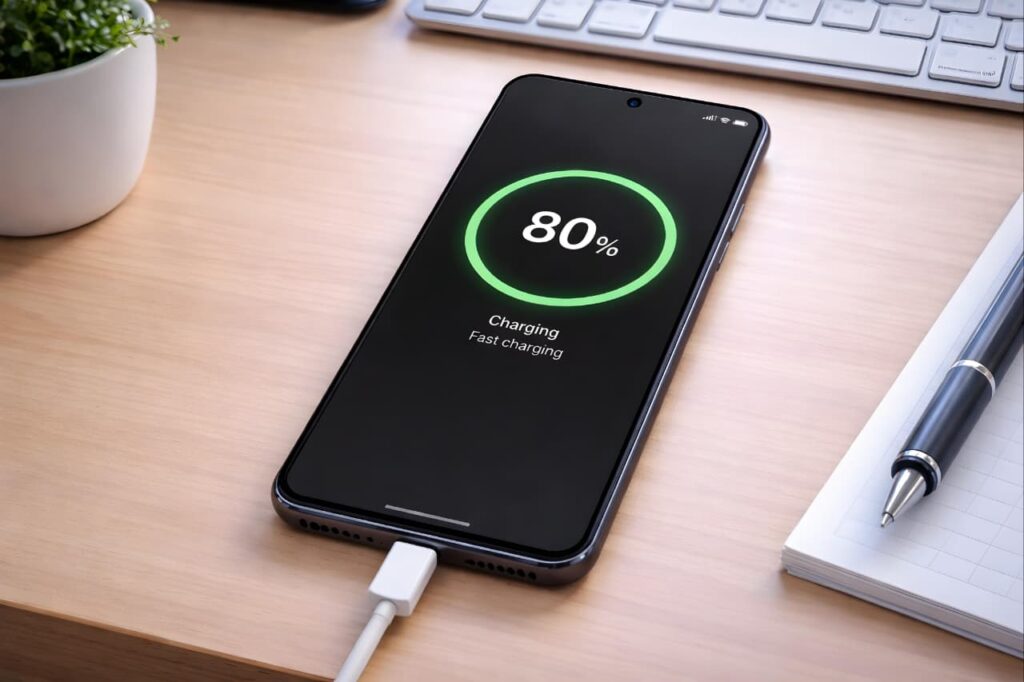
11. Improve Charging Habits
Incorrect charging reduces battery health over time.
Avoid:
Charging overnight daily
Using duplicate chargers
Gaming while charging
Draining battery to 0% frequently
Charging in high temperature
Best practice:
Maintain battery between 20% and 80%.
Good charging habits are part of long-term battery fast drain problem solution.
Following proper charging practices is an important part of any battery fast drain problem solution strategy.
Using your phone while charging not only increases battery drain but also contributes to phone overheating, especially during gaming or video streaming.
12. Disable Keyboard Vibration
Keyboard haptic feedback consumes small but continuous power.
Keyboard Settings → Turn off Haptic Feedback
13. Reduce Widgets and Live Wallpapers
Widgets refresh in background regularly.
Remove unnecessary widgets and avoid live wallpapers.
Use static wallpaper instead.
14. Limit Notifications
Each notification wakes your screen.
Disable notifications for:
Shopping apps
Gaming apps
News apps
This improves standby performance.
15. Disable Auto Sync for Unnecessary Accounts
Settings → Accounts → Auto Sync → Turn off for unused accounts
Background sync drains power silently.
16. Check for Malware or Suspicious Apps
Signs include:
Phone heating without usage
Sudden battery drops
Unknown apps installed
Install apps only from trusted sources and remove suspicious ones.
17. Factory Reset (If Nothing Works)
Backup data before performing reset.
Settings → System → Reset → Factory Data Reset
This removes hidden bugs and restores system performance.
18. Check Battery Health
If your phone is more than 2–3 years old, battery aging may be the issue.
If battery health is below 75%, consider battery replacement.
Hardware aging cannot be fixed by settings.
How Much Battery Drain Is Normal?
Normal usage:
1–2% per hour in standby
5–10% per hour moderate usage
15–25% per hour gaming
If drain exceeds this, optimization is required.
Advanced Battery Fast Drain Problem Solution Tips
For deeper battery optimization:
Disable usage access for unnecessary apps
Turn off auto app updates over mobile data
Use Lite versions of heavy apps
Enable Adaptive Battery (if available)
Reduce background process limit in Developer Options (advanced users only)
These methods enhance overall battery performance.
Frequently Asked Questions (FAQ)
1. Why is my Android battery draining so fast even when not using it?
Background apps, poor network signal, Always-On Display, and auto-sync are common reasons. Checking battery usage settings will help identify the cause.
Applying the correct battery fast drain problem solution can significantly improve your device performance.
2. Does 5G drain battery faster than 4G?
Yes. 5G consumes more power, especially in weak coverage areas. Switching to 4G can improve battery life.
3. Is it bad to charge phone overnight?
Occasionally it is fine, but daily overnight charging can reduce battery lifespan over time.
4. How can I improve battery health?
Avoid overheating, overcharging, and draining to 0%. Maintain charge between 20% and 80%.
5. When should I replace my phone battery?
If battery health drops below 70–75% and drains quickly even after optimization, replacement is recommended.
Conclusion
Battery drain issues are usually caused by background apps, network settings, display configurations, and charging mistakes — not hardware failure.
By following this complete battery fast drain problem solution guide, you can significantly increase your Android battery life without spending money.
Start with simple changes like restricting background apps and reducing refresh rate. Then move to advanced optimization if needed.
Small adjustments can make a big difference.