
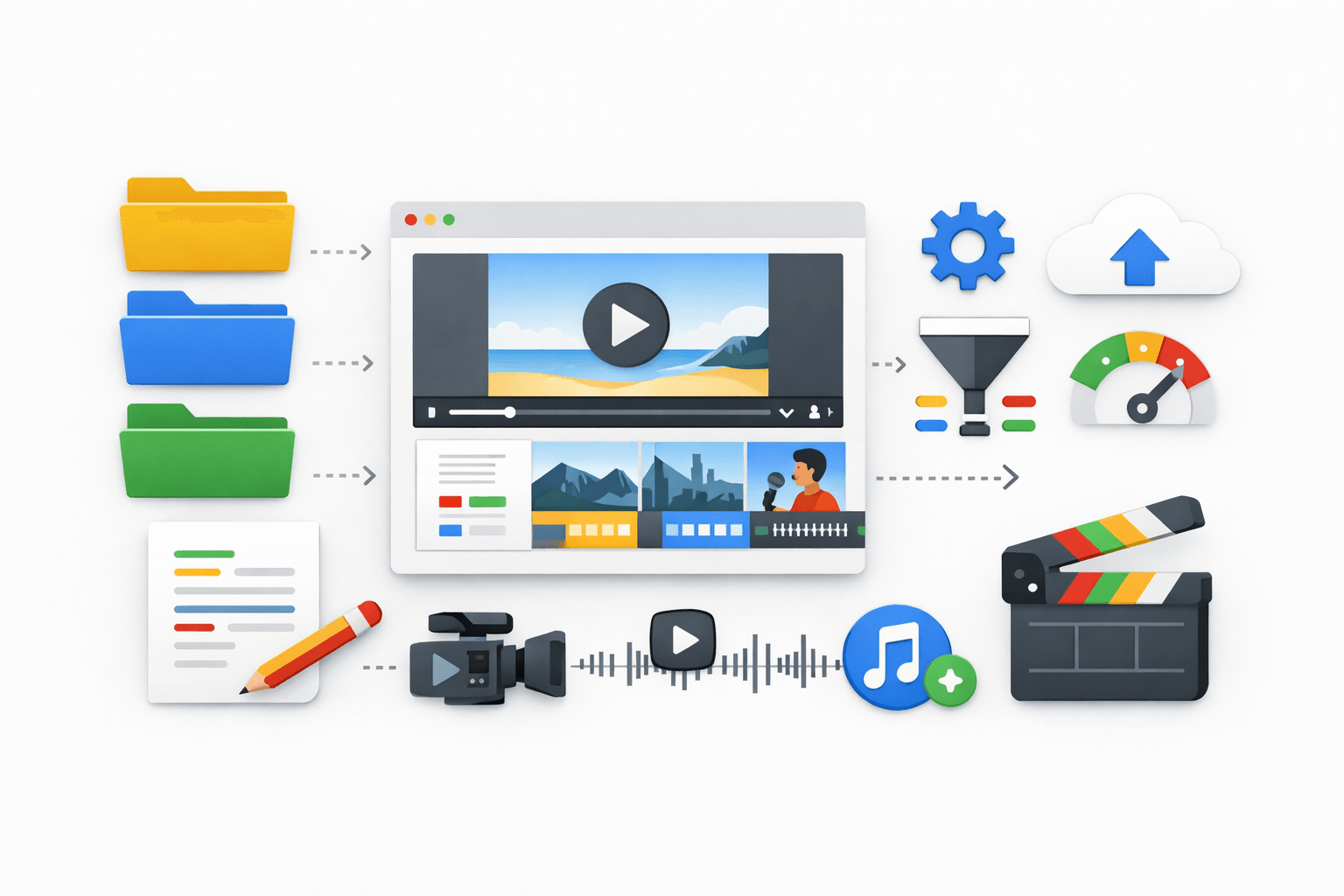
Google Flow Video Creation: A Practical Guide Based on Real Usage
Introduction
Video creation today is not just about editing clips and adding music. A lot of time goes into planning, organizing files, managing revisions, and keeping everything structured. This is exactly where Google Flow video creation becomes useful.
This workflow platform is not a video editor. Instead, it works as a workflow support system that helps creators manage the entire video production process more efficiently. After using it for real projects, I realized that its biggest strength lies in organization and automation, not flashy features.
This article explains how Google Flow can be used for video creation, what types of videos it supports, and how you can use it in a realistic, practical way.
If you are interested in exploring video tools from Google Labs, this guide on the Google Lab video tool explains how experimental video platforms work.
👉 Official Google Flow Page:
https://labs.google/fx/tools/flow
What is Video Creation Workflow?
Google Flow video creation means using this platform to organize and automate the workflow behind video projects. It helps manage scripts, assets, folders, and output files so that nothing gets lost or mixed up.
In simple words, this system handles the process, while your editing software handles the visual work.
Once I understood this distinction, using the workflow became much more effective.

Types of Videos You Can Create Using This Workflow
Short Videos and Social Media Content
This workflow works very well for short videos like:
Reels and shorts
Promotional clips
- • Small educational videos
When creating multiple short videos, manual file handling quickly becomes messy. This system solves this problem by keeping everything structured.
Story-Based and Cinematic Videos
For storytelling projects such as short films or narrative videos, this workflow helps organize:
Scene breakdowns
Reference images
Multiple versions of the same video
This saves time, especially during revisions.
Marketing and Brand Videos
Businesses can use this video workflow for:
Product demos
Brand introduction videos
Campaign-related content
Consistency becomes easier when the workflow is automated.
Educational and Tutorial Videos
If you create tutorials or learning content, this platform helps keep scripts, visuals, and final outputs neatly arranged.

How This Workflow Supports Video Production
Workflow Automation
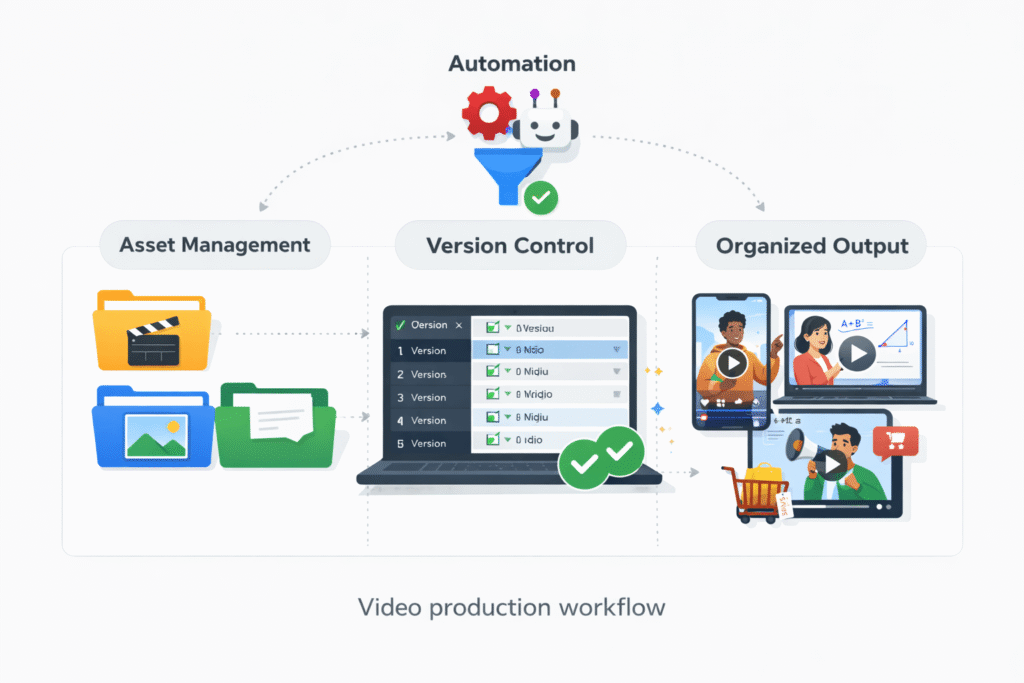
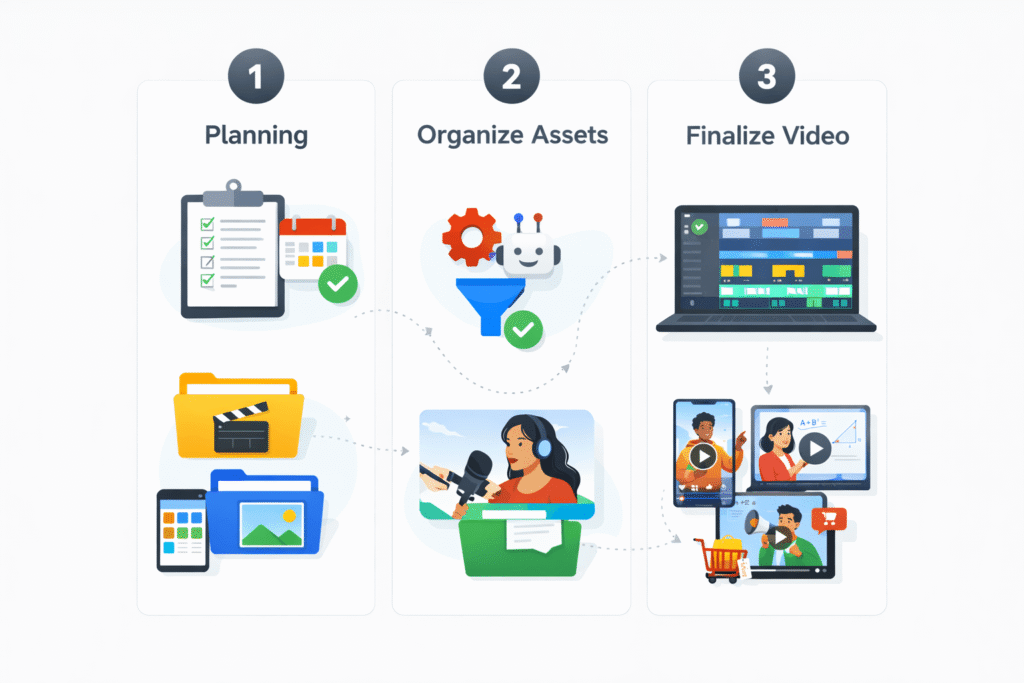
Workflow connects different steps of video production:
Planning
Asset organization
Review preparation
Final output storage
This reduces repetitive manual work.
Asset Management
Images, videos, and audio files are automatically sorted into proper folders. This may sound simple, but in real projects, it makes a big difference.
Version Control
Managing multiple versions manually can be confusing. Workflow helps avoid this problem by keeping versions clearly separated.
How to Create Videos Using This Workflow
Step 1: Start With a Clear Idea
Before creating any workflow, decide what the video is about and who it is for. This step is often ignored, but it matters.
Step 2: Set Up a Basic Flow
Go to the official Google Flow platform and create a new workflow:
https://labs.google/fx/tools/flow
Start simple. A basic flow is more than enough in the beginning.
Step 3: Organize Scripts and Scenes
Google Flow can automatically create folders for scripts and scene notes. This keeps everything easy to find later.
Step 4: Upload and Sort Assets
Once assets are added, Google Flow sorts them based on your workflow rules. This saves time during editing.
Step 5: Review and Finalize Outputs
Final videos and review versions are stored separately, which avoids confusion during feedback rounds.
My Real Experience Using This Workflow
When I first started using this tool, I honestly underestimated it. At first, setting up the workflow felt a bit slow. There was some trial and error.
But after completing a few video projects, the benefits became clear. File management stopped being a headache. I always knew where scripts, assets, and final videos were stored. Over time, this saved hours of manual work.
It did not make videos better creatively. It made the process cleaner.
That alone made it worth using.
Practical Benefits and Honest Limitations
What I Liked
Better organization
Less confusion during revisions
Faster setup for repeat projects
What to Keep in Mind
This workflow does not replace editing tools
Planning the workflow takes time initially
Knowing these limitations helps use this workflow realistically.
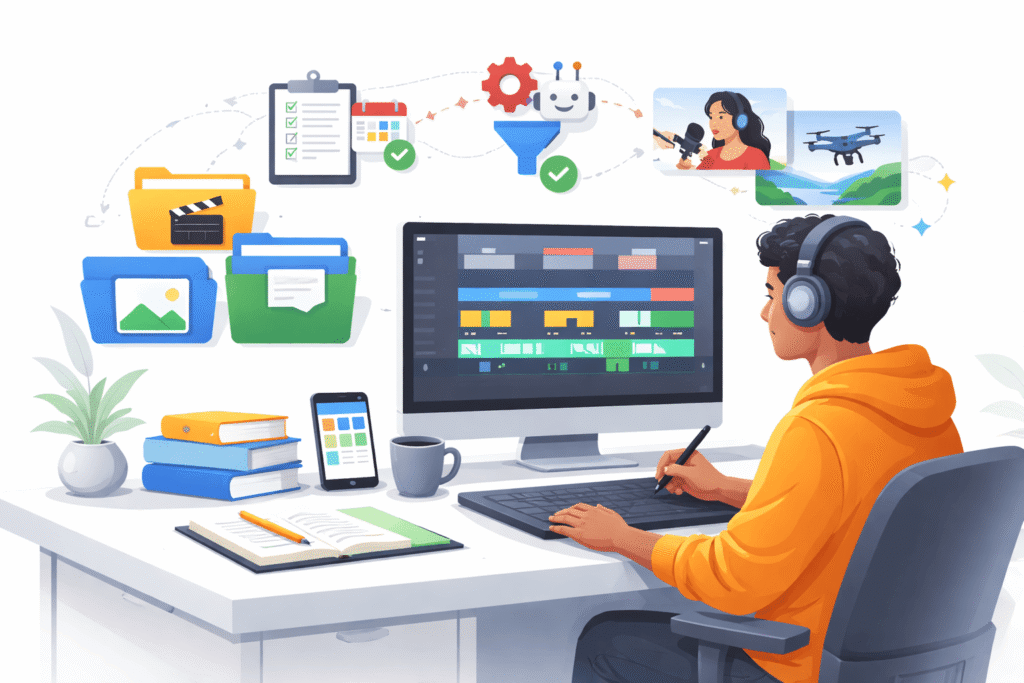
Who Should Use Google Flow for Video Creation?
Content creators handling multiple videos
Small businesses producing regular video content
Educators creating structured tutorials
If organization is a problem, Google Flow is helpful.
Security and Data Safety
Google Flow follows Google’s standard security practices. Users control permissions and access.
More details are available at:
https://policies.google.com/security
Frequently Asked Questions
Is Google Flow a video editing tool?
No. Google Flow manages workflows, not video editing.
Can beginners use Google Flow?
Yes. The visual workflow builder is beginner-friendly.
Is Google Flow useful for small creators?
Yes. Even small projects benefit from better organization.
Conclusion
Google Flow video creation is about improving how videos are made, not changing how they look. By organizing workflows, managing assets, and reducing manual effort, Google Flow helps creators work more efficiently.
For anyone struggling with messy folders and repeated processes, This workflow is a practical solution worth exploring.