Your Google account is one of the most valuable digital accounts you own. It is connected to Gmail, Google Drive, Google Photos, YouTube, Android backups, saved passwords, and many other Google services.
If a hacker gains access to your Google account, they may be able to read your emails, access personal files, reset passwords for other accounts, and potentially steal sensitive information.
Many users still rely on a password alone for protection. Unfortunately, passwords can be exposed through phishing attacks, malware, public data breaches, and credential theft. Even a strong password may not be enough if it falls into the wrong hands.
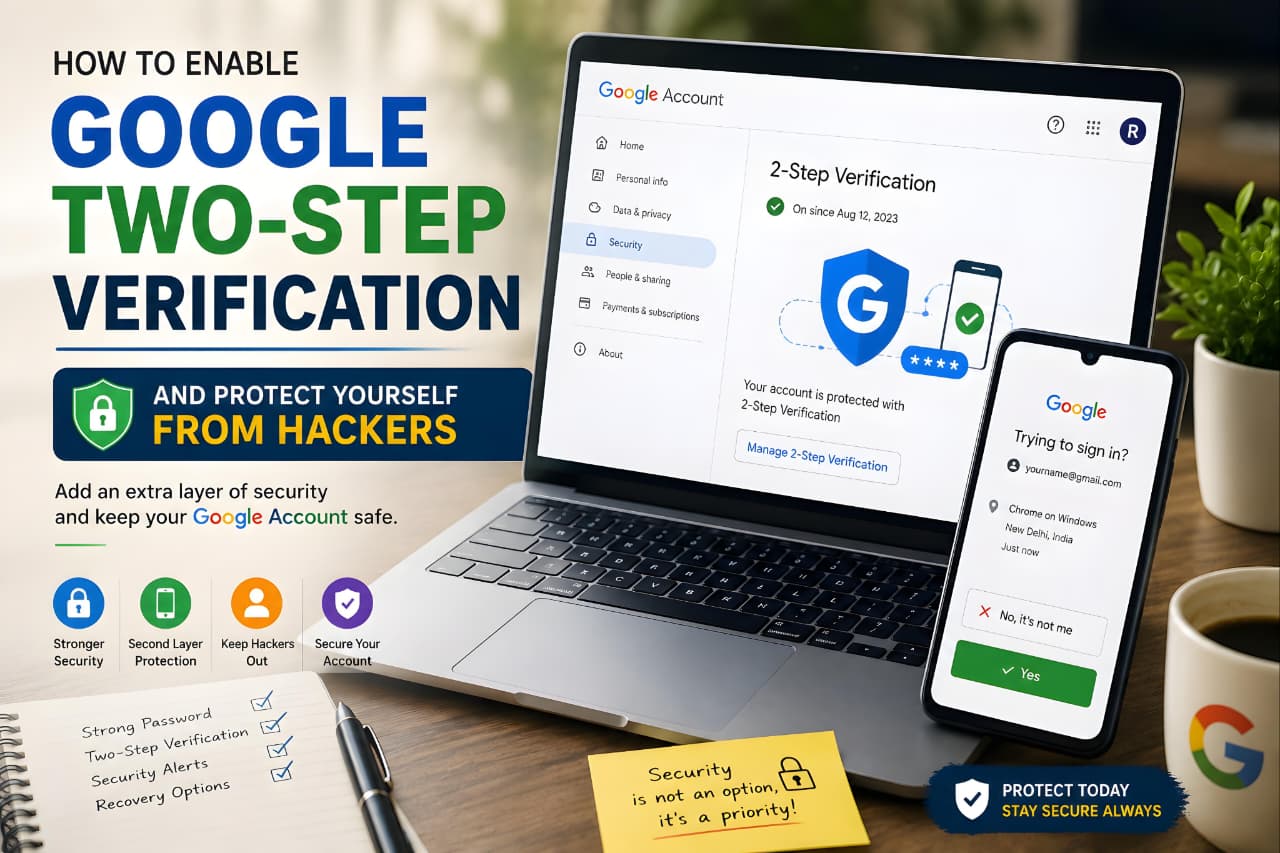
This is why Google encourages users to enable Google Two-Step Verification. This additional security layer requires a second authentication step after entering your password, making it much harder for attackers to access your account even if they know your password.
Google states that 2-Step Verification helps keep unauthorized users out of your account by requiring a second verification method in addition to your password.
Google provides official information about enabling and managing Google 2-Step Verification through its support documentation.
What Is Google Two-Step Verification?
Google Two-Step Verification is a security feature that requires two separate forms of authentication before someone can sign in to your Google account.
Normally, signing in only requires:
- Email address
- Password
When Google Two-Step Verification is enabled, Google asks for an additional verification method after the password is entered.
This second verification method may include:
- Google Prompt
- Google Authenticator code
- Security Key
- Backup Code
- Passkey
- Phone verification
Because hackers often steal passwords, adding a second authentication factor dramatically improves account security.
This security approach is commonly known as Two-Factor Authentication (2FA).
Why Every Google User Should Enable Google Two-Step Verification
Many people assume cybercriminals only target businesses or celebrities. In reality, attackers frequently target ordinary users because they often use weaker security settings.
Your Google account may contain:
- Personal emails
- Banking notifications
- Family photos
- Cloud storage files
- Saved passwords
- Business documents
If someone gains unauthorized access, the consequences can be serious.
Google explains that 2-Step Verification can help prevent account takeovers even when a password has already been compromised.
While enabling 2-Step Verification is one of the best security improvements you can make, learning how to protect your Google account using recovery options, security alerts, and account monitoring can further strengthen your overall security.
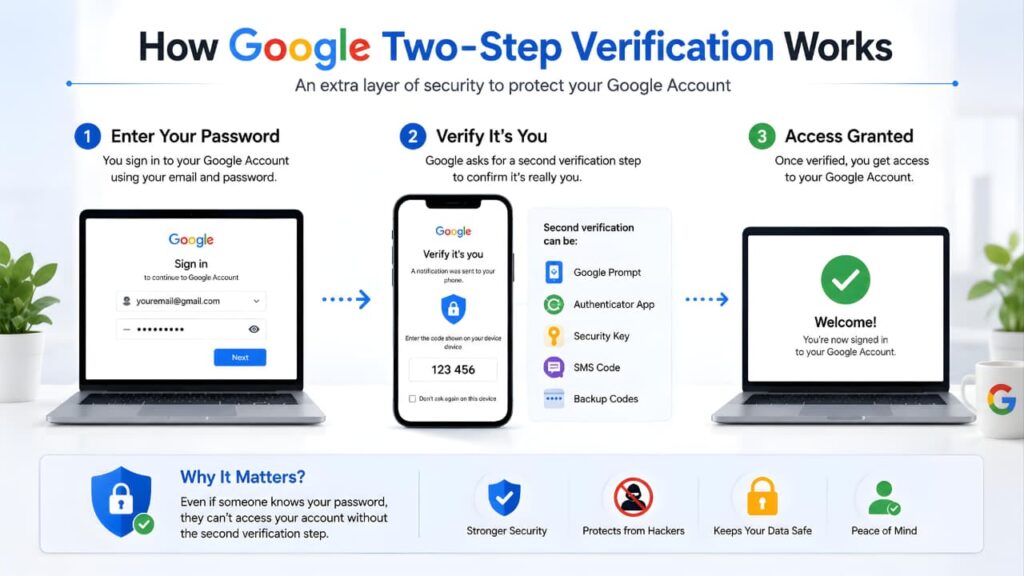
How Google Two-Step Verification Works
Google Two-Step Verification follows a simple process.
Step 1: Enter Your Password
You sign in using your Google account credentials as usual.
Step 2: Complete a Second Verification Step
After your password is verified, Google requests an additional authentication method.
Depending on your settings, this may be:
- Google Prompt
- Authenticator code
- Security Key
- Backup Code
- Passkey
Step 3: Access Is Granted
Only after the second verification step is completed successfully will Google allow access to the account.
This additional layer makes it much more difficult for attackers to gain access.
Google’s authentication system is designed to provide secure sign-in experiences through tools such as passkeys, Google Prompt, and Two-Step Verification.
You can learn more about Google’s Authentication Tools for Secure Sign-In through Google’s Safety Center.
Why Passwords Alone Are No Longer Enough
For many years, passwords were considered sufficient protection.
Today, cybercriminals use increasingly sophisticated techniques to steal login credentials.
Common attack methods include:
- Phishing attacks
- Data breaches
- Credential stuffing
- Malware infections
- Social engineering
When attackers obtain passwords, they often attempt to use them across multiple services.
This means a password leaked from one website could potentially be used to target your Google account.
Many phishing attacks rely on fake login pages that closely resemble legitimate websites. Understanding how to identify fake websites can help you recognize warning signs before entering your credentials and reduce the risk of account compromise.
Common Threats Google Two-Step Verification Helps Prevent
Phishing Attacks
Phishing remains one of the most common cybersecurity threats.
Attackers create fake login pages that look identical to trusted websites and trick users into entering their credentials.
Even if a password is stolen, Two-Step Verification can help prevent unauthorized access because attackers still need the second verification factor.
Credential Stuffing
Many users reuse passwords across multiple websites.
If a website experiences a data breach, attackers often test stolen credentials against other online services.
This attack technique is known as credential stuffing.
Automated Login Attacks
Cybercriminals use automated tools capable of testing thousands of username and password combinations every hour.
Accounts protected by Two-Step Verification are significantly harder to compromise.
Unauthorized Access to Personal Data
A compromised Google account may expose:
- Emails
- Photos
- Documents
- Contacts
- Saved passwords
- Payment information
Improving your overall digital security and learning how to protect your personal data online can help reduce the impact of phishing attacks, identity theft, and account breaches.
Benefits of Google Two-Step Verification
Enabling Google Two-Step Verification provides several important advantages.
Better Account Security
Even if your password is exposed, attackers must still complete the second authentication step.
Improved Gmail Protection
Your Gmail account often acts as the recovery email for many other services.
Protecting Gmail helps protect multiple accounts at the same time.
Enhanced Google Drive Security
Many users store sensitive documents in Google Drive.
Two-Step Verification helps reduce the risk of unauthorized access.
Stronger Protection Across Google Services
Your Google account provides access to:
- Gmail
- YouTube
- Google Drive
- Google Photos
- Google Calendar
- Google Meet
Securing one account helps secure your entire Google ecosystem.
Google recommends regularly reviewing your account through Google Security Checkup to identify vulnerabilities and strengthen your security settings.
Requirements Before Enabling Google Two-Step Verification
Before enabling Google Two-Step Verification, make sure you have:
An Active Google Account
You must be able to sign in successfully.
Updated Recovery Information
Verify that your recovery email and recovery phone number are current.
Access to a Trusted Device
Most authentication methods require access to a smartphone or trusted device.
A Strong Password
Two-Step Verification works best when combined with a unique and secure password.
If you’re setting up security features for the first time, understanding how to create a Google account correctly can make the process easier and help ensure that recovery options are configured properly.
Step-by-Step Guide to Enable Google Two-Step Verification
Step 1: Open Your Google Account
Sign in to your Google account.
Step 2: Go to Security
Select the Security section from your Google Account dashboard.
Step 3: Find 2-Step Verification
Under “How you sign in to Google,” select 2-Step Verification.
Step 4: Verify Your Password
Google may ask you to enter your password again to confirm your identity.
Step 5: Choose a Verification Method
Select your preferred method, such as:
- Google Prompt
- Authenticator App
- Security Key
- Backup Codes
Step 6: Complete Setup
Follow the on-screen instructions provided by Google.
Step 7: Test Your Security
Sign out and sign in again to confirm that the second verification step is working correctly.
Once completed, your account will be significantly more secure than a password-only account.
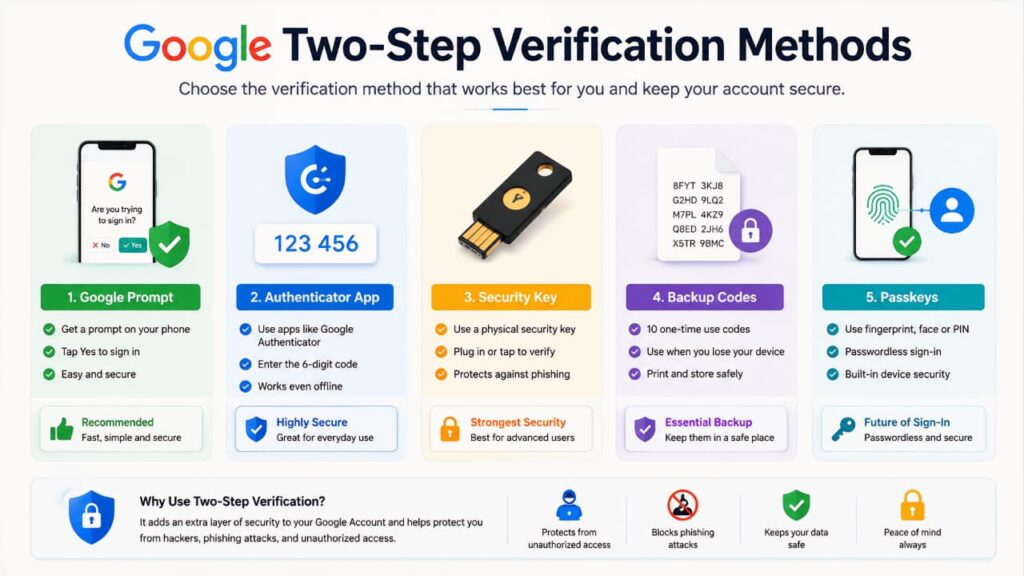
Different Verification Methods Available in Google Two-Step Verification
One of the biggest advantages of Google Two-Step Verification is that users can choose from multiple authentication methods based on their security needs and convenience.
Google currently supports several verification options, allowing users to select the method that works best for their devices and usage habits.
Let’s look at the most common options.
Google Prompt
Google Prompt is the default and most popular verification method.
When someone attempts to sign in to your Google account, a notification appears on a trusted device asking whether you approve the login attempt.
You simply tap:
- Yes
- No
This makes authentication fast and user-friendly while maintaining strong security.
Google explains how Google Prompts help verify sign-in attempts securely using trusted devices connected to your Google account.
Google Authenticator
Google Authenticator generates temporary verification codes directly on your smartphone.
Unlike SMS verification, Authenticator codes work even when your device is offline.
Benefits include:
- Works without internet access
- Faster authentication
- Better protection against SIM-swapping attacks
- Easy setup
Many cybersecurity professionals recommend authenticator apps because they provide stronger protection than traditional SMS verification.
As digital security becomes increasingly important in modern technology, understanding concepts such as multimodal AI can help users better understand how intelligent systems interact with personal information and online services.
Security Keys
Security Keys are physical devices designed specifically for secure authentication.
Users connect the key through:
- USB
- NFC
- Bluetooth
To complete the login process.
Security Keys are widely considered one of the strongest forms of account protection because they are highly resistant to phishing attacks.
Google provides additional information about using Security Keys for Two-Step Verification to strengthen account security.
Backup Codes
Backup Codes are emergency access codes generated by Google.
Each code can be used once to sign in when other authentication methods are unavailable.
Backup Codes are useful if:
- Your phone is lost
- Your device is damaged
- You cannot access your Authenticator app
Keeping Backup Codes stored safely can prevent account lockouts.
Google explains how users can generate and manage Backup Codes for account recovery when other verification methods are unavailable.
Passkeys
Passkeys are a newer authentication method supported by Google.
They allow users to sign in using:
- Fingerprint authentication
- Face recognition
- Device screen lock
Passkeys reduce dependence on passwords and provide strong protection against phishing attacks.
Google provides detailed guidance about using Passkeys for Google Accounts as a secure sign-in alternative.
Which Verification Method Is the Most Secure?
Not all authentication methods provide the same level of protection.
Here is a general comparison:
| Method | Security Level | Convenience |
|---|---|---|
|
Security Key |
Very High |
Medium |
|
Passkey |
Very High |
High |
|
Google Prompt |
High |
Very High |
|
Authenticator App |
High |
High |
|
Backup Codes |
Medium |
Medium |
|
SMS Verification |
Basic |
High |
For most users:
- Google Prompt provides the best balance between convenience and security.
- Authenticator Apps offer strong protection.
- Security Keys provide maximum security.
If protecting highly sensitive information is a priority, Security Keys and Passkeys are generally considered the strongest options.
Common Mistakes People Make
Even after enabling Google Two-Step Verification, users sometimes make security mistakes that reduce its effectiveness.
Ignoring Security Alerts
Google frequently sends alerts when unusual account activity is detected.
Ignoring these warnings can allow suspicious activity to continue unnoticed.
Users should regularly review Google Critical Security Alert notifications because they often contain important information about suspicious login attempts, unknown devices, or unusual account behavior.
Reusing Passwords
Using the same password across multiple websites increases the risk of account compromise.
If one website experiences a breach, attackers may attempt to use those credentials elsewhere.
Always use a unique password for your Google account.
Failing to Save Backup Codes
Many users generate backup codes but never store them properly.
Without backup codes, account recovery can become more difficult if access to authentication devices is lost.
Falling for Fake Login Pages
Even with Two-Step Verification enabled, users should remain cautious when entering login credentials.
Phishing websites continue to evolve and often look convincing.
Learning how to identify fake websites can help users recognize suspicious login pages before entering passwords or verification codes.
Additional Google Security Settings You Should Enable
Google Two-Step Verification is extremely important, but it should not be the only security measure protecting your account.
Security Checkup
Google’s Security Checkup tool reviews:
- Connected devices
- Recent activity
- Recovery options
- Third-party app access
Google recommends using Google Security Checkup regularly to identify potential security weaknesses and improve account protection.
Recovery Email Address
Always maintain an active recovery email address.
This helps restore access if login issues occur.
Recovery Phone Number
Your recovery phone number plays a critical role in account recovery.
Ensure it remains current.
Sign-In Activity Monitoring
Review recent account activity regularly.
Unknown devices or unfamiliar locations may indicate suspicious activity.
Passkeys
Passkeys provide a secure passwordless authentication experience and are becoming increasingly important for account security.
Signs Someone May Be Trying to Access Your Google Account
Google often warns users when unusual activity is detected.
Watch for:
- Unexpected login alerts
- Password reset emails you didn’t request
- New devices appearing in account activity
- Changes to recovery information
- Unrecognized locations in sign-in history
Understanding how to protect your Google account can help you identify suspicious activity quickly and take action before attackers gain access.
What To Do If Your Google Account Is Hacked
If you believe someone has gained unauthorized access to your account, act immediately.
Change Your Password
Update your password as soon as possible.
Review Account Activity
Check recent login history and identify suspicious activity.
Remove Unknown Devices
Sign out of devices you do not recognize.
Update Recovery Information
Verify that your recovery email and phone number remain under your control.
Enable Two-Step Verification
If it is not already enabled, activate it immediately.
Google provides an official Account Recovery Guide that helps users regain access to compromised accounts and secure them against future attacks.
Expert Tips to Keep Your Google Account Safe
Following a few simple habits can dramatically improve account security.
Use a Unique Password
Avoid reusing passwords across different websites.
Enable Google Two-Step Verification
Always keep Two-Step Verification active.
Save Backup Codes Securely
Store backup codes in a safe location.
Monitor Security Alerts
Review alerts immediately.
Avoid Public Wi-Fi for Sensitive Logins
Public networks can increase security risks.
Keep Devices Updated
Install software and security updates regularly.
Protect Your Personal Information
Strengthening your cybersecurity habits and learning how to protect your personal data online can reduce the risk of identity theft, phishing attacks, and unauthorized account access.
Frequently Asked Questions
Is Google Two-Step Verification Free?
Yes. Google provides Two-Step Verification at no cost for personal Google accounts.
Can I Disable Google Two-Step Verification Later?
Yes. You can disable it through your Google Account Security settings, although doing so reduces account security.
What Happens If I Lose My Phone?
You can use backup codes, recovery options, or alternative authentication methods to regain access.
Is Google Authenticator Better Than SMS Verification?
In many situations, yes. Authenticator apps are generally considered more secure because they are less vulnerable to SIM-swapping attacks.
Can Hackers Bypass Google Two-Step Verification?
No security system is perfect, but Two-Step Verification significantly reduces the risk of unauthorized access and protects against many common attack methods.
Does Google Two-Step Verification Work on Android and iPhone?
Yes. Google Two-Step Verification works across Android devices, iPhones, tablets, and desktop computers.
Conclusion
Cybercriminals continue to develop new methods for stealing passwords and compromising online accounts. Because of this, relying solely on a password is no longer enough to protect sensitive information.
Google Two-Step Verification adds a powerful second layer of security that helps prevent unauthorized access even when passwords are exposed. Whether you choose Google Prompt, an Authenticator app, a Security Key, Backup Codes, or Passkeys, enabling this feature can significantly improve your account protection.
Combined with strong passwords, updated recovery information, regular security reviews, and safe online habits, Google Two-Step Verification is one of the most effective ways to secure your Google account and protect yourself from hackers.
Taking a few minutes to enable this feature today could help prevent major security problems in the future.