If WhatsApp Not Sending Messages has become a frustrating problem on your phone, you’re not alone. Millions of users experience message delivery issues every year.
There are few things more frustrating than seeing an important WhatsApp message stuck on the sending screen.
Maybe you’re trying to reply to a customer. Maybe you’re waiting for an urgent response from a family member. Or perhaps you’re sending information that simply cannot wait.
You type the message, tap send, and then… nothing.
If WhatsApp Not Sending Messages has become a recurring problem on your device, you’re not alone. Millions of users face this issue at some point, often without knowing what is causing it.
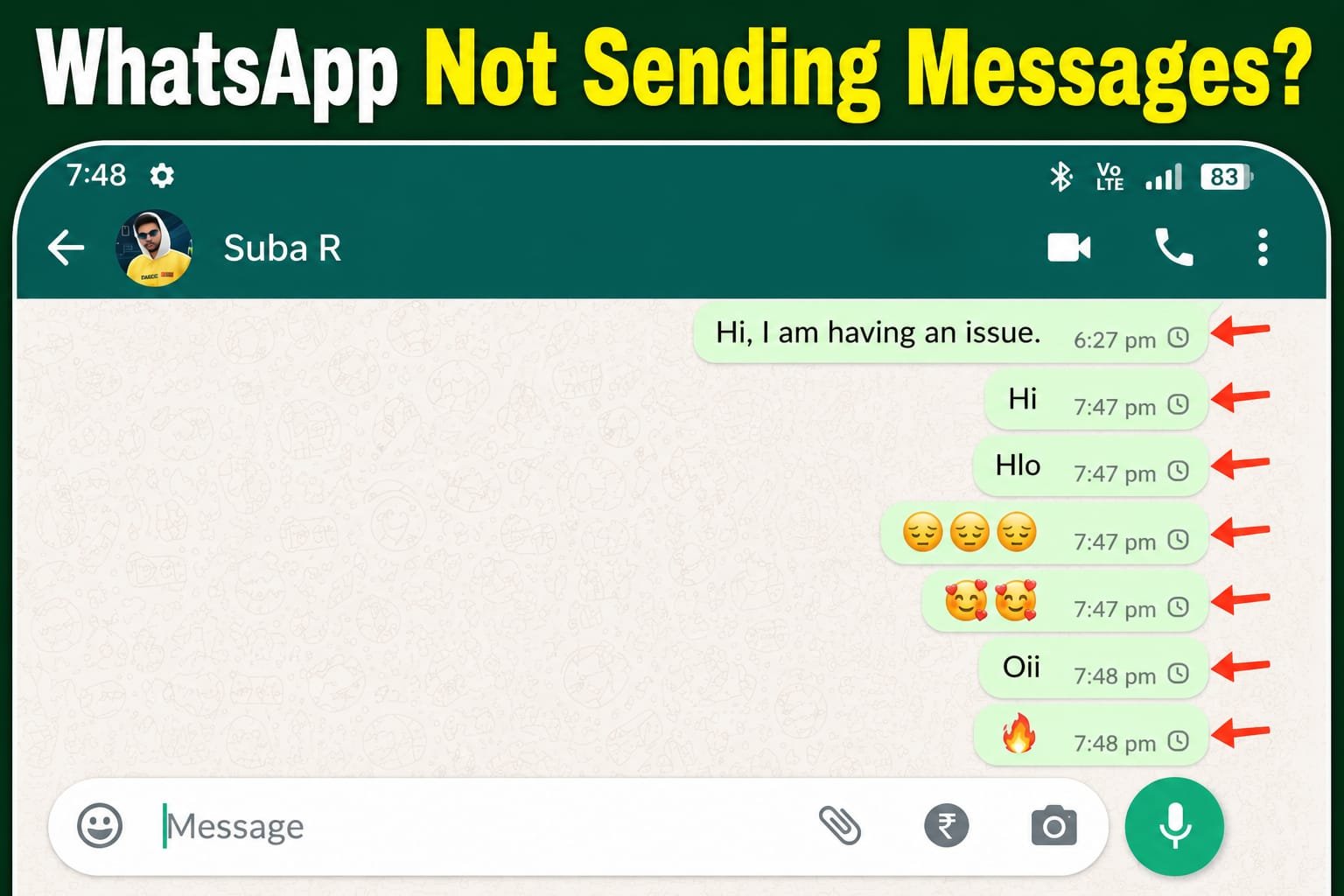
The spinning clock icon refuses to disappear.
The message doesn’t go through.
You try again.
Still nothing.
At this point, most people assume WhatsApp is broken.
The reality is often much simpler.
In most situations, WhatsApp message delivery problems are caused by internet connectivity issues, device settings, app restrictions, or temporary service interruptions. The good news is that these problems are usually easy to identify and fix once you know where to look.
This guide walks you through the most common reasons WhatsApp messages fail to send and shows you exactly what to do to get things working again.
First, Understand What the Symbols Mean
Before you start changing settings on your phone, it’s helpful to understand what WhatsApp is trying to tell you.
A small clock icon usually means the message hasn’t left your device yet.
One gray check mark means WhatsApp received the message, but it hasn’t reached the recipient.
Two gray check marks mean the message has been delivered.
Two blue check marks mean the recipient has read it.
Knowing the difference can save you a lot of unnecessary troubleshooting.
For example, if you’re seeing one gray check mark, the problem might not be on your end at all.
Start With the Simplest Possibility: Your Internet Connection
One of the biggest reasons for WhatsApp Not Sending Messages is an unstable internet connection.
Many users see the Wi-Fi symbol on their phone and assume everything is working normally. Unfortunately, a Wi-Fi connection doesn’t always mean you have internet access.
A weak router, network congestion, ISP problems, or temporary signal drops can all prevent WhatsApp from communicating with its servers.
Before trying anything complicated:
- Open a website.
- Watch a YouTube video.
- Run a quick Google search.
If those services struggle to load, you’ve probably found the source of the problem.
A simple router restart or switching to mobile data often solves the issue immediately.
Sometimes the Problem Isn't Your Phone
In some situations, WhatsApp Not Sending Messages is not caused by your phone at all. The issue may be related to WhatsApp’s servers.
One of the biggest mistakes users make is assuming every WhatsApp issue originates from their device.
Like every online platform, WhatsApp occasionally experiences server outages.
When this happens, users around the world may notice:
- Messages not sending
- Calls failing
- Media uploads getting stuck
- Status updates refusing to load
Before spending thirty minutes changing settings, it’s worth checking whether other users are reporting similar problems.
Official WhatsApp Support:
If the issue is server-related, the only real solution is patience.
Similar connection-related issues can also occur with AI platforms, as explained in How to Fix ChatGPT Something Went Wrong Error.
An Outdated App Can Cause Unexpected Problems
Many users overlook updates, but an outdated app is another common reason for WhatsApp Not Sending Messages.
Most people update their apps eventually.
The problem is that “eventually” can sometimes be months later.
WhatsApp regularly releases updates that fix bugs, improve security, and resolve compatibility issues with newer versions of Android and iOS.
Running an outdated version increases the likelihood of strange behavior.
If you haven’t updated WhatsApp recently, visit your app store and install the latest version before trying anything else.
Many users looking for additional WhatsApp features often explore premium customization options and modified versions of the app. If you’re interested in themes, profile customization, and other advanced features, read our WhatsApp Plus Subscription Explained: New Premium Features, Themes, Profile Updates & More guide.
You’d be surprised how often this simple step fixes the issue.
When Battery Saving Features Become the Enemy
Modern smartphones are aggressive when it comes to battery optimization.
They constantly look for ways to reduce background activity and extend battery life.
While that’s great for your battery, it’s not always great for messaging apps.
In some cases, your phone may restrict WhatsApp from maintaining a stable connection in the background.
As a result:
- Messages get delayed.
- Notifications arrive late.
- Media uploads fail.
- Message delivery becomes unreliable.
If you’re experiencing these symptoms regularly, review your battery optimization settings and make sure WhatsApp is allowed to run normally.
Battery optimization settings can also affect your phone’s overall performance and battery health. If you’re dealing with excessive battery drain alongside messaging issues, check out our Battery Fast Drain Problem Solution – 25 Powerful Ways to Improve Android Battery Life guide for practical tips and long-term fixes.
Check Whether Your Phone Is Running Out of Space
Low storage space can also contribute to the WhatsApp Not Sending Messages problem, especially when media files are involved.
This is another issue that catches people by surprise.
Many users don’t realize how heavily messaging apps rely on available storage.
Every message, image, video, voice note, and temporary file requires space.
When your phone storage becomes critically low, WhatsApp can begin behaving unpredictably.
If you’ve been ignoring storage warnings for weeks, now is a good time to clean things up.
Delete unused apps.
Remove duplicate photos.
Clear old downloads.
Your phone — and WhatsApp — will thank you.
Don't Ignore Date and Time Settings
It sounds strange, but incorrect date and time settings can interfere with secure connections.
WhatsApp relies on encryption and authentication systems that expect your device clock to be accurate.
If you’ve manually changed your time zone or disabled automatic time synchronization, restoring automatic settings may resolve the problem.
It’s a small adjustment that many users overlook.
Public Wi-Fi Isn't Always Your Friend
Airports, hotels, cafés, schools, and office networks often impose restrictions on certain types of internet traffic.
In some cases, messaging services can be affected.
If WhatsApp refuses to send messages while connected to public Wi-Fi, switch to mobile data and test again.
If you regularly use public Wi-Fi networks, it’s also important to understand the risks associated with online privacy and security. Our How to Protect Your Personal Data Online: Advanced Privacy & Cybersecurity Guide covers practical steps to keep your information safe.
If everything starts working instantly, you’ve likely identified the cause.
A Quick Fix That Solves More Problems Than People Realize
Restarting your phone feels almost too simple.
That’s why many people skip it.
But temporary software glitches are surprisingly common.
A restart clears background processes, refreshes network connections, and resolves minor conflicts that may be affecting WhatsApp.
Before attempting advanced troubleshooting, restart the device.
It takes less than a minute and often works.
How to Prevent This Problem in the Future
Most WhatsApp delivery issues are preventable.
A few simple habits can significantly reduce the chances of running into the same problem again:
- Keep WhatsApp updated.
- Avoid extremely low storage space.
- Use reliable internet connections.
- Restart your device periodically.
- Review battery optimization settings.
- Keep your operating system updated.
Keeping Android updated not only improves app compatibility but also provides access to the latest security and safety features. Learn more in our Google Android Fake Call Detection: How It Works and Why It Matters guide.
Think of these as basic maintenance for your phone.
A little prevention can save a lot of frustration later.
Conclusion
When WhatsApp stops sending messages, it’s easy to assume the worst.
If WhatsApp Not Sending Messages continues to affect your device, work through each solution one step at a time instead of trying random fixes.
Fortunately, the issue is usually much less serious than it appears.
In most cases, the problem can be traced back to internet connectivity, device settings, software updates, storage limitations, or temporary server disruptions.
The key is to approach troubleshooting methodically rather than trying random fixes.
Start with your connection, work through the common causes, and you’ll usually find the solution much faster.
More importantly, understanding why these problems occur can help you prevent them from happening again in the future.
When WhatsApp stops sending messages, the issue is usually much less serious than it appears.
In most cases, the problem can be traced back to internet connectivity, device settings, software updates, storage limitations, or temporary server disruptions.
The key is to approach troubleshooting methodically rather than trying random fixes. By understanding the common causes of WhatsApp Not Sending Messages, you can solve the problem faster and avoid similar issues in the future. Many cases of WhatsApp Not Sending Messages can be resolved within minutes once the root cause is identified.
Frequently Asked Questions
Why is WhatsApp not sending messages but connected to the internet?
Even if your phone appears connected, the internet connection may be unstable, restricted, or unable to communicate properly with WhatsApp servers.
Why do my WhatsApp messages show only one gray check mark?
This means WhatsApp has received your message, but it has not yet been delivered to the recipient’s device.
Can low storage affect WhatsApp message delivery?
Yes. Insufficient storage can interfere with message processing, media uploads, and overall app performance.
Should I clear the WhatsApp cache?
If you’re experiencing unusual behavior, clearing the cache can help resolve corrupted temporary files without deleting your conversations.
How do I know if WhatsApp is down?
Check the official WhatsApp Help Center or see whether other users are reporting similar issues at the same time.
Why is WhatsApp Not Sending Messages even when my internet is working?
A stable internet connection alone does not guarantee message delivery. Background restrictions, server issues, outdated app versions, or storage limitations can also prevent messages from being sent.