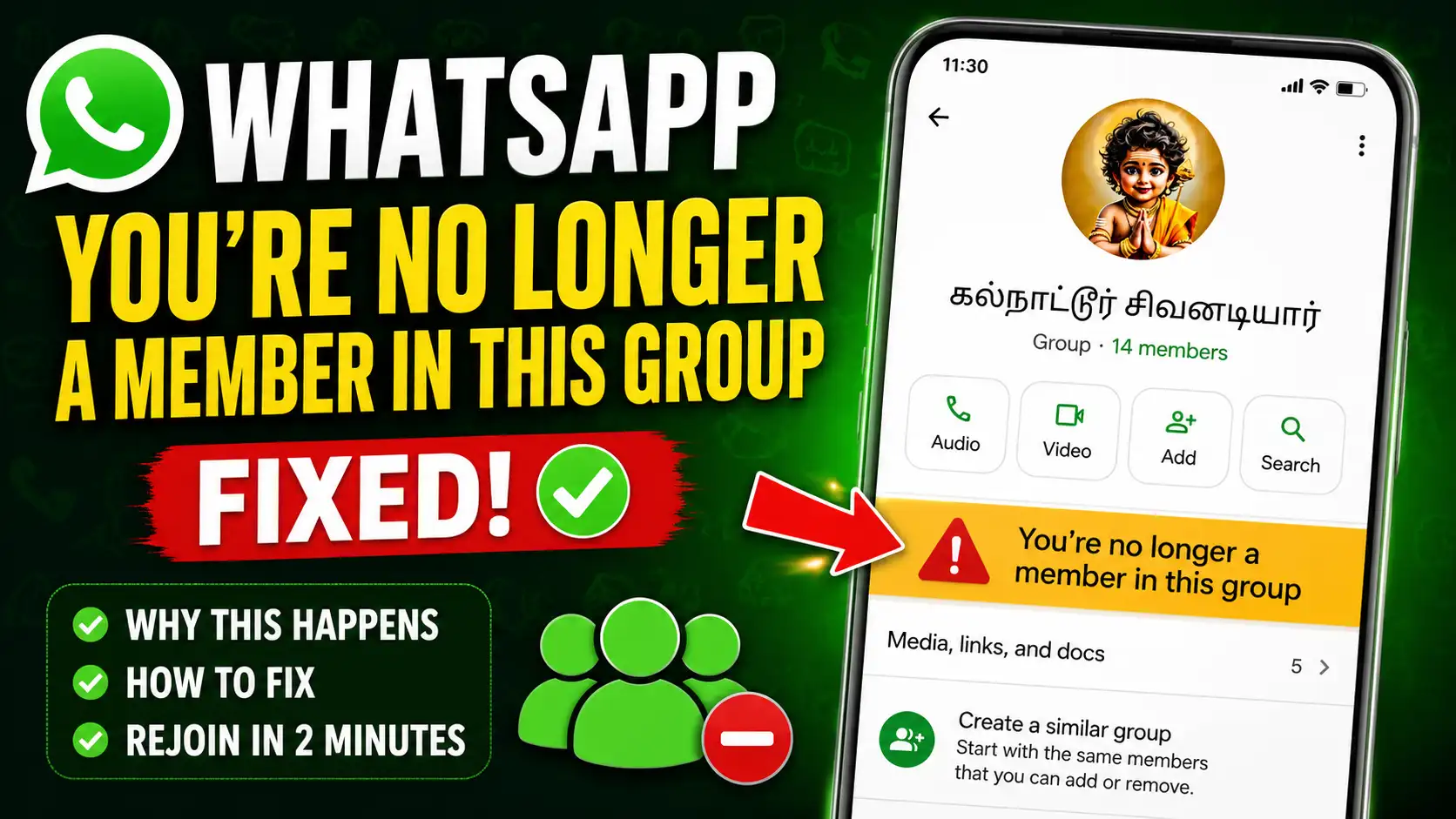
Seeing the message “You’re no longer a member in this group” on WhatsApp can be confusing, particularly when the group still appears in your chat list. You may be able to view older messages but no longer send or receive new messages.
This message usually relates to your membership in that particular WhatsApp group rather than a problem with your phone itself. Your access may have changed because you left the group, were removed by an admin, changed your phone number, or experienced an account or synchronization issue.
In this guide, you’ll learn what the message means, why it can appear, and what you can check to regain access to the group on Android and iPhone.
If you see this message, first confirm whether the group still exists and whether your account is still listed as a member. If you were removed, contacting a group admin is generally the most direct way to regain access.
What Does "You're No Longer a Member in This Group" Mean?
This message means that your WhatsApp account is no longer an active member of that particular group. As a result, you may lose the ability to send messages or participate in the group conversation.
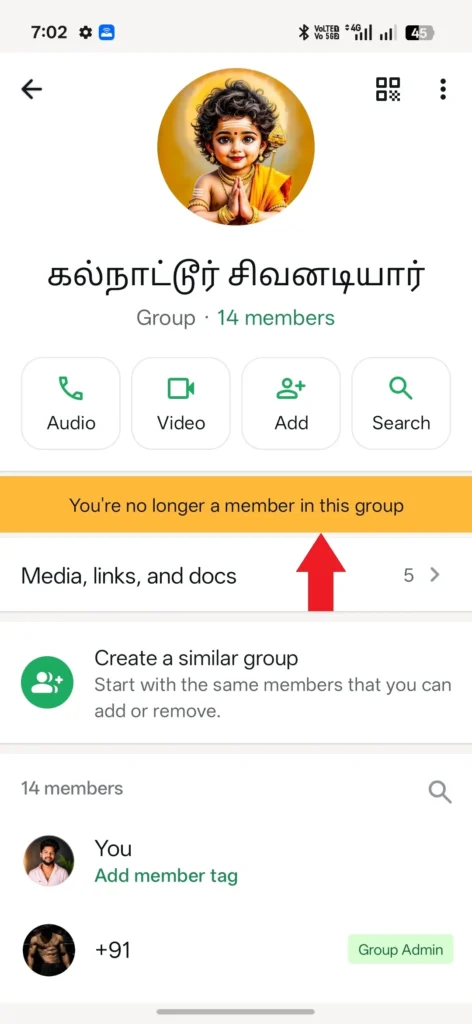
Depending on what happened, the group may remain visible in your chat history even though you can no longer participate in it. Seeing older messages does not necessarily mean that you still have active membership.
If the group is still active, you normally need to be added back by an admin or use a valid invitation method that allows you to rejoin.
Why Does This Error Appear?
Several situations can result in this message appearing in WhatsApp.
Common possibilities include:
- A group admin removed you from the group.
- You left the group accidentally or intentionally.
- The group is no longer available.
- You recently changed your phone number or WhatsApp account.
- An older group invitation link is no longer valid.
- Your WhatsApp account was not restored as expected after reinstalling the app.
- WhatsApp temporarily failed to synchronize some account or group information.
The exact reason depends on what happened to your account and the group. Checking the group’s status and confirming your membership with another group member can help narrow down the cause.
Check Whether the Group Still Exists
Before changing any settings on your phone, first confirm that the group is still active.
If you know another person who is still in the group, ask them to check:
- Whether the group is still active.
- Whether other members can send and receive messages.
- Whether the group name or details have changed.
- Whether your account was removed from the group.
If the group has been deleted or is no longer active, changing WhatsApp settings on your phone will not restore access.
If the group is still active and other members can use it normally, continue with the steps below.
Ask a Group Admin to Add You Again
If an admin removed your account from the group, contacting that admin is the most direct way to restore your membership.
Ask the admin to:
- Add your current WhatsApp phone number back to the group.
- Confirm that they are adding the correct number.
- Send a new group invitation if appropriate.
After you are added again, open WhatsApp and check whether the group appears normally. If the group does not update immediately, closing and reopening WhatsApp may help refresh the conversation list.
If the message continues after the admin has added you, ask the admin to verify that the correct number was added and, where appropriate, provide a fresh invitation link.
Rejoin Using a New Invite Link
If the group admin provides an invitation link, make sure you are using the latest link available.
An older link may no longer work if the group administrator has reset or revoked it. In that situation, using an old saved link may not allow you to join the group.
Ask a current group admin to generate or share a new invitation link and use that link to try joining the group again.
If you’re unsure how WhatsApp group invite links work, refer to the official WhatsApp Help Center for more information.
Make Sure You're Using the Correct Phone Number
WhatsApp groups are associated with the WhatsApp account you are using. If you recently changed your phone number, make sure the account currently registered in WhatsApp is the one associated with your previous group membership.
Open WhatsApp and check the phone number associated with your account.
If you are now using a different number, your previous group membership may not automatically apply to the new number.
If you recently changed your number, use WhatsApp’s official Change Number feature where applicable rather than simply registering a completely different number.
If you’ve recently changed your mobile number, follow the official WhatsApp Change Number Guide to transfer your account correctly.
Restart WhatsApp
If you believe you should still have access to the group, a temporary synchronization problem may sometimes prevent WhatsApp from immediately displaying updated account or group information.
You can try restarting the app:
- Close WhatsApp completely.
- Wait a few seconds.
- Open WhatsApp again.
- Open the affected group and check its current status.
Restarting the app does not restore group membership if an admin has actually removed you. It is simply a basic troubleshooting step to rule out a temporary app or synchronization issue.
Check Your Internet Connection
A stable internet connection is necessary for WhatsApp to communicate with its servers and update account information.
If WhatsApp is not connecting properly, try switching between:
- Wi-Fi
- Mobile data
You can also briefly enable Airplane Mode and then turn it off to reconnect your phone to the network.
After your connection is restored, reopen WhatsApp and check the affected group again.
Keep in mind that an internet connection problem will not restore membership if your account has actually been removed from the group.
Update WhatsApp
Using an outdated version of WhatsApp can sometimes cause unexpected app behavior or compatibility issues.
Open the Google Play Store on Android or the App Store on iPhone and check whether an update is available for WhatsApp.
If an update is available, install it and then reopen WhatsApp.
Updating the app is a general troubleshooting step. It does not, by itself, restore membership if you have been removed from the group.
Clear Cache (Android Only)
On Android, clearing WhatsApp’s temporary cache can sometimes help when the app is displaying outdated or temporary information.
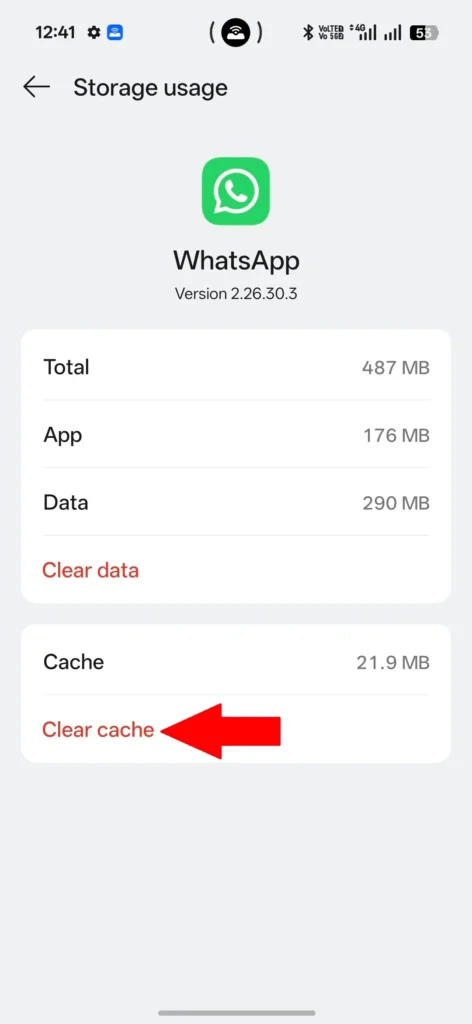
Go to:
Settings → Apps → WhatsApp → Storage → Clear Cache
After clearing the cache, open WhatsApp again and check the affected group.
Do not select Clear Data unless you understand its consequences and have confirmed that your important WhatsApp data is safely backed up. Clearing cache and clearing app data are different actions.
If the problem is caused by a temporary local app issue, clearing the cache may help. However, it will not restore membership if you were actually removed from the group.
Restore WhatsApp Correctly After Reinstalling
If you recently uninstalled and reinstalled WhatsApp, check that you registered the account with the correct phone number and completed the available chat restoration process.
During setup:
- Verify the phone number associated with your WhatsApp account.
- Restore your available backup when prompted.
- Allow the restoration and synchronization process to complete.
If you interrupted the setup or restored a different account, some previous conversations or account information may not appear as expected.
However, reinstalling WhatsApp does not automatically restore membership in a group if your account was already removed from it.
Check if You Were Removed Because of Group Rules
A group administrator may remove a participant because of the group’s rules or moderation decisions.
If you suspect this happened, ask the group admin whether your account was removed and whether you are allowed to join again.
In this situation, changing phone settings or reinstalling WhatsApp will not restore your membership. The group administrator will need to add you again or provide an appropriate invitation if you are allowed to rejoin.
If the admin confirms that you were removed, the message is related to your group membership rather than a problem with your phone.
Contact WhatsApp Support
If:
- The group is still active,
- The admin says you should still have access,
- You are using the correct phone number,
- WhatsApp is updated,
but the problem continues, you can contact WhatsApp Support through the official Help Center.
When contacting support, explain:
- When the problem started.
- Your phone model.
- Your WhatsApp version.
- Whether you recently changed your phone number.
- Whether you reinstalled WhatsApp.
- What troubleshooting steps you have already tried.
Providing these details can make it easier for support to understand the situation.
Tips to Prevent This Problem in the Future
ou cannot prevent every situation that affects group membership, but a few basic practices can help avoid account-related problems.
- Keep WhatsApp updated.
- If you change your phone number, use WhatsApp’s official Change Number feature where applicable.
- Keep your WhatsApp backup up to date.
- Use current group invitation links provided by trusted administrators.
- Follow the rules of groups you participate in.
These steps can help keep your WhatsApp account and group access properly maintained.
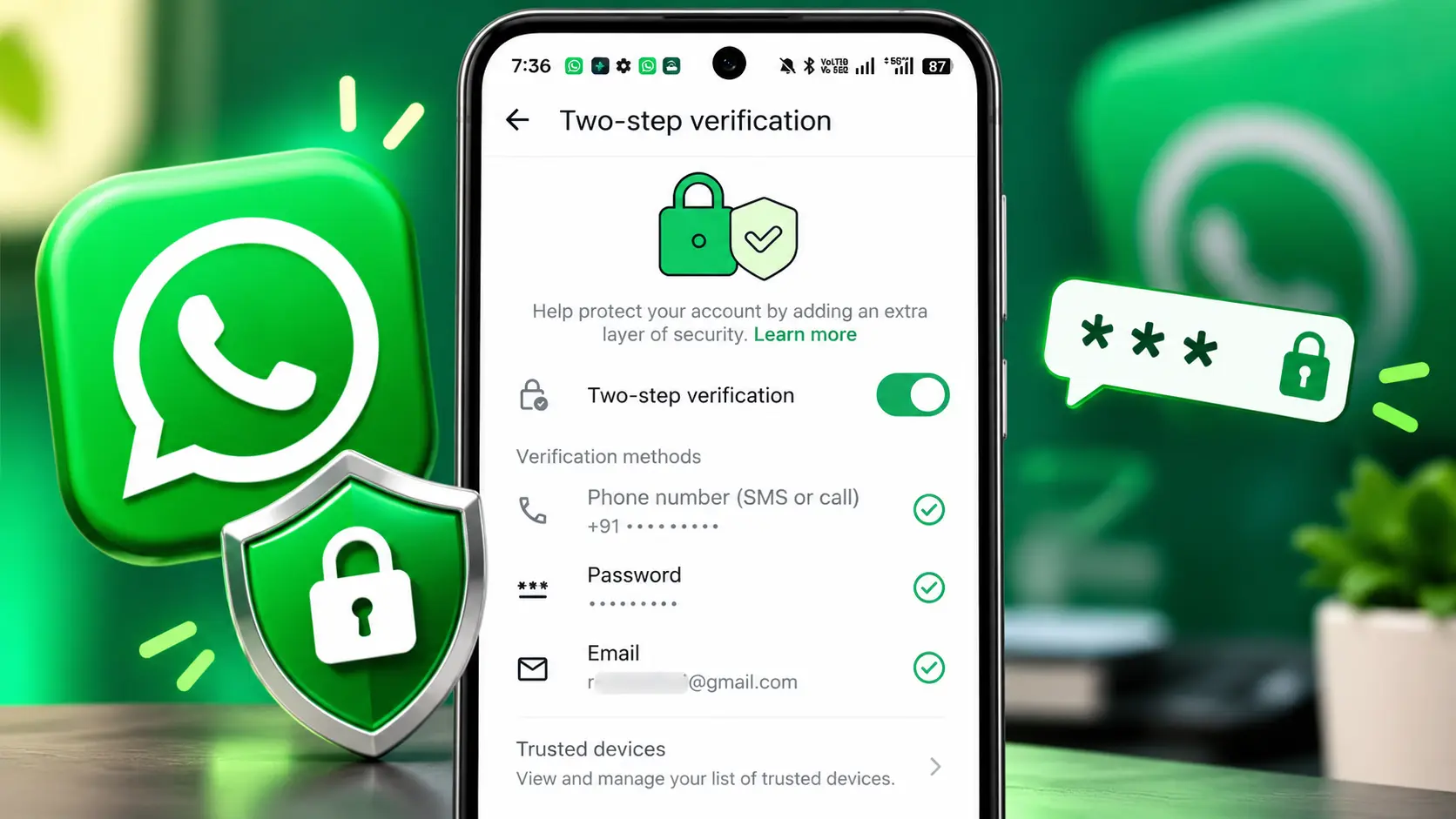
Keeping your WhatsApp account secure is also important, especially if you use it to manage personal or business groups. Although two-step verification cannot prevent a group admin from removing you, it adds an extra layer of protection to your account. To learn how to enable this feature, read our guide on WhatsApp Two-Step Verification.
Frequently Asked Questions
Can I rejoin a WhatsApp group without an admin?
If the group is still active and you have a valid invitation link, you may be able to request or use an invitation depending on the group’s settings. If you were removed and the invitation does not allow you to rejoin, you will need to contact a group admin.
Will reinstalling WhatsApp automatically restore my groups?
No. Reinstalling WhatsApp does not automatically restore membership in every group. Your account must be registered correctly, and your previous membership must still be valid.
Why can I see old messages but can't send new ones?
You may still have access to older messages stored in your chat history even though you are no longer an active member of the group. Once your membership ends, you cannot participate in new group conversations unless you are allowed to rejoin.
Can changing my phone number remove me from groups?
Changing your phone number can affect how your WhatsApp account and existing group memberships are handled. If you are changing numbers, using WhatsApp’s official Change Number feature is the appropriate way to transfer your account information.
Is this error caused by a WhatsApp bug?
Not necessarily. This message can simply indicate that your account is no longer an active member of the group. If the admin confirms that you should still be a member, then checking the account, app version and possible synchronization issues can help determine what is happening.
Can I fix "You're No Longer a Member in This Group" without an admin?
If you have a valid invitation that allows you to join the group, you may be able to rejoin using that invitation. Otherwise, if you were removed from the group, you will generally need the group’s administrator to restore your access.
Final Thoughts
The “You’re no longer a member in this group” message usually means that your WhatsApp account is no longer an active member of that particular group. Start by confirming that the group still exists and checking with a group admin about your membership.
If you recently changed your phone number or reinstalled WhatsApp, verify that you are using the correct account and that the setup was completed properly. For persistent problems where your membership should still be active, WhatsApp Support can provide further assistance.