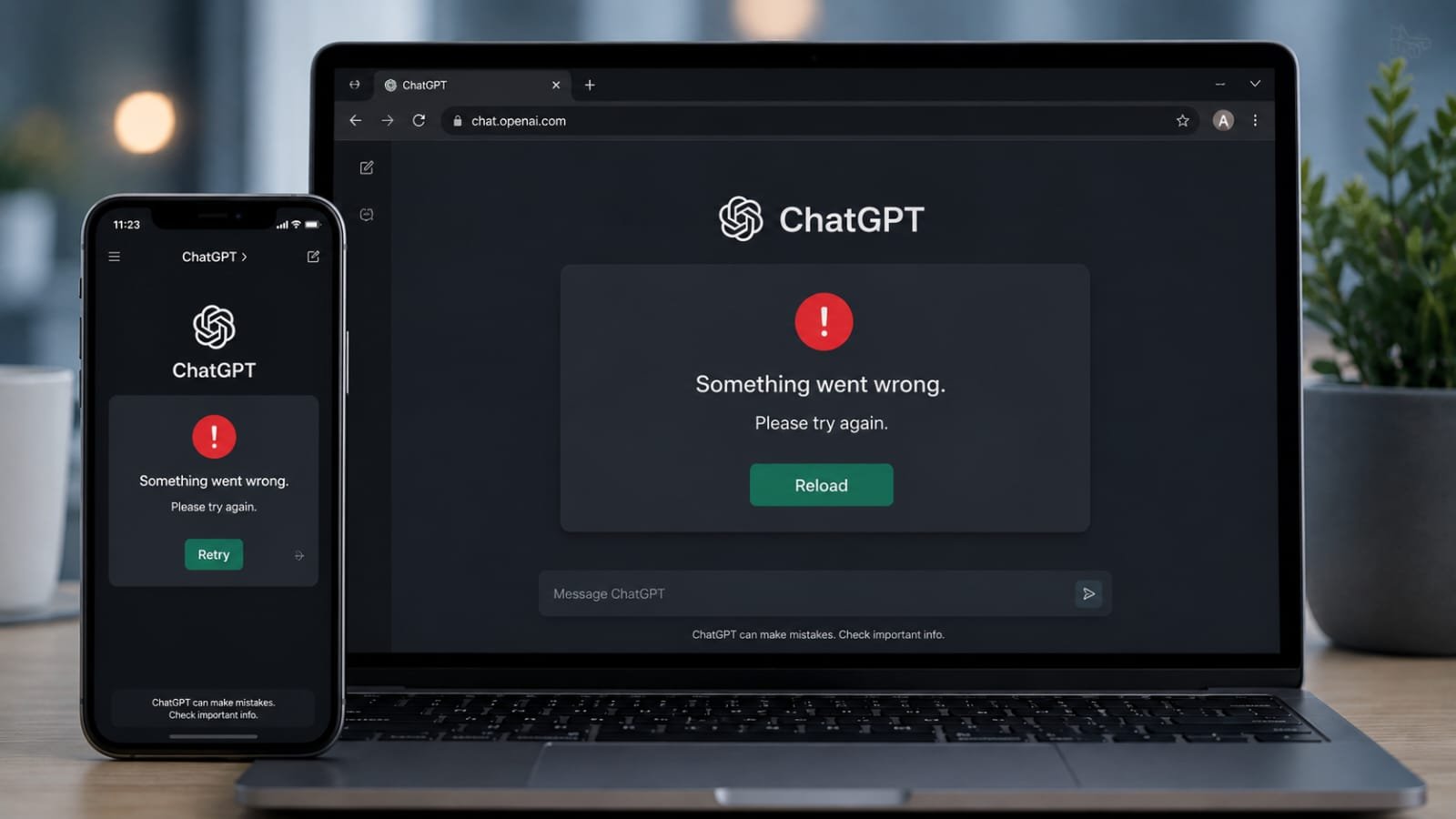
There’s nothing more frustrating than opening ChatGPT to finish an important task and suddenly seeing the message:“Something went wrong. Please try again.”
Whether you’re using ChatGPT for work, studies, content creation, coding, or research, this error can interrupt your workflow and waste valuable time.
The good news?
In most cases, this error is temporary and can be fixed within a few minutes.
In this comprehensive guide, you’ll learn:
- What the “Something Went Wrong” error actually means
- Why it happens
- How to identify the root cause
- Step-by-step solutions that work
- Advanced troubleshooting methods
- When the issue is on OpenAI’s side
- How to prevent the error from happening again
The solutions in this article are based on official OpenAI troubleshooting recommendations and common fixes reported by users.
The ChatGPT Something Went Wrong Error is one of the most common issues users encounter while using the AI chatbot.
If you’re comparing AI platforms, you may also want to read our detailed comparison of Google Gemini vs ChatGPT: Which AI Assistant Is Better Right Now?
What Does the ChatGPT "Something Went Wrong" Error Mean?
The “Something Went Wrong” message is a generic error notification displayed when ChatGPT cannot successfully process your request.
Unlike specific error messages, this warning doesn’t tell you exactly what’s causing the problem.
The issue could originate from:
- OpenAI server outages
- Network connectivity problems
- Browser cache corruption
- VPN interference
- Login session failures
- Browser extension conflicts
- Temporary account authentication issues
Because multiple factors can trigger the same message, troubleshooting requires checking each possibility one by one.
Understanding the ChatGPT Something Went Wrong Error can help you identify the root cause more quickly.
New to ChatGPT? Check out our guide on ChatGPT Explained: Uses, Advantages, and Limitations You Should Know to understand how the platform works and its common limitations.
Why Does ChatGPT Keep Saying "Something Went Wrong"?
Several factors can trigger the ChatGPT Something Went Wrong Error, including browser issues and server outages.
Before jumping into fixes, it’s important to understand the common causes.
1. OpenAI Server Issues
Sometimes the problem isn’t on your device at all.
ChatGPT occasionally experiences:
- High traffic
- Service disruptions
- Maintenance periods
- Backend server failures
When this happens, thousands of users may see the same error simultaneously. OpenAI tracks these incidents through its status page.
2. Unstable Internet Connection
ChatGPT requires a stable connection to communicate with OpenAI servers.
If your internet connection experiences:
- Packet loss
- Frequent disconnects
- Slow speeds
- Network interruptions
the request may fail before completion.
3. Browser Cache Problems
Over time, browsers store temporary files, cookies, and cached website data.
Corrupted cache files can interfere with ChatGPT and lead to unexpected errors. OpenAI specifically recommends clearing browser cache and cookies during troubleshooting.
4. VPN or Proxy Conflicts
VPN services occasionally trigger authentication or security checks.
Many users have reported that disabling their VPN immediately resolved the issue. VPN IP addresses can sometimes be flagged or restricted.
5. Expired Login Sessions
ChatGPT sessions eventually expire for security reasons.
If authentication tokens become invalid, the platform may display generic error messages until you sign in again.
6. Browser Extensions
Extensions such as:
- Ad blockers
- Privacy tools
- Tracking blockers
- Security plugins
can interfere with ChatGPT scripts and authentication processes.
Users interested in AI platform comparisons can also explore Top 10 Free AI Tools in 2026.
Common Situations That Trigger the ChatGPT Something Went Wrong Error
The ChatGPT Something Went Wrong Error often appears during periods of high server demand, unstable internet connections, browser conflicts, or authentication issues. Users may also encounter the error after enabling VPN services, installing privacy-focused browser extensions, or experiencing temporary account session problems. Understanding these common triggers can help users diagnose the issue more quickly and apply the correct troubleshooting steps.
How to Fix ChatGPT "Something Went Wrong" Error
The following solutions have helped thousands of users resolve the ChatGPT Something Went Wrong Error successfully.
Fix 1: Refresh the Page
This sounds simple, but it often works.
On Windows
Press:
Ctrl + R
or
F5
On Mac
Press:
Command + R
This reloads the session and clears temporary loading issues.
OpenAI recommends refreshing the page as the first troubleshooting step.
Fix 2: Check OpenAI Server Status
Before changing anything on your device, verify whether ChatGPT itself is experiencing problems.
Official Status Page
If you see messages like:
- Elevated Error Rates
- Partial Outage
- Major Outage
- Service Disruption
the issue is likely on OpenAI’s side. In that case, the only solution is to wait until services are restored.
Modern AI services rely heavily on cloud infrastructure similar to the systems explained in How Cloud Storage Works.
Fix 3: Test Your Internet Connection
Open a few websites such as:
- YouTube
- Wikipedia
If pages load slowly or fail to open:
- Restart your router
- Switch between Wi-Fi and mobile data
- Disconnect and reconnect your network
- Run a speed test
A stable connection often resolves the issue immediately.
Fix 4: Log Out and Sign In Again
Authentication issues frequently trigger this error.
Steps
- Open ChatGPT
- Click your profile icon
- Select Log Out
- Close the browser
- Reopen ChatGPT
- Sign in again
This refreshes your authentication session and often fixes account-related problems.
Fix 5: Clear Browser Cache and Cookies
Corrupted cached files are among the most common causes.
Chrome
- Open Chrome
- Press Ctrl + Shift + Delete
- Select:
- Cookies
- Cached Images and Files
- Click Clear Data
- Restart Chrome
OpenAI officially recommends clearing cache and cookies when troubleshooting ChatGPT errors.
Fix 6: Use Incognito Mode
Incognito Mode disables most stored data and extensions.
Chrome
Press:
Ctrl + Shift + N
Then open ChatGPT and test again.
If ChatGPT works in Incognito Mode, the issue is likely related to cache, cookies, or browser extensions.
Fix 7: Disable Your VPN
VPNs are a surprisingly common cause of ChatGPT connection problems.
Try:
- Turning off your VPN
- Refreshing ChatGPT
- Logging in again
Many users report that ChatGPT begins working immediately after disconnecting their VPN.
Fix 8: Try Another Browser
If you’re using:
- Chrome
Try:
- Edge
- Firefox
- Brave
- Safari
Browser-specific issues are more common than many users realize.
Fix 9: Disable Browser Extensions
Temporarily disable:
- Ad blockers
- Privacy extensions
- Anti-tracking tools
- Security plugins
After disabling extensions:
- Refresh ChatGPT
- Test again
If the error disappears, re-enable extensions one by one to find the culprit.
Fix 10: Update Your Browser
Outdated browsers can cause compatibility issues.
Make sure you’re running the latest version of:
- Google Chrome
- Microsoft Edge
- Firefox
- Safari
Browser updates frequently include fixes for modern web applications such as ChatGPT.
Fix 11: Check Device Date and Time
Incorrect system time can interfere with secure authentication.
Verify that:
- Date is correct
- Time is correct
- Time zone is correct
- Automatic time synchronization is enabled
OpenAI specifically mentions incorrect device time settings as a possible cause of authentication-related errors.
Fix 12: Use the ChatGPT Mobile App
Sometimes the website experiences issues while the mobile app continues working.
You can test:
- Android app
- iPhone app
If the app works normally, the issue is likely browser-related rather than account-related.
Advanced Troubleshooting
If none of the above solutions work, try these advanced fixes.
Flush DNS Cache
Windows
Open Command Prompt as Administrator and run:
Then restart your browser.
Change DNS Servers
Try switching to:
- Google DNS (8.8.8.8)
- Cloudflare DNS (1.1.1.1)
This can improve connectivity and resolve routing issues.
Switch Networks
If you’re using:
- Home Wi-Fi
Try:
- Mobile hotspot
If the error disappears, your ISP or local network configuration may be involved.
Understanding AI-powered services becomes easier when you learn about Multimodal AI Explained.
When the Problem Is Not Your Fault
Many users assume they caused the error.
In reality, ChatGPT occasionally experiences outages affecting users worldwide.
During major incidents, users may see:
- Something Went Wrong
- Internal Server Error
- Network Error
- Failed to Load Conversation
In such cases, no local fix will work until OpenAI resolves the issue. Recent outages have caused exactly these symptoms for users around the world.
How to Prevent This Error in the Future
Follow these best practices:
- Keep your browser updated
- Clear cache regularly
- Avoid suspicious browser extensions
- Use a reliable internet connection
- Disable VPN when unnecessary
- Monitor the OpenAI status page during issues
- Keep your ChatGPT app updated
These habits reduce the likelihood of encountering connection and authentication problems.
Once ChatGPT is working properly again, you can explore practical ways to use AI in our guide on How to Create Online Income Using ChatGPT: A Complete Beginner’s Guide.
Final Thoughts
The ChatGPT “Something Went Wrong” error is usually easier to fix than it appears. In most cases, refreshing the page, checking the OpenAI status page, clearing browser cache, disabling a VPN, or signing back into your account will solve the issue within minutes.
If none of the fixes work, there’s a strong chance the problem is related to an ongoing service disruption. When that happens, your best option is to monitor the status page and wait for OpenAI to restore normal operations.
By following the troubleshooting steps in this guide, you can quickly identify the root cause and get back to using ChatGPT without unnecessary frustration.
In most cases, the ChatGPT Something Went Wrong Error can be fixed within minutes using the troubleshooting steps above.
Frequently Asked Questions
Why does ChatGPT say "Something Went Wrong"?
The error usually indicates a temporary communication failure between your device and OpenAI servers. Common causes include server outages, network issues, browser cache corruption, VPN conflicts, or expired login sessions.
Does clearing cache fix ChatGPT errors?
Yes. Clearing browser cache and cookies often resolves loading and authentication problems. OpenAI recommends this as a primary troubleshooting step.
Can a VPN cause ChatGPT errors?
Yes. VPNs can trigger authentication issues or use IP addresses that ChatGPT restricts. Disabling the VPN often fixes the problem.
How do I know if ChatGPT is down?
Check:
If an outage is reported there, the issue is likely affecting many users and not just you.
Is the ChatGPT Something Went Wrong Error permanent?
No. In most cases, the error is temporary and can be resolved through troubleshooting or by waiting for OpenAI to restore services.
Can browser extensions cause the ChatGPT Something Went Wrong Error?
Yes. Some ad blockers, privacy tools, and security extensions can interfere with ChatGPT and trigger unexpected errors.
Should I reinstall my browser to fix the ChatGPT Something Went Wrong Error?
Usually not. Most users can resolve the issue by clearing cache, disabling extensions, checking their internet connection, or signing back into their account.