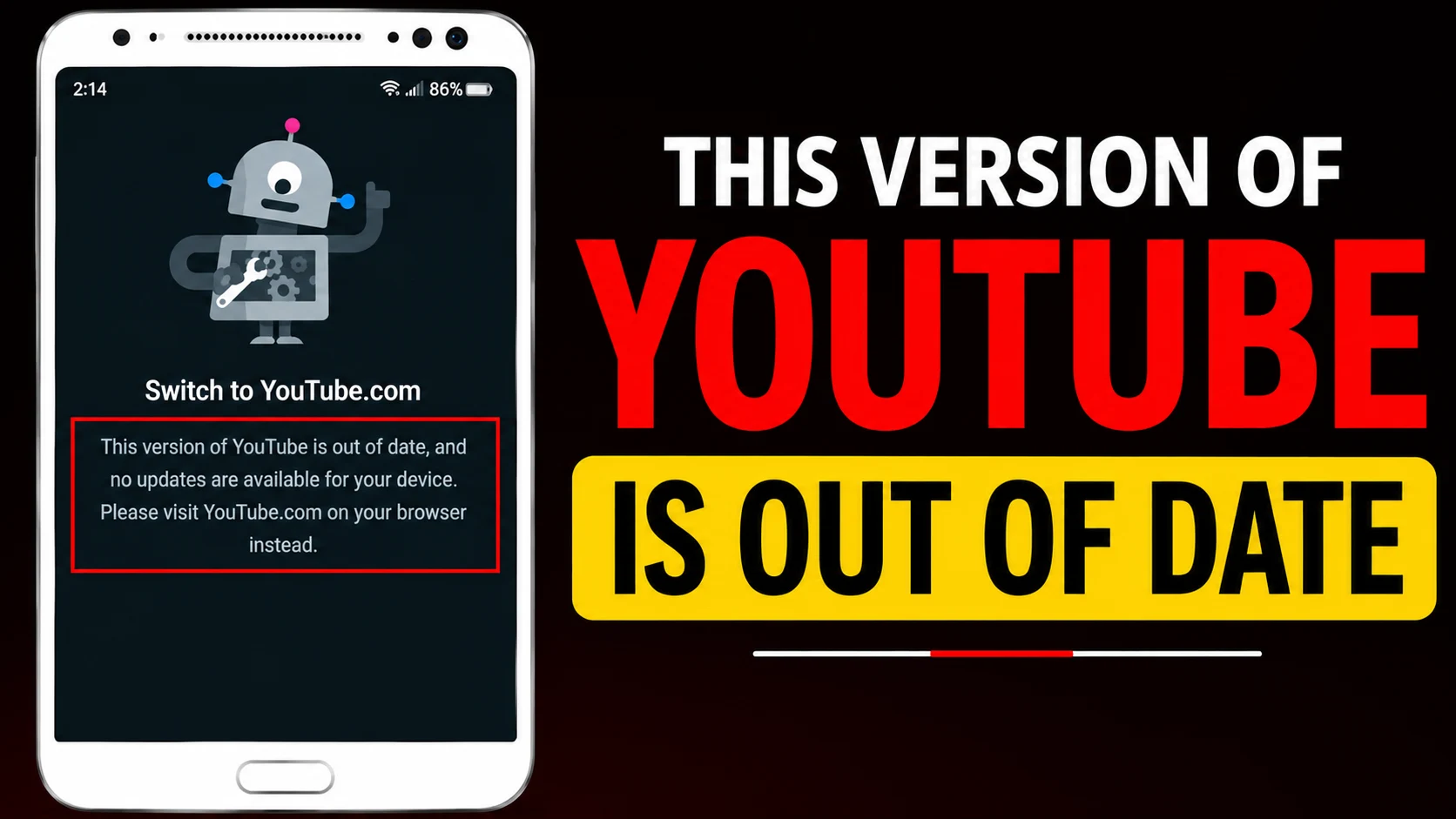
YouTube Out of Date Error is a common issue that prevents many Android users from opening the YouTube app. If your phone displays messages like “This Version of YouTube Is Out of Date,” “Update Available,” “Update Your App,” or “Switch to YouTube.com,” it usually means your current version of the YouTube app is no longer supported. In this guide, you’ll learn why this happens and the best ways to fix it step by step.
These messages usually indicate that the version of YouTube installed on your device is no longer supported. This problem has become more common on older Android phones, but it can also happen due to outdated app files, software compatibility issues, or temporary app glitches.
The good news is that you can often fix the problem in just a few minutes. This guide explains why the error appears and provides practical solutions that work for most Android devices.
Why Does This Error Appear?
Google regularly updates YouTube to improve security, fix bugs, and introduce new features. As newer versions are released, support for older versions is gradually discontinued.
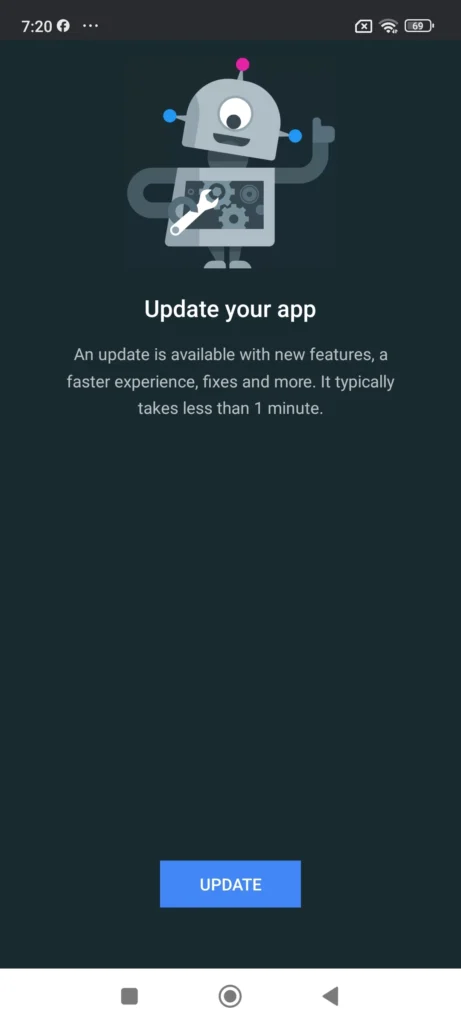
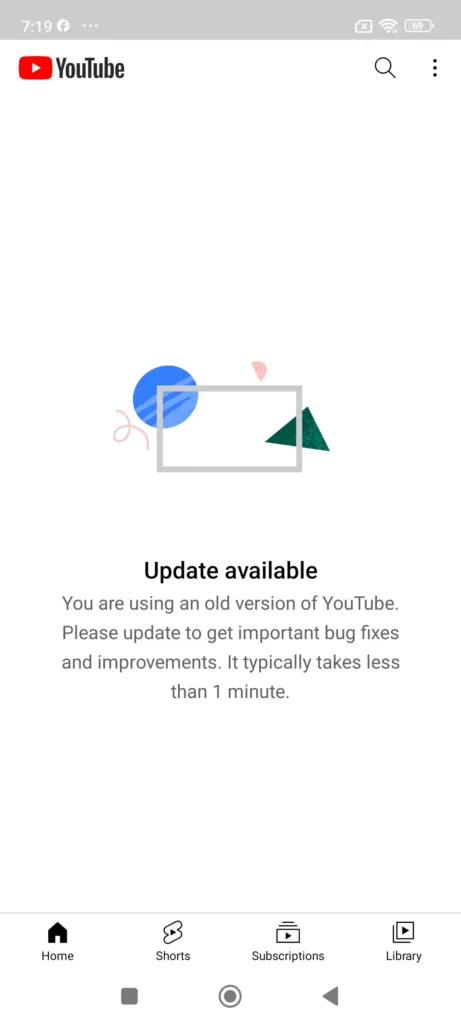
You may see one or more of these messages:
- This Version of YouTube Is Out of Date
- Update Available
- Update Your App
- Switch to YouTube.com
- No Updates Are Available for Your Device
The error usually occurs because:
- Your YouTube app is outdated.
- Your Android version is too old for the latest YouTube app.
- Google Play Services needs an update.
- Temporary app files have become corrupted.
- Your device no longer receives Android updates.
1. Update the YouTube App
The first thing you should do is check whether a newer version of YouTube is available.
Steps
- Open the Google Play Store.
- Search for YouTube.
- Tap Update if the button is available.
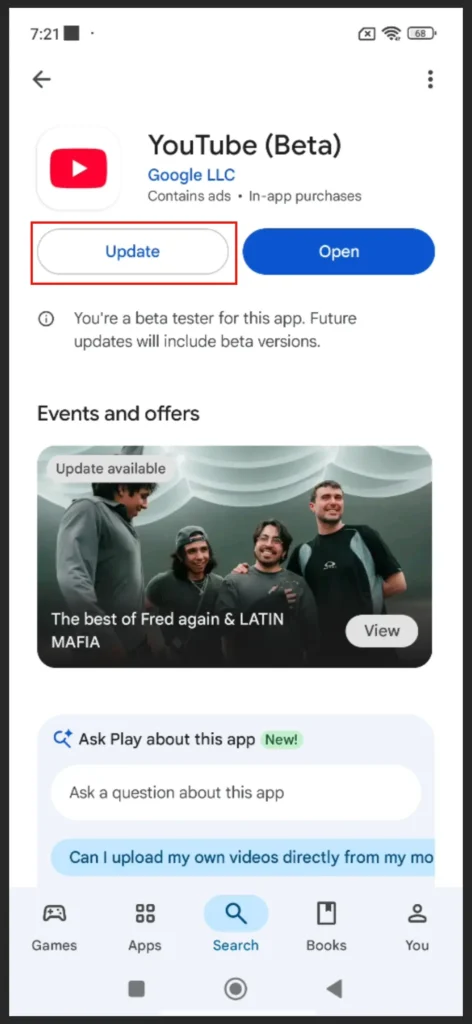
4. Wait for the installation to complete.
5. Open YouTube again.
If the app launches normally, the problem has been fixed.
If you’re unsure whether a new version of YouTube is available for your device, you can check the official Google Play Store listing for the latest updates and compatibility information.
2. Restart Your Android Phone
Sometimes the issue is caused by a temporary system glitch.
Restart your phone and try opening YouTube again.
Although simple, this solution often resolves minor software issues.
3. Clear the YouTube Cache
Corrupted cache files can prevent YouTube from working properly.
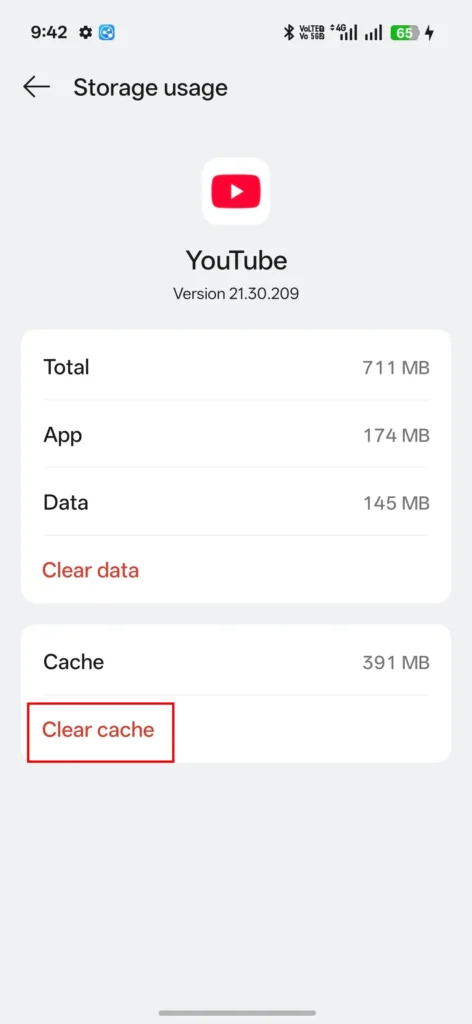
Steps
- Open Settings.
- Tap Apps or App Management.
- Select YouTube.
- Tap Storage.
- Tap Clear Cache.
Now open YouTube again and check whether the error has disappeared.
4. Clear YouTube App Data
If clearing the cache didn’t solve the issue, try clearing the app data. This resets YouTube to its default state and removes corrupted local settings that may be causing the error.
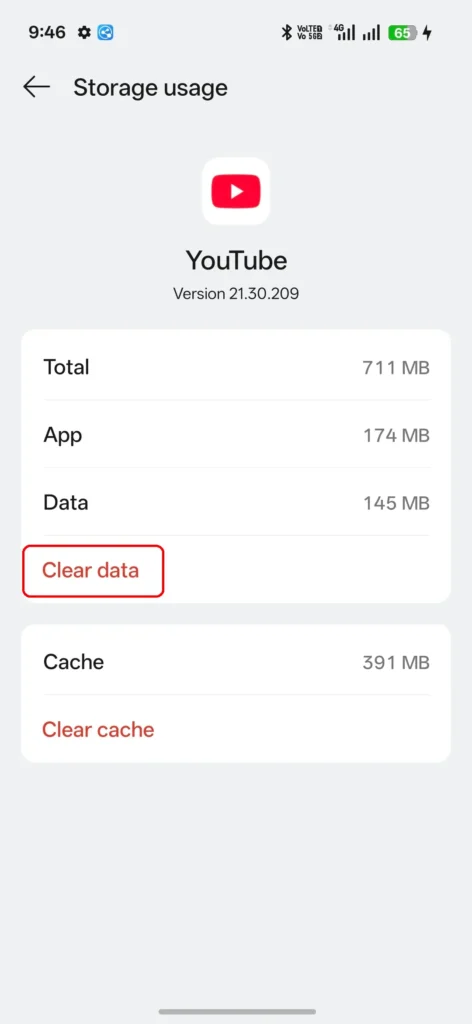
Steps
- Open Settings.
- Go to Apps or App Management.
- Select YouTube.
- Tap Storage.
- Tap Clear Data or Clear Storage.
- Open YouTube again.
- Sign in to your Google account if required.
Note: Clearing app data does not delete your YouTube account, subscriptions, playlists, or uploaded videos. It only removes local app settings and signs you out of the app.
5. Update Google Play Services
Google Play Services is essential for many Android apps, including YouTube.
Visit the Google Play Store and update Google Play Services if an update is available.
After updating, restart your phone and try opening YouTube again.
6. Check for Android Software Updates
If your phone supports a newer Android version, updating it may solve compatibility problems.
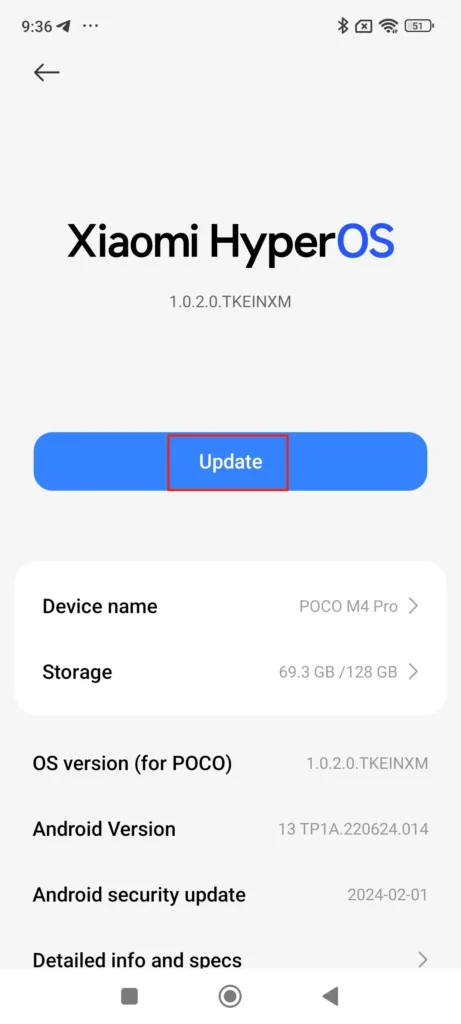
Steps
- Open Settings.
- Go to Software Update or System Update.
- Install any available updates.
- Restart your device.
Once the update is complete, check whether YouTube works normally.
If you’re not sure how to update your Android phone, Google provides official instructions for checking and installing software updates. See the Android Help guide for more information.
7. Reinstall the YouTube App
Damaged installation files can also trigger the error.
To reinstall:
- Open the Google Play Store.
- Search for YouTube.
- Tap Uninstall (or Uninstall Updates on some phones).
- Install or update the app again.
Reinstalling replaces any damaged app files with fresh ones.
8. Check Your Internet Connection
Although this isn’t the most common cause, a poor internet connection can prevent YouTube from verifying updates.
Try the following:
- Switch between Wi-Fi and mobile data.
- Restart your Wi-Fi router.
- Turn Airplane Mode on and off.
- Check whether other apps can access the internet.
What If Your Phone Cannot Update YouTube?
Some Android devices are simply too old to install the latest YouTube version.
In this situation, the Play Store may not show an Update button, or it may say that your device isn’t compatible.
If that happens, you still have a few options.
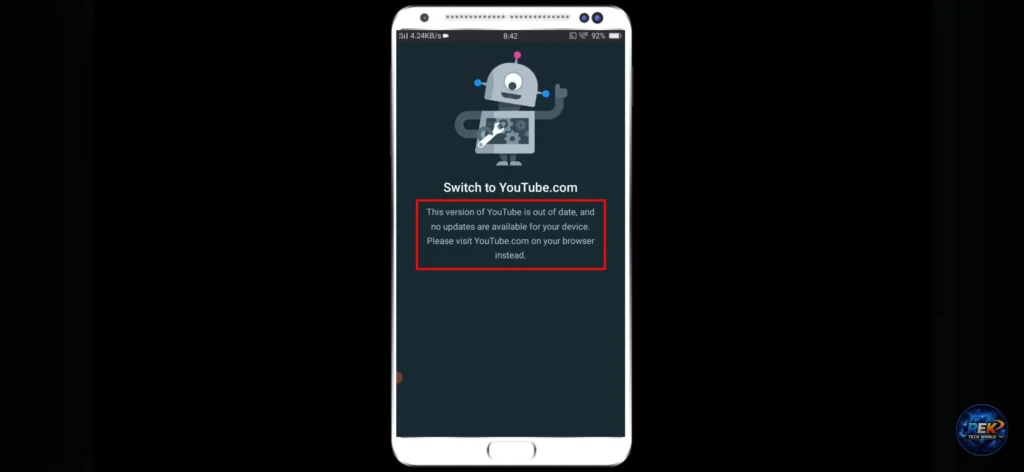
Google explains that older Android devices may eventually stop receiving support for newer versions of the YouTube app. You can learn more about device compatibility in the YouTube Help Center.
Use YouTube in Your Mobile Browser
Instead of the app, open your browser and visit:
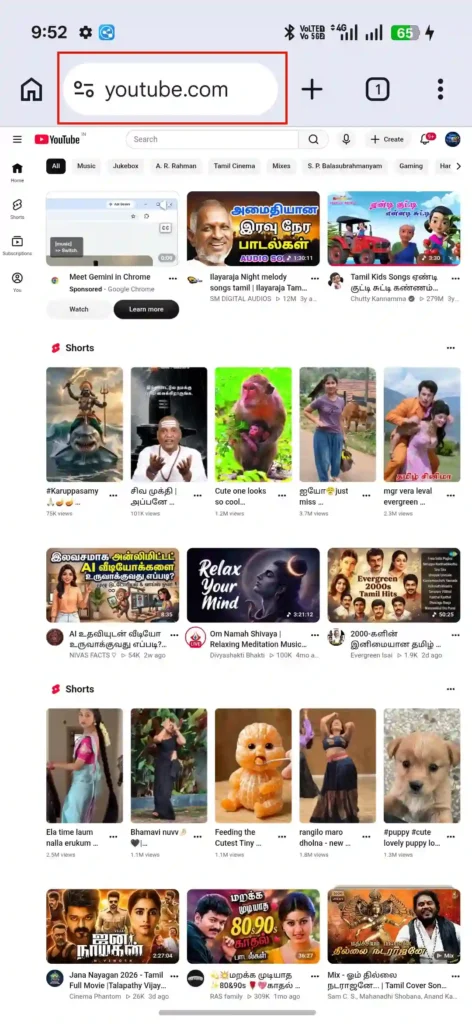
The mobile website allows you to:
- Watch videos
- Search content
- Sign in to your account
- Access subscriptions
- View playlists
While the experience isn’t identical to the app, it works well on most older Android devices.
Consider Upgrading Your Device
If your phone no longer receives Android updates, compatibility problems with YouTube and other modern apps will become more common over time.
A newer Android device provides:
- Better security
- Improved performance
- Access to the latest YouTube features
- Continued app compatibility
Mistakes to Avoid
When trying to fix this error, avoid these common mistakes:
- Downloading YouTube APK files from unknown websites.
- Installing unofficial modified YouTube apps.
- Disabling Google Play Services.
- Ignoring Android software updates.
Using official updates is the safest and most reliable way to keep YouTube working properly.
Tips to Prevent This Error in the Future
You can reduce the chances of seeing this message again by following a few simple practices:
- Enable automatic app updates in the Google Play Store.
- Keep Android updated whenever updates are available.
- Update Google Play Services regularly.
- Restart your phone occasionally.
- Avoid using outdated app versions for long periods.
Frequently Asked Questions
Why does YouTube say "This Version of YouTube Is Out of Date"?
This message appears when your installed version of YouTube is no longer supported. Updating the app usually fixes the problem.
Why can't I update YouTube?
Your device may be running an Android version that no longer supports the latest YouTube release, or your phone manufacturer may have stopped providing software updates.
Can I still use YouTube without updating the app?
Yes. If your device can’t install the latest app, you can still watch videos through your mobile browser by visiting YouTube’s website.
Will clearing YouTube app data delete my account?
No. Clearing app data only removes local settings and signs you out of the app. Your Google account, subscriptions, playlists, watch history, and uploaded videos remain safely stored online.
Is this a YouTube server issue?
Usually not. In most cases, the problem is caused by an outdated app version or an unsupported Android operating system.
Final Thoughts
The “This Version of YouTube Is Out of Date” error usually means the YouTube app installed on your Android phone is no longer supported. In most cases, updating the app, clearing the cache, clearing app data, updating Google Play Services, or reinstalling YouTube will solve the problem.
If your Android device no longer supports the latest version of the YouTube app, you can still access YouTube through your mobile web browser until you upgrade to a newer device.
If the problem continues even after trying the available updates and troubleshooting steps, the limitation may be related to your device’s Android version or compatibility with the current YouTube app.