Is Bluetooth Not Working on Your Android Phone? Here's How to Fix It
Bluetooth makes it easy to connect your Android phone to wireless earbuds, headphones, speakers, smartwatches, keyboards, car infotainment systems, and many other accessories. However, when Bluetooth suddenly stops working, even simple tasks can become frustrating.
If you’re experiencing Bluetooth Not Working on Android, this guide will help you identify the cause and fix the problem using simple step-by-step solutions.
You may experience problems such as Bluetooth not turning on, devices failing to pair, frequent disconnections, or your phone not detecting nearby Bluetooth accessories. These issues can occur on almost any Android device, including Samsung Galaxy, Google Pixel, Xiaomi, Redmi, POCO, OnePlus, Motorola, Vivo, Oppo, Realme, Nokia, and other Android smartphones.
The good news is that most Bluetooth problems are caused by temporary software glitches, incorrect settings, outdated pairing information, or connection conflicts. In many cases, you can solve the problem within a few minutes without visiting a service center.
This step-by-step guide explains the most effective solutions to fix Bluetooth not working on Android. Follow each method in order until your Bluetooth connection starts working normally again.
This step-by-step guide explains the most effective solutions to fix Bluetooth not working on Android. Follow each method in order until your Bluetooth connection starts working normally again. If you want to stay informed about new Android features and system improvements, you can also read our guide on the latest Google updates explained.
Who Is This Guide For?
This troubleshooting guide is designed for Android users who are experiencing Bluetooth connection problems and want simple, effective solutions without visiting a service center.
This guide will help you if:
- Your Android phone can’t find nearby Bluetooth devices.
- Bluetooth won’t turn on or keeps turning off.
- Bluetooth pairing keeps failing.
- Wireless earbuds or headphones won’t connect.
- Your Bluetooth speaker connects but doesn’t play audio.
- Bluetooth disconnects randomly after pairing.
- Your smartwatch won’t pair with your Android phone.
- Your car’s Bluetooth connection isn’t working properly.
- Your Bluetooth keyboard or mouse isn’t responding.
- You want to fix Bluetooth issues on Samsung Galaxy, Google Pixel, Xiaomi, Redmi, POCO, OnePlus, Motorola, Vivo, Oppo, Realme, Nokia, or any other Android smartphone.
No matter which Android brand you use, the troubleshooting methods in this guide are designed to solve the most common Bluetooth problems quickly and safely.
Whether you’re using a Samsung, Google Pixel, Xiaomi, OnePlus, or any other Android phone, these solutions can resolve Bluetooth Not Working on Android in most situations.
Common Bluetooth Problems and Their Best Solutions
| Bluetooth Problem | Recommended Solution |
|---|---|
| Bluetooth won’t turn on | Restart your phone and install the latest Android update. |
| Phone can’t find Bluetooth devices | Make sure the accessory is in pairing mode and within range. |
| Bluetooth pairing failed | Forget the device and pair it again. |
| Bluetooth keeps disconnecting | Restart both devices and remove old paired devices. |
| Bluetooth audio is not working | Reconnect the accessory and verify the correct audio output. |
| Random Bluetooth connection issues | Reset network settings and restart the phone. |
Why Is Bluetooth Not Working on Android?
There isn’t a single reason why Bluetooth stops working. Depending on your phone and the connected accessory, the problem may be caused by software, settings, or the Bluetooth device itself.
Some of the most common causes include:
- Bluetooth is turned off accidentally.
- A temporary Android software glitch.
- Corrupted Bluetooth pairing information.
- The accessory is already connected to another device.
- Low battery on the Bluetooth accessory.
- An outdated Android version.
- Network or Bluetooth settings have become corrupted.
- Wireless interference from nearby devices.
- A hardware issue affecting the phone or Bluetooth accessory.
Understanding the possible cause will help you choose the right solution more quickly.
Understanding the possible causes of Bluetooth Not Working on Android makes it much easier to choose the right troubleshooting method.
Before You Start Troubleshooting
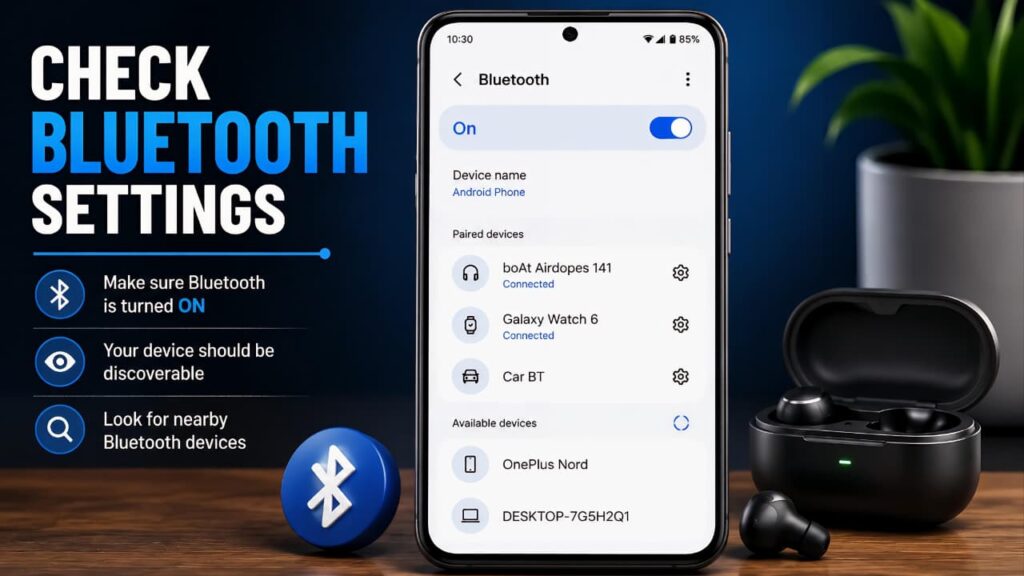
Before trying advanced fixes, complete these quick checks. In many situations, these simple steps solve the problem immediately.
Check That Bluetooth Is Enabled
Open Settings > Bluetooth (or Connected Devices, depending on your phone) and make sure Bluetooth is turned on.
You can also swipe down from the top of the screen and verify that the Bluetooth Quick Settings tile is enabled.
Keep Both Devices Close Together
Bluetooth has a limited operating range. If your wireless accessory is too far away, your phone may not detect or maintain the connection.
For the best results:
- Keep both devices within a few feet of each other.
- Remove large obstacles between them.
- Avoid crowded wireless environments whenever possible.
Charge the Bluetooth Accessory
Many Bluetooth devices automatically stop accepting new connections when their battery is critically low.
If you’re connecting:
- Wireless earbuds
- Bluetooth headphones
- Bluetooth speaker
- Smartwatch
- Keyboard
- Mouse
Charge the accessory before attempting to pair it again.
Completing these basic checks can quickly resolve Bluetooth Not Working on Android without moving to advanced troubleshooting steps.
Before moving to advanced troubleshooting, make sure you’ve completed these basic checks. They solve many common Bluetooth problems within minutes. To keep your Android device running smoothly, you may also find our guide on battery fast drain problem solution helpful.
Fix 1: Turn Bluetooth Off and Back On
Sometimes Bluetooth simply needs a fresh start.
Turning Bluetooth off and back on refreshes the wireless connection and clears temporary communication issues between your Android phone and the connected accessory.
Steps
- Open Settings.
- Tap Bluetooth or Connected Devices.
- Turn Bluetooth Off.
- Wait for about 10 seconds.
- Turn Bluetooth On again.
- Try connecting your Bluetooth device.
If the problem continues, move to the next solution.
Restarting Bluetooth is often the quickest solution for Bluetooth Not Working on Android.
Fix 2: Restart Your Android Phone
A simple restart can resolve many temporary software issues that affect Bluetooth performance.
Restarting your phone refreshes Android system services and reloads Bluetooth components.
Steps
- Press and hold the Power button.
- Tap Restart.
- Wait until your phone finishes restarting.
- Turn Bluetooth back on.
- Try pairing your Bluetooth device again.
If you’re connecting wireless earbuds, headphones, or a Bluetooth speaker, restart that device as well before reconnecting.
A simple restart can eliminate temporary system glitches that cause Bluetooth Not Working on Android.
Fix 3: Forget the Bluetooth Device and Pair It Again
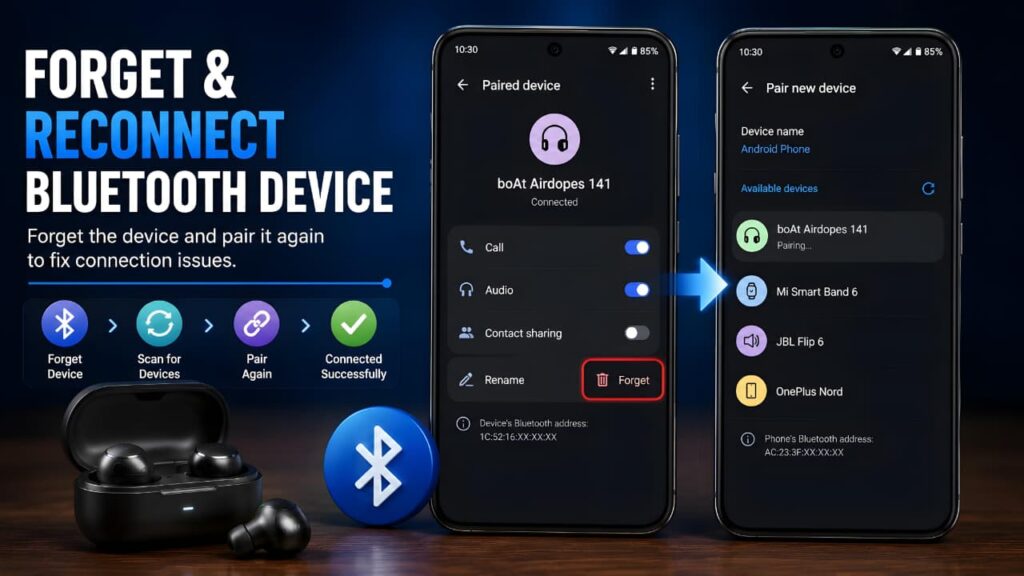
Your Android phone stores pairing information for previously connected Bluetooth devices. If that information becomes outdated or corrupted, Bluetooth may fail to connect correctly.
Removing the saved device and pairing it again creates a fresh Bluetooth connection.
Steps
- Open Settings.
- Tap Bluetooth or Connected Devices.
- Open the list of paired devices.
- Tap the Settings or Gear icon next to the affected device.
- Select Forget Device or Unpair.
- Confirm the action.
- Put your Bluetooth accessory into pairing mode.
- Tap Pair New Device and connect again.
This method is especially effective if your phone recognizes the device but cannot complete the connection.
Re-pairing the device refreshes the connection and often fixes Bluetooth Not Working on Android.
Fix 4: Make Sure the Bluetooth Device Is in Pairing Mode
A Bluetooth accessory must be in pairing mode before your Android phone can discover it.
Many accessories remain discoverable for only a short period. If pairing mode expires, your phone will not detect the device.
Steps
- Turn the Bluetooth accessory off.
- Turn it back on.
- Activate pairing mode according to the manufacturer’s instructions.
- Wait until the indicator light starts flashing.
- Open Settings > Bluetooth on your Android phone.
- Tap Pair New Device and wait for the accessory to appear.
- Select the device to complete the pairing process.
If the device still doesn’t appear, check whether it is already connected to another phone, tablet, laptop, or smartwatch. Disconnect it from the other device before trying again.
Ensuring the accessory is in pairing mode can solve many cases of Bluetooth Not Working on Android.
Fix 5: Check Whether the Bluetooth Device Is Already Connected to Another Device
Many Bluetooth accessories automatically reconnect to the last device they were paired with. For example, your wireless earbuds may automatically connect to your tablet or laptop instead of your Android phone.
When this happens, your phone may not be able to detect or pair with the accessory.
Steps
- Turn off Bluetooth on other nearby devices, such as another phone, tablet, or computer.
- Disconnect the Bluetooth accessory from any device it is currently connected to.
- Restart the Bluetooth accessory.
- Put it back into pairing mode.
- Return to your Android phone and try pairing it again.
If the connection is successful, the issue was caused by an existing Bluetooth connection.
Disconnecting the accessory from other devices may immediately resolve Bluetooth Not Working on Android.
Fix 6: Turn Airplane Mode On and Off
Airplane Mode temporarily disables your phone’s wireless connections, including Bluetooth, Wi-Fi, and mobile networks. Turning it on and off refreshes these services and may resolve temporary connection issues.
Steps
- Swipe down from the top of the screen to open the Quick Settings panel.
- Tap Airplane Mode.
- Wait for about 20 to 30 seconds.
- Turn Airplane Mode off.
- Enable Bluetooth again.
- Try connecting your Bluetooth device.
This simple refresh can often fix Bluetooth problems caused by temporary system conflicts.
Refreshing wireless services is another effective way to fix Bluetooth Not Working on Android.
Fix 7: Install the Latest Android Software Update
Outdated software can cause compatibility issues with newer Bluetooth accessories. Phone manufacturers regularly release updates that improve Bluetooth performance, fix bugs, and enhance system stability.
Steps
- Open Settings.
- Tap System or Software Update.
- Select Check for Updates.
- Download and install any available updates.
- Restart your phone after the installation is complete.
- Test the Bluetooth connection again.
Keeping your Android device updated not only improves Bluetooth reliability but also enhances security and overall performance.
Installing the latest Android update can resolve software bugs responsible for Bluetooth Not Working on Android.
Keeping your Android phone updated is one of the most effective ways to resolve Bluetooth Not Working on Android because software updates often include important bug fixes, security improvements, and Bluetooth stability enhancements. You can also refer to Google’s official Android Help documentation for additional troubleshooting guidance and the latest support information.
Keeping your Android device updated improves Bluetooth compatibility, security, and overall performance. Staying up to date with the latest Google updates explained can also help you understand new Android features and important system improvements.
Fix 8: Restart Your Bluetooth Accessory
Sometimes the problem is not with your Android phone but with the Bluetooth accessory itself.
Wireless earbuds, headphones, speakers, fitness trackers, and smartwatches may occasionally experience temporary software glitches that interrupt Bluetooth communication.
Steps
- Turn the Bluetooth accessory off.
- Wait for at least 15 seconds.
- Turn it back on.
- Activate pairing mode again.
- Connect it to your Android phone.
If your accessory includes a reset option, follow the manufacturer’s instructions before performing a factory reset.
Restarting your Bluetooth accessory is another simple solution for Bluetooth Not Working on Android.
Fix 9: Reset Bluetooth and Network Settings
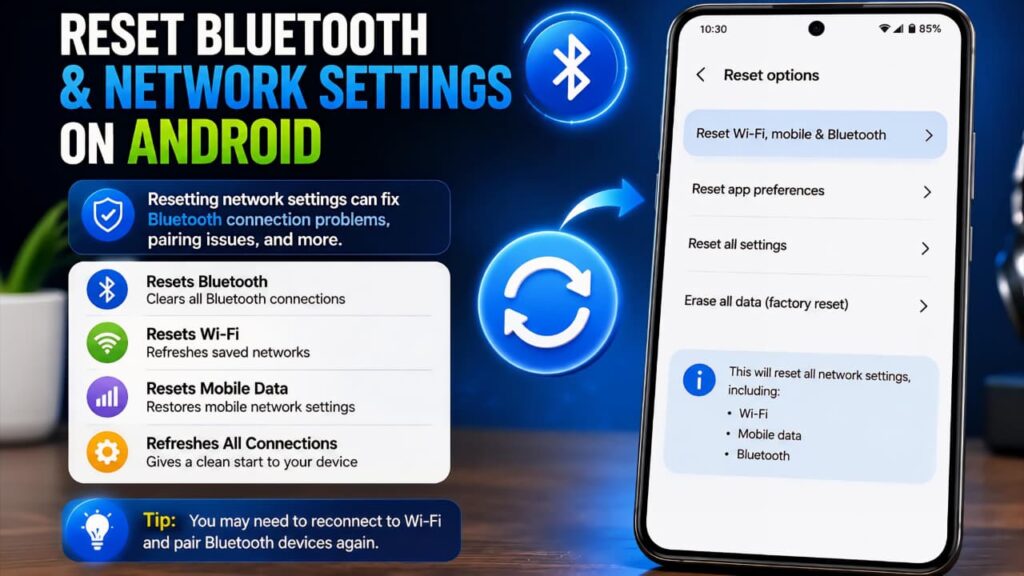
If Bluetooth problems continue after trying all previous solutions, resetting your network settings can help.
This process clears Bluetooth pairings, Wi-Fi networks, and certain network preferences. Your personal files, photos, apps, and contacts will not be deleted.
Steps
- Open Settings.
- Tap System.
- Select Reset Options.
- Tap Reset Wi-Fi, Mobile & Bluetooth (the wording may vary by manufacturer).
- Confirm the reset.
- Restart your Android phone.
- Pair your Bluetooth devices again.
After the reset, you’ll need to reconnect to your Wi-Fi networks and pair your Bluetooth accessories again.
Resetting network settings can permanently fix Bluetooth Not Working on Android if the issue is caused by corrupted settings.
Fix 10: Test Bluetooth with Another Device
If you’re unsure whether the problem is with your phone or the Bluetooth accessory, testing with another device can help identify the cause.
Try These Tests
- Connect your Bluetooth headphones to another smartphone.
- Pair your Bluetooth speaker with a different phone.
- Connect another Bluetooth accessory to your Android phone.
- Test the same accessory with a laptop or tablet.
If the accessory works with another device, the problem is likely with your Android phone. If it fails to connect everywhere, the accessory itself may need repair or replacement.
Testing another accessory helps determine whether Bluetooth Not Working on Android is caused by the phone or the Bluetooth device.
Advanced Troubleshooting Tips
If Bluetooth still isn’t working, try these additional troubleshooting methods before contacting customer support.
Remove Old Paired Devices
Having too many saved Bluetooth devices can occasionally create connection conflicts.
Open your Bluetooth settings and remove accessories that you no longer use.
Disable Battery Saver Temporarily
Some Android phones restrict Bluetooth activity while Battery Saver mode is enabled.
Turn Battery Saver off temporarily and test the Bluetooth connection again.
Restart Your Phone in Safe Mode
Third-party apps can sometimes interfere with Bluetooth services.
Booting into Safe Mode temporarily disables downloaded apps, making it easier to determine whether an app is causing the issue.
If Bluetooth works normally in Safe Mode, a recently installed application may be responsible.
Check Bluetooth Compatibility
Some older Bluetooth accessories may not fully support the latest Android versions, while some newer accessories may require updated firmware.
Check the manufacturer’s compatibility information if your accessory continues to experience connection problems.
Update the Accessory's Firmware
Many Bluetooth devices receive firmware updates through their official companion apps.
If an update is available, install it before testing the connection again.
Firmware updates often improve Bluetooth stability, compatibility, and battery performance.
These advanced methods can resolve persistent cases of Bluetooth Not Working on Android that basic fixes cannot solve.
If your Android phone is also getting unusually warm while using Bluetooth, the issue could be related to other system processes. Read our guide on phone overheating causes and fixes to learn more about possible reasons and practical solutions.
When Should You Move to the Next Step?
If you’ve completed all ten troubleshooting methods and Bluetooth still isn’t working, the issue may be related to deeper software corruption or a hardware problem.
In the next section, you’ll learn how to identify hardware-related Bluetooth issues, prevent future connection problems, and find answers to the most frequently asked questions about Bluetooth on Android.
When Bluetooth May Be a Hardware Problem
Software issues are responsible for most Bluetooth problems, but hardware failures can also occur. If your phone has been dropped, exposed to water, or suffered internal damage, the Bluetooth hardware may stop working properly.
Watch for these signs:
- Bluetooth won’t turn on even after restarting the phone.
- The Bluetooth switch turns off automatically after enabling it.
- Your phone cannot detect any Bluetooth devices.
- Multiple Bluetooth accessories fail to connect.
- Bluetooth disconnects immediately after pairing.
- The problem started after a physical impact or water exposure.
If you notice several of these symptoms, the issue may require professional repair.
When to Contact the Phone Manufacturer
If you’ve completed every troubleshooting step in this guide and Bluetooth still isn’t working, it’s time to contact your phone manufacturer’s customer support or visit an authorized service center.
Before requesting service, make sure you have already:
- Restarted your Android phone.
- Restarted the Bluetooth accessory.
- Forgotten and paired the device again.
- Installed the latest Android software update.
- Reset Bluetooth and network settings.
- Tested the accessory with another device.
Completing these steps helps eliminate common software-related causes and makes it easier for a technician to diagnose the problem.
How to Prevent Bluetooth Problems on Android
Although Bluetooth issues can’t always be avoided, a few simple habits can significantly reduce the chances of future connection problems.
Keep Android Updated
Install Android security patches and software updates whenever they become available. These updates often include Bluetooth bug fixes, performance improvements, and compatibility enhancements.
Remove Unused Bluetooth Devices
Delete Bluetooth devices that you no longer use.
Keeping your paired device list clean reduces connection conflicts and helps Android manage active Bluetooth connections more efficiently.
Keep Bluetooth Accessories Charged
Low battery levels can cause pairing failures, unstable connections, or unexpected disconnections.
Recharge your wireless earbuds, headphones, speakers, and smartwatches regularly for the best performance.
Disconnect Devices Properly
Instead of simply turning Bluetooth accessories off, disconnect them from your phone before switching to another device.
This helps prevent automatic reconnection conflicts later.
Avoid Wireless Interference
Bluetooth shares the 2.4 GHz wireless frequency with Wi-Fi and several other wireless technologies.
If you’re experiencing unstable Bluetooth connections, move away from crowded wireless environments or temporarily disconnect nearby devices that aren’t in use.
Protect Your Phone from Physical Damage
Avoid dropping your phone or exposing it to water and excessive heat.
Using a protective case and keeping your device dry can help prevent hardware-related Bluetooth failures.
Frequently Asked Questions (FAQ)
Why is my Android phone not finding Bluetooth devices?
Your Bluetooth accessory may not be in pairing mode, could already be connected to another device, may have a low battery, or could be outside the Bluetooth range.
Restart both devices and try pairing them again.
These are some of the most common reasons behind Bluetooth Not Working on Android.
Why does Bluetooth keep disconnecting?
Frequent disconnections are commonly caused by software bugs, outdated Bluetooth pairing information, low battery levels, or wireless interference.
Removing the saved Bluetooth device and pairing it again often resolves the issue.
Will resetting network settings delete my personal data?
No.
Resetting network settings only removes saved Wi-Fi networks, Bluetooth pairings, and mobile network preferences.
Your apps, photos, videos, contacts, documents, and other personal files will remain safe.
Can a software update fix Bluetooth problems?
Yes.
Android software updates often include Bluetooth bug fixes, improved compatibility, enhanced stability, and security improvements.
Installing the latest update is always recommended.
Why won't my Bluetooth headphones connect?
Your headphones may already be connected to another device, have a low battery, or may not be in pairing mode.
Disconnect them from other devices, restart the headphones, and pair them with your Android phone again.
Why is the Bluetooth option greyed out on Android?
A greyed-out Bluetooth option may indicate a temporary software issue, a system bug, or, in rare cases, a hardware fault.
Restarting the device and installing the latest software update usually resolves the problem.
Does Safe Mode help identify Bluetooth issues?
Yes.
If Bluetooth works normally in Safe Mode, a third-party application installed on your phone is likely interfering with Bluetooth services.
Removing recently installed apps may solve the problem.
Does resetting Bluetooth delete photos or apps?
No.
Resetting Bluetooth or network settings only clears connection-related information. Your personal files, installed applications, messages, photos, and videos are not affected.
Final Thoughts
Bluetooth issues on Android can be frustrating, but they’re usually easy to fix with the right troubleshooting steps.
In most cases, Bluetooth Not Working on Android can be fixed without professional repair by following the methods explained above.
In most cases, restarting your phone, forgetting and pairing the Bluetooth device again, installing the latest Android update, or resetting network settings will restore a stable connection.
If you’ve followed every solution in this guide and the problem still persists, test the Bluetooth accessory with another device. This simple check can help determine whether the issue is with your Android phone or the accessory itself.
When hardware damage is suspected, contacting your phone manufacturer’s authorized service center is the safest option.
We hope this guide helped you fix Bluetooth Not Working on Android and restore a stable Bluetooth connection on your Android device.
If you’re still experiencing Bluetooth Not Working on Android after following every solution in this guide, reviewing the Android Bluetooth documentation can help you better understand how Bluetooth works on Android devices and provide additional technical information for advanced troubleshooting.
If you’re interested in solving other common Android and messaging app issues, you can also explore our guides on WhatsApp not sending messages and Instagram not working for more troubleshooting tips.
We hope this guide helped you fix your Bluetooth problem. If you found this article useful, consider bookmarking it for future reference and explore our other Android troubleshooting guides for more helpful solutions.