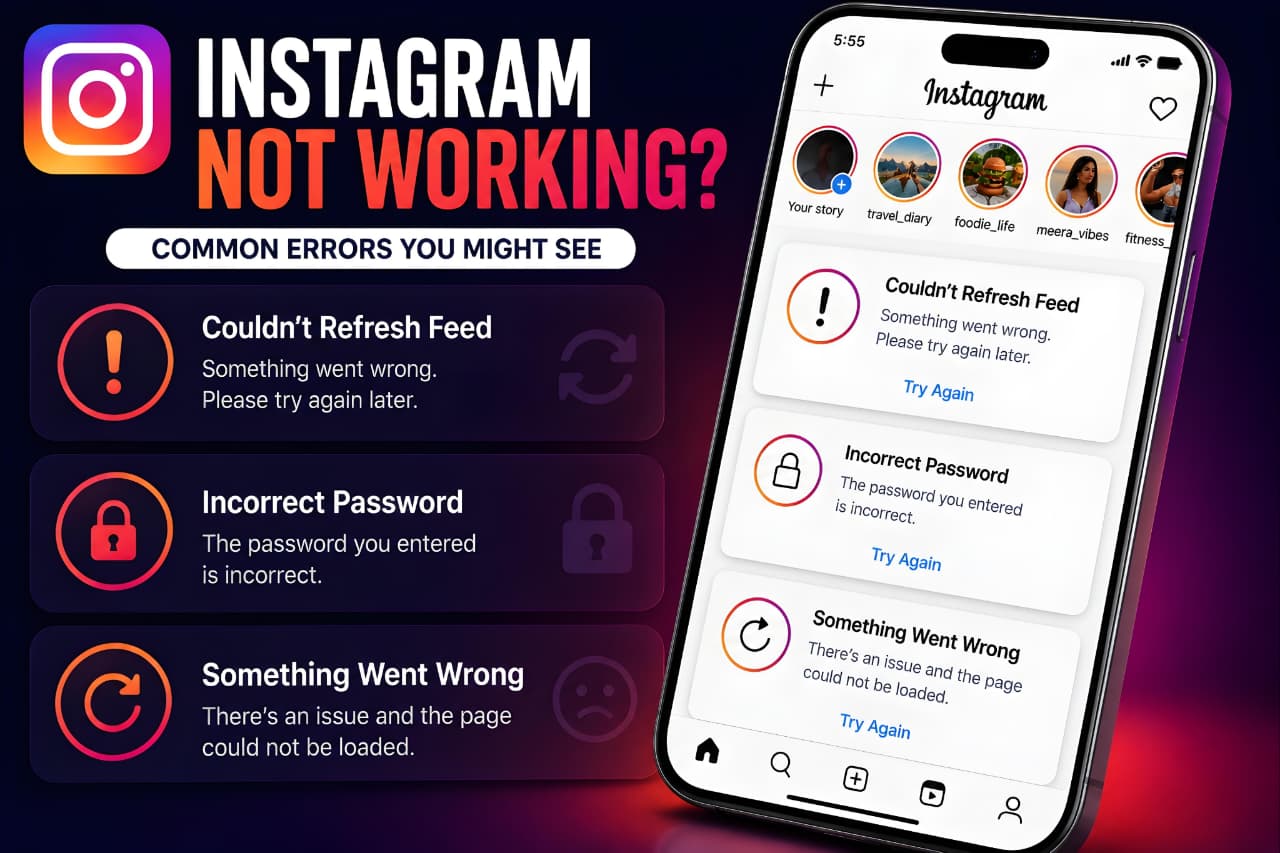
Instagram has become an essential part of everyday life for millions of people around the world. Whether you use it to stay connected with friends, build a personal brand, promote a business, or consume content, a sudden Instagram problem can be frustrating.
Many users search for solutions when Instagram stops working. Common issues include login failures, feed refresh errors, Reels not loading, Stories failing to upload, direct messages not sending, app crashes, and account-related security problems.
The good news is that most Instagram problems can be resolved without contacting support. In many cases, the issue is related to internet connectivity, device settings, app bugs, outdated software, or temporary server outages.
This comprehensive guide explains why Instagram may not be working and provides practical, proven solutions to help you get back online quickly.
If Instagram Not Working issues are affecting your account, the solutions in this guide can help identify and fix the problem quickly.
How to Check If Instagram Is Down
Before changing settings or reinstalling the app, determine whether Instagram itself is experiencing technical issues.
Many users assume their account is broken when the actual problem is a temporary outage affecting thousands of users worldwide.
Signs Instagram May Be Experiencing an Outage
- Feed does not refresh.
- Reels fail to load.
- Stories disappear or fail to upload.
- Direct messages stop sending.
- Login attempts suddenly fail.
- Multiple features stop working simultaneously.
How to Confirm an Outage
Check official resources:
If reports spike globally, the best solution is often to wait until Instagram resolves the issue.
Why Instagram Is Not Working
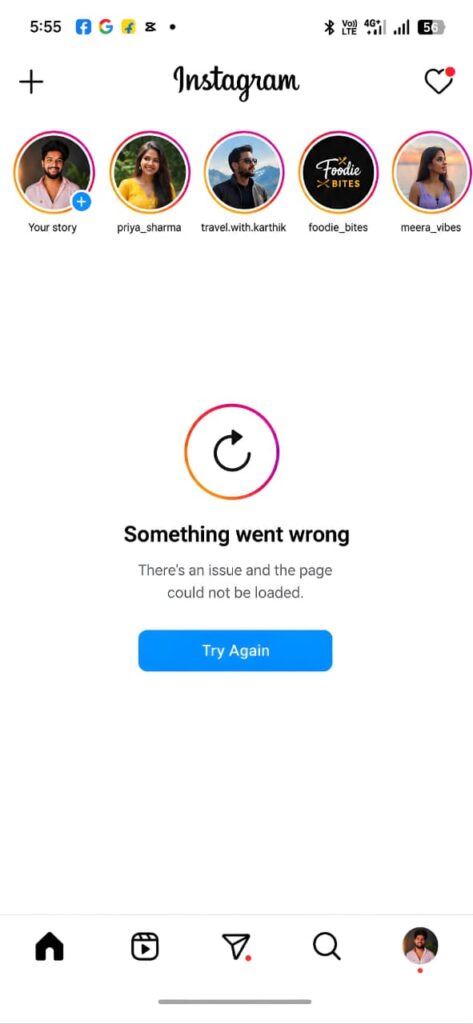
There are several reasons why Instagram Not Working problems occur, ranging from network issues to server outages.
Understanding the cause helps you choose the right solution.
The most common reasons include:
Internet Connectivity Problems
Instagram requires a stable connection to load content, send messages, and upload media.
Weak Wi-Fi, mobile network congestion, or unstable internet service can cause:
- Feed loading failures
- Video buffering
- Story upload problems
- Login issues
Outdated App Versions
Older versions often contain bugs that affect performance and compatibility.
Updating Instagram can immediately resolve many issues.
Corrupted Cache Files
Instagram stores temporary files to improve speed. Over time, these files may become corrupted and cause:
- Slow performance
- Crashes
- Missing content
- Login errors
Device Software Issues
An outdated operating system can create compatibility problems.
Always install the latest Android or iOS updates.
Instagram Server Issues
Even major platforms experience occasional outages.
When servers experience disruptions, users may see widespread failures across multiple features.
Similar platform errors can occur across different apps and services. You can also read our guide on fixing the ChatGPT “Something Went Wrong” error to understand common troubleshooting methods.
Instagram Login Problems and How to Fix Them
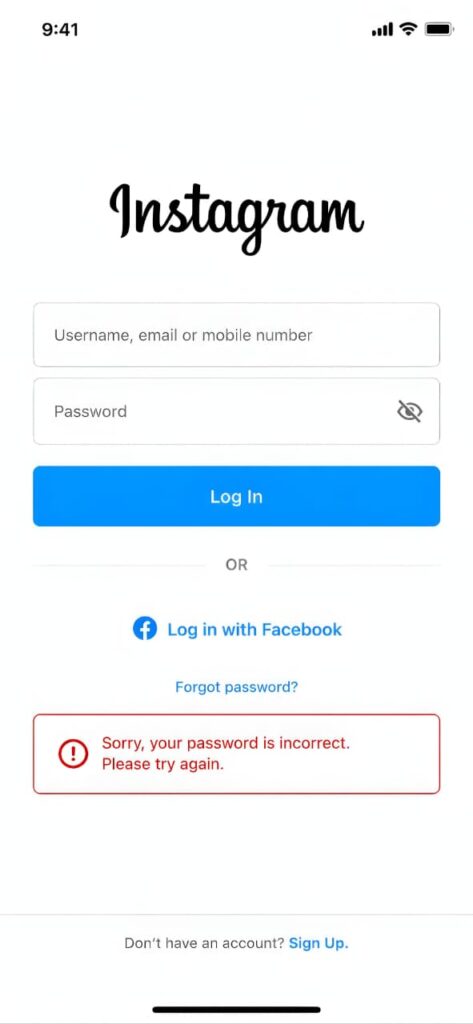
Many users report Instagram Not Working after password changes, login verification requests, or security checks.
Login problems remain one of the most common Instagram issues.
Users frequently encounter messages such as:
- “Sorry, there was a problem with your request.”
- “Incorrect password.”
- “Unable to log in.”
- “Challenge Required.”
Step 1: Verify Login Credentials
Double-check:
- Username spelling
- Email address
- Password accuracy
Many login failures result from simple typing mistakes.
Step 2: Reset Your Password
Use the official password reset page:
Choose a strong password that includes:
- Uppercase letters
- Lowercase letters
- Numbers
- Special characters
If you’re unable to access your account even after resetting your password, read our detailed guide on Facebook Password Change Error, including official recovery methods and troubleshooting steps.
Step 3: Verify Your Account
Instagram may require identity verification if unusual activity is detected.
Common triggers include:
- Logging in from a new country
- Using multiple devices
- Frequent password changes
Step 4: Disable VPN Services
Some VPN servers trigger security checks that interfere with login attempts.
Temporarily disable your VPN and try again.
How to Fix “Couldn't Refresh Feed”
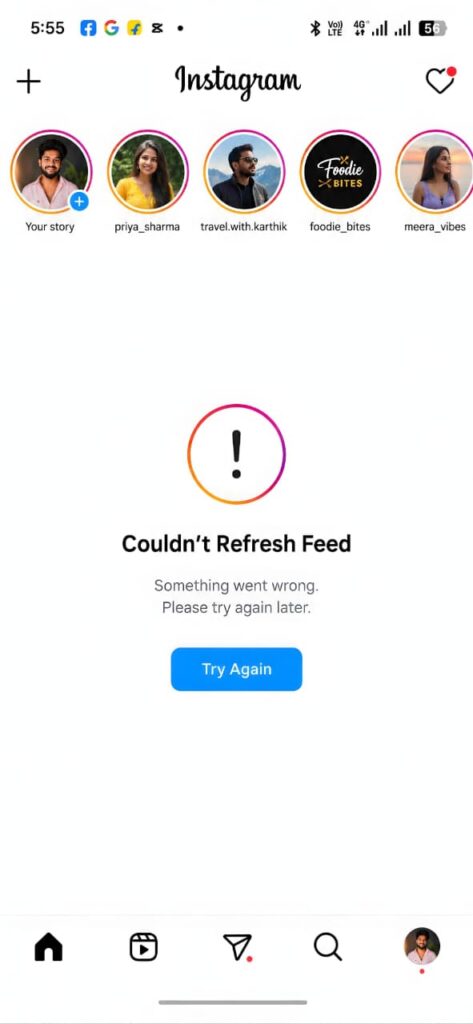
One of the most searched Instagram errors is:
“Couldn’t Refresh Feed.”
This message typically appears when Instagram cannot retrieve new content from its servers.
Possible Causes
- Weak internet connection
- Temporary outage
- Corrupted cache
- App bugs
Solutions
Restart Instagram
Close the app completely and reopen it.
Check Internet Speed
Switch between:
- Wi-Fi
- Mobile data
A simple network change often fixes the problem.
Clear Cache
Android:
Settings → Apps → Instagram → Storage → Clear Cache
Update Instagram
Install the latest version available from your app store.
Instagram Reels Not Loading
Reels have become one of Instagram’s most popular features.
When Reels stop working, users often experience:
- Endless loading circles
- Black screens
- Playback failures
- Missing audio
Why Reels Stop Working
Poor Internet Connection
Reels require more bandwidth than static content.
Outdated App Version
New Reel features may not work properly on older versions.
Cache Corruption
Temporary files can interfere with video playback.
Regional Service Issues
Occasionally, Instagram experiences localized server disruptions.
How to Fix Reels Problems
- Restart Instagram.
- Clear cache.
- Update the app.
- Restart your device.
- Reinstall Instagram.
If Instagram Not Working only affects Reels, the issue is often related to connectivity, cache, or app updates.
Instagram Stories Not Uploading
Instagram Not Working during Story uploads can be frustrating, especially when uploads fail repeatedly.
Stories are designed to upload quickly.
When uploads fail, the cause is often technical rather than account-related.
Common Reasons
- Weak signal
- Large video file
- Temporary outage
- App bugs
Proven Fixes
Reduce File Size
Large media files may fail during upload.
Compress videos before posting.
Retry Upload
Sometimes the first upload attempt simply times out.
Switch Networks
Try a different Wi-Fi connection or mobile network.
Update Instagram
Updates frequently include fixes for Story-related bugs.
Instagram Messages Not Sending
Instagram Direct Messages are critical for communication.
If messages fail to send, users often assume they have been blocked.
However, technical issues are usually responsible.
If you’re interested in Instagram’s evolving messaging experience, check out our detailed guide on Instagram Instants and Meta’s latest messaging features.
Causes
- Network instability
- Temporary service outage
- App glitches
- Restricted account activity
Solutions
Check Connection
Open a browser and verify internet access.
Log Out and Log Back In
Refreshing your session can resolve synchronization problems.
Update the App
Many messaging issues disappear after updating.
Wait and Retry
If servers are overloaded, messages may send successfully later.
Recent changes to Instagram’s messaging infrastructure have also raised questions about privacy and message security. Learn more in our guide on Instagram End-to-End Encryption Removed.
Instagram Keeps Crashing
Frequent crashes indicate a deeper software problem.
Common Causes
- Outdated app version
- Low device storage
- Corrupted installation
- Operating system conflicts
Fixes
Free Storage Space
Maintain several gigabytes of available storage.
Update Your Operating System
Install the latest Android or iOS version.
Reinstall Instagram
Deleting and reinstalling the app often resolves persistent crashes.
Instagram Search Not Working
Search failures can prevent users from finding:
- Accounts
- Hashtags
- Locations
- Content
Causes
- Temporary server problems
- Network instability
- App bugs
Solutions
- Restart Instagram.
- Clear cache.
- Update the app.
- Try searching from another device.
Instagram Action Blocked Error
This error typically appears when Instagram detects unusual activity.
Triggers
- Excessive following
- Excessive liking
- Repetitive actions
- Automation tools
Solutions
- Stop automated activity.
- Wait 24–48 hours.
- Verify your account.
- Change your password.
Challenge Required Error Explained
Instagram uses security challenges to protect users.
Why It Happens
- Suspicious login activity
- New devices
- New locations
How to Fix It
- Complete verification steps.
- Verify email.
- Verify phone number.
- Enable two-factor authentication.
Instagram Not Working on Android
Android-specific fixes include:
Clear Cache
Settings → Apps → Instagram → Storage → Clear Cache
Clear Data
If cache clearing fails, clear app data.
Update Google Play Services
This can resolve compatibility issues.
Reinstall Instagram
A fresh installation often eliminates persistent bugs.
Instagram Not Working on iPhone
Update iOS
Operating system updates frequently resolve app issues.
Offload Instagram
This preserves data while refreshing the installation.
Reset Network Settings
Settings → General → Transfer or Reset iPhone → Reset Network Settings
Prevent Future Instagram Problems
Follow these best practices:
Keep Instagram Updated
Always use the latest version.
Enable Two-Factor Authentication
Protect your account from unauthorized access.
Avoid Third-Party Tools
Unapproved apps can trigger security restrictions.
Maintain Device Storage
Low storage negatively affects performance.
Use Reliable Internet Connections
Stable connectivity improves overall Instagram functionality.
Most Instagram Not Working issues can be resolved by following the troubleshooting steps discussed in this guide.
If you are experiencing messaging issues on other platforms as well, check out our complete guide on fixing WhatsApp message sending problems.
Conclusion
When Instagram is not working, the problem is usually caused by internet connectivity issues, outdated software, corrupted cache files, account verification requirements, or temporary server outages. Fortunately, most problems can be resolved quickly through basic troubleshooting.
By following the solutions outlined in this guide, users can fix login problems, feed refresh errors, Reels loading failures, Story upload issues, messaging glitches, app crashes, and other common Instagram errors. Keeping the app updated, maintaining device storage, enabling security features, and monitoring official support channels can help prevent future issues and ensure a smoother Instagram experience.
Frequently Asked Questions
Why is Instagram not working today?
Instagram may be experiencing a temporary outage, server maintenance, internet connectivity issues, or software bugs.
Why can't I log in to Instagram?
Login issues are usually caused by incorrect credentials, security verification requirements, or temporary server problems.
Why are Instagram Reels not loading?
Poor internet connections, outdated app versions, corrupted cache files, and server disruptions are common causes.
Why won't Instagram refresh my feed?
This usually occurs because Instagram cannot retrieve data due to connectivity issues or server outages.
How do I fix Instagram crashing repeatedly?
Update the app, clear cache, free storage space, update your operating system, and reinstall Instagram if necessary.
Is Instagram down or is it just me?
Check outage monitoring websites and official Instagram resources to determine whether the issue is widespread.