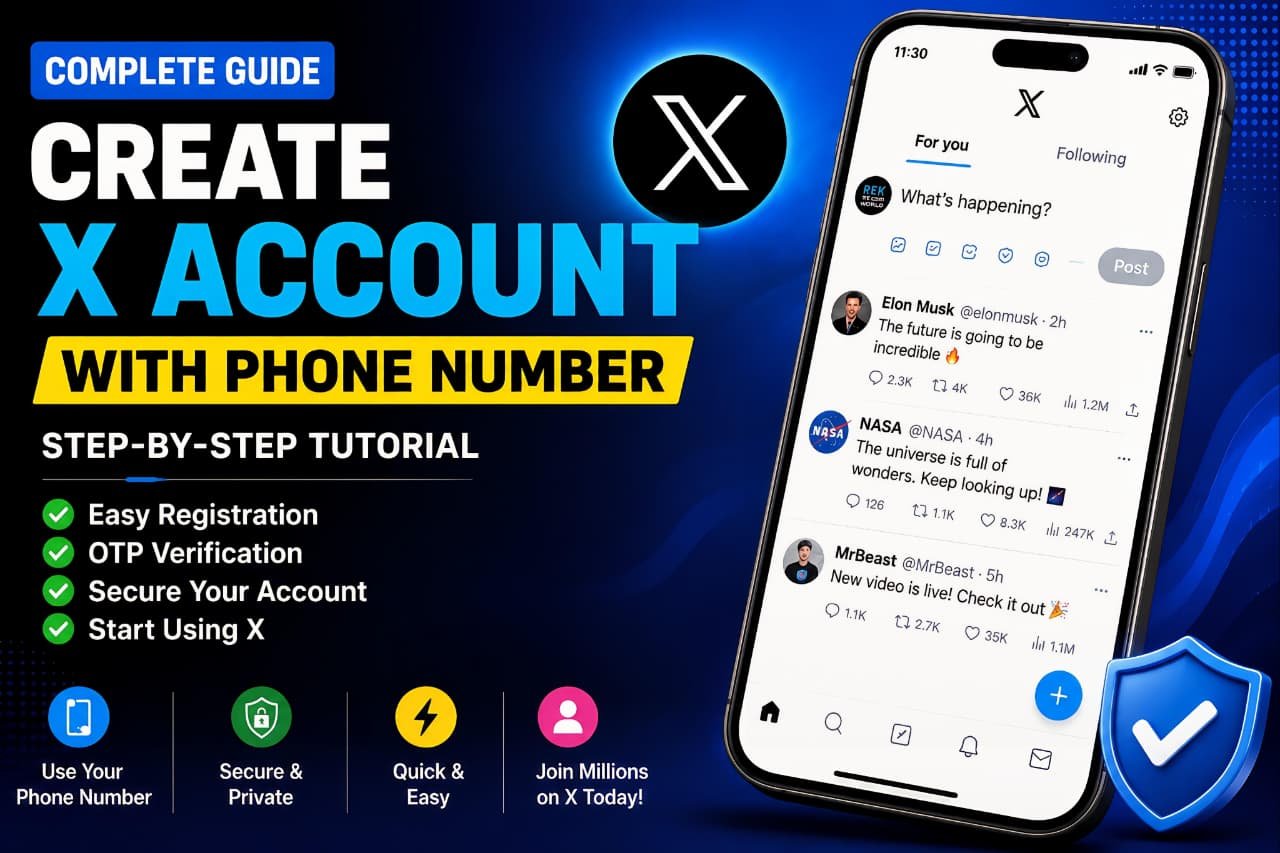
This guide explains how to Create a New X Account Using a Phone Number step by step for beginners.
Creating a new X account is one of the easiest ways to join conversations, follow creators, stay updated with breaking news, and connect with communities around the world. Whether you’re using a smartphone, tablet, laptop, or desktop computer, X allows you to create an account using either an email address or a mobile phone number.
Many users prefer phone number registration because the verification process is usually quick and straightforward. In some cases, users may not see the sign-up option inside the X mobile app. If that happens, using a web browser often provides a smoother registration experience.
In this guide, you’ll learn exactly how to create a new X account using a phone number. The steps are based on a real registration process and include screenshots, verification tips, security recommendations, and common issues that new users may encounter.
By following the instructions below, you’ll be able to create your account and start using X within minutes.
What You Need Before Creating an X Account
Before starting the registration process, make sure you have the following:
- A working mobile phone number
- Access to SMS messages or WhatsApp
- A stable internet connection
- A web browser such as Chrome, Edge, Safari, or Firefox
- A preferred username
- A secure password
Having these ready will make the registration process faster and easier.
Before you Create a New X Account Using a Phone Number, make sure you have access to an active mobile number that can receive SMS or WhatsApp verification codes.
Step 1: Open a Browser on Your Device
The first step is opening a web browser.
You can use:
- Google Chrome
- Microsoft Edge
- Safari
- Mozilla Firefox
This registration method works on:
- Smartphones
- Tablets
- Laptops
- Desktop computers
Although X has a dedicated mobile app, many users find the browser version easier when creating a new account, especially if the sign-up option isn’t visible in the app.
Many beginners prefer to Create a New X Account Using a Phone Number because the signup process is quick and simple.

Step 2: Search for X Account Registration
There are two ways to access the X registration page.
To Create a New X Account Using a Phone Number, visit the official X website or open the X mobile app.
Method 1: Visit X Directly
Type the following into the browser address bar:
x.com
Then press Enter.
Method 2: Search Through Google
Open Google and search for:
- How to create X account
- Create X account
- X sign up
Google will display the official X website among the search results.
Searching through Google can be helpful if you’re unfamiliar with the website address or want to verify that you’re visiting the official platform.
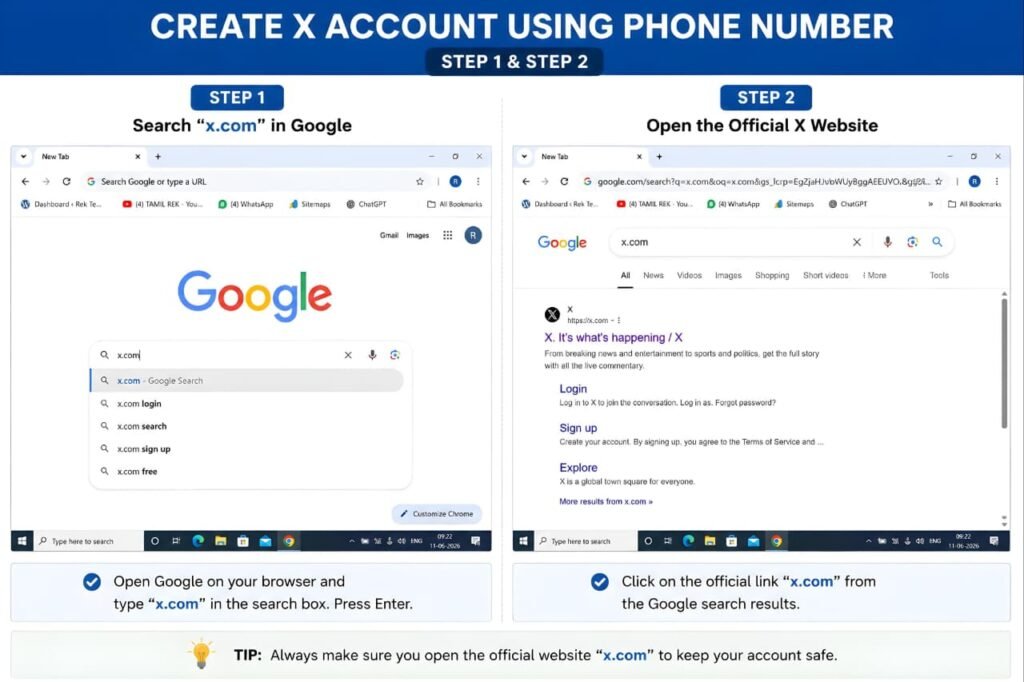
Step 3: Open the Official X Website
After searching, open the official X website.
You will typically see a result similar to:
X – See What's Happening
The official website can also be accessed directly at:
Always make sure you’re using the official X website when creating an account. This helps protect your personal information and ensures you’re registering through the correct platform.
Once the website loads, you’ll see the X sign-in and registration screen.
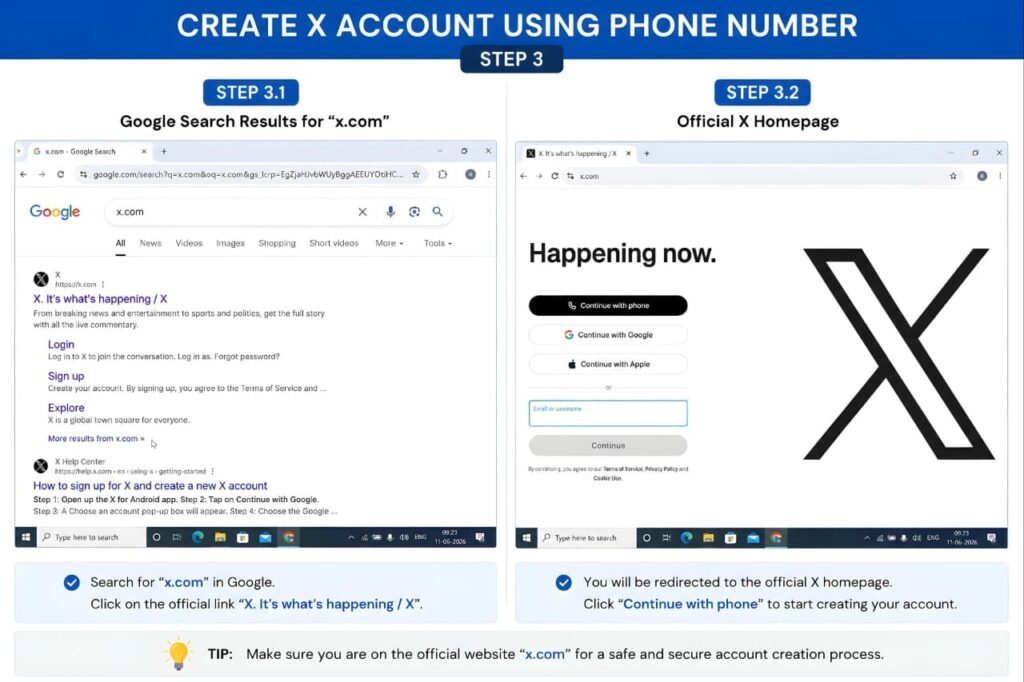
Step 4: Select "Continue with Phone"
On the X homepage, you’ll see several options for signing in or creating an account.
Choose:
Continue with Phone
X allows users to register using:
- A phone number
- An email address
For this tutorial, we’ll use a phone number because it provides a quick verification process and simplifies account recovery later if needed.
According to the X Help Center, both registration methods are supported during account creation.
https://help.x.com/en/using-x/create-x-account
After selecting Continue with Phone, you’ll be taken to the phone verification screen.
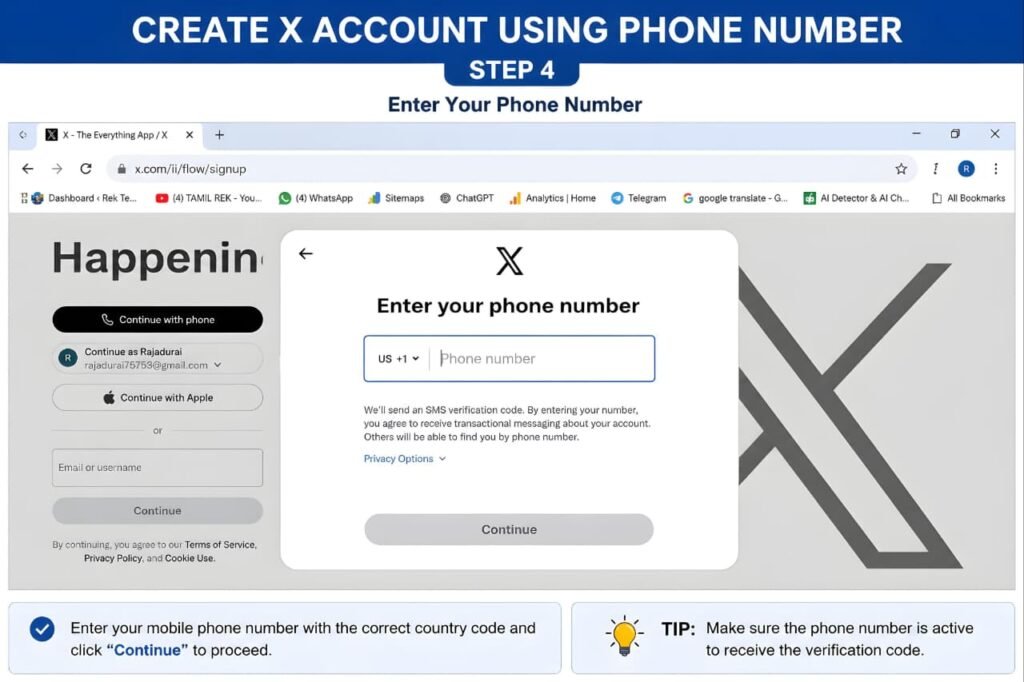
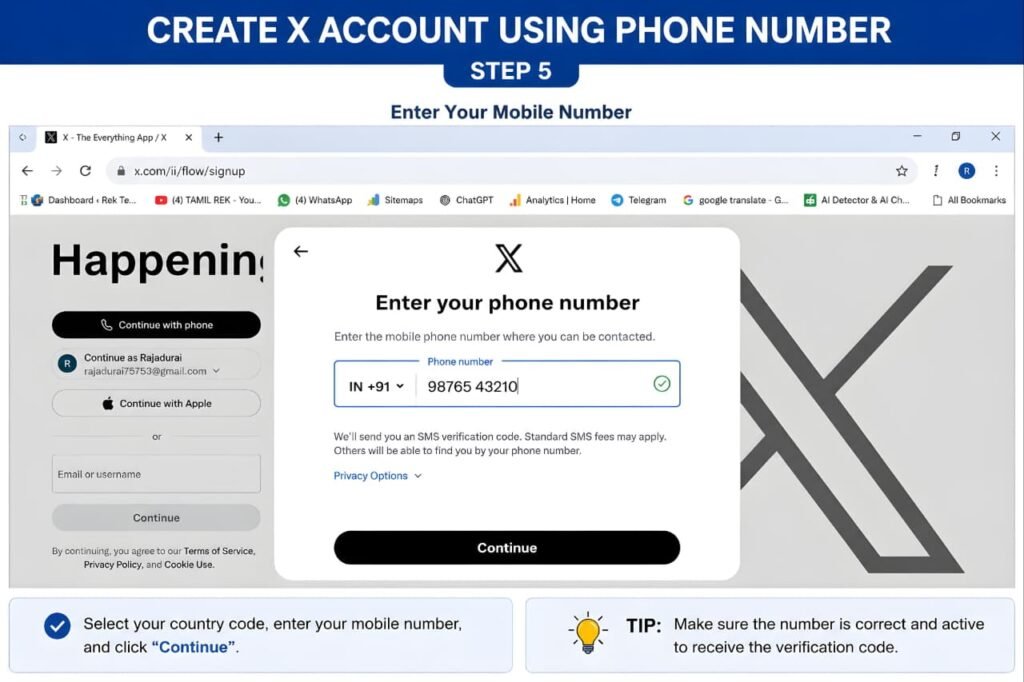
Step 5: Enter Your Mobile Number
The next step is entering your mobile number.
Before continuing, carefully verify:
- Country code
- Phone number accuracy
- Active SIM status
Many registration problems occur because users accidentally enter an incorrect number.
Take a moment to double-check everything before moving forward.
If the number is entered incorrectly, you may not receive the verification code required to complete registration.
While verifying your phone number, be aware of fake calls pretending to be verification services. Read our guide on Google Android Fake Call Detection: How It Works and Why It Matters to protect yourself from phone scams.
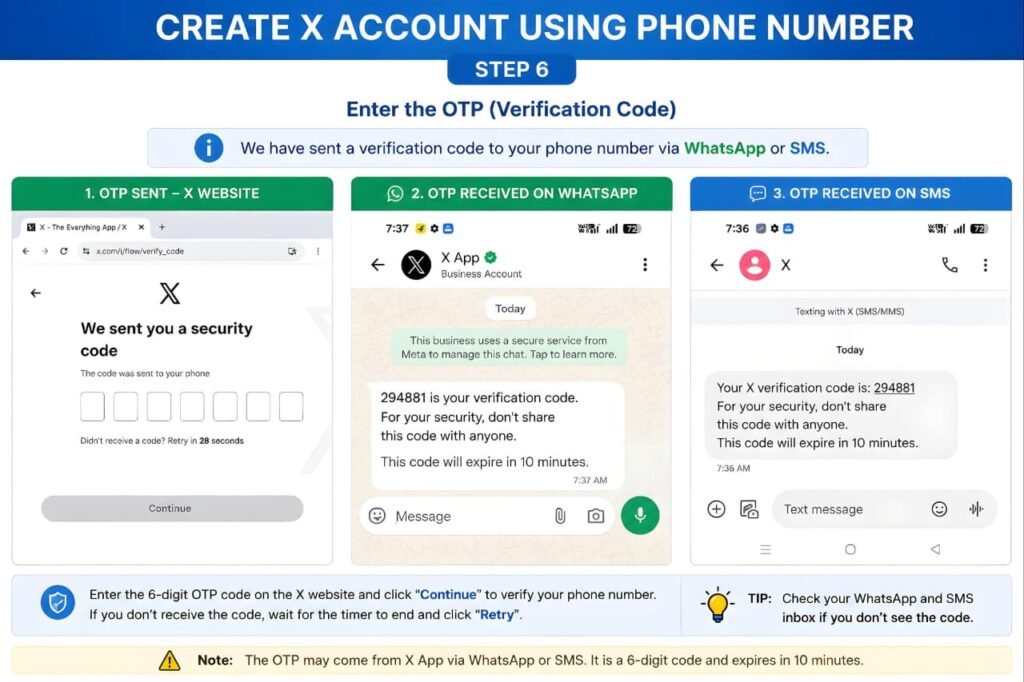
Step 6: Receive Your Verification Code
After submitting your phone number, X will send a verification code to confirm ownership of the number.
Depending on your country, carrier, and available verification options, the code may arrive through:
- SMS (Text Message)
Many users expect the code to arrive only through SMS. However, in supported regions, X may also deliver verification codes through WhatsApp.
Because of this, it’s important to check both locations if you don’t immediately receive the code.
Check:
- SMS inbox
- WhatsApp messages
- Spam or filtered messages (if applicable)
If the code does not arrive immediately:
- Wait a few minutes
- Confirm your number is correct
- Check your mobile signal
- Request another code
Once the verification code arrives, enter it exactly as shown.
Verification helps:
- Confirm account ownership
- Prevent spam registrations
- Improve platform security
To Create a New X Account Using a Phone Number, you must successfully complete the OTP verification process.
Step 7: Review Account Suggestions Carefully
After your phone number has been verified, X may display account suggestions.
This is one of the most important steps during registration.
Depending on your browser history, previous activity, or saved login information, X may show accounts that have been used on the device before.
Many users become confused at this stage because they assume they must select one of the displayed accounts.
However, if your goal is creating a completely new account, you should not choose an existing profile.
Instead, carefully review the available options and continue to the account creation screen.
In the next step, you’ll learn how to create a completely separate X account instead of signing into an existing one.
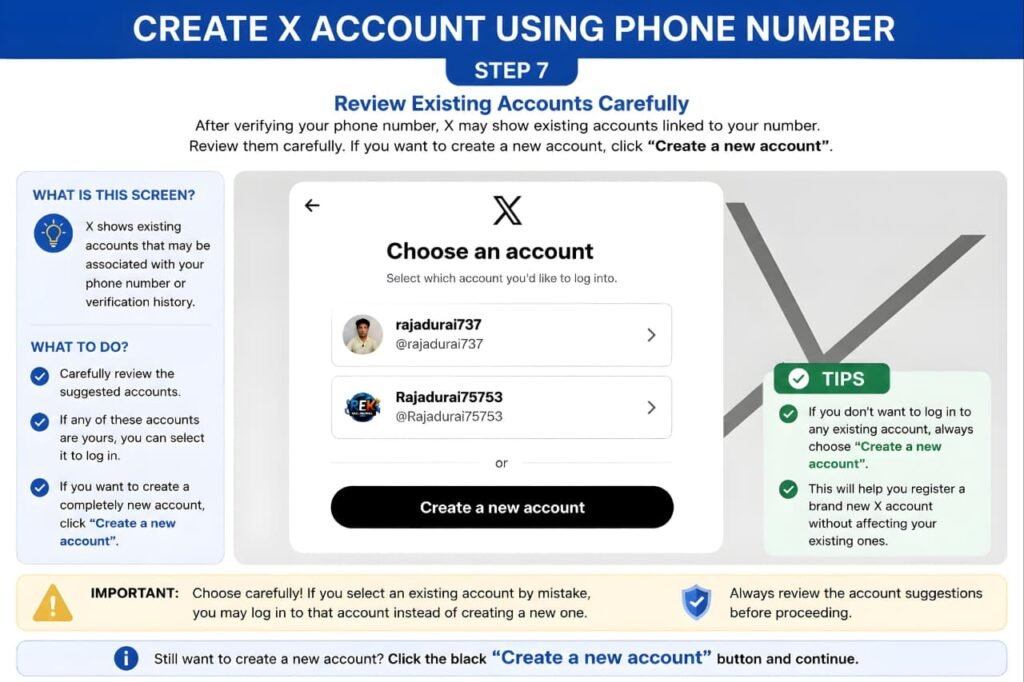
Step 8: Select "Create a New Account"
After reviewing the account suggestions, you’ll see an option to create a completely new profile.
Choose:
Create a New Account
This step is important because many users accidentally sign into an existing account instead of creating a separate one.
If your goal is:
- Creating an additional account
- Starting a new personal profile
- Creating a business profile
- Managing a separate brand account
then selecting Create a New Account is the correct choice.
Once selected, X will begin the account setup process for your new profile.
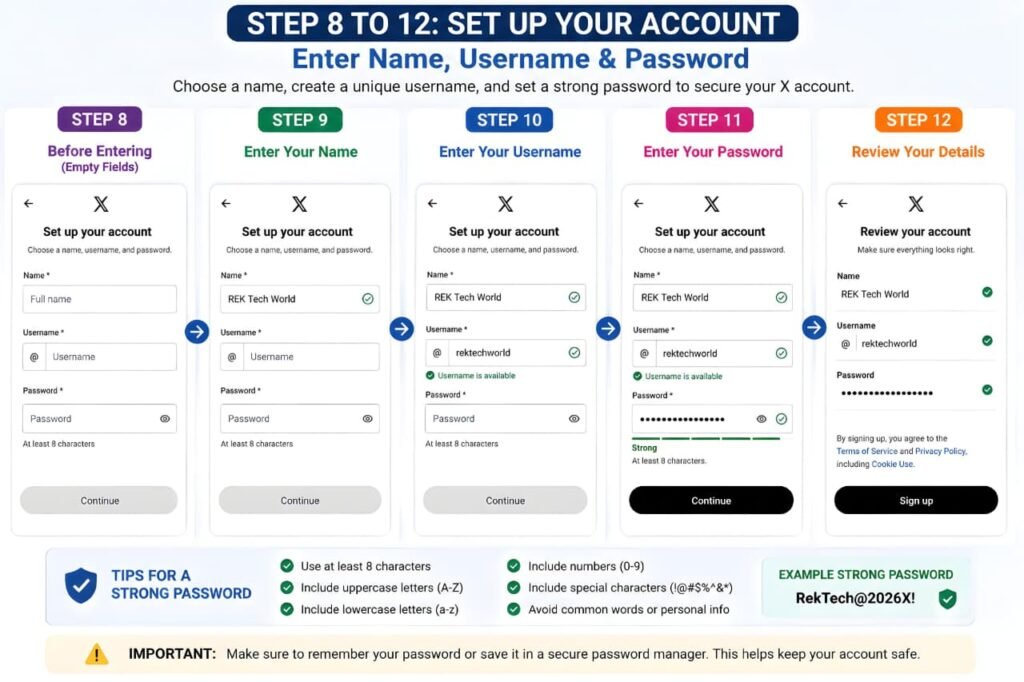
Step 9: Enter Your Name
The next screen will ask for your display name.
Your display name is the name people will see on your profile.
Examples:
- Personal Name
- Business Name
- Brand Name
- Creator Name
Choose a name that accurately represents you or your business.
Unlike usernames, display names can be changed later if needed.
If you’re creating a business account, consider using your company or brand name for better recognition.
Step 10: Choose a Username
After entering your name, you’ll be asked to select a username.
Your username is your unique identity on X.
People can:
- Mention you
- Tag you
- Find your profile
using this username.
A good username should be:
- Easy to remember
- Easy to spell
- Relevant to your identity
- Professional
If your preferred username is unavailable, X will automatically suggest alternatives.
You may need to:
- Add numbers
- Add initials
- Use underscores
- Create a unique variation
Take your time during this step because your username becomes an important part of your online identity.
Step 11: Create a Strong Password
The next step is creating a password.
Your password protects your account from unauthorized access.
A strong password should contain:
- Uppercase letters
- Lowercase letters
- Numbers
- Symbols
For example:
- StrongPass@123
- MyXAccount#2025
Avoid weak passwords such as:
- 123456
- password
- qwerty
- abc123
Using a strong password significantly improves account security.
You can learn more about account security through the X Help Center:
https://help.x.com/en/safety-and-security
New users should also learn How to Protect Your Google Account because strong passwords and account security practices are important across all online platforms.
Step 12: Review Your Account Information
Before moving forward, review all the information you’ve entered.
Check:
- Name
- Username
- Password
- Phone number
Correcting mistakes now is easier than changing settings later.
If everything looks good, continue to the next screen.
Before you Create a New X Account Using a Phone Number, choose a unique username and a strong password for better security.
Step 13: Select Your Interests
After you Create a New X Account Using a Phone Number, X allows you to personalize your experience by selecting your interests.
X personalizes your experience by asking about topics you enjoy.
You may see categories such as:
- Technology
- Business
- Finance
- Sports
- Entertainment
- Gaming
- Travel
- Education
- Science
Choose the interests that genuinely match your preferences.
The topics you select help X:
- Build your home feed
- Recommend creators
- Suggest relevant content
- Personalize your experience
Although this step can sometimes be skipped, choosing interests usually improves the quality of content shown to you after registration.
Step 14: Follow Recommended Accounts
Based on the interests you selected, X may recommend popular accounts to follow.
These recommendations often include:
- Creators
- Journalists
- Businesses
- Organizations
- Public figures
Following a few accounts during setup helps populate your timeline immediately.
However, this step is optional.
You can:
- Follow recommended accounts
- Skip and continue
Most users choose a few accounts to make their home feed more interesting from the start.
Step 15: Review "People You May Know"
The next screen may display:
People You May Know
These suggestions are generated using:
- Shared interests
- Popular accounts
- Platform recommendations
You are not required to follow anyone during this step.
Feel free to:
- Follow suggested profiles
- Skip and continue
Your account will function normally either way.
To keep your X account safe after registration, it’s important to follow good online security practices. You can also read our guide on How to Protect Your Personal Data Online: Advanced Privacy & Cybersecurity Guide.

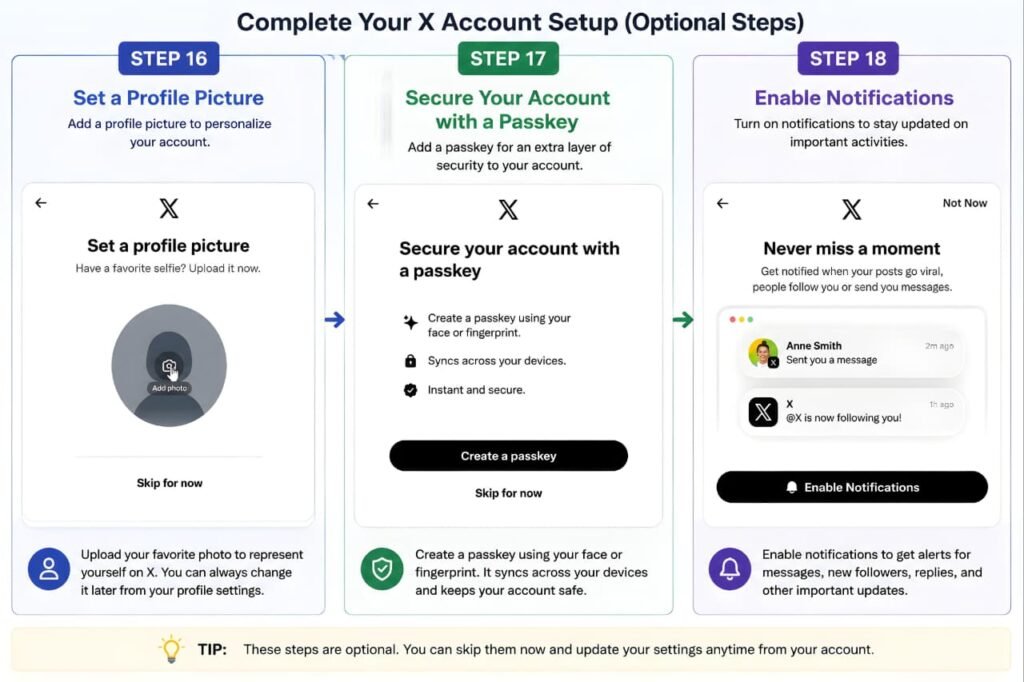
Step 16: Add a Profile Picture
Once you Create a New X Account Using a Phone Number, you can upload a profile picture to make your account more recognizable.
Now it’s time to personalize your profile.
X may ask you to upload a profile picture.
Adding a profile picture is recommended because it helps your account appear:
- More authentic
- More trustworthy
- More complete
You can upload:
- A personal photo
- A brand logo
- A business image
If you don’t have a suitable image yet, you can skip this step and add one later through your profile settings.
If you don’t have a profile picture ready, you can use free AI image generation tools to create a professional-looking profile image. Check out our guide on Best Free AI Image Generators: Top 10 Tools for Creating High-Quality Images.
Step 17: Set Up a Passkey (Optional)
For additional account protection, X may offer passkey authentication.
A passkey is a modern security feature designed to improve account protection beyond traditional passwords.
Benefits include:
- Improved security
- Faster authentication
- Reduced risk of password theft
Learn more:
https://help.x.com/en/managing-your-account/passkeys
You can:
- Enable Passkey now
- Skip and configure it later
Most new users choose to continue and configure advanced security settings later.
Passkeys and modern authentication methods are becoming more common as part of the broader security improvements discussed in Latest Google Updates Explained.
Step 18: Enable Notifications
X may ask whether you would like to receive notifications.
Notifications help you stay informed about:
- New followers
- Replies
- Mentions
- Trending conversations
- Account activity
You can:
- Enable notifications
- Skip for now
Notification settings can always be changed later.
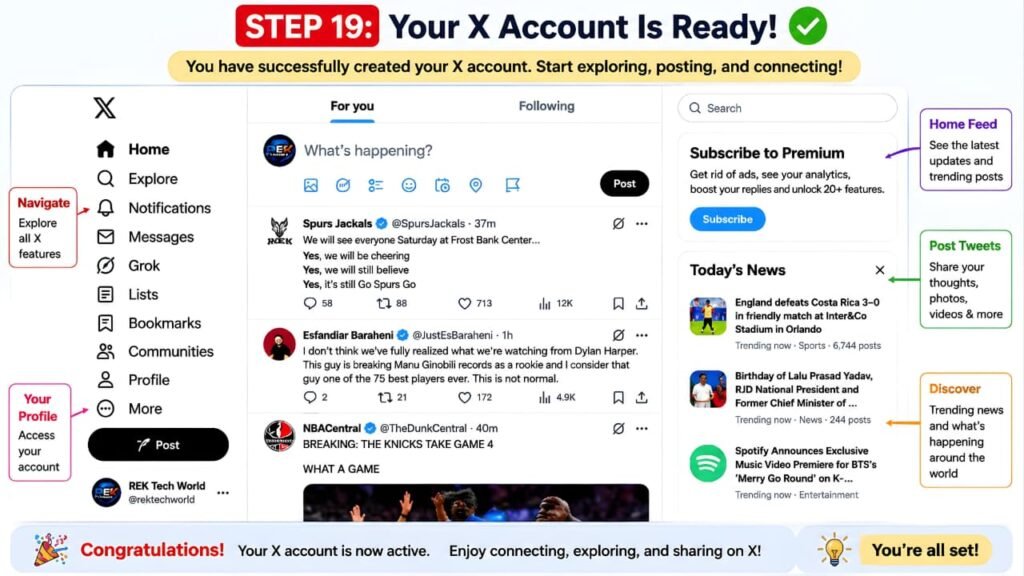
Step 19: Access Your New X Home Feed
After completing the onboarding process, X will take you directly to your home feed.
Congratulations!
Your account is now active.
You can begin:
- Following people
- Posting updates
- Sharing photos
- Uploading videos
- Exploring trending topics
- Building your audience
At this stage, your account setup is complete and you’re ready to start using X.
You have now successfully completed all the steps required to Create a New X Account Using a Phone Number.
You can now Create a New X Account Using a Phone Number and start exploring all the features available on X.
What to Do After Creating Your X Account
After registration, consider completing the following profile details:
Add a Bio
Tell people who you are and what your account is about.
Add a Website
If you have a personal website, business website, or portfolio, add it to your profile.
Complete Your Profile
Profiles with complete information generally appear more trustworthy.
Follow Relevant Accounts
Following accounts related to your interests helps improve your overall X experience.
Explore the Platform
Spend some time learning:
- Home Feed
- Explore
- Notifications
- Messages
- Communities
The more familiar you become with these features, the easier it will be to get value from the platform.
Benefits of Creating an X Account Using a Phone Number
Many users prefer phone number registration because it offers a faster and more convenient setup experience.
Faster Verification
Phone number verification is usually completed within a few minutes.
Depending on your region, X may send the verification code through:
- SMS
This allows users to verify their accounts quickly without needing to switch between multiple apps.
Easier Account Recovery
If you forget your password in the future, a verified phone number can help you recover access to your account more easily.
Better Security
Phone verification helps X confirm account ownership and reduce fake account registrations.
Security alerts and account verification systems are becoming increasingly important, similar to the protections discussed in Google Critical Security Alert.
Convenient Registration Process
Many users find phone number registration easier than email-based verification because the process is simple and straightforward.
Common Mistakes to Avoid When Creating an X Account
Many registration issues occur because of small mistakes that can easily be avoided.
Entering the Wrong Phone Number
Before requesting a verification code, double-check:
- Country code
- Phone number
- Active SIM status
A single incorrect digit can prevent the verification code from arriving.
Checking Only SMS Messages
Many users assume the verification code will always arrive through SMS.
However, in supported regions, X may send the code through WhatsApp.
Always check:
- SMS inbox
- WhatsApp messages
before requesting another code.
Waiting Too Long to Enter the Verification Code
Verification codes may expire after a certain period.
To avoid delays, enter the code as soon as you receive it.
Choosing a Weak Password
Weak passwords make accounts vulnerable to unauthorized access.
Avoid passwords such as:
- 123456
- password
- qwerty
Instead, create a password that includes letters, numbers, and symbols.
Accidentally Selecting an Existing Account
If X displays account suggestions during setup, carefully choose:
Create a New Account
if your goal is creating a separate profile.
Skipping Profile Setup
Profiles with:
- A profile picture
- A bio
- Basic profile information
often appear more trustworthy and professional.
Completing your profile can improve your experience and credibility on the platform.
Troubleshooting Common X Account Creation Problems
Even though the registration process is usually simple, some users may encounter issues.
Here are the most common problems and solutions.
Verification Code Not Received
If you don’t receive a verification code:
Check SMS Messages
The code may arrive through a normal text message.
Check WhatsApp
Depending on your region, the code may arrive through WhatsApp instead.
Confirm Your Phone Number
Verify that the number was entered correctly.
Verify that the number was entered correctly.
Wait a few minutes and request a new verification code.
Username Already Taken
Popular usernames are often unavailable.
Try:
- Adding numbers
- Adding initials
- Using underscores
- Creating a unique variation
Browser Not Loading Properly
If the X website isn’t loading correctly:
- Refresh the page
- Clear browser cache
- Use Incognito Mode
- Update your browser
- Try another browser
Sign-Up Option Missing in the App
Some users may not see the sign-up option inside the X mobile app.
If this happens:
- Open a browser.
- Visit https://x.com
- Select Continue with Phone.
- Complete registration through the browser.
Many users find the browser version easier for account creation.
Registration Process Stops Unexpectedly
If registration suddenly stops:
- Check your internet connection
- Refresh the page
- Restart the browser
- Try another device
If the issue continues, visit the official X Help Center:
Similar browser-related issues can also affect AI platforms, as explained in How to Fix ChatGPT Something Went Wrong Error.
Final Thoughts
Creating a new X account using a phone number is a quick and straightforward process. Whether you’re using a smartphone, tablet, laptop, or desktop computer, the registration steps remain simple when you follow the correct process.
By visiting the official X website, verifying your phone number, choosing a secure username and password, selecting your interests, and completing your profile setup, you can start using X within minutes.
Remember to check both SMS and WhatsApp for your verification code, especially if it doesn’t appear immediately. Taking a few extra moments to choose a strong password and review your security settings can also help protect your account in the future.
If the sign-up option isn’t visible in the X app, using a browser is often the easiest solution. Following the steps outlined in this guide will help you successfully create your account and begin exploring everything X has to offer.
We hope this guide helped you Create a New X Account Using a Phone Number quickly and securely.
Anyone can Create a New X Account Using a Phone Number by following the official registration steps explained in this guide.
Now you are ready to Create a New X Account Using a Phone Number and start using X with confidence.
Looking for tools to improve productivity and manage online tasks more efficiently? Read our guide on Top 10 Free AI Tools: Best AI Platforms for Productivity, Writing & Research.
Frequently Asked Questions
Many users who want to Create a New X Account Using a Phone Number have similar questions about verification, usernames, and account setup.
Can I create a New X account using a phone number Only?
Yes. You can create a new X account using a phone number without adding an email address during the registration process. X allows users to verify their identity through a mobile number and complete account creation using SMS or WhatsApp verification codes, depending on availability. This is one of the easiest ways to Create a New X Account Using a Phone Number without using an email address.
Can the verification code arrive through WhatsApp?
Yes. Depending on your location and available verification methods, X may send the code through SMS or WhatsApp.
Can I change my username later?
Yes. Usernames can be changed through your account settings after registration.
Can I create multiple X accounts?
Yes. X supports multiple accounts as long as they comply with platform policies.
Is creating an X account free?
Yes. Creating and using a standard X account is free.
Do I need a profile picture?
No. A profile picture is optional, but adding one can make your profile appear more complete and trustworthy.