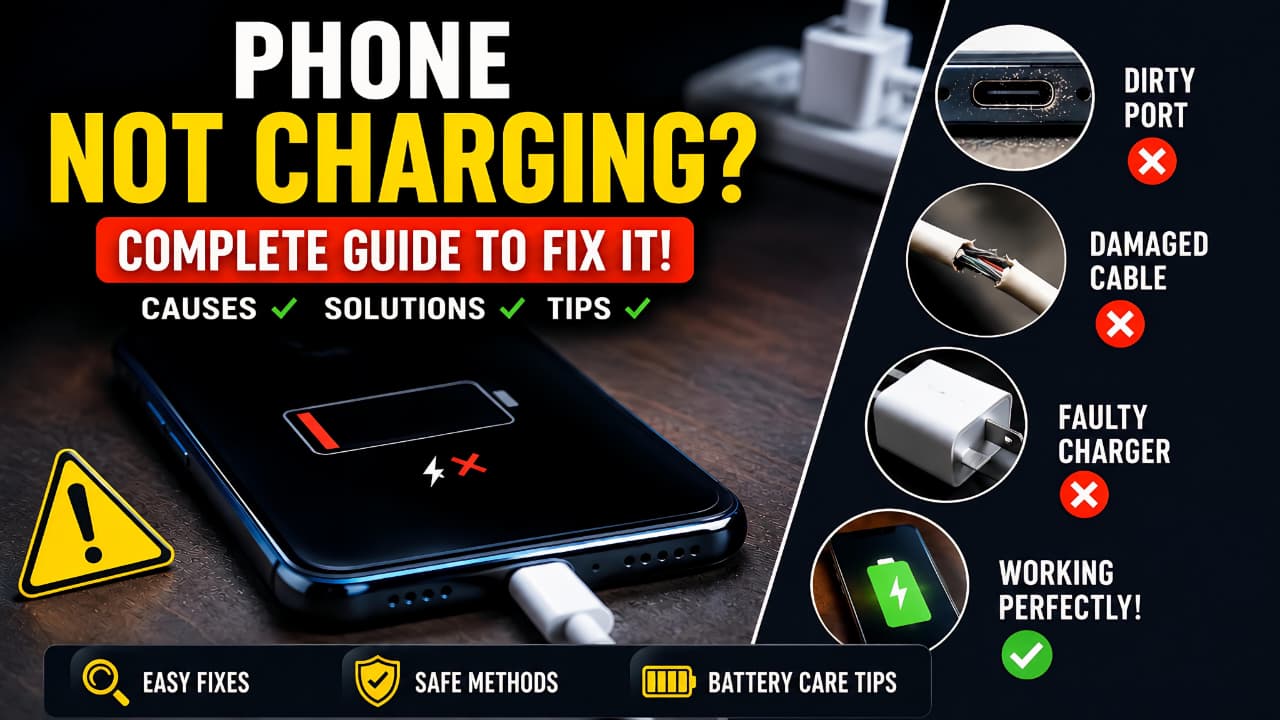
Phone Not Charging? Here's How to Fix It Step by Step
Introduction
There’s nothing more frustrating than plugging in your phone and realizing it isn’t charging. Whether you’re using an Android smartphone or an iPhone, charging problems can happen unexpectedly even if your device worked perfectly just a few hours earlier.
Sometimes the battery icon doesn’t appear at all. In other cases, the phone shows it’s charging, but the battery percentage never increases. You might also notice extremely slow charging, random charging interruptions, or a device that only charges when the cable is held at a specific angle.
The good news is that not every charging problem means your phone is damaged. In many cases, the issue is caused by something simple, such as a worn-out charging cable, dust inside the charging port, a faulty power adapter, a software glitch, or temporary battery protection features.
This guide explains every major reason why a phone may stop charging and provides practical, step-by-step solutions that work for most Android phones and iPhones. We’ll also explain when the problem can be fixed at home and when it’s time to visit an authorized service center.
By the end of this guide, you’ll know how to diagnose the problem, apply the correct fix, and prevent charging issues from happening again.
Whether your device charges slowly, stops charging completely, or disconnects randomly, understanding the real cause is the first step toward solving the problem. This guide is designed to help you fix every common Phone Not Charging issue using safe, practical, and easy-to-follow troubleshooting methods.
By the end of this guide, you’ll know how to diagnose the problem, apply the correct fix, and prevent charging issues from happening again. If your device also becomes unusually warm during charging, read our guide on phone overheating causes and fixes for additional troubleshooting.
Table of Contents
- Introduction
- Quick Answer: Why Is My Phone Not Charging?
- Signs Your Phone Has a Charging Problem
- Before You Try Any Fix
- Quick Troubleshooting Checklist
- Why Is Your Phone Not Charging?
- How to Fix a Phone That Is Not Charging
- Android Phone Not Charging Guide
- iPhone Not Charging Guide
- Fast Charging Not Working
- Slow Charging Problems
- Wireless Charging Not Working
- USB-C Charging Problems
- Lightning Charging Problems
- How to Clean a Charging Port Safely
- Understanding Battery Health
- Charging Safety Tips
- Common Charging Myths
- Real-World Charging Problems
- Charging Mistakes That Can Damage Your Phone
- Battery Care Best Practices
- Prevent Future Charging Problems
- Frequently Asked Questions (FAQ)
- Final Conclusion
Quick Answer: Why Is My Phone Not Charging?
If your Phone Not Charging, the problem is usually caused by one of these reasons:
- Damaged charging cable
- Faulty wall charger
- Loose or dirty charging port
- Software bug
- Battery overheating
- Battery health degradation
- Moisture detected inside the charging port
- Unsupported charging accessory
- Damaged USB port
- Hardware failure
Start by checking the charger, cable, wall outlet, and charging port. Then restart your phone and allow it to charge for at least 30 minutes before assuming the battery is dead. Apple also recommends checking for debris in the charging port and avoiding damaged charging accessories.
In most cases, a Phone Not Charging problem can be resolved by checking the charging cable, power adapter, charging port, and software before assuming that expensive hardware repairs are necessary.
Signs Your Phone Has a Charging Problem
Charging issues don’t always look the same. Some problems appear suddenly, while others develop gradually over time.
Common symptoms include:
- Phone doesn’t charge at all.
- Battery percentage stays the same while charging.
- Charging starts and stops repeatedly.
- Phone only charges when the cable is positioned at a certain angle.
- Charging is much slower than normal.
- “Accessory Not Supported” or similar warning appears.
- Phone becomes unusually hot during charging.
- Charging stops at 80%.
- Wireless charging works, but cable charging doesn’t.
- Battery drains even while plugged in.
Each symptom usually points to a different cause, which is why identifying the exact behavior is the first step toward fixing the issue.
Recognizing these warning signs early can help you diagnose a Phone Not Charging issue before it develops into a more serious battery or hardware problem.
If your battery drains unusually fast even while charging, our battery fast drain problem solution guide explains the most common causes and practical fixes.
Before You Try Any Fix
Before assuming your phone has a serious hardware problem, perform these quick checks.
✓ Check the Power Outlet
Sometimes the issue isn’t your phone—it’s the power source.
Try:
- Another wall outlet
- Another extension board
- Another USB port
- Another charger
A faulty power outlet can easily make it appear as though the phone isn’t charging.
✓ Check the Charging Cable
Charging cables wear out over time.
Look for:
- Frayed wires
- Bent connectors
- Loose USB ends
- Broken insulation
- Burn marks
Even a tiny internal break can stop power delivery.
If possible, test your phone using another certified cable.
✓ Check the Charger
Many charging problems are caused by faulty power adapters.
Inspect the charger for:
- Physical damage
- Burn marks
- Loose USB port
- Overheating
If another charger works normally, you’ve already found the problem.
✓ Remove the Phone Case
Some thick protective cases prevent the charging connector from fully inserting into the charging port.
Remove the case and reconnect the cable.
This simple step often solves intermittent charging problems.
✓ Wait for 30 Minutes
If the battery is completely empty, the phone may need time before it displays the charging indicator.
Apple recommends leaving the device connected to a charger for around 30 minutes before attempting to turn it on.
Before replacing any accessories or visiting a repair center, follow these basic precautions to troubleshoot a Phone Not Charging problem safely and avoid causing additional damage.
Quick Troubleshooting Checklist
Use this checklist before moving on to advanced troubleshooting.
| Check | What to Do | Difficulty |
|---|---|---|
| Power Outlet | Try another wall socket. | Easy |
| Charging Cable | Replace with a certified cable. | Easy |
| Power Adapter | Use another charger. | Easy |
| Charging Port | Inspect for dust or lint. | Easy |
| Restart Phone | Reboot the device. | Easy |
| Battery Level | Leave charging for 30 minutes. | Easy |
Working through this checklist step by step allows you to identify the exact cause of a Phone Not Charging issue without unnecessary repairs or replacement costs.
Why Is Your Phone Not Charging?
Many people assume a phone that won’t charge has a dead battery. In reality, a charging problem can be caused by several hardware or software issues. Identifying the correct cause saves time and may help you avoid an unnecessary repair.
Below are the most common reasons why a Phone Not Charging issue occurs.
1. Damaged Charging Cable
A damaged charging cable is one of the most common causes of charging problems.
Although the cable may look fine from the outside, repeated bending, twisting, or pulling can break the tiny wires inside. When this happens, power delivery becomes unstable or stops completely.
Common Signs
- Charging starts and stops repeatedly.
- The cable only works when bent.
- The connector feels loose.
- Charging is much slower than before.
How to Fix It
- Test your phone with another certified cable.
- Use a high-quality cable that supports your phone’s charging speed.
- Replace damaged or worn cables immediately.
Avoid: Using heavily bent, frayed, or cracked charging cables.
2. Faulty Charger Adapter
The charging adapter converts wall power into the correct voltage and current for your phone.
If the adapter is faulty, your phone may not charge even when the cable is working perfectly.
Warning Signs
- Adapter becomes extremely hot.
- Phone charges with another charger.
- Charger makes unusual noises.
- Burn marks are visible.
How to Fix It
- Try another compatible charger.
- Use the original charger whenever possible.
- Replace damaged adapters immediately.
3. Dirty Charging Port
The charging port collects dust, lint, and pocket debris over time.
Even a small amount of dirt can prevent the charging connector from making proper contact.
Common Symptoms
- Cable doesn’t fit properly.
- Charging disconnects randomly.
- Phone only charges at one angle.
Safe Solution
Turn off the phone first.
Carefully inspect the charging port under good lighting.
If you notice lint or dust, remove it gently using a soft, non-metallic tool or compressed air. Avoid inserting sharp metal objects that could damage the charging pins.
4. Loose Charging Port
A loose charging port is different from a dirty one.
After years of use, the internal connector may wear out.
Signs
- Cable falls out easily.
- Connector feels loose.
- Phone charges only when pressure is applied.
Can You Fix It Yourself?
Usually no.
If the charging port is physically damaged, it normally requires replacement by a qualified technician.
5. Software Glitch
Sometimes the charging hardware is perfectly fine.
Instead, the operating system incorrectly reports charging status due to a temporary software issue.
Possible Symptoms
- Battery icon doesn’t update.
- Charging percentage freezes.
- Phone randomly stops charging.
Fix
- Restart your phone.
- Install pending software updates.
- Force restart if the phone becomes unresponsive.
6. Battery Overheating Protection
Modern smartphones automatically reduce or stop charging when the battery becomes too hot.
This is a built-in safety feature designed to protect battery health.
Why It Happens
- Direct sunlight
- Gaming while charging
- Heavy multitasking
- Hot environments
- Fast charging under high temperatures
Solution
Allow the phone to cool naturally before charging again.
Avoid placing the phone under pillows, blankets, or inside a hot car while charging.
7. Battery Health Has Degraded
Lithium-ion batteries wear out over time.
After hundreds of charging cycles, battery capacity gradually decreases.
An old battery may struggle to accept or hold a charge.
Common Signs
- Battery drains very quickly.
- Phone shuts down unexpectedly.
- Charging takes much longer.
- Battery percentage jumps randomly.
If your battery has reached the end of its lifespan, replacing it may be the only permanent solution.
To better understand how lithium-ion batteries age over time and how to extend battery lifespan, you can also refer to Apple’s official Battery Service and Recycling guide.
8. Moisture Inside the Charging Port
Many modern smartphones detect water inside the charging port.
When moisture is detected, charging is temporarily disabled to prevent electrical damage.
You May See Messages Like
- Moisture Detected
- Liquid Detected
- USB Port Disabled
- Charging Paused
What You Should Do
- Disconnect the charger.
- Let the phone dry naturally in a well-ventilated place.
- Do not use heat sources such as a hair dryer.
- Do not place the phone in rice, as this is not a recommended drying method.
Once the port is completely dry, charging should resume normally.
9. Unsupported Charging Accessories
Not every charger is designed for every phone.
Very cheap or low-quality accessories may fail to deliver stable power.
Some phones may also display warnings indicating that the connected accessory isn’t supported.
Best Practice
Use chargers and cables that match your phone’s charging specifications.
Certified accessories are generally more reliable and safer than unknown, low-quality alternatives.
10. Charging Port Corrosion
If a phone has been exposed to water or humid conditions, corrosion may develop inside the charging connector.
This can interrupt power transfer even after the device appears dry.
Symptoms
- Green or white residue inside the port.
- Random charging failures.
- Charging stops unexpectedly.
Corrosion usually requires professional inspection and cleaning.
11. USB-C Connector Damage
USB-C ports contain multiple tiny pins.
If one or more pins become bent or damaged, charging performance can be affected.
Possible Symptoms
- Fast charging no longer works.
- Cable feels unusually loose.
- Device charges only with certain cables.
Physical damage typically requires hardware repair.
12. Fast Charging Compatibility Issues
Many users believe every USB-C charger supports fast charging.
In reality, fast charging depends on several factors:
- Charger output
- Cable quality
- Phone compatibility
- Charging protocol support
If any one of these doesn’t match, charging may continue at a much slower speed even though the phone is technically charging.
13. Faulty Wall Power Outlet
Sometimes the problem isn’t your phone or charger—it’s the power outlet.
A loose, damaged, or malfunctioning wall socket may not deliver stable power, making it seem like your phone isn’t charging.
Signs
- Other devices also don’t work in the same outlet.
- Charging starts and stops unexpectedly.
- The charger feels loose when plugged in.
How to Fix It
- Try a different wall outlet.
- Avoid overloaded extension boards.
- If possible, plug the charger directly into the wall socket instead of using an extension.
14. Defective Extension Board or Surge Protector
Power strips and surge protectors can fail over time.
Even if the indicator light is on, the charging output may not be stable.
Solution
Connect your charger directly to a wall outlet and check whether the phone begins charging normally.
15. Charging Through a Laptop USB Port
Many users charge their phones using a laptop or desktop USB port.
However, not every USB port can deliver enough power, especially for modern smartphones that support fast charging.
Common Symptoms
- Very slow charging.
- Battery percentage barely increases.
- Charging pauses when the laptop enters sleep mode.
Recommendation
Whenever possible, use a certified wall charger instead of relying on a computer’s USB port for regular charging.
16. Power Bank Issues
A faulty or low-quality power bank can also cause charging problems.
Check These Points
- Is the power bank fully charged?
- Does it support your phone’s charging requirements?
- Are you using a compatible cable?
- Does it charge another phone correctly?
If the power bank fails to charge multiple devices, the issue is likely with the power bank itself.
17. Background Apps Consuming Too Much Power
Sometimes your phone is charging, but it doesn’t appear to gain battery because power consumption is extremely high.
This often happens when:
- Playing graphic-intensive games.
- Recording 4K or 8K videos.
- Using GPS navigation for long periods.
- Running multiple demanding apps simultaneously.
Solution
Close unnecessary apps and allow the phone to charge with minimal background activity.
18. Recent Software Update Issues
Occasionally, a software update may introduce temporary charging-related bugs.
Possible Signs
- Charging issues started immediately after an update.
- Battery drains faster than before.
- Charging animation behaves abnormally.
What You Can Do
- Restart the phone.
- Install any available follow-up software updates.
- If the issue persists, wait for the manufacturer to release a bug-fix update or contact official support.
19. Charging IC (Integrated Circuit) Failure
The charging IC is an internal hardware component responsible for managing power flow to the battery.
If it fails, the phone may not charge even when the charger, cable, and battery are working correctly.
Common Symptoms
- No charging response.
- Phone won’t turn on even after extended charging.
- Device becomes unusually warm near the charging port.
- Battery percentage remains at 0%.
Can You Fix It Yourself?
No. Charging IC issues require professional diagnosis and repair.
20. Motherboard Damage
In rare cases, the problem lies with the phone’s motherboard.
This usually happens due to:
- Severe drops.
- Water damage.
- Electrical surges.
- Internal component failure.
Warning Signs
- Phone doesn’t power on.
- Charging doesn’t work with any charger.
- Other hardware functions also fail.
Motherboard repairs should only be performed by an authorized service center.
21. Battery Reached the End of Its Lifespan
Rechargeable lithium-ion batteries naturally wear out after hundreds of charging cycles.
As battery health declines, charging performance also decreases.
Signs of an Aging Battery
- Battery drains unusually fast.
- Phone shuts down unexpectedly.
- Battery percentage changes rapidly.
- Charging takes significantly longer than before.
If the battery health is severely degraded, replacing the battery is usually the most effective solution.
22. Physical Damage After a Drop
A hard impact can damage internal charging components even if there are no visible cracks on the outside.
Check for These Symptoms
- Charging stopped immediately after dropping the phone.
- Screen, buttons, or speakers also behave abnormally.
- Charging works only intermittently.
Internal damage should be inspected by a qualified technician.
23. Using Extremely Low-Quality Accessories
Cheap chargers and cables often fail to provide stable voltage and current.
They can cause:
- Slow charging.
- Charging interruptions.
- Device overheating.
- Reduced battery lifespan.
Best Practice
Always use reliable, certified accessories that meet your phone manufacturer’s charging specifications.
24. Extreme Environmental Temperatures
Both very high and very low temperatures can affect charging performance.
Modern smartphones may slow down or temporarily stop charging to protect the battery.
Tips
- Avoid charging the phone in direct sunlight.
- Don’t leave it inside a hot car.
- Allow the device to return to a normal temperature before charging.
25. Internal Hardware Failure
If you’ve tested multiple chargers, cables, and power outlets and the phone still refuses to charge the issue may be caused by an internal hardware failure.
Possible components include:
- Charging port assembly
- Charging IC
- Battery connector
- Motherboard
- Power management circuit
At this stage, home troubleshooting is unlikely to resolve the problem.
Since every smartphone is different, a Phone Not Charging problem may have one or multiple causes. Identifying the correct cause will help you choose the most effective solution.
Summary of Common Causes
| Cause | Difficulty to Fix | Can You Fix It at Home? |
|---|---|---|
| Damaged Charging Cable | Easy | Yes |
| Faulty Charger Adapter | Easy | Yes |
| Dirty Charging Port | Easy | Yes |
| Software Glitch | Easy | Yes |
| Battery Overheating | Easy | Yes |
| Moisture Detection | Medium | Yes |
| Battery Wear | Medium | No (Replacement Required) |
| Loose Charging Port | Hard | No |
| Charging IC Failure | Hard | No |
| Motherboard Damage | Very Hard | No |
How to Fix a Phone That Is Not Charging
Now that you’ve learned the most common reasons why a Phone Not Charging problem occurs, it’s time to troubleshoot the issue.
Start with the simplest solutions first. In many cases, the problem is resolved within a few minutes without replacing any hardware.
Important: Perform each fix one at a time. After completing a step, reconnect your phone to the charger and wait for 5–10 minutes to see whether charging begins before moving to the next solution.
Software-related issues can sometimes affect charging behavior. If your phone also has connectivity problems, check our Bluetooth not working on Android guide for additional troubleshooting steps.
Fix 1: Restart Your Phone
A temporary software glitch can interrupt communication between the charging hardware and the operating system.
Restarting your phone clears temporary processes and reloads essential system services.
How to Restart an Android Phone
- Press and hold the Power button.
- Tap Restart.
- Wait for the phone to reboot.
- Connect the charger again.
How to Restart an iPhone
- Turn off the iPhone.
- Wait about 30 seconds.
- Turn it back on.
- Connect the charger again.
Why This Works
A restart can fix:
- Frozen battery indicator
- Charging animation issues
- Temporary system bugs
- Background processes preventing normal charging
Fix 2: Leave the Phone Charging for 30 Minutes
If the battery has been completely discharged, the phone may not turn on immediately.
Many smartphones require several minutes before displaying the charging icon.
What to Do
- Connect the phone to a reliable charger.
- Do not press the power button repeatedly.
- Leave it connected for at least 30 minutes.
If the battery is deeply discharged, the charging symbol may appear only after sufficient power has been restored.
Fix 3: Inspect the Charging Cable Carefully
A charging cable can fail internally even if the outer covering appears normal.
Check both ends of the cable for:
- Bent connectors
- Loose USB plug
- Frayed insulation
- Cracks
- Burn marks
If you have another certified cable available, test your phone with it.
If charging starts normally, replace the damaged cable.
Fix 4: Test Another Charger
The charging adapter is often overlooked during troubleshooting.
Even genuine chargers can fail after years of use.
Test Procedure
- Use another compatible charger.
- Plug it directly into a wall outlet.
- Connect the same charging cable.
- Wait several minutes.
If the phone starts charging, the original charger is likely faulty.
Fix 5: Try Another Power Source
Sometimes the charger isn’t the problem.
Instead, the wall outlet or extension board may not be supplying power.
Test Different Sources
- Another wall outlet
- Another room
- Another extension board
- Another USB charging port
If charging works elsewhere, the original power source needs attention not the phone.
Fix 6: Clean the Charging Port Safely
Pocket lint, dust, and tiny debris are among the most common reasons a phone stops charging properly.
When enough debris builds up inside the charging port, the cable cannot make proper electrical contact.
Before Cleaning
- Turn off the phone.
- Disconnect the charger.
- Work in a well-lit area.
Safe Cleaning Methods
You may use:
- A soft anti-static brush
- Compressed air (short bursts)
- A non-metallic cleaning tool designed for electronics
Avoid Using
- Needles
- Safety pins
- Knives
- Screwdrivers
- Metal tweezers
These objects can permanently damage the charging connector.
After cleaning, reconnect the charger and test again.
Fix 7: Check Whether the Charging Port Is Loose
A charging port naturally wears over time due to repeated insertion and removal of charging cables.
Signs of a Loose Port
- Cable wiggles easily.
- Connector falls out.
- Charging only works when pressure is applied.
- Charging disconnects with slight movement.
What You Should Do
If the port feels physically loose, avoid forcing the connector into position.
A damaged charging port usually requires replacement by a qualified technician.
Fix 8: Remove Thick or Magnetic Phone Cases
Some protective cases prevent the charging connector from fully seating inside the charging port.
This is especially common with:
- Rugged cases
- Waterproof cases
- Wallet-style cases
- Magnetic accessories
Remove the case completely and reconnect the charger.
If charging starts immediately, the case is interfering with the connection.
Fix 9: Check for Moisture Detection Warnings
Many modern Android phones and iPhones temporarily disable charging when moisture is detected inside the charging port.
Common Warning Messages
- Moisture Detected
- Liquid Detected
- USB Port Disabled
- Charging Paused
What to Do
- Disconnect the charger.
- Keep the phone upright.
- Allow it to dry naturally in a cool, well-ventilated place.
- Wait until the warning disappears.
What NOT to Do
- Don’t use a hair dryer.
- Don’t place the phone in rice.
- Don’t charge the device while moisture remains inside the port.
Charging before the connector is completely dry may damage internal components.
Fix 10: Check for Phone Overheating
Your phone may temporarily stop charging if it becomes too hot.
This is a built-in safety feature designed to protect the battery.
Common Reasons
- Gaming while charging
- Direct sunlight
- Fast charging in hot environments
- High-performance applications
Solution
- Disconnect the charger.
- Remove the phone case if necessary.
- Allow the phone to cool naturally.
- Resume charging after the device returns to a normal temperature.
Never place the phone inside a refrigerator or freezer to cool it quickly.
Quick Troubleshooting Progress Table
| Fix | Estimated Time | Difficulty | Try First? |
|---|---|---|---|
| Restart Phone | 2 Minutes | Easy | ✅ Yes |
| Wait 30 Minutes | 30 Minutes | Easy | ✅ Yes |
| Replace Charging Cable | 2 Minutes | Easy | ✅ Yes |
| Replace Charger | 3 Minutes | Easy | ✅ Yes |
| Change Wall Outlet | 2 Minutes | Easy | ✅ Yes |
| Clean Charging Port | 5 Minutes | Medium | ✅ Yes |
| Check Loose Port | 3 Minutes | Medium | Yes |
| Remove Phone Case | 1 Minute | Easy | Yes |
| Dry Moisture | Several Hours | Easy | When Needed |
| Cool an Overheated Phone | 15–30 Minutes | Easy | When Needed |
Fix 11: Update Your Phone Software
Software bugs can sometimes interfere with charging, battery reporting, or power management. Manufacturers regularly release updates that fix these issues.
If your Phone Not Charging problem started after a recent update, also check whether a newer update is available, as manufacturers often release follow-up patches.
Android
- Open Settings.
- Go to Software Update or System Update.
- Tap Check for Updates.
- Install any available update.
- Restart your phone.
iPhone
- Open Settings.
- Tap General.
- Select Software Update.
- Install the latest iOS version.
- Restart the device.
Why This Helps
Software updates may fix:
- Charging bugs
- Battery optimization issues
- Fast charging compatibility problems
- USB communication errors
Fix 12: Boot Android in Safe Mode
Some third-party apps continue running in the background and may interfere with battery or charging behavior.
Safe Mode starts Android using only essential system apps.
If charging works normally in Safe Mode, a recently installed app is likely causing the problem.
General Steps
- Press and hold the Power button.
- Touch and hold Power Off (on supported devices).
- Choose Safe Mode.
- Connect the charger.
Note: Safe Mode steps vary slightly between Android manufacturers.
If Charging Works
- Restart normally.
- Remove recently installed battery, cleaner, or optimization apps.
- Test charging again.
Fix 13: Force Restart an iPhone
A frozen system process may prevent the charging indicator from updating correctly.
A force restart can clear temporary system problems without deleting your data.
General Method (Recent iPhones)
- Quickly press Volume Up.
- Quickly press Volume Down.
- Press and hold the Side Button until the Apple logo appears.
After restarting, reconnect the charger.
Fix 14: Test Wireless Charging (If Supported)
If your phone supports wireless charging, this test can help determine whether the issue is related to the charging port.
Scenario A
Wireless charging works.
This usually suggests:
- Charging port problem
- Dirty connector
- Damaged USB-C or Lightning port
Scenario B
Wireless charging also fails.
Possible causes include:
- Battery problem
- Software issue
- Internal hardware failure
Fix 15: Check Battery Health
Older batteries gradually lose their ability to store energy.
If battery health has significantly degraded, charging performance will also decrease.
iPhone
Open:
Settings → Battery → Battery Health & Charging
Check:
- Maximum Capacity
- Peak Performance Capability
- Battery service recommendation
Android
Many Android brands provide battery diagnostics inside:
- Device Care
- Device Diagnostics
- Support App
Some manufacturers also offer built-in health tests through their diagnostic tools.
Signs Your Battery May Need Replacement
Watch for these symptoms:
- Battery drains unusually fast.
- Phone shuts down unexpectedly.
- Battery percentage jumps.
- Device overheats while charging.
- Battery swelling.
- Phone only works while plugged in.
If you notice battery swelling, stop using the device immediately and have it inspected by an authorized service center.
Fix 16: Reset Charging Settings? (The Truth)
Many websites claim you can “reset charging settings.”
In reality, Android and iPhone do not include a dedicated charging reset option.
Instead, try:
- Restarting the device.
- Updating software.
- Resetting system settings (only if appropriate for your device).
- Using a different certified charger.
Avoid downloading apps that promise to repair charging problems automatically.
Fix 17: Factory Reset (Last Resort)
A factory reset should only be considered after every other software-related troubleshooting step has failed.
Before Resetting
Always back up:
- Photos
- Videos
- Contacts
- Documents
- Messages
- App data (where supported)
Important
A factory reset will not fix:
- Broken charging ports
- Damaged charging ICs
- Faulty batteries
- Motherboard failures
It only helps if the problem is caused by software.
Fix 18: When to Replace the Charging Cable
Replace your cable immediately if you notice:
- Cracks
- Exposed wires
- Loose connectors
- Burn marks
- Bent USB connector
A damaged cable is one of the most common causes of charging failure.
Fix 19: When to Replace the Charger
Replace the charger if:
- It overheats excessively.
- Charging speed has become unusually slow.
- It no longer charges multiple devices.
- The USB port is damaged.
- You smell burning or notice discoloration.
Choose a charger that matches your phone’s charging specifications.
Fix 20: Visit an Authorized Service Center
If none of the previous fixes resolve the issue, professional diagnosis is recommended.
Visit a Service Center If
- Phone doesn’t detect any charger.
- Charging port is physically damaged.
- Battery is swollen.
- Phone has suffered water damage.
- Phone was dropped recently.
- Charging IC failure is suspected.
- Motherboard damage is possible.
Avoid attempting internal repairs unless you have the required expertise and tools.
Following these troubleshooting steps in order gives you the best chance of fixing a Phone Not Charging issue without replacing your phone or spending money on unnecessary repairs.
Which Fix Should You Try First?
| Problem | Best First Fix | Next Step |
|---|---|---|
| No Charging Icon | Try another charger and cable | Restart the phone |
| Slow Charging | Check charger specifications | Inspect charging port |
| Charging Stops Randomly | Replace the cable | Check for a loose charging port |
| Phone Gets Hot | Allow it to cool | Retry charging later |
| Moisture Warning | Let the phone dry naturally | Reconnect after the warning clears |
| Only Charges at an Angle | Inspect the charging port | Seek professional repair if needed |
| Battery Drains While Charging | Close demanding apps | Check battery health |
| No Fix Works | Back up your data | Visit an authorized service center |
Troubleshooting Flow
Follow this order to avoid unnecessary repairs:
- Check the wall outlet.
- Test another charging cable.
- Test another charger.
- Restart the phone.
- Leave it charging for 30 minutes.
- Clean the charging port.
- Check for moisture warnings.
- Install software updates.
- Test wireless charging (if supported).
- Check battery health.
- Consider professional diagnosis if the problem persists.
Android Phone Not Charging – Brand-Specific Troubleshooting Guide
If you’ve already tried the general troubleshooting steps but your Phone Not Charging issue still exists, it’s time to check whether the problem is related to your phone brand.
Although Android phones share the same operating system, manufacturers use different charging technologies, battery management systems, and software features. As a result, the correct solution can vary depending on the brand.
In this section, we’ll cover the most common charging issues for major Android manufacturers and explain the best troubleshooting steps for each one.
If you’re using an Android device and continue to experience charging or battery-related issues, Google’s official Android Help documentation provides additional troubleshooting steps.
Samsung Galaxy Phone Not Charging
Samsung phones support several charging technologies, including:
- Adaptive Fast Charging
- Super Fast Charging
- Super Fast Charging 2.0 (Supported Models)
If any part of the charging system isn’t compatible, the phone may charge slowly or fail to charge.
Common Causes
- Damaged USB-C cable
- Unsupported charger
- Moisture detection warning
- Dirty USB-C port
- Fast Charging disabled
- Software bug
- Battery overheating
Check Fast Charging Settings
Samsung phones allow users to enable or disable Fast Charging.
Steps
- Open Settings.
- Tap Battery.
- Open Charging Settings.
- Verify that Fast Charging is enabled.
If it’s disabled, the phone will still charge but at a much slower speed.
Check for Moisture Detection
Samsung devices include moisture detection protection.
If water is detected inside the USB-C port, charging will be temporarily disabled.
What to Do
- Disconnect the charger.
- Dry the phone naturally.
- Wait until the warning disappears.
- Reconnect the charger.
Never force charging while the warning is still displayed.
Samsung Members Diagnostics
Many Samsung phones include built-in diagnostics.
Open:
Samsung Members → Support → Phone Diagnostics
Run the charging and battery tests to check for hardware issues.
If you’re considering upgrading instead of repairing your current phone, you can also read our Samsung Galaxy S25 Ultra review to explore its latest charging and battery features.
Google Pixel Phone Not Charging
Google Pixel devices use intelligent charging features designed to improve battery lifespan.
Sometimes these features can make charging behavior appear unusual even though the phone is working correctly.
Common Pixel Charging Problems
- Adaptive Charging delays full charging.
- Charging stops unexpectedly.
- Slow charging.
- USB-C accessory compatibility.
- Battery overheating protection.
Adaptive Charging
Adaptive Charging learns your charging routine and may intentionally delay charging to 100% until closer to the time you normally unplug the device.
This behavior is normal and helps reduce battery wear.
Pixel Troubleshooting
Try these steps:
- Restart the phone.
- Use a certified USB-C cable.
- Test another charger.
- Update Android.
- Inspect the USB-C connector.
Xiaomi, Redmi & POCO Phone Not Charging
Xiaomi devices support multiple fast charging technologies depending on the model.
Charging performance may decrease if unsupported accessories are used.
Common Causes
- Damaged cable.
- Low-quality charger.
- Battery temperature protection.
- MIUI or HyperOS software issue.
- USB-C connector contamination.
Battery Protection Features
Some Xiaomi phones temporarily reduce charging speed when:
- Battery temperature is high.
- Heavy gaming is running.
- Background apps consume excessive power.
This behavior is designed to protect the battery.
OnePlus Phone Not Charging
OnePlus phones support proprietary fast charging systems.
For maximum charging speed, compatible OnePlus chargers and cables are recommended.
Common Issues
- Slow charging with third-party chargers.
- Damaged USB-C cable.
- Charging interruption.
- Overheating protection.
- Battery aging.
Basic Checks
- Restart the phone.
- Test the original charger.
- Clean the charging port.
- Update OxygenOS.
- Check Battery Health (if available).
OPPO Phone Not Charging
OPPO smartphones include battery protection features that automatically adjust charging speed.
Possible Causes
- Smart charging optimization.
- High battery temperature.
- Charger compatibility.
- Cable damage.
- Dirty charging port.
Recommended Checks
- Restart the phone.
- Inspect the charging cable.
- Allow the phone to cool.
- Install the latest software update.
Vivo Phone Not Charging
Vivo phones use intelligent charging protection to improve battery longevity.
Common Problems
- Charging pauses unexpectedly.
- Slow charging.
- Fast charging disabled.
- USB-C connection issues.
Solutions
- Try another charger.
- Clean the charging connector.
- Update software.
- Restart the device.
Realme Phone Not Charging
Realme phones include battery protection features similar to other Android manufacturers.
Common Causes
- Damaged adapter.
- USB cable failure.
- Battery temperature.
- Background applications.
- Charging port contamination.
Troubleshooting
- Use the original charger.
- Close demanding apps.
- Clean the charging port.
- Restart the phone.
Motorola Phone Not Charging
Motorola devices generally follow standard Android charging behavior.
Common Issues
- Damaged charger.
- Software glitch.
- Dirty USB-C connector.
- Battery degradation.
Recommended Fixes
- Replace the cable.
- Try another wall charger.
- Restart the device.
- Install available updates.
Although Android brands use different charging technologies, most Phone Not Charging issues can be diagnosed using the same systematic troubleshooting process explained in this guide.
Brand Comparison
| Brand | Most Common Charging Issue | Best First Fix |
|---|---|---|
| Samsung | Moisture Detection | Allow the USB-C port to dry naturally |
| Google Pixel | Adaptive Charging | Understand scheduled charging behavior before troubleshooting |
| Xiaomi / Redmi / POCO | Temperature Protection | Allow the device to cool before charging |
| OnePlus | Fast Charging Compatibility | Use a compatible OnePlus charger and cable |
| OPPO | Battery Protection Features | Restart the phone and check charging accessories |
| Vivo | Charging Optimization | Update software and test another charger |
| Realme | Cable & Adapter Problems | Use the original charging accessories |
| Motorola | USB-C Port Contamination | Inspect and safely clean the charging port |
iPhone Not Charging – Complete Troubleshooting Guide
If your Phone Not Charging problem is happening on an iPhone, the cause may be different from many Android devices.
Modern iPhones include several intelligent charging and battery protection features that can temporarily slow down or pause charging to protect battery health. In addition, the charging behavior may vary depending on whether your iPhone uses a Lightning connector or a USB-C port.
This section explains the most common iPhone charging problems and the best ways to fix them.
Which iPhone Are You Using?
The charging connector depends on the iPhone model.
| iPhone Model | Charging Port | Charging Method |
|---|---|---|
| iPhone 15 Series and later | USB-C | USB-C Cable / Wireless / MagSafe |
| iPhone 14 Series and earlier | Lightning | Lightning Cable / Wireless / MagSafe (supported models) |
Knowing which connector your device uses helps you choose the correct cable and troubleshoot more effectively.
Common Reasons Why an iPhone Is Not Charging
If your iPhone refuses to charge, one or more of the following may be responsible:
- Damaged charging cable
- Faulty power adapter
- Dirty charging port
- Moisture detected
- Battery overheating
- Optimized Battery Charging
- Battery health degradation
- Unsupported charging accessory
- Software issue
- Internal hardware damage
Fortunately, many of these issues can be resolved without replacing the phone.
Check the Charging Cable
A damaged charging cable is one of the most common reasons an iPhone stops charging.
Carefully inspect both ends of the cable.
Look for:
- Frayed insulation
- Bent connector
- Loose connector
- Burn marks
- Physical damage
If another certified cable charges the phone normally, replace the damaged cable.
Inspect the Charging Port
Pocket lint and dust frequently collect inside the charging port.
Even a small amount of debris may prevent the connector from making proper contact.
Safe Inspection
- Turn off the iPhone.
- Use a flashlight.
- Check for dust or lint.
- Clean gently using a non-metallic tool if necessary.
Never insert sharp metal objects into the connector.
Try Another Charger
A faulty adapter may provide insufficient power.
Test your iPhone with:
- Another certified charger.
- Another compatible USB-C or Lightning cable.
- Another wall outlet.
This simple test helps determine whether the issue is with the phone or the charging accessories.
Optimized Battery Charging
Many users believe their iPhone has stopped charging when it reaches 80%.
In many cases, this behavior is completely normal.
Optimized Battery Charging learns your daily charging routine and delays charging beyond approximately 80% until closer to when you usually disconnect the charger.
Why Apple Uses This Feature
Keeping a lithium-ion battery fully charged for long periods can increase battery wear.
By delaying the final portion of charging, the feature helps reduce long-term battery aging.
Why Does My iPhone Stop Charging at 80%?
There are two common reasons.
1. Optimized Battery Charging
This is expected behavior.
2. High Temperature
If the iPhone becomes too warm, charging may pause temporarily until the temperature returns to a safe level.
Allow the device to cool naturally before charging again.
iPhone Says "Accessory Not Supported"
This warning usually appears when:
- The charging cable is damaged.
- The accessory isn’t compatible.
- The connector is dirty.
- The charging accessory isn’t communicating correctly.
What You Should Do
- Disconnect the charger.
- Inspect the connector.
- Clean the charging port.
- Try another certified charging cable.
- Restart the iPhone.
If the warning continues with multiple accessories, professional inspection may be necessary.
Force Restart the iPhone
If charging appears frozen or the phone becomes unresponsive, perform a force restart.
For many recent iPhone models:
- Press Volume Up.
- Press Volume Down.
- Press and hold the Side Button until the Apple logo appears.
Reconnect the charger after the phone restarts.
Check Battery Health
Battery health gradually decreases over time.
To check it:
Settings → Battery → Battery Health & Charging
Review:
- Maximum Capacity
- Peak Performance Capability
- Service Recommendation (if displayed)
A significantly degraded battery may require replacement.
MagSafe Charging Not Working
If your iPhone supports MagSafe or Qi wireless charging but isn’t charging correctly:
Check the Following
- Charger alignment
- Thick phone case
- Metal accessories
- Charger compatibility
- Foreign objects between the charger and phone
Removing the case often improves charging performance.
USB-C Charging Problems (Newer iPhones)
Newer iPhones use USB-C.
If charging isn’t working:
- Test another USB-C cable.
- Inspect the USB-C port.
- Try another certified charger.
- Check for physical damage.
Not every USB-C cable supports the same charging performance.
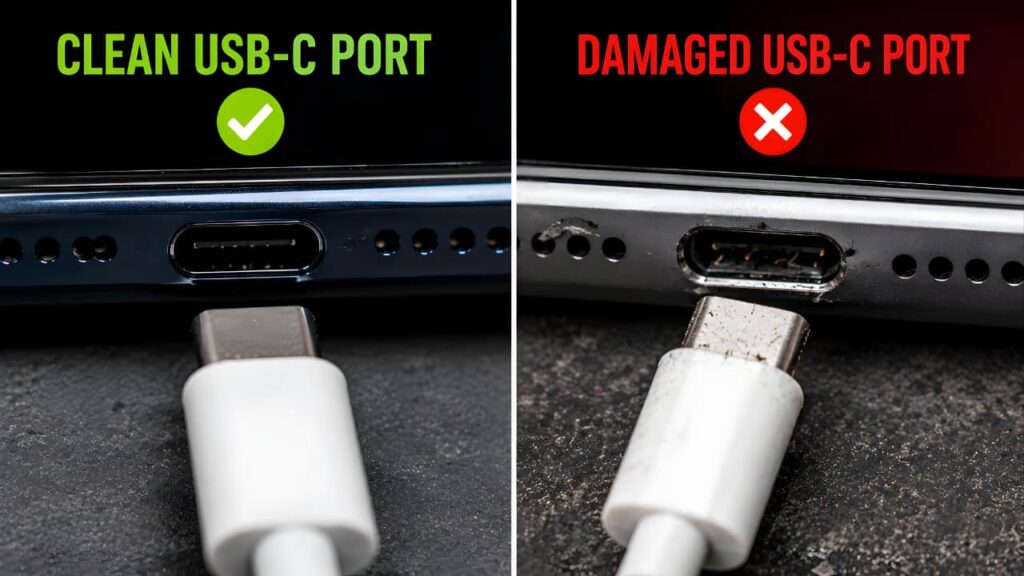
Lightning Charging Problems (Older iPhones)
Lightning connectors can collect lint over time.
Common symptoms include:
- Cable won’t insert completely.
- Charging disconnects frequently.
- Charging only works at certain angles.
Cleaning the connector carefully often resolves these problems.
When Should You Replace the Battery?
Battery replacement may be necessary if:
- Battery drains unusually fast.
- Battery percentage changes suddenly.
- Phone shuts down unexpectedly.
- Battery health has significantly declined.
- The battery is swollen.
Never continue using an iPhone with a swollen battery.
When Should You Visit an Apple Authorized Service Provider?
Professional service is recommended if:
- Multiple chargers fail.
- Charging port is physically damaged.
- Water damage is suspected.
- Battery is swollen.
- Phone won’t power on.
- Internal hardware damage is likely.
Attempting internal repairs without the proper tools can cause additional damage.
Apple includes advanced battery protection features, so understanding how they work can help you distinguish between normal charging behavior and a genuine Phone Not Charging problem.
Quick iPhone Troubleshooting Table
| Problem | Most Likely Cause | Recommended Solution |
|---|---|---|
| Charging Stops at 80% | Optimized Battery Charging or high temperature | Allow normal charging conditions or wait until the device cools |
| Accessory Not Supported | Damaged or incompatible accessory | Use a certified cable and inspect the charging port |
| Very Slow Charging | Low-power charger or demanding background activity | Use an appropriate charger and reduce heavy device usage while charging |
| No Charging Response | Damaged charger, cable, or charging port | Test another charger, cable, and wall outlet |
| Wireless Charging Doesn’t Work | Poor alignment or incompatible accessories | Reposition the phone and remove thick or magnetic cases |
| Phone Gets Hot While Charging | High temperature or intensive usage | Let the phone cool naturally before continuing to charge |
Pro Tips for iPhone Users
- Use high-quality charging accessories that match your iPhone’s requirements.
- Keep the charging port clean.
- Avoid charging the device in extremely hot environments.
- Don’t continue using visibly damaged charging cables.
- If charging repeatedly fails with multiple chargers and cables, arrange a professional inspection.
If you’re planning to replace an older iPhone, our Apple iPhone 17 Pro Max review covers battery life, charging performance, and overall user experience.
Advanced Charging Problems and Their Solutions
Sometimes a Phone Not Charging problem isn’t caused by a damaged charger or charging cable. Instead, the phone may still charge—but much slower than expected, stop at a certain battery percentage, or disconnect randomly.
This section covers the most common advanced charging issues, explains why they happen, and shows you how to fix them.
Fast Charging Not Working
One of the most common complaints from smartphone users is:
“My phone is charging, but fast charging is not working.”
In many cases, the phone is charging normally but at standard speed instead of its maximum supported speed.
If fast charging continues to fail after trying different accessories, the issue may be part of a larger Phone Not Charging problem that requires further diagnosis.
Why Fast Charging Stops Working
Fast charging depends on multiple components working together.
If even one component doesn’t meet the required specifications, the phone automatically switches to normal charging speed.
Common Causes
- Unsupported charger
- Low-quality charging cable
- Damaged USB-C connector
- Dirty charging port
- Battery overheating
- High battery temperature
- Software bug
- Battery protection system
- Battery aging
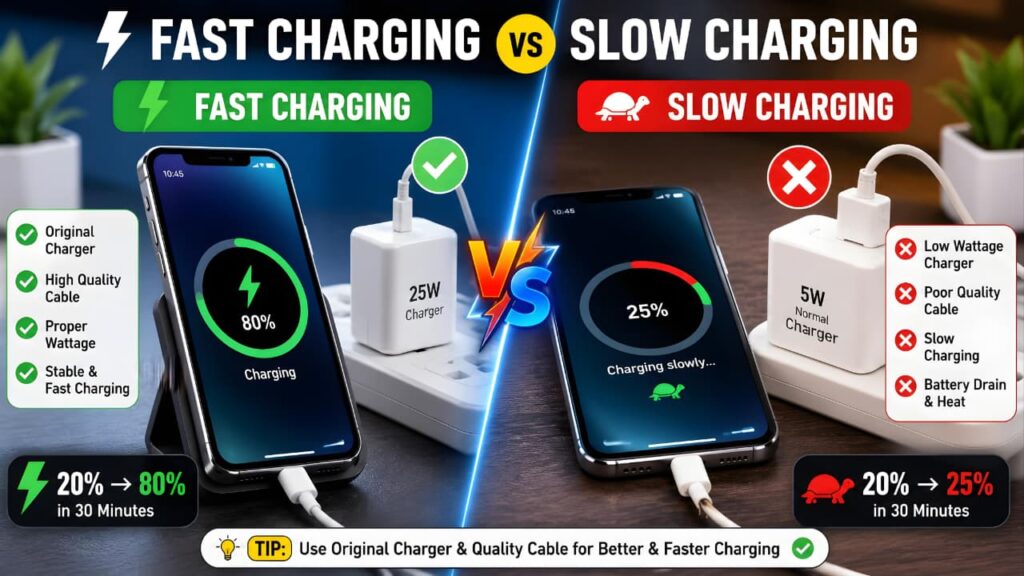
How to Fix Fast Charging
Use the Correct Charger
Always use a charger that supports your phone’s maximum charging speed.
Example:
- 18W
- 25W
- 45W
- 65W
- 80W
- 100W+
- Manufacturer-supported charging standards
Using a lower-powered charger won’t damage the phone, but charging will take much longer.
2. Use a Certified Cable
Not every USB-C cable supports high-speed charging.
Low-quality cables may:
- Limit charging speed
- Cause unstable charging
- Disconnect randomly
Replace damaged or uncertified cables.
3. Let the Phone Cool Down
When battery temperature rises too high, the charging system automatically reduces charging speed.
Common Reasons
- Gaming
- Video recording
- Direct sunlight
- High room temperature
Allow the phone to cool before charging again.
4. Update the Software
Some software updates improve charging performance and fix charging-related bugs.
Always install the latest stable software available for your device.
Slow Charging
If charging takes significantly longer than before, several factors may be responsible.
Common Reasons
- Weak charger
- Low-quality cable
- Dirty charging port
- Battery aging
- Background apps
- Battery temperature
- Charging through a laptop USB port
Consistently slow charging should never be ignored because it can eventually develop into a complete Phone Not Charging issue if the underlying cause is left unresolved.
Improve Charging Speed
Close Heavy Applications
Apps using high CPU or GPU resources consume power while charging.
Examples:
- Games
- Video editing
- Camera recording
- GPS navigation
Closing unnecessary apps allows more power to reach the battery.
Turn Off Unused Features
Consider temporarily disabling:
- Bluetooth
- GPS
- Mobile Hotspot
- Wi-Fi (when not needed)
- Mobile data (if appropriate)
This reduces battery consumption during charging.
Avoid Using the Phone While Charging
Using the phone heavily while charging increases power consumption and battery temperature.
For the fastest charging:
- Lock the screen.
- Leave the phone unused.
- Allow uninterrupted charging.
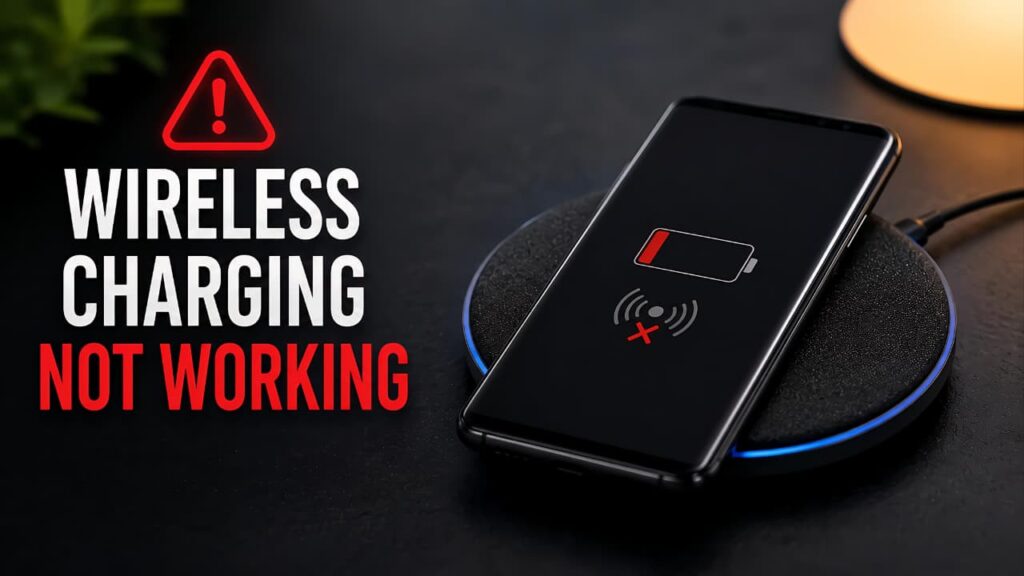
Wireless Charging Not Working
Wireless charging adds convenience but introduces additional factors that can interrupt charging.
Common Causes
- Incorrect phone alignment
- Thick protective case
- Metal accessories
- Unsupported charger
- Overheating
- Foreign objects
Fixes
Reposition the Phone
Move the phone slowly until charging begins.
Even slight misalignment can interrupt charging.
Remove Thick Cases
Some rugged cases reduce charging efficiency.
Temporarily remove the case and test again.
Remove Metal Accessories
Metal plates used for magnetic mounts can interfere with wireless charging.
Remove:
- Metal rings
- Wallet attachments
- Magnetic accessories
Clean the Charging Pad
Dust or debris between the charger and phone may reduce charging efficiency.
Keep both surfaces clean.
Wireless charging failures don’t always indicate hardware damage, but they can sometimes be an early sign of a broader Phone Not Charging issue affecting your device.
Phone Charges Only at One Angle
This is one of the clearest signs of a charging connector problem.
Possible Causes
- Dirty charging port
- Bent connector
- Loose charging port
- Damaged charging cable
How to Diagnose
Try another cable.
If every cable behaves the same way, inspect the charging port carefully.
If only one cable causes the issue, replace that cable.
Phone Disconnects While Charging
Charging should remain stable.
Frequent disconnections usually indicate a hardware or accessory problem.
Common Reasons
- Loose USB connector
- Damaged charging cable
- Faulty charger
- Dirty charging port
- Internal charging port wear
What to Do
- Replace the cable.
- Test another charger.
- Clean the connector.
- Avoid moving the phone while charging.
Battery Drains While Charging
Some users notice the battery percentage decreases even while the charger is connected.
Why This Happens
The phone is consuming more power than the charger can provide.
Common examples include:
- High-performance gaming
- 4K or 8K video recording
- Video calls
- GPS navigation
- Multiple background applications
Solution
- Close unnecessary apps.
- Use a higher-output charger if your device supports it.
- Allow the screen to remain off while charging.
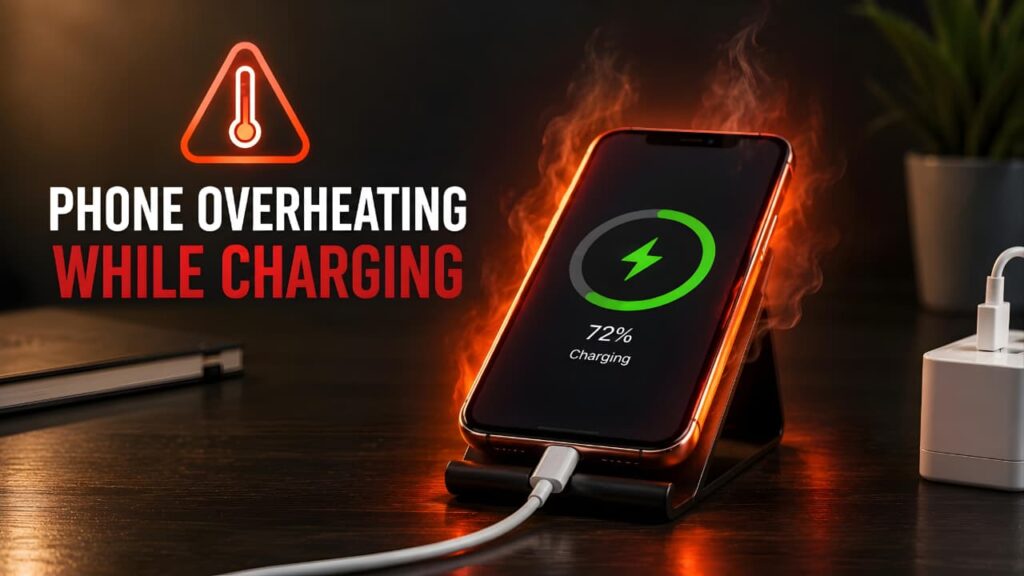
Phone Gets Hot While Charging
A slightly warm phone is normal.
However, excessive heat requires attention.
Normal Heat
The phone may become slightly warm during:
- Fast charging
- Wireless charging
- Software updates
Abnormal Heat
Stop charging and inspect the device if:
- The phone becomes too hot to hold.
- Charging repeatedly stops.
- A burning smell is present.
- The battery appears swollen.
Reduce Charging Temperature
- Remove thick phone cases.
- Charge in a cool, shaded environment.
- Avoid gaming while charging.
- Keep the phone away from direct sunlight.
Persistent overheating should never be ignored because it can affect battery life and charging performance. Learn more in our phone overheating causes and fixes guide.
Charging Problems After a Software Update
Occasionally, users notice charging issues after installing a major operating system update.
Possible Symptoms
- Charging speed decreases.
- Battery drains faster.
- Charging animation freezes.
- Battery percentage updates incorrectly.
What You Should Do
- Restart the phone.
- Install the latest available update.
- Monitor battery performance for several charging cycles.
Many temporary software-related issues resolve after the system completes background optimization.
Quick Comparison Table
| Problem | Most Likely Cause | Recommended Fix |
|---|---|---|
| Fast Charging Not Working | Unsupported charger or cable | Use a compatible fast charger and certified cable |
| Slow Charging | Weak charger or heavy background activity | Reduce device usage and use an appropriate charger |
| Wireless Charging Stops | Poor alignment or thick case | Reposition the phone and remove the case |
| Charges Only at One Angle | Loose or dirty charging port | Inspect and clean the charging port; seek repair if necessary |
| Battery Drains While Charging | High power consumption | Close demanding apps and allow uninterrupted charging |
| Phone Gets Hot | High temperature or intensive usage | Allow the device to cool naturally |
Pro Tip
When troubleshooting a Phone Not Charging issue, change only one thing at a time for example, first test a different cable, then a different charger, then a different wall outlet. If you change multiple variables simultaneously, it becomes difficult to identify the actual cause of the problem.
USB-C Charging Problems
USB-C has become the standard charging connector for most modern smartphones. While it offers faster charging and higher data transfer speeds, charging issues can still occur if the cable, charger, or port is damaged.
Common USB-C Problems
- Charger connects but doesn’t charge.
- Charging starts and stops repeatedly.
- Fast charging doesn’t activate.
- Cable feels loose.
- Phone charges only with certain USB-C cables.
- Device charges extremely slowly.
Why USB-C Charging Fails
The most common reasons include:
- Dust inside the USB-C port.
- Bent connector pins.
- Damaged charging cable.
- Low-quality USB-C accessories.
- Incompatible fast charging protocol.
- Internal charging port damage.
How to Fix USB-C Charging Problems
Step 1 – Inspect the Port
Use a flashlight to check inside the USB-C connector.
Look for:
- Pocket lint
- Dust
- Dirt
- Bent pins
If you notice heavy debris, clean the port carefully.
Step 2 – Test Another USB-C Cable
Many USB-C cables look identical but support different charging capabilities.
A damaged or low-quality cable may:
- Disable fast charging.
- Cause random charging interruptions.
- Prevent charging entirely.
Always test with another certified cable before assuming the phone is faulty.
Step 3 – Test Another Charger
A USB-C charger can fail internally even if it appears normal.
Testing another compatible charger is one of the quickest ways to identify the problem.
If changing the cable and charger doesn’t resolve the issue, your Phone Not Charging problem may be caused by a damaged USB-C port or an internal charging component that requires professional inspection.
Lightning Charging Problems (Older iPhones)
Although Apple has transitioned to USB-C on newer iPhones, many users still use Lightning-equipped models.
Lightning ports often collect lint, preventing the connector from seating correctly.
Common Symptoms
- Cable won’t fully insert.
- Charging disconnects randomly.
- Phone charges only when held at an angle.
- “Accessory Not Supported” message appears.
Safe Troubleshooting
- Inspect the Lightning port.
- Remove visible lint carefully.
- Test another certified Lightning cable.
- Restart the iPhone.
If multiple certified accessories fail, professional service may be required.
A damaged Lightning cable or a blocked connector can easily cause a Phone Not Charging issue, so always inspect both the cable and the charging port before assuming the battery is faulty.
How to Clean a Charging Port Safely
A dirty charging port is one of the easiest charging problems to fix.
However, improper cleaning can permanently damage the connector.
Before Cleaning
- Turn off your phone.
- Disconnect the charger.
- Work under good lighting.
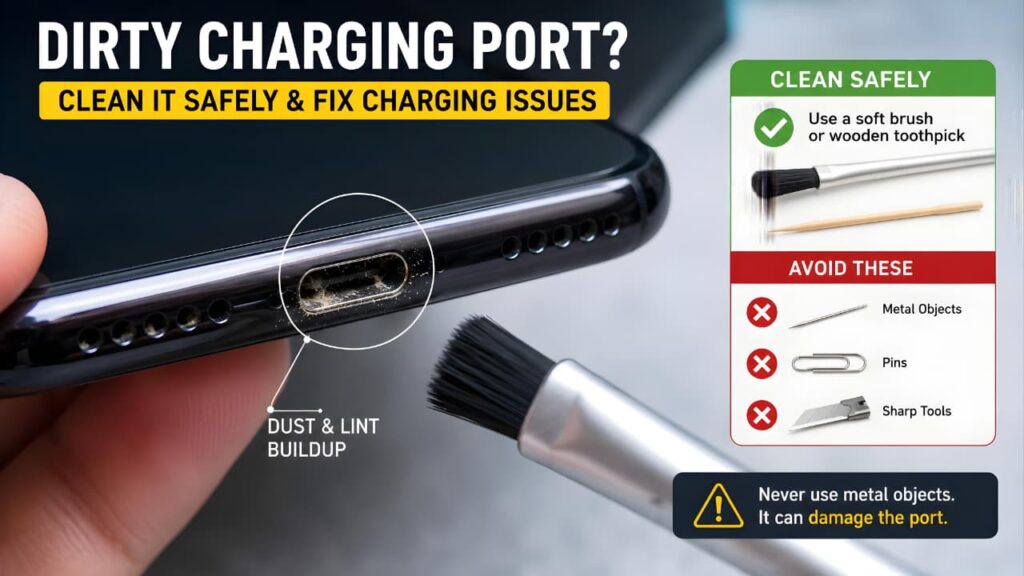
Safe Cleaning Tools
Use only:
- Soft anti-static brush
- Compressed air (short bursts)
- Non-metallic electronics cleaning tool
Never Use
- Needles
- Safety pins
- Knives
- Screwdrivers
- Metal tweezers
These can scratch or bend the charging contacts.
Cleaning Steps
- Power off the phone.
- Inspect the charging port.
- Remove loose dust gently.
- Recheck the connector.
- Connect the charger again.
If charging still doesn’t work, continue with the remaining troubleshooting steps.
Regularly cleaning your charging port using safe methods can help prevent a Phone Not Charging problem and improve the reliability of your charging connection.
Understanding Battery Health
Every lithium-ion battery gradually loses capacity over time.
This is completely normal and happens with all smartphones.
Battery aging depends on:
- Charging cycles
- Heat exposure
- Charging habits
- Battery chemistry
- Device usage
As battery health decreases, charging performance may also decline.
Monitoring your battery health regularly can help you identify whether a Phone Not Charging issue is related to battery aging or another hardware component.
If your battery continues to lose power quickly after charging, read our battery fast drain problem solution guide for more detailed troubleshooting.
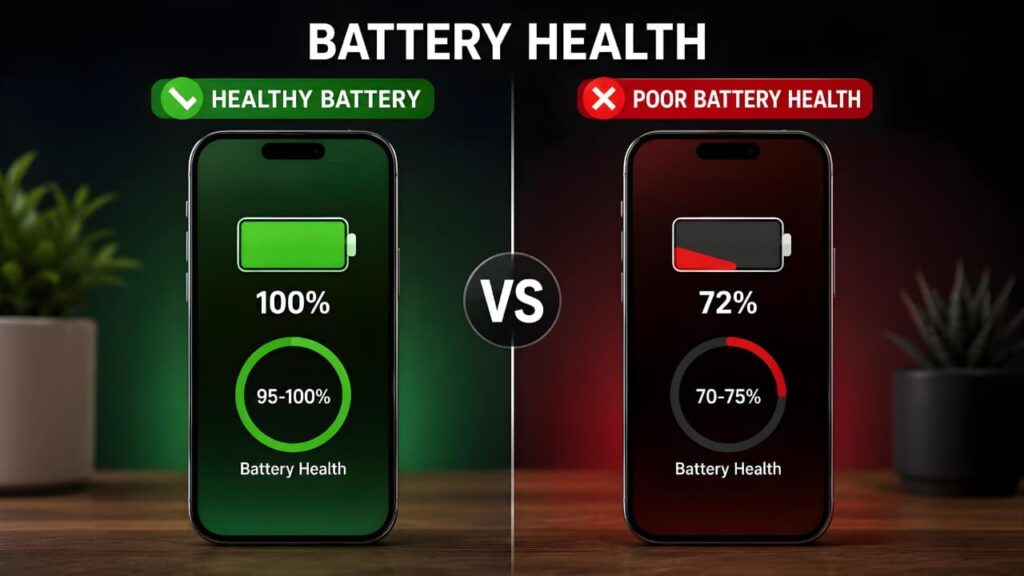
Signs of Poor Battery Health
Watch for these warning signs:
- Battery drains quickly.
- Charging takes much longer.
- Phone shuts down unexpectedly.
- Battery percentage jumps suddenly.
- Battery becomes unusually warm.
- Phone restarts randomly.
If several of these symptoms appear together, the battery may need replacement.
Should You Replace the Battery?
Replacing the battery is usually worthwhile if:
- The phone is still in good condition.
- Performance remains satisfactory.
- The charging port works properly.
- The battery has reached the end of its useful life.
Replacing only the battery is often more economical than replacing the entire phone.
Charging Safety Tips
Following good charging habits can extend battery life and reduce charging problems.
Best Practices
- Use reliable charging accessories.
- Keep the charging port clean.
- Avoid charging in extreme temperatures.
- Disconnect damaged chargers immediately.
- Place the phone on a hard, well-ventilated surface while charging.
Avoid These Mistakes
- Using damaged charging cables.
- Charging under a pillow or blanket.
- Exposing the phone to direct sunlight while charging.
- Continuing to use a swollen battery.
- Ignoring unusual heat or burning smells.
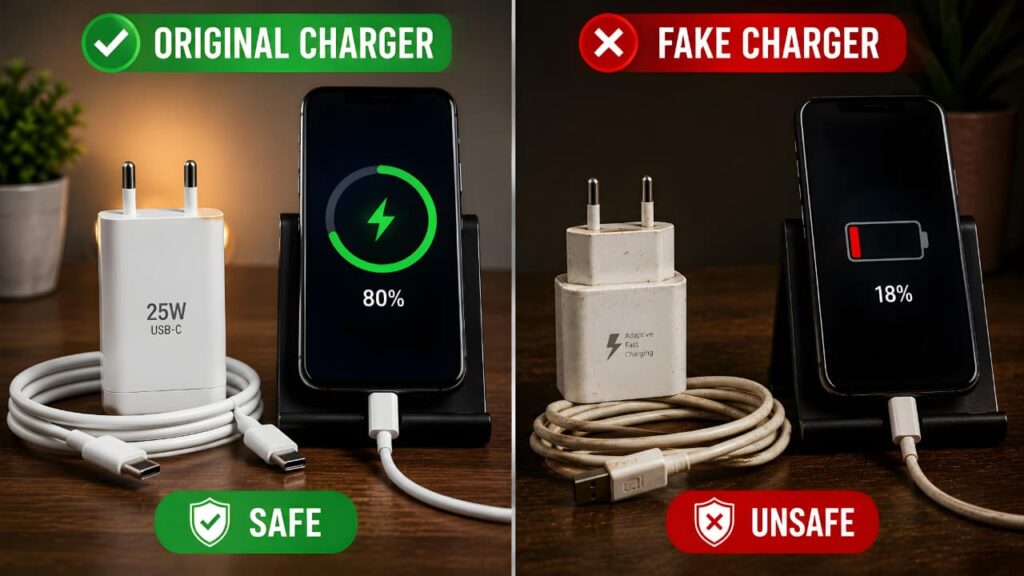
Following these charging safety recommendations not only protects your device but also reduces the chances of experiencing a Phone Not Charging issue in the future.
For general battery care and charging recommendations, Samsung users can also review the official Samsung Battery and Charging Support resources.
Keeping your smartphone secure is just as important as maintaining its battery. Follow our how to protect your personal data online guide to improve your overall mobile security.
Common Charging Myths
Many charging tips shared online are incorrect.
Let’s separate fact from fiction.
Understanding the difference between charging myths and proven troubleshooting methods helps you avoid mistakes that may worsen a Phone Not Charging problem.
| Myth | Reality |
|---|---|
| Putting a wet phone in rice always fixes charging problems. | Rice is not a guaranteed solution and may leave particles inside the device. Let the phone dry naturally in a well-ventilated area. |
| Leaving your phone plugged in overnight always damages the battery. | Modern smartphones include charging management features that help protect the battery. |
| Any USB-C cable provides the same charging speed. | Different cables support different charging capabilities. |
| Fast charging always damages the battery. | When used with compatible hardware and normal operating conditions, modern fast charging systems include battery protection features. |
| A factory reset fixes every charging problem. | A reset only helps with software-related issues, not physical hardware faults. |
When DIY Repairs Are Safe
You can safely perform these tasks at home:
- Restart the phone.
- Test another charger.
- Test another cable.
- Try another wall outlet.
- Clean the charging port carefully.
- Install software updates.
- Check battery health settings.
When You Should Avoid DIY Repairs
Do not attempt to disassemble the phone if you notice:
- Battery swelling.
- Water damage.
- Burn marks.
- Broken charging connector.
- Damaged motherboard.
- Strong burning smell.
- Excessive overheating during charging.
These situations require professional inspection.
When Should You Visit a Professional Service Center?
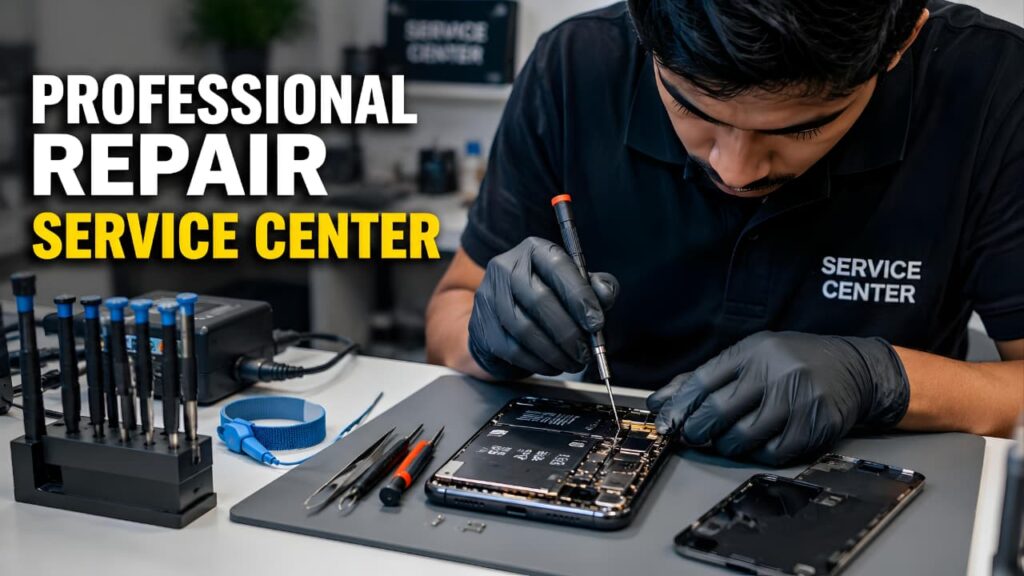
If your phone still isn’t charging after trying all the recommended troubleshooting steps, it’s time to visit an authorized service center. Professional technicians can diagnose complex hardware issues such as a damaged charging port, faulty charging IC, battery failure, or motherboard damage using specialized tools. Avoid opening your phone yourself unless you have the proper experience, as this may cause further damage and could void your warranty.
Professional Diagnosis Checklist
Before visiting a service center, make a note of the following:
| Question | Your Observation |
|---|---|
| Does another charger work? | Yes / No |
| Does another charging cable work? | Yes / No |
| Does wireless charging work (if supported)? | Yes / No |
| Did the issue begin after a software update? | Yes / No |
| Was the phone dropped recently? | Yes / No |
| Has the phone been exposed to water? | Yes / No |
| Does the phone become unusually hot? | Yes / No |
Providing this information can help the technician diagnose the issue more efficiently.
Real-World Charging Problems and How to Fix Them
Not every Phone Not Charging issue is caused by a faulty cable or charger. In many situations, the problem begins after a specific event, such as dropping the phone, exposure to water, replacing the battery, or using a different charging accessory.
This section covers real-world situations that many smartphone users experience and explains the safest troubleshooting steps.
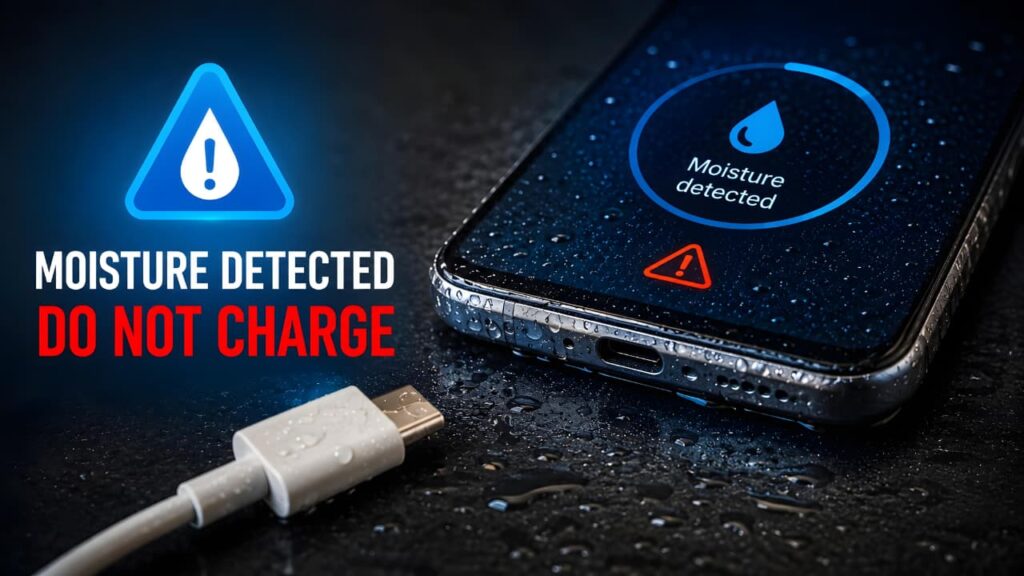
Phone Not Charging After Water Damage
Water is one of the most common causes of charging failure.
Even if the phone still turns on normally, moisture inside the charging connector or internal components can interrupt charging.
Common Symptoms
- Moisture warning appears.
- Charging starts and stops.
- Phone refuses to charge.
- USB accessory warning.
- Charger disconnects repeatedly
What You Should Do Immediately
Step 1
Disconnect the charger.
Never continue charging while water may still be inside the connector.
Step 2
Turn off the phone if possible.
This reduces the risk of electrical damage.
Step 3
Dry the exterior using a soft microfiber cloth.
Step 4
Place the phone in a dry, well-ventilated location.
Allow sufficient time for moisture to evaporate naturally.
What You Should NOT Do
Never:
- Charge immediately after water exposure.
- Use a hair dryer.
- Heat the phone with an oven.
- Place it in a microwave.
- Insert sharp objects into the charging port.
These methods can cause additional damage.
Phone Not Charging After Being Dropped
A phone may appear undamaged after a fall while suffering internal charging damage.
Possible Damage
- Loose battery connector.
- Damaged charging port.
- Cracked charging board.
- Internal motherboard damage.
Symptoms
- Charging stopped immediately after the drop.
- Charger connects intermittently.
- Phone vibrates but doesn’t charge.
- Charging icon flashes repeatedly.
Troubleshooting
Try:
- Another charging cable.
- Another charger.
- Wireless charging (if supported).
If none work, internal hardware inspection is recommended.
Phone Not Charging After Battery Replacement
If charging problems started immediately after replacing the battery, several installation-related issues are possible.
Possible Causes
- Battery connector not fully seated.
- Incompatible replacement battery.
- Damaged charging flex cable.
- Internal connector damage.
Solution
If the battery was replaced by a repair shop and charging problems began immediately afterward, return to the repair provider for inspection.
Avoid opening the phone yourself unless you have the required experience.
Phone Not Charging After Screen Replacement
Modern smartphones contain delicate connectors that can be affected during screen replacement.
Possible Reasons
- Charging cable disconnected internally.
- Connector not reinstalled correctly.
- Charging flex cable damaged.
- Internal component shifted during repair.
Recommended Action
If the charging problem appeared immediately after a screen replacement, have the device inspected by the repair center that performed the work.
Phone Charges Only When Turned Off
Some users notice the phone charges only while powered off.
Possible Causes
- Heavy background processes.
- Software malfunction.
- Battery issue.
- Charging IC problem.
Troubleshooting
- Restart the phone.
- Install software updates.
- Boot into Safe Mode (Android).
- Check battery health.
- Monitor battery temperature.
Phone Vibrates But Doesn't Charge
This usually means the phone detects the charger but cannot establish a stable charging connection.
Possible Reasons
- Damaged cable.
- Dirty charging port.
- Loose connector.
- Faulty charger.
- Charging board issue.
Solution
Test each charging accessory individually before assuming hardware failure.
Phone Keeps Connecting and Disconnecting
Repeated charging interruptions often indicate an unstable electrical connection.
Common Causes
- Loose charging port.
- Damaged charging cable.
- Dirty connector.
- Faulty USB-C connector.
- Damaged adapter.
Recommended Fix
Replace the charging cable first.
If the issue continues with multiple cables, inspect the charging port carefully.
Power Bank Charging Problems
Power banks are useful during travel, but they can introduce charging problems if they’re incompatible or defective.
Check the Following
- Is the power bank fully charged?
- Does it support your phone’s charging requirements?
- Is the USB cable working properly?
- Does the power bank charge another device?
Common Problems
- Slow charging.
- Charging stops randomly.
- Phone doesn’t recognize the power bank.
- Fast charging unavailable.
Best Practice
Use a high-quality power bank that supports the charging standard required by your phone.
Car Charger Problems
Charging in a vehicle can sometimes be inconsistent.
Possible Causes
- Low-output charger.
- Faulty vehicle USB port.
- Damaged cable.
- Poor charger quality.
Improve Charging Performance
- Use a quality car charger.
- Connect directly to the vehicle’s power outlet.
- Replace worn charging cables.
Laptop USB Charging Problems
Many people charge their phones from a laptop.
However, some laptop USB ports provide lower power than dedicated wall chargers.
Symptoms
- Extremely slow charging.
- Battery percentage barely increases.
- Charging pauses during sleep mode.
Recommendation
Whenever possible, use a wall charger designed for your phone instead of relying on a computer USB port.
Phone Doesn't Turn On Even While Charging
If your phone remains completely unresponsive:
Try the following:
- Leave it connected for at least 30 minutes.
- Test another charger.
- Test another charging cable.
- Perform a force restart.
- Check for physical damage.
If the phone still doesn’t respond, professional diagnosis is recommended.
Real-world examples show that every Phone Not Charging issue is different, which is why testing each possible cause step by step is the most reliable approach.
Emergency Charging Checklist
| Situation | First Action | Next Step |
|---|---|---|
| Phone fell into water | Disconnect the charger | Allow the phone to dry naturally before attempting to charge again |
| Phone dropped | Inspect for physical damage | Test another charger and cable |
| Battery replaced recently | Check with the repair provider | Inspect internal connections professionally if needed |
| Screen replaced recently | Return to the repair center | Verify internal connector installation |
| Power bank not charging the phone | Test another cable | Confirm the power bank works with another device |
| Car charger fails | Try another charger | Check the vehicle power outlet |
| Laptop USB charges slowly | Use a wall charger | Verify the cable and charger support the required charging speed |
Quick Summary
If your Phone Not Charging, don’t assume the battery is defective. Many issues can be traced to charging accessories, environmental conditions, or recent repairs. Systematically testing each component—charger, cable, power source, and charging port—helps isolate the root cause before considering hardware replacement.
Charging Mistakes That Can Damage Your Phone
Many charging problems develop gradually because of everyday habits. While modern smartphones include protection features, repeated misuse can still reduce battery lifespan or contribute to charging issues over time.
Avoiding these common mistakes can help keep your phone charging reliably.
1. Using Damaged Charging Cables
A frayed or damaged cable may cause:
- Intermittent charging
- Slow charging
- Excessive heat
- Unstable power delivery
Recommendation: Replace damaged cables promptly with compatible, high-quality alternatives.
2. Ignoring a Loose Charging Port
If the cable frequently disconnects or feels loose, avoid forcing it into position.
Continued use may worsen the damage and eventually require a charging port replacement.
3. Using Extremely Cheap Charging Accessories
Not all chargers and cables meet the same quality standards.
Very low-quality accessories may provide unstable power or fail to support your phone’s charging requirements.
Choose charging accessories that are appropriate for your device.
4. Charging in Very Hot Environments
High temperatures can cause the phone to slow or temporarily pause charging to protect the battery.
Avoid charging:
- In direct sunlight
- Inside a parked car
- Near heat sources
5. Using the Phone Heavily While Charging
Resource-intensive activities such as gaming, video recording, or extended navigation increase heat and power consumption.
For the fastest and most efficient charging, let the phone charge with minimal use.
Avoiding these common charging mistakes can significantly reduce the risk of developing a Phone Not Charging issue and help extend your phone’s overall lifespan.
Battery Care Best Practices
Good battery habits won’t stop natural battery aging, but they can help reduce unnecessary stress on the battery.
Best Practices
- Keep software up to date.
- Keep the charging port clean.
- Use suitable charging accessories.
- Charge in a cool, well-ventilated place.
- Avoid exposing the phone to extreme temperatures.
Good battery maintenance habits can improve long-term performance and reduce the likelihood of facing a Phone Not Charging problem later.
Prevent Future Charging Problems
Prevention is often easier than troubleshooting.
The following practices can reduce the likelihood of future charging issues.
Protect the Charging Port
The charging port is one of the most frequently used parts of a smartphone.
Simple habits can help prevent damage.
Tips
- Keep the phone away from sand and dust.
- Store it in a clean pocket or bag.
- Inspect the port occasionally for debris.
- Avoid forcing the charging connector into the port.
Handle Charging Cables Carefully
Instead of pulling on the cable, disconnect it by holding the connector.
Avoid tightly wrapping the cable around the charger, as repeated bending can shorten its lifespan.
Keep the Software Updated
Manufacturers regularly improve charging stability, battery management, and system reliability through software updates.
Installing updates helps ensure your phone benefits from these improvements.
Preventive maintenance is always easier than repairing a damaged device, and following these recommendations can greatly reduce future Phone Not Charging issues.
Frequently Asked Questions (FAQ)
1. Why is my phone not charging even though the charger is connected?
The problem may be caused by a damaged charging cable, faulty charger, dirty charging port, software issue, or battery-related problem. Testing another charger and cable is a good first step.
2. Why is my phone charging so slowly?
Slow charging can result from using a lower-powered charger, a damaged cable, high battery temperature, or heavy background activity.
3. Why does my phone only charge at one angle?
This usually indicates a dirty or worn charging port, or a damaged charging cable.
4. Can a software update fix charging problems?
If the issue is software-related, an update may resolve it. However, updates do not repair physical hardware damage.
5. Should I replace the charger or the battery first?
If possible, test another charger and cable before considering battery replacement. Charging accessories are easier and less expensive to replace.
6. Is it safe to use my phone while charging?
Light use is generally fine, but intensive tasks such as gaming or prolonged video recording can increase heat and slow charging.
7. Why does my phone stop charging at 80%?
Some phones intentionally pause charging around 80% as part of battery protection features, or when the battery temperature is too high.
8. Can a damaged charging cable affect battery life?
A damaged cable may interrupt charging or reduce charging performance. Replace damaged accessories to ensure reliable charging.
9. Is wireless charging slower than cable charging?
Depending on your phone and charger, wireless charging may be slower than compatible wired fast charging.
10. When should I visit a service center?
Professional diagnosis is recommended if multiple chargers and cables fail, the charging port is physically damaged, the battery is swollen, or hardware damage is suspected.
11. Can a damaged charging port cause a Phone Not Charging issue?
Yes. A loose, dirty, or physically damaged charging port is one of the most common reasons behind a Phone Not Charging problem. Inspect the port carefully and clean it safely before considering professional repair.
12. Why does my Phone Not Charging problem happen only sometimes?
An intermittent Phone Not Charging issue is often caused by a worn charging cable, loose connector, or debris inside the charging port. Testing another cable and charger can help identify the exact cause.
13. Can a power bank cause a Phone Not Charging issue?
Yes. If the power bank cannot supply enough power or is incompatible with your phone’s charging requirements, it may result in a Phone Not Charging or slow charging problem.
14. Why is my Phone Not Charging after installing a software update?
Occasionally, a temporary software bug may affect charging behavior after a system update. Restart your device, install any available patches, and monitor charging performance over the next few charging cycles.
15. Can a swollen battery cause a Phone Not Charging problem?
Yes. A swollen battery can interrupt normal charging and may also pose a safety risk. If you notice battery swelling along with a Phone Not Charging issue, stop using the device and seek professional service immediately.
16. Does wireless charging prevent a Phone Not Charging issue?
Not always. If the charging port is damaged, wireless charging may still work on supported devices. However, if the battery or charging circuit is faulty, the Phone Not Charging issue can affect both wired and wireless charging.
17. Why does my Phone Not Charging issue occur only with one charger?
This usually indicates a faulty or incompatible charger rather than a problem with the phone. Test another compatible charger to confirm whether the Phone Not Charging issue is accessory-related.
18. Can a factory reset fix a Phone Not Charging problem?
A factory reset may resolve software-related charging issues, but it will not fix damaged hardware such as a faulty charging port, battery, or charging IC.
19. Is it safe to keep charging a Phone Not Charging device repeatedly?
No. Continuously plugging and unplugging a phone that isn’t charging may worsen the issue if the charging port or cable is damaged. Diagnose the root cause before trying repeated charging attempts.
20. Why does my Phone Not Charging issue happen in cold or hot weather?
Extreme temperatures can temporarily affect battery performance and charging speed. Your phone may pause or limit charging until the battery returns to a safe operating temperature.
21. Can using a laptop USB port lead to a Phone Not Charging issue?
Yes. Some laptop USB ports provide limited power output, which can result in very slow charging or make it appear that the Phone Not Charging problem exists.
22. How do I know if my charger or my phone is causing the Phone Not Charging problem?
Test your phone with another charger and cable, or use your charger with another compatible phone. This simple comparison helps determine whether the Phone Not Charging issue is caused by the phone or the charging accessories.
23. Can a screen replacement affect Phone Not Charging?
Yes. If internal connectors are not reassembled correctly during a screen replacement, it may lead to a Phone Not Charging issue. Contact the repair provider if the problem started immediately after the repair.
24. Should I continue using my phone if I notice a Phone Not Charging problem and excessive heat?
No. If your Phone Not Charging issue is accompanied by unusual heat, a burning smell, or battery swelling, disconnect the charger immediately and have the device inspected by an authorized service center.
25. What is the best way to prevent a Phone Not Charging problem?
The best way to prevent a Phone Not Charging issue is to use compatible charging accessories, keep the charging port clean, avoid extreme temperatures, install software updates regularly, and replace damaged cables before they fail completely.
If your Phone Not Charging problem still isn’t resolved after following every step in this guide, the issue is more likely to be hardware-related and should be inspected by an authorized service center.
Quick Prevention Checklist
| Practice | Recommended? |
|---|---|
| Use a compatible charger | ✅ Yes |
| Keep the charging port clean | ✅ Yes |
| Replace damaged cables promptly | ✅ Yes |
| Charge in a cool environment | ✅ Yes |
| Use damaged charging accessories | ❌ No |
| Force a loose charging cable into the port | ❌ No |
| Ignore unusual heat or swelling | ❌ No |
Final Conclusion
A Phone Not Charging issue doesn’t always mean your smartphone needs an expensive repair. In many cases, the cause is something simple, such as a damaged cable, a faulty charger, debris inside the charging port, or a temporary software issue.
The safest approach is to troubleshoot methodically:
- Test another charging cable.
- Try a different charger.
- Use another wall outlet.
- Clean the charging port carefully.
- Restart the phone.
- Install any available software updates.
- Check battery health if supported.
- Seek professional assistance if hardware damage is suspected.
We hope this complete Phone Not Charging guide has helped you identify the cause of your charging problem and choose the right solution. Save this guide for future reference and share it with anyone experiencing similar charging issues.
If none of the troubleshooting methods in this guide resolve the issue, it’s best to contact your device manufacturer’s official support team or visit an authorized service center for professional diagnosis.
By following the steps in this guide, you can identify the root cause of most charging problems and decide whether the issue can be resolved at home or requires professional repair.
If you’re planning to upgrade instead of repairing your current device, you can also explore our latest smartphone reviews, including the Nothing Phone 4A review, to compare battery life and charging capabilities.