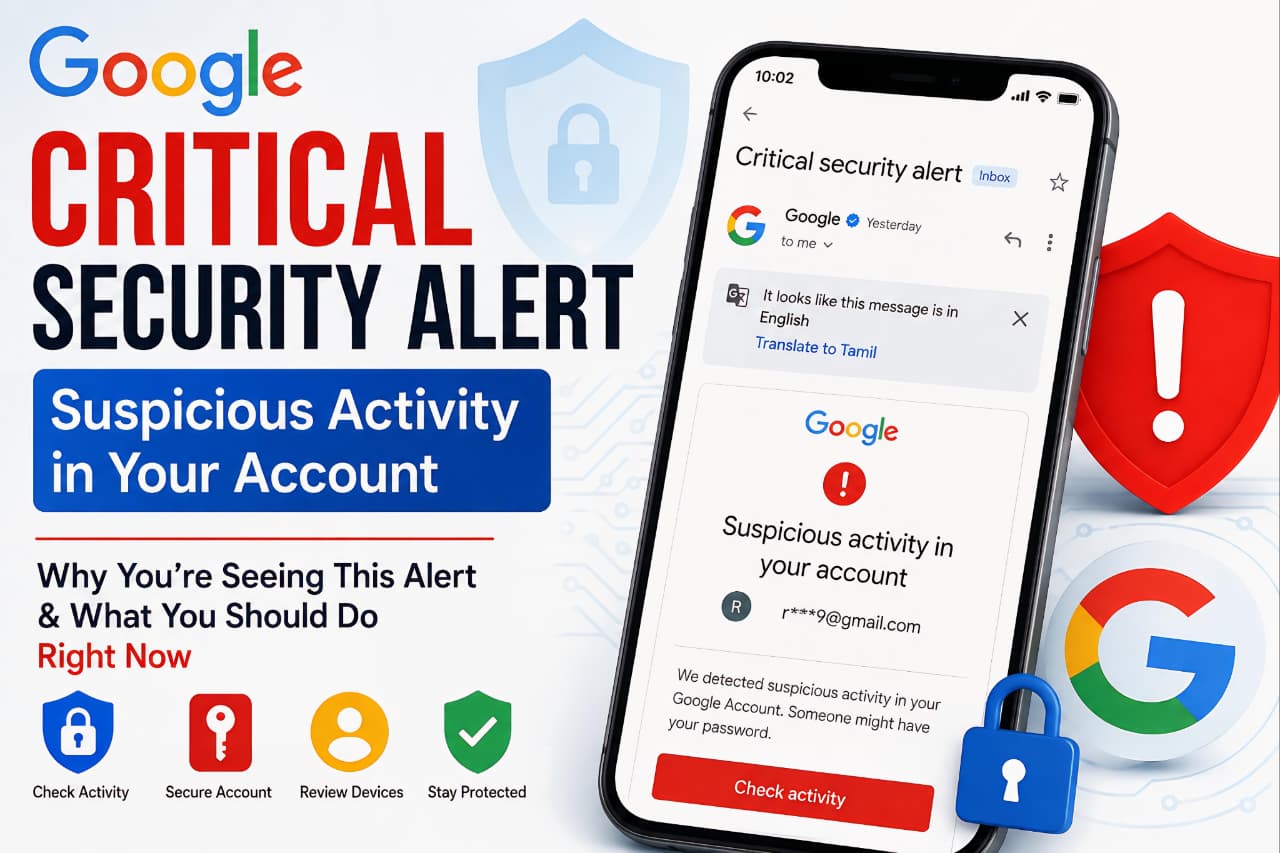
Google protects billions of accounts worldwide by continuously monitoring login attempts, devices, locations, and account activities. When Google detects something unusual, it may send a Google Critical Security Alert informing users about suspicious activity in their account.
Many users become worried when they receive an email with messages such as:
- “Critical Security Alert”
- “Suspicious activity in your account”
- “Someone may know your password”
- “Suspicious sign-in prevented”
- “New device signed in”
- “Review your recent security activity”
If you’ve recently received one of these alerts, don’t panic. A Google Critical Security Alert does not always mean your account has been hacked. However, it does mean Google has detected activity that requires your attention.
In this guide, we’ll explain why these alerts appear, what causes them, how to verify whether they’re legitimate, and the exact steps you should take to secure your account.
What Is a Google Critical Security Alert?
A Google Critical Security Alert is an automated warning generated by Google’s security systems when unusual or potentially risky activity is detected on your Google Account.
Google’s security infrastructure constantly evaluates account behavior, including:
- Sign-in locations
- Device usage
- Password activity
- Security setting changes
- Third-party app access
- Recovery information modifications
When Google’s systems identify something that differs from your normal behavior, they may send a security alert asking you to review the activity.
Official Source:
Google Account Security Help Center
Why Does Google Send a Suspicious Activity Alert?
Google uses advanced machine learning and security monitoring systems to identify unusual account behavior.
A Google Critical Security Alert may be triggered when:
1. Sign-In From a New Device
If you log in using:
- A new smartphone
- A new laptop
- A public computer
- A work computer
Google may request verification.
2. Login From an Unusual Location
Google compares your current login location with your normal activity.
Examples:
- You normally log in from India.
- A sign-in attempt appears from another country.
- Multiple locations appear within a short period.
This can trigger a security warning.
3. Incorrect Password Attempts
Repeated failed login attempts may indicate someone is trying to access your account.
Google may send:Someone may know your password.
or
Suspicious sign-in attempt blocked.
4. Password Appearing in a Data Breach
Google checks passwords against known compromised credentials.
If your password appears in a public data breach, Google may ask you to change it immediately.
5. Security Settings Were Changed
Alerts may be triggered when someone changes:
- Password
- Recovery email
- Recovery phone number
- Two-Step Verification settings
- Security keys
6. Suspicious Third-Party App Access
Google monitors apps connected to your account.
If a risky application requests account access, Google may warn you.
7. Malware or Device Compromise
If malware on your phone or computer attempts unauthorized access, Google’s security systems may detect unusual behavior and generate an alert.
Does a Google Critical Security Alert Mean My Account Was Hacked?
Not necessarily.
In many cases, users receive these alerts because they:
- Bought a new phone
- Logged in on another device
- Used a VPN
- Traveled to another city or country
- Cleared browser data
- Reset their device
However, if the activity is unfamiliar, you should treat the alert seriously.
How to Verify Whether the Alert Is Genuine
Cybercriminals often send fake emails pretending to be Google.
Before clicking any links, verify the alert directly from your Google Account.
Step 1: Open Google Account Security
Step 2: Review Recent Security Activity
Check:
- New sign-ins
- Password changes
- Device access
- Security alerts
Step 3: Review Your Devices
Step 4: Check Recent Security Events
Review all recent security notifications and compare them with your actual activity.
If everything matches your actions, the alert was likely legitimate but harmless.
What To Do If the Activity Was Not You
If you don’t recognize the activity, act immediately.
1. Change Your Password
This should be your first action.
Create a password that:
- Is at least 12 characters long
- Contains uppercase letters
- Contains lowercase letters
- Includes numbers
- Includes symbols
Avoid:
- Birthdays
- Names
- Phone numbers
- Common words
Official Password Guidance:
2. Enable Two-Step Verification
Two-Step Verification (2FA) significantly improves account security.
Even if someone knows your password, they won’t be able to access your account without the second verification step.
Enable here:
Users should also learn how to Protect Your Google Account from unauthorized access and phishing attacks.
3. Remove Unknown Devices
Navigate to the Devices section and sign out of:
- Unrecognized phones
- Old devices
- Shared computers
This immediately revokes access.
4. Review Connected Apps
Check which apps have access to your Google Account.
Remove:
- Unused applications
- Suspicious apps
- Unknown services
Manage permissions:
5. Update Recovery Information
Make sure:
- Recovery email is correct
- Recovery phone number is current
This helps you regain access if your account is compromised.
6. Run Google's Security Checkup
Google provides a dedicated security review tool.
Security Checkup:
This tool reviews:
- Devices
- Passwords
- Sign-ins
- App permissions
- Recovery settings
Common Reasons People Receive These Alerts
Below are some real-world situations that frequently trigger a Google Critical Security Alert.
New Mobile Phone
After purchasing a new Android phone, Google notices a new device and requests verification.
VPN Usage
VPNs can make it appear as though you’re signing in from another country.
Traveling Abroad
International travel often triggers location-based security alerts.
Browser Reset
Deleting cookies and browser data can cause Google to treat a device as new.
Public Wi-Fi Login
Logging in from hotels, airports, or cafes can trigger security warnings.
Multiple Failed Password Attempts
Even if the attempts were made by you, repeated failures can activate security protections.
Similar security warnings can also appear on social media platforms, including common Facebook Password Change Error issues.
How Google Detects Suspicious Activity
Google uses several security technologies:
Machine Learning
Behavioral analysis identifies abnormal account activity.
Google’s security systems use advanced artificial intelligence and machine learning to identify unusual account behavior. If you’re interested in how Google’s AI technology compares with OpenAI’s models, you can also read our detailed comparison: Google Gemini vs ChatGPT: Which AI Assistant Is Better Right Now?
Risk-Based Authentication
Google evaluates:
- Device reputation
- Login history
- Geographic location
- Network behavior
Threat Intelligence
Google tracks known attack patterns and compromised credentials.
Automated Account Protection
Billions of suspicious login attempts are blocked every day through automated security systems.
Users should also learn How to Protect Your Personal Data Online to improve overall account security and privacy.
How to Prevent Future Google Critical Security Alerts
Although some alerts are normal, you can reduce unnecessary warnings.
Use a Consistent Device
Regularly using the same trusted devices helps Google recognize your activity.
Enable 2-Step Verification
This is one of the most effective security measures available.
Keep Recovery Information Updated
Always maintain a valid:
- Phone number
- Recovery email
Avoid Password Reuse
Never use the same password across multiple websites.
Review Security Checkup Regularly
Perform a monthly account security review.
Keep Devices Updated
Install:
- Android updates
- iOS updates
- Browser updates
- Security patches
Remove Unused Apps
Reduce unnecessary third-party access to your account.
Understanding cloud-based security infrastructure becomes easier when you learn How Cloud Storage Works.
Red Flags That Indicate a Real Account Compromise
Contact Google Account Recovery immediately if you notice:
- Password changed without permission
- Unknown devices in your account
- Security settings modified
- Emails sent that you didn’t send
- Recovery information changed
- Locked out of your account
Account Recovery:
Final Thoughts
Receiving a Google Critical Security Alert can be alarming, but it is often a sign that Google’s security systems are actively protecting your account. Whether the alert was triggered by a new device, a location change, a password issue, or a genuine threat, reviewing the notification promptly is essential.
The safest approach is to verify the activity through your Google Account, review recent security events, remove unknown devices, update your password if necessary, and enable Two-Step Verification. By following these steps, you can significantly reduce the risk of unauthorized access and keep your Gmail and Google Account secure.
A Google Critical Security Alert should never be ignored. Treat it as an opportunity to verify your account’s safety and strengthen your overall online security.
Frequently Asked Questions (FAQ)
Why did I receive a Google Critical Security Alert?
Google detected unusual activity such as a new login, new device, unusual location, password issue, or security setting change.
Is a Google Critical Security Alert always serious?
Not always. Many alerts are triggered by legitimate actions such as logging in from a new device or traveling.
Can Google send fake alerts?
Google itself does not send fake alerts, but scammers often create phishing emails that imitate Google notifications.
Always verify alerts through your Google Account Security page.
Should I change my password immediately?
If you do not recognize the activity, yes. Changing your password should be your first security action.
Does Two-Step Verification stop hackers?
While no security measure is perfect, Two-Step Verification significantly reduces the risk of unauthorized account access.
Can a VPN trigger suspicious activity alerts?
Yes. VPNs can make it appear that you’re signing in from a different location, which may trigger Google’s security systems.
What happens if I ignore the alert?
If the activity was malicious, ignoring the alert could allow unauthorized access to continue. Always review the alert.
How often should I run Security Checkup?
Google recommends reviewing your account security regularly. A monthly check is a good practice.