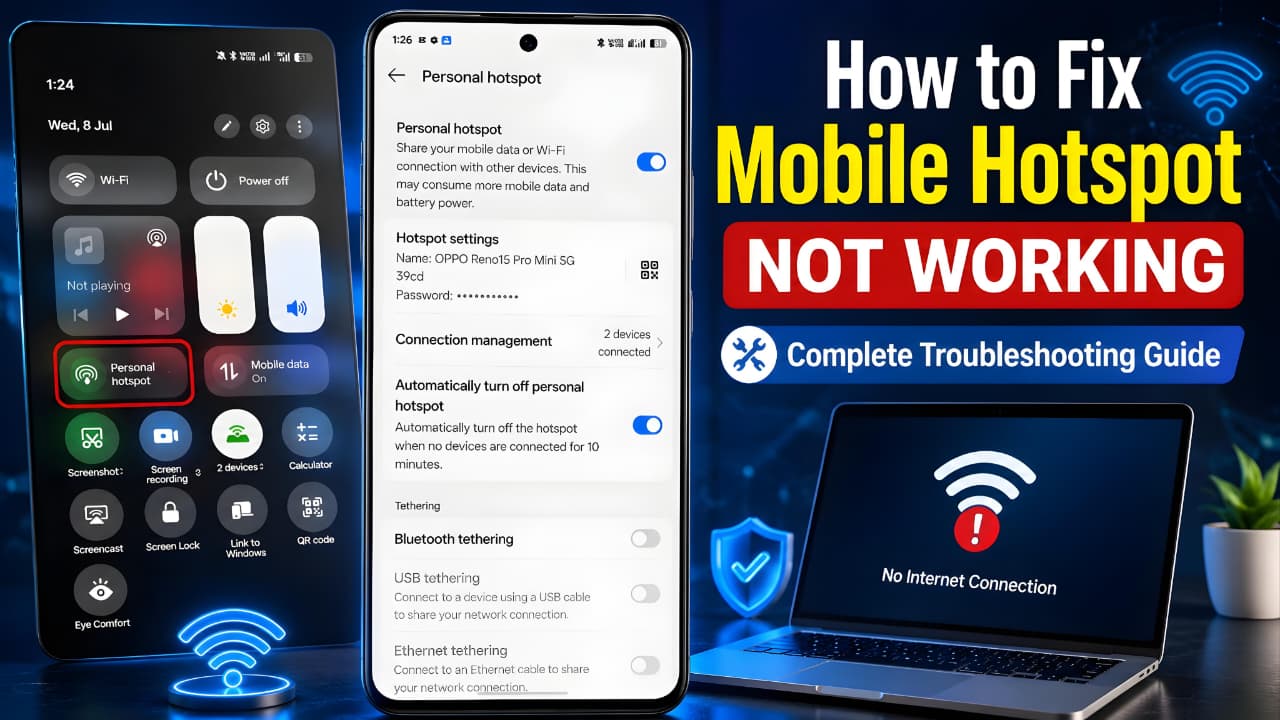
Mobile Hotspot Not Working is one of the most common smartphone connectivity problems for Android and iPhone users. Whether your hotspot won’t turn on, isn’t visible to other devices, keeps disconnecting, or connects without internet access, this guide covers 17 proven fixes to help you restore a stable hotspot connection quickly and safely.
The good news is that most hotspot problems are caused by software settings, temporary network glitches, battery optimization, or mobile carrier restrictions not hardware damage. In many cases, you can restore your hotspot in just a few minutes without installing any apps or visiting a repair center.
This guide walks you through the most effective troubleshooting methods used by technicians and recommended by device manufacturers. Start with the quick checks below, then move on to the detailed fixes if the problem continues.
Quick Answer (Featured Snippet)
If your mobile hotspot is not working, first make sure mobile data is active and working correctly. Then restart your phone, turn the hotspot off and back on, check the hotspot password, disable Battery Saver or Low Power Mode, update your device, and reconnect the receiving device. If the issue persists, reset your network settings and verify that your mobile carrier supports hotspot usage.
Key Takeaways
- Most hotspot issues are software-related and can be fixed without professional repair.
- Always test your mobile data before troubleshooting the hotspot.
- Restarting both devices often resolves temporary connection problems.
- Battery Saver, VPNs, and outdated software can interfere with hotspot sharing.
- Resetting network settings is one of the most effective solutions for persistent hotspot issues.
Before You Start Troubleshooting
Before trying advanced fixes, spend one minute checking these basics.
✔ Mobile Data is turned ON.
✔ Your mobile plan still has available data.
✔ Airplane Mode is OFF.
✔ Wi-Fi is working normally on the receiving device.
✔ Your phone battery is above 20%.
✔ You have restarted your phone at least once.
If everything above looks fine, continue with the troubleshooting steps below.
Quick Troubleshooting Overview
| Problem | Possible Cause | Quick Solution |
|---|---|---|
| Hotspot won’t turn on | Temporary software glitch | Restart your phone |
| Connected but no internet | Mobile data problem | Check your mobile data connection |
| Hotspot disappears | Battery optimization | Disable Battery Saver |
| Slow hotspot speed | Weak network signal | Move to an area with better coverage |
| Authentication failed | Incorrect password | Forget the network and reconnect |
What Is a Mobile Hotspot?
A mobile hotspot allows your smartphone to share its cellular internet connection with other devices such as laptops, tablets, smart TVs, gaming consoles, and other smartphones.
Instead of relying on a traditional Wi-Fi router, your phone creates a secure wireless network that nearby devices can join. Android devices usually label this feature Mobile Hotspot, while iPhones call it Personal Hotspot. Although the names are different, both features perform the same function.
Because the hotspot depends on your phone’s mobile network, any issue affecting cellular data, software, or network configuration can also affect hotspot performance.
Why Is My Mobile Hotspot Not Working?
There isn’t a single cause behind hotspot problems. Several factors can prevent your phone from sharing its internet connection properly.
The most common reasons include:
- Mobile data is turned off or unstable.
- Weak 4G or 5G signal.
- Temporary software bugs.
- Incorrect hotspot configuration.
- Battery Saver or Data Saver restrictions.
- VPN or firewall interference.
- Outdated Android or iOS software.
- Incorrect APN settings.
- Carrier restrictions on hotspot usage.
- Too many connected devices.
Understanding the root cause helps you choose the correct solution instead of trying random fixes.
Fix 1: Make Sure Mobile Data Is Working
Before changing hotspot settings, verify that your phone itself has internet access.
Turn off Wi-Fi on your phone and open a web browser. Visit several websites or stream a short online video.
If pages don’t load, the hotspot isn’t the real problem—your mobile data connection is.
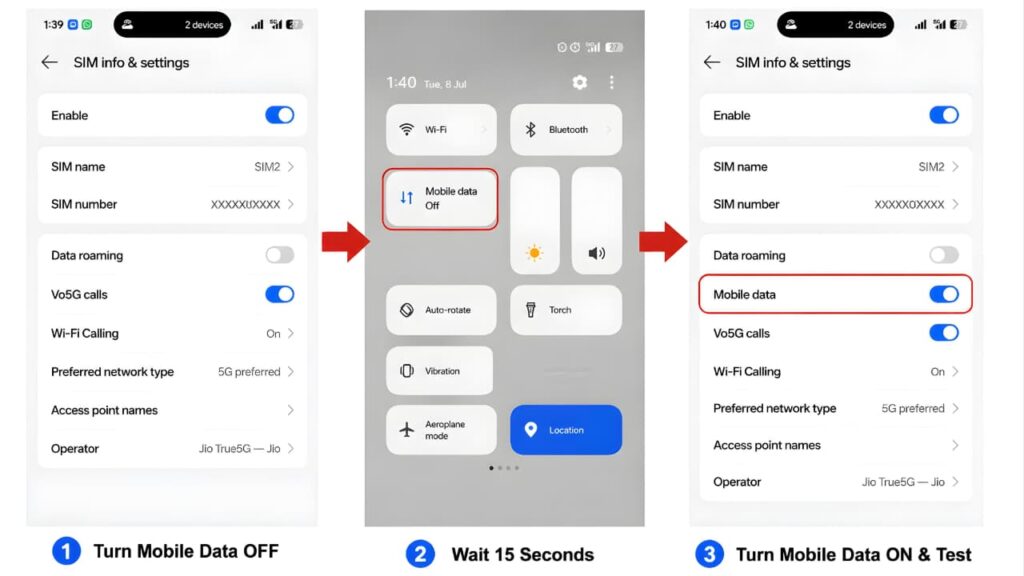
How to fix it
- Turn Mobile Data off.
- Wait about 15 seconds.
- Turn Mobile Data back on.
- Test your internet connection again.
- If it still doesn’t work, restart your phone.
Expert Tip: Many users spend time changing hotspot settings when the actual issue is a temporary mobile network interruption. Always test mobile data first.
If your Mobile Hotspot Not Working problem continues after trying this solution, move on to the next troubleshooting step. In most cases, the issue can be resolved without professional assistance.
Fix 2: Turn Mobile Hotspot Off and On Again
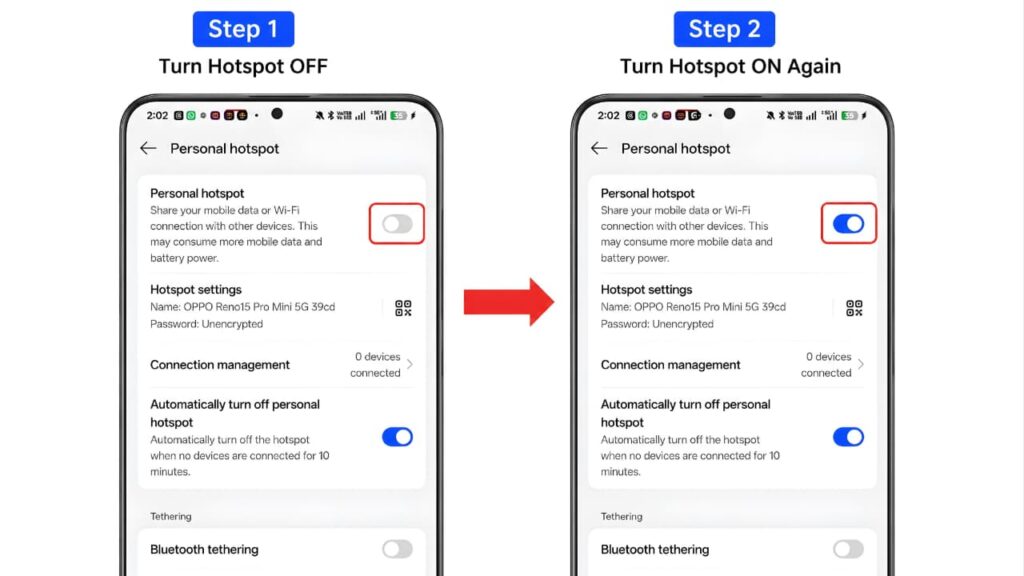
If your Mobile Hotspot Not Working issue started suddenly, a temporary software glitch may be preventing the hotspot service from broadcasting properly.
Turning the hotspot off and back on refreshes the network-sharing service without affecting your data or personal files.
For Android
- Open Settings.
- Tap Network & Internet or Connections (the menu name may vary by brand).
- Select Hotspot & Tethering.
- Tap Mobile Hotspot.
- Turn it Off.
- Wait for 20–30 seconds.
- Turn it On again.
For iPhone
- Open Settings.
- Tap Personal Hotspot.
- Turn Allow Others to Join off.
- Wait for about 20 seconds.
- Turn it back on.
Now try reconnecting your laptop, tablet, or another phone.
Expert Tip: Wait a few seconds after enabling the hotspot before searching for it on another device. Some phones take a moment to start broadcasting the Wi-Fi network.
If your Mobile Hotspot Not Working issue continues after restarting the hotspot, Apple’s official support guide provides additional troubleshooting steps for iPhone users experiencing Personal Hotspot problems.
This method fixes many Mobile Hotspot Not Working issues caused by temporary software glitches or incorrect network settings. Continue with the next solution if the problem persists.
Fix 3: Restart Your Smartphone
Restarting your phone is one of the simplest yet most effective troubleshooting steps.
A restart clears temporary memory, reloads network services, and resolves minor software conflicts that may prevent hotspot sharing.
Restart an Android Phone
- Press and hold the Power button.
- Tap Restart.
- Wait until the phone finishes rebooting.
Restart an iPhone
- Turn the phone completely off.
- Wait for 30 seconds.
- Turn it back on.
After the restart:
- Enable Mobile Data.
- Turn on the hotspot.
- Test the connection again.
If the hotspot still doesn’t work, continue with the next fix.
Many Android and iPhone users resolve the Mobile Hotspot Not Working issue by checking their hotspot settings and reconnecting their devices properly.
If your Mobile Hotspot Not Working issue continues after restarting your phone, another wireless feature may also be affected. You can also read our guide on Bluetooth not working on Android to troubleshoot common connectivity problems that could impact your device.
Fix 4: Check Your Hotspot Name and Password
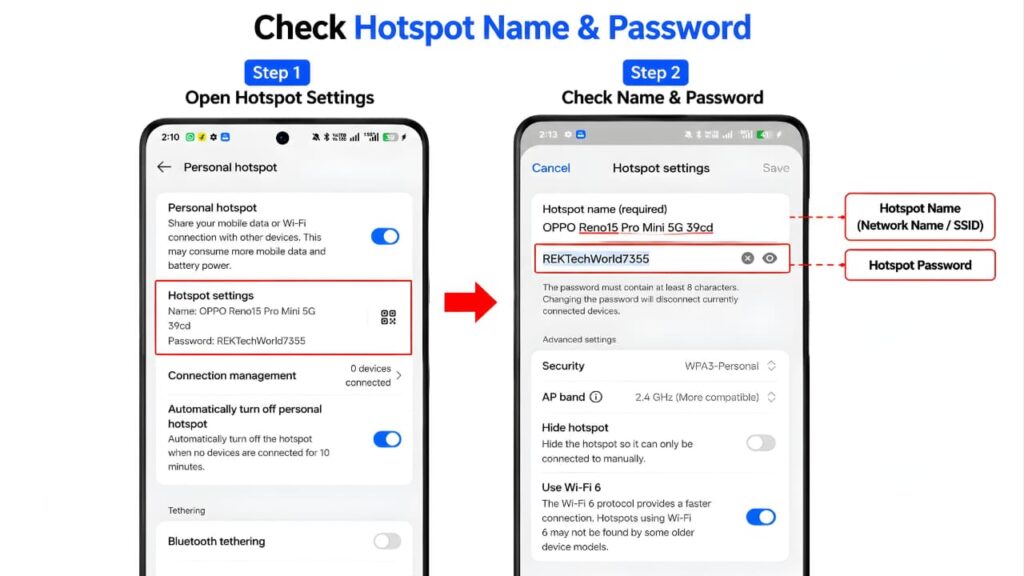
Sometimes the hotspot is working correctly, but other devices cannot connect because of incorrect credentials or incompatible settings.
Verify the following:
- The hotspot name (SSID) is correct.
- The password is entered exactly as shown.
- The password is case-sensitive.
- There are no unnecessary spaces.
- The hotspot is using WPA2 or WPA3 security if available.
If you recently changed the hotspot password, forget the saved network on the receiving device and reconnect using the updated password.
Pro Tip: Use a simple hotspot name and a strong but easy-to-type password. Avoid emojis or special characters in the hotspot name, as some older devices may not recognize them properly.
If this solution doesn’t work, don’t worry. Mobile Hotspot Not Working problems often have multiple causes, so continue following the remaining fixes in this guide.
Fix 5: Check Whether the Hotspot Is Visible
If another device cannot even find your hotspot in the available Wi-Fi list, the hotspot may not be broadcasting correctly.
Try these steps:
- Turn the hotspot off and back on.
- Keep the hotspot settings page open while searching from the other device.
- Restart Wi-Fi on the receiving device.
- Move the devices closer together.
- Disable Airplane Mode if it is enabled.
- Ensure Wi-Fi is turned on for the receiving device.
Some Android phones stop broadcasting the hotspot when no devices are connected for a certain period. If your phone has an Auto Turn Off or Timeout option, disable it while troubleshooting.
After completing these steps, test your connection again. If your Mobile Hotspot Not Working issue remains, proceed to the next troubleshooting method.
Common Error Messages and What They Mean
Different devices may display different error messages when a hotspot connection fails. Understanding these messages can help you identify the real cause.
| Error Message | Likely Cause | Recommended Action |
|---|---|---|
| Authentication Failed | Incorrect password | Verify the password and reconnect. |
| Connected, No Internet | Mobile data or carrier issue | Check mobile data and network signal. |
| Couldn’t Obtain IP Address | Temporary network configuration problem | Forget the hotspot and reconnect. |
| Network Not Available | Hotspot not broadcasting | Restart the hotspot and phone. |
| Connection Timed Out | Weak signal or interference | Move closer and try again. |
Common Mistakes to Avoid
Many hotspot problems are caused by simple oversights. Before moving to advanced troubleshooting, avoid these common mistakes:
- Assuming the hotspot is faulty without checking if mobile data works.
- Leaving Battery Saver or Low Power Mode enabled.
- Connecting too many devices at once.
- Using an outdated Android or iOS version.
- Forgetting to reconnect after changing the hotspot password.
- Keeping a VPN active while sharing your connection.
- Ignoring weak cellular signal strength.
Correcting these issues often resolves the problem without any additional troubleshooting.
Fix 6: Disconnect Extra Devices Connected to Your Hotspot
If your hotspot is already connected to several devices, your phone may refuse new connections or significantly reduce internet speed.
Every smartphone has a limit on the number of devices it can support simultaneously. Although premium phones can handle more connections, connecting too many devices at once may overload the hotspot service.
How to Check Connected Devices
Android
- Open Settings.
- Go to Hotspot & Tethering.
- Tap Mobile Hotspot.
- Check the list of connected devices.
iPhone
Go to Settings > Personal Hotspot. While iOS doesn’t always show a full device list, you can see whether devices are currently connected through the hotspot status.
If you notice devices that are no longer in use, disconnect them and try connecting the device that was experiencing issues.
Recommended Number of Connected Devices
| Phone Category | Recommended Devices |
|---|---|
| Entry-Level Smartphone | Up to 3 Devices |
| Mid-Range Smartphone | Up to 5 Devices |
| Premium Smartphone | Up to 8–10 Devices |
Expert Tip: Even if your phone supports multiple devices, limiting the hotspot to only the devices you actually need will improve speed and stability.
Keeping your phone updated and using the correct hotspot settings can prevent the Mobile Hotspot Not Working problem from returning in the future.
Fix 7: Disable Battery Saver and Data Saver
Battery-saving features are designed to reduce power consumption, but they can also restrict background network activity, causing hotspot connections to stop unexpectedly.
Disable Battery Saver on Android
- Open Settings.
- Tap Battery.
- Select Battery Saver.
- Turn it Off.
Disable Low Power Mode on iPhone
- Open Settings.
- Tap Battery.
- Turn Low Power Mode off.
Disable Data Saver (Android)
Some Android phones include a Data Saver feature that limits background data usage.
- Open Settings.
- Tap Network & Internet.
- Select Data Saver.
- Turn it Off.
After disabling these options, enable your hotspot again and check whether the connection remains stable.
This troubleshooting method is recommended for both Android and iPhone users experiencing a Mobile Hotspot Not Working issue.
Fix 8: Update Android or iPhone Software
An outdated operating system can sometimes cause hotspot compatibility issues.
Manufacturers regularly release software updates that improve Wi-Fi stability, fix networking bugs, and enhance hotspot performance.
Android
- Open Settings.
- Tap System.
- Select Software Update.
- Install any available updates.
iPhone
- Open Settings.
- Tap General.
- Select Software Update.
- Install the latest iOS version if available.
Once the update is complete, restart your phone before enabling the hotspot again.
Expert Tip: If the hotspot issue began after a recent software update, check whether another update is available. Manufacturers often release follow-up patches to fix newly discovered bugs.
If your Mobile Hotspot Not Working problem has been resolved, consider updating your device regularly to avoid similar network issues later.
Keeping your device updated is one of the best ways to prevent future Mobile Hotspot Not Working issues. You can also review the official Android support documentation for the latest troubleshooting recommendations and software update guidance.
Updating your device regularly can prevent many Mobile Hotspot Not Working issues caused by software bugs. You can also explore the latest Google updates explained to learn about new Android improvements and security updates.
Fix 9: Restart the Device You're Trying to Connect
Sometimes, the issue isn’t with your phone at all. The laptop, tablet, or secondary smartphone may have a temporary networking problem.
Restart the receiving device completely, then:
- Turn Wi-Fi back on.
- Search for your hotspot.
- Enter the correct password.
- Test the connection again.
This clears cached network information and often resolves connection failures.
Testing your hotspot after every fix makes it easier to identify what caused the Mobile Hotspot Not Working issue on your device.
Fix 10: Forget the Hotspot and Reconnect
Saved Wi-Fi profiles can become corrupted over time, especially after changing your hotspot password or phone settings.
Removing the saved hotspot profile forces the device to establish a fresh connection.
Windows Laptop
- Open Settings.
- Go to Network & Internet > Wi-Fi.
- Select Manage Known Networks.
- Choose your hotspot.
- Click Forget.
- Search for the hotspot again and reconnect.
Android
- Open Settings > Wi-Fi.
- Tap your hotspot name.
- Select Forget.
- Reconnect using the correct password.
iPhone
- Open Settings > Wi-Fi.
- Tap the ⓘ icon next to the hotspot.
- Select Forget This Network.
- Reconnect.
By following each solution carefully, most Mobile Hotspot Not Working problems can be fixed without resetting your phone or visiting a repair center.
Brand-Specific Tips
Some smartphone brands include additional battery optimization and hotspot management features.
Samsung
- Disable Power Saving Mode.
- Check Auto Hotspot settings.
- Keep One UI updated.
Xiaomi / Redmi / POCO
- Disable MIUI Battery Optimization for hotspot.
- Turn off Ultra Battery Saver.
Vivo
- Check iManager battery restrictions.
- Allow hotspot to run without optimization.
Oppo / Realme
- Disable Super Power Saving Mode.
- Check App Battery Management settings.
OnePlus
- Turn off aggressive battery optimization.
- Restart the phone after software updates.
Google Pixel
- Install the latest Android security update.
- Reset network settings if hotspot problems continue after an update.
Common Mistakes That Keep Hotspots From Working
Avoid these common errors:
- Forgetting to turn on Mobile Data.
- Using the wrong hotspot password.
- Keeping Battery Saver enabled.
- Leaving VPN apps running.
- Connecting too many devices.
- Ignoring software updates.
- Testing in an area with poor cellular signal.
- Assuming the hotspot is broken without checking the receiving device.
Expert Troubleshooting Tips
Before moving to advanced network settings, try these additional steps:
- Keep your phone battery above 30%.
- Place your phone in an open area with good network coverage.
- Avoid using thick phone cases if your device overheats while sharing internet.
- Disconnect unused devices from the hotspot.
- Pause cloud backups and large downloads.
- Wait at least 30 seconds after enabling the hotspot before attempting to connect.
These simple practices can improve hotspot reliability and prevent recurring issues.
Fix 11: Hotspot Connects but Says "No Internet"
One of the most confusing hotspot problems is when another device successfully connects to your hotspot but cannot access the internet. You may see messages like “Connected, No Internet”, “No Internet Access”, or websites simply refuse to load.
This usually means the Wi-Fi connection between the two devices is working, but your phone is not sharing its mobile data correctly.
Possible Causes
- Mobile data has stopped working.
- Weak cellular signal.
- Temporary carrier outage.
- Incorrect APN settings.
- VPN or firewall interference.
- Network configuration problems.
Solution 1: Test Mobile Data First
Turn Wi-Fi off on your phone and open a browser.
Visit several websites.
If the websites don’t load, your hotspot isn’t the issue your mobile data connection is.
Restore mobile data first before troubleshooting the hotspot.
Solution 2: Toggle Mobile Data
Sometimes the cellular connection gets stuck.
- Turn Mobile Data OFF.
- Wait 20 seconds.
- Turn it back ON.
- Enable the hotspot again.
This refreshes the connection with your carrier’s network.
Solution 3: Use Airplane Mode
Airplane Mode forces the phone to reconnect to nearby cellular towers.
Steps:
- Enable Airplane Mode.
- Wait for 30 seconds.
- Disable Airplane Mode.
- Turn Mobile Data back on.
- Enable the hotspot again.
Many temporary network issues are resolved using this method.
Solution 4: Try Another Device
If your laptop cannot access the internet through the hotspot, connect another phone or tablet.
- If the second device works normally, the issue is likely with your laptop.
- If no device gets internet access, continue with the next fixes.
This helps determine whether the problem is with the hotspot or the receiving device.
If your Mobile Hotspot Not Working issue still shows Connected but No Internet, continue with the next solution. Network settings, APN configuration, or your mobile carrier may be preventing your hotspot from sharing internet properly.
If your Mobile Hotspot Not Working problem is caused by internet connectivity issues, checking other network-related problems can also help. Read our guide on Instagram not working to learn additional troubleshooting methods for unstable internet connections.
Fix 12: Mobile Hotspot Keeps Disconnecting
If your hotspot disconnects every few minutes, the problem is often related to power management or weak network coverage.
Common Reasons
- Battery Saver is enabled.
- Auto Hotspot Timeout is active.
- Weak cellular signal.
- Phone overheating.
- Software bugs.
- Too many connected devices.
Disable Auto Turn Off
Many Android phones automatically switch off the hotspot when no device is actively using it.
Go to your hotspot settings and look for options such as:
- Turn Off Automatically
- Auto Disable
- Timeout
- Power Saving
Disable these options while testing.
Prevent Overheating
Sharing internet continuously generates heat.
If your phone becomes too hot:
- Remove the phone case temporarily.
- Keep it in a cool, ventilated area.
- Avoid direct sunlight.
- Don’t place it under pillows or blankets.
Excessive heat can reduce hotspot performance or temporarily disable network functions.
If your Mobile Hotspot Not Working problem is caused by frequent disconnections, checking your battery optimization settings and network signal can often provide a permanent solution.
Fix 13: Improve Slow Hotspot Speed
A hotspot that works but delivers extremely slow internet can be just as frustrating.
Check Signal Strength
Your hotspot speed depends on your cellular signal.
If your phone shows only one signal bar, move to an area with stronger coverage.
Higher signal strength generally results in faster and more stable internet.
Disconnect Unused Devices
Every connected device shares the same mobile bandwidth.
Streaming videos, downloading large files, or syncing cloud storage on multiple devices can dramatically reduce speed.
Disconnect devices that are not actively using the internet.
Pause Background Downloads
Background activities such as:
- Windows Update
- App Store downloads
- Google Play updates
- Cloud backups
- Automatic software updates
can consume a large amount of bandwidth.
Pause these tasks while using your hotspot for important work.
Switch Between 4G and 5G
If your phone frequently switches between 4G and 5G due to weak coverage, the hotspot may become unstable.
Try manually selecting LTE (4G) if your 5G signal is weak.
A stable 4G connection is often better than an unstable 5G connection.
Improving signal strength and reducing unnecessary network usage can significantly reduce Mobile Hotspot Not Working issues related to slow or unstable internet speeds.
If your Mobile Hotspot Not Working issue is accompanied by slow internet speeds, overheating could be affecting your phone’s performance. Learn more in our guide on phone overheating causes and fixes.
Fix 14: Check APN Settings
The Access Point Name (APN) tells your phone how to connect to your mobile carrier’s data network.
Incorrect APN settings can prevent hotspot data from working properly.
Android
- Open Settings.
- Tap Mobile Network.
- Select Access Point Names (APN).
- Compare the settings with those provided by your carrier.
If you’ve manually changed the APN in the past, restore the default values.
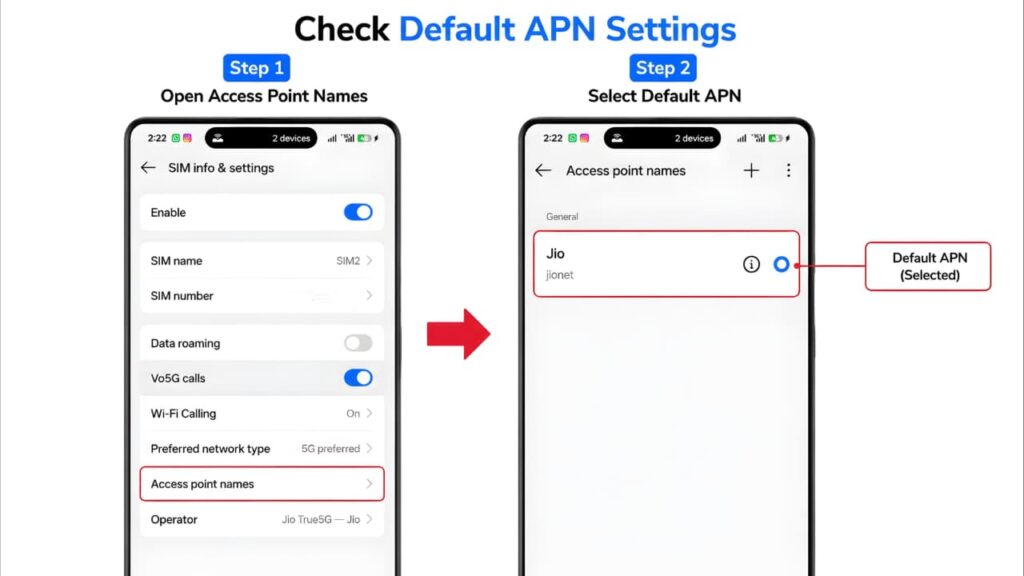
Important: Only modify APN settings if you know the correct values provided by your carrier. Incorrect settings may stop mobile data from working entirely.
Incorrect APN settings are a common reason for the Mobile Hotspot Not Working problem, especially after changing your SIM card or mobile carrier.
Incorrect APN settings can prevent your Mobile Hotspot Not Working issue from being resolved. If you’re unsure about the correct configuration, contact your mobile carrier or refer to your carrier’s official APN documentation before making changes.
Fix 15: Disable VPN, Proxy, or Firewall Apps
Security apps can sometimes block internet sharing.
Temporarily disable:
- VPN apps.
- Firewall applications.
- Network monitoring tools.
- Enterprise security software.
After disabling them:
- Restart the hotspot.
- Reconnect the receiving device.
- Test the internet connection.
If the hotspot works normally, one of these apps is likely causing the conflict.
If your Mobile Hotspot Not Working issue started after installing a VPN or security application, temporarily disabling those apps may restore normal hotspot functionality.
Fix 16: Verify Carrier Support
Not every mobile plan allows hotspot usage.
Some carriers:
- Require a premium plan.
- Limit hotspot data.
- Reduce hotspot speeds after a certain usage limit.
- Disable hotspot functionality on specific plans.
If your hotspot turns on but consistently fails to provide internet access, contact your mobile carrier and confirm that hotspot usage is included in your plan.
Some mobile plans have hotspot restrictions, so confirming carrier support is an important step when your Mobile Hotspot Not Working issue continues despite trying multiple fixes.
Windows Laptop Troubleshooting
If your Windows laptop cannot connect to the hotspot:
- Forget the saved hotspot network.
- Restart Wi-Fi.
- Update the wireless network driver.
- Disable and re-enable the Wi-Fi adapter.
- Restart the laptop.
- Run the Windows Network Troubleshooter.
These steps often resolve laptop-specific hotspot connection issues.
MacBook Troubleshooting
If you’re using a MacBook:
- Turn Wi-Fi off and back on.
- Forget the hotspot network.
- Restart the MacBook.
- Disable VPN if active.
- Update macOS if a software update is available.
MacBooks usually reconnect successfully after refreshing the Wi-Fi settings.
Expert Tip
If none of the above solutions work, test your SIM card in another compatible phone. If the hotspot works there, the issue is likely with your original phone. If it still doesn’t work, the problem may be related to your SIM card, mobile plan, or carrier network.
Fix 17: Reset Network Settings
If you’ve tried every solution in this guide and your Mobile Hotspot Not Working issue still isn’t resolved, resetting your network settings is one of the most effective final troubleshooting steps.
This process removes network-related configurations that may have become corrupted over time.
What Will Be Reset?
Resetting network settings will remove:
- Saved Wi-Fi networks
- Bluetooth pairings
- Mobile network settings
- VPN configurations
It will not delete:
- Photos
- Videos
- Apps
- Contacts
- Messages
- Personal files
Android
- Open Settings.
- Tap System.
- Select Reset Options.
- Tap Reset Wi-Fi, Mobile & Bluetooth.
- Confirm the reset.
- Restart your phone.
iPhone
- Open Settings.
- Tap General.
- Select Transfer or Reset iPhone.
- Tap Reset.
- Choose Reset Network Settings.
- Restart your iPhone.
After the restart, enable Mobile Data, turn on your hotspot, and test the connection again.
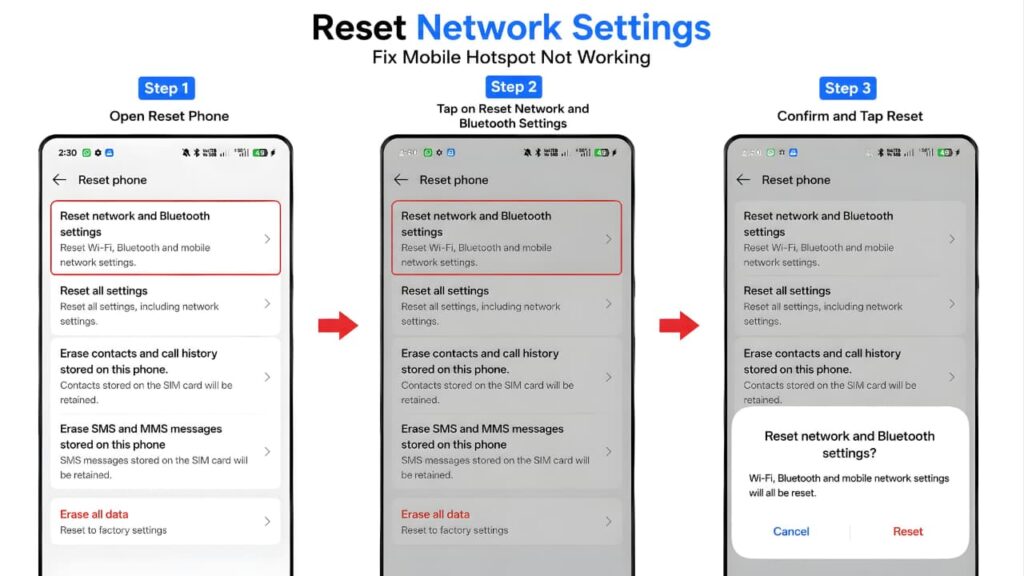
Resetting network settings is one of the most effective solutions for a persistent Mobile Hotspot Not Working issue because it removes incorrect network configurations without deleting your personal data.
Resetting network settings is often the final step in resolving a persistent Mobile Hotspot Not Working issue. If the problem continues, refer to the official device support documentation for additional network troubleshooting instructions.
When to Contact Your Mobile Carrier
If your hotspot still isn’t working after completing all the troubleshooting steps, the issue may be related to your mobile network rather than your device.
Contact your carrier if:
- Mobile data is working intermittently.
- The hotspot option is disabled or unavailable.
- Internet sharing has suddenly stopped after changing your plan.
- You suspect a network outage in your area.
- Your hotspot data allowance has been exhausted.
Your carrier can verify whether your plan supports hotspot usage and check for any service-side restrictions.
When Your Phone May Need Repair
Although rare, hotspot issues can occasionally be caused by hardware problems.
Consider professional service if:
- Wi-Fi and Bluetooth also fail to work.
- The hotspot has never worked, even after a factory reset.
- Your phone recently suffered water damage.
- The device overheats excessively during normal use.
- Network functions stopped working after a physical impact.
If multiple wireless features are failing at the same time, a hardware inspection may be necessary.
Hotspot Security Best Practices
When sharing your internet connection, it’s important to keep your hotspot secure.
Follow these best practices:
- Use a strong password with letters, numbers, and symbols.
- Avoid sharing your hotspot password publicly.
- Turn the hotspot off when it’s not in use.
- Disconnect unknown devices immediately.
- Change your hotspot password periodically.
- Use WPA2 or WPA3 security if supported by your device.
These steps help prevent unauthorized access and protect your mobile data.
Following these security recommendations not only protects your data but also helps prevent future Mobile Hotspot Not Working problems caused by unauthorized connections.
Keeping your device secure is an important part of preventing future Mobile Hotspot Not Working issues. For more online privacy tips, check out our guide on how to protect your personal data online.
Frequently Asked Questions
Why does my hotspot keep disconnecting?
Battery Saver, weak cellular coverage, overheating, or aggressive power management settings can cause repeated disconnections.
Why does my hotspot connect but have no internet?
This usually indicates a mobile data issue, incorrect APN settings, a VPN conflict, or a temporary carrier problem.
Many Mobile Hotspot Not Working problems are related to temporary network issues. If messaging apps are also affected, our guide on WhatsApp not sending messages can help you troubleshoot additional internet connectivity problems.
Can Battery Saver affect hotspot performance?
Yes. Battery Saver and Low Power Mode may restrict background networking, which can interrupt hotspot functionality.
Does resetting network settings delete my photos or apps?
No. It only resets network-related settings such as Wi-Fi, Bluetooth, and mobile network configurations.
Why can't my laptop detect my hotspot?
Check that your hotspot is enabled, move the devices closer together, restart both devices, and verify the hotspot name and password.
How many devices should I connect to my hotspot?
For the best performance, connect only the devices you actually need. Fewer connected devices generally result in faster and more stable internet.
Should I update my phone to fix hotspot issues?
Yes. Software updates often include important fixes for networking, Wi-Fi, and hotspot stability.
Can a VPN stop my hotspot from working?
In some cases, yes. Temporarily disabling the VPN can help determine whether it’s causing the issue.
Final Troubleshooting Checklist
Before assuming your phone has a hardware problem, make sure you’ve completed the following:
- ✔ Confirm Mobile Data works correctly.
- ✔ Restart your phone.
- ✔ Restart the receiving device.
- ✔ Turn the hotspot off and back on.
- ✔ Check the hotspot password.
- ✔ Disable Battery Saver or Low Power Mode.
- ✔ Remove unnecessary connected devices.
- ✔ Disable VPN or firewall apps.
- ✔ Check APN settings.
- ✔ Install the latest software updates.
- ✔ Reset network settings if necessary.
- ✔ Contact your carrier if the problem continues.
Conclusion
A mobile hotspot is one of the most useful smartphone features, but it depends on several components working together, including your mobile data connection, software, network settings, and carrier support.
Fortunately, most hotspot problems can be resolved without professional assistance. By following the troubleshooting steps in this guide—from checking mobile data and restarting your phone to resetting network settings and verifying carrier support you can fix the vast majority of hotspot issues.
To reduce the chances of future problems, keep your phone updated, maintain a strong cellular signal, use secure hotspot settings, and avoid unnecessary battery optimization while sharing your connection.
If you’ve completed every step and the issue still persists, contacting your mobile carrier or visiting an authorized service center is the next logical step.
If you’ve completed every solution in this guide and your Mobile Hotspot Not Working issue still isn’t resolved, reviewing the official support resources from your device manufacturer can help identify model-specific troubleshooting steps.
Most Mobile Hotspot Not Working problems can be resolved by following the troubleshooting steps in this guide. By checking your mobile data, verifying hotspot settings, updating your device, and resetting network settings when necessary, you can restore a stable internet connection on both Android and iPhone. If the issue still persists after trying all 17 fixes, contact your mobile carrier or visit an authorized service center for further assistance.
Following all the solutions in this guide can fix most Mobile Hotspot Not Working problems. If you use your hotspot frequently, you may also benefit from reading our guide on battery fast drain problem solution to improve battery life during extended hotspot usage.