WiFi Not Working is one of the most common internet problems that can affect Android phones, iPhones, Windows PCs, Mac computers, and WiFi routers. Whether your device won’t connect to WiFi, keeps disconnecting, or shows “Connected but No Internet,” this complete troubleshooting guide will help you identify the cause and fix the problem with simple step-by-step solutions.
There’s nothing more frustrating than seeing a strong WiFi signal while your apps refuse to load, videos keep buffering, or websites simply won’t open. Whether you’re working, attending online classes, streaming your favorite content, or browsing social media, a WiFi problem can quickly interrupt your day.
The good news is that most WiFi issues can be fixed without replacing your phone, laptop, or router. In many cases, the problem is caused by a temporary software glitch, incorrect network settings, an outdated password, or a router that simply needs a restart.
This guide walks you through proven troubleshooting methods for Android phones, iPhones, Windows PCs, Mac computers, and WiFi routers. Start with the quick fixes below before moving on to device-specific solutions.
This WiFi Not Working guide is designed to help you identify the exact cause of the problem and apply the right solution without unnecessary troubleshooting.
If you’re facing internet issues only on specific apps, it’s worth checking whether the problem is app-related. Our WhatsApp Not Working guide covers common fixes for WhatsApp connectivity issues.
Quick Fixes You Should Try First
Before changing advanced settings, try these simple solutions. They solve a large percentage of WiFi problems.
✔ Restart your device
estart your phone or computer to clear temporary software issues that may be affecting the WiFi connection.
✔ Restart your WiFi router
Turn the router off, wait about 30 seconds, then turn it back on. Allow one or two minutes for the internet connection to be restored.
✔ Turn WiFi off and back on
Disable WiFi, wait for 10–15 seconds, then enable it again and reconnect to your network.
✔ Check Airplane Mode
If Airplane Mode is enabled, WiFi may be turned off automatically. Disable Airplane Mode and reconnect to your network.
✔ Move closer to the router
Weak signal strength can cause slow speeds, connection failures, or random disconnections. If possible, move closer to the router and test the connection again.
Quick Tip: If other devices connected to the same WiFi also have no internet access, the problem is most likely with your router or your internet service provider not your device.
If WiFi Not Working even after trying these basic solutions, continue with the device-specific troubleshooting methods below.
Why Is My WiFi Not Working?
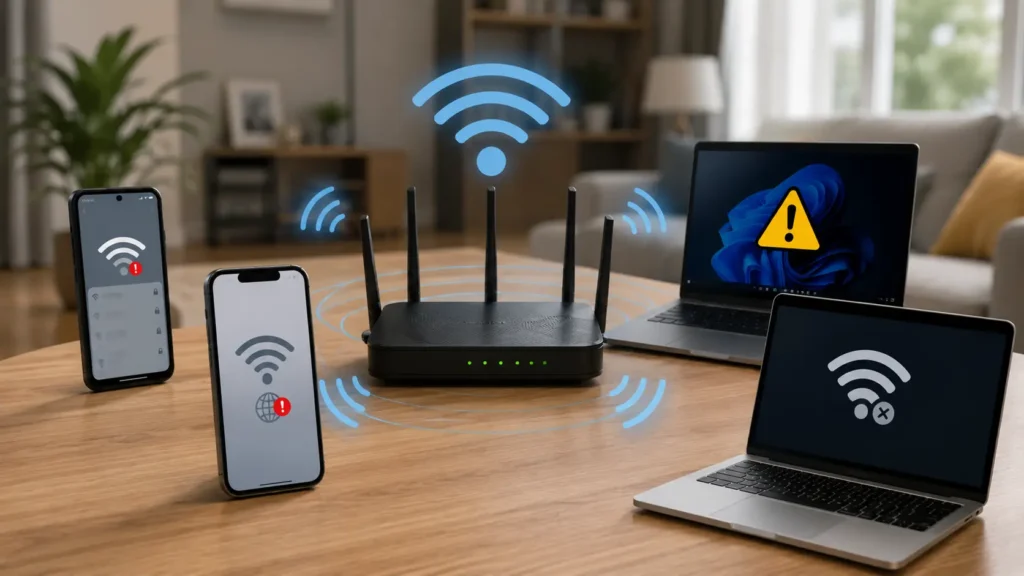
Understanding the cause of the problem makes troubleshooting much easier. Some of the most common reasons include:
- Temporary software bugs
- Incorrect WiFi password
- Weak wireless signal
- Router malfunction
- ISP service outage
- Outdated device software
- VPN or network configuration issues
- Corrupted saved WiFi settings
The following sections explain how to fix these problems on different devices.
Understanding the exact reason behind WiFi Not Working can save time and help you choose the most effective solution instead of trying random fixes.
Fix WiFi Not Working on Android
Android phones from Samsung, Google Pixel, Xiaomi, OnePlus, Motorola, Realme, Vivo, OPPO, and other brands use similar WiFi settings. Although the interface may vary slightly, the troubleshooting methods below work for most Android devices.
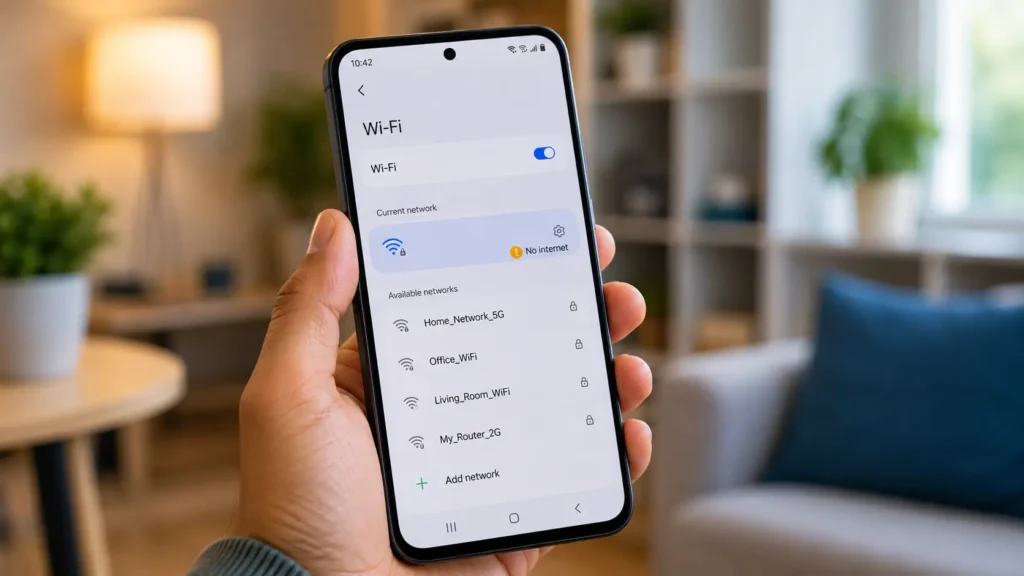
1. Restart Your Android Phone
A simple restart refreshes Android’s network services and resolves many temporary connection issues.
Follow these steps:
- Press and hold the Power button.
- Tap Restart.
- Wait for your phone to reboot completely.
- Connect to your WiFi network again.
- Open a website or app to check whether the internet is working.
2. Forget the WiFi Network and Reconnect
Your phone stores WiFi settings so it can reconnect automatically. If those settings become corrupted or your WiFi password has changed, reconnecting from scratch usually solves the problem.
Follow these steps:
- Open Settings.
- Tap Network & Internet or Connections.
- Select WiFi.
- Tap your connected network.
- Choose Forget.
- Return to the available WiFi networks.
- Select your network again.
- Enter the correct password.
- Tap Connect.
- Test the internet connection.
3. Turn Airplane Mode On and Off
Resetting your phone’s wireless radios can fix temporary network glitches.
Follow these steps:
- Swipe down from the top of the screen.
- Enable Airplane Mode.
- Wait for about 15 seconds.
- Disable Airplane Mode.
- Turn WiFi back on if necessary.
- Reconnect to your network.
4. Disable VPN
Some VPN services may prevent websites or apps from loading if the VPN server becomes unavailable.
Follow these steps:
- Open your VPN application.
- Disconnect the VPN.
- Close the app.
- Open your browser.
- Check whether your internet connection has returned.
5. Install Android Updates
Software updates often include fixes for WiFi stability, security, and compatibility.
Follow these steps:
- Open Settings.
- Tap System.
- Select Software Update.
- Download any available updates.
- Restart your phone after installation.
- Test your WiFi connection again.
If WiFi Not Working is still affecting your Android phone after trying these solutions, continue with the next section to learn troubleshooting steps for iPhone, Windows, Mac, and WiFi routers.
Common Android WiFi Problems
| Problem | Most Likely Cause | Recommended Fix |
|---|---|---|
| Authentication Error | Incorrect password | Forget the network and reconnect. |
| Connected but No Internet | Router or ISP issue | Restart the router and test another device. |
| WiFi Keeps Disconnecting | Weak signal | Move closer to the router. |
| WiFi Not Showing | Router or signal issue | Restart the router and refresh available networks. |
These common issues explain why WiFi Not Working occurs on Android devices and how the recommended solutions can restore your connection quickly.
If WiFi problems continue after restarting your device, Google’s official Android Help Center provides additional troubleshooting steps for network and internet issues. Visit Android Help for more information.
If both WiFi and mobile internet stop working on your Android phone, follow our Mobile Data Not Working guide to identify network-related problems.
Before You Continue
If your Android phone still can’t connect to WiFi after trying the steps above, don’t worry. The next section covers iPhone WiFi troubleshooting, followed by solutions for Windows PCs, Mac computers, and WiFi routers, ensuring you can identify and fix the problem regardless of the device you’re using.
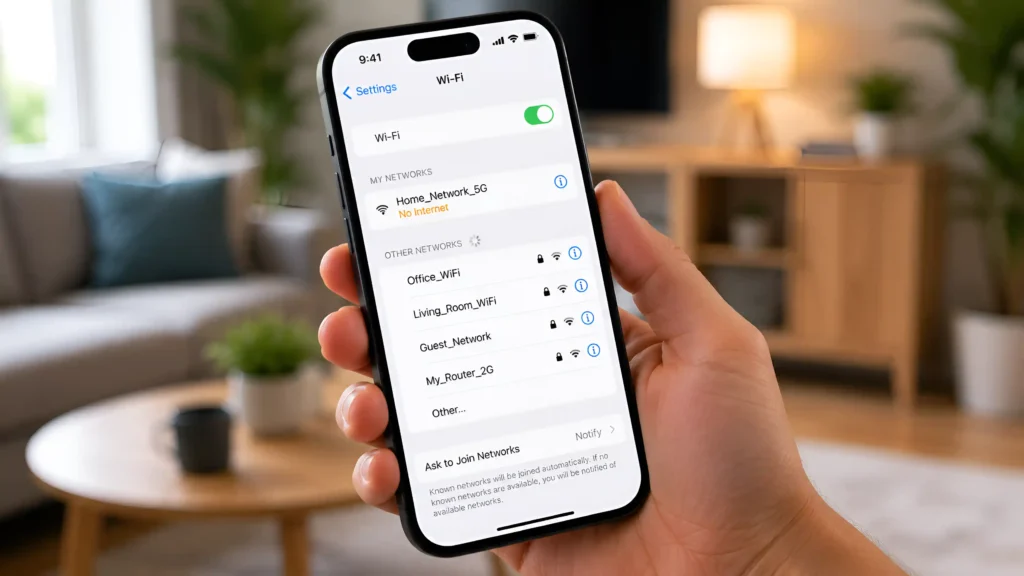
Fix WiFi Not Working on iPhone
If your iPhone refuses to connect to WiFi, keeps disconnecting, or shows “No Internet Connection” even though the WiFi signal is strong, the problem is usually related to saved network settings, temporary iOS glitches, or your router.
Before resetting any settings, work through the solutions below in order.
1. Restart Your iPhone
Restarting your iPhone refreshes iOS network services and clears temporary software issues.
Follow these steps:
- Press and hold the Side button and either Volume button.
- Drag the Power Off slider.
- Wait about 30 seconds.
- Turn your iPhone back on.
- Connect to your WiFi network.
- Test the internet connection.
2. Forget the WiFi Network
If your iPhone has stored outdated or corrupted network information, reconnecting from scratch often fixes the issue.
Follow these steps:
- Open Settings.
- Tap Wi-Fi.
- Tap the ⓘ icon beside your WiFi network.
- Select Forget This Network.
- Confirm your choice.
- Select the network again.
- Enter the correct password.
- Tap Join.
- Verify that the connection is working.
3. Turn WiFi Off and Back On
Refreshing the wireless connection can resolve temporary communication problems.
Follow these steps:
- Open Settings > Wi-Fi.
- Turn WiFi off.
- Wait for 10–15 seconds.
- Turn WiFi back on.
- Reconnect to your network.
- Check whether websites load normally.
4. Disable VPN
If you’re using a VPN, disconnect it temporarily to check whether it’s blocking internet access.
Follow these steps:
- Open your VPN app.
- Disconnect the VPN.
- Close the application.
- Open Safari.
- Test your connection again.
5. Update iOS
Apple regularly releases updates that improve WiFi stability and fix software bugs.
Follow these steps:
- Open Settings.
- Tap General.
- Select Software Update.
- Install any available update.
- Restart your iPhone.
- Connect to WiFi again.
If WiFi Not Working continues on your iPhone, don’t worry. The next sections explain additional troubleshooting methods for Windows PCs, Mac computers, and WiFi routers that may also help identify the root cause.
Common iPhone WiFi Problems
| Problem | Most Likely Cause | Recommended Fix |
|---|---|---|
| Unable to Join Network | Incorrect password | Forget the network and reconnect. |
| Connected but No Internet | Router or ISP issue | Restart the router and test another device. |
| WiFi Keeps Disconnecting | Weak signal or iOS bug | Update iOS and move closer to the router. |
| WiFi Not Showing | Router broadcast issue | Restart the router and refresh the WiFi list. |
If WiFi Not Working on your iPhone matches one of the problems listed above, follow the suggested fix before moving to advanced troubleshooting.
Apple recommends checking your WiFi settings, software updates, and network configuration if your iPhone cannot connect to a wireless network. Learn more from Apple Support.
If your internet works but WhatsApp still cannot send or receive messages, check our WhatsApp Internet Connection Problems guide for additional solutions.
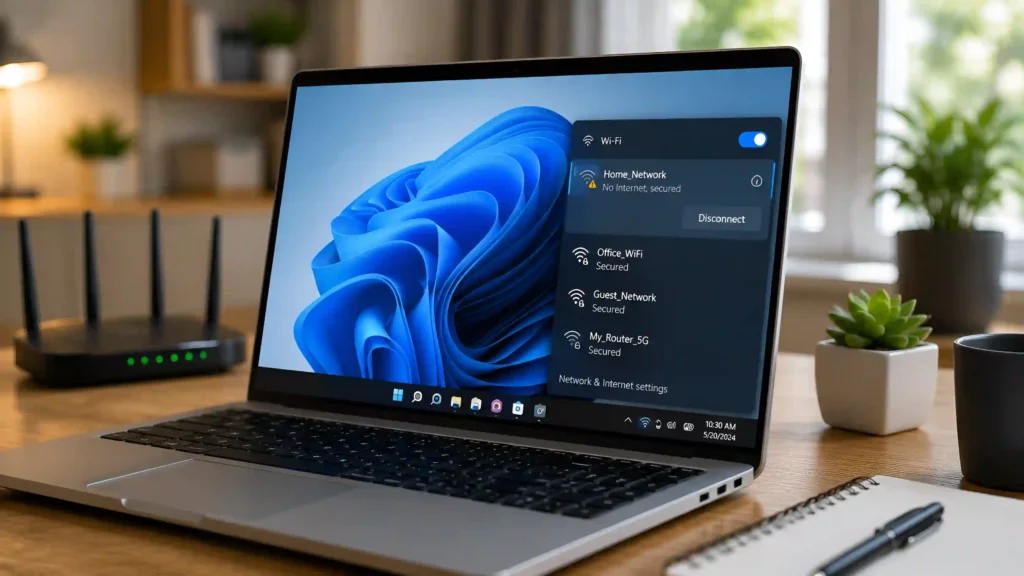
Fix WiFi Not Working on Windows
If your Windows laptop or desktop can’t connect to WiFi, the issue is often related to saved network profiles, wireless drivers, or Windows network settings.
Since you’ve already tried the basic fixes earlier in this guide, use the solutions below if the problem continues
1. Forget the WiFi Network
- Open Settings.
- Go to Network & Internet > Wi-Fi.
- Select Manage Known Networks.
- Choose your WiFi network.
- Click Forget.
- Reconnect using the correct password.
2. Run the Windows Network Troubleshooter
Windows includes a built-in tool that automatically detects common network problems.
Follow these steps:
- Open Settings.
- Select System.
- Click Troubleshoot.
- Choose Other Troubleshooters.
- Run Network and Internet.
- Apply any recommended fixes.
- Restart your computer if prompted.
3. Disable VPN
Disconnect any active VPN connection and test your WiFi again.
4. Update Windows
Keeping Windows updated ensures you receive the latest networking improvements and bug fixes.
Follow these steps:
- Open Settings.
- Click Windows Update.
- Select Check for Updates.
- Install all available updates.
- Restart your computer.
If WiFi Not Working remains unresolved on your Windows PC or laptop, proceed to the next section for Mac troubleshooting before checking your WiFi router.
Common Windows WiFi Problems
| Problem | Cause | Recommended Fix |
|---|---|---|
| No Internet, Secured | Router or ISP issue | Restart the router. |
| Can’t Connect to This Network | Saved profile issue | Forget and reconnect. |
| DNS Server Isn’t Responding | DNS configuration problem | Run the Network Troubleshooter. |
| WiFi Keeps Disconnecting | Weak signal or outdated drivers | Update Windows and move closer to the router. |
Most WiFi Not Working problems on Windows can be resolved by updating network settings or reconnecting to the wireless network.
Microsoft provides official guidance for diagnosing and fixing WiFi connection problems on Windows computers. See Microsoft Support for detailed instructions.
If you’re using WhatsApp on your PC and it refuses to connect over WiFi, read our WhatsApp Web Not Working guide for step-by-step fixes.
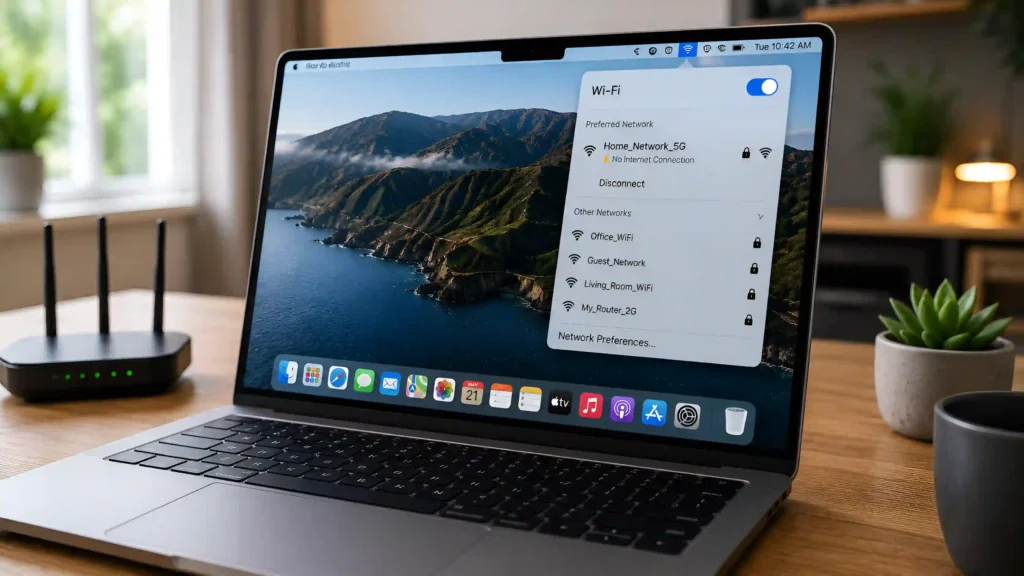
Fix WiFi Not Working on Mac
Most WiFi issues on macOS are caused by temporary software glitches, outdated saved network settings, or router communication problems.
Try the following solutions before resetting your Mac’s network configuration.
1. Restart Your Mac
- Click the Apple menu ().
- Select Restart.
- Wait for macOS to restart.
- Connect to your WiFi network.
- Test the internet connection.
2. Forget the WiFi Network
- Open System Settings.
- Select Wi-Fi.
- Remove the saved network.
- Reconnect using the correct password.
- Confirm the connection is working.
3. Turn WiFi Off and On
Disable WiFi for about 15 seconds, then enable it again and reconnect.
4. Update macOS
Install the latest macOS update to receive security patches and WiFi performance improvements.
Follow these steps:
- Open System Settings.
- Go to General.
- Select Software Update.
- Install available updates.
- Restart your Mac.
If WiFi Not Working still isn’t fixed on your Mac, the issue may be related to your router or internet connection. Continue with the router troubleshooting section below.
Common Mac WiFi Problems
| Problem | Cause | Recommended Fix |
|---|---|---|
| Connected but No Internet | Router issue | Restart the router. |
| WiFi Keeps Disconnecting | Weak signal | Move closer to the router. |
| WiFi Network Not Found | Router broadcast problem | Restart the router. |
| Unable to Join Network | Incorrect password | Forget the network and reconnect. |
These troubleshooting methods resolve most WiFi Not Working issues on Mac computers without requiring advanced technical knowledge.
If websites load but ChatGPT doesn’t work on your Mac, our How to Fix ChatGPT Something Went Wrong Error guide explains the most common causes and fixes.
Before You Continue
If WiFi is still not working after troubleshooting your Android phone, iPhone, Windows PC, or Mac, the problem is most likely with your router or internet connection.
In the final section, you’ll learn how to troubleshoot your WiFi router, understand common indicator lights, know when to reset your router, and determine when it’s time to contact your internet service provider.
Fix WiFi Router Problems
If none of your devices can access the internet, the issue is likely with your WiFi router or your internet service provider (ISP). Before contacting technical support, try these troubleshooting steps.
1. Restart Your Router
A simple restart refreshes your router’s connection to your ISP and resolves many temporary network problems.
Follow these steps:
- Turn off the router using the power button or unplug it.
- Wait for 30–60 seconds.
- Turn the router back on.
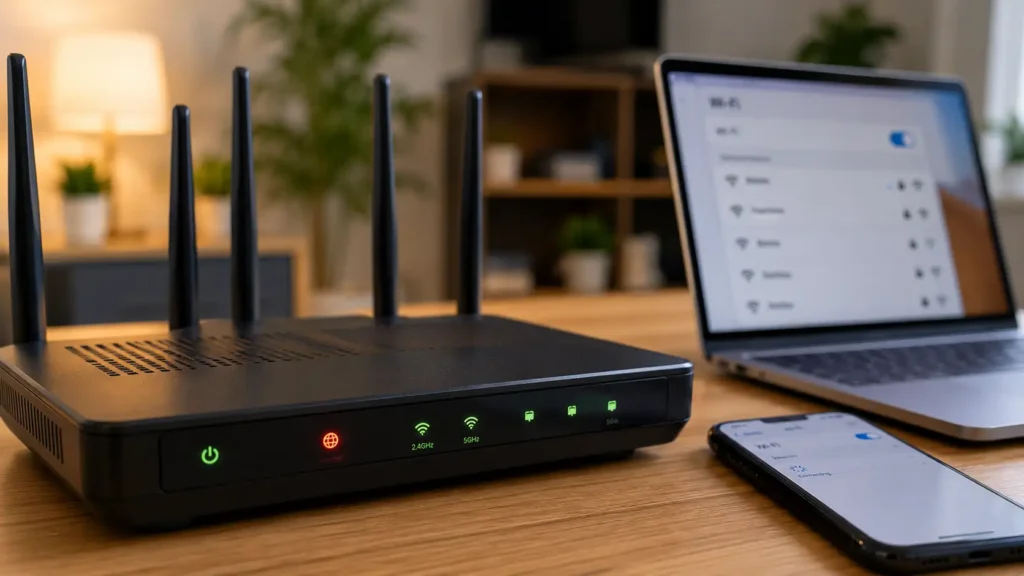
- Wait until the Power, Internet, and WiFi lights become stable.
- Reconnect your device and test the connection.
2. Check the Indicator Lights
The status lights on your router can quickly tell you where the problem is.
| Indicator Light | Normal Status | What It Means |
|---|---|---|
| Power | Solid | Router is powered on. |
| Internet | Solid or Blinking | Connected to your ISP. |
| WiFi | Blinking | Wireless network is active. |
| LAN | Blinking | Data is being transferred through Ethernet. |
If the Internet light remains off or red (depending on your router model), the problem is usually related to your ISP or modem.
3. Check All Cables
A loose Ethernet or power cable can interrupt your internet connection.
Make sure that:
- The power adapter is firmly connected.
- The Ethernet cable is securely plugged into both the modem and router.
- No cable is damaged or bent.
- The modem is powered on.
4. Update Router Firmware
Router manufacturers regularly release firmware updates to improve performance, security, and stability.
If your router supports automatic updates, install the latest version through its web interface or mobile app.
Important: Never turn off the router while a firmware update is in progress.
5. Reset the Router (Last Resort)
Only reset your router if all other troubleshooting steps have failed.
Follow these steps:
- Locate the Reset button.
- Press and hold it for about 10–15 seconds.
- Wait for the router to restart.
- Set up your WiFi network again.
- Reconnect your devices.
Warning: A factory reset erases your WiFi name, password, and all custom router settings.
If WiFi Not Working continues even after restarting and checking your router, contact your internet service provider to determine whether there’s a service outage or connection issue in your area.
Quick WiFi Troubleshooting Table
| Problem | Quick Fix |
|---|---|
| WiFi won’t connect | Forget the network and reconnect. |
| Connected but No Internet | Restart the router and check another device. |
| Authentication Error | Verify the WiFi password. |
| WiFi Keeps Disconnecting | Move closer to the router. |
| Slow WiFi | Restart the router and disconnect unused devices. |
| WiFi Network Not Showing | Restart the router and refresh the WiFi list. |
This quick reference makes it easier to diagnose WiFi Not Working problems and choose the right solution based on the symptoms you’re experiencing.
If restarting your router doesn’t resolve the issue, Google’s Internet Help resources explain common network and connectivity problems.
If your phone’s hotspot also isn’t working after fixing your router, follow our Mobile Hotspot Not Working guide for more troubleshooting steps.
Device Comparison Table
| Device | Most Common Cause | Best First Fix |
|---|---|---|
| Android | Saved WiFi settings | Forget the network. |
| iPhone | Temporary iOS issue | Restart the iPhone. |
| Windows PC | Network profile or driver | Run the Network Troubleshooter. |
| Mac | Network configuration | Forget and reconnect. |
| Router | ISP or firmware issue | Restart the router. |
The comparison above helps you understand how WiFi Not Working can affect different devices and which troubleshooting step should be tried first.
If your device battery drains quickly while using WiFi, check our Battery Fast Drain guide for practical tips to improve battery life.
When Should You Contact Your ISP?
If you’ve completed all the troubleshooting steps in this guide and every device still has no internet access, it’s time to contact your internet service provider.
Contact your ISP if:
- The Internet indicator on your router stays off or shows an error.
- Every phone, laptop, and computer connected to your WiFi has the same issue.
- Your internet frequently disconnects throughout the day.
- Your area is experiencing a service outage.
- Your modem or fiber connection isn’t receiving a signal.
Your ISP can check for line faults, account issues, or network outages that can’t be fixed from your side.
Frequently Asked Questions
Why is my WiFi connected but not working?
Your device is connected to the router, but the router isn’t providing internet access. Restart the router first, then check whether other devices have the same issue.
Why does my WiFi keep disconnecting?
Weak signal strength, software bugs, outdated firmware, or wireless interference are the most common causes. Move closer to the router and make sure your device is fully updated.
Should I reset my router?
Only as a last resort. A factory reset removes all custom settings, including your WiFi name and password.
How do I know if the problem is with my router?
If every device connected to your WiFi experiences the same issue, the router or your ISP is the most likely cause.
Can software updates fix WiFi problems?
Yes. Android, iOS, Windows, macOS, and router firmware updates often include fixes for connectivity and stability issues.
This WiFi Not Working guide covers the most effective troubleshooting methods for Android, iPhone, Windows, Mac, and WiFi routers. Following these steps carefully should help resolve most wireless connection problems without professional assistance.
o understand how wireless networks work and why WiFi connections sometimes fail, refer to the official Wi-Fi Alliance website.
If WhatsApp backups fail after reconnecting to WiFi, check our WhatsApp Backup Stuck guide to complete your backup successfully.
Conclusion
Most WiFi problems don’t require expensive repairs or new hardware. In many cases, a simple restart, reconnecting to the network, or installing the latest software update is enough to restore a stable internet connection.
This guide covered the most effective solutions for Android phones, iPhones, Windows PCs, Mac computers, and WiFi routers. By following the troubleshooting steps in order, you can identify the root cause of the problem and avoid unnecessary changes to your device.
If the issue persists even after trying every solution, your internet service provider can help determine whether the problem is related to your connection or network infrastructure.