Quick Answer
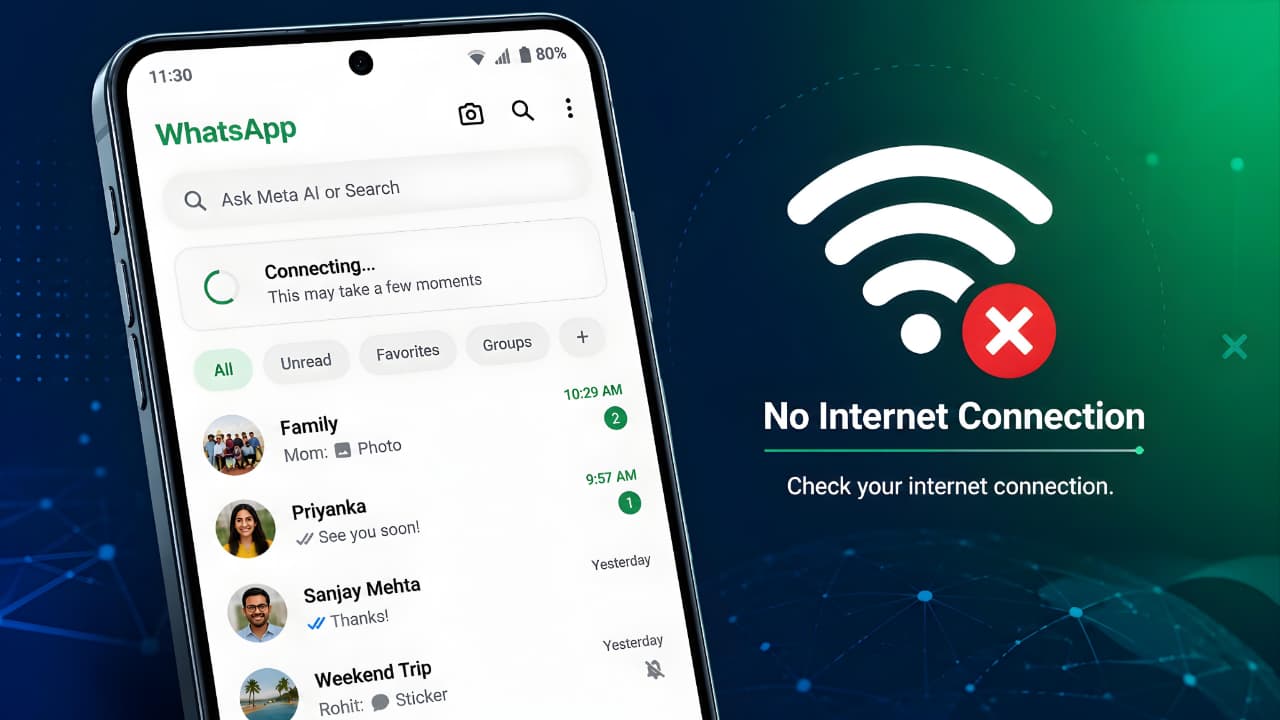
If WhatsApp shows “Connecting…”, “No Internet Connection”, or messages are not sending, the problem is usually caused by an unstable internet connection, incorrect phone settings, a temporary WhatsApp server issue, or network restrictions. In most cases, you can fix the issue by checking your internet connection, restarting your phone, switching between Wi-Fi and mobile data, updating WhatsApp, and verifying your network settings.
Introduction
WhatsApp is one of the world’s most popular messaging apps, helping billions of people communicate every day. Because it depends entirely on an internet connection, even a small network issue can stop messages from sending, prevent calls from connecting, or leave the app stuck on “Connecting…”.
The good news is that most WhatsApp internet connection problems can be solved in just a few minutes without advanced technical knowledge.
This guide explains the most common reasons why WhatsApp cannot connect to the internet and provides step-by-step solutions for both Android and iPhone users. Follow the fixes in the order shown below to quickly restore your connection.
By following this guide on How to Fix WhatsApp Internet Connection Problems, you can resolve most connection issues without professional assistance.
Table of Contents
- Quick Answer
- Why WhatsApp Internet Connection Problems Happen
- Common Symptoms
- Quick Troubleshooting Table
- Basic Checks Before Advanced Fixes
- Android and iPhone Solutions
- Wi-Fi and Mobile Data Fixes
- Advanced Troubleshooting
- FAQs
- Prevention Tips
- Conclusion
Why Do WhatsApp Internet Connection Problems Happen?
Several different issues can interrupt WhatsApp’s connection. Understanding the cause helps you choose the right solution instead of trying random fixes.
Common causes include:
- Weak or unstable Wi-Fi signal
- Poor mobile network coverage
- Temporary internet outage from your service provider
- Airplane Mode enabled
- Background data restrictions
- Battery Saver limiting WhatsApp
- Incorrect Date & Time settings
- VPN or Proxy interference
- Outdated WhatsApp version
- Temporary WhatsApp server outage
- Corrupted network settings
- Router configuration problems
Most of these issues can be resolved without reinstalling the app.
Understanding the root cause is the first step in learning How to Fix WhatsApp Internet Connection Problems effectively.
Common Symptoms
You may be experiencing one or more of the following:
- WhatsApp keeps showing Connecting…
- Messages remain stuck with one check mark.
- Photos or videos fail to download.
- Voice and video calls do not connect.
- “No Internet Connection” appears inside WhatsApp.
- WhatsApp works only on Wi-Fi but not on mobile data.
- WhatsApp works only on mobile data but not on Wi-Fi.
- Status updates fail to load.
- Backup to Google Drive or iCloud stops unexpectedly.
Identifying these symptoms early makes How to Fix WhatsApp Internet Connection Problems much easier.
Quick Troubleshooting Table
| Problem | Possible Cause | Recommended Fix |
|---|---|---|
| WhatsApp Connecting… | Weak internet | Restart Wi-Fi or switch to mobile data |
| Messages not sending | No internet access | Check network connection |
| Calls not connecting | Poor signal | Move to a stronger network area |
| Media not downloading | Slow internet or storage issue | Free storage and reconnect |
| Works on Wi-Fi only | Mobile data restriction | Enable mobile data for WhatsApp |
| Works on mobile data only | Wi-Fi router issue | Restart the router and reconnect |
These quick fixes cover the most common solutions for How to Fix WhatsApp Internet Connection Problems.
Before You Try Advanced Fixes
Before changing any settings, complete these simple checks:
- Make sure your internet connection is active by opening a website in your browser.
- Restart your phone.
- Turn Airplane Mode on for 10 seconds and then turn it off.
- Switch between Wi-Fi and mobile data.
- Check whether other apps can access the internet.
These basic steps solve many WhatsApp connection issues without requiring additional troubleshooting.
Solution 1: Check if Your Internet Connection Is Working
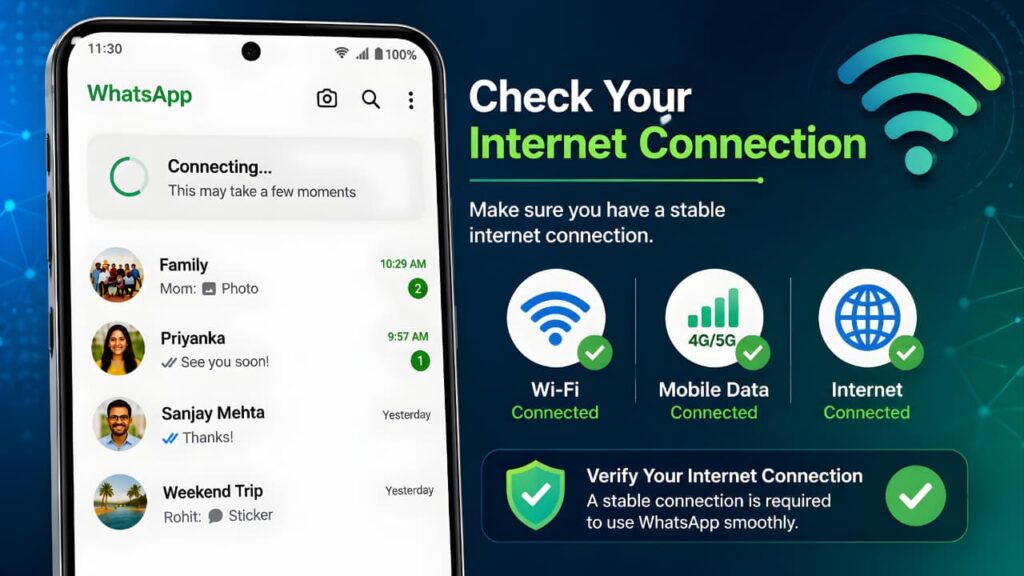
Before changing any WhatsApp settings, make sure your internet connection is actually working.
Open a web browser and visit a few websites. If the pages do not load, the problem is with your internet connection rather than WhatsApp.
You can also try streaming a short video or opening another app that requires internet access. If multiple apps fail to connect, restart your Wi-Fi router or contact your mobile network provider.
Tip: If you’re using public Wi-Fi at airports, hotels, or cafés, you may need to sign in through a browser before WhatsApp can access the internet.
A stable internet connection is essential when learning How to Fix WhatsApp Internet Connection Problems.
If your internet connection is working properly but WhatsApp still cannot send or receive messages, the issue may be related to the app itself. If you’re experiencing messaging issues, read our WhatsApp Not Sending Messages guide for additional troubleshooting steps.
Solution 2: Switch Between Wi-Fi and Mobile Data
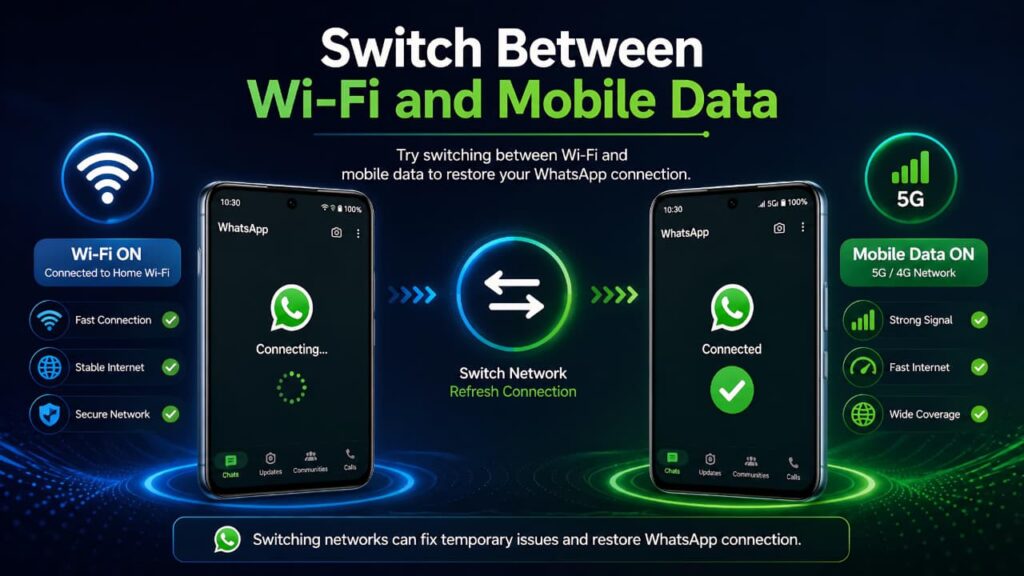
Sometimes only one network is experiencing problems.
- Turn off Wi-Fi and enable mobile data.
- Open WhatsApp and check whether messages start sending.
- If it works, the issue is likely with your Wi-Fi network.
- If it still doesn’t work, reconnect to Wi-Fi and continue with the next troubleshooting steps.
Switching networks is one of the fastest ways to identify whether the problem is related to your internet provider or your phone.
Switching between Wi-Fi and mobile data is one of the easiest ways to Fix WhatsApp Internet Connection Problems.
Solution 3: Restart Your Phone
A simple restart can clear temporary network glitches and refresh system services.
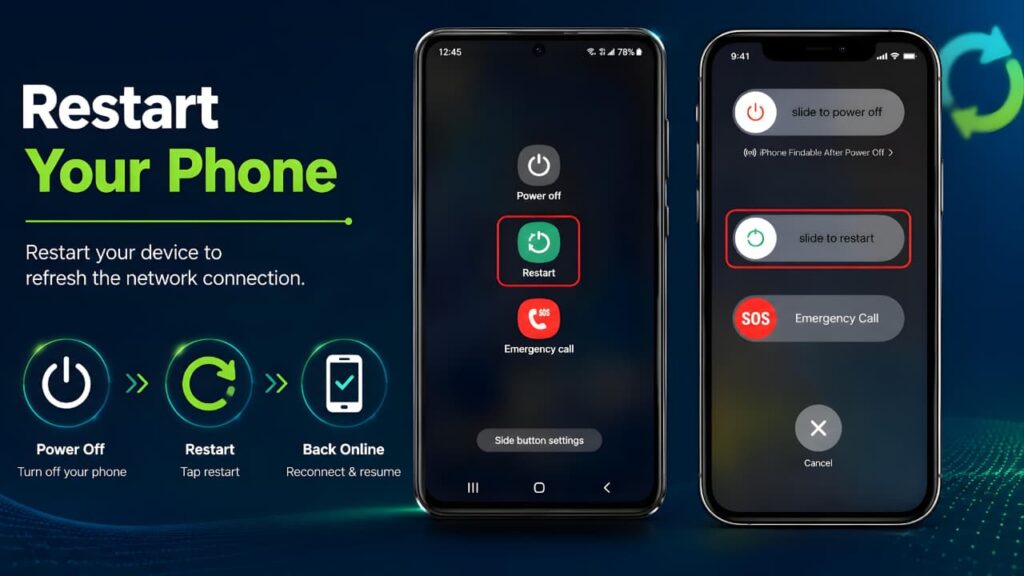
Android
- Press and hold the Power button.
- Tap Restart.
- Wait for the phone to reboot.
- Open WhatsApp again.
iPhone
- Turn off your iPhone.
- Wait about 30 seconds.
- Turn it back on.
- Launch WhatsApp and test your connection.
Restarting your device also refreshes background network processes that WhatsApp depends on.
Restarting your device is often one of the quickest ways to How to Fix WhatsApp Internet Connection Problems and restore a stable connection.
If restarting your phone does not resolve the issue and WhatsApp still refuses to launch, follow our How to Fix WhatsApp Not Opening on Android and iPhone guide for more advanced troubleshooting.
Solution 4: Turn Airplane Mode On and Off
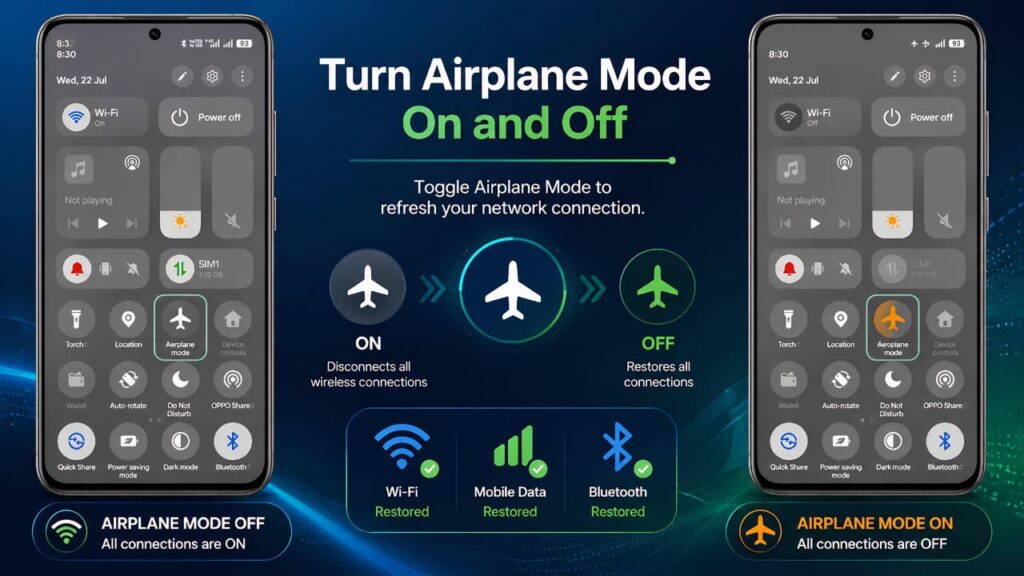
Refreshing your phone’s wireless radios can quickly fix temporary connectivity issues.
- Enable Airplane Mode.
- Wait 10–15 seconds.
- Disable Airplane Mode.
- Reconnect to Wi-Fi or mobile data.
- Open WhatsApp.
This forces your phone to establish a fresh network connection.
Refreshing your network settings through Airplane Mode can help How to Fix WhatsApp Internet Connection Problems caused by temporary signal issues.
Solution 5: Restart Your Wi-Fi Router
If WhatsApp works on mobile data but not on Wi-Fi, your router may be the cause.
- Turn off the router.
- Unplug it from the power source.
- Wait for about 30 seconds.
- Plug it back in.
- Wait until all indicator lights become stable.
- Reconnect your phone to Wi-Fi and test WhatsApp.
If multiple devices connected to the same Wi-Fi are having internet problems, contact your internet service provider.
A simple router restart can sometimes completely Fix WhatsApp Internet Connection Problems related to your home network.
Solution 6: Check WhatsApp Server Status
Sometimes the problem isn’t on your phone.
Although WhatsApp is generally reliable, temporary server outages can occasionally affect messaging, calls, or media downloads.
If many users are reporting similar issues at the same time, the best option is to wait until the service is restored.
Checking the server status is an important step in How to Fix WhatsApp Internet Connection Problems before changing your device settings.
Solution 7: Update WhatsApp
Using an outdated version of WhatsApp can sometimes lead to compatibility or connection issues.
On Android
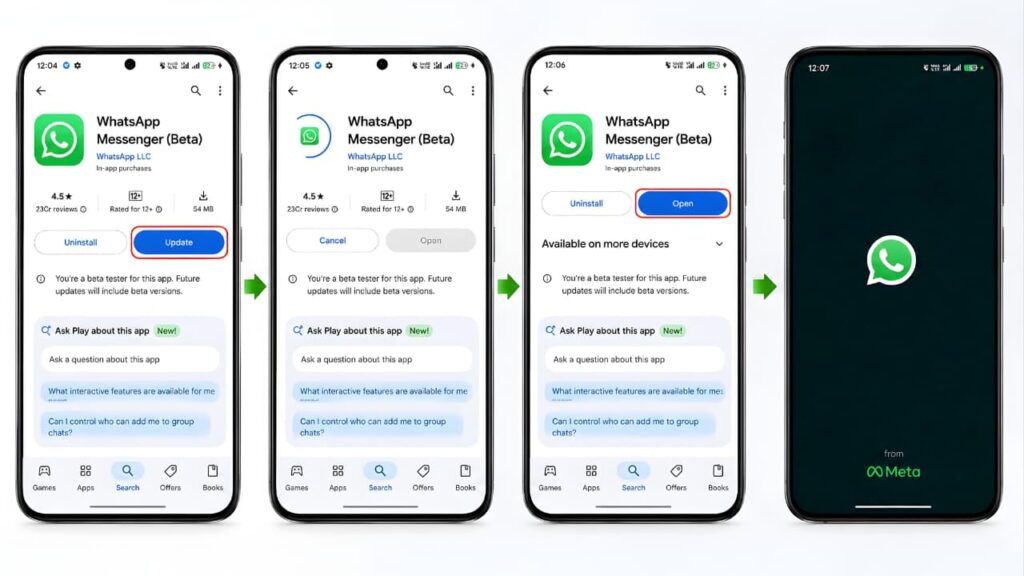
- Open the Google Play Store.
- Search for WhatsApp.
- Tap Update if available.
On iPhone
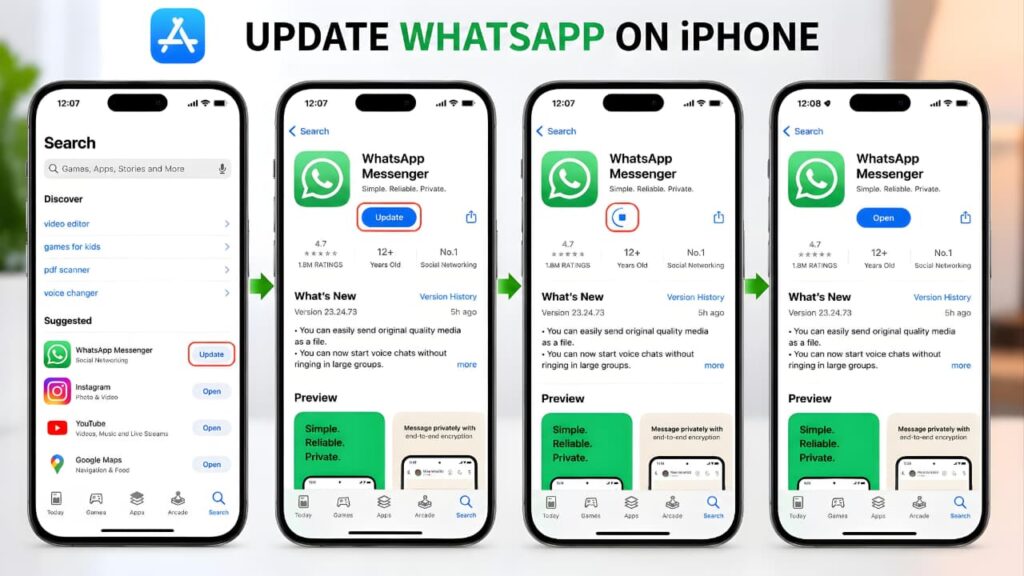
- Open the App Store.
- Search for WhatsApp.
- Install any available updates.
Updates often include bug fixes, security improvements, and performance enhancements.
Keeping WhatsApp updated is an important part of How to Fix WhatsApp Internet Connection Problems.
Using the latest version of WhatsApp helps fix known bugs, improves compatibility, and enhances security. You can always check for the latest official version from the WhatsApp Help Center.
Solution 8: Check Date and Time Settings
Incorrect date and time settings can interfere with secure connections.
Android
- Go to Settings → Date & Time.
- Enable Set time automatically.
- Enable Set time zone automatically.
iPhone
- Open Settings → General → Date & Time.
- Turn on Set Automatically.
After updating the settings, restart WhatsApp and check whether the issue is resolved.
Correct date and time settings play an important role in How to Fix WhatsApp Internet Connection Problems caused by authentication errors.
Solution 9: Allow Background Data for WhatsApp
If background data is restricted, WhatsApp may stop receiving messages until you open the app.
Android
- Open Settings → Apps → WhatsApp → Mobile Data & Wi-Fi (the exact menu may vary by manufacturer).
- Make sure Background Data is enabled.
- Ensure Unrestricted Data Usage is allowed if available.
iPhone
- Go to Settings → WhatsApp.
- Confirm that Cellular Data is enabled.
- Enable Background App Refresh if it is available for your device.
This helps WhatsApp stay connected even when it is running in the background.
Solution 10: Disable Battery Saver or Low Power Mode
Battery optimization features are designed to extend battery life, but they can also limit WhatsApp’s ability to stay connected in the background. This may delay messages, interrupt calls, or cause the app to display “Connecting…”.
On Android
- Open Settings.
- Go to Battery or Battery & Device Care.
- Tap Battery Saver and turn it off temporarily.
- Open Settings → Apps → WhatsApp → Battery.
- Select Unrestricted or Don’t Optimize if your device provides this option.
On iPhone
- Open Settings → Battery.
- Turn off Low Power Mode.
- Open WhatsApp again and check whether the connection has been restored.
If WhatsApp works normally after disabling battery optimization, consider adding it to the list of apps that are excluded from battery restrictions.
Removing network restrictions can significantly help How to Fix WhatsApp Internet Connection Problems.
Battery Saver can restrict background activity and internet access for apps like WhatsApp. If your phone also overheats or slows down during use, follow our Phone Overheating Causes and Fixes guide to improve overall device performance.
Solution 11: Turn Off Data Saver
Data Saver limits background internet usage and can prevent WhatsApp from syncing messages instantly.
Android
- Open Settings → Network & Internet.
- Tap Data Saver.
- Turn it off temporarily.
- If you prefer to keep it enabled, allow unrestricted data access for WhatsApp.
iPhone
iOS does not include a system-wide Data Saver in the same way as Android. However, if Low Data Mode is enabled for your Wi-Fi or mobile network, WhatsApp performance may be affected.
To disable it:
- Open Settings → Wi-Fi.
- Tap the information icon next to your connected network.
- Turn Low Data Mode off.
Repeat the same process for your cellular network if necessary.
Removing network restrictions can significantly help How to Fix WhatsApp Internet Connection Problems.
Solution 12: Disconnect VPN or Proxy Services
VPNs and proxy servers can sometimes interfere with WhatsApp’s secure connection, especially if the selected server is slow or blocked.
If you are using a VPN:
- Disconnect it temporarily.
- Reopen WhatsApp.
- Test sending a message or making a call.
If WhatsApp starts working normally, try using a different VPN server or disable the VPN while using WhatsApp.
Removing network restrictions can significantly help How to Fix WhatsApp Internet Connection Problems.
Solution 13: Check Available Storage Space
Although storage problems do not directly cause internet issues, insufficient free space can prevent WhatsApp from downloading photos, videos, voice notes, and backups.
Android
- Open Settings → Storage.
- Delete unnecessary files, downloads, or duplicate photos if storage is nearly full.
iPhone
- Open Settings → General → iPhone Storage.
- Remove unused apps or large files to free up space.
Keeping several gigabytes of free storage helps WhatsApp perform more reliably.
Maintaining enough free storage can support How to Fix WhatsApp Internet Connection Problems and improve overall app performance.
If your Google account storage is completely full, WhatsApp backups and media synchronization may not work correctly. Read our Google Storage Full Fix Guide to free up storage and restore normal backup functionality.
Solution 14: Reset Network Settings
If all previous steps have failed, resetting your network settings can resolve configuration problems without affecting your personal files.
Android
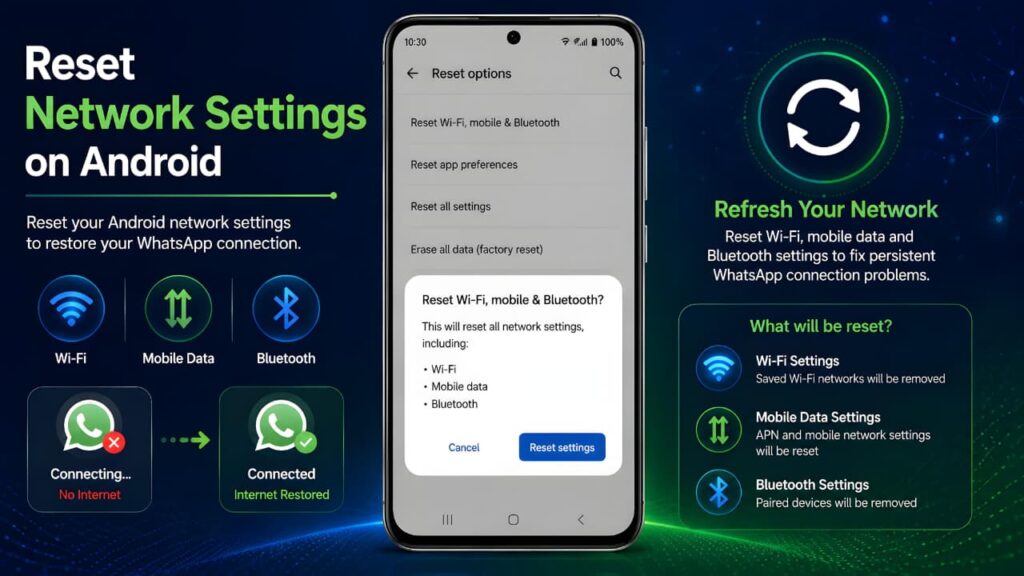
The exact steps vary by manufacturer, but they are usually found under:
Settings → System → Reset Options → Reset Wi-Fi, Mobile Network, and Bluetooth
iPhone
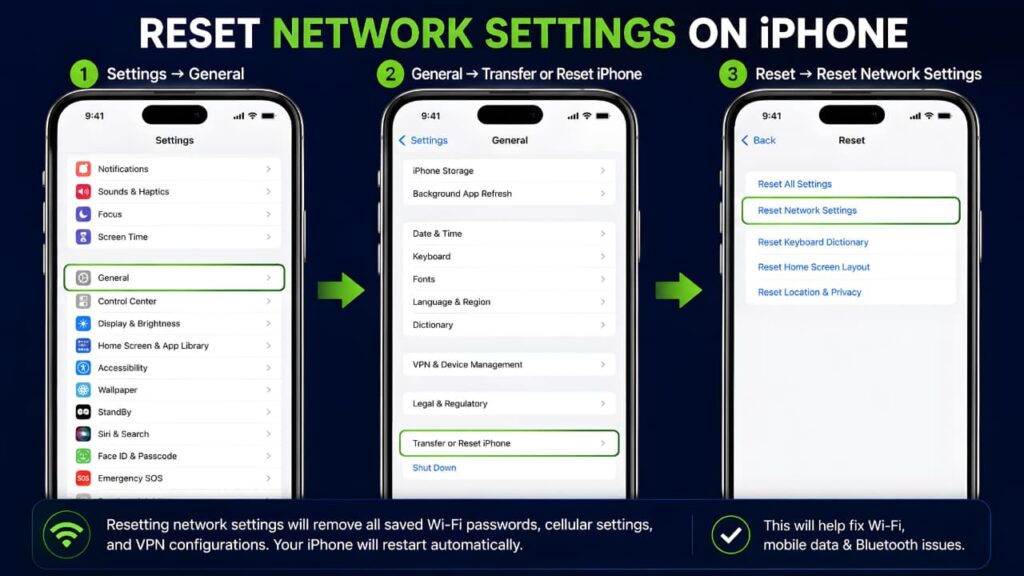
- Open Settings.
- Go to General → Transfer or Reset iPhone.
- Tap Reset.
- Choose Reset Network Settings.
- Enter your passcode if prompted.
After the reset, reconnect to your Wi-Fi network and test WhatsApp again.
Resetting network settings is one of the most reliable solutions for How to Fix WhatsApp Internet Connection Problems when other fixes fail.
If resetting your network settings doesn’t solve the problem, the issue may be related to your device’s wireless connectivity. Read our Bluetooth Not Working on Android guide to troubleshoot common network-related problems on Android phones.
Solution 15: Reinstall WhatsApp
If WhatsApp still isn’t working after trying all the previous solutions, reinstalling the app can fix corrupted files and restore normal functionality. Before uninstalling WhatsApp, make sure your chats are backed up to avoid losing important conversations.
Android
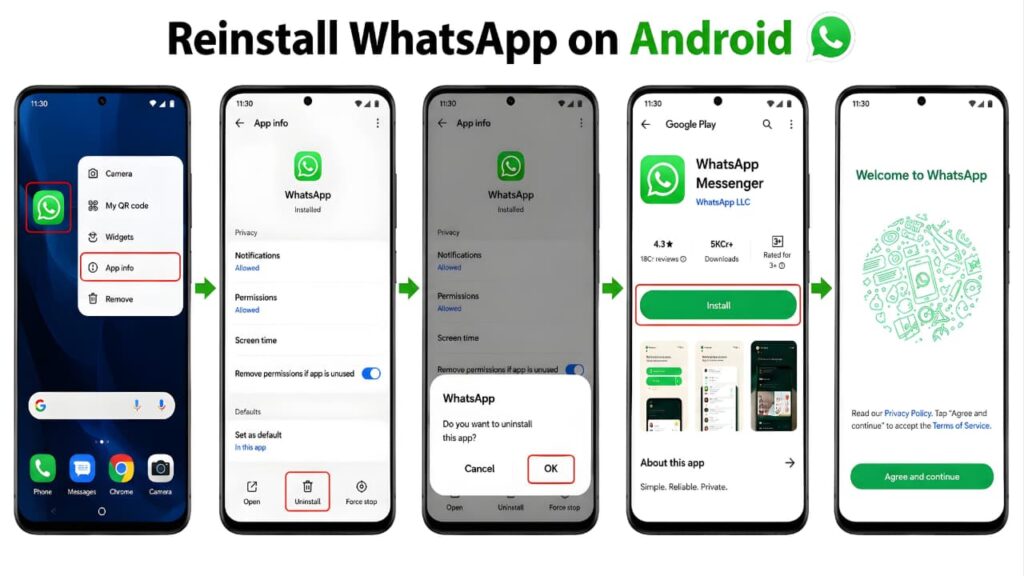
Before uninstalling:
- Back up your chats to Google Drive.
- Verify that the backup completed successfully.
Then:
- Long-press the WhatsApp icon.
- Tap App Info (or Uninstall, depending on your device).
- Tap Uninstall and confirm.
- Open the Google Play Store.
- Install the latest version of WhatsApp.
- Verify your phone number.
- Restore your Google Drive backup.
iPhone
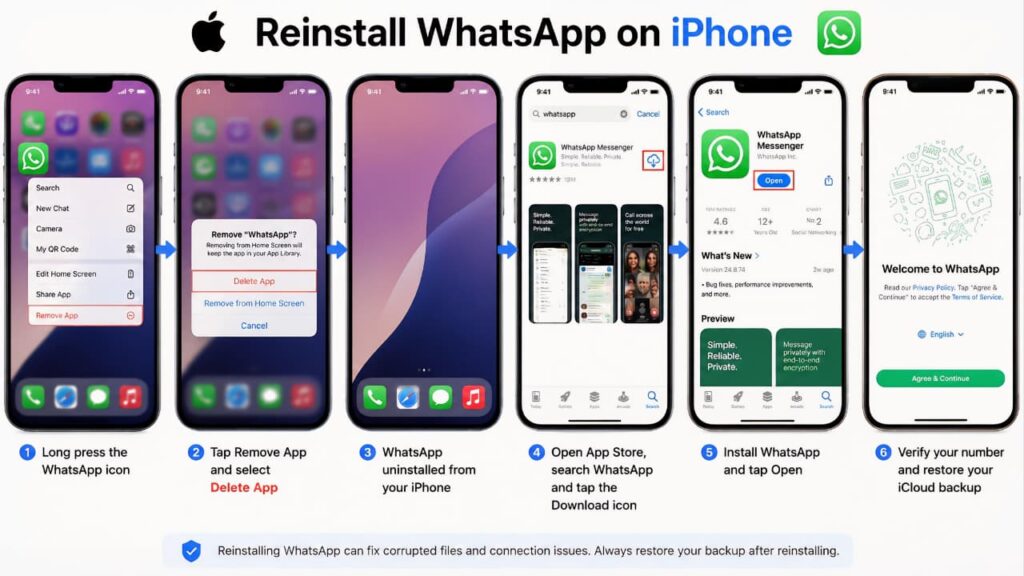
Before uninstalling:
- Back up your chats to iCloud.
- Make sure the backup has finished successfully.
Then:
- Touch and hold the WhatsApp icon.
- Tap Remove App.
- Select Delete App and confirm.
- Open the App Store.
- Download and install WhatsApp again.
- Verify your phone number.
- Restore your iCloud backup.
After reinstalling WhatsApp, connect to your Wi-Fi or mobile data and check whether the internet connection problem has been resolved.
16.Clear WhatsApp Cache on Android
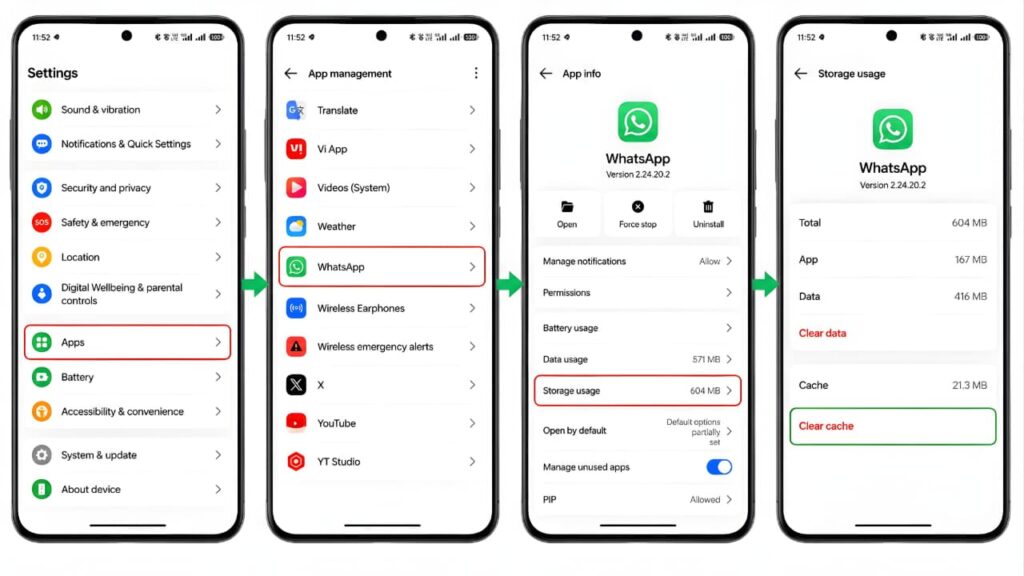
Android users can often fix temporary WhatsApp internet connection problems by clearing the app cache. Over time, WhatsApp stores temporary cache files to improve performance. However, if these files become outdated or corrupted, they can cause issues such as WhatsApp getting stuck on Connecting, messages not sending, or media failing to download.
Clearing the WhatsApp cache removes only temporary files and does not delete your chats, photos, videos, documents, or account data. To clear the cache, open Settings → Apps → WhatsApp → Storage Usage (or Storage & Cache) and tap Clear Cache. After clearing the cache, restart WhatsApp and check whether the internet connection issue has been resolved.
Note: This method is available only on Android devices. iPhone does not provide a separate option to clear the WhatsApp app cache.
Advanced Troubleshooting Tips
If WhatsApp still cannot connect after completing all the previous steps, try the following advanced checks:
- Test your SIM card in another phone.
- Connect to a different Wi-Fi network.
- Check whether your mobile carrier is experiencing a service outage.
- Remove any firewall or network restrictions if you are using a workplace or school Wi-Fi network.
- Ensure your phone’s operating system is updated to the latest stable version.
- Restart your modem and router if all devices connected to the same network are affected.
If the problem occurs only on one specific network but not on others, the issue is most likely related to that network rather than WhatsApp itself.
If basic solutions fail, these advanced methods can help How to Fix WhatsApp Internet Connection Problems permanently.
If you’re asked to sign in to a website or public Wi-Fi portal before using the internet, always verify that the page is legitimate. Our How to Identify Fake Websites guide explains how to spot fraudulent websites and stay safe online.
When Should You Contact WhatsApp Support?
You should consider contacting WhatsApp Support if:
- The app still cannot connect after completing every troubleshooting step.
- Your account is unable to send or receive messages on multiple internet connections.
- The problem continues after reinstalling WhatsApp.
- You suspect your account has been restricted or is experiencing an unusual technical issue.
Before contacting support, note your device model, operating system version, WhatsApp version, and a brief description of the problem. This information can help speed up the troubleshooting process.
Frequently Asked Questions (FAQs)
1. Why does WhatsApp keep saying "Connecting"?
This usually happens because of an unstable internet connection, a temporary network issue, or restrictions such as Battery Saver, Data Saver, or VPN settings. In rare cases, WhatsApp servers may also experience temporary outages.
2. Why are my WhatsApp messages not sending?
If messages remain stuck with a single check mark, check whether your internet connection is working. Also ensure WhatsApp has permission to use mobile data or Wi-Fi.
3. Why does WhatsApp work on Wi-Fi but not on mobile data?
This often happens when mobile data is disabled for WhatsApp, background data is restricted, or your mobile carrier is experiencing network issues.
4. Why does WhatsApp work on mobile data but not on Wi-Fi?
The problem is usually related to your Wi-Fi router, internet service provider, DNS configuration, or network restrictions.
5. Should I reinstall WhatsApp?
Reinstall WhatsApp only after trying all other troubleshooting steps. Before uninstalling the app, always back up your chats to avoid losing important conversations.
6. Can a VPN cause WhatsApp connection problems?
Yes. Some VPN servers may block or slow WhatsApp traffic. Disconnect the VPN temporarily to see if the problem is resolved.
7. Does clearing cache fix WhatsApp internet issues?
On Android, clearing the app cache can resolve temporary problems without deleting your chats. On iPhone, reinstalling the app is usually the recommended option if app data becomes corrupted.
8. How can I prevent WhatsApp internet problems in the future?
Keep WhatsApp updated, use a stable internet connection, avoid unnecessary VPNs, maintain enough storage space, and keep your phone’s operating system up to date.
9.Why Does WhatsApp Say No Internet Connection?
If your iPhone continues to experience network-related issues after trying the recommended fixes, you can refer to the official Apple Support documentation for additional troubleshooting steps.
These frequently asked questions provide additional information about How to Fix WhatsApp Internet Connection Problems.
Prevention Tips
Following these best practices can help reduce the chances of future WhatsApp connection problems:
- Keep WhatsApp updated to the latest version.
- Install the latest Android or iOS updates.
- Use a reliable Wi-Fi or mobile network.
- Restart your router occasionally.
- Avoid using unreliable VPN or proxy services.
- Leave enough free storage on your device.
- Disable Battery Saver or Data Saver when troubleshooting.
- Enable automatic date and time settings.
- Restart your phone regularly to refresh network services.
Protecting your Google account also helps keep your WhatsApp backups secure. Learn more in our How to Protect Your Google Account guide.
Adding an extra layer of account security is always recommended. Follow our Google Two-Step Verification Guide to better protect your Google account and cloud backups.
Using modern authentication methods can improve account security. Read our Google Passkeys vs Passwords guide to understand which option is more secure.
Final Conclusion
WhatsApp internet connection problems can be frustrating, but they are usually easy to fix. In most cases, the issue is related to your internet connection, phone settings, or temporary network interruptions rather than the app itself.
Start with the basic solutions, such as checking your internet connection, restarting your phone, switching between Wi-Fi and mobile data, and updating WhatsApp. If the problem continues, work through the advanced troubleshooting steps, including checking background data permissions, disabling VPNs, resetting network settings, and reinstalling the app after backing up your chats.
By following the steps in this guide, most users can restore WhatsApp’s connection quickly and continue messaging, calling, and sharing media without interruption.
We hope this guide on How to Fix WhatsApp Internet Connection Problems helped you restore WhatsApp and stay connected without interruptions.