Quick Answer
If WhatsApp is not opening on your Android phone or iPhone, start by restarting your device, checking your internet connection, updating WhatsApp, and installing the latest Android or iOS software update. If the problem continues, free up storage space, clear the app cache (Android), or reinstall WhatsApp after creating a chat backup. These steps resolve most WhatsApp launch issues without deleting your conversations. Official app updates regularly include bug fixes and performance improvements, so keeping WhatsApp up to date is recommended.
Introduction
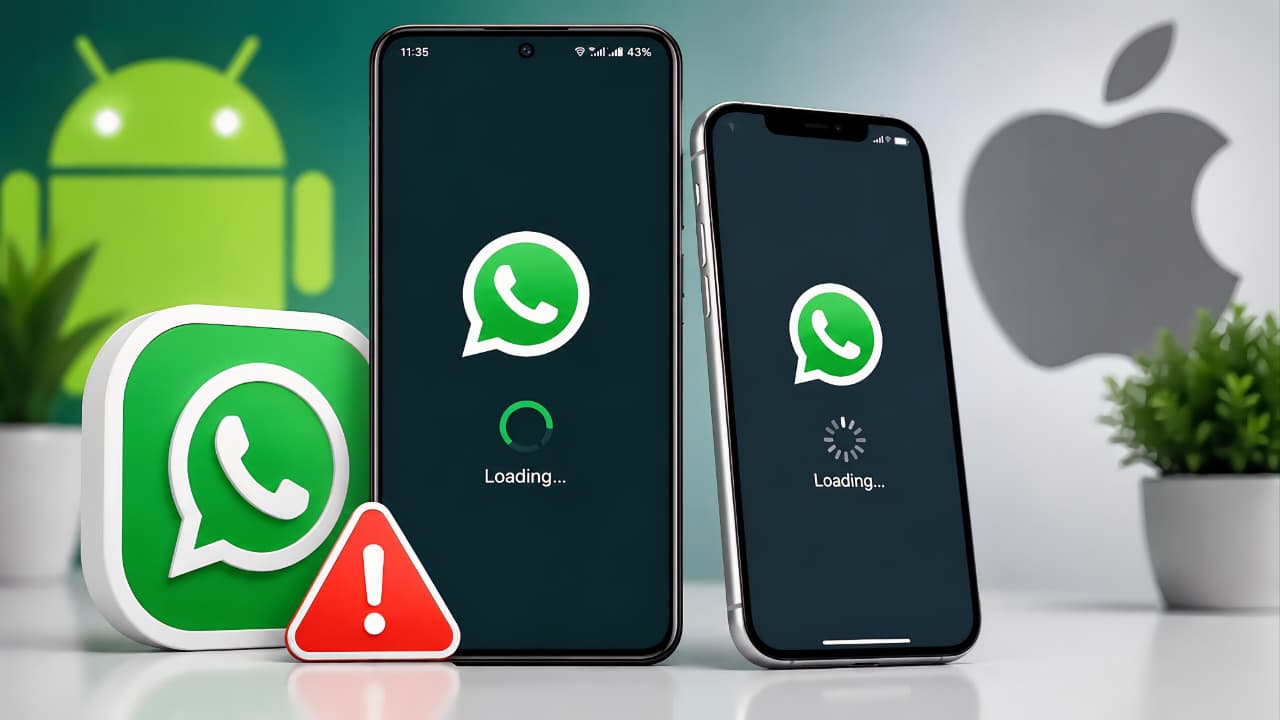
WhatsApp Not Opening is a common problem that affects both Android and iPhone users. If WhatsApp won’t open, crashes immediately, gets stuck on the loading screen, or shows a black screen, don’t worry. In most cases, the issue can be fixed with a few simple troubleshooting steps. This guide covers 11 proven solutions to help you get WhatsApp working again safely without losing your chats.
The issue can occur on both Android phones and iPhones for several reasons. In most cases, it is caused by a temporary software glitch, an outdated app version, insufficient storage, operating system compatibility issues, or a temporary service interruption. Fortunately, these problems can usually be resolved without losing your chats.
This guide explains the most reliable troubleshooting methods based on current recommendations from WhatsApp, Google, and Apple. Follow the solutions in order, as the earlier steps often resolve the problem without requiring advanced troubleshooting.
Following these troubleshooting methods can resolve the WhatsApp Not Opening issue on most Android phones and iPhones.
Why Is WhatsApp Not Opening?
There is no single reason why WhatsApp may fail to launch. The exact cause depends on your device, software version, and the current condition of the app.
The most common causes include:
- A temporary software bug
- An outdated version of WhatsApp
- An outdated Android or iOS version
- Poor or unstable internet connectivity
- Insufficient storage space
- Corrupted temporary app files
- A temporary WhatsApp server issue
- Compatibility problems after a recent software update
Before assuming that the app is damaged, it is worth trying a few simple troubleshooting steps. Most users can fix the problem within a few minutes.
Understanding the cause of WhatsApp Not Opening makes it easier to choose the right solution.
Common Signs of the Problem
You may be experiencing this issue if WhatsApp behaves in any of the following ways:
- The app does not open after tapping its icon.
- WhatsApp closes immediately after launching.
- The screen remains black or blank.
- The WhatsApp logo stays on the screen without loading.
- The application freezes and stops responding.
- The app keeps crashing every time you try to open it.
If any of these symptoms sound familiar, continue with the solutions below.
Solution 1: Restart Your Device
Restarting your phone is the simplest and often the most effective solution. It clears temporary system processes, refreshes memory, and fixes minor software glitches that can prevent apps from launching correctly.
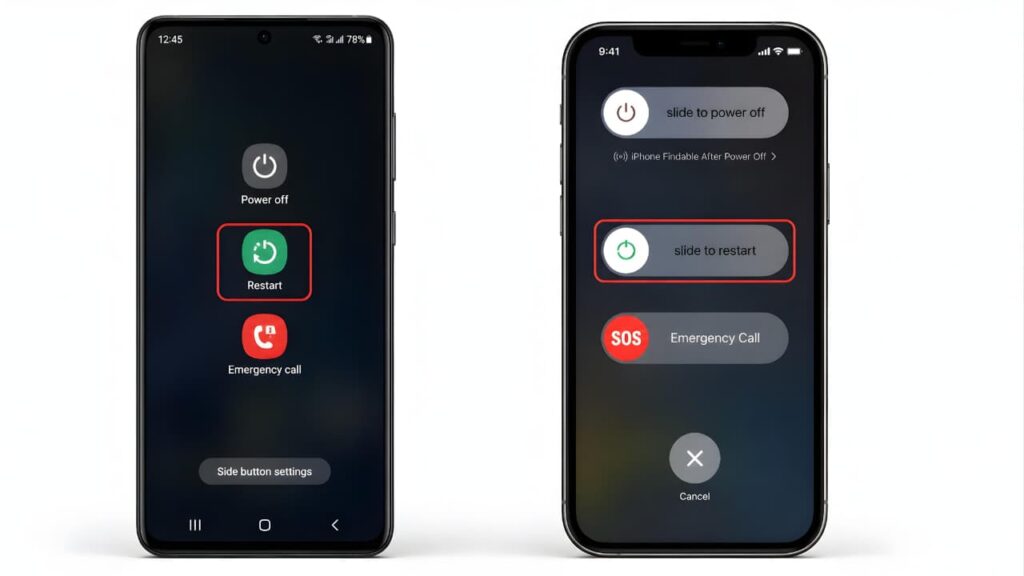
On Android
- Press and hold the Power button.
- Tap Restart.
- Wait for the device to reboot completely.
- Open WhatsApp again.
On iPhone
- Turn off your iPhone.
- Wait for about 30 seconds.
- Turn it back on.
- Launch WhatsApp.
If WhatsApp opens normally after restarting, the problem was most likely caused by a temporary system process rather than the app itself. Apple also recommends restarting the device as one of the first troubleshooting steps when apps stop responding.
Restarting your phone is often the fastest way to fix the WhatsApp Not Opening issue.
Solution 2: Check Your Internet Connection
Although WhatsApp can open without an internet connection, unstable or restricted connectivity may prevent it from loading correctly or connecting to its services.
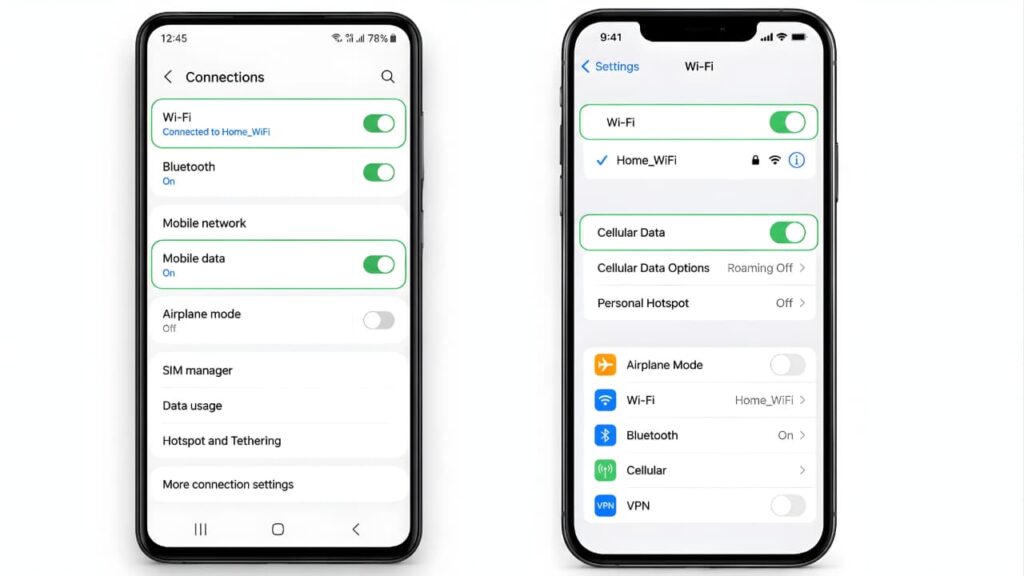
Try these checks:
- Switch between Wi-Fi and mobile data.
- Turn Airplane Mode on for 10 seconds, then turn it off.
- Restart your Wi-Fi router if necessary.
- Make sure mobile data is enabled for WhatsApp.
- Open a website in your browser to confirm that your internet connection is working.
If other apps that require internet access are also failing to load, the issue is likely related to your network rather than WhatsApp itself.
A stable internet connection can quickly resolve the WhatsApp Not Opening problem.
If WhatsApp still doesn’t work after reconnecting to the internet, try enabling a different network. If your mobile hotspot is causing connectivity problems, read our Mobile Hotspot Not Working guide.
Solution 3: Check Whether WhatsApp Is Experiencing a Service Outage
Sometimes the problem is not caused by your phone. If WhatsApp is experiencing a server outage, users around the world may be unable to open the app, send messages, or make calls.
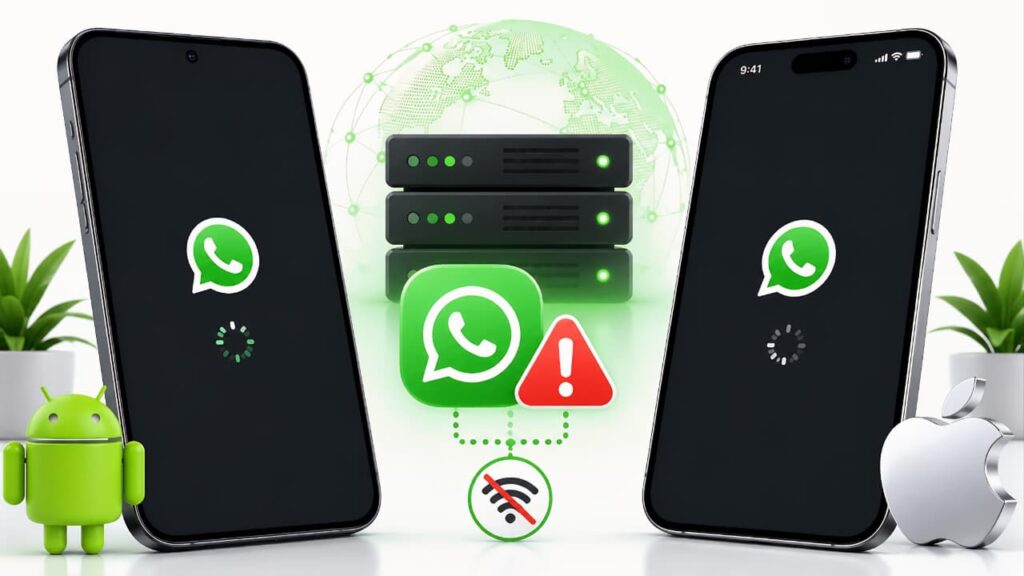
Before uninstalling the app or resetting your device, check whether other users are reporting similar problems. If there is a widespread outage, the only solution is to wait until WhatsApp restores its services.
Uninstalling the app during a temporary outage will not solve the problem and may create unnecessary complications if your chats have not been backed up.
If WhatsApp servers are down, the WhatsApp Not Opening issue may disappear automatically once the service is restored.
Before trying any advanced troubleshooting, check the official WhatsApp Status page to see whether the service is experiencing a temporary outage.
Solution 4: Update WhatsApp to the Latest Version
Running an outdated version of WhatsApp can lead to compatibility issues, especially after installing a major Android or iOS update.
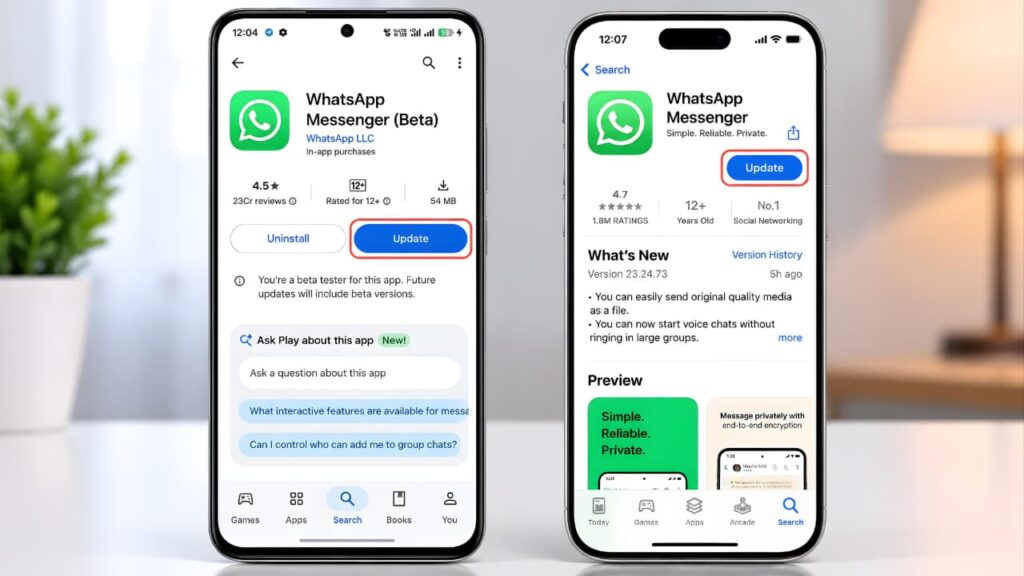
Android
- Open the Google Play Store.
- Search for WhatsApp.
- Tap Update if a newer version is available.
Always download or update WhatsApp from the official Google Play Store to ensure you receive the latest security updates and bug fixes.
iPhone
- Open the App Store.
- Search for WhatsApp.
- Install the latest available update.
WhatsApp releases regular updates to improve stability, fix bugs, and enhance security. Installing the latest version is one of the most effective ways to resolve unexpected app crashes or launch failures.
If you’re using an iPhone, update WhatsApp through the official Apple App Store to install the latest version safely.
Updating the app is one of the most effective ways to fix WhatsApp Not Opening.
Solution 5: Install the Latest Android or iOS Update
Even if WhatsApp is fully updated, it may not work properly if your phone is running an outdated operating system. New WhatsApp releases are designed to work with the latest Android and iOS versions, and older software can sometimes cause launch failures, crashes, or unexpected performance issues.
On Android
- Open Settings.
- Tap System or Software Update (the name may vary by manufacturer).
- Check for available updates.
- Download and install the latest update if one is available.
- Restart your phone and open WhatsApp again.
On iPhone
- Open Settings.
- Tap General.
- Select Software Update.
- Install the latest version of iOS if available.
- Restart your iPhone after the update.
Keeping your device updated not only improves app compatibility but also provides important security patches and performance improvements.
Keeping your operating system updated helps prevent the WhatsApp Not Opening issue.
If your Android device is experiencing system-related issues after an update, check our Android Fastboot Mode Fix guide before performing advanced troubleshooting.
Solution 6: Free Up Storage Space
A phone with very little available storage may struggle to launch apps properly. WhatsApp needs free space to load temporary files, process messages, and download media. When storage is almost full, the app may freeze, crash, or refuse to open.
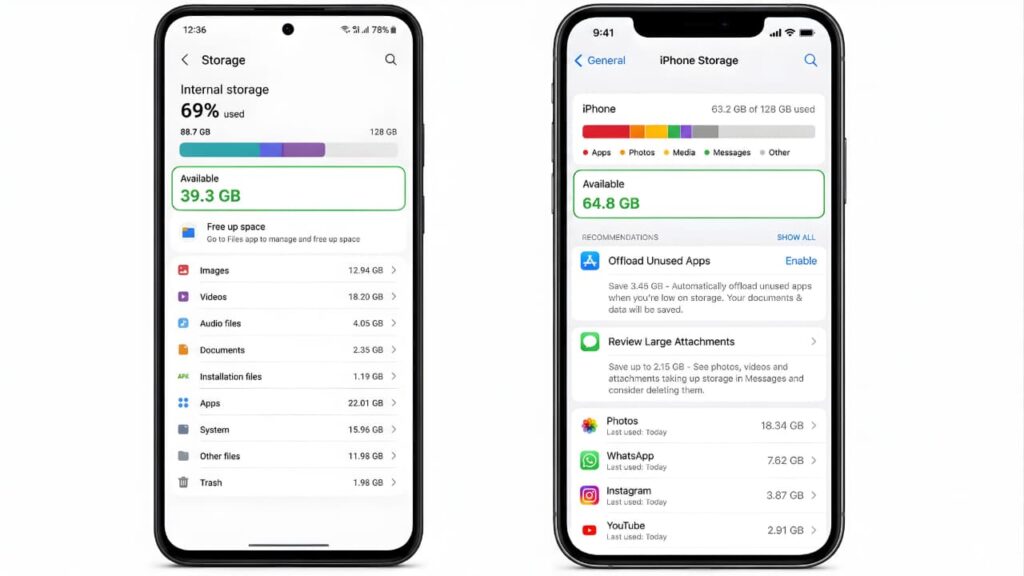
On Android
- Open Settings > Storage.
- Review how much free space is available.
- Delete unnecessary downloads, duplicate photos, large videos, or apps you no longer use.
- Restart the device after freeing up storage.
On iPhone
- Go to Settings > General > iPhone Storage.
- Review which apps or files are using the most storage.
- Remove unnecessary content to create additional free space.
- Restart the device before opening WhatsApp.
Keeping a reasonable amount of free storage helps your phone perform more efficiently and reduces the risk of app-related issues.
Low storage space is a common reason behind WhatsApp Not Opening on many devices.
If your phone or Google account is running out of storage, check our Google Storage Full Fix Guide before trying to open WhatsApp again.
Solution 7: Clear the WhatsApp Cache (Android Only)
Android stores temporary files, known as cache, to help apps load faster. If these files become corrupted, WhatsApp may stop working correctly. Clearing the cache removes only temporary data and does not delete your chats or media.
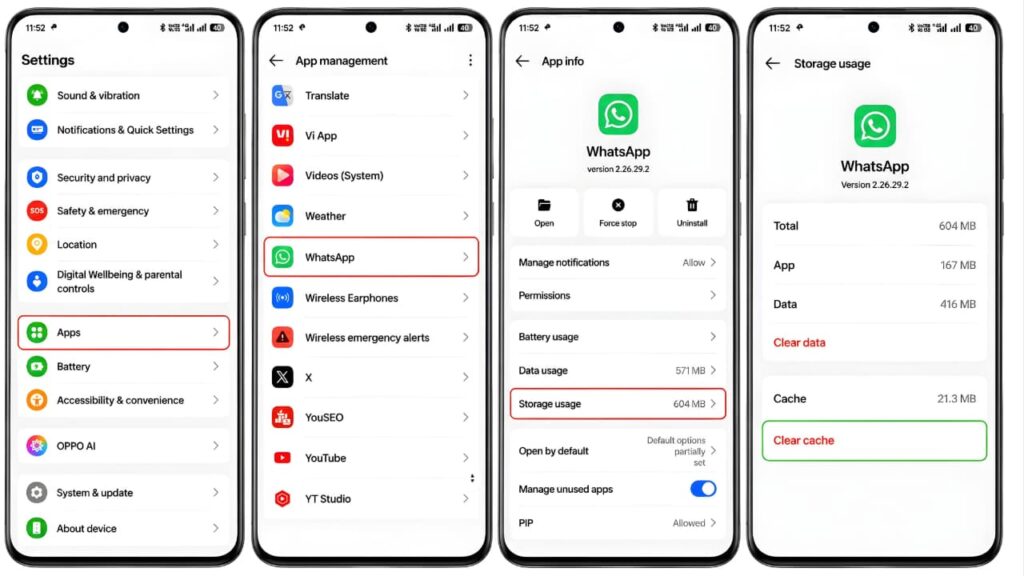
Steps
- Open Settings.
- Tap Apps.
- Select WhatsApp.
- Tap Storage & Cache.
- Choose Clear Cache.
- Reopen WhatsApp.
Important: Avoid selecting Clear Storage or Clear Data unless you have already backed up your chats. Clearing app data removes locally stored information and requires you to sign in again.
Clearing the cache can often solve the WhatsApp Not Opening problem without affecting your chats.
If you’re unsure how to clear an app’s cache, refer to the official Android Help documentation for step-by-step instructions.
If clearing the cache doesn’t fix the issue and your WhatsApp photos or videos show errors, read our WhatsApp Media File Doesn’t Exist guide.
Solution 8: Force Stop WhatsApp (Android Only)
If WhatsApp is stuck running in the background, force stopping the app can end any frozen processes and allow it to start normally.
Steps
- Open Settings > Apps.
- Tap WhatsApp.
- Select Force Stop.
- Confirm your choice.
- Wait a few seconds and launch WhatsApp again.
This action only closes the current app session. It does not remove your messages, media, or account information.
Force stopping the app can temporarily fix the WhatsApp Not Opening issue.
Solution 9: Offload WhatsApp (iPhone Only)
If you’re using an iPhone, offloading the app is a useful troubleshooting option. It removes the app itself while preserving its documents and data, allowing you to reinstall it without losing locally stored information.
Steps
- Open Settings.
- Go to General > iPhone Storage.
- Select WhatsApp.
- Tap Offload App.
- Confirm the action.
- Tap Reinstall App once the process is complete.
If the issue was caused by damaged app files, offloading and reinstalling the app may resolve it without affecting your data.
Offloading the app is a useful solution for WhatsApp Not Opening on iPhones.
Solution 10: Check App Permissions
WhatsApp requires certain permissions to function correctly. If important permissions have been denied, some features may not work as expected, and in rare cases, the app may not behave normally.
On Android
- Open Settings > Apps > WhatsApp > Permissions.
- Review the permissions listed.
- Enable any permissions that are necessary for the features you use, such as Camera, Microphone, Photos, or Notifications.
On iPhone
- Open Settings.
- Scroll down and tap WhatsApp.
- Check that the required permissions are enabled.
If you recently changed your privacy settings, reviewing app permissions is a good step before attempting more advanced troubleshooting.
Missing permissions can also cause the WhatsApp Not Opening problem.
Solution 11: Reinstall WhatsApp (Only After Creating a Backup)
If none of the previous solutions work, reinstalling WhatsApp can replace damaged installation files and restore the app to a clean state.
Before uninstalling the app, always create a backup of your chats. Skipping this step may result in permanent data loss.
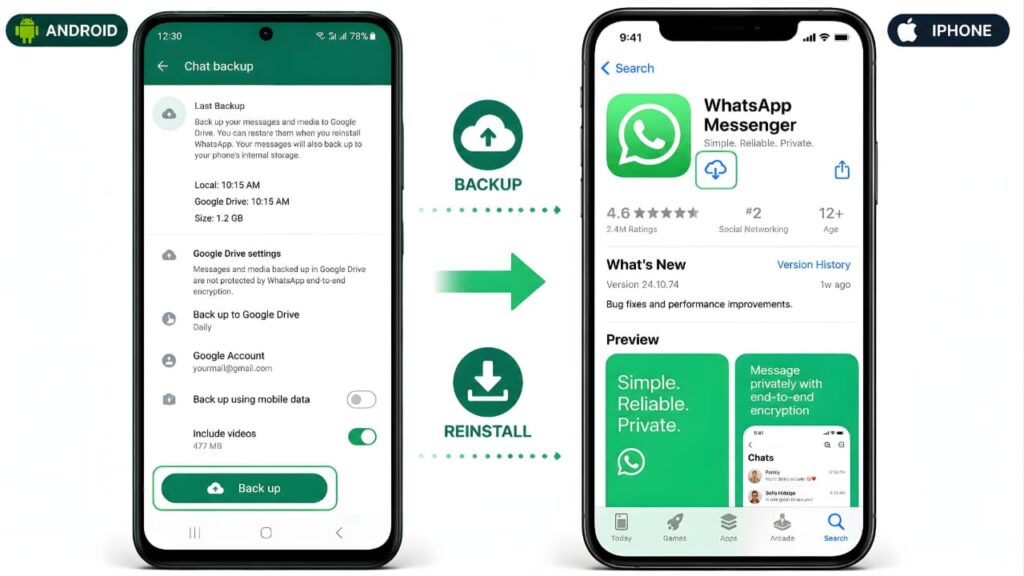
Back Up Chats on Android
- Open WhatsApp.
- Go to Settings > Chats > Chat Backup.
- Tap Back Up.
- Wait until the backup is complete.
Before reinstalling the app, review the official WhatsApp Help Center guide to understand how chat backups and restoration work.
Back Up Chats on iPhone
- Open WhatsApp.
- Go to Settings > Chats > Chat Backup.
- Tap Back Up Now.
- Wait for the process to finish.
After confirming that your backup has been completed successfully:
- Uninstall WhatsApp from your device.
- Download the latest version from the official Google Play Store or Apple App Store.
- Sign in using the same phone number.
- Restore your backup when prompted.
Important: Never uninstall WhatsApp before verifying that your backup has finished successfully. Otherwise, you may lose your chat history that hasn’t been backed up.
iPhone users can also refer to the official Apple Support documentation if they experience app installation or restoration issues.
Reinstalling the app after creating a backup usually resolves the WhatsApp Not Opening issue.
If your WhatsApp chat backup gets stuck before reinstalling the app, follow our complete WhatsApp Backup Stuck guide to finish the backup successfully.
After reinstalling WhatsApp, if you don’t receive the verification code, follow our WhatsApp Verification Code Not Received guide for additional troubleshooting.
What to Do If WhatsApp Still Won't Open
If you’ve completed all the troubleshooting steps in this guide and WhatsApp still won’t open, the issue may be related to your device, your operating system, or a temporary service problem that requires further assistance.
Before contacting support, go through this quick checklist:
- Restart your device one more time after completing all updates.
- Confirm that you installed WhatsApp from the official Google Play Store or Apple App Store.
- Verify that your phone meets WhatsApp’s minimum system requirements.
- Check whether other apps are working normally. If multiple apps are crashing, the problem may be with your device rather than WhatsApp.
- Wait for a while if WhatsApp is experiencing a global service outage.
- Contact WhatsApp Support if none of the solutions resolve the issue.
Avoid downloading modified versions of WhatsApp or APK files from unofficial websites. These versions are not supported by WhatsApp and can cause stability, compatibility, and security issues.
If WhatsApp starts opening but you still can’t send or receive messages, read our complete WhatsApp Not Sending Messages guide to troubleshoot the problem.
Tips to Prevent WhatsApp Problems in the Future
While some issues are unavoidable, a few simple habits can help reduce the chances of WhatsApp failing to open again.
- Keep WhatsApp updated through the official app store.
- Install Android or iOS updates regularly.
- Maintain enough free storage on your phone.
- Back up your chats frequently.
- Restart your device occasionally to clear temporary system processes.
- Avoid installing unofficial or modified versions of WhatsApp.
- Download apps only from trusted sources.
Following these practices can improve your phone’s overall performance and reduce the likelihood of unexpected app issues.
Frequently Asked Questions
Why is WhatsApp not opening on my Android phone?
The problem is commonly caused by temporary software glitches, outdated app versions, low storage space, corrupted cache files, or operating system compatibility issues. Restarting your phone and updating both WhatsApp and Android usually resolves the issue.
Why won't WhatsApp open on my iPhone?
On iPhone, the issue may be related to an outdated version of iOS, insufficient storage, damaged app files, or a temporary software bug. Updating iOS, restarting the device, or offloading and reinstalling the app often fixes the problem.
Will reinstalling WhatsApp delete my chats?
It can if you uninstall the app without creating a backup first. Always back up your chats before reinstalling WhatsApp so you can restore your conversations during setup.
Can low storage stop WhatsApp from opening?
Yes. If your device is running out of storage, WhatsApp may fail to launch, crash unexpectedly, or freeze while loading. Freeing up storage often improves app stability.
Why does WhatsApp keep crashing after an update?
Occasionally, a newly released app update may contain bugs or conflict with an older version of Android or iOS. Installing the latest available app update or updating your device software usually resolves these compatibility issues.
Is it safe to clear the WhatsApp cache?
Yes. On Android, clearing the cache removes temporary files without deleting your chats or media. However, avoid using Clear Storage or Clear Data unless you have already created a chat backup.
How do I know if WhatsApp is down?
If many users experience the same issue at the same time, it is likely a temporary service outage. In that situation, waiting for WhatsApp to restore its services is usually the only solution.
These answers cover the most common questions related to WhatsApp Not Opening.
Final Thoughts
WhatsApp not opening can be frustrating, but in most cases the problem is easier to fix than it first appears. Simple steps such as restarting your phone, updating WhatsApp, checking your internet connection, freeing up storage, and installing the latest software updates solve the issue for most users.
If the problem continues, clearing the app cache on Android, offloading the app on iPhone, or reinstalling WhatsApp after creating a verified backup can often restore normal functionality without losing your conversations.
The most important thing is to work through each solution patiently instead of jumping directly to reinstalling the app. Following the steps in the correct order increases the chances of fixing the problem quickly while protecting your chat history.
We hope these proven solutions helped you fix the WhatsApp Not Opening issue on Android and iPhone. Keeping WhatsApp updated and following the recommended troubleshooting steps can help prevent the WhatsApp Not Opening problem in the future.
If none of these solutions work, contact the official WhatsApp Help Center for further assistance and device-specific troubleshooting.