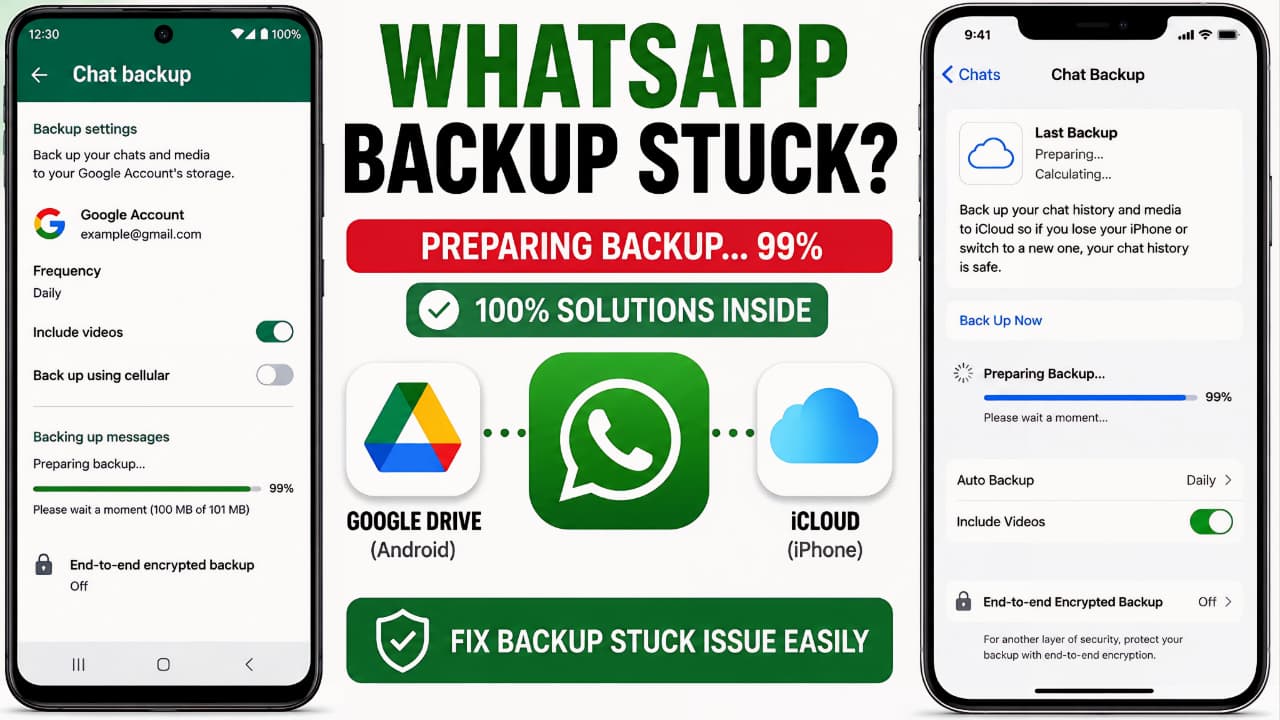
Imagine getting a new phone, reinstalling WhatsApp, and eagerly waiting to restore years of chats, family photos, work conversations, and important documents only to discover that the backup refuses to complete. Instead of finishing within a few minutes, the progress bar stays frozen at Preparing Backup, 1%, 99%, or even 100% for hours.
If you’re facing WhatsApp Backup Stuck, you’re not alone.
This is one of the most common WhatsApp problems reported by Android and iPhone users worldwide. A backup may appear to be running normally at first, but then stop responding without displaying a clear error message. In some cases, it never progresses beyond the initial stage. In others, it reaches almost 100% and simply refuses to finish.
The good news is that WhatsApp Backup Stuck doesn’t always indicate that your chats are lost or that your account has been damaged. In most situations, the problem is caused by something much simpler, such as an unstable internet connection, insufficient cloud storage, outdated software, incorrect account settings, temporary server communication issues, or restrictions placed on the app by the operating system.
Because WhatsApp stores conversations differently on Android and iPhone, the reasons behind WhatsApp Backup Stuck can also vary between devices. Android users rely on Google Drive cloud backups together with local device backups, while iPhone users depend on iCloud Backup. Understanding these differences is essential before attempting any troubleshooting steps.
Another important point is that many users accidentally make the situation worse by uninstalling WhatsApp before confirming that a valid backup has been completed successfully. Doing so may permanently remove conversations that were never uploaded to the cloud. For this reason, every troubleshooting method in this guide is arranged carefully from the safest and simplest solutions to more advanced fixes to help protect your data while resolving the issue.
In this comprehensive guide, you’ll learn:
- What WhatsApp Backup Stuck actually means.
- Why WhatsApp backups stop progressing.
- Why backups get stuck at Preparing Backup, 99%, or 100%.
- How to fix backup issues on both Android and iPhone.
- How Google Drive and iCloud affect the backup process.
- Practical solutions recommended by official guidance and widely accepted troubleshooting practices.
- How to avoid backup failures in the future.
Whether you’re backing up WhatsApp before changing phones, protecting years of conversations, or simply making sure your messages remain safe, this guide will help you identify the real cause of the problem and apply the right solution with confidence.
What Is WhatsApp Backup?
WhatsApp Backup is a built-in feature that creates a secure copy of your WhatsApp data so it can be restored if you change your phone, reinstall the app, reset your device, or accidentally lose your chats. Instead of starting from scratch every time you install WhatsApp, a backup allows you to recover your conversations, media, and account information in just a few steps.
For most users, a backup is the easiest way to protect years of personal conversations, work-related messages, photos, videos, voice notes, documents, and other important files. Without a recent backup, recovering deleted chats is usually impossible.
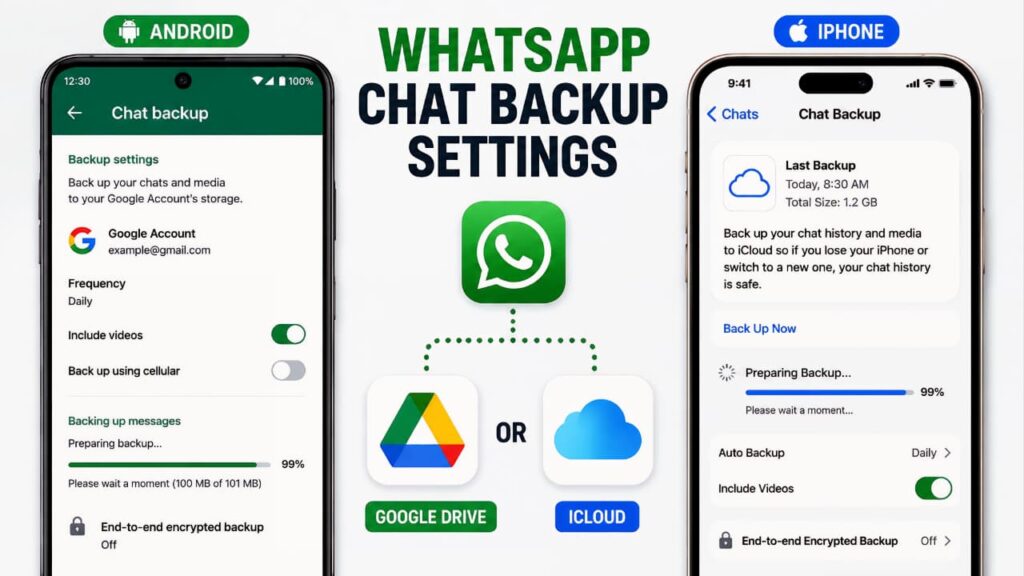
On Android devices, WhatsApp uses both local storage and Google Drive for backups. Local backups are stored on the device itself, while cloud backups are uploaded to Google Drive using the Google account linked to WhatsApp.
On iPhone, WhatsApp stores cloud backups in iCloud using the Apple ID signed in on the device. Unlike Android, iPhones do not rely on Google Drive for WhatsApp backups.
Although the backup process is designed to run automatically, it still depends on several factors, including a stable internet connection, sufficient cloud storage, correct account settings, available device storage, and proper app permissions. If any of these requirements are not met, WhatsApp Backup Stuck can occur before the backup finishes successfully.
Although the backup process is designed to run automatically, it still depends on several factors, including a stable internet connection, sufficient cloud storage, correct account settings, available device storage, and proper app permissions. If you’re unfamiliar with how cloud backups work, learning how cloud storage works can help you better understand why backup issues sometimes occur.
Although the backup process is designed to run automatically, it still depends on several factors, including a stable internet connection, sufficient cloud storage, correct account settings, available device storage, and proper app permissions. To learn more about how WhatsApp backups work, refer to the official WhatsApp Help Center.
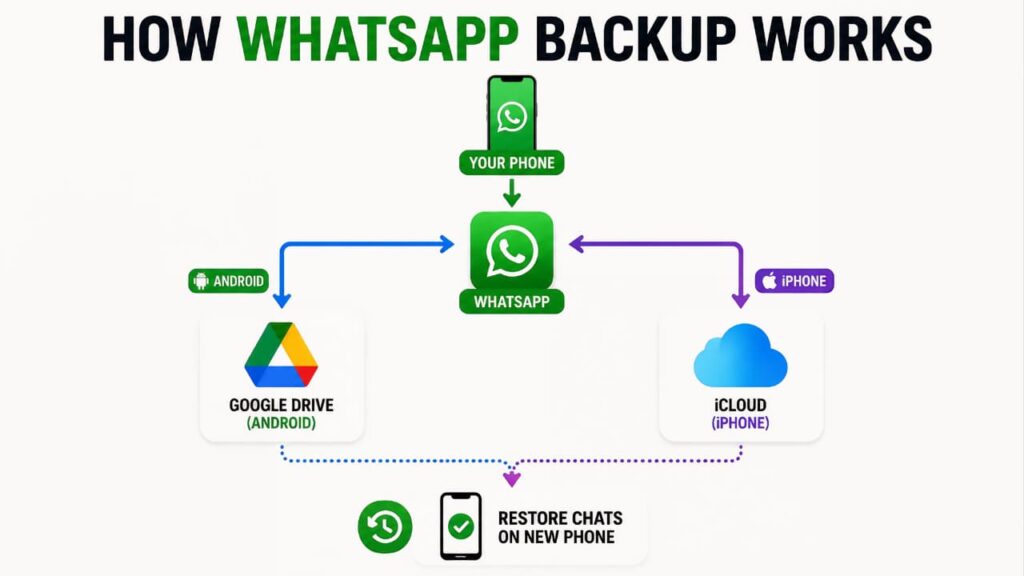
How Does WhatsApp Backup Work?
When you start a backup manually or allow an automatic backup to run, WhatsApp performs several tasks before uploading your data.
First, the app scans your chats, contacts, media files, and other supported content stored on your device. It then organizes this information into a backup package.
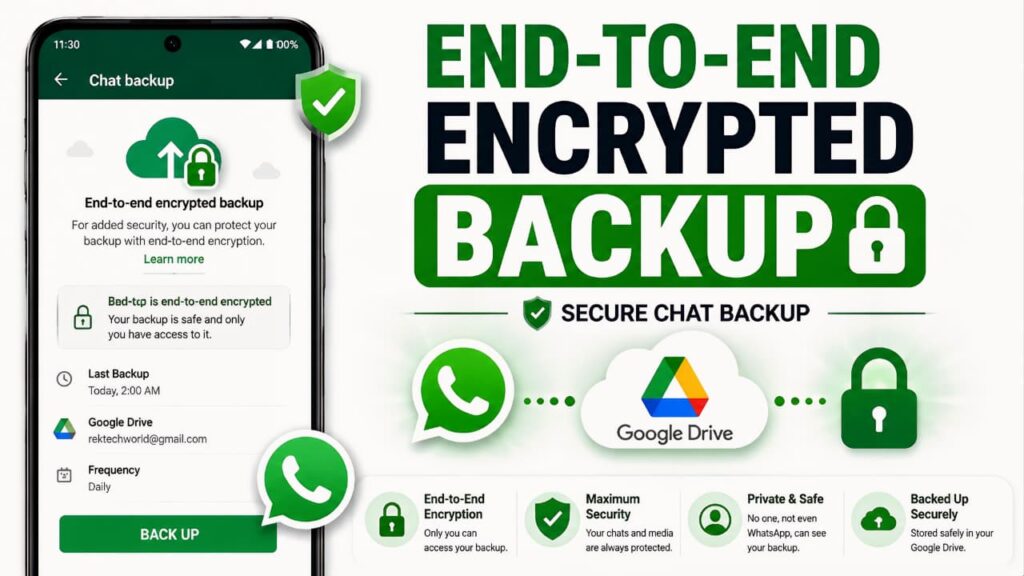
If End-to-End Encrypted Backup is enabled, WhatsApp encrypts the backup before it leaves your device. This additional security protects your backup so that only you can restore it using your password or encryption key.
Once everything is prepared, WhatsApp uploads the backup to the selected cloud service:
- Android: Google Drive
- iPhone: iCloud
After the upload is complete, WhatsApp verifies that the backup has been stored successfully. Only then does the process finish.
If any stage of this process is interrupted, you may notice WhatsApp Backup Stuck at “Preparing Backup,” a specific percentage like 99% or 100%, or the upload may fail without completing.
Types of WhatsApp Backups
Understanding the different types of backups can help you identify where the problem is occurring.
1. Local Backup (Android)
Android devices automatically create local backups that are stored in the phone’s internal storage. These backups can be useful if you’re restoring WhatsApp on the same device or transferring data manually.
However, local backups do not protect your chats if the phone is lost, damaged, or factory reset.
2. Google Drive Backup (Android)
Google Drive backup is the most common cloud backup option for Android users.
It stores your chat history, media, and WhatsApp data securely in your Google account, making it easy to restore everything when switching to another Android device.
If Google Drive experiences authentication problems, storage limitations, or network interruptions, WhatsApp Backup Stuck may occur during the upload process.
3. iCloud Backup (iPhone)
iPhone users rely on iCloud to store WhatsApp backups.
The backup is linked to your Apple ID and can be restored after reinstalling WhatsApp or setting up a new iPhone.
Problems such as insufficient iCloud storage, Apple ID synchronization issues, or unstable internet connections can prevent the backup from completing.
What Happens During the Backup Process?
Many people believe WhatsApp simply uploads their chats to the cloud, but several operations happen behind the scenes.
During a backup, WhatsApp typically:
- Checks your account information.
- Scans all conversations.
- Identifies newly added messages.
- Processes photos and videos.
- Compresses eligible data.
- Encrypts the backup (if encrypted backup is enabled).
- Connects to Google Drive or iCloud.
- Uploads the backup.
- Confirms that the upload completed successfully.
Because each of these steps depends on your device and network, the backup may pause if one stage encounters a problem.
Why Does WhatsApp Backup Sometimes Take a Long Time?
Not every slow backup indicates a problem.
A backup can naturally take longer if:
- You’re creating your first cloud backup.
- Your chat history is very large.
- You have thousands of photos and videos.
- Your internet upload speed is slow.
- Cloud storage is almost full.
- Battery optimization temporarily limits WhatsApp’s background activity.
- Multiple apps are using your internet connection simultaneously.
In these situations, waiting patiently for some time may be enough.
However, if the progress remains frozen for an unusually long period or does not move at all, it usually indicates that WhatsApp Backup Stuck is caused by another issue that requires troubleshooting.
In the next section, we’ll explore the most common reasons why WhatsApp backups stop at Preparing Backup, 1%, 99%, or 100%, and how to identify the exact cause before attempting any fixes.
Why Is WhatsApp Backup Stuck?
If you’ve been waiting for your backup to finish but the progress bar refuses to move, you’re probably wondering what went wrong. The truth is that WhatsApp Backup Stuck is not caused by a single issue. Instead, it’s usually the result of one or more conditions that prevent WhatsApp from completing the backup process successfully.
Before trying advanced troubleshooting methods, it’s important to understand the actual reason behind the problem. Identifying the cause can save you time and help you avoid unnecessary actions that could put your chat history at risk.
Below are the most common reasons why WhatsApp Backup Stuck occurs on both Android and iPhone.
1. Unstable or Slow Internet Connection
A stable internet connection is one of the most important requirements for a successful WhatsApp backup.
Unlike downloading files, uploading a backup requires consistent upload speed. Even if webpages open normally, an unstable connection can interrupt the backup process.
Common network problems include:
- Weak Wi-Fi signal
- Slow mobile data upload speed
- Frequent connection drops
- Public Wi-Fi with restrictions
- Network congestion during peak hours
When WhatsApp loses its connection to Google Drive or iCloud, the backup may stop progressing without displaying an obvious error.
Signs
- Backup stays on Preparing Backup
- Percentage never changes
- Backup pauses for several minutes
- Upload speed appears extremely slow
2. Insufficient Google Drive or iCloud Storage
Cloud storage plays a major role in every backup.
If your Google Drive or iCloud account has little or no available storage, WhatsApp may prepare the backup successfully but fail while uploading it.
Many users assume their phone storage is the problem when, in reality, the cloud account has already reached its storage limit.
Check for:
- Google Drive storage full
- Google One storage limit reached
- iCloud storage completely used
- Large backups exceeding available cloud space
Even a few hundred megabytes of missing storage can prevent the backup from completing.
Even a few hundred megabytes of missing storage can prevent the backup from completing. You can check Google’s official guide to understand Google Drive storage and available storage options.
3. Low Device Storage
Cloud storage isn’t the only requirement.
Your phone also needs enough free internal storage while creating the backup.
During the backup process, WhatsApp temporarily prepares and organizes files before uploading them.
If internal storage is critically low, the preparation stage may fail.
This is one of the most overlooked reasons behind WhatsApp Backup Stuck.
4. Very Large Chat History
The larger your WhatsApp data, the longer the backup process takes.
For example, users who have been using the same WhatsApp account for several years may have:
- Hundreds of thousands of messages
- Thousands of photos
- Long videos
- Voice notes
- Documents
- Stickers
- GIFs
Backing up such a large amount of data naturally requires more processing time.
If the upload is interrupted during this stage, the backup may appear frozen.
5. Large Video Files
Videos consume significantly more storage than text messages or photos.
If your chats contain many HD videos or lengthy recordings, WhatsApp must upload a much larger backup.
In some cases, a single large video can slow the backup dramatically.
Many users notice WhatsApp Backup Stuck at 99% because the final large media file is still uploading in the background.
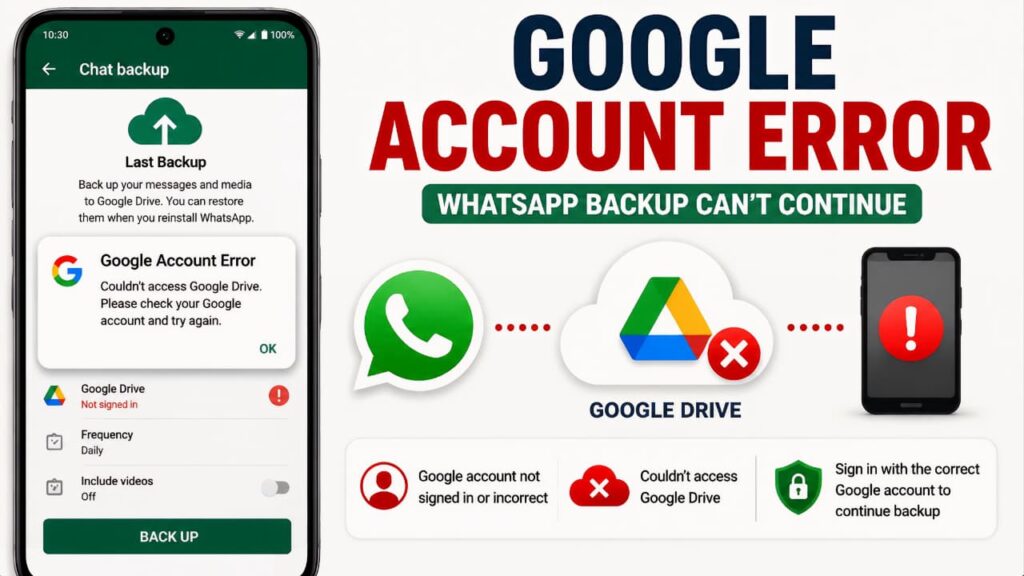
6. Google Account Problems (Android)
Android cloud backups depend entirely on your Google account.
If Google Drive cannot authenticate your account correctly, WhatsApp won’t be able to upload the backup.
Possible issues include:
- Signed out Google account
- Multiple Google accounts on the device
- Account synchronization problems
- Temporary Google authentication errors
Even though WhatsApp continues preparing the backup, the upload may never begin successfully.
Even though WhatsApp continues preparing the backup, the upload may never begin successfully. If you’re having trouble with your Google account, check our guide on creating a Google Account to verify that your account is properly set up and ready for cloud backups.
7. Apple ID or iCloud Sync Issues (iPhone)
On iPhone, WhatsApp relies on iCloud.
If iCloud isn’t functioning correctly, backups may remain stuck indefinitely.
Typical causes include:
- iCloud Drive disabled
- Apple ID synchronization issues
- iCloud temporarily unavailable
- Insufficient iCloud permissions
Since WhatsApp cannot complete communication with iCloud, the backup remains unfinished.
8. Outdated WhatsApp Version
Running an older version of WhatsApp can sometimes create compatibility problems.
As cloud services continue to evolve, older app versions may contain bugs that affect backup performance.
Keeping WhatsApp updated ensures compatibility with the latest Android, iOS, Google Drive, and iCloud services.
9. Operating System Bugs
Sometimes the problem isn’t WhatsApp itself.
A recently installed Android or iOS update may introduce temporary software bugs affecting background uploads, storage access, or cloud synchronization.
Although these issues are usually fixed in later updates, they can temporarily contribute to WhatsApp Backup Stuck.
10. Battery Saver and Background Restrictions
Modern smartphones aggressively manage battery usage.
If Battery Saver, Power Saving Mode, or Background App Restrictions are enabled, WhatsApp may not receive enough system resources to continue uploading your backup.
Some Android manufacturers apply even stricter background restrictions than standard Android, causing long-running uploads to pause unexpectedly.
11. Temporary WhatsApp Server Issues
Although uncommon, temporary server-side issues can also affect backups.
During periods of maintenance or unexpected service disruptions, communication between WhatsApp and cloud services may slow down or temporarily fail.
In such situations, waiting and trying again later may resolve the issue without changing any settings.
These are the most common reasons behind WhatsApp Backup Stuck. Understanding which one applies to your situation is the first step toward fixing the problem safely.
12. End-to-End Encrypted Backup Issues
WhatsApp offers an optional End-to-End Encrypted Backup feature that adds an extra layer of security to your cloud backups. When this feature is enabled, your backup is encrypted before it is uploaded, meaning only you can restore it using your password or the 64-digit encryption key.
While this significantly improves privacy, it also introduces an additional step in the backup process. If the encryption process is interrupted or encounters a temporary issue, WhatsApp Backup Stuck may occur during the preparation or upload stage.
Possible signs
- Backup remains on Preparing Backup for a long time.
- Backup percentage stops increasing.
- Backup fails shortly after encryption begins.
- The upload never reaches completion.
If you’re using encrypted backups, always make sure you remember your password or securely store your encryption key. Without it, restoring an encrypted backup is not possible.
If you’re using encrypted backups, always make sure you remember your password or securely store your encryption key. Protecting your backup is only one part of staying secure you should also learn how to protect your personal data online.
Common WhatsApp Backup Error Messages
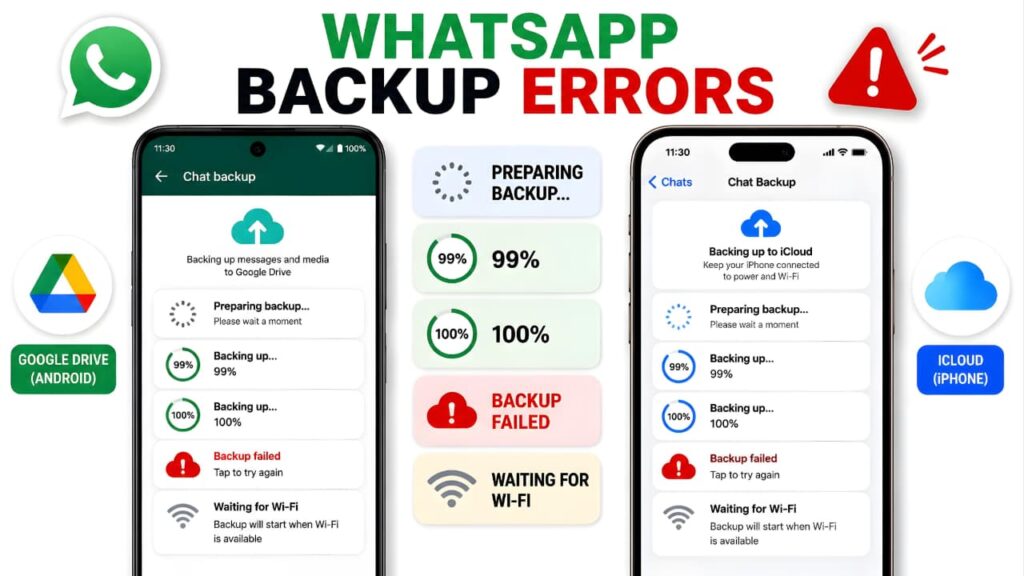
If you’re experiencing WhatsApp Backup Stuck, you may also encounter one of the following error messages depending on your device, cloud service, or network conditions:
- Backup couldn’t complete
- Couldn’t complete backup
- Backup failed
- Preparing Backup
- Waiting for Wi-Fi
- Unable to back up messages
- Waiting for network
- Waiting for Google Drive
- Waiting for iCloud
These messages can indicate different underlying issues, such as network interruptions, insufficient cloud storage, account synchronization problems, or temporary server communication delays. Identifying the exact message can help you choose the most effective troubleshooting method.
13. Background Data Restrictions
WhatsApp needs permission to access the internet even when it is running in the background.
Some Android devices automatically restrict background data to save battery or reduce mobile data usage. If this happens while a backup is in progress, the upload may pause or stop completely.
This problem is especially common on devices that include aggressive battery management features.
Background restrictions may occur when:
- Data Saver is enabled.
- Background data is disabled for WhatsApp.
- Battery optimization limits network activity.
- The device automatically suspends inactive apps.
14. VPN or Proxy Connection
Using a VPN or proxy server can sometimes interfere with the connection between WhatsApp and its cloud backup services.
Although VPNs improve privacy in many situations, they may:
- Increase network latency.
- Route traffic through overloaded servers.
- Cause unstable upload speeds.
- Trigger temporary authentication problems.
If the backup consistently stops while a VPN is active, testing the backup without it may help determine whether the VPN is contributing to the issue.
15. Corrupted Temporary Backup Data
During every backup, WhatsApp creates temporary files before uploading your data.
If one of these temporary files becomes corrupted because of an interrupted backup, sudden device restart, storage error, or unexpected app closure, future backups may not complete normally.
Typical symptoms include:
- Backup repeatedly stopping at the same percentage.
- Backup restarting from the beginning every time.
- Upload failing without an error message.
16. App Permission Problems
WhatsApp requires several permissions to prepare and upload backups correctly.
If access to storage, media, network, or cloud services is restricted, the backup process may fail before completion.
Permissions may change after:
- System updates.
- Privacy setting modifications.
- Restoring device settings.
- Installing security applications.
Reviewing app permissions is one of the simplest checks when WhatsApp Backup Stuck occurs.
17. Multiple Google Accounts on Android
Many Android users sign in with more than one Google account.
If WhatsApp attempts to use a different Google account than the one configured for backups, authentication problems can occur.
This mismatch may prevent Google Drive from accepting the backup, even though everything appears to be configured correctly.
Using the intended Google account consistently helps avoid unnecessary backup failures.
18. Temporary Software Glitches
Even when every setting is correct, temporary software glitches can still interrupt the backup process.
Examples include:
- Background service crashes.
- Memory management issues.
- Temporary cache corruption.
- Cloud synchronization delays.
Fortunately, these problems are usually temporary and can often be resolved without risking your chat history.
How to Identify the Exact Cause
Before making changes to your device, ask yourself the following questions:
- Did the problem start after updating WhatsApp?
- Did it begin after changing your phone?
- Are you using Wi-Fi or mobile data?
- Is your cloud storage almost full?
- Have you recently enabled End-to-End Encrypted Backup?
- Does the backup always stop at the same percentage?
- Are large videos included in your chats?
- Has the backup ever completed successfully on this device?
Answering these questions helps narrow down the root cause and prevents unnecessary troubleshooting.
Before You Try Any Fix
One of the biggest mistakes users make is uninstalling WhatsApp immediately after a backup problem appears.
Do not uninstall WhatsApp unless you’re absolutely certain that your latest backup has been completed successfully and is safely stored in Google Drive or iCloud.
If your most recent chats haven’t been backed up yet, uninstalling the app could result in permanent data loss.
Before proceeding:
- Keep your phone connected to a stable Wi-Fi network whenever possible.
- Ensure the battery has sufficient charge or keep the device connected to a charger.
- Verify that enough free storage is available on both your phone and your cloud account.
- Avoid interrupting the backup once it has started.
Taking these precautions significantly reduces the risk of losing important conversations.
Taking these precautions significantly reduces the risk of losing important conversations. If you’re setting up a new device or account, make sure you can successfully receive your WhatsApp verification code before restoring your backup.
How to Fix WhatsApp Backup Stuck on Android
Now that you understand the most common reasons behind WhatsApp Backup Stuck, it’s time to start fixing the problem. The solutions below are arranged from the safest and easiest methods to more advanced troubleshooting steps.
Important: Follow each solution in order. After completing one method, try running the backup again before moving to the next fix. This approach saves time and reduces the risk of unnecessary changes.
Fix 1: Check Your Internet Connection
A stable internet connection is essential for uploading a WhatsApp backup. Even if websites load normally, your upload speed may still be too slow or unstable for large backups.
What to do
- Connect to a reliable Wi-Fi network whenever possible.
- If you’re already using Wi-Fi, restart your router.
- Switch to another trusted Wi-Fi network to compare the results.
- If Wi-Fi isn’t available, ensure you have a strong 4G or 5G mobile data signal.
- Avoid public Wi-Fi networks that may block or limit large uploads.
- Pause large downloads or video streaming on other devices connected to the same network.
Why this works
WhatsApp uploads your backup continuously. If the connection drops even briefly, the upload may pause or appear frozen, making it seem as though WhatsApp Backup Stuck has occurred.
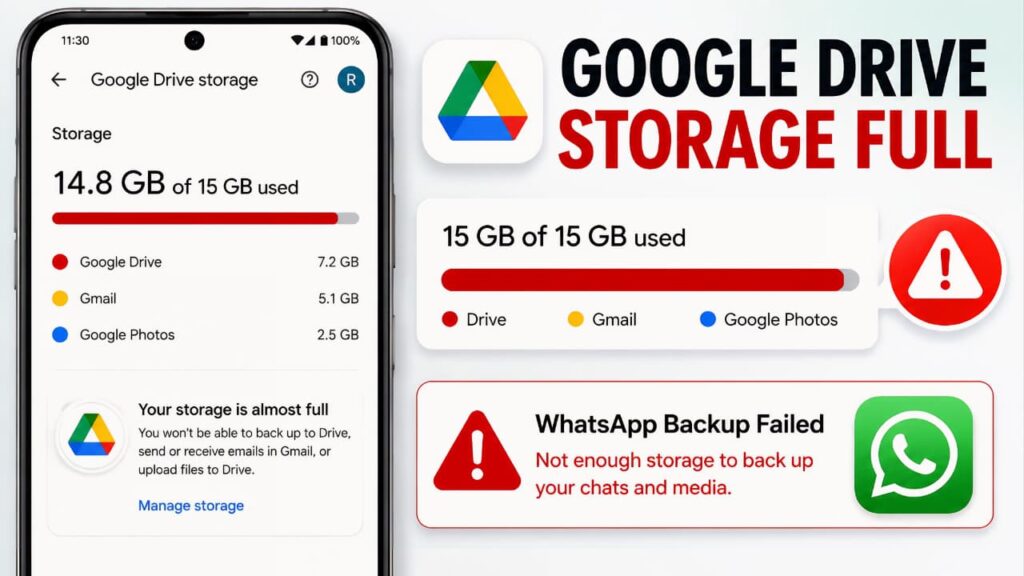
Fix 2: Make Sure Google Drive Has Enough Free Storage
Android users store WhatsApp cloud backups in Google Drive. If your Google account has insufficient storage, the backup may never complete.
How to check
- Open Google Drive.
- Tap your profile picture.
- Check the available storage.
- If storage is almost full, delete unnecessary files or purchase additional storage if required.
- Try the WhatsApp backup again.
Why this works
WhatsApp cannot upload new backup data if Google Drive has reached its storage limit.
WhatsApp cannot upload new backup data if Google Drive has reached its storage limit. Before trying again, make sure your Google account is secure by following our guide to protect your Google Account.
If you’re unsure how much storage is available in your Google account, refer to Google One storage management for official information about managing your cloud storage.
Fix 3: Check Your Phone's Internal Storage
Many users only check cloud storage and forget about their device’s available storage.
During the backup process, WhatsApp temporarily prepares backup files before uploading them. If your phone has very little free space, the preparation process may fail.
Deleting unnecessary files not only creates enough space for WhatsApp backups but also helps your phone perform more efficiently. If your device becomes unusually warm while processing large backups, read our guide on phone overheating causes and fixes.
Recommended free space
Although the exact amount depends on the size of your backup, keeping at least 5–10 GB of free internal storage is a good practice, especially if your chats include many photos and videos.
How to free up storage
- Delete unwanted videos.
- Remove duplicate photos.
- Clear the Downloads folder.
- Uninstall unused applications.
- Empty the Trash or Recently Deleted folder if available.
Fix 4: Restart Your Android Phone
A simple restart can resolve temporary software glitches that interfere with background services.
Restarting your device refreshes system processes, reconnects network services, and clears temporary memory without affecting your WhatsApp chats.
After the phone restarts:
- Open WhatsApp.
- Wait a minute for background services to load.
- Start the backup again.
This quick step often resolves temporary issues that cause WhatsApp Backup Stuck.
Fix 5: Verify the Correct Google Account
WhatsApp must use the same Google account that you selected for backups.
If you’ve recently added, removed, or switched Google accounts on your phone, WhatsApp may no longer be connected to the intended account.
To verify
- Open WhatsApp.
- Go to Settings → Chats → Chat Backup.
- Confirm that the correct Google account is selected.
- If necessary, select the appropriate account and try the backup again.
Using the wrong account can prevent Google Drive from accepting the backup request.
Fix 6: Update WhatsApp to the Latest Version
Running an outdated version of WhatsApp can lead to compatibility issues with Android or Google Drive.
To update
- Open the Google Play Store.
- Search for WhatsApp.
- If an update is available, install it.
- Restart your phone.
- Retry the backup.
Keeping WhatsApp updated ensures you have the latest bug fixes, security improvements, and compatibility updates.
Fix 7: Charge Your Phone Before Starting a Large Backup
Although WhatsApp can back up while your battery is low, some Android devices limit background activity to conserve power.
If your backup contains several gigabytes of photos and videos, connect your phone to a charger before starting the process.
This helps prevent the operating system from interrupting the upload midway through the backup.
This helps prevent the operating system from interrupting the upload midway through the backup. If your device is also losing power quickly, check out our guide on fixing battery fast drain problems before creating large backups.
Fix 8: Disable Battery Optimization for WhatsApp
Many Android smartphones automatically limit background activity to extend battery life. While this helps conserve power, it can interrupt long-running tasks such as WhatsApp cloud backups.
If WhatsApp is restricted while uploading data, the backup may stop at Preparing Backup, 99%, or 100%.
How to disable Battery Optimization
- Open Settings on your Android phone.
- Go to Apps or Applications.
- Select WhatsApp.
- Tap Battery.
- Choose Unrestricted or Don’t Optimize (the option name varies by manufacturer).
On some phones, you may also need to allow WhatsApp to run in the background.
Why this works
Disabling battery optimization prevents Android from stopping WhatsApp while the backup is still uploading.
Fix 9: Enable Background Data Usage
WhatsApp requires uninterrupted internet access during the backup process.
If Background Data or Data Saver restrictions are enabled, the upload may stop whenever WhatsApp moves into the background.
Check these settings
- Allow Background Data.
- Disable Data Saver temporarily.
- Allow unrestricted data usage for WhatsApp.
- Keep WhatsApp active until the backup finishes.
This is especially important for users backing up several gigabytes of media.
Fix 10: Update Google Play Services
Google Play Services manages communication between Android apps and Google Drive.
If this system component is outdated or experiencing issues, WhatsApp may fail to upload backups properly.
What to do
- Open the Google Play Store.
- Search for Google Play Services.
- Install any available updates.
- Restart your device.
- Run the backup again.
Keeping Google Play Services updated improves compatibility with Google Drive and other Google services.
Fix 11: Clear WhatsApp Cache (Android Only)
Temporary cache files can sometimes become corrupted and interfere with normal app functions.
Clearing the cache removes temporary files without deleting your chats or media.
Steps
- Open Settings.
- Tap Apps.
- Select WhatsApp.
- Open Storage & Cache.
- Tap Clear Cache.
Important: Do not tap Clear Storage or Clear Data, as this may require you to set up WhatsApp again.
After clearing the cache, restart WhatsApp and retry the backup.
Fix 12: Check Date and Time Settings
Incorrect date and time settings can sometimes interfere with secure connections to cloud services.
Recommended setting
Enable:
- Automatic Date
- Automatic Time
- Automatic Time Zone
These settings help ensure secure communication with Google services during the backup process.
Fix 13: Remove Unnecessary Large Videos
Videos often account for the largest portion of a WhatsApp backup.
If the backup repeatedly stops near completion, one or more large videos may be slowing the upload significantly.
Consider deleting unnecessary videos that are no longer important before creating another backup.
If you don’t want videos included at all, you can also disable video backup from WhatsApp’s Chat Backup settings.
This usually reduces both backup size and upload time.
Fix 14: Wait Longer for Very Large Backups
Many users cancel the backup too early.
If your WhatsApp account contains years of conversations with thousands of photos and videos, the first cloud backup can legitimately take several hours depending on your upload speed.
For extremely large backups:
- Keep the phone connected to Wi-Fi.
- Connect the charger.
- Leave WhatsApp open if possible.
- Avoid restarting the phone unnecessarily.
Sometimes the progress appears frozen while WhatsApp is still processing media files in the background.
Fix 15: Fix WhatsApp Backup Stuck at 99%
This is one of the most frequently reported backup issues.
When the backup reaches 99%, WhatsApp has usually completed most of the upload and is processing the remaining files or verifying the backup.
Possible reasons include:
- Large media files still uploading.
- Slow upload speed.
- Google Drive synchronization delays.
- Temporary communication issues.
What you should do
- Wait another 15–30 minutes.
- Keep the device connected to stable Wi-Fi.
- Ensure the screen doesn’t remain locked for long if your device restricts background activity.
- Verify that Google Drive still has sufficient storage.
Avoid cancelling the backup immediately unless it has remained unchanged for an unusually long period.
Fix 16: Fix WhatsApp Backup Stuck at 100%
Reaching 100% doesn’t always mean the backup is fully complete.
After uploading finishes, WhatsApp still needs to verify the backup with Google Drive before reporting success.
This final verification may take several minutes.
If the backup remains at 100% for an extended period:
- Wait a little longer.
- Restart WhatsApp.
- Restart the phone if necessary.
- Retry the backup once.
Repeated failures at exactly 100% may indicate a temporary synchronization problem rather than an upload failure.
At this point, most Android-related issues that cause WhatsApp Backup Stuck have been covered.
Advanced Google Drive Solutions for WhatsApp Backup Stuck
If you’ve already tried the basic Android troubleshooting steps and WhatsApp Backup Stuck still hasn’t been resolved, the problem may be related to Google Drive or your Google account rather than WhatsApp itself.
Since Android stores cloud backups in Google Drive, any authentication, synchronization, or permission issue between WhatsApp and Google Drive can prevent the backup from completing successfully.
The following solutions focus specifically on Google Drive-related problems.
Fix 17: Verify That Google Drive Is Working Properly
Before troubleshooting WhatsApp, make sure Google Drive itself is functioning normally.
What to check
- Open the Google Drive app.
- Confirm that you’re signed in to the correct Google account.
- Upload a small file manually.
- Check whether the upload finishes successfully.
If Google Drive cannot upload ordinary files, WhatsApp backups may also fail until the underlying issue is resolved.
Using the intended Google account consistently helps avoid unnecessary backup failures. It’s also important to keep your account secure to prevent unauthorized access by following our guide on Google Critical Security Alert.
Fix 18: Check Google Account Synchronization
Android regularly synchronizes your Google account with Google services.
If synchronization has been disabled or interrupted, WhatsApp may struggle to communicate with Google Drive.
Steps
- Open Settings.
- Tap Passwords & Accounts or Accounts.
- Select your Google account.
- Tap Account Sync.
- Ensure synchronization is enabled.
- Run Sync Now if available.
After synchronization finishes, return to WhatsApp and try the backup again.
Fix 19: Reconnect Your Google Account in WhatsApp
Occasionally, WhatsApp loses authorization to access Google Drive even though your Google account is still present on the phone.
Reconnecting the account often refreshes this authorization.
Steps
- Open WhatsApp.
- Go to Settings → Chats → Chat Backup.
- Tap the Google account currently selected.
- Remove or deselect it if prompted.
- Select the same Google account again.
- Grant any requested permissions.
- Retry the backup.
This process refreshes the connection between WhatsApp and Google Drive without affecting your existing chats.
Fix 20: Ensure Google Drive Permissions Are Available
Google Drive permissions are required for WhatsApp to upload backups successfully.
If access has been restricted by Android’s privacy settings, the backup may never begin.
Verify that:
- Google Drive has storage permissions (where applicable).
- WhatsApp has network access.
- Google Play Services is functioning normally.
- No security app is blocking Google services.
Permission-related problems often appear after major Android updates or when privacy settings have been changed.
Fix 21: Remove Temporary Google Drive Upload Problems
Sometimes the issue isn’t your phone at all.
Temporary Google Drive service interruptions can delay uploads for several minutes or even longer.
Possible signs include:
- Upload speed suddenly dropping to zero.
- Backup remaining at one percentage for an extended period.
- Backup failing without a specific error message.
- Other Google Drive uploads also responding slowly.
If this happens:
- Wait some time.
- Retry the backup later.
- Avoid repeatedly cancelling and restarting the upload.
Repeated interruptions can actually increase the total backup time.
Fix 22: Reduce Backup Size Before Uploading
Large backups naturally require more time to upload.
If your backup contains several gigabytes of videos, reducing its size can significantly improve completion time.
Consider:
- Deleting unnecessary forwarded videos.
- Removing duplicate media.
- Deleting unwanted documents.
- Cleaning up inactive group chats.
- Excluding videos from the backup if they are not essential.
Smaller backups upload faster and are less likely to encounter interruptions.
Fix 23: Try the Backup Again During Off-Peak Hours
Internet congestion can affect upload performance.
If you’re backing up during busy evening hours when many users are online, upload speeds may be slower than usual.
Trying again early in the morning or during a less congested period may allow the backup to complete much more quickly.
Common Mistakes to Avoid
When trying to fix WhatsApp Backup Stuck, many users accidentally make the problem worse.
Avoid these common mistakes:
- Uninstalling WhatsApp before confirming a successful backup.
- Repeatedly force closing the app while a backup is in progress.
- Switching between Wi-Fi and mobile data every few minutes.
- Signing out of your Google account unnecessarily.
- Clearing WhatsApp app data instead of only clearing the cache.
- Interrupting the upload because the percentage appears unchanged for a short period.
Patience is important, especially for large backups.
When Should You Contact WhatsApp Support?
If you’ve completed all the troubleshooting steps and your backup still fails, consider contacting WhatsApp Support if:
- Every backup attempt fails immediately.
- The backup never starts despite meeting all requirements.
- You receive persistent error messages related to backup.
- The issue continues after updating WhatsApp and Android.
- The same Google account works correctly on another device but not on yours.
Before contacting support, note:
- Your Android version.
- WhatsApp version.
- Approximate backup size.
- Whether the issue occurs on Wi-Fi, mobile data, or both.
- Any error messages displayed.
Providing these details can help speed up troubleshooting.
How to Fix WhatsApp Backup Stuck on iPhone
If you’re using an iPhone and experiencing WhatsApp Backup Stuck, the troubleshooting process is slightly different from Android.
Unlike Android devices, which use Google Drive for cloud backups, iPhones store WhatsApp backups in iCloud. This means your backup depends not only on WhatsApp but also on your Apple ID, iCloud settings, available iCloud storage, and your iPhone’s system configuration.
A problem with any one of these components can prevent WhatsApp from completing its backup.
The good news is that most iCloud backup issues can be resolved without deleting WhatsApp or losing your chat history.
Let’s begin with the safest solutions.
Fix 24: Check Your Internet Connection
A strong and stable internet connection is the foundation of every successful iCloud backup.
Although WhatsApp supports backups over both Wi-Fi and cellular data (depending on your settings and carrier), large backups are usually more reliable over a stable Wi-Fi connection.
If the connection repeatedly disconnects, the backup may stop at Preparing Backup, 99%, or 100%. If you’re still facing network-related issues, you can also learn about fixing mobile hotspot problems that may affect your internet connection.
Recommended steps
- Connect to a trusted Wi-Fi network.
- Restart your Wi-Fi router if the connection is unstable.
- Avoid switching between Wi-Fi and mobile data during the backup.
- Pause downloads or video streaming on other devices sharing the same network.
If the connection repeatedly disconnects, the backup may stop at Preparing Backup, 99%, or 100%.
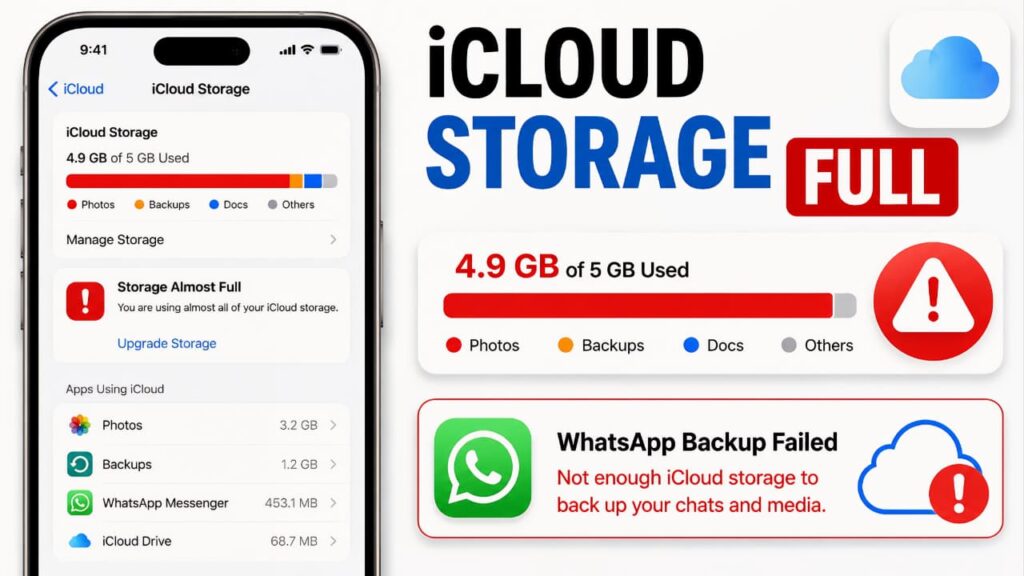
Fix 25: Verify Available iCloud Storage
One of the most common reasons for WhatsApp Backup Stuck on iPhone is insufficient iCloud storage.
Even if your iPhone has plenty of free internal storage, the backup cannot finish unless enough space is available in iCloud.
To check your iCloud storage
- Open Settings.
- Tap your Apple ID at the top.
- Select iCloud.
- Tap Manage Storage or Storage.
- Review the available space.
If your iCloud storage is nearly full:
- Delete unnecessary backups.
- Remove unwanted files stored in iCloud Drive.
- Delete large attachments if they are no longer needed.
- Upgrade your iCloud storage plan if necessary.
After freeing enough space, start the WhatsApp backup again.
After freeing enough space, start the WhatsApp backup again. Apple also provides detailed instructions for managing iCloud storage on your devices.
Fix 26: Confirm That iCloud Drive Is Enabled
WhatsApp relies on iCloud Drive to store cloud backups.
If iCloud Drive is disabled, WhatsApp cannot upload your chat history.
To verify
- Open Settings.
- Tap your Apple ID.
- Select iCloud.
- Ensure iCloud Drive is turned on.
- Scroll through the app list and make sure WhatsApp is allowed to use iCloud.
If either option is disabled, enable it and restart WhatsApp before trying the backup again.
Fix 27: Sign In with the Correct Apple ID
Your WhatsApp backup is linked to the Apple ID currently signed in on your iPhone.
If you’ve recently changed Apple IDs or signed out of iCloud, WhatsApp may not be able to locate or create your backup correctly.
Verify the following
- You’re signed in with your intended Apple ID.
- The same Apple ID is used for iCloud.
- There are no pending Apple ID verification requests.
If everything is correct, try the backup again.
Fix 28: Restart Your iPhone
Although it sounds simple, restarting your iPhone can resolve temporary software glitches affecting background services or cloud synchronization.
A restart refreshes system processes without deleting any personal data.
Steps
- Restart your iPhone.
- Wait until the device finishes loading completely.
- Open WhatsApp.
- Start the backup again.
Many temporary backup problems disappear after a fresh restart.
Fix 29: Update WhatsApp
Using the latest version of WhatsApp helps ensure compatibility with recent iOS and iCloud updates.
To update
- Open the App Store.
- Search for WhatsApp.
- Install any available update.
- Restart the app.
- Retry the backup.
Updates often include bug fixes related to stability, cloud services, and backup reliability.
Fix 30: Update iOS
An outdated version of iOS can occasionally cause compatibility issues with cloud services.
Keeping your iPhone updated ensures you have the latest security patches, performance improvements, and bug fixes.
To check
- Open Settings.
- Tap General.
- Select Software Update.
- Install any available update.
- Restart your device after the installation.
Once the update is complete, try the WhatsApp backup again.
Keeping your iPhone updated ensures you have the latest security patches, performance improvements, and bug fixes. For detailed instructions, visit Apple Support.
Fix 31: Keep Your iPhone Connected to Power
Large WhatsApp backups can take a considerable amount of time, especially if they contain years of messages, photos, and videos.
Keeping your iPhone connected to a charger during the backup helps ensure the process isn’t interrupted by power-saving behavior.
This is particularly useful when creating your first iCloud backup after a long period.
These basic troubleshooting methods resolve many cases of WhatsApp Backup Stuck on iPhone.
However, if your backup still freezes at Preparing Backup, 99%, or 100%, don’t worry.
Advanced iCloud Troubleshooting for WhatsApp Backup Stuck
If you’ve already completed the basic troubleshooting steps and WhatsApp Backup Stuck still hasn’t been resolved, the problem may be related to iCloud synchronization, Apple ID authentication, network interruptions, or temporary software issues.
The following methods are designed to address these more advanced scenarios.
Fix 32: Check iCloud Server Status
Sometimes the problem isn’t your iPhone or WhatsApp at all.
Apple occasionally performs maintenance or experiences temporary service disruptions that can affect iCloud-related features, including backups.
If iCloud services are temporarily unavailable, WhatsApp may remain stuck while trying to communicate with Apple’s servers.
What you should do
- Wait for some time.
- Try the backup again later.
- Avoid repeatedly cancelling and restarting the backup.
If other iCloud services are also affected, the issue is likely temporary.
Fix 33: Verify iCloud Synchronization
Your Apple ID should synchronize correctly with iCloud before WhatsApp can upload a backup.
If synchronization is delayed or interrupted, WhatsApp may be unable to complete the upload.
Things to verify
- iCloud synchronization is active.
- Your Apple ID has been verified.
- No pending Apple ID login requests exist.
- iCloud Drive is functioning normally.
Once synchronization is complete, retry the backup.
Fix 34: Disable Low Power Mode Temporarily
Low Power Mode helps extend battery life by reducing background activity.
During large WhatsApp backups, this may slow or interrupt background network operations.
Steps
- Open Settings.
- Tap Battery.
- Turn Low Power Mode off temporarily.
- Connect your iPhone to a charger.
- Retry the backup.
After the backup finishes successfully, you can enable Low Power Mode again.
Fix 35: Reduce Backup Size
Very large WhatsApp backups naturally require more upload time.
If your chats contain years of HD videos, voice messages, documents, and media, reducing the backup size may improve reliability.
You can:
- Delete unnecessary videos.
- Remove duplicate files.
- Leave inactive groups with large media histories.
- Exclude videos from backups if they aren’t essential.
A smaller backup is usually faster and less likely to become interrupted.
Fix 36: Fix WhatsApp Backup Stuck at Preparing Backup
Many users report that the backup never moves beyond Preparing Backup.
This stage involves scanning conversations, organizing media files, and preparing data before the upload begins.
Possible causes include:
- Large media libraries.
- Temporary app glitches.
- Insufficient storage.
- Background restrictions.
- Temporary iCloud communication issues.
Recommended actions
- Wait several minutes if the backup is large.
- Restart WhatsApp.
- Restart your iPhone.
- Verify iCloud storage.
- Retry the backup using a stable Wi-Fi connection.
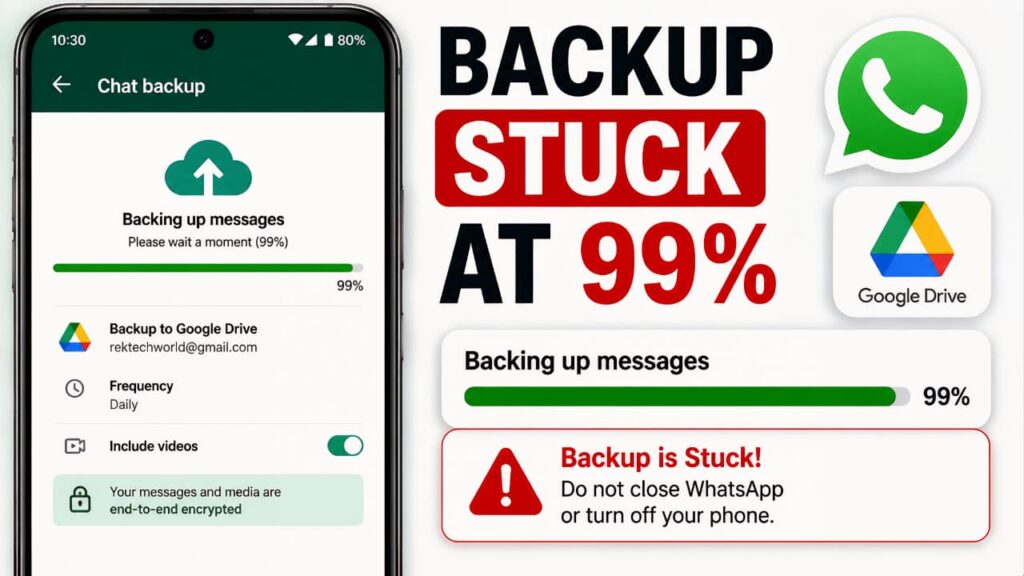
Fix 37: Fix WhatsApp Backup Stuck at 99%
Reaching 99% usually indicates that most of the upload has already completed.
The remaining time may be spent:
- Uploading the final media files.
- Encrypting remaining data.
- Verifying the upload with iCloud.
What to do
- Wait another 20–30 minutes.
- Keep the iPhone connected to Wi-Fi.
- Avoid closing WhatsApp.
- Leave the device connected to power.
In many cases, the backup eventually completes successfully.
Fix 38: Fix WhatsApp Backup Stuck at 100%
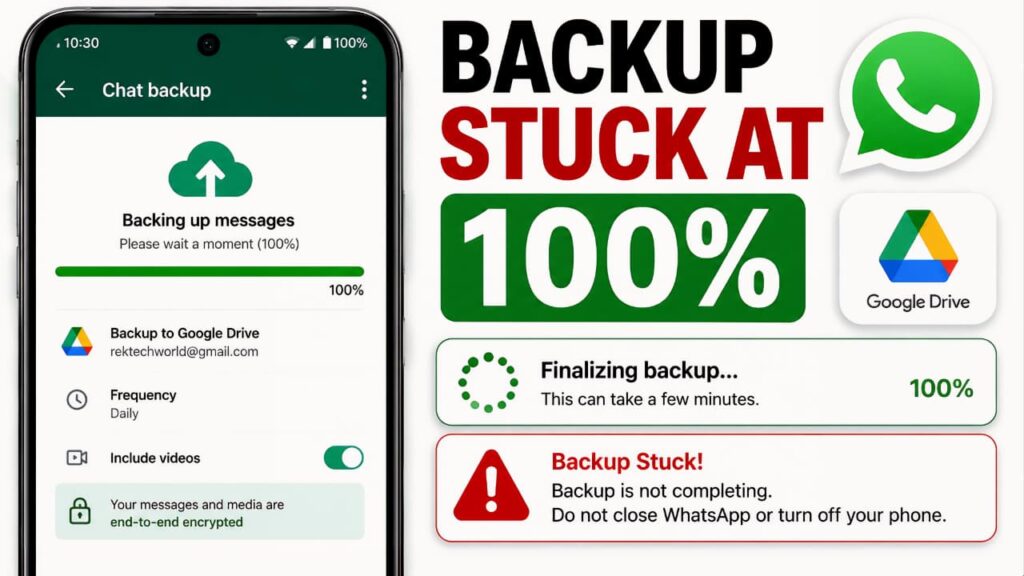
Seeing 100% doesn’t always mean the process is finished.
WhatsApp still performs final verification with iCloud before confirming that the backup completed successfully.
If the progress remains at 100%:
- Wait a little longer.
- Restart WhatsApp.
- Restart the iPhone if necessary.
- Retry the backup once.
Repeated failures at exactly 100% often indicate synchronization delays rather than upload failures.
Fix 39: Temporarily Disable VPN
If you’re using a VPN, it may introduce additional latency or interfere with cloud communication.
Testing the backup without the VPN can help determine whether it is contributing to the issue.
Once the backup completes successfully, you can enable the VPN again if desired.
Fix 40: Avoid Interrupting the Backup
Large cloud backups require patience.
Avoid:
- Force closing WhatsApp.
- Restarting the backup repeatedly.
- Switching networks frequently.
- Turning Wi-Fi on and off.
- Restarting the phone while the upload is active.
Interrupting the process repeatedly can delay completion even further.
Common iPhone Backup Mistakes
Many users unintentionally make troubleshooting more difficult.
Avoid these mistakes:
- Uninstalling WhatsApp before confirming a successful backup.
- Signing out of iCloud unnecessarily.
- Ignoring low iCloud storage warnings.
- Closing WhatsApp immediately after starting a backup.
- Attempting multiple backups simultaneously.
Android vs iPhone Backup Issues
Although both platforms can experience WhatsApp Backup Stuck, the underlying causes are often different.
| Feature | Android | iPhone |
|---|---|---|
| Cloud Backup Service | Google Drive | iCloud |
| Account Required | Google Account | Apple ID |
| Local Backup Support | Yes | No |
| Cloud Storage Used | Google Drive Storage | iCloud Storage |
| Most Common Cause of Backup Issues | Google Drive authentication or sync problems | iCloud synchronization or Apple ID issues |
| Background Restrictions | More common due to battery optimization | Less common |
| Battery Optimization Impact | Can interrupt backups if enabled | Low Power Mode may slow or pause backups |
| Backup Restoration | Restore from Google Drive or local backup | Restore from iCloud backup |
| Primary Troubleshooting Focus | Google Drive, Play Services, Storage, Network | iCloud, Apple ID, Storage, Network |
Understanding these platform differences helps you choose the right troubleshooting method instead of trying solutions that only apply to the other operating system.
How to Prevent WhatsApp Backup Problems in the Future
Fixing WhatsApp Backup Stuck is important, but preventing the issue from happening again is even better. By following a few simple habits, you can significantly reduce the chances of future backup failures and ensure that your chats remain safe.
1. Enable Automatic Backups
Instead of relying only on manual backups, enable automatic backups.
Depending on your usage, choose one of the following schedules:
- Daily (Recommended for most users)
- Weekly
- Monthly
Automatic backups help ensure your latest conversations are protected even if your phone is lost, damaged, or reset unexpectedly.
2. Keep Enough Cloud Storage Available
Whether you use Google Drive or iCloud, always maintain enough free cloud storage.
Avoid waiting until your storage is almost full before creating another backup.
A small amount of free space today can prevent a major backup failure tomorrow.
3. Use a Stable Wi-Fi Connection
Large backups upload much more reliably over Wi-Fi.
Whenever possible:
- Connect to a trusted Wi-Fi network.
- Avoid public networks.
- Don’t switch between Wi-Fi and mobile data while a backup is running.
4. Keep WhatsApp Updated
Install WhatsApp updates regularly.
Updates frequently include:
- Bug fixes
- Performance improvements
- Backup reliability improvements
- Compatibility updates
Using the latest version reduces the chances of encountering known backup issues.
5. Keep Your Phone Updated
Operating system updates often improve cloud synchronization, security, and app compatibility.
Keeping Android or iOS updated helps WhatsApp work more reliably with Google Drive or iCloud.
6. Remove Unnecessary Media Regularly
Photos and videos usually make up the largest part of a WhatsApp backup.
Periodically remove:
- Duplicate videos
- Unwanted forwards
- Old documents
- Unnecessary media
Smaller backups are faster, consume less storage, and are less likely to fail.
7. Don't Ignore Backup Notifications
If WhatsApp reports that a backup has failed, investigate the issue as soon as possible.
Waiting several weeks or months without a successful backup increases the risk of losing important conversations if something happens to your phone.
Quick Troubleshooting Checklist
If you encounter WhatsApp Backup Stuck, check the following before trying advanced fixes:
✅ Stable internet connection
✅ Enough phone storage
✅ Enough Google Drive or iCloud storage
✅ Latest version of WhatsApp installed
✅ Latest Android or iOS updates installed
✅ Correct Google Account or Apple ID signed in
✅ Google Drive or iCloud working properly
✅ Battery Saver or Low Power Mode disabled temporarily
✅ Background data allowed (Android)
✅ Phone restarted
✅ Large videos reviewed if backup size is excessive
Completing this checklist resolves the majority of backup problems.
Frequently Asked Questions (FAQ)
Why is my WhatsApp backup taking so long?
Large chat histories, many photos or videos, slow upload speeds, limited cloud storage, or unstable internet connections can all increase backup time.
Why is my WhatsApp backup stuck at 99%?
This often happens while WhatsApp uploads the final media files or verifies the completed backup with Google Drive or iCloud.
Why is my WhatsApp backup stuck at 100%?
After reaching 100%, WhatsApp still needs to verify the backup before marking it as complete. Temporary cloud synchronization delays may extend this process.
Can I stop a WhatsApp backup?
Yes, but cancelling a backup before it finishes means the latest changes may not be saved.
Will uninstalling WhatsApp fix backup problems?
Not necessarily.
If your latest backup hasn’t completed successfully, uninstalling WhatsApp may result in permanent chat loss.
Always verify that a valid cloud backup exists before reinstalling the app.
Does clearing the WhatsApp cache delete chats?
No.
Clearing the cache removes temporary files only.
However, clearing app data or storage is different and may require you to set up WhatsApp again.
Why can't WhatsApp detect my Google Drive backup?
Possible reasons include:
- Wrong Google account
- Backup created under another account
- Internet connectivity issues
- Google Drive synchronization problems
Why can't WhatsApp detect my iCloud backup?
Common reasons include:
- Wrong Apple ID
- iCloud Drive disabled
- Insufficient iCloud storage
- Temporary iCloud synchronization problems
Is Wi-Fi better than mobile data for backups?
Yes.
Wi-Fi is generally faster, more stable, and less likely to interrupt large uploads.
How often should I back up WhatsApp?
For most users, a daily automatic backup provides the best protection against unexpected data loss.
Final Thoughts
Experiencing WhatsApp Backup Stuck can be frustrating, especially when you’re trying to protect years of conversations or transfer your chats to a new phone. Fortunately, in most cases, the issue is caused by temporary factors such as unstable internet, insufficient cloud storage, outdated software, or account synchronization problems not by permanent data loss.
By following the step-by-step solutions in this guide, you can identify the root cause and resolve the issue safely without risking your chat history. If you’re also experiencing message delivery problems, you may find our guide on WhatsApp not sending messages helpful.
By following the step-by-step solutions in this guide, you can identify the root cause and resolve the issue safely without risking your chat history. Start with the simplest checks, such as verifying your internet connection, available storage, and account settings, before moving on to more advanced troubleshooting.
Finally, make automatic backups part of your regular routine. Keeping WhatsApp, your device, and your cloud storage in good condition is the best way to ensure your important conversations remain protected and ready to restore whenever you need them.
Finally, make automatic backups part of your regular routine. Keeping WhatsApp, your device, and your cloud storage in good condition is the best way to ensure your important conversations remain protected and ready to restore whenever you need them. You can also explore more hidden WhatsApp features to get the most out of the app.
Finally, make automatic backups part of your regular routine. Keeping WhatsApp, your device, and your cloud storage in good condition is the best way to ensure your important conversations remain protected. You can also explore additional backup recommendations in the official WhatsApp Help Center.
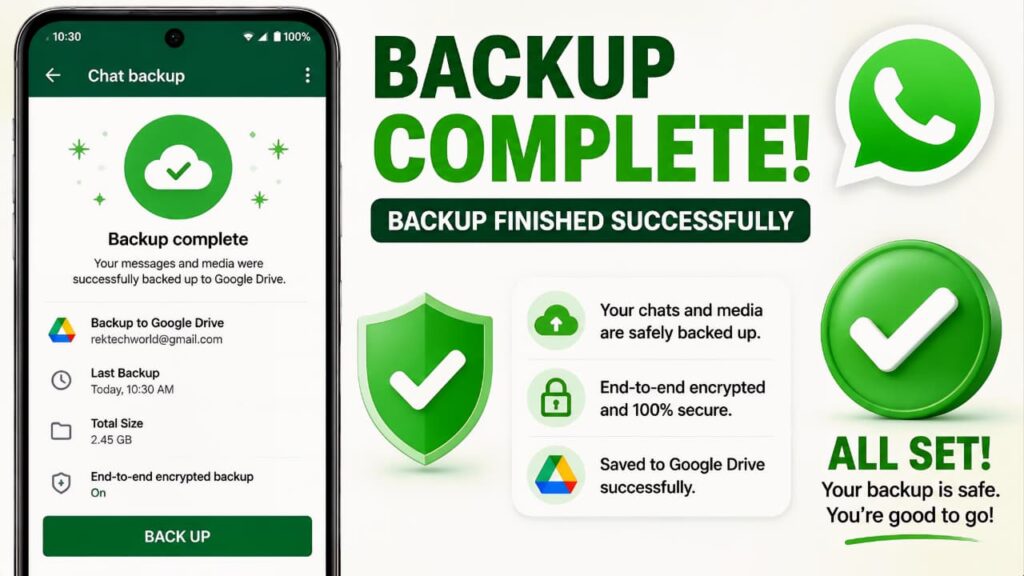
Final Verdict
WhatsApp Backup Stuck is a common issue, but it’s usually fixable. Whether you’re using Android with Google Drive or an iPhone with iCloud, most backup problems can be resolved by checking your connection, storage, app version, and cloud account settings. Avoid rushing into drastic steps like uninstalling WhatsApp before confirming a successful backup. With the right troubleshooting approach and regular automatic backups, you can keep your chats safe and avoid future backup interruptions.
Whether you’re using Android with Google Drive or an iPhone with iCloud, most backup problems can be resolved by checking your connection, storage, app version, and cloud account settings. Once your backup is working properly, you may also want to set up a WhatsApp username to improve your privacy and control how others contact you.