Mobile Data Not Working? Here's How to Fix It Quickly
Few smartphone problems are as frustrating as turning on mobile data and realizing that nothing loads. Your browser refuses to open websites, WhatsApp messages stay stuck on sending, YouTube keeps buffering, and online apps stop responding even though your phone shows a strong 4G, LTE, or 5G signal.
Whether you’re working remotely, navigating with Google Maps, attending an online meeting, or simply browsing social media, losing your mobile internet connection can disrupt your entire day.
The good news is that in most cases, Mobile Data Not Working is not caused by a serious hardware failure. It is usually triggered by incorrect network settings, temporary carrier issues, software glitches, expired data plans, SIM card problems, or simple configuration errors that can be fixed within a few minutes.
This comprehensive guide explains why Mobile Data Not Working happens and walks you through the most effective solutions for both Android phones and iPhones. Instead of suggesting random fixes, the troubleshooting steps are arranged from the simplest checks to more advanced solutions, helping you identify the real cause without wasting time.
The instructions in this guide apply to most modern smartphones, including Samsung Galaxy, Google Pixel, Xiaomi, Redmi, POCO, OnePlus, Motorola, Nothing Phone, OPPO, vivo, realme, Nokia, and Apple iPhone models.
By the end of this guide, you’ll know how to restore your mobile internet connection, prevent the problem from happening again, and understand when it’s time to contact your mobile carrier.
What Does "Mobile Data Not Working" Mean?
Mobile data allows your phone to connect to the internet through your mobile carrier instead of using a Wi-Fi network.
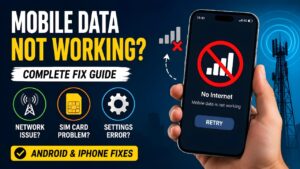
When Mobile Data Not Working becomes an issue, your device is unable to access the internet through your cellular network even though your SIM card may still be active and your phone may continue showing network signal bars.
Depending on the cause, the issue can appear in several different ways.
For example:
- Your phone shows 4G, LTE, or 5G, but websites never load.
- Apps display No Internet Connection.
- WhatsApp messages remain on a single check mark.
- Google Search stops loading.
- Instagram, Facebook, or X refuses to refresh.
- Videos constantly buffer.
- Google Maps cannot download directions.
- Online games disconnect unexpectedly.
- Email apps stop syncing.
- App downloads remain pending.
- Your phone displays Mobile Data Connected but No Internet.
Some users experience the problem continuously, while others notice that mobile internet disconnects randomly throughout the day.
Understanding the symptoms can make troubleshooting much easier.
Understanding what Mobile Data Not Working actually means makes it easier to identify the root cause and choose the right solution before trying advanced troubleshooting methods.
Common Reasons Why Mobile Data Stops Working
There isn’t a single reason why mobile internet suddenly stops working. In fact, several software, network, and account-related issues can produce exactly the same symptoms.
Below are the most common causes.
1. Temporary Network Outage
Sometimes your mobile carrier experiences maintenance or an unexpected service interruption. During this period, your phone may still display network bars, but internet access becomes unavailable.
2. Weak Network Coverage
Poor signal strength is one of the biggest reasons behind unreliable mobile internet.
This often happens:
- Inside elevators
- Underground parking areas
- Remote villages
- Mountain regions
- Buildings with thick concrete walls
Moving to another location often restores your connection immediately.
3. Mobile Data Is Disabled
It may sound obvious, but many users accidentally turn off mobile data from Quick Settings or Control Center without realizing it.
Always verify that mobile data is actually enabled before trying advanced troubleshooting.
4. Expired or Exhausted Data Plan
Even if your phone shows full signal bars, your internet won’t work if:
- Your prepaid data pack has expired.
- Your daily data limit has been reached.
- Your account has insufficient balance.
- Your carrier has temporarily suspended mobile data services.
Checking your account status should always be one of the first troubleshooting steps.
5. Incorrect APN Settings
APN (Access Point Name) settings tell your phone how to connect to your carrier’s mobile internet network.
If these settings become incorrect or are modified accidentally, your phone may connect to the network but fail to access the internet.
6. SIM Card or eSIM Issues
A damaged SIM card, improperly inserted SIM, inactive eSIM, or network provisioning issue can prevent mobile data from working correctly.
Testing the SIM card in another phone is often an effective way to determine whether the problem is related to the SIM or the device itself.
7. Software Bugs
Occasionally, Android or iOS updates introduce temporary software bugs that affect mobile connectivity.
Installing the latest software update often resolves these issues.
Keeping your device updated can resolve software-related network issues. Visit the official Android Help page to learn how to check for system updates.
8. VPN or Private DNS Conflicts
VPN applications and custom DNS services improve privacy, but they can sometimes interfere with mobile internet if their servers become unavailable or their configuration is incorrect.
Disabling them temporarily helps determine whether they’re causing the issue.
9. Incorrect Network Mode
Choosing an unsupported or unstable network mode can also interrupt your internet connection.
For example:
- Weak 5G coverage
- LTE compatibility issues
- Automatic network switching failures
Changing the preferred network type often restores connectivity.
10. Hardware Problems
Although less common, damaged antennas, faulty SIM readers, water damage, or internal modem failures can also prevent mobile data from working.
Fortunately, hardware issues account for only a small percentage of cases.
Identifying these common causes can help you fix the Mobile Data Not Working issue more quickly and avoid unnecessary troubleshooting.
Network-related problems can sometimes affect messaging services as well. If WhatsApp is also unable to connect, read our How to Fix WhatsApp Internet Connection Problems guide for additional troubleshooting.
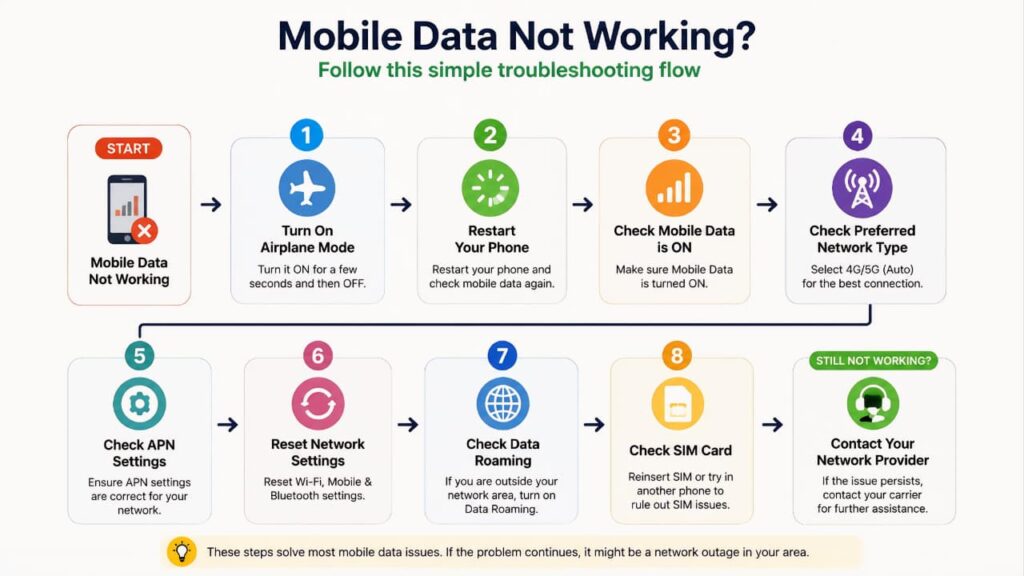
Before You Start Troubleshooting
Before changing settings or resetting your phone, remember these important points:
- Follow the troubleshooting steps in the order they appear.
- Test your mobile internet after each fix.
- Avoid changing multiple settings at once.
- Do not install unofficial apps that claim to repair network problems.
- Never use APN settings from random websites. Always use the values provided by your mobile carrier.
Taking a systematic approach makes it much easier to identify the real cause of the problem while avoiding unnecessary changes to your device.
Completing these basic checks first can often resolve the Mobile Data Not Working problem without requiring advanced fixes.
Before moving on to advanced troubleshooting, make sure your phone is physically working as expected. If you’re also experiencing charging issues, they could affect your device’s overall performance. Read our Phone Not Charging Problems and Fixes guide for additional troubleshooting.
Quick Checks Before Trying Advanced Fixes
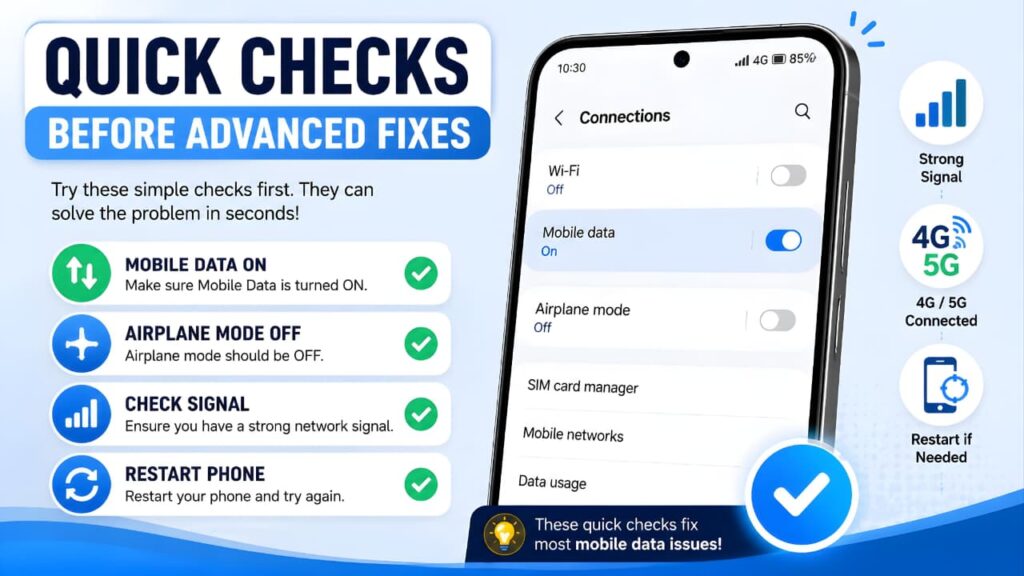
Before changing network settings or resetting your phone, spend a few minutes on these basic checks. Many users solve Mobile Data Not Working problems with one of these simple steps.
These quick fixes are safe, require no technical knowledge, and often restore your mobile internet immediately.
If the Mobile Data Not Working issue continues after these quick checks, proceed to the next troubleshooting methods.
Fix 1: Check Your Mobile Signal Strength
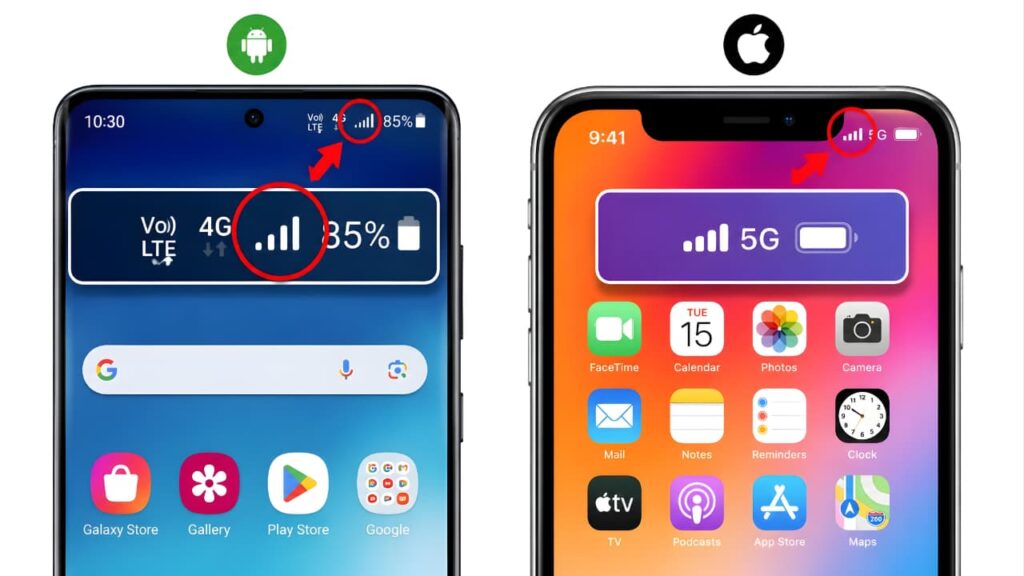
A strong mobile signal is essential for a stable internet connection.
Even if your phone displays a 4G, LTE, or 5G icon, weak signal strength can prevent websites, apps, and online services from loading properly.
Poor coverage is common in:
- Underground parking areas
- Elevators
- Basements
- Rural locations
- Buildings with thick walls
- Crowded public events
If possible, move outdoors or closer to a window and test your connection again.
Tip: If calls frequently drop or your signal bars constantly change, the issue is more likely related to network coverage than your phone.
These solutions resolve the Mobile Data Not Working issue for many users, so test your connection after completing each step.
If your phone continues to experience network-related problems, security features can also help protect your device. Read our Don’t Touch My Phone Anti-Theft App Review to learn more.
Fix 2: Make Sure Mobile Data Is Turned On
It sounds simple, but mobile data can be disabled accidentally from the Quick Settings panel or Control Center.
Android
Open:
Settings → Network & Internet → SIMs or Mobile Network
Confirm that Mobile Data is switched on.
iPhone
Go to:
Settings → Cellular
Make sure Cellular Data is enabled.
If it is already turned on, switch it off, wait about 10 seconds, then enable it again.
Refreshing the connection often fixes temporary software glitches.
These solutions resolve the Mobile Data Not Working issue for many users, so test your connection after completing each step.
If you’re unsure where to find your mobile data settings, refer to the official Android Help documentation for device-specific instructions.
Fix 3: Restart Your Phone
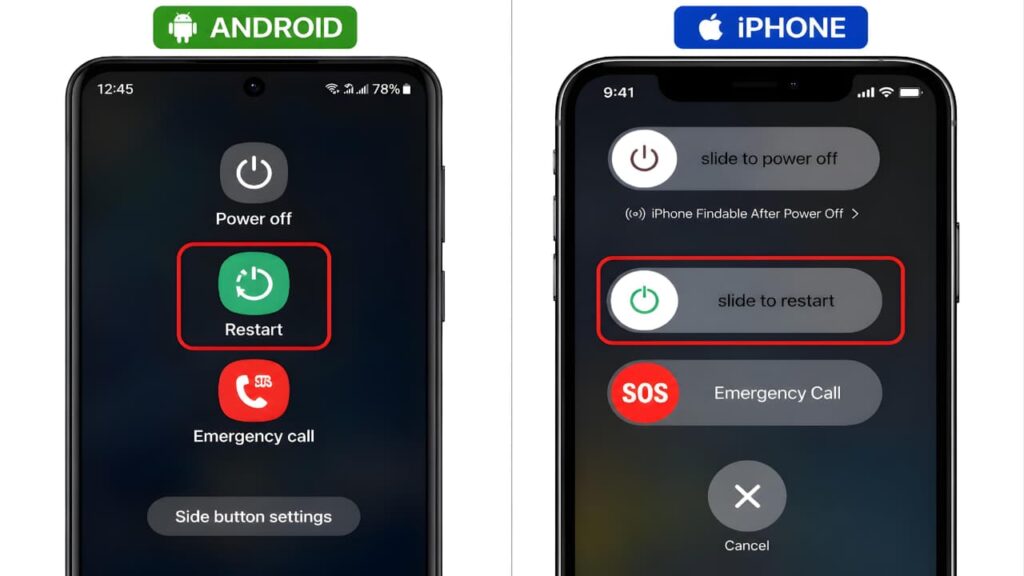
Restarting your phone clears temporary system errors that may interrupt the connection between your device and your carrier’s network.
To restart:
- Press and hold the Power button.
- Select Restart (or power off and turn the device back on).
- Wait for the network signal to reconnect.
- Test your mobile internet.
This simple step frequently resolves issues such as Mobile Internet Not Working or Phone Connected but No Internet after a temporary software problem.
These solutions resolve the Mobile Data Not Working issue for many users, so test your connection after completing each step.
Fix 4: Turn Airplane Mode On and Off
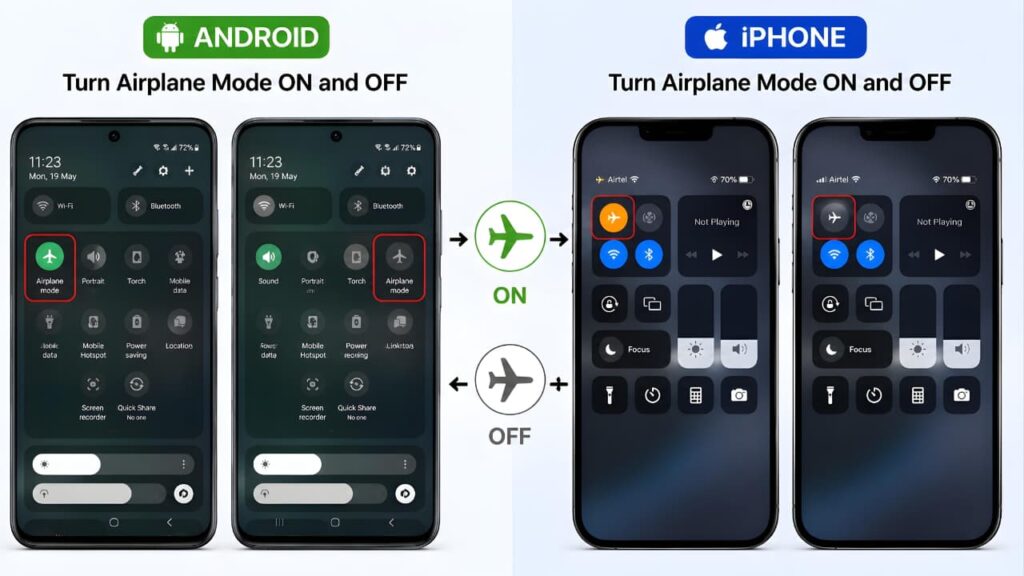
Airplane Mode disconnects your phone from all wireless networks. Turning it on briefly and then off again forces your device to reconnect to the nearest mobile tower.
Follow these steps:
- Enable Airplane Mode.
- Wait for 30 seconds.
- Disable Airplane Mode.
- Wait until the network signal returns.
- Open a website or app to test your connection.
If the issue was caused by a temporary network registration error, this refresh often restores your mobile data.
These solutions resolve the Mobile Data Not Working issue for many users, so test your connection after completing each step.
If mobile data is still unavailable after refreshing your network, you may also experience hotspot-related issues. Check our Mobile Hotspot Not Working guide for additional solutions.
Fix 5: Confirm Your Mobile Data Plan Is Active
A valid signal doesn’t always mean you have internet access.
Your mobile data may stop working if:
- Your data pack has expired.
- You’ve reached your daily or monthly data limit.
- Your prepaid balance is too low.
- Your account has been temporarily restricted.
- Your carrier is performing maintenance.
Open your carrier’s official app or account portal to verify that your mobile internet plan is active.
These solutions resolve the Mobile Data Not Working issue for many users, so test your connection after completing each step.
Many mobile apps rely on an active internet connection to function properly. If messaging also fails, read our WhatsApp Not Sending Messages guide for additional troubleshooting.
Fix 6: Disable Wi-Fi While Testing
Sometimes your phone continues trying to use a weak Wi-Fi connection instead of switching to mobile data automatically.
Turn Wi-Fi off completely and test your connection using:
- Google Search
- YouTube
- Your web browser
If mobile internet works after disabling Wi-Fi, the problem is related to your wireless network rather than your cellular connection.
These solutions resolve the Mobile Data Not Working issue for many users, so test your connection after completing each step.
Fix 7: Check Whether One App or Every App Is Affected
Not every internet problem is caused by mobile data.
Try opening several different apps.
For example:
- Chrome or Safari
- Google Search
- YouTube
- Maps
If only one application fails while everything else works, the problem is likely with that specific app or its servers.
If every app fails to connect, continue with the troubleshooting steps below.
These solutions resolve the Mobile Data Not Working issue for many users, so test your connection after completing each step.
Fix 8: Verify the Correct SIM Is Selected for Mobile Data
Many modern smartphones support Dual SIM or Dual eSIM.
If the wrong SIM is selected for mobile data, your phone may display network signal but fail to connect to the internet.
Android
Open:
Settings → SIM Cards
Select the SIM that contains your active data plan.
iPhone
Go to:
Settings → Cellular → Cellular Data
Choose the correct mobile line.
After changing the preferred SIM, wait a few moments before testing your connection again.
These solutions resolve the Mobile Data Not Working issue for many users, so test your connection after completing each step.
Fix 9: Check Data Usage Limits
Android devices allow users to set monthly data limits.
Once the configured limit is reached, mobile data may be disabled automatically.
Open:
Settings → Network & Internet → Data Usage
Review your:
- Data warning
- Data limit
- Current usage
Adjust or remove the limit if necessary.
These solutions resolve the Mobile Data Not Working issue for many users, so test your connection after completing each step.
Quick Troubleshooting Checklist
| Check | Status |
|---|---|
| Mobile Data Enabled | ✓ |
| Airplane Mode Disabled | ✓ |
| Wi-Fi Turned Off During Testing | ✓ |
| Strong Network Signal | ✓ |
| Active Mobile Data Plan | ✓ |
| Correct SIM Selected | ✓ |
| Multiple Apps Tested | ✓ |
| Phone Restarted | ✓ |
If you’ve confirmed every item above and your mobile data still isn’t working, don’t worry. The next section covers advanced fixes that resolve most remaining issues, including incorrect APN settings, network mode problems, VPN conflicts, Private DNS errors, SIM and eSIM issues, and Android- or iPhone-specific configuration problems.
Advanced Fixes for Mobile Data Not Working
If the basic troubleshooting steps didn’t restore your internet connection, don’t worry. The following solutions address deeper network configuration problems that commonly affect both Android phones and iPhones.
Work through these fixes one at a time, then test your connection before moving to the next step.
Fix 10: Check Your APN Settings
APN (Access Point Name) settings tell your phone how to connect to your mobile carrier’s internet service.
If these settings are missing or incorrect, your device may show a strong network signal while displaying symptoms such as Mobile Data Connected but No Internet or Phone Connected but No Internet.
This problem is common after:
- Switching to a new mobile carrier
- Replacing your SIM card
- Resetting network settings
- Manually editing APN values
Android
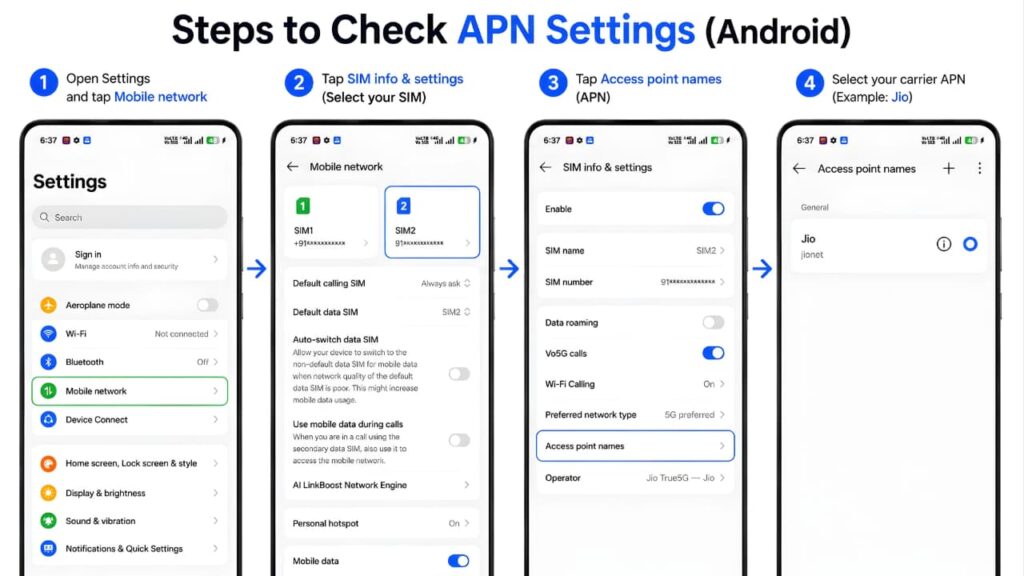
Open:
Settings → Network & Internet → Mobile Network → Access Point Names (APN)
Compare the displayed APN with the official settings provided by your carrier.
If anything looks incorrect, restore the default APN or enter the official values supplied by your network provider.
Important: Never use APN values copied from unofficial blogs or forums. Incorrect settings can prevent your phone from connecting to the internet.
If the Mobile Data Not Working problem still persists, carefully complete every remaining solution before contacting your mobile carrier.
Fix 11: Change the Preferred Network Mode
Modern smartphones automatically switch between 5G, 4G LTE, and 3G depending on signal availability.
Occasionally, automatic switching doesn’t work properly, resulting in slow or unavailable internet.
If 5G Not Working or 4G Not Working is affecting your device, try selecting another network mode.
Android
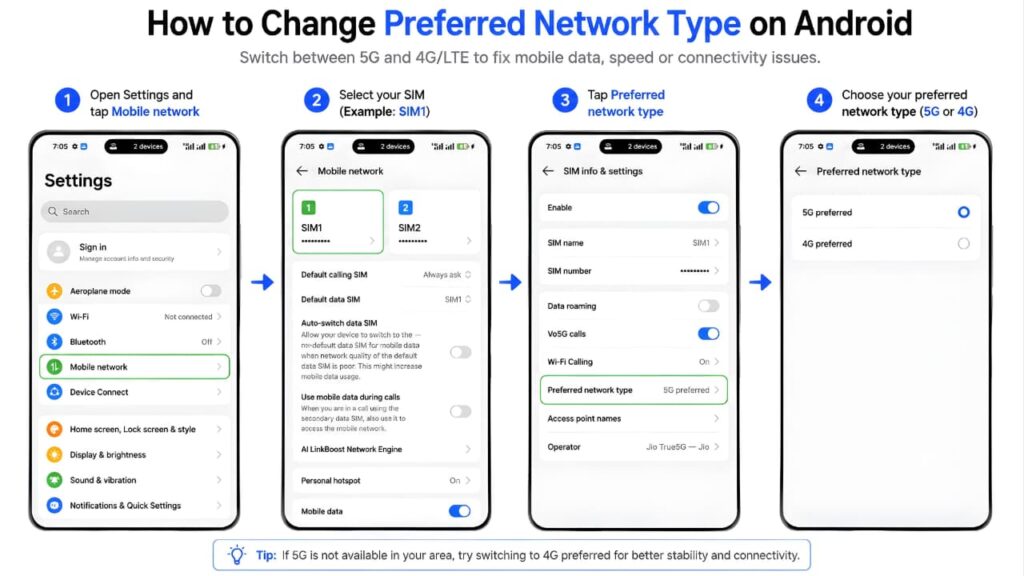
Open:
Settings → Mobile Network → Preferred Network Type
Depending on your device, you’ll see options such as:
- 5G/4G/3G (Auto)
- LTE/4G Only
- 3G Only (temporary testing)
Select a different option, wait for the network to reconnect, and test your mobile internet.
iPhone
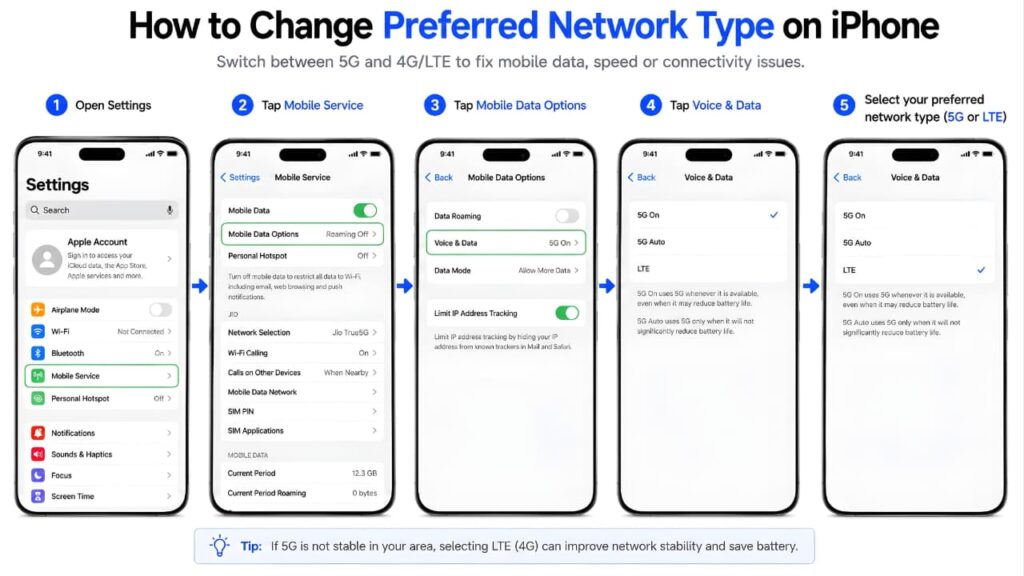
Open:
Settings → Cellular → Cellular Data Options → Voice & Data
Choose another available network mode, then test your connection.
If the Mobile Data Not Working problem still persists, carefully complete every remaining solution before contacting your mobile carrier.
Fix 12: Reinsert Your SIM Card
A loose or damaged SIM card can interrupt mobile internet even if voice calls continue to work.
Turn off your phone before removing the SIM tray.
Carefully inspect the SIM card for:
- Dust
- Scratches
- Physical damage
- Bent contacts
Clean the metal surface gently with a soft, dry cloth before inserting it again.
After restarting your phone, check whether mobile data starts working.
If the Mobile Data Not Working problem still persists, carefully complete every remaining solution before contacting your mobile carrier.
Fix 13: Verify Your eSIM Status
If your phone uses an eSIM instead of a physical SIM card, make sure the profile is active.
An inactive or partially configured eSIM may prevent cellular data from connecting properly.
Verify that:
- The eSIM is enabled.
- The correct line is selected for mobile data.
- Your carrier has completed activation.
- There are no pending activation requests.
If necessary, contact your carrier to confirm that the eSIM profile has been provisioned correctly.
If the Mobile Data Not Working problem still persists, carefully complete every remaining solution before contacting your mobile carrier.
Fix 14: Disable VPN Temporarily
VPN applications encrypt your internet traffic and improve privacy, but they can also block mobile data if something goes wrong.
A VPN may interrupt your connection when:
- The selected server is unavailable.
- The app fails to reconnect.
- An outdated VPN version contains bugs.
- The VPN blocks all traffic after disconnection.
Disable the VPN completely.
Reconnect using mobile data and check whether websites begin loading normally.
If your internet starts working, reconnect using another VPN server or update the application.
If the Mobile Data Not Working problem still persists, carefully complete every remaining solution before contacting your mobile carrier.
Some VPN or security apps may interfere with your internet connection. Learn how to improve your online privacy in our IMO App Privacy and Security Settings Guide.
Fix 15: Turn Off Private DNS (Android)
Private DNS improves privacy and security, but an unavailable DNS server can prevent websites from loading.
To test whether Private DNS is causing the issue:
Open:
Settings → Network & Internet → Private DNS
Select:
- Automatic
or
- Off
Save the setting and test your connection again.
If the Mobile Data Not Working problem still persists, carefully complete every remaining solution before contacting your mobile carrier.
Fix 16: Update Carrier Settings (iPhone)
Mobile carriers regularly release configuration updates that improve compatibility with their network.
These updates install quickly and do not erase your personal data.
To check for an update:
Open:
Settings → General → About
If a Carrier Settings Update appears, install it immediately.
Restart your iPhone after the update and test your internet connection.
If the Mobile Data Not Working problem still persists, carefully complete every remaining solution before contacting your mobile carrier.
Fix 17: Check for a Carrier Network Outage
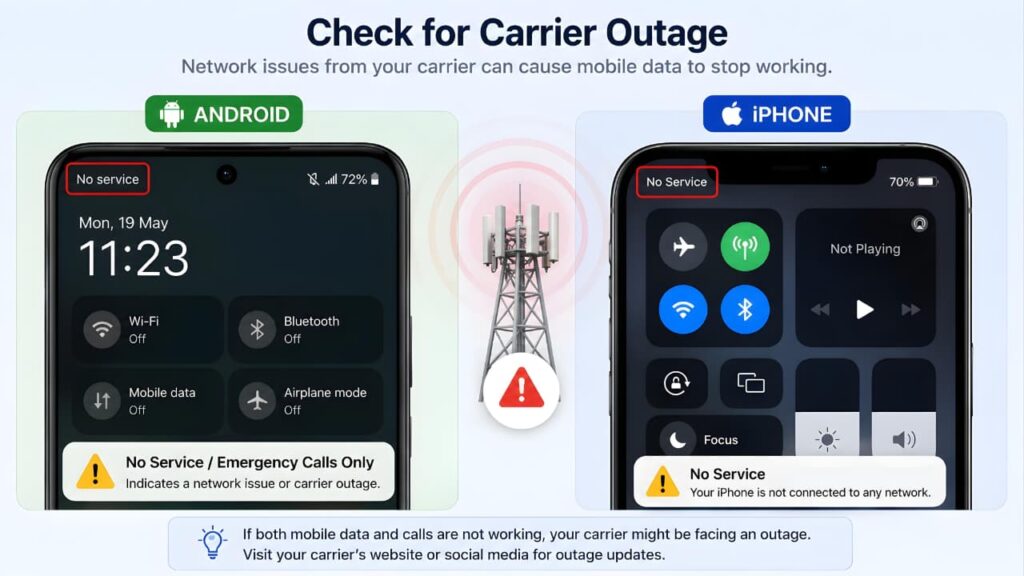
Sometimes the problem isn’t your phone at all.
Your carrier may be experiencing:
- Planned maintenance
- Tower upgrades
- Temporary outages
- Heavy network congestion
Possible signs include:
- Multiple people using the same carrier have no internet.
- Calls and SMS are also affected.
- The issue started suddenly in your entire area.
If possible, ask another person using the same carrier whether their mobile data is working.
If the outage is confirmed, the only solution is to wait until normal service is restored.
If the Mobile Data Not Working problem still persists, carefully complete every remaining solution before contacting your mobile carrier.
Fix 18: Reset Network Settings
If none of the previous methods work, resetting your network settings can remove corrupted configurations without deleting your photos, apps, or personal documents.
This reset removes:
- Saved Wi-Fi networks
- Bluetooth pairings
- Mobile network settings
- APN configurations
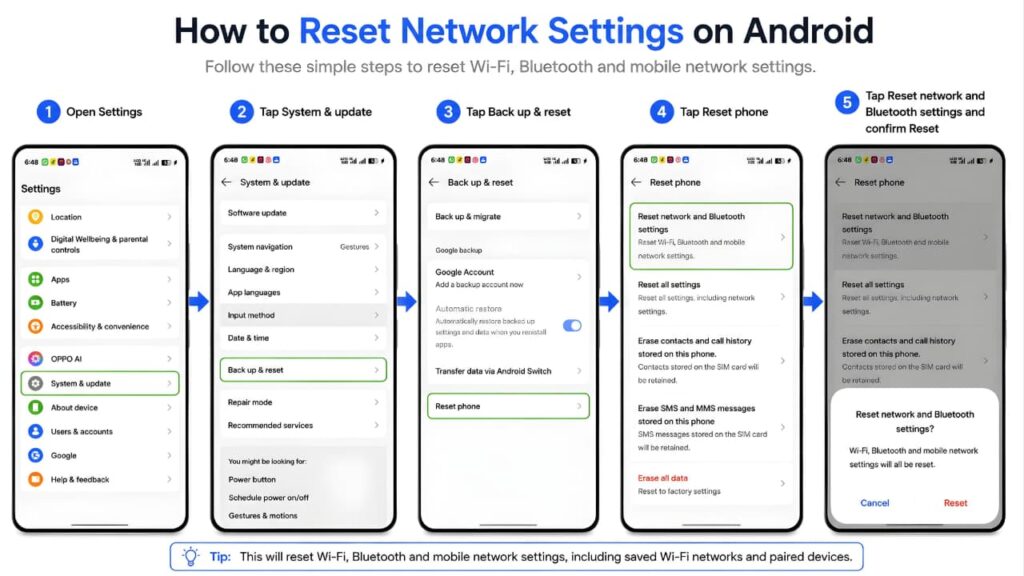
Android
Go to:
Settings → System → Reset Options → Reset Wi-Fi, Mobile & Bluetooth
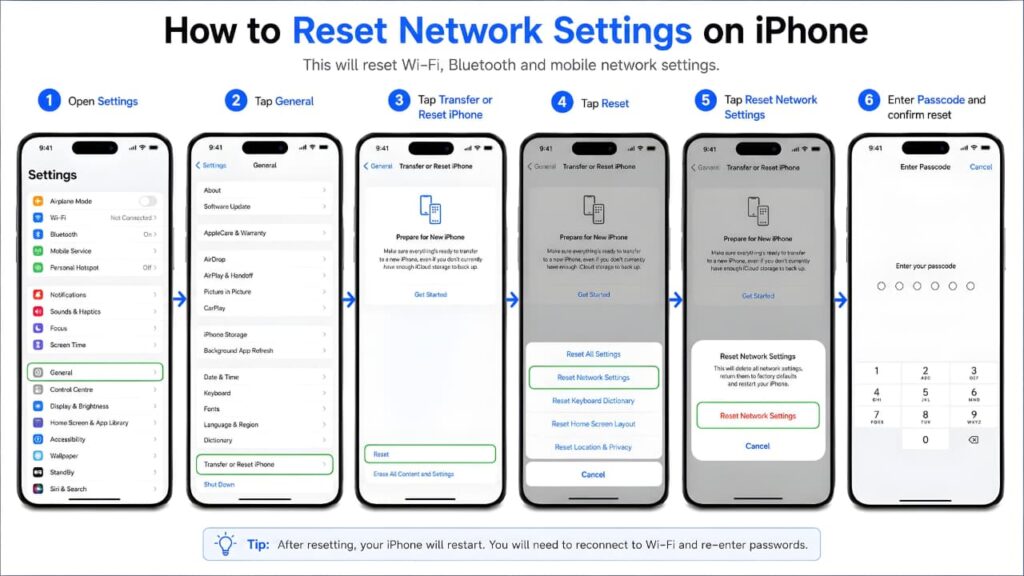
iPhone
Open:
Settings → General → Transfer or Reset iPhone → Reset → Reset Network Settings
After the reset is complete, reconnect to your mobile network and test your internet connection.
If the Mobile Data Not Working problem still persists, carefully complete every remaining solution before contacting your mobile carrier.
Network-related problems can sometimes affect other wireless features as well. If you’re also facing Bluetooth issues, check our Bluetooth Not Working on Android guide.
Quick Reference Table
| Issue | Possible Cause | Recommended Solution |
|---|---|---|
| Mobile Data Connected but No Internet | Incorrect APN | Reset APN settings |
| 4G or 5G Signal but No Internet | Network mode issue | Change preferred network type |
| Internet stopped after SIM change | SIM or APN configuration | Reinsert SIM and verify APN |
| Only websites fail to load | Private DNS or VPN | Disable VPN or Private DNS temporarily |
| No mobile internet after reset | Carrier configuration | Update carrier settings or contact your provider |
These advanced solutions resolve the majority of persistent mobile internet problems. If your connection is still unavailable after completing every step, continue to the next section, where we’ll cover Android-specific fixes, iPhone-specific troubleshooting, dual SIM issues, roaming problems, software update bugs, hardware failures, and the situations where contacting your mobile carrier is the best option.
Android and iPhone Specific Solutions
If you’ve completed all the previous troubleshooting steps and your mobile internet still isn’t working, the problem may be related to device-specific settings. Android phones and iPhones include different network management features, so the next steps focus on settings unique to each platform.
Android-Specific Fixes
Although Android phones share the same operating system, manufacturers like Samsung, Google, Xiaomi, OnePlus, OPPO, vivo, realme, Motorola, Nothing, and Nokia customize their software. As a result, some menu names may vary slightly, but the troubleshooting process remains the same.
Check Background Data Restrictions
Android allows you to control which apps can use mobile data.
If only one or two apps refuse to connect while everything else works normally, background data may be restricted.
Open:
Settings → Apps → Select the App → Mobile Data & Wi-Fi
Make sure:
- Mobile Data is allowed.
- Background Data is enabled.
- Unrestricted Data Usage is enabled (if available).
After changing these settings, reopen the affected app and test your connection.
Disable Data Saver
Data Saver reduces background internet usage to conserve mobile data, but it can also prevent some apps from connecting properly.
Open:
Settings → Network & Internet → Data Saver
Temporarily turn Data Saver off and test your internet again.
If the problem disappears, add your important apps to the unrestricted list instead of leaving Data Saver disabled permanently.
Disable Battery Saver
Power-saving features may restrict background network activity.
Go to:
Settings → Battery
Turn off:
- Battery Saver
- Ultra Power Saving Mode
- Extreme Battery Saver
Depending on your phone model, the name may vary.
Restart the affected app and check whether it can access the internet.
Check Automatic Date and Time
Incorrect date or time settings can prevent secure connections from working properly.
Open:
Settings → System → Date & Time
Enable:
- Automatic Date & Time
- Automatic Time Zone
Reconnect to mobile data and test again.
Applying these Android-specific settings can resolve Mobile Data Not Working without affecting your personal files.
If your Android phone still isn’t responding correctly after these steps, you may need additional troubleshooting. Read our Android Fastboot Mode Fix guide for more advanced solutions.
iPhone-Specific Fixes
Apple devices use the term Cellular Data instead of Mobile Data, but the troubleshooting process is very similar.
Allow Apps to Use Cellular Data
Sometimes only certain apps lose internet access because Cellular Data has been disabled for them individually.
Open:
Settings → Cellular
Scroll through the list of installed apps.
Confirm that important apps like:
- Safari
- Maps
- App Store
are allowed to use Cellular Data.
Disable Low Data Mode
Low Data Mode reduces background internet activity to save bandwidth.
While useful in some situations, it may delay syncing or prevent certain apps from working as expected.
Open:
Settings → Cellular → Cellular Data Options
Disable Low Data Mode temporarily and check whether your internet connection improves.
Restart Cellular Connection
Instead of restarting the entire phone, you can refresh only the cellular connection.
Open Control Center.
Turn Cellular Data off.
Wait about 10 seconds.
Turn it back on.
Open a website or streaming app to verify that the connection has been restored.
These iPhone troubleshooting steps are designed to fix Mobile Data Not Working while keeping your data safe.
If you’re using an iPhone and mobile data still isn’t working, follow the official Apple troubleshooting guide for additional steps.
Dual SIM and eSIM Troubleshooting
Dual SIM phones are becoming increasingly common, but incorrect configuration can prevent mobile internet from working.
Check the following:
- The correct SIM is selected for mobile data.
- The active SIM has an internet plan.
- Data switching is configured correctly.
- The inactive SIM isn’t overriding your preferred settings.
If your phone supports eSIM alongside a physical SIM, verify that the active mobile data line is selected.
Selecting the correct SIM for mobile data can quickly solve Mobile Data Not Working on dual-SIM devices.
Mobile Data While Roaming
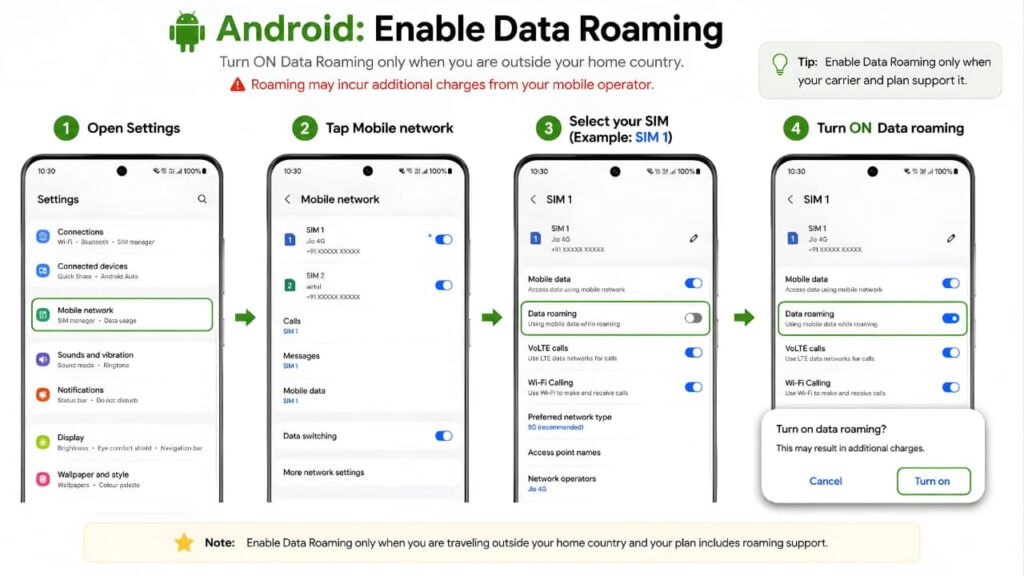
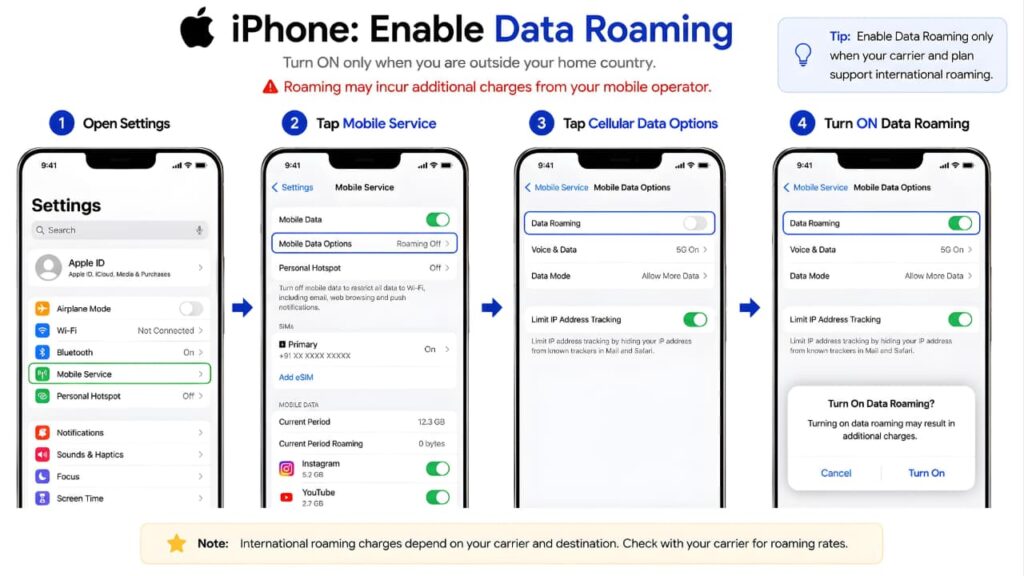
If you’re travelling outside your home network, your phone may require Data Roaming to access the internet. Before enabling roaming, make sure your carrier supports roaming services and that your current plan includes mobile data usage outside your home region. Follow the steps below based on your device.
Android
On Android devices, open Settings → Mobile Network → SIM → Data Roaming, then turn on Data Roaming if your carrier and mobile plan support it. If a confirmation message appears, tap Turn On to enable roaming.
iPhone
On iPhone, go to Settings → Cellular (or Mobile Service) → Cellular Data Options → Data Roaming, then enable Data Roaming. If you’re travelling internationally, confirm with your carrier that roaming is included in your plan to avoid unexpected charges.
If you’re travelling, enabling the correct roaming settings can prevent Mobile Data Not Working outside your home network.
Before using mobile data while traveling, make sure your device and online accounts are secure. Read our Google Critical Security Alert Explained guide to stay protected.
Mobile Data Is Slow Instead of Not Working
Sometimes the connection isn’t completely unavailable—it is simply too slow to be usable.
Common causes include:
- Weak signal strength
- Network congestion
- Exceeded high-speed data allowance
- Temporary carrier maintenance
- Poor weather conditions
- Background downloads
If pages eventually load but take an unusually long time, try moving to another location or switching between 5G and LTE.
Improving network performance can often make Mobile Data Not Working issues disappear when the connection is simply too slow.
Poor battery health or excessive battery drain can also affect your phone’s overall performance. Learn more in our Battery Fast Drain Problem Solution guide.
Works With Major Mobile Carriers
The troubleshooting methods in this guide work regardless of your carrier.
Examples include:
- Jio
- Airtel
- Vi (Vodafone Idea)
- BSNL
- AT&T
- Verizon
- T-Mobile
- Vodafone
- Orange
- O2
- EE
- Telstra
Because every carrier uses slightly different network settings, always obtain APN information and account details directly from your provider.
When Should You Contact Your Mobile Carrier?
If you’ve completed every troubleshooting step and your internet still isn’t working, contact your carrier.
They can check:
- Your account status
- SIM activation
- Data plan availability
- Network outages
- APN provisioning
- eSIM activation
- Service restrictions
- Tower maintenance
Many carrier-related problems can be resolved remotely without replacing your phone.
If Mobile Data Not Working continues after every troubleshooting step, your carrier can check for account or network-related issues.
If none of the troubleshooting methods work, contact your mobile carrier through their official support page to check for account or network issues.
When Is It Time to Visit a Service Center?
Consider professional repair if you notice any of these signs:
- No SIM detected
- Frequent signal loss
- Phone overheats while searching for a network
- Physical damage after a drop
- Water damage
- SIM tray damage
- Network unavailable even with multiple working SIM cards
These symptoms may indicate a hardware fault affecting your phone’s modem, antenna, or SIM reader.
Prevention Tips
Although not every problem can be avoided, these habits reduce the chances of losing your mobile internet connection.
- Keep Android or iOS updated.
- Install carrier settings updates whenever available.
- Avoid changing APN settings unless instructed by your carrier.
- Restart your phone occasionally.
- Use trusted VPN applications.
- Keep your SIM card clean and properly inserted.
- Monitor your monthly data usage.
- Avoid installing unknown network optimization apps.
- Back up your phone before performing major resets.
Following these best practices can greatly reduce the chances of facing Mobile Data Not Working again.
Keeping your personal information secure is just as important as maintaining a stable internet connection. Read our How to Protect Your Personal Data Online guide to improve your online safety.
Troubleshooting Summary
| Problem | Most Likely Cause | Recommended Solution |
|---|---|---|
| Mobile Data Not Working | Incorrect settings or carrier issue | Follow the troubleshooting steps in order |
| Mobile Internet Not Working | Weak signal or network problem | Check coverage and restart the connection |
| Cellular Data Not Working | Disabled settings or account issue | Verify Cellular Data and your mobile plan |
| Phone Connected but No Internet | APN, DNS, or VPN conflict | Review APN settings and disable VPN temporarily |
| 4G or 5G Not Working | Preferred network mode | Switch network mode and test again |
| Internet Stops Frequently | Network congestion | Move to another location or wait for network stability |
Following the troubleshooting sequence from the simplest checks to the advanced fixes significantly improves your chances of restoring a stable mobile internet connection without unnecessary resets or repairs.
If messaging problems continue even after fixing your internet connection, our How to Fix WhatsApp Not Working guide covers additional troubleshooting steps.
Frequently Asked Questions (FAQs)
1. Why is my mobile data not working even though I have full signal?
A strong signal only indicates that your phone is connected to your carrier’s network. It does not always mean mobile internet is available. Incorrect APN settings, an inactive data plan, temporary carrier issues, or software problems can all prevent internet access.
2. Why does my phone show 4G, LTE, or 5G but there is no internet?
This usually happens when your device is connected to the mobile network but cannot establish a working data session. Restart your phone, verify your data plan, check your APN settings, and test another network mode.
3. Why is mobile data working for some apps but not others?
Some apps may be restricted from using mobile data. Review your app permissions and ensure background data access is enabled for the affected applications.
4. Can a SIM card cause mobile internet problems?
Yes. A damaged SIM card, an improperly inserted SIM, or an inactive eSIM can interrupt your mobile internet connection even if voice calls continue to work.
5. Should I reset my network settings?
Yes, if the basic troubleshooting steps do not solve the problem. Resetting network settings removes incorrect network configurations without deleting your personal files.
6. Why did mobile data stop working after a software update?
Occasionally, software updates introduce temporary network-related bugs or change configuration settings. Installing the latest update and restarting your device often resolves the issue.
7. Can Airplane Mode fix mobile data issues?
Yes. Turning Airplane Mode on for about 30 seconds and then turning it off forces your phone to reconnect to the nearest mobile tower, which can resolve temporary connection problems.
8. Can a VPN stop my mobile internet from working?
Yes. If a VPN server becomes unavailable or the VPN application encounters an error, it may block internet traffic until the connection is restored.
9. How do I know if my carrier is experiencing an outage?
If multiple people using the same carrier in your area cannot access mobile internet, the issue is likely caused by a temporary network outage or maintenance.
10. What should I do if only one website isn't loading?
The problem may be with that website rather than your phone. Open several different websites or apps to determine whether the issue is device-specific or service-specific.
11. Does resetting APN settings delete my personal data?
No. Resetting APN settings only restores your mobile network configuration. It does not remove photos, apps, contacts, or other personal files.
12. Why is my mobile internet slow instead of completely unavailable?
Slow mobile internet is commonly caused by weak signal strength, heavy network congestion, exceeding your high-speed data allowance, or poor network coverage in your current location.
13. When should I contact my mobile carrier?
Contact your carrier if your data plan is active, you’ve completed all troubleshooting steps, and your mobile internet still doesn’t work. They can verify your account, SIM status, and network availability.
14. Can factory resetting my phone solve mobile data problems?
A factory reset should only be considered as a last resort after every other troubleshooting step has failed and you’ve confirmed the issue isn’t related to your carrier or SIM card.
15. How can I prevent mobile data problems in the future?
Keep your phone updated, avoid changing APN settings unnecessarily, monitor your data usage, install carrier updates, and restart your device occasionally to maintain a stable connection.
Final Thoughts
Mobile internet problems can happen without warning, but they are rarely permanent. In most cases, a simple adjustment such as restarting your phone, checking your mobile data settings, confirming your data plan, updating your network configuration, or resetting network settings is enough to restore your connection.
If the issue continues after following every step in this guide, the problem is more likely related to your carrier, SIM card, or device hardware. Contact your mobile carrier to verify your account and network status before considering professional repair or a factory reset.
By following this guide in order, you can solve most mobile data problems safely, avoid unnecessary repairs, and restore a fast and reliable internet connection on both Android phones and iPhones.
In most situations, Mobile Data Not Working can be fixed by following the correct troubleshooting steps one by one without rushing into advanced solutions.
For additional troubleshooting and the latest support recommendations, always refer to your device manufacturer’s official support documentation.
After fixing your mobile data connection, it’s also important to secure your Google account against potential security threats. Read our Protect Your Google Account guide for practical tips.