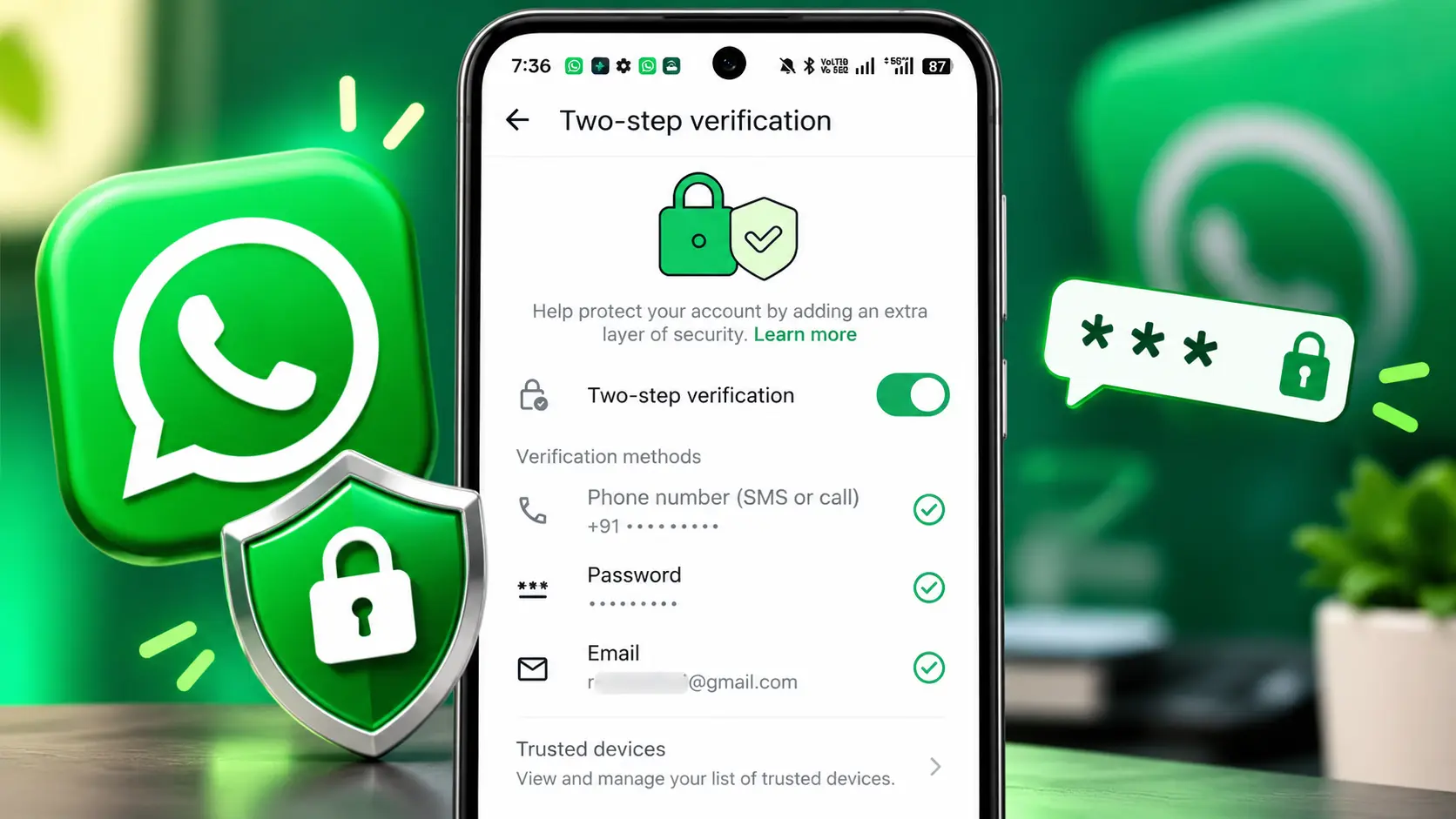
WhatsApp Two-Step Verification Password is an updated version of WhatsApp’s existing Two-Step Verification feature. The feature previously relied on a six-digit PIN, but WhatsApp is now upgrading that PIN to a full password that can be longer and can include letters, numbers, and special characters. This change gives users a more flexible way to protect their WhatsApp accounts from unauthorized access. If you already use the older six-digit PIN, WhatsApp is also providing a way to upgrade it to the new password.
But what exactly has changed, how does the new system work, and how can you set it up? Here is everything you need to know.
What Is WhatsApp Two-Step Verification?
WhatsApp Two-Step Verification is an optional security feature that adds an extra layer of protection to your account.
When you register WhatsApp, you normally need to verify your phone number using a six-digit registration code sent by SMS or phone call. This registration code confirms that you have access to the phone number associated with the account.
Two-Step Verification adds another layer after that process. The password you create for Two-Step Verification is separate from the six-digit registration code.
This distinction is important because many users confuse the two.
The registration code is used to verify your phone number, while the Two-Step Verification password provides additional protection for your WhatsApp account. WhatsApp specifically advises users never to share either the registration code or password with anyone.
What Changed From the Old Six-Digit PIN?
Previously, WhatsApp Two-Step Verification used a six-digit PIN. Users created this PIN when enabling the feature and could later be asked to enter it when re-registering their WhatsApp account.
WhatsApp is now upgrading this system to use a password instead.
According to WhatsApp, the new password can be longer and can include alphanumeric characters and special characters, making it possible to create a credential that is harder to guess than a simple six-digit number.
If you already have Two-Step Verification enabled with a six-digit PIN, you do not necessarily need to disable the feature and set it up again. WhatsApp says existing users can update their PIN to a password through the relevant Two-Step Verification settings.
How WhatsApp Two-Step Verification Works
The easiest way to understand WhatsApp Two-Step Verification is to look at the account-registration process.
First, WhatsApp verifies your phone number using the registration code. This code confirms that you have access to the number.
After Two-Step Verification is enabled, WhatsApp adds your password as another security layer.
So, the process can be understood like this:
Phone number → Registration code → Two-Step Verification password → Account access
The registration code and the Two-Step Verification password serve different purposes.
If someone gets hold of your one-time registration code, the additional Two-Step Verification protection can make it harder for that person to take control of your account. Meta describes Two-Step Verification as an extra protection layer designed to help prevent account takeover even if someone obtains the one-time passcode.
What Are Trusted Devices in WhatsApp Two-Step Verification?
WhatsApp also includes a Trusted Devices section within the Two-Step Verification settings. Depending on the options available on your account, WhatsApp may provide trusted-device settings that let you review devices associated with your account.
When Two-Step Verification is enabled, WhatsApp says trusted devices can help you sign in faster on devices you trust. You can open WhatsApp → Settings → Account → Two-step verification → Trusted devices to view the available devices.
The Trusted Devices section is separate from your Two-Step Verification password. The password provides an additional layer of account protection, while trusted devices help WhatsApp recognize devices that you already trust.
Before adding a device as trusted, make sure it is a device that you personally control. If you no longer use a device or do not recognize one in the list, review the device and remove access where appropriate.
WhatsApp also provides options to review and manage trusted devices from the Two-Step Verification settings. You can find the official instructions in the WhatsApp Help Center.
How to Set Up WhatsApp Two-Step Verification Password
Setting up the feature is straightforward.
Open WhatsApp on your Android phone or iPhone and go to:
WhatsApp → Settings → Account → Two-step verification
From the Two-step verification section, follow the option to enable the feature and create your password.
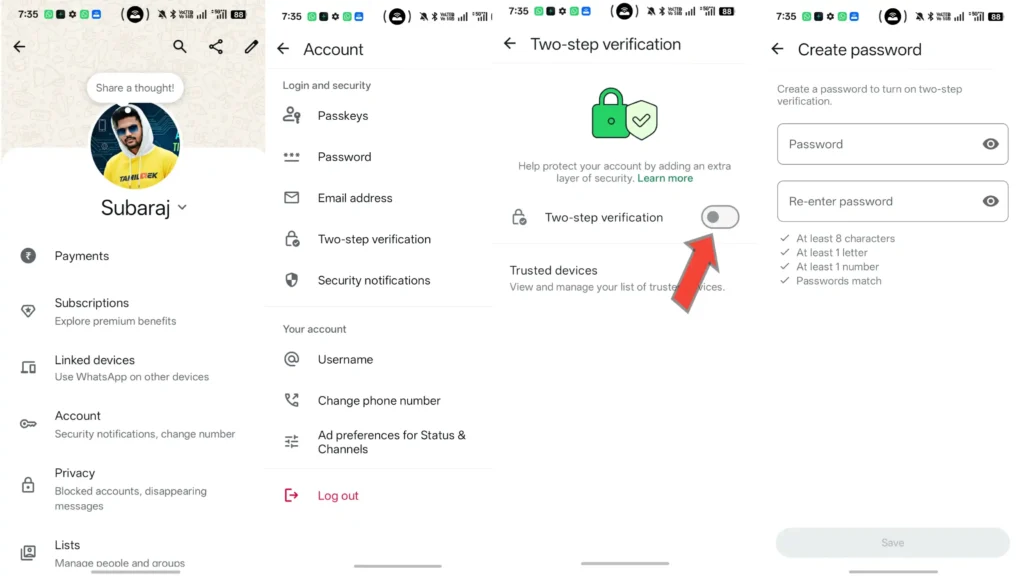
Steps to set up WhatsApp Two-Step Verification with a password.
Step 1: Open WhatsApp Settings
Launch WhatsApp and open Settings.
On Android, you can access Settings from the three-dot menu. On iPhone, Settings is available directly from the WhatsApp interface.
Step 2: Open Account Settings
Inside Settings, select Account.
You will find several account-related security and privacy options here.
Step 3: Select Two-Step Verification
Tap Two-step verification.
If the feature is not enabled on your account, WhatsApp will show the option to set it up.
Step 4: Create Your Password
Follow the instructions displayed by WhatsApp to create your new Two-Step Verification password.
Unlike the old six-digit PIN, the new password can be longer and can use letters, numbers, and special characters.
Choose a password that is difficult for another person to guess. Avoid using easily predictable information such as your birthday, phone number, or simple number sequences.
Step 5: Add a Recovery Email
WhatsApp may also give you the option to add an email address during the Two-Step Verification setup.
Adding and verifying an email address is useful because it can help you recover or reset your Two-Step Verification credentials if you forget your password. WhatsApp says the email address can be added later as well through Settings → Account → Email Address.
Step 6: Complete the Setup
Once you have created the password and completed the available recovery options, finish the setup.
Your WhatsApp account will then have the additional protection provided by Two-Step Verification.
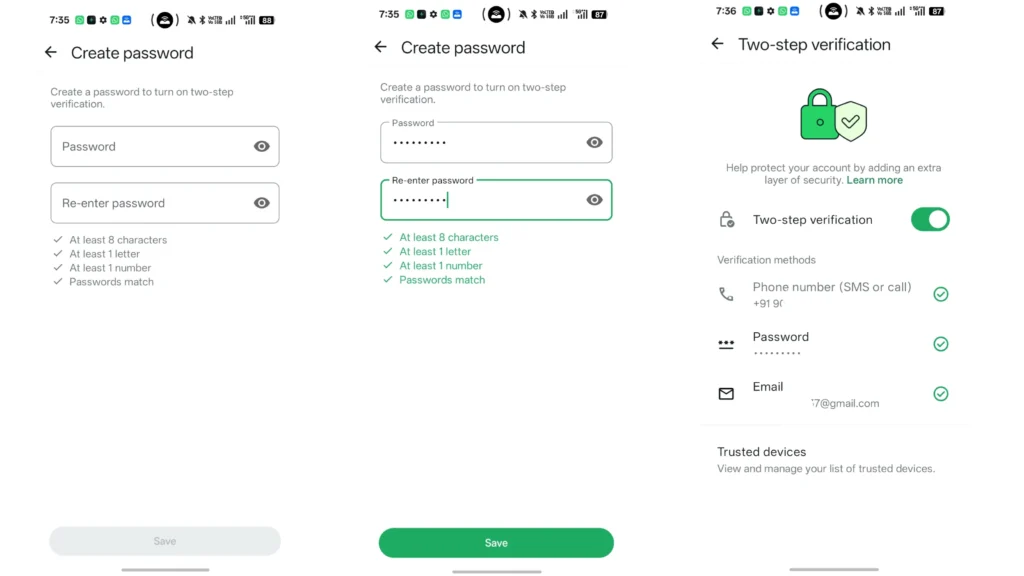
Creating a WhatsApp Two-Step Verification password and completing the setup.
How to Upgrade the Old Six-Digit PIN to a Password
If you already enabled WhatsApp Two-Step Verification in the past, you may still have the older six-digit PIN.
WhatsApp is upgrading this PIN system to a password.
Go to:
WhatsApp → Settings → Account → Two-step verification
If the password upgrade is available for your account, follow the instructions shown there to replace the existing PIN with a password.
You do not need to create an entirely separate security feature. The password is the updated credential for the same Two-Step Verification protection. WhatsApp’s Help Center confirms that users who already have a PIN can update it to a password.
WhatsApp is gradually upgrading the traditional six-digit Two-Step Verification PIN to a password-based system. You can read the official explanation and current setup details in the WhatsApp Help Center.
What Happens If You Forget the Password?
If you forget your Two-Step Verification password, the recovery options associated with your account become important.
A verified email address can help with the recovery process. WhatsApp provides account recovery and password-reset options for users who cannot remember their Two-Step Verification credentials.
In some situations, WhatsApp may require a waiting period before a Two-Step Verification credential can be reset. This is an additional security measure designed to prevent someone from immediately taking over an account by changing its security settings.
For this reason, it is important to keep your recovery email accessible and up to date.
Registration Code vs Two-Step Verification Password
One of the most important things to understand is that these are two different security credentials.
The six-digit code you receive by SMS or phone call when registering WhatsApp is the registration code. It verifies ownership of your phone number.
The password you create under Two-Step Verification is an additional account-security credential.
WhatsApp’s Help Center explicitly separates these two processes.
Never give either credential to another person. Someone asking you to send a WhatsApp verification code or Two-Step Verification password may be attempting to gain access to your account.
How to Manage Two-Step Verification Later
After setting up WhatsApp Two-Step Verification, you can return to the same settings area to manage your security options.
Go to:
Settings → Account → Two-step verification
Depending on the options available on your account, you can manage the feature, change your password, update your email address, and review related security settings.
This makes it easy to keep your account-security information updated without having to set up the entire feature again.
Final Thoughts
The new WhatsApp Two-Step Verification password update changes an important part of how users protect their accounts.
Instead of relying only on the previous six-digit PIN, WhatsApp is upgrading Two-Step Verification to support a longer password with letters, numbers, and special characters. Existing users with the older PIN can upgrade to the new password when the option becomes available on their account.
Setting it up takes only a few steps: open WhatsApp Settings, go to Account, select Two-step verification, and follow the instructions to create your password. Adding and verifying a recovery email is also useful if you later forget your password.
Most importantly, remember that the Two-Step Verification password is different from the six-digit WhatsApp registration code. Keep both private and never share them with anyone.
With this update, WhatsApp is giving users a stronger and more flexible way to add an extra layer of protection to their accounts.