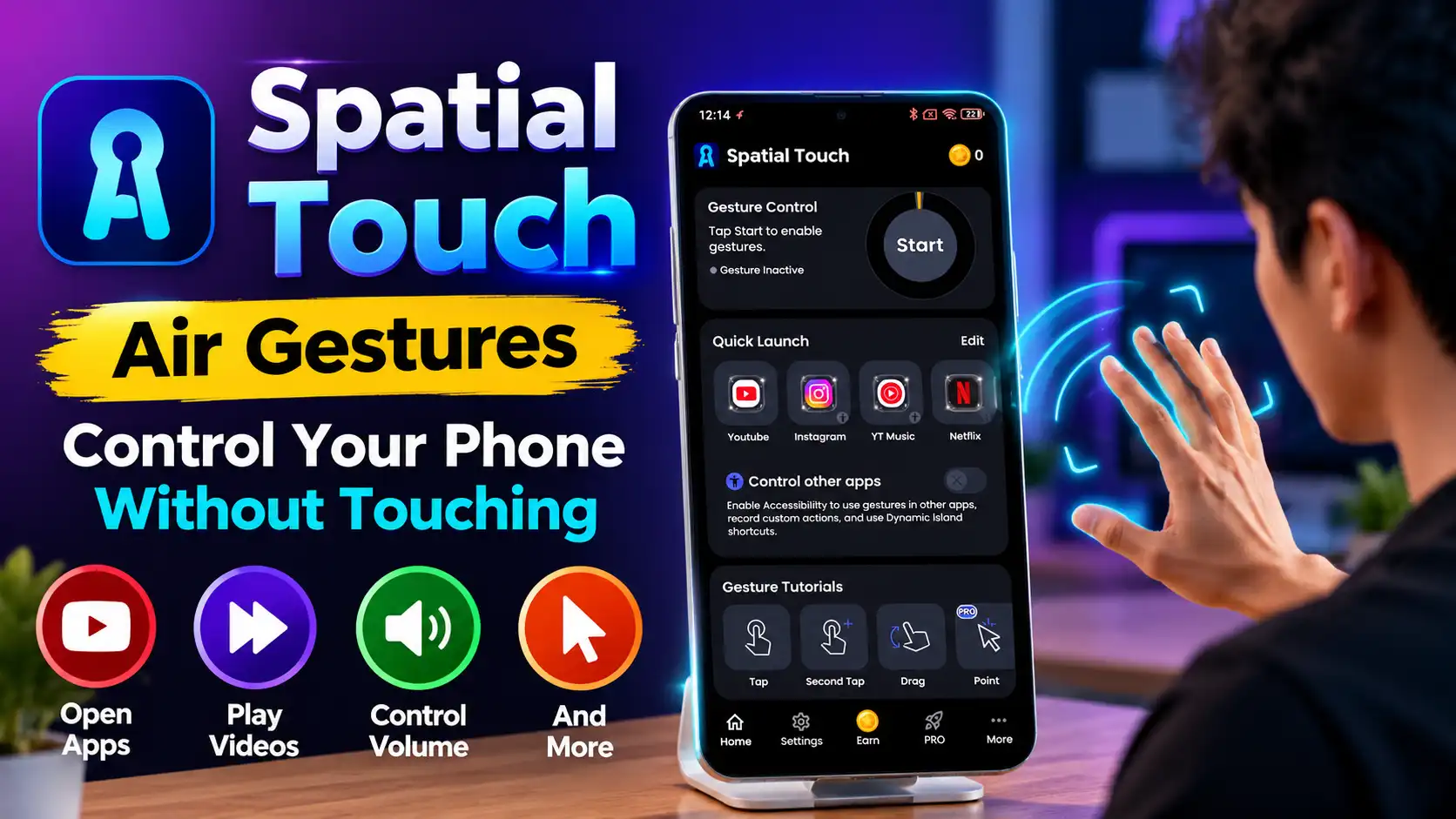
Using a phone normally means constantly touching the screen. But there are situations where reaching for the display is inconvenient. You might be cooking, eating, exercising, or watching a video while your phone is placed a little farther away. This is where Spatial Touch Air Gestures offers a different way to interact with an Android phone.
Spatial Touch is developed by Reehee Company and uses the phone’s camera and on-device AI to recognize hand gestures. The basic idea is simple: instead of touching the display for every action, you can use hand movements to control supported apps.
What Is Spatial Touch Air Gestures?
Spatial Touch is designed to provide hands-free control using air gestures. According to the developer, the app can recognize hand movements directly on the device and use them for actions such as playing or pausing content, scrolling, skipping videos, adjusting volume, and navigating supported applications.
The developer specifically promotes the app for situations where touching the phone is inconvenient, including while eating, exercising, cooking, or doing household tasks. It supports popular services such as YouTube, Instagram, TikTok and other video and social media applications.
One useful aspect is that the app is not limited to a single type of gesture. Depending on the supported feature and configuration, users can interact with content using different hand movements.
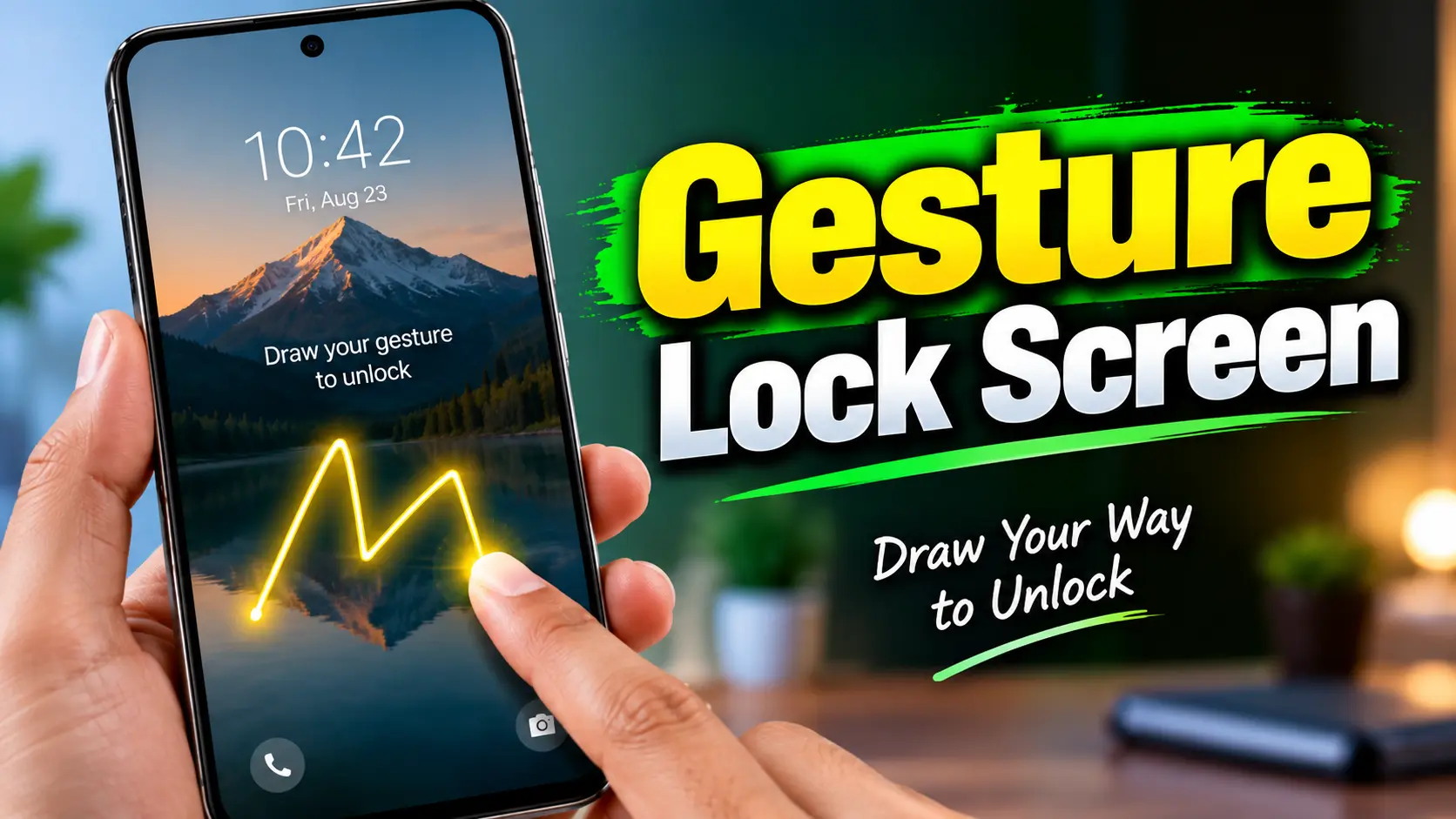
Android users who enjoy gesture-based controls may also be interested in other ways of interacting with their phones. For example, our guide to gesture-based Android controls explains how Gesture Lock Screen lets users create a custom gesture as an alternative way to unlock their device.
How Does Spatial Touch Work?
Spatial Touch uses the phone’s front camera to recognize hand movements. The developer says its gesture recognition is powered by on-device AI, meaning the processing required for recognizing gestures takes place on the phone. The developer also states that images used for gesture recognition are not stored or shared.
This camera-based approach is different from a conventional proximity-sensor gesture app. The phone needs to be positioned so that its camera can see your hand clearly. Lighting, hand position, distance, and the phone model can therefore affect how comfortable the experience feels.
Some verified Google Play users have also mentioned that it can take a little time to learn the correct hand position and gestures. Others have found the touchless controls useful once they become familiar with them.
Setting Up Spatial Touch on Android
Getting started requires more than simply installing the application.
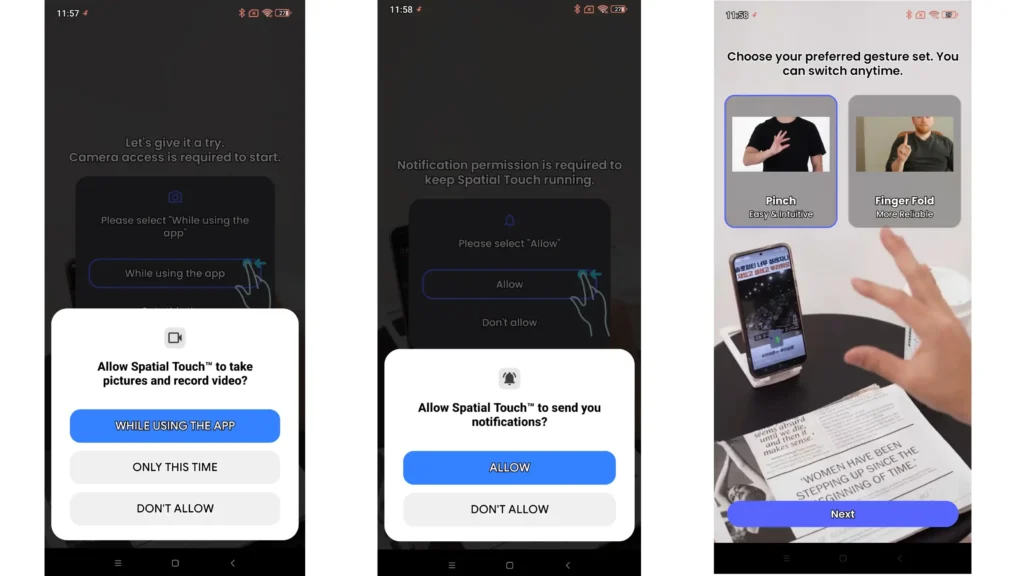
After installing Spatial Touch, the app requests camera access because the camera is required for gesture recognition. It also uses notifications for service updates and status alerts. The app can optionally use Android’s Accessibility Service when users want to control other applications and perform screen actions through gestures.
The Accessibility permission is particularly important because it allows Spatial Touch to interact with third-party apps. Android users can enable it through the phone’s Accessibility settings.
Once the required setup is complete, the next step is learning the available gestures. This initial learning period is important because the controls may feel unfamiliar compared with ordinary touch interaction.
What Can You Do With Spatial Touch?
The main purpose of Spatial Touch is hands-free control of supported content.
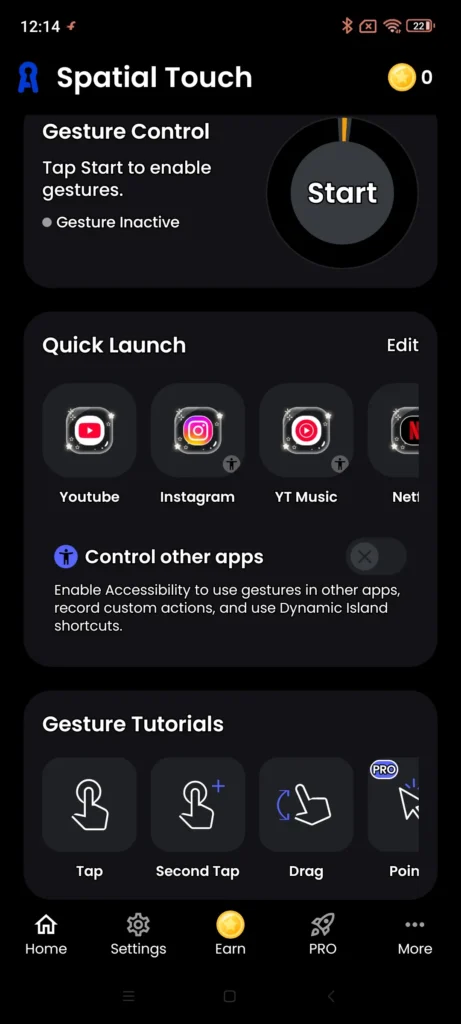
With Spatial Touch Air Gestures, users can interact with supported content using simple hand movements instead of reaching for the phone screen. This can be particularly convenient when the phone is placed a short distance away or when touching the display is not practical.
For example, users can use gestures to:
Play or pause supported media
Scroll through compatible content
Skip videos or move between short-form videos
Adjust volume
Navigate supported applications
Perform certain screen actions without touching the display
The developer also offers additional functionality through Spatial Touch Pro, including features designed to expand app support and provide more advanced controls. The official website says users can add more applications with the Pro subscription.
Another interesting feature is the ability to use an Air Pointer or cursor-style interaction for supported actions. This makes the app more than just a simple play-and-pause gesture tool.
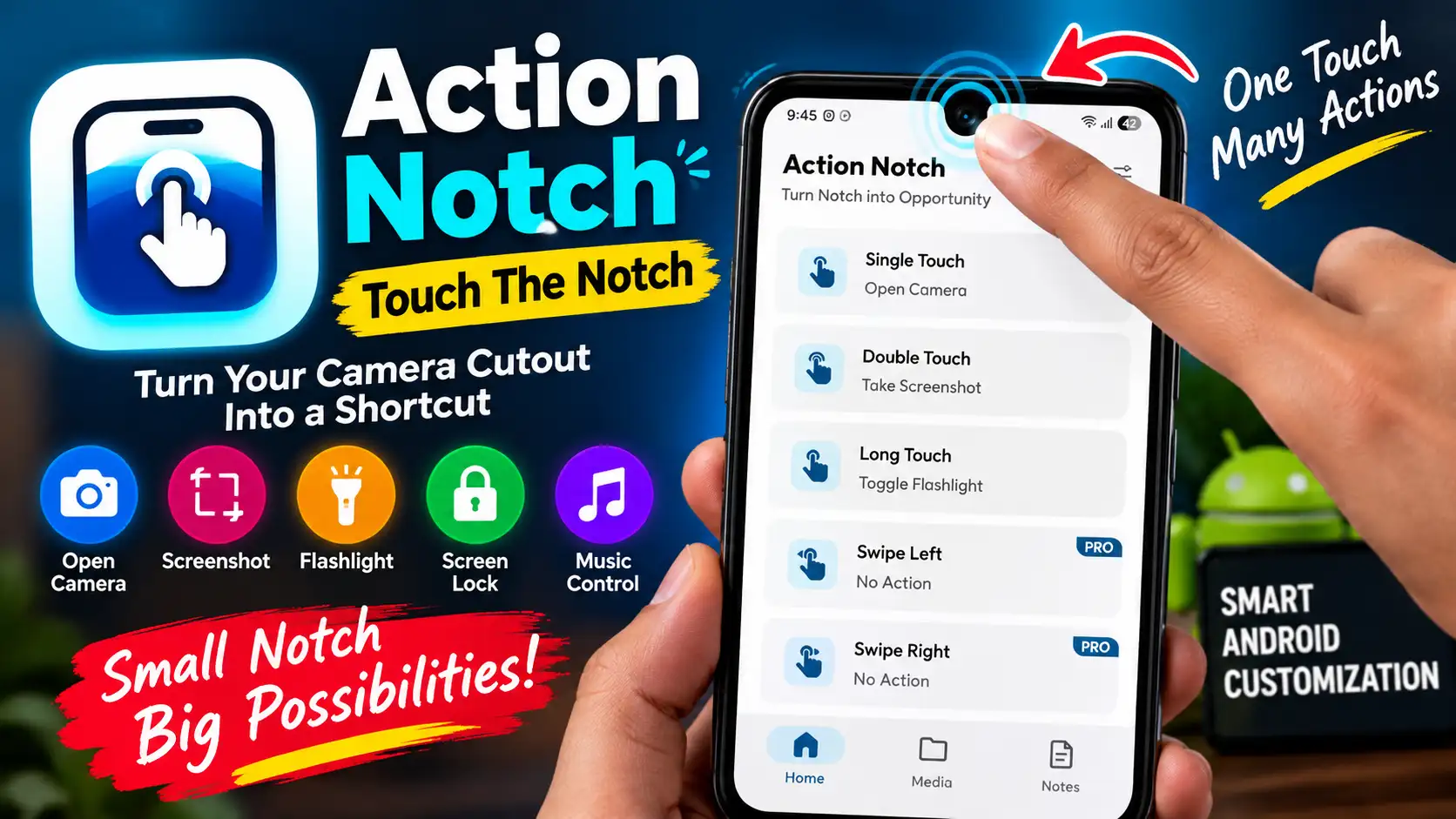
If you enjoy finding alternative ways to control your Android phone, you can also explore our guide to another Android shortcut app that turns the area around the phone’s camera cutout into a customizable shortcut zone.
What Is the Experience Like?
The idea behind Spatial Touch is impressive, but it is not the kind of application that everyone will understand instantly. The biggest adjustment is learning how far your hand should be from the camera and how clearly each gesture needs to be performed.
This is also reflected in user feedback on Google Play. Some users say the controls become easy and useful after spending some time learning them, while others have reported that gesture detection or sensitivity can sometimes be inconsistent. In response to feedback about sensitivity, the developer has said that users can adjust sensitivity or switch back to classic gestures through the gesture settings.
That makes the overall experience somewhat dependent on the phone, lighting conditions, positioning, and how comfortably the user learns the gestures.
For everyday media consumption, however, the concept makes sense. If your phone is placed on a table while you are cooking or exercising, being able to perform a simple action without picking up the phone can be genuinely convenient.
Privacy and Permissions
Privacy is an important consideration because Spatial Touch uses the camera.
The developer says that gesture processing happens directly on the phone and that camera images are not stored or shared.
At the same time, Google’s Play Store data-safety information says the app may collect and share certain categories of information, including app activity, app information and performance, and device or other IDs. These disclosures are separate from the developer’s statement about camera images used for gesture recognition.
Users should therefore review the permissions and privacy information before enabling the app’s optional Accessibility features.
Is Spatial Touch Worth Trying?
Spatial Touch is an interesting option for Android users who want to control their phones without constantly touching the screen.
Its biggest advantage is convenience. The app can be useful when your hands are occupied or when the phone is positioned out of comfortable reach. The combination of camera-based gesture recognition, supported app controls, and optional advanced features gives it more flexibility than a basic gesture-control application.
However, users should expect a short learning period. Gesture recognition may not feel perfect immediately, and the experience can vary between devices and environments. Recent user reviews show both positive experiences and complaints about detection, sensitivity, permissions, and setup, so it is better to treat Spatial Touch as a useful alternative to touch controls rather than a complete replacement for them.
If hands-free phone control sounds useful for your daily routine, Spatial Touch is worth exploring. The safest option is to download it from the official Google Play listing and review the requested permissions before enabling the additional controls.