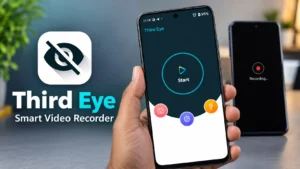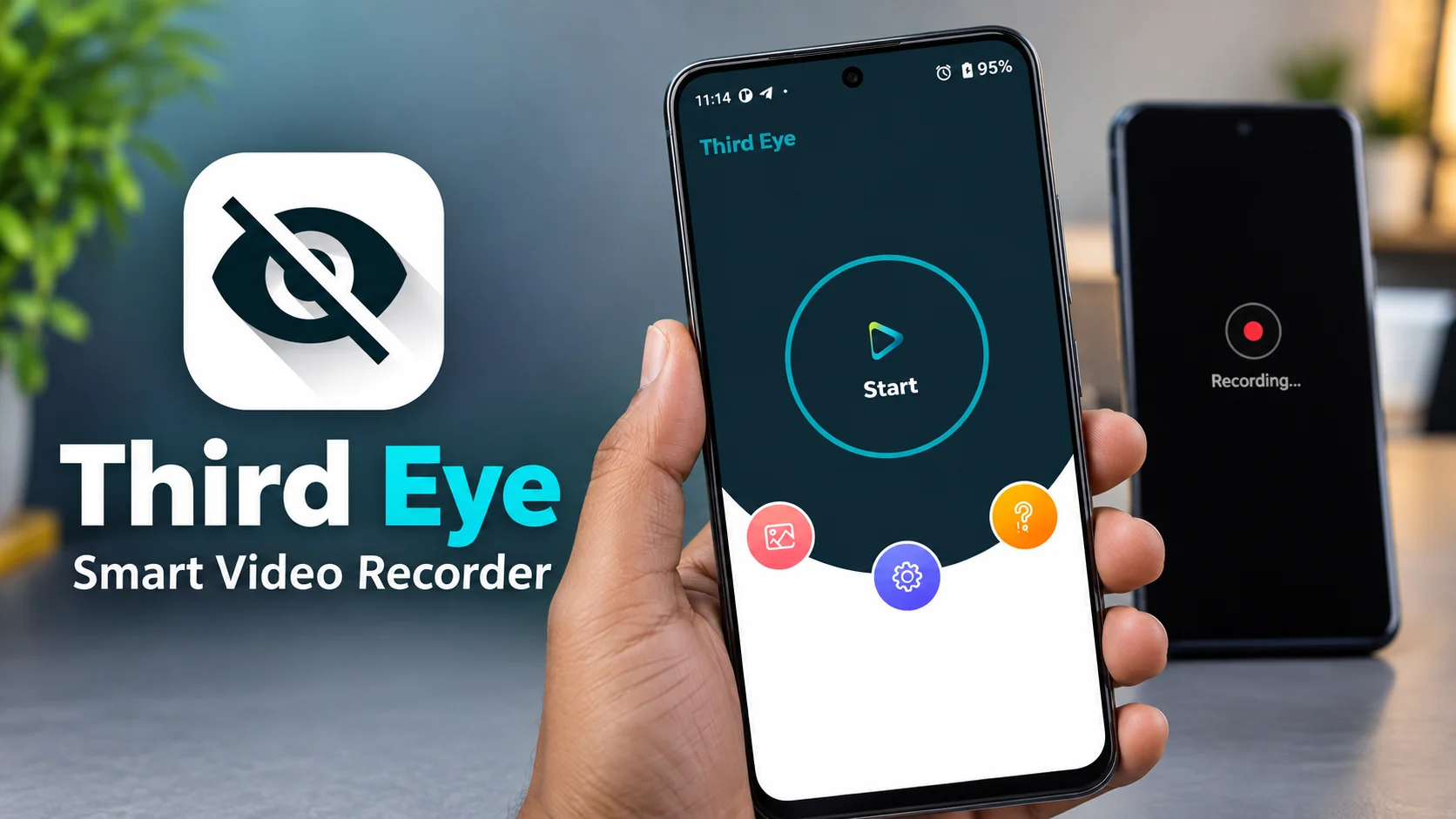
If you are searching for a simple Android app that can record video while the phone screen is turned off, Third Eye Smart Video Recorder is an app worth exploring. Unlike a regular camera application, this app focuses on a specific recording experience where the display can remain off while video recording continues.
In this Third Eye Smart Video Recorder review, we will look at what the app does, how its main features work, what you should know before using it, and the safety and privacy precautions you should follow.
The goal of this review is not just to explain the app’s features. It is also to help you understand when a screen-off video recorder can be useful and when you should avoid using it.
What Is Third Eye Smart Video Recorder?
Third Eye Smart Video Recorder is an Android video recording application designed to record video while the smartphone screen is turned off.
With a traditional camera app, the display normally stays active while recording. This can consume additional battery and can also make the phone’s screen a constant distraction. The main idea behind Third Eye Smart Video Recorder is to provide an alternative by allowing recording to continue when the display is switched off.
The app provides recording controls and camera options, allowing users to configure the recording according to their requirements.
However, it is important to understand that the app’s ability to record with the screen off does not mean that users should secretly record people. Recording laws and privacy expectations vary depending on where you live and what you are recording.
How Does Third Eye Smart Video Recorder Work?
The basic operation is straightforward.
After opening Third Eye Smart Video Recorder, users can access the recording controls and settings. Depending on the available options on the device, users can select the camera and video quality before starting a recording.
Once recording has started, the phone’s screen can be turned off while the recording process continues.
After recording is finished, the video can be accessed from the application’s recording or gallery section.
The exact experience can vary between Android smartphones because manufacturers use different versions of Android and may apply their own battery-management or background-app restrictions.
Main Features of Third Eye Smart Video Recorder
Screen-Off Video Recording
The main reason someone would install Third Eye Smart Video Recorder is its screen-off recording capability.
This feature allows the phone to continue recording without keeping the camera preview visible on the display.
For some users, this can be convenient when they do not need to monitor the screen throughout the recording.
Front and Rear Camera Support
The application supports camera selection, including the front and rear cameras.
This gives users more flexibility depending on what they want to record. The rear camera is generally more suitable for recording objects and scenes in front of the phone, while the front camera can be useful for front-facing recording situations.
Keep in mind that the final video quality depends on the smartphone’s camera hardware as well as the settings selected in the application.
Different Video Quality Options
Third Eye Smart Video Recorder provides different video-resolution options.
Depending on the device and available settings, users can choose an appropriate resolution for their recording needs.
Higher resolution can provide more detail, but it also produces larger files. If storage space is limited, using a lower resolution can help reduce file size.
For everyday recordings, choosing a sensible resolution rather than always selecting the highest available setting can be a practical approach.
How to Use Third Eye Smart Video Recorder
Using the application does not require complicated camera knowledge.
Step 1: Install the App
Download Third Eye Smart Video Recorder from the official Google Play Store.
Step 2: Allow Required Permissions
When Android asks for camera, microphone, storage, or other relevant permissions, carefully review what is being requested.
Only grant permissions that are necessary for the features you intend to use.
Step 3: Configure the Recording
Open the app’s settings and select the available camera and video-quality options.
If your smartphone provides several resolution choices, select one based on your storage capacity and desired quality.
Step 4: Start Recording
Use the recording button to start recording.
Once recording has started, follow the application’s instructions for turning the screen off while allowing the recording to continue.
Step 5: Check the Recorded Video
After stopping the recording, open the application’s video section or your phone’s media storage and verify that the file was saved correctly.
For important recordings, always perform a short test first.
Install Third Eye Smart Video Recorder
If you want to try the application, use the official Google Play Store listing rather than downloading an APK from an unknown website.
Before installation, check the current app permissions, privacy information, and other details shown on Google Play.
When Can Third Eye Smart Video Recorder Be Useful?
There are legitimate situations where a screen-off recording feature can be convenient.
For example, someone may want to record a long demonstration without having the bright display constantly active. It can also be useful for certain hands-free recording situations where the user does not need to monitor the screen continuously.
Another possible use is recording a personal activity where the phone is positioned securely and the screen does not need to remain on.
However, usefulness depends heavily on the situation. A screen-off recording feature should never be treated as a way to secretly record people.
Important Safety and Privacy Tips
This is one of the most important sections of this Third Eye Smart Video Recorder review.
Do Not Secretly Record People
Before recording another person, make sure you have the required permission.
Privacy and recording laws can differ between countries, states, and individual situations. Even when an app technically allows recording, that does not automatically make every recording legally or ethically appropriate.
Be Careful in Private Locations
Avoid recording in places where people reasonably expect privacy.
Do not use a screen-off recorder to invade someone’s personal privacy.
Protect Your Recorded Videos
Recorded videos can contain sensitive information.
If a recording contains personal conversations, documents, locations, faces, or other private information, keep the files protected.
Use your phone’s screen lock and avoid unnecessarily sharing sensitive recordings.
Check App Permissions
Android displays permissions requested by applications. Review them before granting access.
If a permission does not make sense for the feature you want to use, investigate it before continuing.
Also remember that Android permissions and app privacy information can change after an update, so it is worth reviewing them periodically.
Test Before Important Recording
Never assume that a recording app will work perfectly on every Android phone.
Before using Third Eye Smart Video Recorder for something important, make a short test recording.
Check whether:
- The video is actually saved
- The audio is recorded correctly
- The selected camera works
- The screen-off mode works
- The video quality is acceptable
- The file can be played back normally
This simple test can prevent problems later.
Protecting your phone and personal information is just as important as choosing the right recording app. If you want to learn more about protecting your personal information while using smartphones and online services, check out our guide on protecting your personal data online.
As an additional security measure, Android users can use Google Play Protect to check apps for potentially harmful behavior. You can learn more about Google Play Protect from Google’s official support page.
Recording Limitations You Should Know
Screen-off recording can place additional demands on a smartphone.
Long recording sessions can consume storage, battery, and processing resources. Your phone may also become warm during extended camera use.
The available recording duration can depend on Android, the device manufacturer, available storage, video resolution, and file-size limitations.
For this reason, users should not assume that Third Eye Smart Video Recorder will provide unlimited continuous recording.
If you need a long recording, test the app beforehand and make sure sufficient storage and battery are available.
Long video recordings can put additional load on your smartphone, especially when the camera and processor are working continuously. If your phone becomes unusually hot during recording or other demanding tasks, you can learn more about phone overheating causes and fixes in our detailed guide.
Does Screen-Off Recording Save Battery?
It is tempting to assume that turning the display off will dramatically improve battery life.
In reality, the camera, processor, storage, and microphone may continue consuming significant power while recording.
Turning off the display can reduce the power used by the screen, but the recording process itself still requires resources.
Therefore, Third Eye Smart Video Recorder should not be considered a guaranteed battery-saving solution for every situation.
Although turning off the display can reduce screen power consumption, recording video can still use a significant amount of battery. If your smartphone is already experiencing unusually fast battery drain, our guide on solving Android battery fast drain problems may help you identify the possible causes.
What If Recording Stops Automatically?
If recording unexpectedly stops, there can be several possible reasons.
Your phone may have limited storage, Android may restrict background activity, the device may become too hot, or the application may encounter a compatibility issue.
Battery optimization is another factor worth checking. Some Android manufacturers aggressively restrict background applications to improve battery life.
If you experience problems, try updating the app, checking permissions, reviewing battery settings, freeing storage space, and testing a shorter recording.
Pros and Cons
Pros
- Supports screen-off video recording
- Simple recording concept
- Front and rear camera support
- Multiple video-quality options
- Useful for certain hands-free recording situations
- Recorded videos can be accessed after recording
Cons
- Recording performance can vary between Android phones
- Long recordings can consume significant storage
- Camera recording uses battery even when the screen is off
- Privacy and consent must be considered
- Background restrictions can affect some devices
- Users should test the application before important recordings
Who Should Use Third Eye Smart Video Recorder?
Third Eye Smart Video Recorder is mainly useful for Android users who specifically need screen-off video recording.
It may be suitable for people looking for a simple alternative to a conventional camera app when they do not need the display to remain active during recording.
On the other hand, users looking for advanced photography controls, professional video features, extensive manual controls, or advanced editing tools may prefer a dedicated camera application.
A good recording app is only one part of smartphone security. If you are also interested in protecting your device from unwanted access, you can read our Android anti-theft app review to learn about another type of smartphone protection tool.
Final Verdict
Third Eye Smart Video Recorder takes a straightforward approach to Android video recording by focusing on screen-off recording.
Its main attraction is the ability to continue recording without keeping the smartphone display active. The application also provides camera-selection and video-quality options, making it more flexible than a very basic recording tool.
At the same time, users should understand that performance depends on their particular Android smartphone. Battery consumption, storage requirements, background restrictions, recording duration, and camera capabilities can all affect the experience.
Most importantly, the screen-off recording feature should be used responsibly. Always respect people’s privacy, obtain permission when required, and follow the recording laws that apply to your location.
If your main requirement is simply recording video with the screen off, Third Eye Smart Video Recorder is an application you can test on your Android device. Just remember to perform a short test recording before relying on it for anything important.
Overall, Third Eye Smart Video Recorder is a focused Android recording app for users who specifically want screen-off video recording, while responsible and privacy-conscious use remains essential.