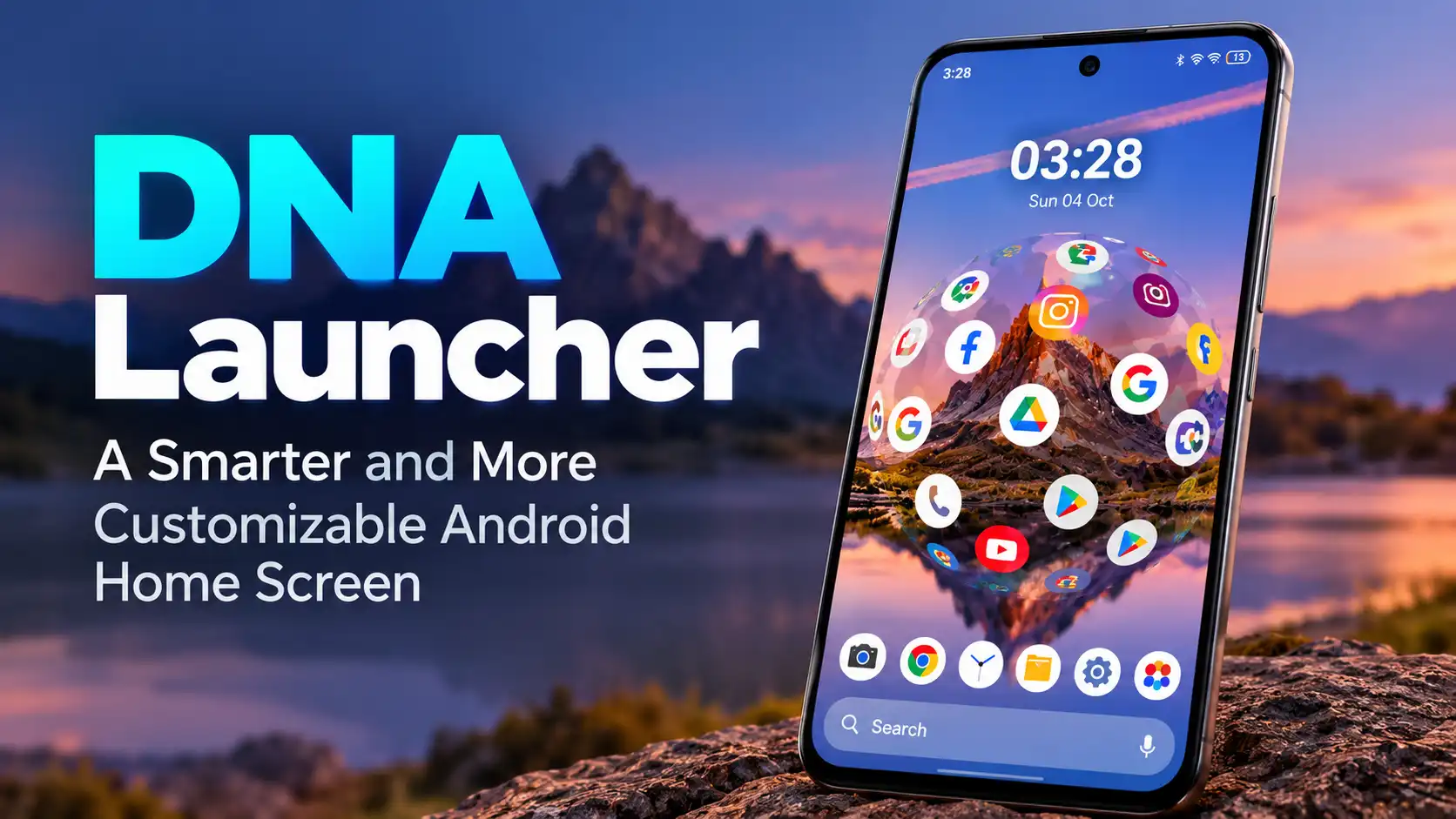
If your Android phone’s default home screen feels a little boring, DNA Launcher offers a different way to organize and personalize it. Instead of using the standard launcher that comes with your phone, you can use DNA Launcher as an alternative home screen with different layouts, app organization options, gestures and visual customization.
What makes it interesting is that it is not limited to changing wallpapers or icons. You can also change the way you browse your apps and interact with the home screen.
What Is DNA Launcher?
DNA Launcher is an Android home screen replacement developed by Atlantis Ultra Station. It is designed to give users more control over the appearance and navigation of their phone.
The launcher currently offers three main styles: Classic, Minimalism and Holographic. Classic provides a more familiar home-screen experience, while Minimalism focuses on simpler navigation. Holographic mode takes a more unusual approach with a touchable 3D-style interface.
This makes DNA Launcher suitable for people who want something different without completely changing the way Android works.
Customize Your Home Screen
The biggest reason to try DNA Launcher is customization.
You can adjust the home-screen layout, icon packs, icon shapes and sizes, fonts and wallpapers. This gives you more freedom to create a setup that matches your preferences instead of keeping the standard appearance provided by your phone manufacturer.
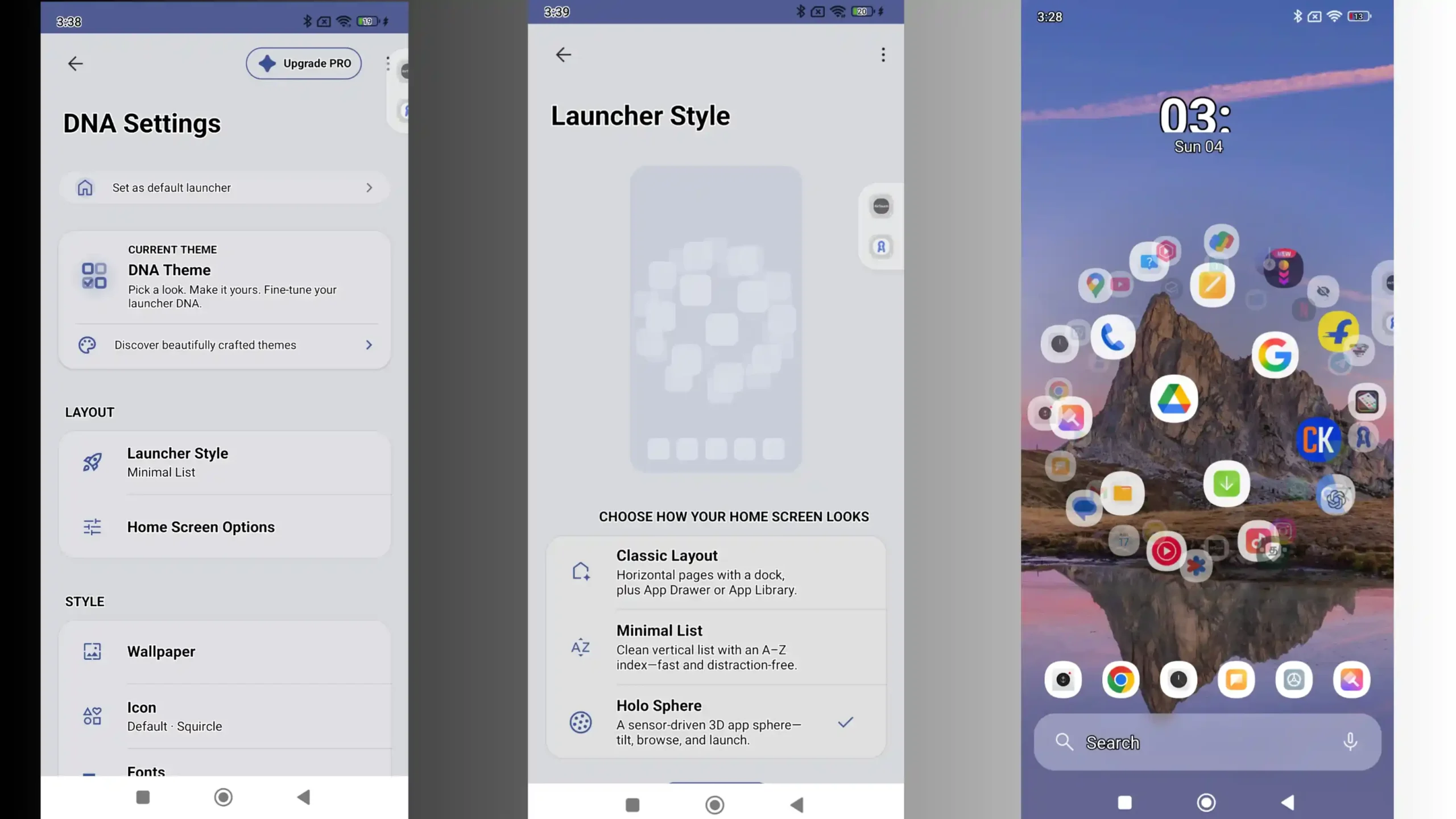
For example, someone who prefers a clean home screen can keep the design simple, while another user can experiment with different icons, fonts and visual effects.
The launcher also supports Day/Night Mode and different animations, including folder-opening and app start/close effects.
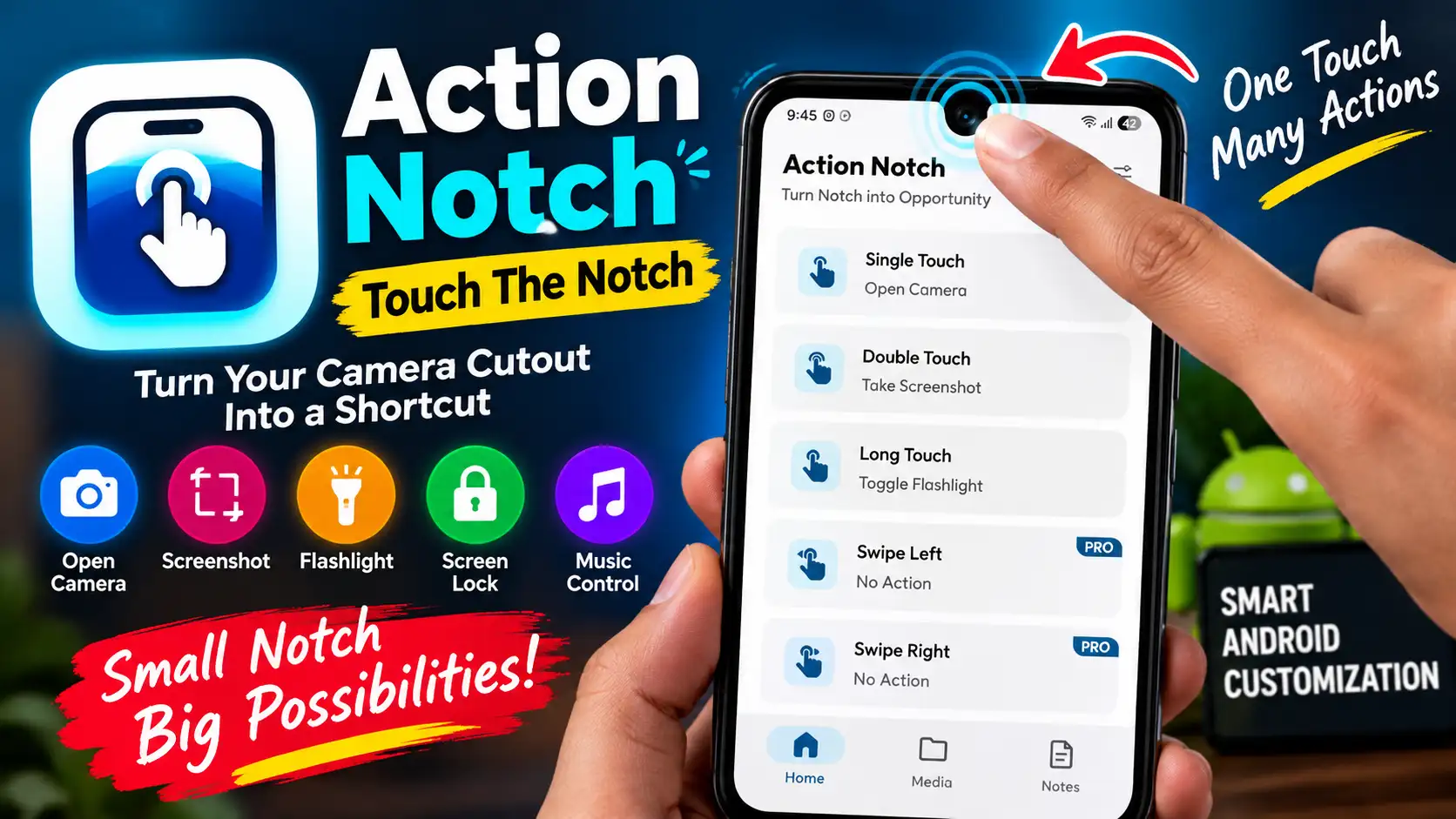
DNA Launcher gives you more control over the way your Android home screen looks and behaves. If you enjoy experimenting with different ways to interact with your phone, you may also be interested in Action Notch, another Android customization tool that adds a shortcut-style experience to the screen.
App Drawer and App Library
Finding apps becomes another area where DNA Launcher takes a different approach.
Its App Drawer provides an alphabetical way to browse installed apps, with different display options. You can choose how the apps and labels are presented depending on your preference.
There is also an App Library, which organizes applications into categories and can automatically sort them based on usage frequency.
In everyday use, this type of organization can be useful if your phone has a large number of installed apps. Instead of filling multiple home-screen pages with icons, you can keep the main screen cleaner and use the app navigation options when needed.
Smart Search and Gestures
DNA Launcher also includes a smart search feature for finding apps and contacts. It can provide suggestions and recent results, and it supports several internet search engines.
The gesture controls are another useful addition. You can configure actions for gestures such as double-tap, swipe up, swipe down, swipe left and swipe right.
This can make common actions quicker once you become familiar with the gestures. For someone who prefers using one hand, these shortcuts can also make navigation feel more convenient.
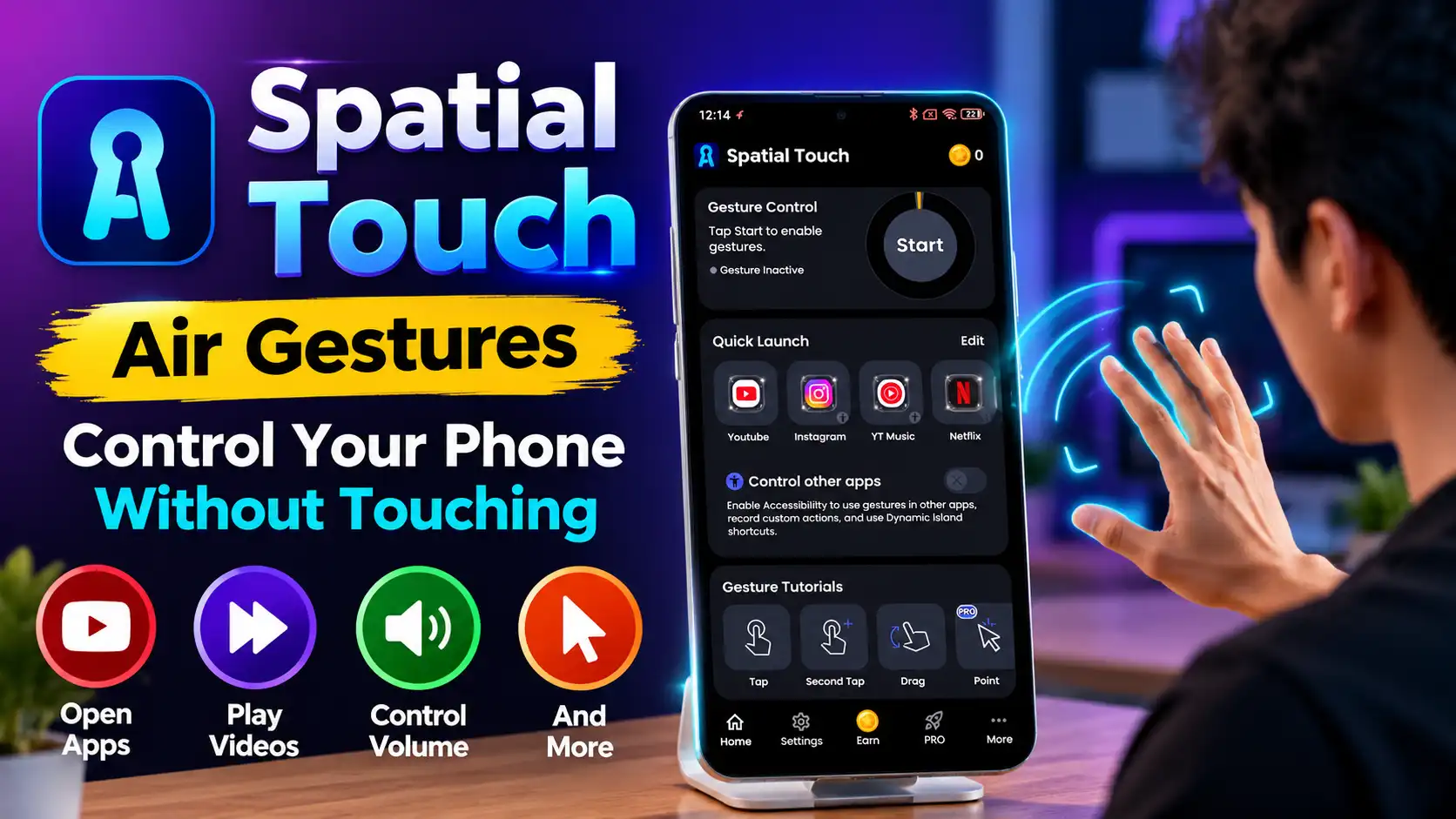
If you like controlling your phone with gestures, you can also explore Spatial Touch, which focuses on air-gesture controls and touch-free interaction on compatible Android devices.
App Lock and Privacy Features
DNA Launcher includes options for hiding or locking apps and protecting folders. The developer also says that nested folders can be locked, which gives users additional control over how private content is organized.
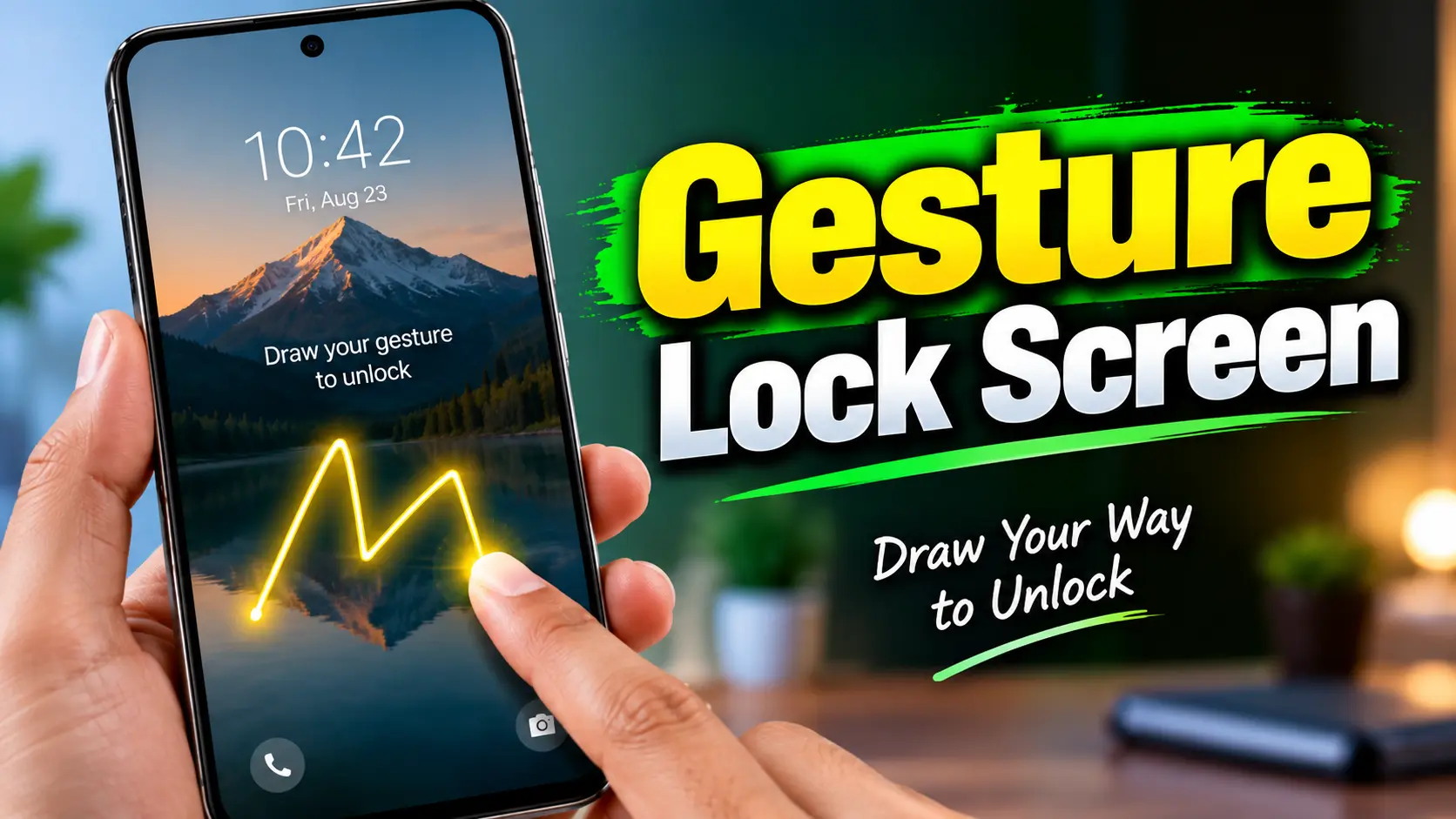
The launcher also provides a gesture-based lock-screen function.
An important point here is the Accessibility Service. According to the developer, it is used to support access to the lock screen through customized gestures. The service is optional and disabled by default, and the developer states that personal or sensitive information is not collected through that service.
If you enable any optional permission, it is still a good idea to understand why that permission is required before turning it on.
If app privacy is one of your priorities, you may also want to check out Picture AppLock, another Android app designed around protecting selected apps and personal content.
Privacy and Data Safety
Privacy is worth checking before installing any launcher because a launcher can interact closely with the phone’s interface.
The developer’s privacy policy says that the app may use third-party services, including Google Play Services, and describes error-related log information such as IP address, device name, operating-system version, app configuration and usage date and time.
Google Play’s Data Safety section currently states that the developer says no data is collected, while also listing certain data types that may be shared with third parties, including personal information, messages and device or other IDs. Google also notes that data practices can vary depending on the app version, usage, region and age.
So, rather than assuming that the launcher is completely data-free, it is better to review the latest Data Safety information and privacy policy before installation.
Ads, Purchases and Terms
DNA Launcher is listed on Google Play as containing ads and in-app purchases.
That is important if you are looking for a completely free launcher. Some features or options may involve purchases, so check the price and billing information shown by Google Play before confirming anything.
The developer’s privacy policy refers to Terms and Conditions, but a separate publicly accessible Terms and Conditions page was not clearly available from the sources I could verify. Therefore, users should rely on the terms shown inside the app or through Google Play when making a purchase rather than assuming specific subscription or refund conditions.
Is DNA Launcher Worth Trying?
From a practical user perspective, DNA Launcher makes the most sense if you enjoy customizing your Android phone.
The Classic style is suitable if you want something familiar. Minimalism can be useful if you prefer a cleaner interface and easier app browsing, while Holographic is aimed more at people who want a visually different experience.
I particularly like the idea of having different ways to access apps rather than being limited to a traditional home-screen layout. The combination of app organization, gestures and customization means you can gradually adjust the launcher to match your own habits instead of changing everything at once.
However, if your phone’s default launcher already gives you all the customization you need, there may not be a strong reason to switch.
Final Verdict
DNA Launcher is a flexible Android launcher for users who want more control over their home screen and app navigation. Its different launcher styles, customization tools, app organization, gestures and privacy-related features make it more than just another wallpaper-and-icon customization app.
It is worth considering if you want to give your Android phone a fresh look or experiment with a different way of accessing your apps.
Before installing, remember to check the latest permissions, Data Safety information, ads and in-app purchase details. That small check can help you understand what you are agreeing to before making DNA Launcher your default home screen.