Creating digital artwork no longer requires expensive software or professional design skills. Thanks to artificial intelligence, anyone can generate impressive images simply by describing an idea in words.
The WhatsApp AI Image Generator makes this possible through Meta AI, allowing users to create original AI-generated images directly within WhatsApp. Whether you want a beautiful wallpaper, a social media graphic, an illustration for a presentation, or a creative concept for your next project, you can generate it by typing a clear text prompt.
Unlike traditional image editing tools, Meta AI is designed to understand natural language. You don’t need to learn complicated commands or editing techniques. Simply describe what you want, and the AI creates a brand-new image based on your instructions.
If Meta AI is available on your WhatsApp account, you can start creating images in just a few minutes without installing any additional AI image generation app.
In this guide, you’ll learn how the WhatsApp AI Image Generator works, what you need before using it, and the exact steps to generate your first AI image successfully.
Whether you’re a beginner exploring AI for the first time or a content creator looking for a faster way to produce original visuals, this guide covers everything you need to know. You’ll learn how to access Meta AI, write effective prompts, generate high-quality AI images, understand privacy considerations, troubleshoot common issues, and make the most of WhatsApp’s built-in AI image generation capabilities.
What Is WhatsApp AI Image Generator?
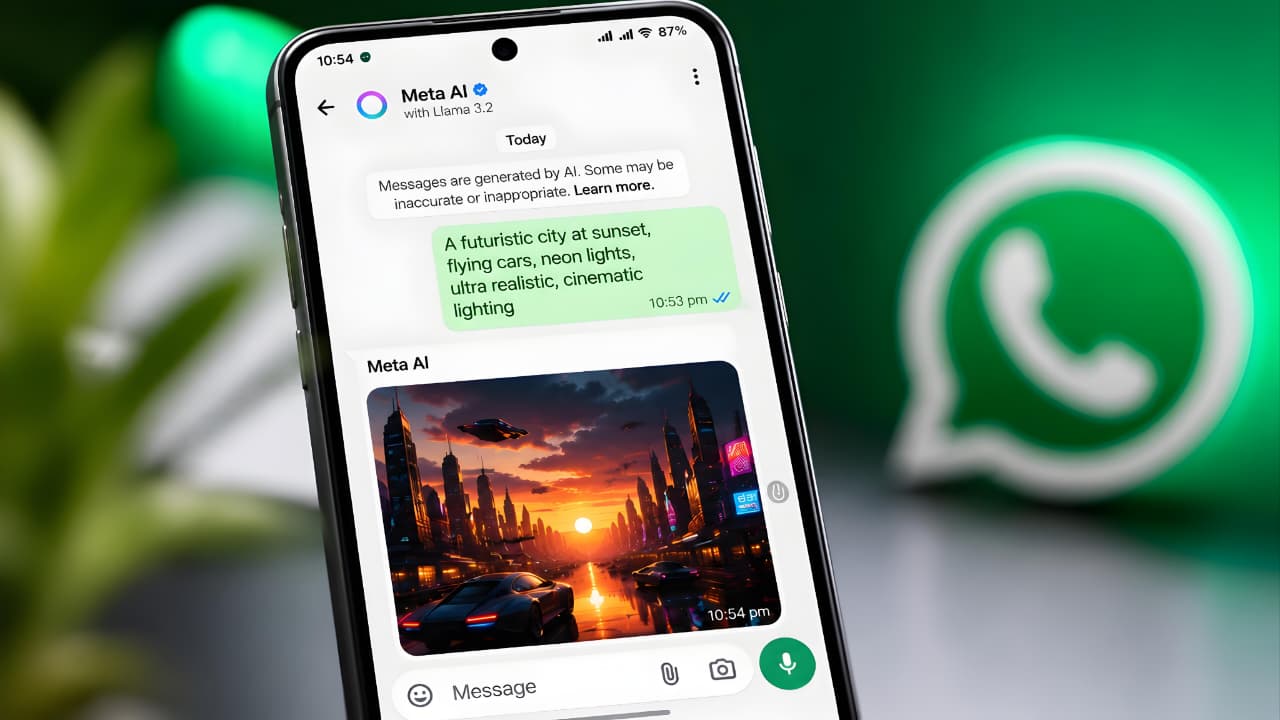
The WhatsApp AI Image Generator is an image creation feature powered by Meta AI that converts text descriptions into AI-generated images.
Instead of searching online for the perfect image, you simply explain what you want to create. Meta AI understands your request and generates a completely new image based on your prompt.
For example, you can type:
Create a realistic mountain lake during sunrise with colorful flowers, crystal-clear reflections, soft morning mist, and cinematic lighting.
Meta AI analyzes your description and generates an image that closely matches your request.
The entire process happens inside a WhatsApp conversation, making image creation fast, simple, and convenient.
The WhatsApp AI Image Generator is powered by Meta AI, allowing users to create AI-generated images directly inside WhatsApp using simple text prompts. You can learn more about Meta AI and its capabilities from the official Meta AI website.
The WhatsApp AI Image Generator is one of many AI-powered tools available today. If you’re interested in learning about another popular AI assistant, check out What Is Google Gemini?
How Meta AI Generates Images
Meta AI uses advanced artificial intelligence models that understand natural language and convert written descriptions into original digital images.
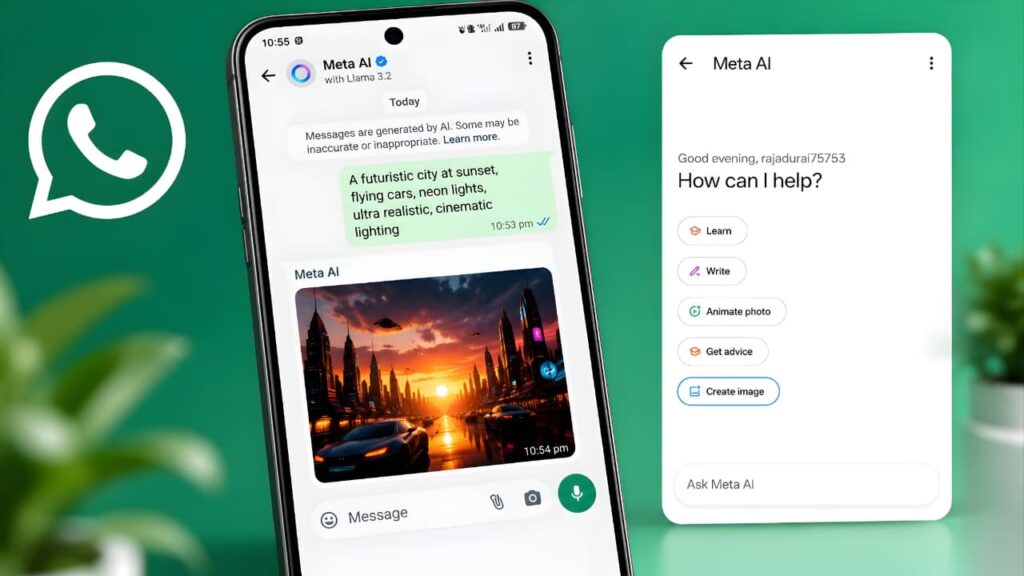
The basic process is straightforward:
- Open WhatsApp.
- Start a conversation with Meta AI.
- Describe the image you want.
- Meta AI processes your prompt.
- The AI generates a new image.
- If needed, continue the conversation to refine the image with additional instructions.
The better your prompt, the better the generated image is likely to be.
| Step | What Happens |
|---|---|
| 1 | You enter a text prompt describing the image. |
| 2 | Meta AI analyzes your prompt using its AI model. |
| 3 | The AI generates an image based on your description. |
| 4 | You can refine the image with additional prompts if needed. |
| 5 | The final image can be downloaded or shared directly. |
Once you submit your prompt, Meta AI begins analyzing the details you’ve provided, such as the subject, style, colors, lighting, and overall scene. It then uses its AI image generation model to create a visual that closely matches your description. The more specific and descriptive your prompt is, the more accurate and visually appealing the generated image is likely to be.
If the first result doesn’t fully match your expectations, you can refine your prompt by adding more details or changing certain elements like the background, artistic style, or camera angle. Experimenting with different prompts is one of the best ways to improve image quality and achieve the exact result you’re looking for.
Key Features of WhatsApp AI Image Generator
| Feature | Description |
|---|---|
| Text-to-Image Generation | Create AI-generated images using simple text prompts. |
| Natural Language Support | Describe ideas in everyday language without learning technical commands. |
| Conversational Experience | Continue chatting with Meta AI to improve or modify generated images where supported. |
| Fast Image Creation | Most images are generated within seconds depending on internet speed and server availability. |
| Built Into WhatsApp | No separate AI image generation application is required. |
| Easy Sharing | Share generated images directly through WhatsApp chats. |
| Beginner Friendly | No graphic design experience is required. |
What Can You Create?
The WhatsApp AI Image Generator can be used for many creative purposes, including:
- Realistic landscapes
- Nature wallpapers
- Fantasy artwork
- Cartoon illustrations
- Anime-style concepts
- Festival greeting cards
- Birthday wishes
- Social media graphics
- Product concept images
- Character designs
- Creative posters
- Travel illustrations
- Digital paintings
The quality of the final image depends mainly on how clearly you describe your idea.
Requirements Before Using WhatsApp AI Image Generator
| Requirement | Why It Is Important |
|---|---|
| Latest Version of WhatsApp | New AI features are generally available in the latest app version. |
| Meta AI Access | Your account must have access to Meta AI. |
| Supported Region | Availability varies depending on your country and Meta’s rollout. |
| Internet Connection | AI image generation requires an active internet connection. |
| Compatible Device | Use a supported Android or iPhone device with the latest WhatsApp version. |
How to Create AI Images Using Meta AI on WhatsApp
Generating AI images inside WhatsApp is simple once Meta AI is available for your account.
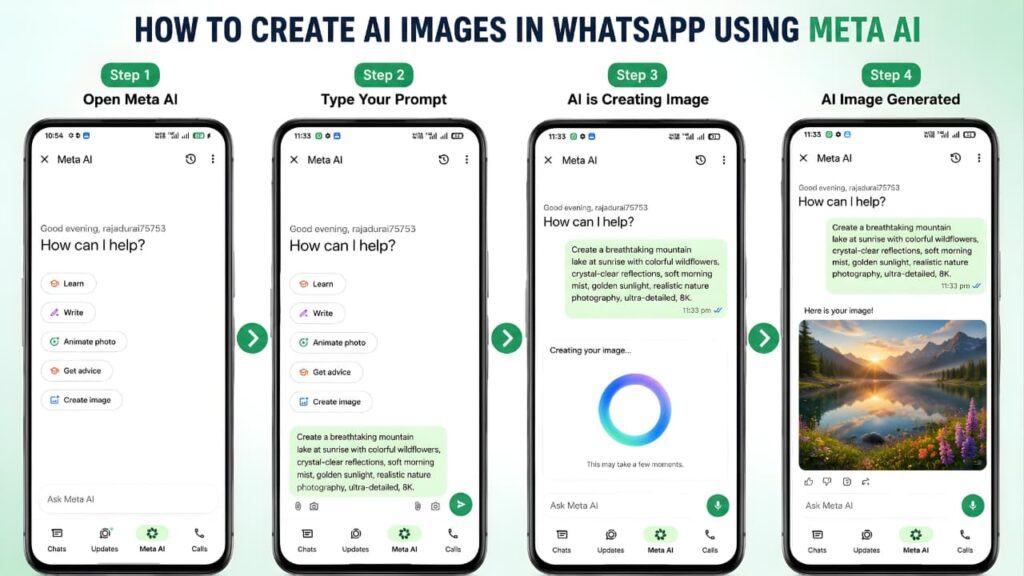
Step 1: Update WhatsApp
Install the latest version of WhatsApp from your device’s app store to access the newest features.
Step 2: Open Meta AI
Launch WhatsApp and open the Meta AI conversation if it appears in your app.
If Meta AI is not yet available, the feature may still be rolling out to your account.
Step 3: Describe the Image
Type a detailed description of the image you want.
Example:
Create a peaceful tropical beach during sunset with crystal-clear water, palm trees, soft golden sunlight, and realistic photography style.
Detailed prompts usually produce better results than short or vague descriptions.
Step 4: Generate the Image
Send your prompt and wait while Meta AI creates the image.
The generation time depends on your internet connection and current server load.
Step 5: Refine the Result
If the first image isn’t exactly what you expected, continue the conversation and ask Meta AI to make changes.
For example:
- Make the lighting brighter.
- Add mountains in the background.
- Change the style to watercolor.
- Make the image more realistic.
- Remove unwanted objects.
Small prompt improvements often produce significantly better images.
Before using the WhatsApp AI Image Generator, make sure you have the latest version of WhatsApp installed. You can always download or update the app from the official WhatsApp website.
Best AI Prompt Tips for Better Image Results
One of the biggest advantages of the WhatsApp AI Image Generator is that it understands natural language. However, the quality of the generated image depends largely on how well you describe your idea.
A short prompt may produce a basic image, while a detailed prompt helps the AI understand exactly what you want.
For the best results, try to include:
- Main subject
- Background or location
- Art style
- Lighting
- Colors
- Camera angle
- Mood or atmosphere
- Level of detail
Example
Instead of writing:
A cat
Write:
Create a realistic white Persian cat sitting beside a rainy window during sunset with warm indoor lighting, shallow depth of field, ultra-detailed photography.
The second prompt gives the AI much more context, resulting in a higher-quality image.
When writing prompts, avoid using vague descriptions such as “beautiful” or “nice.” Instead, describe exactly what you want the AI to create. Mentioning details like lighting, colors, camera angle, artistic style, and background usually produces more accurate and visually appealing results.
Writing detailed prompts improves the quality of images generated by the WhatsApp AI Image Generator. For more guidance on writing effective AI prompts, explore the OpenAI Prompting Guide.
Writing clear and detailed prompts helps the WhatsApp AI Image Generator understand your request more accurately and generate better-quality images. To learn why AI sometimes produces unexpected or inaccurate results, read our detailed guide on What Is AI Hallucination?
Prompt Formula That Works Well
If you’re unsure how to write prompts, use this simple formula:
Subject + Background + Style + Lighting + Camera Angle + Quality
Example
A futuristic electric sports car driving through Tokyo at night, neon lights reflecting on wet roads, cinematic lighting, ultra-realistic, wide-angle photography.
This structure works well for landscapes, portraits, travel scenes, digital art, wallpapers, and many other image types.
Sample AI Prompts
| Category | Example Prompt |
|---|---|
| Nature | Create a peaceful mountain valley during sunrise with waterfalls, wildflowers, realistic photography and golden light. |
| Fantasy | A magical floating castle above the clouds surrounded by dragons, fantasy digital painting, dramatic lighting. |
| Portrait | A smiling young woman wearing traditional Indian attire, soft studio lighting, realistic portrait photography. |
| Food | A freshly baked Margherita pizza on a rustic wooden table with warm restaurant lighting. |
| Travel | A beautiful Santorini sunset with white buildings, blue domes and crystal-clear sea, ultra-realistic. |
Best Use Cases for WhatsApp AI Image Generator
The WhatsApp AI Image Generator isn’t just for fun. It can be useful in many real-world situations.
Social Media Content
Create unique visuals for:
- Instagram posts
- Facebook posts
- Pinterest graphics
- LinkedIn banners
- X (Twitter) images
Wallpapers
Generate custom wallpapers for:
- Android phones
- iPhone
- Tablet
- Desktop
- Laptop
Greeting Cards
Design personalized images for:
- Birthdays
- Weddings
- Festivals
- Anniversaries
- Congratulations
Educational Projects
Students and teachers can generate illustrations for:
- School assignments
- Presentations
- Science projects
- Geography lessons
- History topics
Business Ideas
Entrepreneurs can create concept images for:
- Product mockups
- Marketing ideas
- Promotional banners
- Packaging concepts
- Advertising visuals
Creative Storytelling
Writers and content creators can visualize:
- Characters
- Fantasy worlds
- Story scenes
- Comic ideas
- Book cover concepts
Privacy and Security
While AI image generation is convenient, it’s important to use it responsibly.
Avoid entering confidential or sensitive information into AI conversations.
For your privacy:
- Never share passwords.
- Avoid banking information.
- Don’t upload confidential documents.
- Avoid sharing government ID details.
- Think carefully before uploading personal photographs.
If you’re using AI-generated images for business, marketing, or professional work, always review the latest terms and usage policies provided by Meta. This helps ensure your content complies with applicable licensing requirements and platform guidelines.
Responsible AI Usage
To ensure safe and ethical use of AI image generation, avoid creating or requesting:
- Fake identity documents
- Fake certificates
- Misleading news images
- Harmful or abusive content
- Copyrighted artwork intended for infringement
- Images that violate platform policies
Using AI responsibly helps protect both creators and users.
Although the WhatsApp AI Image Generator can create impressive visuals, AI models may occasionally generate inaccurate or unrealistic content. Understanding AI Hallucination helps you write better prompts and interpret AI-generated images more effectively.
Common Problems and Solutions
| Problem | Possible Reason | Solution |
|---|---|---|
| Meta AI is missing | Feature not available for your account | Update WhatsApp and wait for the rollout. |
| Image isn’t generating | Network or temporary server issue | Check your internet connection and try again. |
| Image quality is poor | Prompt lacks detail | Write a more descriptive prompt. |
| Generation is slow | Heavy server traffic | Wait a few minutes and retry. |
| Feature unavailable | Regional rollout | Wait for Meta to release it in your region. |
Pros and Cons
| Pros | Cons |
|---|---|
| Easy to use inside WhatsApp | Not available in every region yet |
| No additional app required | Image quality depends on prompt quality |
| Fast image generation | Requires an internet connection |
| Supports conversational refinement where available | Some prompts may be limited by Meta’s safety policies |
| Suitable for beginners and professionals | Feature availability varies by account |
Expert Tips for Better AI Images
To consistently generate high-quality images, follow these practical tips:
- Be specific about your subject.
- Mention the background clearly.
- Include lighting details.
- Specify the artistic style.
- Describe colors and mood.
- Use natural language.
- Refine your prompt instead of starting over.
- Experiment with different prompt variations.
Save your best prompts so you can reuse or improve them for future projects.
Even small changes to your prompt can significantly improve the final image.
Frequently Asked Questions (FAQs)
1. Is the WhatsApp AI Image Generator free to use?
Yes. Meta AI image generation is available at no additional cost for supported WhatsApp users. However, feature availability may vary depending on your region and account.
2. Why can't I find Meta AI in my WhatsApp?
Meta AI is released gradually. If you don’t see it yet, update WhatsApp to the latest version and wait until the feature becomes available for your account.
3. Can I create realistic AI images?
Yes. Meta AI can generate realistic images, digital artwork, illustrations, wallpapers, and creative concepts. The quality largely depends on how detailed your prompt is.
4. Does it work on both Android and iPhone?
Yes. Meta AI is available on both Android and iPhone where the feature has been officially released.
5. Do I need a separate AI image generator app?
No. Once Meta AI is available in your WhatsApp account, you can generate images directly inside the app without installing additional software.
6. Can I edit an AI-generated image?
In supported versions, you can continue the conversation with Meta AI and request changes such as adjusting the background, lighting, colors, or artistic style instead of starting from scratch.
7. Is it safe to use Meta AI?
Meta provides privacy controls for its AI services, but you should avoid sharing passwords, financial information, confidential documents, or other sensitive personal data while using AI features.
8. What types of images can I create?
You can generate many different types of images, including:
- Nature scenes
- Portraits
- Fantasy artwork
- Wallpapers
- Greeting cards
- Social media graphics
- Product concepts
- Educational illustrations
- Travel scenes
- Digital paintings
9. Can I use AI-generated images for business?
Depending on your intended use, you should review Meta’s latest terms and applicable copyright requirements before using AI-generated images for commercial projects, advertising, or branding.
10. How can I get better image quality?
Use detailed prompts that describe the subject, background, lighting, colors, artistic style, mood, and composition. If the first result isn’t ideal, refine the prompt with additional instructions instead of creating a completely new request.
11. Why does Meta AI sometimes refuse to generate an image?
Meta AI may decline requests that violate its safety policies or contain harmful, misleading, or restricted content. If this happens, rewrite your prompt using clear, appropriate language and avoid requesting prohibited content.
The availability of the WhatsApp AI Image Generator may vary by country, language, and account eligibility. You can find the latest rollout information and supported features in the official WhatsApp Help Center.
If the WhatsApp AI Image Generator is not working properly or displays unexpected errors, you can also check our guide on How to Fix ChatGPT Something Went Wrong Error for additional AI troubleshooting steps.
Best Practices for Using WhatsApp AI Image Generator
To get the best experience while using the WhatsApp AI Image Generator, follow these simple best practices:
Keep WhatsApp updated to the latest version.
Write detailed and specific prompts.
Avoid sharing sensitive personal information.
Use AI-generated images responsibly.
Experiment with different prompt styles to improve results.
Review generated images carefully before using them for professional or commercial purposes.
Following these practices will help you generate better-quality images while using Meta AI safely and responsibly.
Use AI-generated images responsibly and always verify important content before sharing it. You can also learn How to Detect AI-Generated Content to better understand AI-generated images and identify synthetic media.
Final Verdict
The WhatsApp AI Image Generator makes AI-powered creativity accessible to everyone. Instead of relying on complicated design software, you can describe an idea in plain language and let Meta AI transform it into a unique image within seconds.
Whether you’re creating social media graphics, wallpapers, greeting cards, educational illustrations, or creative concepts, the feature provides a simple and convenient way to turn your imagination into visuals directly inside WhatsApp.
While availability still depends on Meta’s rollout in different regions, the feature continues to evolve with improvements in image quality, prompt understanding, and conversational editing. If Meta AI is available on your account, it’s worth exploring to see how quickly you can create original images with just a few words.
Conclusion
Artificial intelligence is changing the way people create digital content, and the WhatsApp AI Image Generator is a great example of how advanced technology can be made simple for everyday users.
With the right prompts and a little creativity, you can generate eye-catching images for personal projects, education, content creation, or business inspiration all without leaving WhatsApp.
As Meta continues to improve its AI capabilities, users can expect even more powerful image-generation features in the future. Keeping WhatsApp updated ensures you’ll have access to the latest improvements as they become available.
If you’re looking for an easy way to create AI-generated images from your smartphone, the WhatsApp AI Image Generator is an excellent place to start.
Final Thoughts
The secret to getting impressive AI-generated images isn’t just the technology—it’s the prompt you write. Spend a little extra time describing your idea clearly, and you’ll often receive significantly better results.
Experiment with different styles, lighting conditions, colors, and creative ideas. The more you practice writing prompts, the better your generated images will become.
If you enjoy using the WhatsApp AI Image Generator, you may also like exploring other powerful AI tools for writing, image creation, productivity, and automation in our Top Free AI Tools guide.