Quick Answer
If WhatsApp displays “Sorry, this media file doesn’t exist on your internal storage”, it usually means the original photo, video, document, or audio file is no longer available where WhatsApp expects to find it. This can happen if the file was deleted, moved, not restored from a backup, or if WhatsApp cannot access it because of storage permissions or other Android-related issues. In many situations, the problem can be resolved without losing your chats by identifying the exact cause first.
This guide explains how to fix the WhatsApp media file doesn’t exist on your internal storage error safely and effectively.
Introduction
Opening an old WhatsApp conversation only to discover that an important photo, video, document, or voice message no longer works can be frustrating. Instead of displaying the file, WhatsApp shows an error saying “Sorry, this media file doesn’t exist on your internal storage.” In other situations, tapping the download button results in a “Download failed” message.
This problem affects many Android users across different smartphone brands, including Samsung, Xiaomi, Redmi, POCO, Vivo, Oppo, OnePlus, Motorola, Realme, and Google Pixel devices. Although the error message looks the same, the reason behind it can vary from one device to another.
Some users notice the issue immediately after switching to a new phone, while others encounter it after restoring a backup, clearing storage, using a cleaning app, updating Android, or reinstalling WhatsApp. There are also cases where the image still appears in the chat preview but refuses to open because the original file is no longer available.
The good news is that this error does not always mean your media has been permanently lost. In many cases, the file can still be recovered, downloaded again, or restored from an existing backup. The correct solution depends entirely on understanding why WhatsApp cannot locate the media.
This comprehensive guide explains the latest reasons behind the error, how WhatsApp stores media on Android, the safest ways to recover missing files, and the best practices to prevent the issue from happening again.
Understanding why the WhatsApp media file doesn’t exist on your internal storage error appears is the first step toward recovering your missing media.
Table of Contents
- Quick Answer
- Introduction
- What Does “Sorry, This Media File Doesn’t Exist on Your Internal Storage” Mean?
- How WhatsApp Stores Photos, Videos, and Documents
- Why This Error Has Become More Common
- Common Symptoms
- Is This a WhatsApp Problem or an Android Problem?
- Why You Should Fix This Error Immediately
- Why Does This Error Happen? (Common Causes)
- How to Fix WhatsApp “Media File Doesn’t Exist” Error
- How to Prevent This Error in the Future
- Common Mistakes to Avoid
- Myth vs Reality
- Frequently Asked Questions (FAQ)
- Final Verdict
- Key Takeaways
What Does "Sorry, This Media File Doesn't Exist on Your Internal Storage" Mean?
This message simply means that WhatsApp cannot access the original media file linked to a chat message.
When someone sends you a photo, video, document, sticker, or voice note, WhatsApp stores a copy of that file on your device. The chat itself contains a reference to that media rather than storing the entire file inside the conversation.
Whenever you tap the attachment, WhatsApp checks whether the original file still exists and whether it has permission to access it.
If the file has been:
- deleted,
- moved,
- renamed,
- corrupted,
- not restored correctly,
- or is no longer available for download,
WhatsApp cannot retrieve it and displays this error instead.
In simple terms, the conversation is still available, but the attachment connected to it is missing or inaccessible.
How WhatsApp Stores Photos, Videos, and Documents
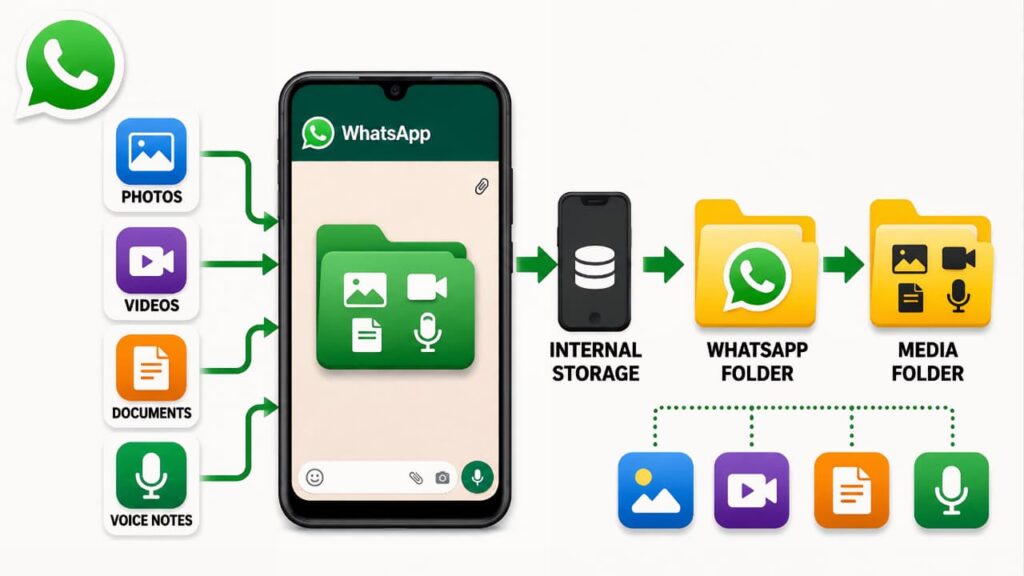
Many users believe that WhatsApp permanently stores every media file inside the chat. That isn’t how the app works.
When media is received, WhatsApp downloads the file and stores it in dedicated folders on your device. The chat only contains a link that points to the saved file.
For example:
- Photos are stored separately from chat messages.
- Videos are stored in their own media directory.
- Voice notes, documents, stickers, and GIFs each have separate storage locations.
If one of these files disappears while the chat remains intact, WhatsApp has nothing to display when you open the attachment.
This is why you may still see years of conversations but be unable to open certain images or videos.
This is one of the main reasons behind the WhatsApp media file doesn’t exist on your internal storage error.
Why This Error Has Become More Common in Recent Android Versions

Over the last few Android releases, Google introduced stronger privacy protections for files stored on a device.
Modern versions of Android no longer allow apps to access every folder automatically. Instead, applications must request permission to access photos, videos, audio files, or selected media.
At the same time, WhatsApp has continued improving its backup system, media handling, and storage management to work with these Android changes.
Because of these updates, several situations that previously caused no problems—such as moving files, denying media permissions, or restoring an incomplete backup can now result in missing media errors.
This is one reason why more users have started searching for:
- WhatsApp media missing
- WhatsApp download failed
- WhatsApp photos not downloading
- WhatsApp images not opening
- WhatsApp media not found
- WhatsApp backup restore issues
Although these searches describe different symptoms, many of them originate from the same underlying storage-related problem.
Recent Android storage changes have increased reports of the WhatsApp media file doesn’t exist on your internal storage error.
Recent Android versions have introduced stricter storage permissions that affect how apps access photos, videos, and other files. You can learn more about these storage and privacy changes from the Android Developers Storage Documentation.
Recent Android changes have also introduced stronger security and storage protections. Understanding how Android permissions work can help prevent the WhatsApp media file doesn’t exist on your internal storage error. Learn more in our guide on How to Protect Your Google Account.
Common Symptoms You May Notice
Depending on the cause, the issue may appear in different ways.
Some users experience only one symptom, while others encounter several at the same time.
You may notice that:
- WhatsApp photos no longer open.
- Videos refuse to play.
- Voice messages fail to load.
- Documents cannot be downloaded.
- The download icon appears but always fails.
- Images are visible in the chat preview but cannot be opened.
- Media disappears after changing phones.
- Old photos show an error while recent ones work normally.
- Files exist in the Gallery but not inside WhatsApp.
- Some chats work perfectly, while others display missing media.
These symptoms help identify whether the problem is related to storage, permissions, backups, or the original media file itself.
If you notice these symptoms, the WhatsApp media file doesn’t exist on your internal storage error is likely caused by a storage, backup, or permission issue.
Is This a WhatsApp Problem or an Android Problem?
One of the biggest misconceptions is that every missing media file is caused by a WhatsApp bug.
In reality, the issue can originate from several different places.
Sometimes the problem is entirely within WhatsApp, such as an interrupted backup restoration or a temporary media download failure.
In other situations, Android itself cannot provide access to the required file because it has been removed, renamed, or restricted by storage permissions.
Cleaner applications, storage optimization tools, accidental deletions, cloud backup issues, and incomplete phone transfers can all produce the same error message.
That is why there is no universal one-click fix.
The safest approach is to identify the exact reason before attempting recovery.
In many situations, the WhatsApp media file doesn’t exist on your internal storage error is caused by Android storage behavior rather than a WhatsApp bug.
Why You Should Fix This Error Immediately
Many users ignore the problem because only one or two images appear to be affected at first.
However, if the underlying cause is related to backups, storage, or automatic file deletion, more media files may gradually become inaccessible over time.
If important family photos, business documents, invoices, or work-related conversations are stored in WhatsApp, delaying the investigation could reduce your chances of recovering those files.
Taking action early also helps confirm whether the missing media still exists elsewhere, such as in your Gallery, cloud storage, or an older backup.
Ignoring the WhatsApp media file doesn’t exist on your internal storage error may reduce your chances of recovering important media files.
Why Does WhatsApp Say "This Media File Doesn't Exist on Your Internal Storage"?
The error message may look simple, but the actual cause can vary depending on how WhatsApp stores media, how Android manages files, and what changes have been made on your device. Before trying any fix, identify which of the following situations matches your case.
1. The Original Media File Was Deleted
The most common reason behind this error is that the original media file has already been removed from your phone.
Many users delete old photos or videos from the Gallery to free up storage without realizing that WhatsApp uses those saved files to open media inside conversations. Once the original file is deleted, the chat message remains, but the attachment no longer works.
How to identify this
- The image is missing from both WhatsApp and Gallery.
- File Manager also cannot locate the file.
- The problem affects only selected photos or videos.
Expert Tip: Before assuming the file is permanently lost, check your phone’s recycle bin or trash folder. Some devices keep deleted files for a limited time.
2. A Storage Cleaner Removed WhatsApp Media
Many Android phones include built-in storage cleaners that automatically remove files they consider unnecessary.
Some third-party cleaner apps may also delete old WhatsApp images, videos, or documents during a storage cleanup.
Because the chat database is separate from media storage, conversations remain visible while attachments disappear.
Common situations
- Automatic storage cleaning
- Junk file removal
- Duplicate photo cleanup
- Large file cleanup
How to identify this
The issue started immediately after using a cleaner application or the phone’s built-in storage optimization feature.
3. The File Was Moved or Renamed
WhatsApp keeps a reference to the original storage location of every downloaded media file.
If the file is moved to another folder, renamed, or reorganized manually using a File Manager, WhatsApp may no longer find it.
Examples
- Moving WhatsApp Images to another album.
- Renaming folders.
- Copying files and deleting the originals.
- Organizing storage manually.
Although the file still exists somewhere on the device, WhatsApp continues looking for it in the original location.
4. The Media Was Never Downloaded Completely
Not every attachment you receive is stored immediately.
Depending on your WhatsApp settings, some media files remain on WhatsApp’s servers until you tap the download button.
If the download is interrupted because of poor internet connectivity, low storage, or temporary server issues, the media may never be saved locally.
This usually results in a WhatsApp download failed error.
Signs
- Download icon keeps reappearing.
- Progress bar never completes.
- Only recent files are affected.
5. The File Is No Longer Available on WhatsApp's Servers
WhatsApp does not keep undownloaded media on its servers indefinitely.
If a file was never downloaded and a long period has passed, WhatsApp may no longer be able to retrieve it.
In this situation:
- Chats remain available.
- Media preview may still appear.
- Download always fails.
Unfortunately, the only practical solution may be asking the sender to resend the file.
6. Google Drive Backup Did Not Include the Media
Many users believe restoring WhatsApp automatically restores every photo and video.
This is not always true.
If the cloud backup was interrupted, incomplete, or created before certain files were received, those attachments will not be available after restoration.
Example
Chats restored successfully.
Photos did not.
Videos disappeared.
Documents cannot open.
This usually indicates that the backup did not contain the missing media.
7. Local Backup Was Created After the Files Were Deleted
WhatsApp also creates local backups on many Android devices.
However, a backup only contains the data that existed when it was created.
If media was deleted before the backup, restoring that backup will not recover the missing files.
8. You Recently Switched to a New Phone
Phone migration is another common cause.
Many users transfer WhatsApp using:
- Phone Clone
- Smart Switch
- Device migration tools
- Local backup restoration
If the transfer process is interrupted or skips media folders, chats may appear normally while photos and videos remain unavailable.
Signs
- Problem started after changing phones.
- Recent chats work.
- Older attachments show errors.
9. WhatsApp Doesn't Have Permission to Access Your Media
Recent Android versions require separate permission for accessing photos, videos, and audio files.
If these permissions are denied, WhatsApp may not be able to read files that still exist on your phone.
This often happens after:
- Reinstalling WhatsApp.
- Resetting app permissions.
- Updating Android.
10. Android Storage Permissions Changed
Modern Android versions introduced stronger privacy controls.
Instead of allowing access to every file automatically, users can choose:
- Allow all photos.
- Allow selected photos.
- Don’t allow.
If WhatsApp receives limited access, certain media files may become inaccessible.
11. Internal Storage Is Almost Full
Insufficient storage affects more than downloads.
Android may struggle to create temporary files, update media indexes, or complete file operations when storage is critically low.
This can lead to:
- WhatsApp photos not downloading.
- Download failures.
- Media restoration problems.
12. Cache Files Became Corrupted
Temporary cache files help WhatsApp load media faster.
If those files become corrupted, WhatsApp may incorrectly display download or storage errors even when the original file still exists.
Fortunately, clearing cache does not remove chats.
13. WhatsApp Version Is Outdated
Older versions of WhatsApp occasionally contain bugs affecting:
- Media downloads.
- Backup restoration.
- Storage compatibility.
Installing the latest stable version resolves many known issues.
14. Android Software Is Outdated
Running an older Android version alongside a newer WhatsApp release can sometimes create compatibility problems.
System updates often improve:
- Storage reliability.
- Media permissions.
- File indexing.
- Security.
15. Network Problems Interrupted the Download
The WhatsApp download failed error frequently appears because of unstable internet connectivity.
Possible causes include:
- Weak Wi-Fi signal.
- Mobile data interruptions.
- VPN connection issues.
- Temporary ISP problems.
If the connection breaks during download, the file may never reach your device.
16. The Sender Deleted the Media Before You Downloaded It
If the attachment was never downloaded to your phone and the sender later removed the original file from their device, WhatsApp may no longer be able to deliver it.
Requesting the sender to share the file again is usually the fastest solution.
17. Media File Became Corrupted
A photo or video may exist physically on your phone but still fail to open because the file itself has become corrupted.
Corruption can occur due to:
- Interrupted downloads.
- Storage failures.
- Unexpected device shutdowns.
- File transfer errors.
18. Dual Apps or Clone Apps Created Storage Conflicts
Some Android manufacturers allow users to run two WhatsApp accounts on the same device.
Although convenient, cloned apps often maintain separate storage folders.
If one version of WhatsApp searches a different directory, previously downloaded media may appear missing.
19. Temporary WhatsApp Service Issues
Occasionally, the problem is not related to your phone at all.
Temporary server-side issues may affect:
- Media downloads.
- Backup verification.
- File retrieval.
In these situations, waiting and trying again later may resolve the problem.
20. Multiple Causes Can Occur Together
In many real-world cases, more than one issue contributes to the error.
For example:
- You changed phones.
- The backup was incomplete.
- A cleaner app removed old media.
- Storage permissions were denied.
Although WhatsApp displays a single error message, the actual problem may involve several factors.
Quick Troubleshooting Table
| Symptom | Most Likely Cause |
|---|---|
| Download Failed | Network or server issue |
| Old photos missing | Deleted files or expired media |
| Chats restored but media missing | Incomplete backup |
| Photos exist in Gallery but not WhatsApp | Storage permission or folder issue |
| Problem started after phone change | Migration or backup issue |
| Media disappeared after storage cleanup | Cleaner app deleted files |
| Only some files affected | Selective deletion or corruption |
Expert Insight
One of the biggest mistakes users make is trying random fixes without first identifying the real cause. Since WhatsApp uses separate storage for chats and media, the same error message can represent several completely different problems. Understanding the root cause before making changes significantly improves the chances of recovering missing files safely.
Step-by-Step Solutions to Fix the WhatsApp "Media File Doesn't Exist" Error
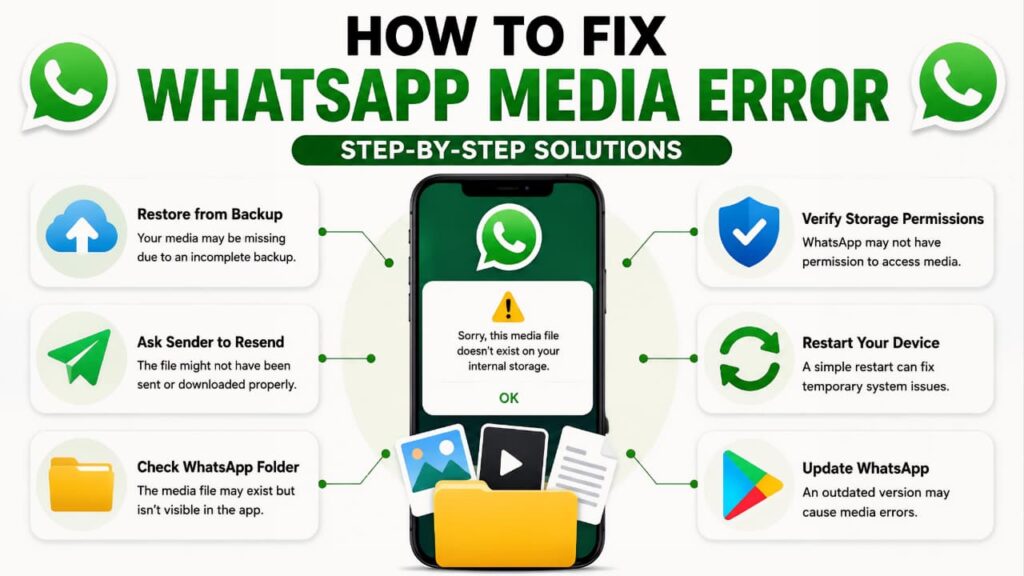
Now that you’ve identified the possible cause, it’s time to apply the right solution. Start with the simplest methods first. If the issue persists, continue to the next solution. Avoid skipping directly to advanced methods like reinstalling WhatsApp unless absolutely necessary.
Important: Before making any major changes, ensure your WhatsApp chats are backed up. Reinstalling the app or clearing app data without a backup can permanently remove recent conversations and locally stored media.
Solution 1 – Confirm Whether the Media File Still Exists
The first step is to determine whether the original file is still stored on your phone.
Open your device’s Gallery and search for the missing photo or video. If you can’t find it there, use your phone’s File Manager to check the WhatsApp media folders.
Why this works
Sometimes WhatsApp loses access to a file even though the media still exists. Confirming its presence helps you avoid unnecessary troubleshooting.
Checking the original file location is often the fastest way to resolve the WhatsApp media file doesn’t exist on your internal storage error.
Use this solution if:
- Only a few photos are affected.
- The problem started after organizing files.
- You recently used a storage cleaner.
Expert Tip: Use your File Manager’s search feature instead of browsing folders manually. Searching by file name or date often saves time.
Solution 2 – Download the Media Again
If a download icon appears beside the attachment, tap it again while connected to a stable internet connection.
If the file is still available on WhatsApp’s servers, the download should complete successfully.
Why this works
Some downloads fail because of temporary connectivity issues rather than missing files.
This solution is useful when:
- The media was never downloaded.
- The error says Download Failed.
- The file is relatively recent.
If media still refuses to download, the issue may also be related to broader messaging problems. Follow our guide on WhatsApp not sending messages to troubleshoot additional message delivery issues.
Solution 3 – Check Your Internet Connection
An unstable network can interrupt media downloads without displaying a detailed explanation.
Switch between Wi-Fi and mobile data, disable any VPN connection temporarily, and try downloading the media again.
If you’re using public Wi-Fi, test the download on another network to rule out network restrictions.
Why this works
WhatsApp requires a stable connection to download media from its servers. Even brief interruptions can cause downloads to fail.
Solution 4 – Verify WhatsApp Storage Permissions
Android may prevent WhatsApp from accessing files if the required permissions are disabled.
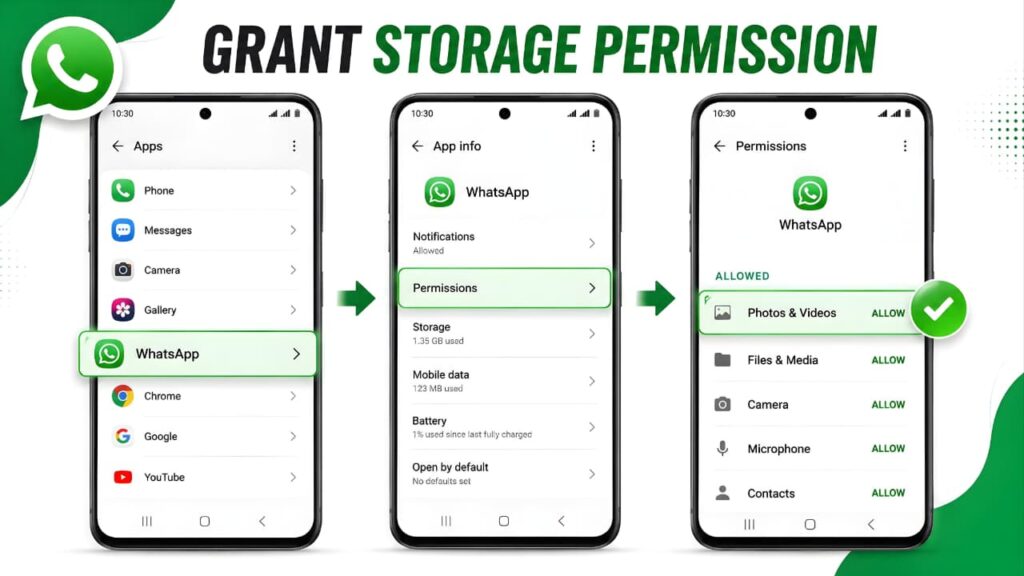
Steps
- Open Settings.
- Go to Apps.
- Tap WhatsApp.
- Open Permissions.
- Make sure access to Photos and Videos (or Storage, depending on your Android version) is allowed.
Restart WhatsApp after changing the permission.
Why this works
Without permission, WhatsApp cannot read or display media even if the files still exist.
Solution 5 – Check Available Internal Storage
Low storage can prevent WhatsApp from downloading new media or restoring files correctly.
Go to Settings > Storage and verify how much free space is available.
If storage is almost full:
- Delete unnecessary downloads.
- Remove duplicate videos.
- Empty the recycle bin.
- Uninstall unused apps.
Expert Tip
Keeping at least 5–10 GB of free storage improves Android’s performance and reduces storage-related issues.
Low storage space is one of the common reasons behind the WhatsApp media file doesn’t exist on your internal storage error. If your phone’s storage is almost full, WhatsApp may fail to download or restore media files properly. Before deleting important files, check our Google Storage Full Guide to safely free up storage space.
Solution 6 – Clear the WhatsApp Cache
Over time, temporary files stored by WhatsApp can become corrupted.
Clearing the cache removes these temporary files without affecting your chats or downloaded media.
Steps
- Open Settings.
- Tap Apps.
- Select WhatsApp.
- Choose Storage.
- Tap Clear Cache.
Warning: Do not tap Clear Data unless you’ve confirmed that a recent backup is available.
Solution 7 – Update WhatsApp
Running an outdated version of WhatsApp may cause compatibility problems with newer Android releases.
Visit the Google Play Store and install any available update.
Why this matters
Updates often fix bugs affecting:
- Media downloads.
- Backup restoration.
- Storage access.
- Performance.
Using the latest version of WhatsApp helps fix known bugs, improves media compatibility, and enhances security. You can always download or update the app from the Official WhatsApp Download Page.
Keeping WhatsApp updated can help resolve the WhatsApp media file doesn’t exist on your internal storage error by delivering bug fixes, improved compatibility, and the WhatsApp latest updates that address known issues.
Solution 8 – Restart Your Device
Although it seems simple, restarting your phone refreshes Android’s file indexing system and restarts background services.
This can resolve temporary issues affecting media access.
Restart the device completely, reopen WhatsApp, and check whether the attachment works.
A simple restart can sometimes resolve the WhatsApp media file doesn’t exist on your internal storage error if it is caused by a temporary system issue.
Solution 9 – Restore the File from a Backup
If the missing media existed when your last backup was created, restoring WhatsApp may recover it.
Before restoring:
- Verify that the backup completed successfully.
- Use the same phone number.
- Sign in with the same Google account used for the backup.
When to use this
- You recently changed phones.
- Chats restored but media is missing.
- The file cannot be found anywhere else.
If you reinstall WhatsApp or switch to a new phone, make sure your account verification is completed successfully. If verification fails, read our WhatsApp verification code not received guide before restoring your backup.
Solution 10 – Ask the Sender to Resend the Media
If the attachment was never downloaded or is no longer available on WhatsApp’s servers, requesting the sender to resend it is often the fastest solution.
This is especially useful for:
- Important documents.
- Family photos.
- Work-related files.
Solution 11 – Disable Battery Saver and Data Saver
Battery Saver and Data Saver modes can limit WhatsApp’s background activity.
Temporarily disable these features and try downloading the media again.
This can resolve repeated WhatsApp download failed errors on some Android devices.
Solution 12 – Check Date and Time Settings
Incorrect date and time settings may interfere with secure communication between WhatsApp and its servers.
Enable Automatic Date & Time in your phone settings and restart WhatsApp.
Solution 13 – Look for Another Copy of the File
Before assuming the media is lost forever, check whether another copy exists.
Possible locations include:
- Google Photos
- Device Gallery
- Cloud storage
- Computer backups
- External storage
- Email attachments
- Other messaging apps
Many users recover important files simply because they were automatically backed up elsewhere.
Solution 14 – Reinstall WhatsApp (Last Resort)
Only consider reinstalling WhatsApp after confirming that:
- A recent backup exists.
- The backup includes your chats.
- You’re using the correct Google account.
After reinstalling, restore the backup during setup.
Never uninstall WhatsApp first and check for a backup later. If no usable backup exists, you could permanently lose chats and media.
Solutions That Usually Don't Work
Many websites recommend unsafe or outdated methods. Avoid these unless you’re certain they apply to your situation.
❌ Installing modified WhatsApp APKs
❌ Using unknown “media recovery” apps
❌ Deleting random WhatsApp folders
❌ Clearing app data without a backup
❌ Rooting the device just to recover media
❌ Downloading unofficial backup tools
These methods can create additional problems or permanently overwrite recoverable data.
Which Solution Should You Try First?
| Your Situation | Best Solution |
|---|---|
| Download Failed | Check Internet → Retry Download |
| Photos Missing | Search Gallery & File Manager |
| After Phone Change | Restore Backup |
| After Cleaner App | Check Trash or Recycle Bin |
| Storage Almost Full | Free Up Space |
| Permission Problem | Enable Photos & Videos Permission |
| Old Media Won’t Download | Ask Sender to Resend |
| Nothing Works | Restore Backup or Reinstall WhatsApp |
Expert Recommendation
Avoid trying every solution at once. Instead, identify when the problem started.
- After changing phones? → Focus on backups and migration.
- After cleaning storage? → Look for deleted files.
- After an Android update? → Check permissions.
- Only old media affected? → The file may no longer be available on WhatsApp’s servers.
Finding the trigger usually leads to the fastest and safest solution.
By now, you know what causes the WhatsApp media file doesn’t exist on your internal storage error and which solutions work in different situations. The final step is learning how to prevent the same problem from happening again.
Many users only think about backups after they lose important photos or videos. A few simple habits can save you from spending hours trying to recover missing media in the future.
How to Prevent WhatsApp Media from Going Missing
1. Enable Automatic WhatsApp Backups
One of the easiest ways to protect your chats and media is to keep automatic backups enabled.
If your conversations contain important family photos, work documents, invoices, or videos, regular backups can save you from permanent data loss when switching phones or reinstalling WhatsApp.
Best Practice
- Enable automatic backups.
- Verify that backups complete successfully.
- Occasionally check the backup date inside WhatsApp Settings.
Expert Tip: A backup is only useful if it completed successfully. Always verify the latest backup before resetting or replacing your phone.
2. Keep Enough Free Storage
Running out of storage affects more than just downloads.
When your phone has very little free space, Android may struggle to save new media, update file indexes, or complete backup operations.
Keeping several gigabytes of free storage improves overall reliability.
3. Avoid Deleting WhatsApp Media Directly
Many users delete photos from the Gallery without realizing those files are still linked to WhatsApp chats.
If you no longer need a file, make sure it’s backed up somewhere else before deleting it.
If you simply want to organize your storage, copy the file instead of moving or deleting the original.
4. Be Careful with Cleaner Apps
Storage cleaner applications are useful, but they sometimes remove WhatsApp images and videos without making it obvious.
Before confirming any cleanup:
- Review the selected files.
- Exclude WhatsApp folders if possible.
- Check the recycle bin before permanently deleting anything.
A few extra seconds of checking can prevent years of memories from disappearing.
5. Keep WhatsApp Updated
New WhatsApp versions often include:
- Performance improvements.
- Security updates.
- Bug fixes.
- Better compatibility with newer Android releases.
Installing updates regularly helps avoid known issues related to media downloads and backups.
6. Install Android System Updates
Android updates improve:
- File management.
- Storage permissions.
- Media indexing.
- System stability.
Keeping both Android and WhatsApp updated reduces compatibility problems.
7. Verify Your Backup Before Changing Phones
Many users assume their backup is complete without checking.
Before moving to a new device:
- Confirm the latest backup date.
- Open a few random chats.
- Verify that photos and videos are included.
This simple habit prevents unpleasant surprises after phone migration.
8. Download Important Media Early
If someone sends an important document or memorable photo, don’t leave it waiting for days or weeks.
Download it while it’s still available and consider saving a copy to cloud storage or your computer.
Following these best practices can significantly reduce the chances of seeing the WhatsApp media file doesn’t exist on your internal storage error again.
Common Mistakes to Avoid
Avoid these actions while trying to fix WhatsApp media missing, WhatsApp download failed, or WhatsApp images not opening issues.
❌ Clearing WhatsApp data without a backup.
❌ Deleting the WhatsApp folder manually.
❌ Installing unofficial recovery applications.
❌ Downloading modified WhatsApp APKs.
❌ Rooting your phone just to recover media.
❌ Following random internet tricks that promise “one-click recovery.”
These methods often make recovery more difficult and may expose your data to unnecessary security risks.
Avoiding these mistakes can prevent the WhatsApp media file doesn’t exist on your internal storage error from becoming more difficult to fix.
Myth vs Reality
Myth
Reinstalling WhatsApp always restores missing photos.
Reality
Reinstalling only restores media that exists in a valid backup.
Myth
If the chat exists, the photo must also exist.
Reality
Chats and media are stored separately. A conversation may remain even if the attached files have already been deleted.
Myth
Cleaner apps only remove junk files.
Reality
Some cleaner applications can also remove WhatsApp media if not configured carefully.
Myth
Clearing the WhatsApp cache deletes chats.
Reality
Clearing the cache removes temporary files only. Clearing App Data is what can erase local WhatsApp information if no backup is available.
Understanding the facts about the WhatsApp media file doesn’t exist on your internal storage error helps you choose the correct solution instead of relying on common myths.
Frequently Asked Questions (FAQ)
Why does WhatsApp say "This media file doesn't exist on your internal storage"?
The message appears when WhatsApp cannot locate the original file. The media may have been deleted, moved, corrupted, or not restored from a backup.
Why does WhatsApp show "Download Failed"?
This usually happens because of an unstable internet connection, storage issues, missing permissions, or because the file is no longer available for download.
Can I recover deleted WhatsApp photos?
Possibly.
Recovery is more likely if:
- A recent backup exists.
- The photo is still stored in your Gallery.
- It was backed up to another cloud service.
- The sender can resend it.
Why are my chats still available but my photos are missing?
WhatsApp stores chat messages separately from media files.
Deleting a photo usually doesn’t remove the conversation itself.
Can clearing the cache fix this problem?
Yes.
If temporary files became corrupted, clearing the cache may resolve the issue without affecting your chats.
Will reinstalling WhatsApp fix missing media?
Only if the missing files are included in your backup.
Without a backup, reinstalling may result in permanent data loss.
Why are only old WhatsApp photos missing?
Older files may have been deleted, removed by a cleaner app, or may no longer be available on WhatsApp’s servers if they were never downloaded.
Does changing phones cause this issue?
It can.
Interrupted phone transfers, incomplete backups, or migration problems may leave chats intact while media files fail to transfer.
Can Google Drive restore every WhatsApp photo?
Only the photos included in the backup can be restored.
Anything deleted before the backup or never backed up cannot be recovered from that backup.
Should I use third-party recovery apps?
Only if you fully understand what they do.
Many recovery apps cannot restore WhatsApp media once it has been permanently deleted, and some may pose privacy or security risks.
Why are only some WhatsApp photos missing?
Some WhatsApp photos may be missing because only specific files were deleted, moved, or not included in a backup. If newer photos open normally while older ones don’t, the missing media may no longer exist on your device or WhatsApp’s servers.
Can I recover WhatsApp media without a backup?
Yes, but only in certain situations. If the media still exists in your phone’s Gallery, File Manager, Google Photos, or another cloud service, you may be able to recover it. If the file has been permanently deleted and no backup exists, recovery may not be possible.
Why can't I download old WhatsApp photos anymore?
Older WhatsApp photos may no longer be available for download if they were never saved to your device and are no longer available on WhatsApp’s servers. In such cases, asking the sender to resend the media is usually the best solution.
Does clearing the WhatsApp cache delete photos?
No. Clearing the WhatsApp cache only removes temporary files used to improve app performance. It does not delete your chats, photos, videos, or documents. However, avoid clearing App Data unless you have a recent backup.
Can Google Photos recover missing WhatsApp images?
If Google Photos was set to back up your WhatsApp images before they were deleted, you may be able to restore them. If backup was never enabled, Google Photos cannot recover files that were never uploaded.
Final Verdict
The WhatsApp media file doesn’t exist on your internal storage error is one of the most misunderstood WhatsApp problems because the same message can appear for many different reasons.
In most cases, the issue is related to deleted files, incomplete backups, storage permissions, interrupted downloads, or phone migration—not necessarily a WhatsApp bug.
Instead of trying random fixes, first identify when the problem started. If it appeared after changing phones, restoring a backup, cleaning storage, or updating Android, that clue usually points to the correct solution.
The best long-term protection is simple: maintain regular backups, keep enough free storage, avoid aggressive cleaner apps, and update both WhatsApp and Android regularly. These habits significantly reduce the chances of losing important photos, videos, and documents.
Most users can fix the WhatsApp media file doesn’t exist on your internal storage error without losing their chats by following the correct troubleshooting steps.
If you’re still experiencing the WhatsApp media file doesn’t exist on your internal storage error after following every solution, you can visit the WhatsApp Help Center for official troubleshooting resources and the latest support information.
Key Takeaways
- WhatsApp stores chats and media separately.
- Deleted media files do not automatically remove chat messages.
- Missing media is often recoverable if a valid backup exists.
- Storage permissions and free space play an important role in media access.
- Never reinstall WhatsApp without confirming that a backup is available.
- Regular backups are the safest way to protect important conversations and attachments.
Understanding the WhatsApp media file doesn’t exist on your internal storage error helps you recover missing media faster and avoid similar issues in the future.