Introduction
WhatsApp Verification Code Not Received is a common issue that many Android and iPhone users face when registering or reinstalling WhatsApp. If you are not receiving the verification SMS or voice call, this guide explains the causes and the best solutions to fix the problem.
Installing WhatsApp on a new phone or registering your phone number should normally take only a few minutes. After entering your mobile number, WhatsApp automatically sends a six-digit verification code through SMS or offers a verification phone call if SMS delivery fails. In most situations, the process is quick and seamless.
However, many users encounter an unexpected problem: the WhatsApp verification code never arrives. Instead of receiving the code within seconds, they continue waiting without success. This issue can occur on Android phones, iPhones, dual-SIM devices, or even after reinstalling WhatsApp.
The problem can be frustrating because you cannot access your chats until your phone number is successfully verified. Whether you have purchased a new smartphone, changed your SIM card, switched mobile networks, or simply reinstalled the application, failing to receive the verification code prevents you from completing the setup process.
Fortunately, this issue is usually temporary and can often be resolved without advanced technical knowledge. In many cases, the cause is as simple as entering an incorrect phone number, having poor network coverage, requesting multiple verification codes too quickly, or using an unsupported phone number.
This guide explains every possible reason why WhatsApp verification codes may not arrive and provides practical solutions recommended by WhatsApp along with additional troubleshooting methods that have helped many users successfully complete verification.
By the end of this guide, you will know how to identify the exact cause of the problem and choose the appropriate solution instead of trying random fixes.
This guide explains every possible reason why WhatsApp verification codes may not arrive and provides practical solutions recommended by WhatsApp along with additional troubleshooting methods that have helped many users successfully complete verification. If you’re experiencing a WhatsApp Verification Code Not Received issue, you may also find our guide on WhatsApp not sending messages helpful.
What Is the WhatsApp Verification Code?
The WhatsApp verification code is a unique six-digit number generated by WhatsApp to confirm that you own the mobile phone number you’re trying to register.
Understanding why WhatsApp Verification Code Not Received happens is the first step toward fixing the problem successfully.
Without this verification process, anyone could attempt to activate WhatsApp using someone else’s phone number. The verification code acts as a security measure that ensures only the legitimate owner of the phone number can create or restore a WhatsApp account.
Whenever you:
- Install WhatsApp for the first time
- Reinstall WhatsApp
- Change to a new phone
- Register a different phone number
- Restore access after resetting your device
WhatsApp requires phone number verification before allowing you to access your account.
Understanding a WhatsApp Verification Code Not Received issue helps you identify the correct solution faster.
Without this verification process, anyone could attempt to activate WhatsApp using someone else’s phone number. The verification code acts as a security measure that ensures only the legitimate owner of the phone number can create or restore a WhatsApp account. To further improve your account security and reduce the risk of a WhatsApp Verification Code Not Received issue caused by account-related problems, it’s also a good idea to protect your Google Account using recommended security settings.
How WhatsApp Sends Verification Codes
WhatsApp offers two official verification methods.
| Verification Method | Description |
|---|---|
| SMS Verification | A six-digit code is sent to your registered mobile number through a text message. |
| Voice Call Verification | If SMS verification fails after waiting for the required time, WhatsApp may offer an automated phone call that reads the verification code aloud. |
Both methods require an active phone number that can receive SMS messages or phone calls.
Knowing how the verification process works can help you resolve a WhatsApp Verification Code Not Received issue more quickly.
Additional WhatsApp Verification Options
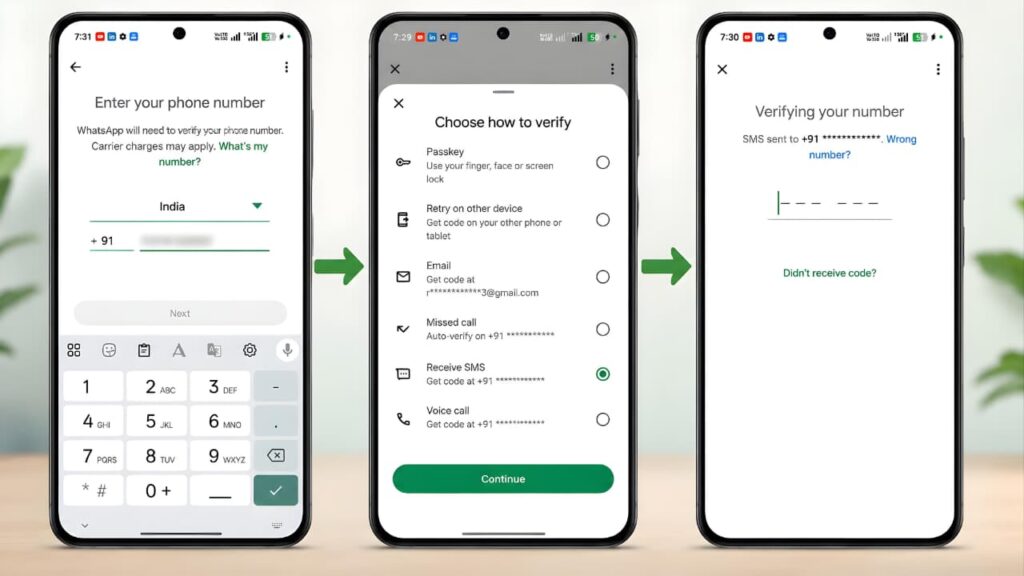
Besides the standard SMS and voice call verification methods, recent versions of WhatsApp may display additional verification options depending on your device, WhatsApp version, operating system, and account eligibility. If you are experiencing a WhatsApp Verification Code Not Received issue, these additional verification methods may help you verify your account more quickly and securely.
Verification Methods Overview
| Verification Method | Description |
|---|---|
| Passkey Verification | Verify your identity using your device’s fingerprint, Face ID, or screen lock if a passkey has already been set up. |
| Retry on Another Device | Continue the verification process using another device where your WhatsApp account is already active. |
| Email Verification | If available, receive a verification code through your registered email address. |
| Missed Call Verification | Automatically verify your phone number through a missed call without manually entering an SMS code. |
| SMS Verification | Receive a six-digit verification code by SMS and enter it during registration. |
| Voice Call Verification | Receive the verification code through an automated phone call if SMS verification is unavailable or delayed. |
Passkey Verification
If Passkey verification is available on your device, you can verify your identity using your fingerprint, Face ID, or device screen lock instead of waiting for an SMS verification code. This option can be especially helpful if you are facing a WhatsApp Verification Code Not Received problem and want to complete verification without relying on SMS delivery.
Retry on Another Device
If your WhatsApp account is already active on another device, you may see the Retry on Another Device option. This allows you to continue the verification process using your existing logged-in device instead of waiting for a new SMS. It can be a useful solution when a WhatsApp Verification Code Not Received issue prevents you from receiving a verification code on your current device.
Email Verification
Some WhatsApp accounts may display an Email Verification option if a verified email address has previously been linked to the account. If available, WhatsApp can send your verification code to your registered email address instead of relying only on SMS. This provides an additional way to resolve a WhatsApp Verification Code Not Received issue.
Missed Call Verification
In supported regions and eligible accounts, WhatsApp may automatically verify your phone number using a missed call. This option completes the verification process without requiring you to manually enter an SMS verification code and can help users who experience a WhatsApp Verification Code Not Received problem.
SMS Verification
SMS verification remains the primary verification method for most WhatsApp users. A six-digit verification code is sent to your registered mobile number by SMS, and you must enter the code exactly as received. If you encounter a WhatsApp Verification Code Not Received issue, wait for the countdown timer to finish before requesting another code.
Voice Call Verification
If the SMS verification code does not arrive after the required waiting period, WhatsApp may offer an automated voice call that reads your six-digit verification code aloud. This is one of the most effective alternatives for resolving a WhatsApp Verification Code Not Received issue when SMS delivery is delayed or unavailable.
Important Note
The verification options displayed on your device may vary depending on your WhatsApp version, operating system, region, device model, and account eligibility. If you continue to experience a WhatsApp Verification Code Not Received issue, simply choose another available verification method provided by WhatsApp and complete the verification process using the option that works for your account.
Symptoms of the Problem
Users experiencing verification issues often notice one or more of the following:
- Verification SMS never arrives.
- The verification call option remains unavailable.
- The countdown timer continues without receiving a code.
- The received code is reported as invalid.
- Verification attempts repeatedly fail.
- WhatsApp displays “Couldn’t send SMS.”
- SMS arrives several hours later.
- Verification code expires before it is entered.
- Verification requests become temporarily blocked.
Although these symptoms may appear similar, each can have different underlying causes. Understanding the reason behind the failure is the first step toward resolving it effectively.
Common Reasons Why the Verification Code Is Not Received
Several factors can cause a WhatsApp Verification Code Not Received problem, ranging from network issues to incorrect phone numbers.
| Possible Cause | Can Prevent Verification? |
|---|---|
| Incorrect phone number | Yes |
| Wrong country code | Yes |
| No mobile signal | Yes |
| SMS service temporarily unavailable | Yes |
| SIM card inactive | Yes |
| Too many verification attempts | Yes |
| Unsupported VoIP or virtual number | Yes |
| Carrier restrictions | Yes |
| Temporary WhatsApp server issue | Occasionally |
| Roaming or network problems | Yes |
Each of these situations requires a different troubleshooting approach, which will be covered throughout this guide.
Before You Start Troubleshooting
Before attempting advanced fixes, confirm the following basic requirements:
- Your phone number is active.
- Your SIM card can receive SMS messages.
- Your phone has a stable mobile network connection.
- Airplane Mode is disabled.
- The correct country code has been selected.
- You entered the phone number correctly.
- You are using the official WhatsApp application.
- Your device date and time are set automatically.
Many verification issues are resolved simply by correcting one of these basic settings before requesting another verification code.
Check Your Phone Number First (The Most Common Cause)
Before trying advanced troubleshooting methods, verify that the phone number you entered is completely correct. According to WhatsApp’s official guidance, an incorrect number or country code is one of the most common reasons users never receive the verification SMS.
Even a single incorrect digit can cause the verification code to be sent to another phone number or prevent the request from being processed.
Double-checking your phone number often resolves a WhatsApp Verification Code Not Received issue.
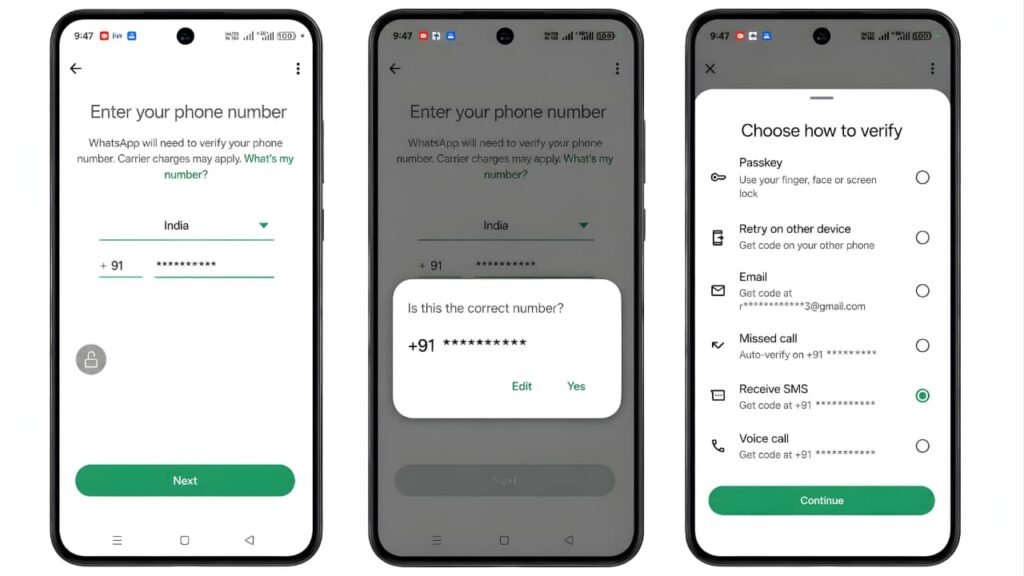
Enter the Number in International Format
WhatsApp automatically asks you to choose your country. After selecting your country, enter only your mobile number.
For example:
- Select India (+91)
- Enter: 9876543210
- Do not enter:
- +919876543210
- 00919876543210
- 0919876543210
WhatsApp automatically adds the country code after you choose your country.
Double-checking your phone number often resolves a WhatsApp Verification Code Not Received issue. If you’re setting up a new Android device after verification, you may also want to create a Google Account to complete your device setup securely.
Before trying advanced troubleshooting methods, verify that the phone number you entered is completely correct. According to WhatsApp’s official guidance, an incorrect number or country code is one of the most common reasons users never receive the verification SMS.
Common Number Entry Mistakes
| Mistake | Correct Method |
|---|---|
| Wrong country selected | Select the correct country before entering the number. |
| Typing an extra 0 before the mobile number | Enter only the actual mobile number. |
| Adding the country code twice | Select the country and enter the number only once. |
| Typing an incorrect digit | Double-check every digit carefully. |
| Using another person’s number | Use only a phone number you own and can access. |
Make Sure Your SIM Card Can Receive SMS
WhatsApp verification depends on your mobile network. If your SIM card cannot receive regular text messages, WhatsApp verification will also fail.
Ask yourself these questions:
- Can you receive normal SMS messages?
- Can friends send you a text message successfully?
- Is your SIM card currently active?
- Has your mobile number expired due to inactivity?
- Have you recently replaced the SIM card?
If you cannot receive ordinary SMS messages, contact your mobile carrier before trying WhatsApp verification again.
An active SIM card is essential to avoid a WhatsApp Verification Code Not Received problem.
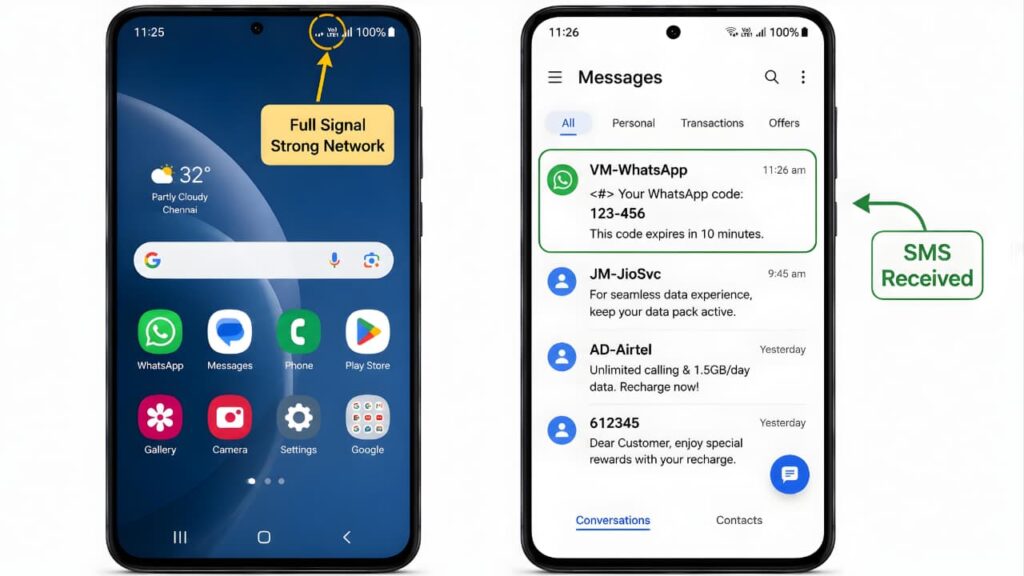
Check Mobile Network Coverage
Weak mobile coverage is another frequent reason verification messages fail.
Although your phone may show one or two signal bars, SMS delivery may still be delayed.
Look for signs such as:
- Signal strength constantly changing
- Frequent “No Service” messages
- Emergency calls only
- Calls dropping unexpectedly
- SMS messages arriving very late
If possible:
- Move outdoors.
- Stand near a window.
- Restart the phone.
- Wait until network coverage improves.
Avoid requesting multiple verification codes while your network is unstable.
Poor signal strength is one of the most common reasons for a WhatsApp Verification Code Not Received error.
Disable Airplane Mode
Airplane Mode disables all cellular communication, including SMS delivery.
Sometimes users enable Airplane Mode while traveling or troubleshooting another issue and forget to turn it off.
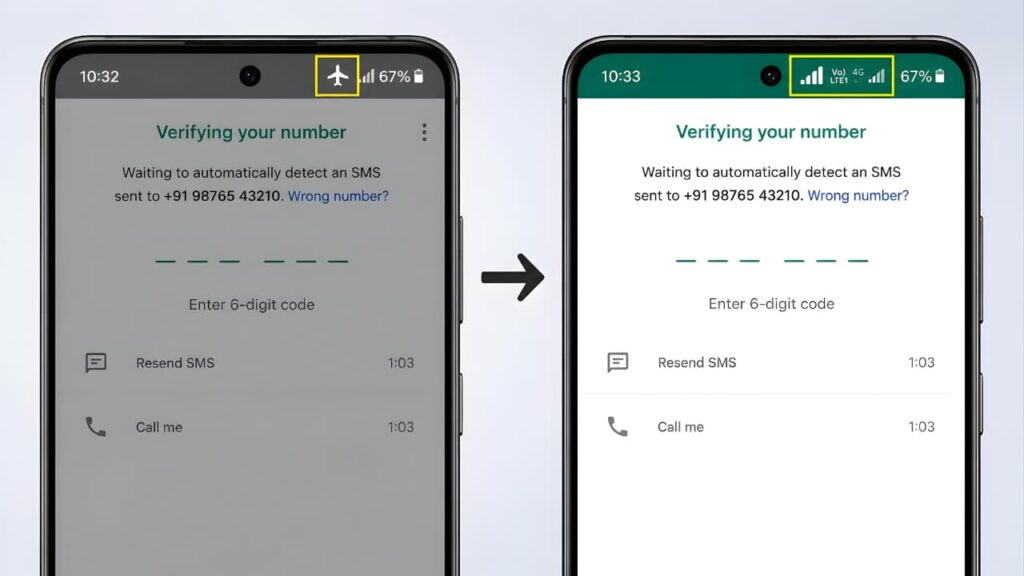
Verify:
- Airplane Mode is OFF.
- Mobile Network is ON.
- SIM card is detected correctly.
After disabling Airplane Mode, wait a minute before requesting another verification code.
Turning off Airplane Mode may immediately fix a WhatsApp Verification Code Not Received issue.
Ensure Mobile Data Is Not the Problem
A common misconception is that WhatsApp verification requires mobile data.
In reality:
- SMS verification uses your carrier’s SMS service.
- Voice verification uses your carrier’s calling service.
However, mobile data or Wi-Fi may still be needed for WhatsApp to communicate with its servers during the registration process.
For the smoothest experience:
- Enable mobile data or connect to a reliable Wi-Fi network.
- Keep your mobile network active for SMS and calls.
A stable internet connection supports the WhatsApp Verification Code Not Received troubleshooting process.
Verify That Your SIM Is Active
Some users attempt to verify WhatsApp using:
- A newly purchased SIM card
- A deactivated SIM
- A suspended prepaid connection
- A SIM that has not completed carrier activation
If the SIM is inactive, WhatsApp cannot send a verification code.
Inactive SIM cards frequently lead to a WhatsApp Verification Code Not Received problem.
Inactive SIM cards frequently lead to a WhatsApp Verification Code Not Received problem. Understanding how cloud storage works can also help you back up and restore your WhatsApp chats safely after resolving a WhatsApp Verification Code Not Received issue.
How to Check SIM Status
| Check | Expected Result |
|---|---|
| Can make phone calls | Yes |
| Can receive calls | Yes |
| Can send SMS | Yes |
| Can receive SMS | Yes |
| Network detected | Yes |
Avoid Requesting Too Many Verification Codes
Many users repeatedly tap Resend Code because they think the request did not go through.
Unfortunately, this often makes the situation worse.
WhatsApp temporarily limits repeated verification attempts to prevent abuse and protect accounts from automated attacks.
If you request verification codes too frequently:
- The waiting timer increases.
- Verification may be temporarily blocked.
- New SMS requests may not be be sent immediately.
- Voice call verification may also be delayed.
The best approach is to wait for the countdown timer to finish before requesting another code.
Repeated requests can delay WhatsApp Verification Code Not Received attempts.
Wait for Delayed SMS Delivery
Not every missing verification code is permanently lost.
Sometimes your mobile carrier experiences temporary SMS delays due to:
- Heavy network traffic
- Maintenance work
- Regional outages
- International routing delays
- Temporary carrier congestion
In such cases, the SMS may arrive several minutes—or even longer—after it was requested.
If you have already requested a code:
- Do not submit another request immediately.
- Keep your phone connected to the mobile network.
- Watch for delayed SMS delivery.
- Use the latest valid verification code if multiple messages arrive.
Remember that older verification codes may expire automatically once a newer code has been generated.
A WhatsApp Verification Code Not Received issue may sometimes be caused by temporary server or network delays.
Advanced Troubleshooting for WhatsApp Verification Code Issues
Advanced troubleshooting is recommended if the WhatsApp Verification Code Not Received issue still persists.
If you’ve already confirmed that your phone number is correct, your SIM card is active, and your network connection is stable, but the verification code still hasn’t arrived, it’s time to investigate some less obvious causes. These issues are common and often overlooked by users.
Check Which SIM Card Is Set as the Default
Many modern smartphones support two SIM cards. If you use a dual-SIM device, WhatsApp verification can fail if the phone number you’re registering is not associated with the active SIM or if SMS and calling are routed through the wrong SIM.
For example, if:
- SIM 1 contains the number you’re trying to verify.
- SIM 2 is set as the default for SMS and calls.
WhatsApp may not receive the verification response correctly.
What You Should Check
- Ensure the SIM containing your WhatsApp number is inserted properly.
- Confirm that the SIM is active and connected to the network.
- If necessary, temporarily set that SIM as the default for SMS and voice calls.
- If you’re unsure, remove the second SIM temporarily and try the verification again.
Avoid Using Virtual or VoIP Phone Numbers
WhatsApp is designed to work with real mobile phone numbers. Some virtual, internet-based, or VoIP numbers may not reliably receive verification SMS or calls.
Examples include:
- Internet calling numbers
- Temporary SMS services
- Disposable phone numbers
- Shared online verification numbers
These services are often blocked or unsupported because they can be abused for spam or fraudulent account creation.
Best Practice
Always register WhatsApp using a personal mobile number provided by a legitimate mobile network operator.
Check Whether SMS Blocking Is Enabled
Some Android devices include built-in SMS filtering features, while third-party security apps may automatically block or categorize messages from unknown senders.
Although WhatsApp verification messages are legitimate, they may occasionally be filtered.
Check the following:
- Spam or Junk SMS folder
- Blocked Messages folder
- SMS filtering settings
- Security or antivirus applications
- Carrier-provided spam protection
For iPhone users: Open Settings > Apps > Messages (or Settings > Messages, depending on your iOS version) and check whether Filter Unknown Senders or any carrier message filtering feature could affect message visibility. Also check the Unknown Senders list if you don’t see the verification SMS in your main Messages inbox.
If you find SMS filtering enabled, temporarily disable it and request a new verification code after the waiting period.
Checking message filtering can resolve a WhatsApp Verification Code Not Received issue.
If you find SMS filtering enabled, temporarily disable it and request a new verification code after the waiting period. Besides managing message filters, you should also protect your personal data online, as strong privacy and security practices can help reduce the risk of issues related to WhatsApp Verification Code Not Received.
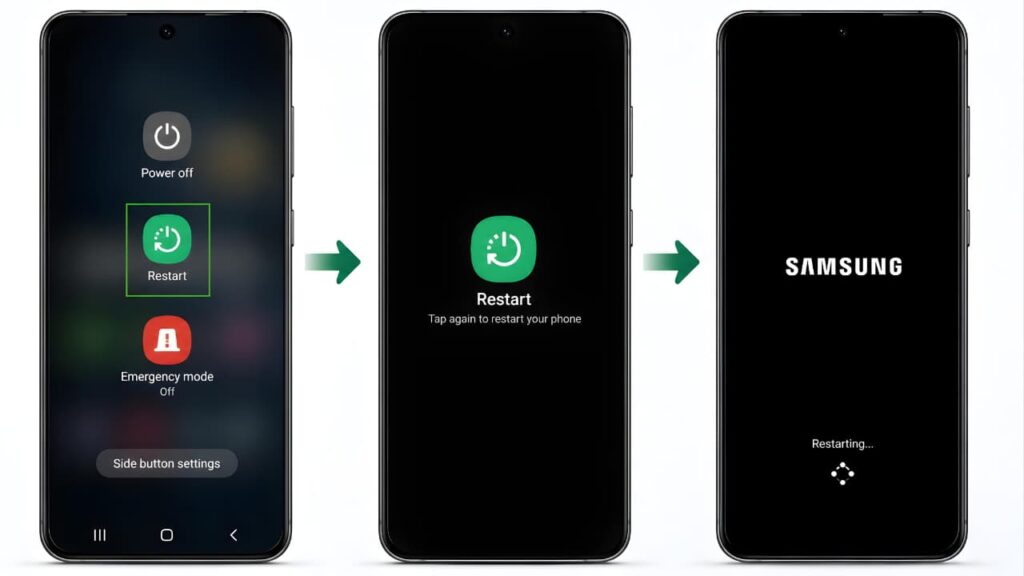
Restart Your Phone
A simple restart can resolve temporary software glitches affecting network registration or SMS delivery.
Restarting your phone refreshes:
- Mobile network connection
- SIM card communication
- SMS service
- Background processes
Steps
- Turn off your phone completely.
- Wait about 30 seconds.
- Turn it back on.
- Wait until the mobile network reconnects.
- Open WhatsApp and try verification again if the timer allows.
This basic step often resolves temporary communication issues without requiring further troubleshooting.
Update WhatsApp to the Latest Version
Using an outdated version of WhatsApp can sometimes cause unexpected registration or verification problems, especially if important bug fixes have been released.
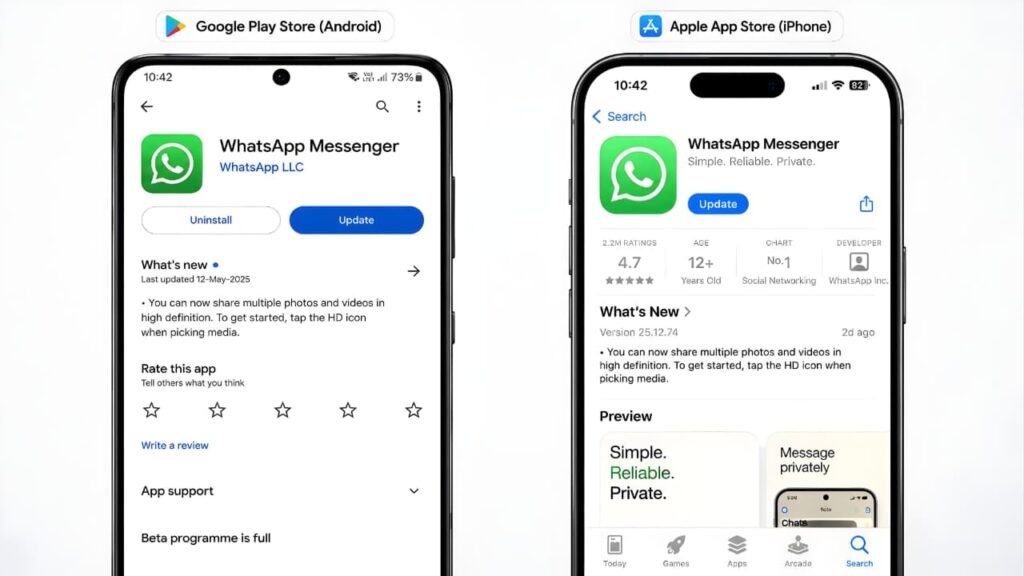
To check for updates:
- Android: Open the Google Play Store, search for WhatsApp, and install any available updates.
- iPhone: Open the App Store, search for WhatsApp, and install any available updates.
Installing the latest version ensures you have the newest security improvements, compatibility updates, and bug fixes before attempting verification again.
Keeping WhatsApp updated helps prevent a WhatsApp Verification Code Not Received problem caused by compatibility issues.
To check for updates on Android, open the Google Play Store, search for WhatsApp, and install any available updates.
On iPhone, open the Apple App Store, search for WhatsApp, and install the latest available version.
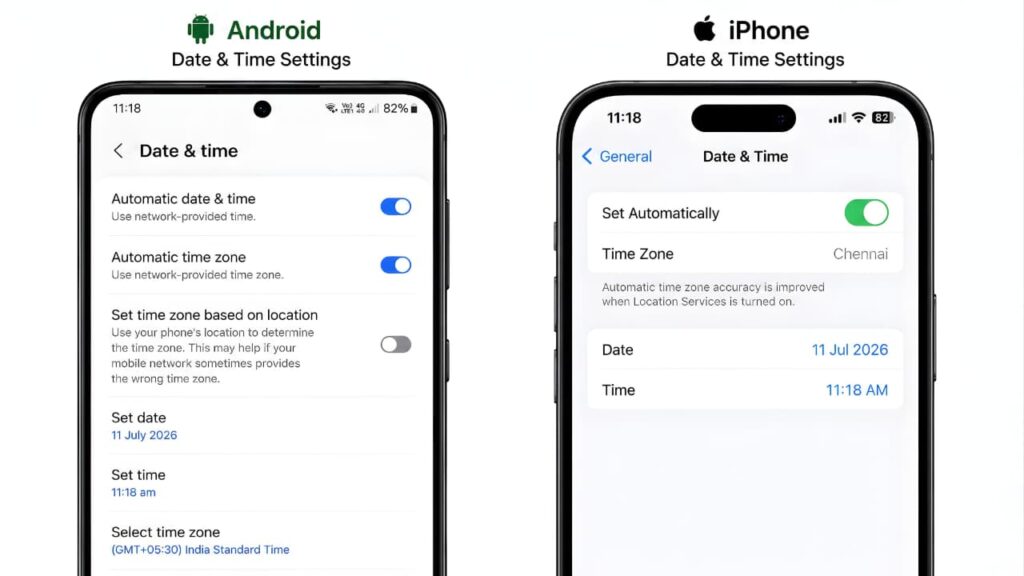
Set Date and Time Automatically
Incorrect date and time settings can interfere with secure communication between your device and WhatsApp’s servers.
Recommended Setting
- Enable Set time automatically.
- Enable Set time zone automatically.
Avoid manually changing the date or time unless absolutely necessary.
After correcting these settings, restart WhatsApp and continue the verification process.
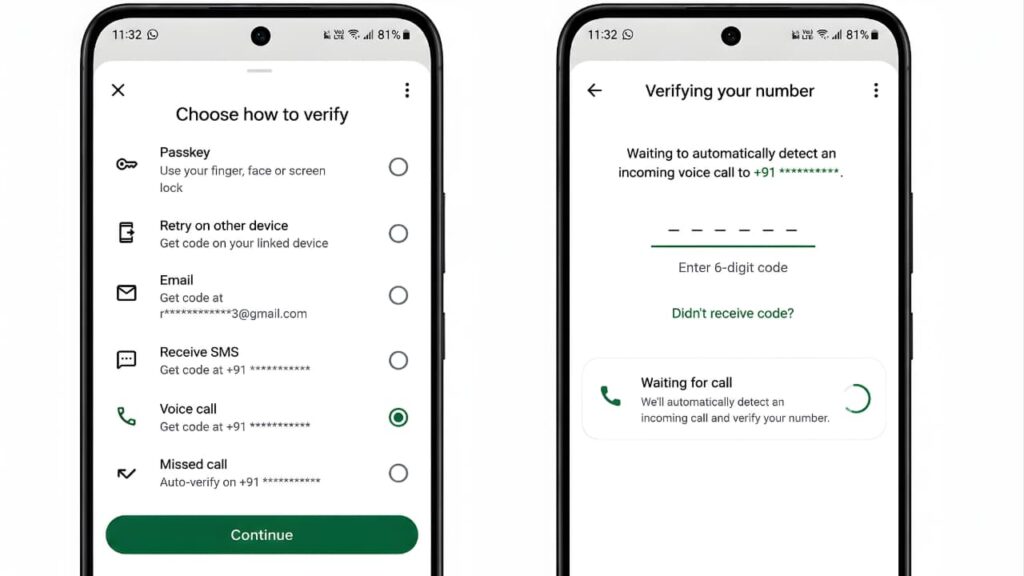
Try Voice Call Verification
If the SMS verification code still doesn’t arrive after the waiting period, WhatsApp may offer an automated voice call instead.
During the call:
- An automated system reads the six-digit verification code aloud.
- Enter the code exactly as spoken.
- Ensure you answer the call from the registered phone number.
This method is especially useful if your carrier is experiencing temporary SMS delivery issues.
Voice verification may help if the WhatsApp Verification Code Not Received issue continues.
Note: The voice call option appears only after the required waiting period and may not be available in every situation.
Avoid Using Modified Versions of WhatsApp
Unofficial versions such as modified APKs are not supported by WhatsApp and may cause registration or verification problems.
Examples include:
- GBWhatsApp
- FMWhatsApp
- YoWhatsApp
- Other unofficial modified clients
These apps can lead to:
- Verification failures
- Account security risks
- Temporary restrictions
- Data loss
Always use the official WhatsApp application downloaded from your device’s official app store.
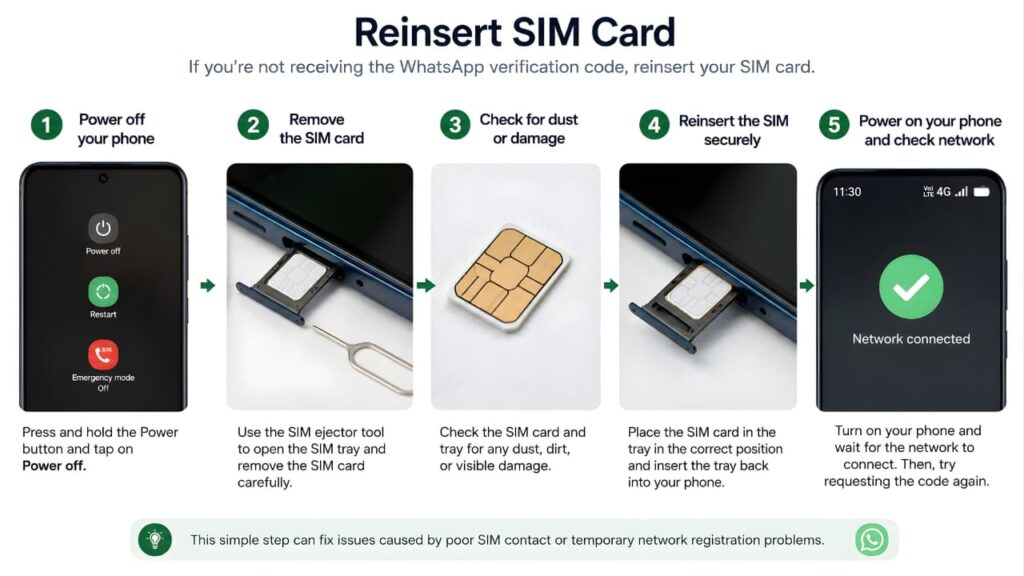
Reinsert the SIM Card
If your phone has recently experienced network issues or the SIM card was moved between devices, reseating the SIM can help.
Steps
- Power off the phone.
- Remove the SIM card carefully.
- Check for dust or visible damage.
- Reinsert the SIM securely.
- Turn the phone back on.
- Wait for the network to reconnect before requesting another verification code.
This can resolve issues caused by poor SIM contact or temporary network registration problems.
Reinserting the SIM card may resolve a WhatsApp Verification Code Not Received problem if the device is not detecting the network properly.
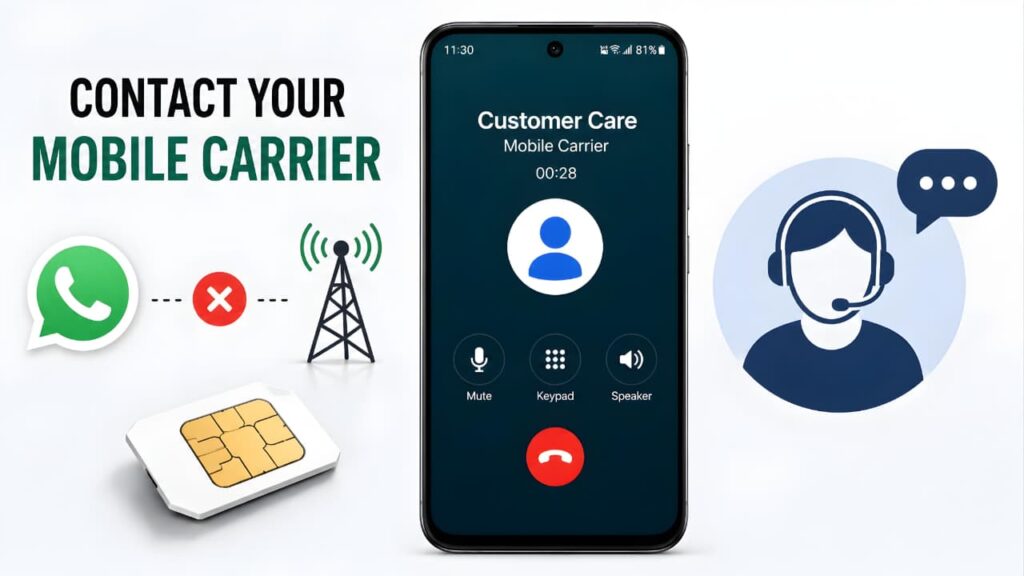
When Should You Contact Your Mobile Carrier?
If you’ve completed all the above steps and still cannot receive:
- Regular SMS messages
- Verification SMS from other services
- Incoming phone calls
the issue may lie with your mobile network provider.
Contact your carrier and ask them to verify:
- Whether your SIM is fully active.
- Whether SMS services are functioning correctly.
- Whether any restrictions have been placed on your account.
- Whether there are temporary network outages in your area.
- Whether international or application-generated SMS messages are being blocked.
Resolving carrier-side issues often restores WhatsApp verification without any additional changes.
Understanding Common WhatsApp Verification Error Messages
Sometimes WhatsApp doesn’t simply fail to deliver the verification code it also displays an error message. Understanding what these messages mean can help you avoid unnecessary troubleshooting and resolve the issue more quickly.
Error: "Couldn't Send SMS"
This message usually indicates that WhatsApp was unable to complete the SMS verification request.
Possible Causes
- Temporary network issues
- Weak or unstable mobile signal
- Incorrect phone number or country code
- Temporary carrier restrictions
- WhatsApp service experiencing temporary issues
What You Can Do
- Verify that your phone number is correct.
- Check your mobile signal strength.
- Wait a few minutes before trying again.
- Restart your phone.
- Ensure your SIM card can receive regular SMS messages.
If the problem continues, wait until the countdown timer finishes before requesting another verification code.
Error: "Try Again Later"
This is one of the most common messages users see after requesting verification codes multiple times.
WhatsApp temporarily limits repeated verification attempts to protect accounts from automated abuse and unauthorized access.
Why It Happens
- Multiple verification requests within a short period
- Entering incorrect verification codes several times
- Frequent uninstalling and reinstalling WhatsApp
- Repeated registration attempts from the same device
Recommended Solution
The best solution is simply to wait.
Avoid:
- Reinstalling WhatsApp repeatedly
- Switching devices unnecessarily
- Continuously requesting new verification codes
Once the waiting period ends, request a fresh verification code and enter it carefully.
Error: "You Have Guessed Too Many Times"
This message appears when too many incorrect verification codes have been entered.
Possible reasons include:
- Typing the code incorrectly
- Using an older, expired verification code
- Receiving multiple SMS messages and entering the wrong one
How to Fix It
- Wait until WhatsApp allows another verification attempt.
- Use only the most recently received verification code.
- Avoid guessing the code.
- Do not ask friends or family for “alternative” verification methods—verification codes are unique to your phone number and session.
Verification Code Arrives Too Late
In some situations, the verification SMS may arrive after several minutes or even longer due to delays within the mobile network.
If you receive multiple verification messages:
- Always use the latest verification code.
- Older codes are usually invalid once a newer one has been issued.
- If the newest code also expires, request another code only after the waiting timer has ended.
Patience is often the fastest solution when carrier delays are involved.
Problems After Changing to a New Phone
Many users experience verification issues immediately after moving WhatsApp to a new device.
Before starting the setup, confirm that:
- The SIM card containing your WhatsApp number is inserted into the new phone or is otherwise able to receive SMS/calls.
- The phone number is still active.
- The new device has a stable internet connection.
- WhatsApp is downloaded from the official app store.
Remember, the verification code is sent to your phone number, not to the device itself.
If you’ve switched to a new iPhone or moved from Android to iPhone, make sure your phone number is still active and able to receive SMS messages or phone calls. WhatsApp always sends the verification code to your phone number, not to your previous device or your Apple ID.
Many users experience a WhatsApp Verification Code Not Received issue after switching to a new Android phone or iPhone.
eSIM Verification Issues
If you use an eSIM instead of a physical SIM card, the verification process is generally the same. However, problems can occur if:
- The eSIM profile has not been activated correctly.
- The mobile network is not registered.
- SMS services are not yet available on the eSIM.
- You recently transferred the eSIM to a new device.
What to Check
| Item | Expected Status |
|---|---|
| eSIM activated | Yes |
| Mobile network connected | Yes |
| Can make calls | Yes |
| Can receive SMS | Yes |
| Correct phone number | Yes |
Roaming and International Travel
If you’re traveling abroad, SMS verification may not always work as expected.
Possible reasons include:
- International roaming is disabled.
- Your carrier blocks incoming SMS while roaming.
- Poor network coverage in the destination country.
- Temporary roaming agreements affecting SMS delivery.
Tips for Travelers
- Enable international roaming if required by your carrier.
- Connect to a supported mobile network.
- Ensure your SIM remains active.
- If SMS fails and the option becomes available, try voice call verification.
Advanced Troubleshooting for Rare Verification Problems
If you’ve completed all the basic and intermediate troubleshooting steps but still haven’t received your WhatsApp verification code, the issue may be related to less common scenarios. These situations affect a smaller number of users but can still prevent successful verification.
Check Whether Your Phone Can Receive Other Verification SMS
Before assuming the problem is specific to WhatsApp, test whether your phone can receive verification messages from other trusted services, such as your bank, email provider, or another online account.
If you cannot receive any verification SMS messages, the issue is likely related to:
- Your mobile carrier
- Your SIM card
- SMS service restrictions
- Network configuration
If other verification SMS messages arrive normally but WhatsApp’s does not, continue with the remaining troubleshooting steps.
Verify That SMS Service Center Settings Are Working
Every mobile carrier uses an SMS Service Center (SMSC) to route text messages. In most cases, these settings are configured automatically.
However, if the SMSC configuration has been changed manually or become corrupted, SMS delivery may fail.
Possible Symptoms
- Unable to send SMS
- Unable to receive SMS
- Delayed message delivery
- Verification codes from multiple services fail
If you suspect this issue, contact your mobile network provider and ask them to verify your SMS service configuration.
Check for Carrier Restrictions
Some mobile carriers temporarily block certain types of automated messages because of:
- Spam prevention systems
- Fraud detection
- Regional regulations
- Temporary service interruptions
Ask your carrier whether:
- Application-generated SMS messages are being blocked.
- International SMS routing is functioning correctly.
- There are known outages affecting SMS delivery.
- Your account has any messaging restrictions.
Resolving a carrier-side restriction often restores verification without requiring changes to WhatsApp.
Carrier restrictions can sometimes trigger a WhatsApp Verification Code Not Received issue.
Avoid Using VPNs During Registration
A Virtual Private Network (VPN) generally does not affect SMS delivery directly, but it can sometimes interfere with the communication between your device and online services during the registration process.
If you’re using a VPN:
- Disconnect from the VPN.
- Connect to your regular internet connection (mobile data or trusted Wi-Fi).
- Restart WhatsApp.
- Continue the verification process.
Once registration is complete, you can reconnect to your VPN if needed.
Ensure Your Device Software Is Up to Date
Although uncommon, outdated operating system software can contribute to compatibility or connectivity issues.
Check for Updates
- Install the latest Android or iOS updates available for your device.
- Restart your phone after updating.
- Open the latest version of WhatsApp and continue verification.
Whether you use an Android phone or an iPhone, installing the latest operating system updates can improve network compatibility and fix software bugs that may interfere with WhatsApp verification.
Updating Android or iPhone software may resolve a WhatsApp Verification Code Not Received issue.
When Should You Contact WhatsApp Support?
If all troubleshooting steps have been completed and the verification code still does not arrive, contacting WhatsApp Support may be appropriate.
Before reaching out, make sure you have:
- Confirmed your phone number and country code.
- Waited for the verification timer to expire.
- Tried SMS and voice call verification (if available).
- Verified that your SIM card can receive regular SMS and calls.
- Updated WhatsApp to the latest version.
- Confirmed there are no carrier-side restrictions.
Providing these details can help support teams understand the issue more quickly.
If every troubleshooting step fails, the WhatsApp Verification Code Not Received issue may require assistance from WhatsApp Support.
If every troubleshooting step fails, you can contact WhatsApp Support for additional assistance with your verification issue.
Troubleshooting Checklist
| Checklist Item | Status |
|---|---|
| Correct country selected | ✔ |
| Correct phone number entered | ✔ |
| SIM card active | ✔ |
| Can receive regular SMS | ✔ |
| Can receive phone calls | ✔ |
| Strong mobile signal available | ✔ |
| Airplane Mode disabled | ✔ |
| Official WhatsApp app installed | ✔ |
| Latest WhatsApp version installed | ✔ |
| Automatic date and time enabled | ✔ |
| Waited for the countdown timer | ✔ |
| Tried voice verification (if available) | ✔ |
Use this checklist whenever you experience a WhatsApp Verification Code Not Received problem.
If the problem continues after completing every step in this checklist, you can review the WhatsApp Help Center for additional troubleshooting recommendations and official support articles.
Myth vs. Fact
| Myth | Fact |
|---|---|
| Wi-Fi alone can receive the WhatsApp verification code. | No. SMS verification requires an active mobile number that can receive text messages. |
| Requesting the code repeatedly makes it arrive faster. | No. Repeated requests can increase the waiting time. |
| Reinstalling WhatsApp always fixes verification issues. | No. Reinstallation is not a guaranteed solution and may not address the underlying cause. |
| Any virtual phone number works with WhatsApp. | No. Some virtual or VoIP numbers may not be supported for verification. |
| Verification codes can be sent by email. | No. WhatsApp uses SMS or an automated voice call for phone number verification. |
Understanding these common myths can help you troubleshoot a WhatsApp Verification Code Not Received issue more effectively.
Key Takeaways
Following these recommendations can help prevent a WhatsApp Verification Code Not Received issue in the future.
- Always verify your phone number and country code before requesting a verification code.
- Ensure your SIM card is active and capable of receiving SMS and phone calls.
- Avoid requesting multiple verification codes in quick succession.
- Use only the official WhatsApp application.
- Keep your device software and WhatsApp updated.
- Wait for the verification timer to expire before trying again.
- Contact your mobile carrier if regular SMS messages are also failing.
- Reach out to WhatsApp Support only after completing all recommended troubleshooting steps.
Conclusion
Most WhatsApp Verification Code Not Received issues can be resolved by following the solutions explained in this guide.
Not receiving a WhatsApp verification code can be frustrating, especially when you’re setting up a new device or trying to regain access to your account. Fortunately, in most cases, the problem is caused by simple issues such as an incorrect phone number, poor network coverage, an inactive SIM card, or requesting verification codes too frequently.
By following the step-by-step solutions in this guide, you can systematically identify the root cause instead of relying on trial and error. Start with the basics confirm your phone number, check your mobile network, and ensure your SIM card can receive SMS messages. If the issue persists, work through the advanced troubleshooting steps, including checking carrier restrictions, using voice verification when available, and contacting your mobile network provider if necessary.
Patience is also important. Verification systems include security measures that may temporarily delay additional requests after repeated attempts. Waiting for the countdown timer to finish and using the most recent verification code can often resolve the issue without further action.
Following these best practices will give you the highest chance of completing WhatsApp verification successfully and getting back to using the app with minimal delay.
Frequently Asked Questions (FAQ)
Why am I not receiving my WhatsApp verification code?
A WhatsApp Verification Code Not Received issue is usually caused by incorrect phone details, network problems, or temporary verification delays.
Can I receive the verification code by email?
No. WhatsApp does not send verification codes by email. Verification is completed only through SMS or an automated phone call.
Can I use someone else's phone to receive my verification code?
Only if your SIM card with your phone number is inserted into that phone. The code is sent to the registered phone number, not to a specific device.
Will reinstalling WhatsApp fix the issue?
Not always. In many cases, reinstalling the app does not solve verification problems and may even increase the waiting time if done repeatedly.
Can Wi-Fi alone receive the verification code?
No. SMS verification requires an active mobile network. Wi-Fi can help WhatsApp communicate with its servers, but it cannot receive SMS messages.
Is there a charge for receiving the verification SMS?
In most cases, receiving the SMS is free. However, standard SMS or roaming charges may apply depending on your mobile carrier and plan.