Artificial intelligence has changed the way people work, learn, create, and solve problems. Among all AI platforms available today, ChatGPT has become one of the most popular because it combines multiple productivity features into a single workspace.
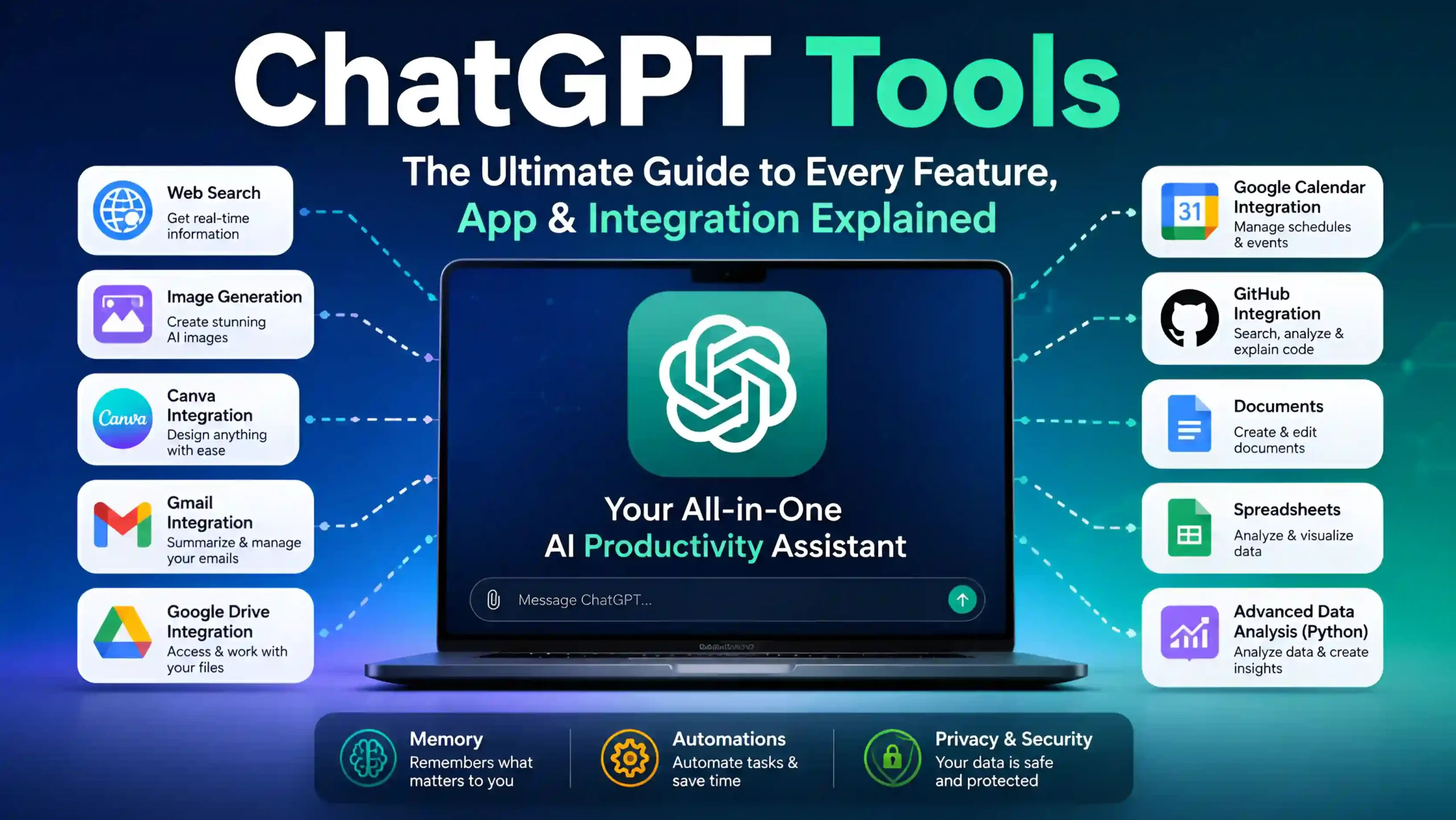
What started as an AI chatbot capable of answering questions has evolved into a complete productivity platform. Today, ChatGPT can help you search the web, generate images, analyze spreadsheets, summarize documents, create presentations, work with connected apps, and automate repetitive tasks all from one conversation.
For beginners, the growing number of tools can feel confusing. You might see terms like ChatGPT Tools, Apps, Connectors, GPTs, Integrations, or even Plugins mentioned online. Many users aren’t sure what these terms mean, how they differ, or which feature they should use for a specific task.
That’s exactly why this guide exists.
Instead of explaining each feature using technical language, this article breaks everything down into simple, practical explanations with real-world examples. By the end of this guide, you’ll know what every major ChatGPT tool does, when to use it, and how it can improve your daily workflow.
Whether you’re a student, blogger, developer, business owner, designer, marketer, or someone who has just started using AI, this guide will help you use ChatGPT more efficiently.
If you’re new to AI, understanding ChatGPT Explained: Uses, Benefits & Limitations will help you get more value from ChatGPT Tools before exploring every feature in this guide.
What You'll Learn in This Guide
This guide covers every major ChatGPT capability currently available, including:
- ChatGPT Web Search
- Image Generation
- Canva Integration
- Gmail Integration
- Google Drive Integration
- Google Calendar Integration
- GitHub Integration
- Documents
- PDF Support
- Presentations
- Spreadsheets
- Advanced Data Analysis (Python)
- Memory
- Automations
You’ll also learn:
- Which tool is best for different tasks.
- How to access each feature.
- Real-world examples.
- Best practices.
- Common mistakes to avoid.
- Privacy and security tips.
- Frequently asked questions.
Everything is explained using simple English so that beginners can follow along without prior technical knowledge.
What Are ChatGPT Tools?
ChatGPT Tools are built-in capabilities and connected services that allow ChatGPT to perform tasks beyond answering questions.
Instead of working only as a text-based AI assistant, ChatGPT can now help you complete real-world tasks such as researching information, creating visuals, analyzing files, summarizing documents, managing schedules, and working with connected applications.
Think of ChatGPT as a digital workspace rather than a chatbot.
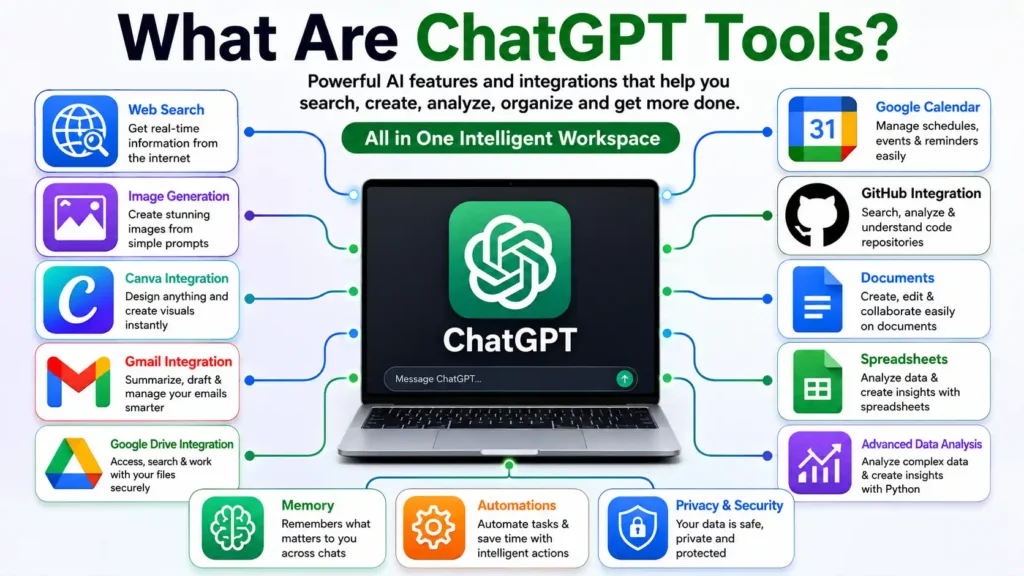
Each tool is designed for a different purpose. Some tools help you create content, while others help you search for information, analyze data, generate images, or connect with services like Gmail, Google Drive, GitHub, and Canva.
Because these tools are integrated into the same conversation, you don’t need to keep switching between multiple websites or applications. This makes your workflow faster and more organized.
OpenAI continues to improve these capabilities over time, which is why you’ll often see new tools and integrations added to ChatGPT as the platform evolves.
Many ChatGPT Tools support text, images, and files together using AI. Learn more in our Multimodal AI Explained guide.
To learn more about the platform behind ChatGPT Tools, visit the official OpenAI website for the latest features, announcements, and product updates.
Why ChatGPT Tools Matter
Modern work involves using many different applications every day.
For example, a content creator may need:
- Google Search for research
- Canva for design
- Google Docs for writing
- Gmail for communication
- Excel for reports
- AI tools for editing
Constantly switching between applications takes time and breaks your focus.
ChatGPT Tools reduce this problem by bringing many of these tasks into one place. Instead of moving from app to app, you can ask ChatGPT to help with different parts of your workflow in a single conversation.
This approach saves time, reduces repetitive work, and improves productivity.
For businesses, it can speed up everyday operations. For students, it simplifies learning and research. For creators, it makes content production much faster. And for developers, it streamlines coding and documentation tasks.
ChatGPT Tools are just one part of today’s AI ecosystem. Discover more powerful solutions in our Top Free AI Tools guide.
ChatGPT Tools vs GPTs vs Apps vs Connectors
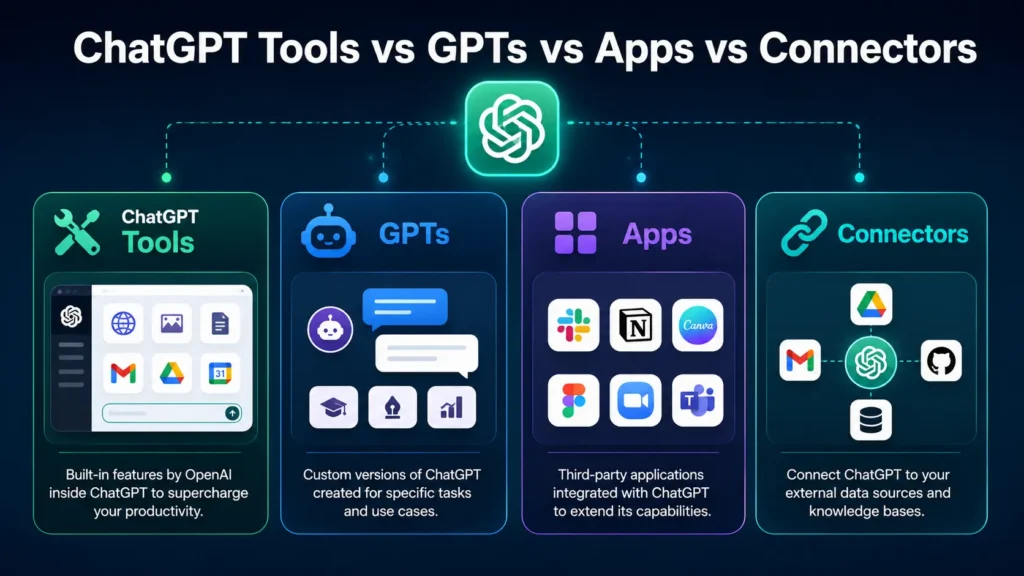
One of the most common questions new users ask is:
“Are ChatGPT Tools, GPTs, Apps, and Connectors the same?”
The short answer is no.
Although they work together, each one has a different purpose.
| Feature | Purpose |
|---|---|
| ChatGPT Tools | Built-in capabilities such as Web Search, Image Generation, and Advanced Data Analysis. |
| GPTs | Customized versions of ChatGPT created for specific tasks or workflows. |
| Apps | External services that work with ChatGPT, such as Canva and other supported applications. |
| Connectors | Secure connections that allow ChatGPT to access information from supported services like Gmail, Google Drive, GitHub, or Google Calendar after you grant permission. |
You don’t need to memorize these terms. As you continue using ChatGPT, you’ll naturally understand which feature is best for different situations.
If you’re comparing AI assistants beyond ChatGPT Tools, read our detailed Google Gemini vs ChatGPT comparison.
How ChatGPT Tools Work
Although each tool is different, the overall process is simple.
- Open ChatGPT.
- Start a new conversation.
- Choose or connect the tool if required.
- Describe what you want to accomplish.
- Review the generated result.
- Refine the output with follow-up prompts if needed.
For example:
- Need the latest news? Use Web Search.
- Need an image? Use Image Generation.
- Need to analyze a spreadsheet? Use Advanced Data Analysis.
- Need to create a presentation? Use the Presentations tool.
- Need information from Google Drive? Connect your account and ask your question.
Everything happens within the same conversation, making the experience much more efficient than switching between different applications.
Who Should Use ChatGPT Tools?
One of the biggest strengths of ChatGPT is its flexibility.
Almost anyone can benefit from its tools.
Students
Students can use ChatGPT to summarize study materials, understand difficult concepts, prepare presentations, and organize research.
Content Creators
Bloggers, YouTubers, and social media creators can write articles, generate thumbnails, create captions, and brainstorm new ideas faster.
Business Professionals
Professionals can draft emails, prepare reports, summarize meetings, analyze spreadsheets, and improve productivity.
Developers
Developers can review code, understand repositories, generate documentation, and speed up debugging with GitHub integration and coding assistance.
Designers
Designers can use Image Generation and Canva Integration to create graphics, presentations, marketing materials, and creative assets more efficiently.
Regardless of your profession, ChatGPT Tools can help automate repetitive work and free up more time for creative or strategic tasks.
Content creators can combine ChatGPT Tools with these Free AI Tools for YouTubers to create videos faster and more efficiently.
Web Search
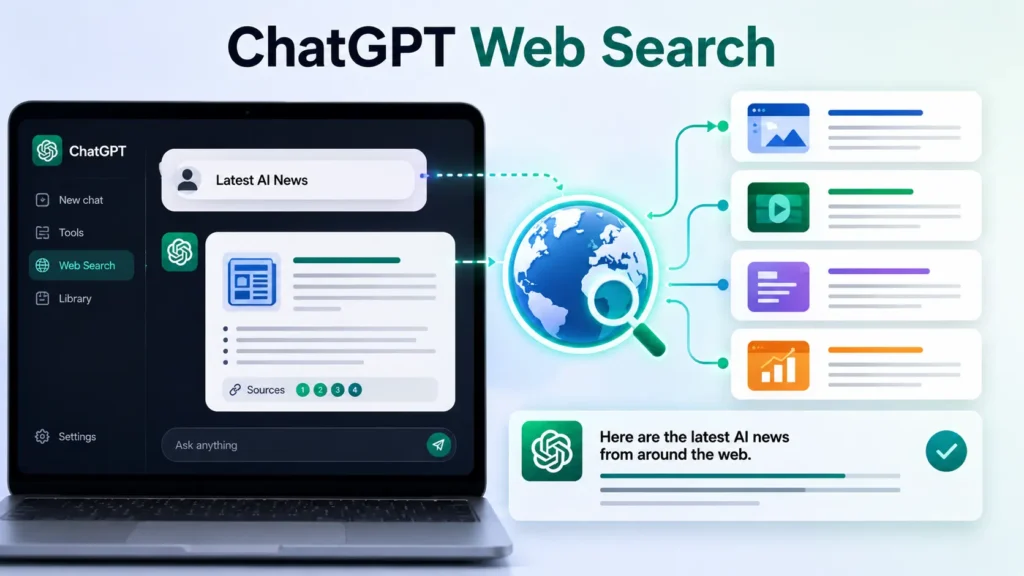
What Is ChatGPT Web Search?
One of the most useful ChatGPT Tools is Web Search. It allows ChatGPT to search the internet and provide information that goes beyond its built-in knowledge.
Instead of opening multiple browser tabs and searching through different websites, you can simply ask ChatGPT a question. When your request requires current information, ChatGPT can search trusted online sources and summarize the results in a clear and easy-to-understand format.
This makes Web Search especially useful for topics that change frequently, such as technology, product launches, software updates, sports, finance, government announcements, and breaking news.
When Should You Use Web Search?
Web Search works best whenever you need recent or live information.
Some common examples include:
- Reading the latest AI news.
- Checking smartphone launch details.
- Comparing current laptop prices.
- Finding official software documentation.
- Looking up recent government announcements.
- Researching newly released products.
- Checking service availability.
If the information changes over time, Web Search is usually the right tool.
How to Use Web Search
Using Web Search is simple.
- Open ChatGPT.
- Start a new conversation.
- Ask your question naturally.
- If current information is required, ChatGPT will search the web.
- Review the answer along with the cited sources.
You don’t need to learn special commands or search operators. A clear question is usually enough.
Real-World Example
Suppose you’re planning to buy a new smartphone.
Instead of visiting several review websites, you can ask:
“Compare the latest Samsung Galaxy S series with the latest iPhone models.”
ChatGPT can collect current information, highlight the key differences, and provide links or citations to trusted sources so you can verify the details.
Best Tips
- Ask specific questions.
- Mention the product or company name.
- Request official sources whenever accuracy is important.
- Compare multiple products in a single prompt if needed.
- Use follow-up questions to explore a topic in more detail.
Things to Remember
Although Web Search is very helpful, not every website is equally reliable.
Always verify important information such as:
- Legal advice
- Medical guidance
- Financial decisions
- Government policies
Using official sources whenever possible is the best practice.
ChatGPT Tools like Web Search make it easier to find accurate and up-to-date information without leaving your conversation.
When ChatGPT uses Web Search, it’s always a good idea to verify important information using trusted and official sources whenever possible.
When using ChatGPT Tools for researching current events, it’s also useful to stay informed with our guide on the Latest Google Updates Explained.
Image Generation

What Is Image Generation?
Image Generation is one of the most popular ChatGPT Tools because it allows you to create original AI-generated images using simple text prompts.
Instead of designing everything manually, you describe the image you want, and ChatGPT generates it for you.
Whether you need a realistic illustration, a YouTube thumbnail, a social media graphic, a logo concept, or a presentation image, this tool can significantly reduce design time.
What Can You Create?
Image Generation supports many creative projects, including:
- YouTube thumbnails
- Blog featured images
- Social media posts
- Product mockups
- Posters
- Flyers
- Digital illustrations
- Infographics
- Wallpapers
- Presentation graphics
The better your prompt, the more accurate the final image will be.
How to Generate Images
Creating images only takes a few steps.
- Open ChatGPT.
- Describe the image you want.
- Include important details such as colors, background, lighting, style, and aspect ratio.
- Wait for ChatGPT to generate the image.
- Request edits if you want to improve the result.
Unlike traditional design software, you don’t need graphic design experience to get started.
Example Prompt
A detailed prompt usually produces much better results.
For example:
“Create a realistic YouTube thumbnail showing a smartphone displaying a WhatsApp error screen. Use a blue background, bold headline text, dramatic lighting, and a surprised facial expression.”
The more clearly you describe your idea, the closer the generated image will match your expectations.
Best Tips
For better results:
- Mention the image style (realistic, 3D, illustration, cartoon, etc.).
- Specify the aspect ratio if needed.
- Describe colors and lighting.
- Explain exactly what should appear in the scene.
- Refine the image with follow-up prompts instead of starting over.
Things to Remember
Image Generation is extremely capable, but some requests may be limited by safety policies or copyright considerations.
If an image doesn’t match your expectations, try providing more detailed instructions instead of creating a completely new prompt.
Among all ChatGPT Tools, Image Generation is one of the best options for creating original visuals from simple text prompts.
For official guidance on creating and editing images with ChatGPT Tools, refer to OpenAI’s Help Center.
If you’re looking for more AI image options beyond ChatGPT Tools, check out these Best Free AI Image Generators.
You can also compare ChatGPT Tools with Google AI Mode Image Generation to see how different AI image platforms work.
Canva Integration

What Is Canva Integration?
Canva Integration combines one of the world’s most popular design platforms with ChatGPT.
Instead of switching between ChatGPT and Canva, you can start design projects directly from your conversation. ChatGPT helps you generate ideas, create layouts, write design copy, and prepare content that can be opened and refined in Canva.
This is especially useful for creators who regularly produce visual content.
Why Use Canva with ChatGPT?
Creating designs often involves multiple steps:
- Thinking of an idea.
- Writing the content.
- Designing the layout.
- Choosing images.
- Editing the final design.
With Canva Integration, many of these steps become much faster because ChatGPT helps you prepare everything before the design is finalized.
What Can You Create?
You can use Canva Integration to create:
- YouTube thumbnails
- Instagram posts
- Facebook banners
- LinkedIn graphics
- Business presentations
- Posters
- Flyers
- Invitations
- Infographics
- Marketing materials
Instead of starting from a blank canvas, you begin with AI-assisted ideas and content.
How to Access Canva Integration
If Canva is available with your ChatGPT account:
- Open ChatGPT.
- Choose or search for the Canva app or integration.
- Sign in to your Canva account if prompted.
- Grant the required permissions.
- Describe the design you want to create.
Once connected, you can continue editing the generated design inside Canva.
Real-World Example
Imagine you’re preparing a YouTube video.
Instead of opening multiple tools, simply ask:
“Create a modern YouTube thumbnail for a video about ChatGPT Tools using blue and white colors with bold text.”
ChatGPT can prepare the design concept, and Canva lets you make final adjustments before publishing.
Best Tips
To get better Canva designs:
- Mention your brand colors.
- Specify the platform (YouTube, Instagram, LinkedIn, etc.).
- Describe the target audience.
- Explain your preferred design style.
- Ask for multiple design variations before choosing one.
Things to Remember
Some Canva features may require a Canva Pro subscription, and certain integration features may vary depending on your ChatGPT plan or regional availability.
For the best experience, always review your final design before publishing it.
ChatGPT Tools become even more powerful when Canva Integration is used for creating professional designs.
Learn more about Canva’s features, templates, and AI-powered design tools on the official Canva website.
Quick Comparison
| ChatGPT Tool | Best For |
|---|---|
| Web Search | Finding the latest information from trusted online sources. |
| Image Generation | Creating original AI-generated images from text prompts. |
| Canva Integration | Designing professional graphics, presentations, and marketing materials with AI assistance. |
Gmail Integration
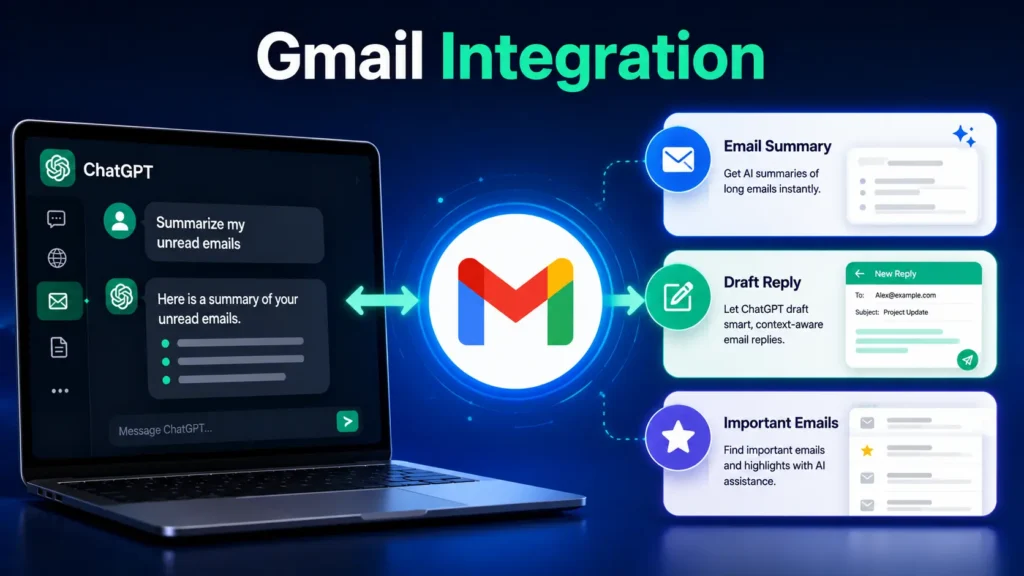
What Is Gmail Integration?
Gmail Integration is one of the most practical ChatGPT Tools for users who manage a large number of emails every day. Once you connect your Gmail account and grant permission, ChatGPT can help you understand, organize, and work with your inbox more efficiently.
Instead of manually opening dozens of emails, you can ask ChatGPT to summarize conversations, locate specific messages, identify important updates, or help you draft professional replies. This saves time and makes email management much less overwhelming.
Whether you’re a student, freelancer, business owner, or office professional, Gmail Integration can simplify your daily communication.
What Can You Do?
After connecting Gmail, you can ask ChatGPT to:
- Summarize unread emails.
- Find emails from a specific person or company.
- Locate invoices or receipts.
- Identify emails that need a response.
- Draft professional replies.
- Summarize long email conversations.
- Highlight important deadlines mentioned in emails.
Instead of searching your inbox manually, you simply ask ChatGPT what you need.
How to Access Gmail Integration
If Gmail Integration is available for your account:
- Open ChatGPT.
- Select the Gmail integration or connector.
- Sign in with your Google account.
- Approve the requested permissions.
- Start asking questions about your inbox.
You can disconnect Gmail whenever you no longer want ChatGPT to access your emails.
Real-World Example
Imagine returning from a week-long vacation.
Your inbox contains more than 300 emails.
Instead of reading each message one by one, you can ask:
“Summarize the important emails I received this week and tell me which ones need immediate attention.”
ChatGPT provides a clear summary, allowing you to focus only on the messages that matter most.
Best Tips
- Use clear search requests.
- Mention names, companies, or dates whenever possible.
- Review AI-generated email drafts before sending them.
- Keep your inbox organized for better search results.
Things to Remember
Gmail Integration only works after you authorize access to your account. ChatGPT cannot read your emails without your permission, and you remain in control of connected services through your account settings.
For email management, ChatGPT Tools can help you organize, summarize, and respond more efficiently.
To understand how Gmail works and manage your email account securely, visit Google’s official Gmail page.
Google Drive Integration
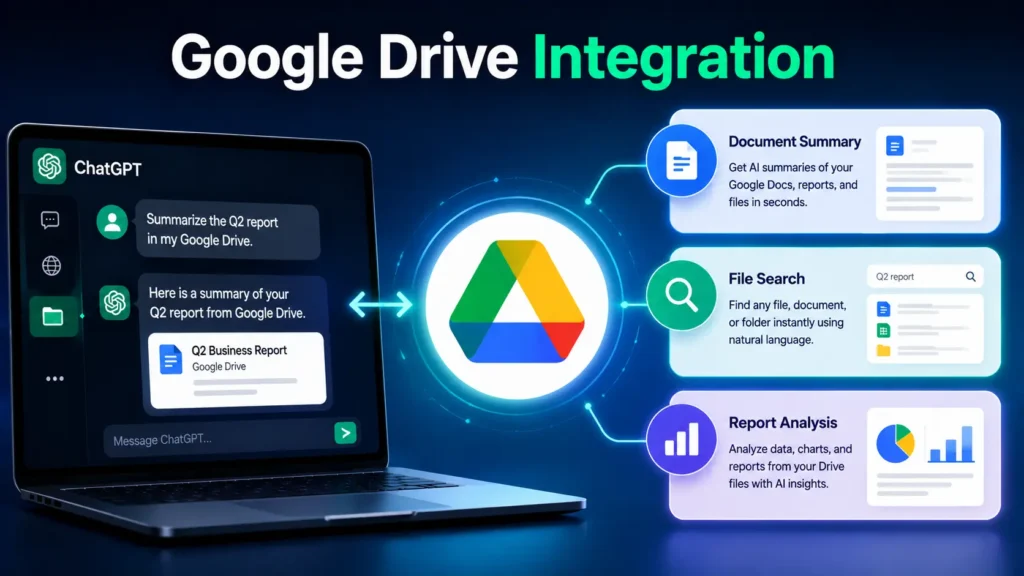
What Is Google Drive Integration?
Google Drive Integration allows ChatGPT to work with files stored in your Google Drive after you connect your account.
Instead of downloading documents and uploading them manually, ChatGPT can help you search, summarize, and understand information stored in supported files.
This is especially useful for users who regularly work with reports, meeting notes, presentations, spreadsheets, research documents, or project files.
What Can You Do?
Google Drive Integration can help you:
- Search documents quickly.
- Summarize lengthy reports.
- Compare multiple documents.
- Find specific information inside files.
- Explain complex content.
- Answer questions based on your documents.
- Save time during research.
How to Access Google Drive Integration
Getting started is easy.
- Open ChatGPT.
- Select Google Drive from the available integrations.
- Sign in with your Google account.
- Grant the required permissions.
- Ask ChatGPT about your files.
Once connected, ChatGPT can help you work with supported documents more efficiently.
Real-World Example
Suppose your company stores monthly sales reports in Google Drive.
Instead of opening every report individually, you can ask:
“Compare the sales performance for the last three months and highlight the biggest changes.”
ChatGPT reviews the available documents and presents the important insights in a simple format.
Best Tips
- Keep your files well organized.
- Use meaningful file names.
- Ask specific questions.
- Review important business information before making decisions.
Things to Remember
Only files that you’ve authorized ChatGPT to access can be used. If a document isn’t shared or available through the connected account, ChatGPT won’t be able to retrieve it.
ChatGPT Tools simplify document management by helping you search and understand files stored in Google Drive.
Learn more about storing, organizing, and sharing files using Google Drive from the official Google website.
Since Google Drive stores your important files online, it’s helpful to understand How Cloud Storage Works for better file management with ChatGPT Tools.
Google Calendar Integration
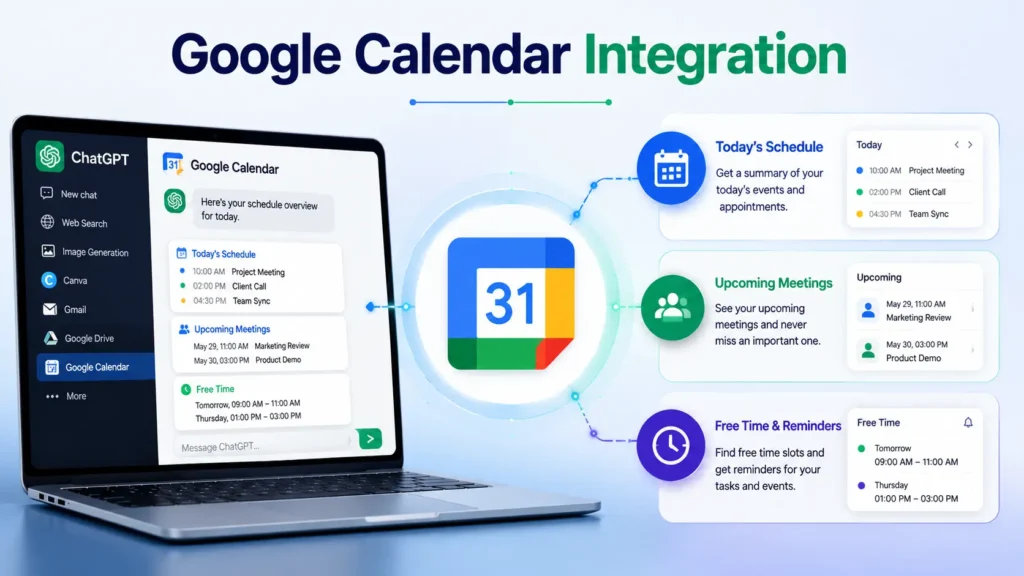
What Is Google Calendar Integration?
Managing a busy schedule can be difficult, especially when meetings, deadlines, and personal events are spread across different days.
Google Calendar Integration helps ChatGPT understand your schedule so you can organize your time more effectively.
Instead of checking your calendar repeatedly, you can ask ChatGPT about upcoming events, free time, or your daily agenda.
What Can You Do?
Google Calendar Integration helps you:
- Review today’s schedule.
- Check upcoming meetings.
- Find available time slots.
- Prepare for appointments.
- Organize your weekly agenda.
- Stay on top of important deadlines.
Everything happens through natural conversation.
How to Access Google Calendar Integration
To connect Google Calendar:
- Open ChatGPT.
- Choose Google Calendar.
- Sign in with your Google account.
- Approve the requested permissions.
- Begin asking calendar-related questions.
Once connected, ChatGPT can help you understand your schedule more quickly.
Real-World Example
Instead of opening your calendar application, simply ask:
“What meetings do I have tomorrow morning, and how much free time do I have before lunch?”
Within seconds, ChatGPT can summarize your schedule in a clear and organized way.
Best Tips
- Keep event titles descriptive.
- Update cancelled meetings.
- Review your daily schedule every morning.
- Combine Calendar with Gmail for a more organized workflow.
Things to Remember
Google Calendar Integration depends on your account permissions. Some features may vary depending on your ChatGPT plan or your organization’s settings.
Using ChatGPT Tools with Google Calendar can improve your daily productivity and time management.
For scheduling events and managing your calendar effectively, visit the official Google Calendar website.
GitHub Integration

What Is GitHub Integration?
For developers, one of the most valuable ChatGPT Tools is GitHub Integration.
After connecting GitHub, ChatGPT can help you understand repositories, explain code, review documentation, and answer questions about your software projects.
Whether you’re joining a new development team or maintaining an existing application, GitHub Integration makes it easier to understand complex codebases.
Who Should Use GitHub Integration?
GitHub Integration is ideal for:
- Software developers
- Web developers
- Mobile app developers
- DevOps engineers
- Computer science students
- Technical project teams
If your work involves GitHub repositories, this integration can save a considerable amount of time.
What Can You Do?
With GitHub connected, ChatGPT can help you:
- Explain source code.
- Understand project structure.
- Review documentation.
- Summarize repositories.
- Locate important files.
- Understand APIs.
- Speed up onboarding for new developers.
Instead of manually exploring hundreds of project files, you can ask direct questions.
How to Access GitHub Integration
Setting up GitHub Integration is straightforward.
- Open ChatGPT.
- Select GitHub from the available integrations.
- Sign in to your GitHub account.
- Approve the requested permissions.
- Start asking questions about your repositories.
The available information depends on the permissions you’ve granted.
Real-World Example
Imagine joining a software company with an unfamiliar project.
Rather than spending hours exploring every folder, you can ask:
“Explain the overall architecture of this project and identify the main components.”
ChatGPT provides a structured overview, making it easier to understand the project before you begin coding.
Best Tips
- Connect only trusted repositories.
- Keep project documentation updated.
- Ask focused technical questions.
- Review generated code before using it in production.
Things to Remember
GitHub Integration is designed to assist developers, not replace code reviews. Always test and validate code before deploying it to production environments.
Developers can save valuable time by using ChatGPT Tools together with GitHub Integration.
Developers can learn more about repositories, version control, and collaboration on the official GitHub platform.
Comparison Table
| Integration | Best Used For | Ideal Users |
|---|---|---|
| Gmail | Managing emails, finding messages, drafting replies | Students, professionals, business users |
| Google Drive | Searching and summarizing documents | Teams, researchers, office users |
| Google Calendar | Organizing schedules and meetings | Professionals, students, managers |
| GitHub | Understanding code and repositories | Developers and technical teams |
Documents
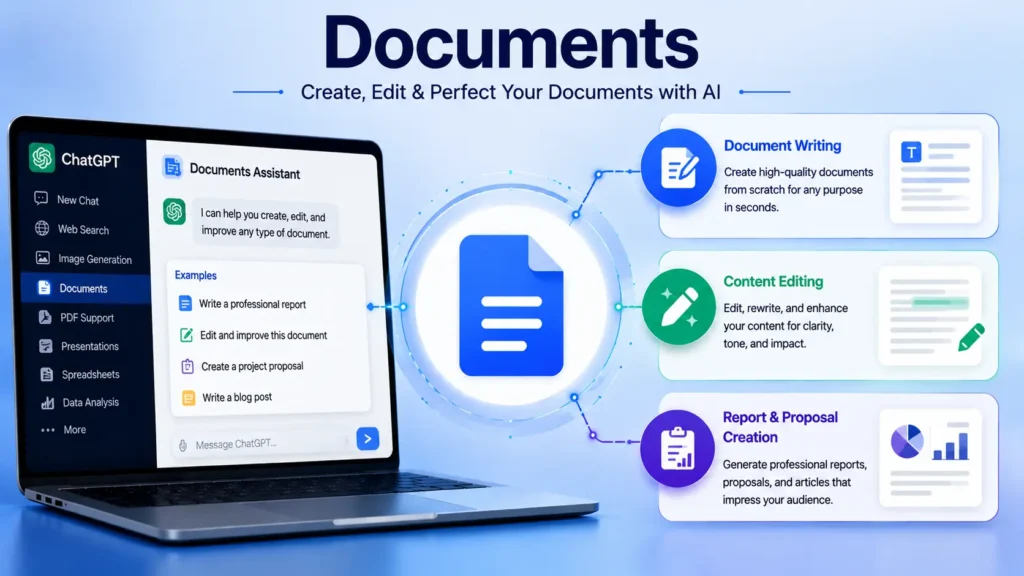
What Is the Documents Tool?
The Documents tool is one of the most useful ChatGPT Tools for creating, editing, rewriting, and improving long-form content. Instead of writing everything from scratch, you can work with ChatGPT to produce well-structured documents for work, school, or personal projects.
Whether you’re drafting a report, preparing a proposal, writing a blog post, or editing an existing document, ChatGPT can help organize your ideas and improve readability.
Unlike a basic chatbot response, the Documents tool is designed for content that needs structure, consistency, and professional formatting.
What Can You Create?
The Documents tool can help you create many types of content, including:
- Reports
- Business proposals
- Project documentation
- Blog articles
- User guides
- Meeting notes
- SOPs (Standard Operating Procedures)
- Research summaries
- Training materials
- Letters and applications
It can also rewrite existing content to make it more professional, concise, or easier to understand.
How to Use the Documents Tool
Using the Documents tool is straightforward.
- Start a new ChatGPT conversation.
- Describe the document you want to create or upload an existing document.
- Specify the purpose, audience, tone, and length.
- Review the generated draft.
- Request revisions until you’re satisfied with the final version.
Providing clear instructions usually produces better results.
Real-World Example
Suppose you’re preparing a business proposal for a new client.
Instead of spending hours formatting and organizing ideas, you can ask:
“Create a professional business proposal for a website development project, including an introduction, project scope, timeline, pricing section, and conclusion.”
ChatGPT generates a structured draft that you can customize before sharing with your client.
Best Tips
- Clearly describe your target audience.
- Mention the preferred writing style.
- Provide headings if you already have an outline.
- Review facts, names, and figures before publishing.
- Ask ChatGPT to proofread the final version.
The Documents feature is one of the most practical ChatGPT Tools for creating professional written content.
Many professionals use ChatGPT Tools together with cloud storage services. Learn more in our guide on How Cloud Storage Works.
PDF Support
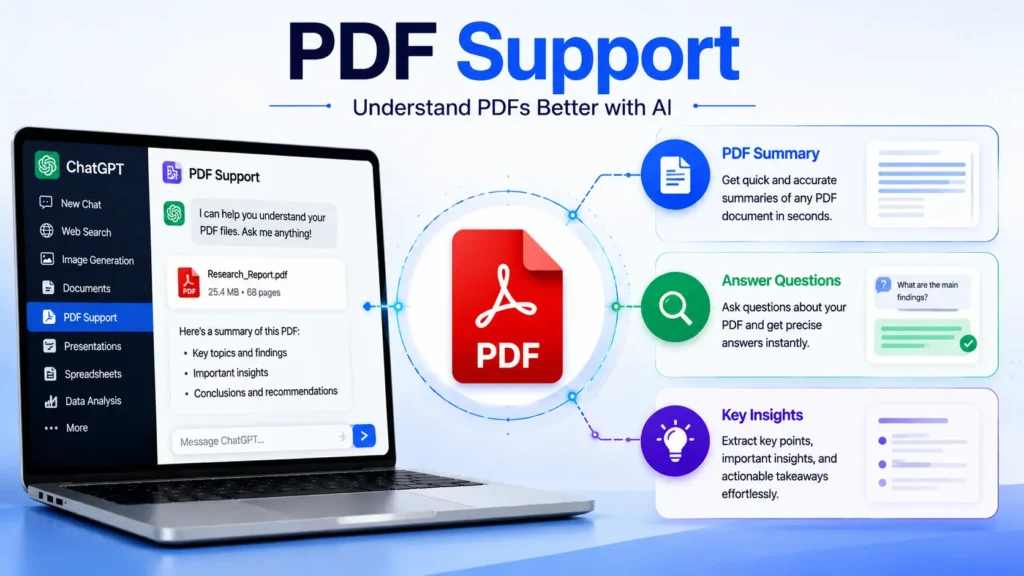
What Is PDF Support?
PDF files are widely used because they preserve formatting across different devices.
With PDF Support, ChatGPT can help you understand the contents of supported PDF files without requiring you to copy and paste every page manually.
Whether you’re reviewing a research paper, company handbook, user manual, contract, or textbook, ChatGPT can explain the information in simple language.
What Can You Do?
PDF Support can help you:
- Summarize lengthy PDF documents.
- Explain technical content.
- Extract important points.
- Answer questions about a document.
- Compare information across multiple PDFs.
- Identify key findings from reports.
This can save a significant amount of time, especially when working with large documents.
How to Use PDF Support
Using PDF Support is simple.
- Upload a supported PDF file to ChatGPT.
- Ask a specific question or request a summary.
- Review the response.
- Continue asking follow-up questions for more details.
The more specific your question, the more useful the answer is likely to be.
Real-World Example
Imagine you’ve downloaded a 150-page software manual.
Instead of reading every page, you could ask:
“Summarize the installation process and list the most important configuration steps.”
ChatGPT identifies the relevant sections and presents them in a clear, organized format.
Best Tips
- Ask focused questions instead of requesting a summary of everything.
- Break large projects into smaller tasks.
- Double-check legal or compliance-related information.
- Review important technical details before implementation.
ChatGPT Tools make it much easier to understand and summarize lengthy PDF documents.
If you regularly manage important PDF files with ChatGPT Tools, understanding How Cloud Storage Works can help you organize and access your documents more efficiently.
Presentations
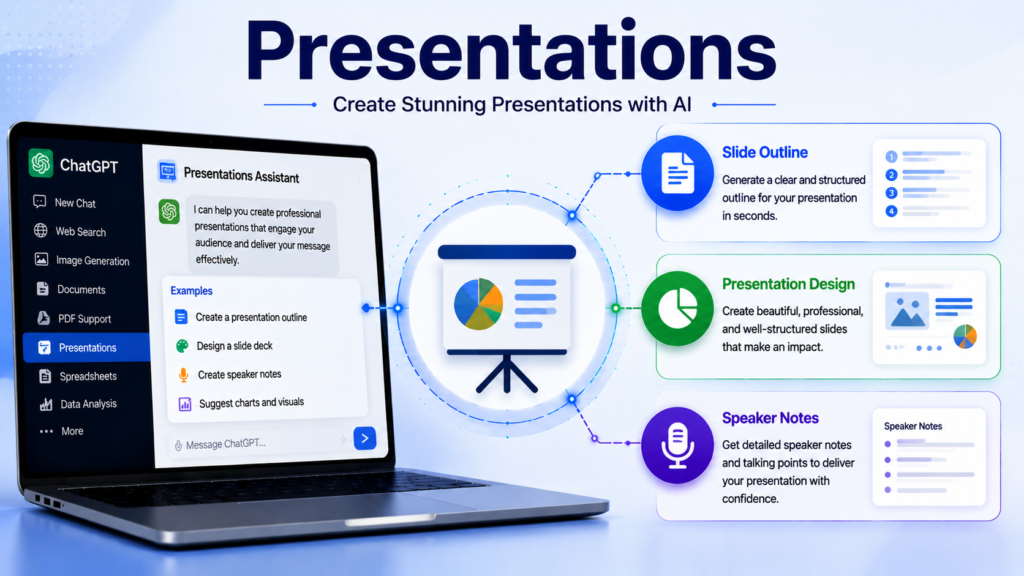
What Is the Presentations Tool?
Creating presentations often takes more time than writing the actual content.
The Presentations tool helps you organize ideas into a logical slide structure, making it easier to prepare presentations for meetings, classrooms, conferences, and client discussions.
Instead of starting with an empty slide deck, you can generate a complete presentation outline in minutes.
What Can You Create?
The Presentations tool can help you prepare:
- Business presentations
- Sales pitches
- Marketing presentations
- Training sessions
- School projects
- Startup pitch decks
- Product launch presentations
- Workshop materials
It can also suggest speaker notes and improve the overall flow of your presentation.
How to Use the Presentations Tool
A typical workflow looks like this:
- Describe your presentation topic.
- Specify the audience.
- Mention the desired number of slides.
- Review the generated outline.
- Refine individual slides if necessary.
You can also ask ChatGPT to recommend visuals, charts, or diagrams for each section.
Real-World Example
Suppose you’re presenting quarterly sales results.
Instead of manually planning every slide, ask:
“Create a 12-slide presentation summarizing quarterly sales performance, key achievements, challenges, recommendations, and next steps.”
ChatGPT prepares a logical structure that you can refine before presenting.
Best Tips
- Focus on one idea per slide.
- Avoid overcrowding slides with text.
- Use visuals wherever possible.
- Keep headings short and clear.
- Practice your presentation before delivery.
Creating presentations becomes faster and more organized with ChatGPT Tools.
Spreadsheets
What Is the Spreadsheets Tool?
Working with large datasets can be time-consuming.
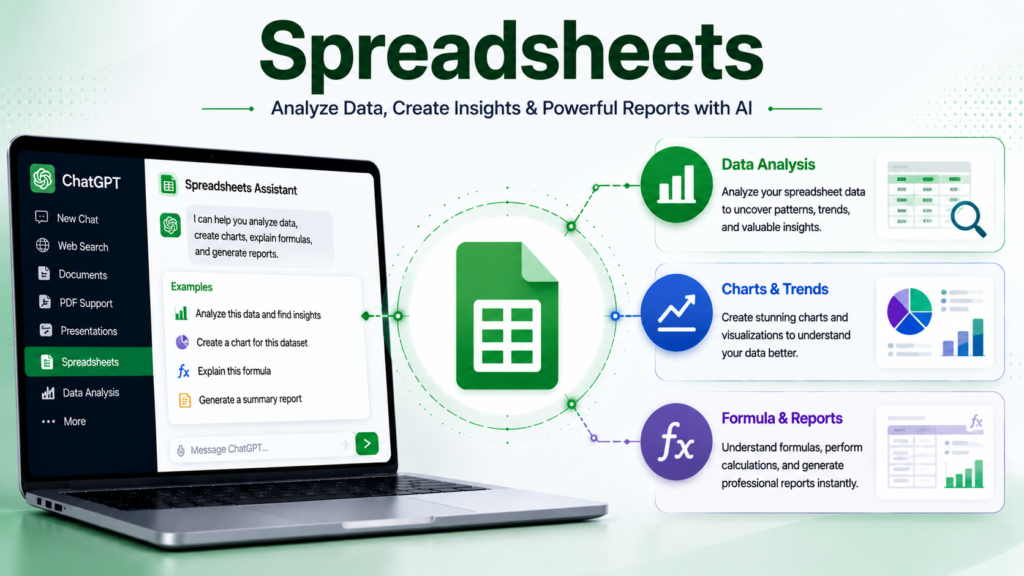
The Spreadsheets tool helps you organize, understand, and analyze spreadsheet data more efficiently.
Whether you’re working with budgets, sales reports, attendance records, inventory lists, or project trackers, ChatGPT can help interpret the data and identify useful insights.
What Can You Do?
The Spreadsheets tool can assist with:
- Organizing tables
- Explaining spreadsheet formulas
- Summarizing datasets
- Identifying trends
- Creating reports
- Cleaning data
- Suggesting charts
- Answering questions about spreadsheet content
This makes it valuable for both beginners and experienced spreadsheet users.
How to Use the Spreadsheets Tool
To get the best results:
- Upload a supported spreadsheet file.
- Explain what you want to analyze.
- Ask specific questions.
- Review the generated insights.
- Continue refining your analysis with follow-up prompts.
Real-World Example
Suppose you upload a year’s worth of sales data.
You could ask:
“Identify the best-performing products, monthly sales trends, and the top five customers by revenue.”
Instead of manually reviewing thousands of rows, ChatGPT quickly summarizes the key findings.
Best Tips
- Use descriptive column headings.
- Remove duplicate data before analysis.
- Clearly define the questions you want answered.
- Verify important financial calculations independently.
Businesses and students can analyze spreadsheet data more effectively using ChatGPT Tools.
Comparison Table
| Tool | Best For | Typical Users |
|---|---|---|
| Documents | Writing, editing, and structuring long-form content | Writers, students, professionals |
| PDF Support | Understanding and summarizing PDF files | Researchers, students, office users |
| Presentations | Creating slide outlines and presentation content | Teachers, managers, marketers |
| Spreadsheets | Organizing and analyzing data | Business users, analysts, accountants |
Advanced Data Analysis (Python)

What Is Advanced Data Analysis?
Among all ChatGPT Tools, Advanced Data Analysis (ADA) is one of the most powerful features for working with files, data, and calculations. Previously known as Code Interpreter, this tool uses Python behind the scenes to analyze information, perform calculations, create charts, and process files.
Unlike a standard conversation, Advanced Data Analysis can execute code to solve complex problems. You don’t need to know Python yourself—simply describe what you want, and ChatGPT handles the technical work.
This feature is especially valuable for professionals, researchers, students, analysts, and business users who work with data regularly.
What Can Advanced Data Analysis Do?
Advanced Data Analysis supports a wide range of tasks, including:
- Analyze spreadsheets and CSV files.
- Clean messy datasets.
- Generate charts and graphs.
- Perform statistical calculations.
- Compare large datasets.
- Convert files into different formats.
- Extract information from documents.
- Generate reports.
- Create tables from raw data.
- Perform mathematical calculations.
Instead of manually processing data in multiple applications, you can complete many tasks within a single ChatGPT conversation.
How to Use Advanced Data Analysis
Using this tool is simple.
- Open ChatGPT.
- Upload your file.
- Explain what you want to accomplish.
- Review the generated results.
- Continue refining your analysis with follow-up questions.
The more clearly you describe your goal, the more useful the output will be.
Real-World Example
Suppose you own an online store and have a spreadsheet containing 20,000 sales records.
Instead of manually filtering the data, you could ask:
“Analyze this sales data, identify the top-selling products, calculate monthly revenue, and create a chart showing sales trends.”
Within minutes, ChatGPT can organize the data, perform the calculations, and present the results in an easy-to-understand format.
Who Should Use It?
Advanced Data Analysis is useful for:
- Data analysts
- Business owners
- Students
- Researchers
- Financial professionals
- Marketing teams
- HR departments
- Teachers
- Project managers
Even users with no programming experience can benefit from this tool.
Best Practices
To achieve better results:
- Upload clean, well-organized files.
- Ask one clear question at a time.
- Specify exactly what insights you need.
- Review important calculations before making business decisions.
- Keep a backup of your original files.
Limitations
Although Advanced Data Analysis is extremely capable, it still depends on the quality of the data you provide.
If a spreadsheet contains missing values, incorrect formatting, or inconsistent information, the results may require additional review.
For financial reporting, legal compliance, or scientific research, always verify critical findings before using them.
Advanced Data Analysis is one of the most powerful ChatGPT Tools for working with data and files.
Advanced Data Analysis uses Python behind the scenes. If you’d like to learn more about Python, visit its official website.
Memory
What Is Memory?
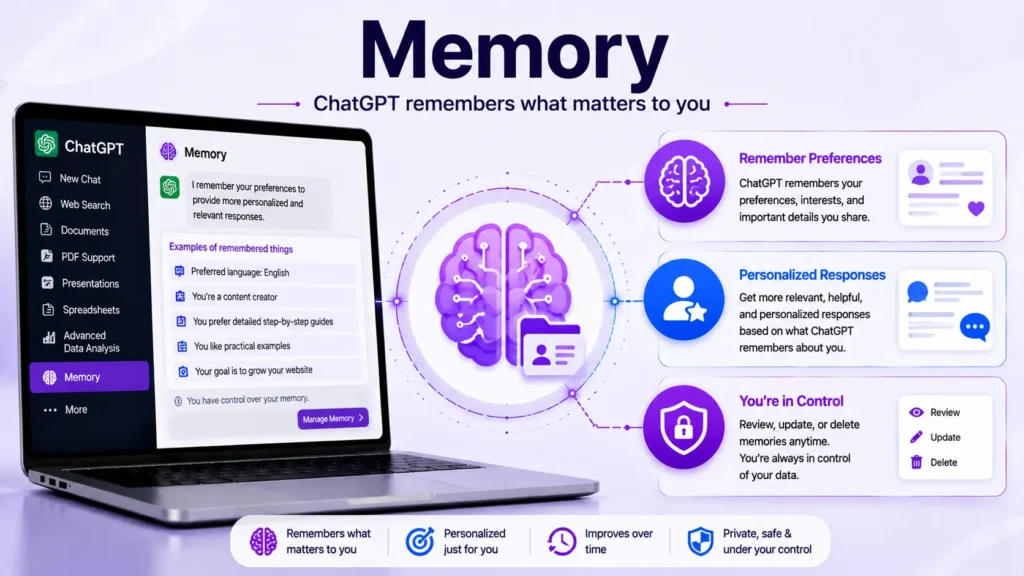
Memory is one of the smartest ChatGPT Tools because it allows ChatGPT to remember helpful information about your preferences over time—when you’ve chosen to allow it.
Instead of repeating the same details in every conversation, Memory can remember information such as your preferred writing style, favorite programming language, or recurring project preferences.
Its goal is to make future conversations more helpful and personalized.
How Memory Works
When Memory is enabled, ChatGPT can remember useful information that you’ve asked it to save or that you’ve confirmed should be remembered.
For example, it might remember:
- Your preferred writing tone.
- Your favorite coding language.
- Your preferred measurement units.
- Your ongoing project preferences.
- Your preferred response format.
When that information is relevant, ChatGPT can use it in future conversations.
Real-World Example
Imagine you’re a blogger who always prefers articles in simple English, with SEO-friendly headings and WordPress-ready formatting.
Instead of repeating these preferences every time, Memory can remember them (if you choose), making future article creation faster and more consistent.
Managing Your Memory
You’re always in control.
You can:
- View saved memories.
- Update existing memories.
- Delete individual memories.
- Clear all saved memories.
- Turn Memory on or off.
This gives you flexibility while helping ChatGPT provide a more personalized experience.
Best Practices
- Save only long-term preferences.
- Review saved memories occasionally.
- Remove outdated information.
- Avoid storing unnecessary personal details unless you want ChatGPT to remember them.
Things to Remember
Memory is designed to improve convenience—not to replace your control. You decide what ChatGPT remembers, and you can change those settings at any time.
Memory helps ChatGPT Tools deliver a more personalized experience over time.
As you personalize ChatGPT Tools, it’s equally important to understand how to protect your information by following our guide on How to Protect Your Personal Data Online.
Automations
What Are Automations?
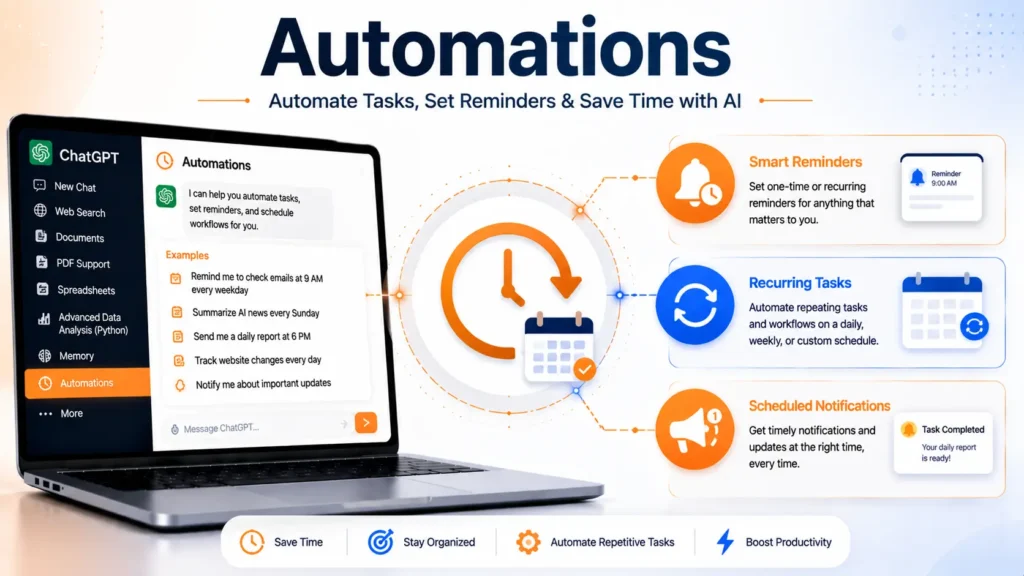
Automations allow ChatGPT to perform tasks for you in the future based on a schedule or a condition.
Instead of remembering to check something yourself every day, you can ask ChatGPT to do it for you.
This is especially useful for recurring work, reminders, and monitoring information that changes over time.
What Can Automations Do?
Depending on what’s available for your account, Automations can help you:
- Set one-time reminders.
- Create recurring reminders.
- Receive daily summaries.
- Monitor specific topics for updates.
- Track important news.
- Watch for changes in selected information.
- Schedule regular follow-up tasks.
These features help reduce repetitive work and improve productivity.
How to Create an Automation
A typical workflow looks like this:
- Tell ChatGPT what you want.
- Specify when it should happen.
- Choose whether it’s a one-time or recurring task.
- Confirm the schedule.
- Let ChatGPT handle the reminder or recurring check.
Real-World Examples
Here are a few practical examples:
- “Remind me to renew my passport next Monday.”
- “Send me a daily AI news summary every morning.”
- “Notify me if there are major updates about ChatGPT.”
- “Remind me every Friday to submit my weekly report.”
These examples show how Automations can help you stay organized without relying on separate reminder apps.
Best Practices
For the best experience:
- Use clear dates and times.
- Give each automation a specific purpose.
- Review recurring tasks periodically.
- Delete reminders that are no longer needed.
- Avoid creating duplicate schedules.
Limitations
Automations depend on feature availability and the permissions associated with your ChatGPT account.
Some automation capabilities may vary based on your subscription plan, supported integrations, or future platform updates.
ChatGPT Tools can automate repetitive tasks and reminders, helping you stay productive every day.
Which Tool Should You Use?
Choosing the right tool depends on your task.
| Your Goal | Recommended ChatGPT Tool |
|---|---|
| Analyze spreadsheet data | Advanced Data Analysis |
| Generate charts and reports | Advanced Data Analysis |
| Remember long-term preferences | Memory |
| Receive reminders | Automations |
| Schedule recurring tasks | Automations |
| Personalize future conversations | Memory |
Best Practices for Using ChatGPT Tools
Learning how each feature works is only the first step. To get the best results, you also need to use ChatGPT Tools effectively. Following a few simple practices can improve the quality of responses, reduce errors, and save time.
1. Write Clear Prompts
The quality of ChatGPT’s response depends largely on your instructions.
Instead of writing:
“Write about AI.”
Try something more specific:
“Write a 1,500-word beginner-friendly article explaining how AI image generators work, using simple English and SEO-friendly headings.”
The more context you provide, the more useful the output will be.
2. Choose the Right Tool
Different tools are designed for different tasks.
- Use Web Search for current information.
- Use Image Generation for creating original visuals.
- Use Advanced Data Analysis for spreadsheets and data analysis.
- Use Documents for long-form writing.
- Use Presentations for slide content.
- Use Automations for reminders and recurring tasks.
Choosing the right tool saves time and produces better results.
3. Refine Your Results
Your first response doesn’t have to be your final response.
Ask follow-up questions such as:
- “Make it shorter.”
- “Explain this in simple English.”
- “Add more examples.”
- “Rewrite it in a professional tone.”
Iterative prompting often produces significantly better results.
4. Verify Important Information
Although ChatGPT is highly capable, you should verify information that could affect important decisions.
Examples include:
- Medical information
- Legal advice
- Financial planning
- Tax regulations
- Government policies
- Product specifications
Whenever possible, confirm critical details using official sources.
5. Protect Sensitive Information
Avoid sharing confidential information such as:
- Passwords
- Banking details
- Government identification numbers
- Confidential business documents
- Private customer information
Keeping sensitive information private is always a good security practice.
Learning how to use ChatGPT Tools effectively will help you get more accurate and useful results.
To stay informed about the latest AI improvements that affect ChatGPT Tools, read Latest Google Updates Explained.
To improve your productivity even further, explore our list of Free AI Apps for Smartphones that work well alongside ChatGPT Tools.
Privacy and Security
Privacy plays an important role when using AI tools.
ChatGPT includes privacy controls that allow users to manage connected services, memories, and account settings. If you connect services such as Gmail, Google Drive, or GitHub, review the permissions you grant and disconnect them if you no longer need access.
For organizations, it’s also a good idea to follow company security policies before sharing work-related documents or data with any AI service.
Being mindful of privacy helps you use ChatGPT confidently while protecting your personal and professional information.
Understanding privacy settings is an important part of using ChatGPT Tools responsibly.
To understand how your information is handled while using ChatGPT Tools, review OpenAI’s official Privacy Policy.
To keep your AI accounts secure while using ChatGPT Tools, read Protect Your Google Account.
If you receive suspicious account alerts while using ChatGPT Tools, learn about Google Critical Security Alert.
Common Mistakes to Avoid
Many new users don’t get the best results simply because of avoidable mistakes.
Here are some of the most common ones.
Using Very Short Prompts
Short prompts usually produce generic responses.
Adding context almost always improves the quality of the answer.
Expecting One Perfect Response
ChatGPT works best through conversation.
Don’t hesitate to ask follow-up questions or request revisions.
Choosing the Wrong Tool
Trying to analyze spreadsheets with a writing-focused workflow or expecting Image Generation to solve a research task can lead to disappointing results.
Always select the tool that matches your objective.
Ignoring Source Verification
If you’re publishing content, writing reports, or making important decisions, verify facts using trusted and official sources whenever possible.
Forgetting to Review AI Output
Even well-written responses should be reviewed before publishing or sharing.
A quick review helps catch formatting issues, factual errors, or details that need customization.
Avoiding these common mistakes will help you get the best experience from ChatGPT Tools.
Frequently Asked Questions (FAQ)
Is ChatGPT free to use?
ChatGPT offers both free and paid plans. The available tools and advanced capabilities can vary depending on your subscription and the features currently available in your region.
Do I need programming knowledge to use ChatGPT Tools?
No. Most ChatGPT Tools are designed for everyday users. You simply describe what you want using natural language.
Can ChatGPT create images?
Yes. ChatGPT can generate original images from text prompts, and you can also request edits to supported images through conversation.
Can ChatGPT summarize PDF files?
Yes. ChatGPT can summarize supported PDF documents, explain complex sections, answer questions about the content, and help you understand lengthy files more quickly.
Can ChatGPT analyze Excel or CSV files?
Yes. With Advanced Data Analysis, ChatGPT can analyze spreadsheets, identify trends, create charts, perform calculations, and generate reports from supported data files.
Can ChatGPT remember my preferences?
Yes. If Memory is available and enabled for your account, ChatGPT can remember certain long-term preferences that you choose to save. You remain in control and can review, update, or delete saved memories at any time.
Are ChatGPT Tools secure?
OpenAI provides privacy controls and account settings that help users manage connected services and memories. However, it’s always recommended to avoid sharing highly sensitive or confidential information unless you’re comfortable doing so and understand the applicable privacy settings.
Which ChatGPT Tool is the most useful?
There isn’t a single “best” tool. The right choice depends on your task:
- Web Search for current information.
- Image Generation for visuals.
- Documents for writing.
- Advanced Data Analysis for data analysis.
- Automations for reminders and recurring tasks.
Final Verdict
ChatGPT has evolved far beyond a simple AI chatbot. It has become a versatile productivity platform that brings research, writing, design, coding, data analysis, file handling, and workflow management together in one place.
Whether you’re creating content, studying for exams, managing business operations, analyzing data, or collaborating on software projects, the right combination of ChatGPT Tools can significantly reduce repetitive work and improve efficiency.
The key to success isn’t using every tool—it’s understanding which tool fits your specific task. As OpenAI continues to introduce new capabilities and integrations, staying familiar with these features will help you make the most of the platform.
As ChatGPT continues to evolve, ChatGPT Tools will become even more valuable for everyday productivity.
As AI continues to evolve, understanding emerging technologies like What Is Agentic AI? will help you make even better use of ChatGPT Tools in the future.
Conclusion
Artificial intelligence is becoming an essential part of everyday work, and ChatGPT is one of the most accessible ways to benefit from it.
By understanding how ChatGPT Tools work and when to use them, you can complete tasks faster… improve the quality of your work, and simplify complex workflows without constantly switching between different applications.
Start with the tools that match your daily needs. As you become more comfortable, gradually explore additional features and integrations. With the right approach, ChatGPT can become a valuable assistant for learning, creativity, productivity, and problem-solving.
Whether you’re a beginner or an experienced user, ChatGPT Tools can help you work smarter, faster, and more efficiently.