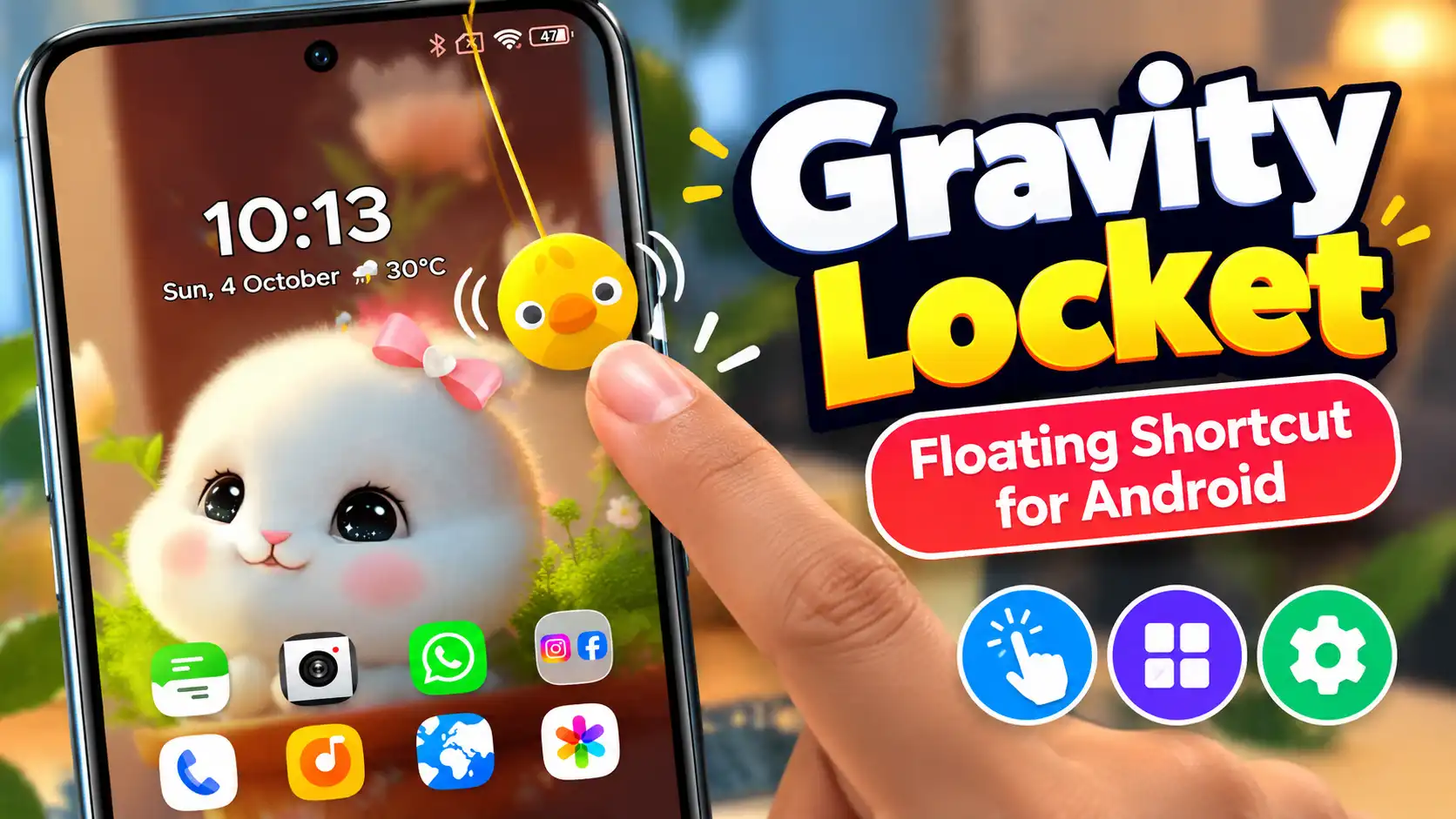
Have you ever wanted a quick way to open your favorite apps without constantly returning to the home screen? Gravity Locket offers a different approach. Instead of adding another ordinary app icon or widget, it places a small floating locket on your screen that reacts to the movement of your phone.
Developed by CFY Apps, Gravity Locket is an Android personalization app that combines a floating interface, real-time motion effects, custom images, and gesture-based app shortcuts. The locket uses the phone’s accelerometer to respond when you move or tilt the device, making the shortcut feel more interactive than a traditional floating button.
If you enjoy customizing your Android phone or want faster access to apps you use frequently, this app is worth exploring.
What Is Gravity Locket?
Gravity Locket is designed around a simple idea: put a customizable floating locket on your phone screen and use it as an interactive shortcut.
Once configured, the locket can appear above other apps and react to your phone’s movement. According to the developer’s Google Play description, it uses the device’s hardware accelerometer to create real-time swinging and bouncing effects.
It is not intended to replace your Android launcher. Instead, it works as an additional floating control that can give you quick access to selected apps and actions.
The concept is particularly interesting because the floating element is not completely static. Its movement changes naturally as you move or tilt your phone.
Key Features of Gravity Locket
Real-Time Gravity Effect
The main attraction is the physics-based animation. Gravity Locket uses accelerometer data to make the floating locket respond to the movement of your phone.
When you tilt or move the device, the locket can swing and bounce rather than staying fixed in one position. This gives the interface a more dynamic appearance.
Use Your Own Photo
You are not limited to a standard design. The app allows you to select a photo from your gallery and customize it as the locket.
The current Google Play description mentions shapes including circles, rounded squares, pentagons, and stars. You can also adjust the locket’s size, thread length, and position near the top of the screen.
This means you could create a locket using a personal photo, logo, artwork, or another image that suits your style.
Gesture-Based Shortcuts
The floating locket also has a practical purpose. You can assign different gestures to launch apps or perform configured actions.
The developer specifically lists:
- Single Tap – Open a frequently used app.
- Double Tap – Launch another app or utility.
- Pull Down – Drag the locket down to trigger a configured action.
This can save a few steps when you regularly switch between the same applications.
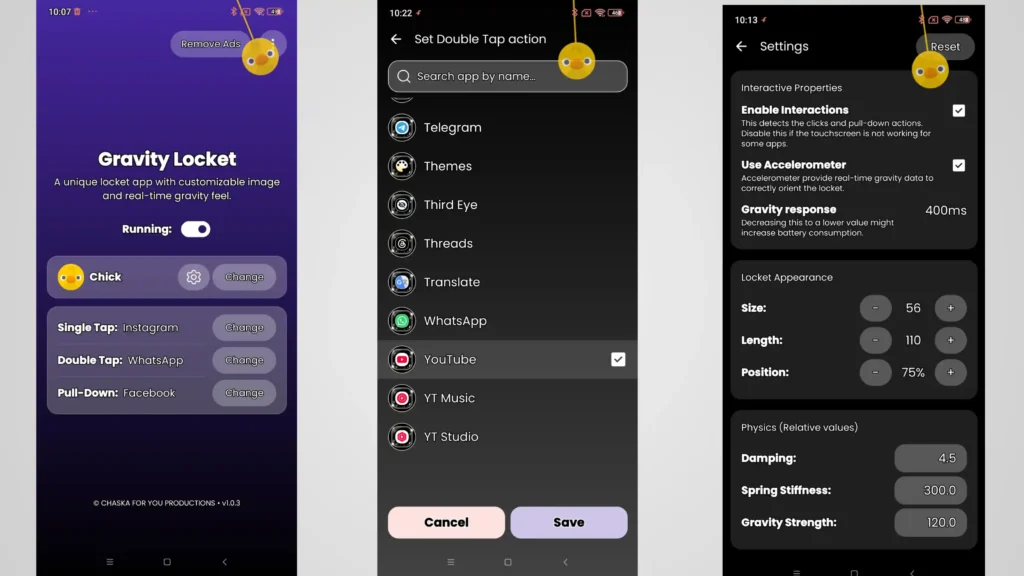
How to Set Up Gravity Locket
The exact interface can change as the app receives updates, so the names or positions of individual settings may look slightly different on different versions. However, the basic setup follows the app’s current feature design.
Step 1: Install the App
Install Gravity Locket: UI Shortcut from Google Play and open it.
Make sure you are installing the app published by CFY Apps, since that is the developer shown on the official listing.
Step 2: Complete the Required Setup
When you first open the app, follow the permissions or setup instructions displayed on your phone.
Because Gravity Locket works as a floating interface, Android may require permission for displaying content over other apps. The exact permission screen can vary depending on your phone manufacturer and Android version.
Step 3: Choose Your Locket Image
Select an image from your phone’s gallery if you want to personalize the floating locket.
The app provides different shape options, allowing you to create a design that looks different from a normal shortcut icon.
Step 4: Adjust the Appearance
After selecting the image, customize the available visual settings.
You can adjust the size, thread length, and position of the locket so that it fits naturally on your screen without getting in the way of buttons or other content.
Step 5: Configure App Shortcuts
Next, choose the apps or actions you want to access through the locket.
You can configure gestures such as a single tap, double tap, or pull-down action according to the available options in the app.
Step 6: Test It While Using Other Apps
Once everything is configured, try using the locket while browsing or switching between applications.
If the floating control feels too large or interferes with something on your screen, return to the customization settings and adjust its size or position.
My Experience Using Gravity Locket
I tried Gravity Locket on my Android phone to see how it feels in normal day-to-day use. The first thing I noticed was the floating locket moving naturally when I moved the phone. It felt a little different from a regular floating shortcut and made the screen look more interesting.
I also tried changing the locket and setting up an app shortcut. Once it was positioned properly, accessing the selected app felt quite convenient. At first, I needed a little time to get used to the floating shortcut, but after using it for a while, it became fairly easy to use.
For me, the most interesting part of Gravity Locket is the combination of customization and the gravity effect. It is not something you necessarily need on every Android phone, but if you like trying different ways to personalize your phone, it is a fun feature to have.
Overall, my first impression was that Gravity Locket is more about making Android interaction more personal and interesting, while also providing quick access to selected apps.
Download Gravity Locket
If you want to try the floating gravity shortcut on your Android phone, you can install Gravity Locket from the official Google Play Store.
Does Gravity Locket Affect Battery Life?
Gravity Locket uses the phone’s accelerometer for its motion effects, so battery usage is a reasonable concern.
The developer says the app is designed to automatically pause its physics engine and hide the locket when the screen is turned off, when secure apps are opened, or when the device changes to landscape mode, such as during video playback or gaming.
However, actual battery consumption can vary depending on the phone, Android version, system settings, and how the app is used. It is better to treat the developer’s optimization claim as a design feature rather than assuming that the app will have zero battery impact on every device.
Gravity Locket and Privacy
Privacy is an important point to understand before using any app that works with photos, sensors, or floating controls.
The developer states that images selected for the locket and accelerometer sensor data are processed locally and that the app does not collect personal app-usage or shortcut data.
At the same time, Google Play’s current Data Safety section states that the app may share device or other IDs with third parties and may collect financial information, app activity, and additional data types. Google also notes that these disclosures are provided by the developer and can change over time.
For that reason, users should review the latest Google Play Data Safety information and the developer’s privacy policy before installing or using the app, particularly if privacy is a major concern.
Who Should Use Gravity Locket?
Gravity Locket makes the most sense for Android users who enjoy experimenting with their phone’s interface.
It can be useful if you:
- Frequently open the same apps.
- Like floating shortcuts.
- Want a more personalized Android interface.
- Enjoy interactive animations and motion effects.
- Prefer using gestures instead of repeatedly returning to the home screen.
- Want to use a personal image as part of a shortcut.
On the other hand, users who prefer a very clean and minimal screen may find a persistent floating element unnecessary.
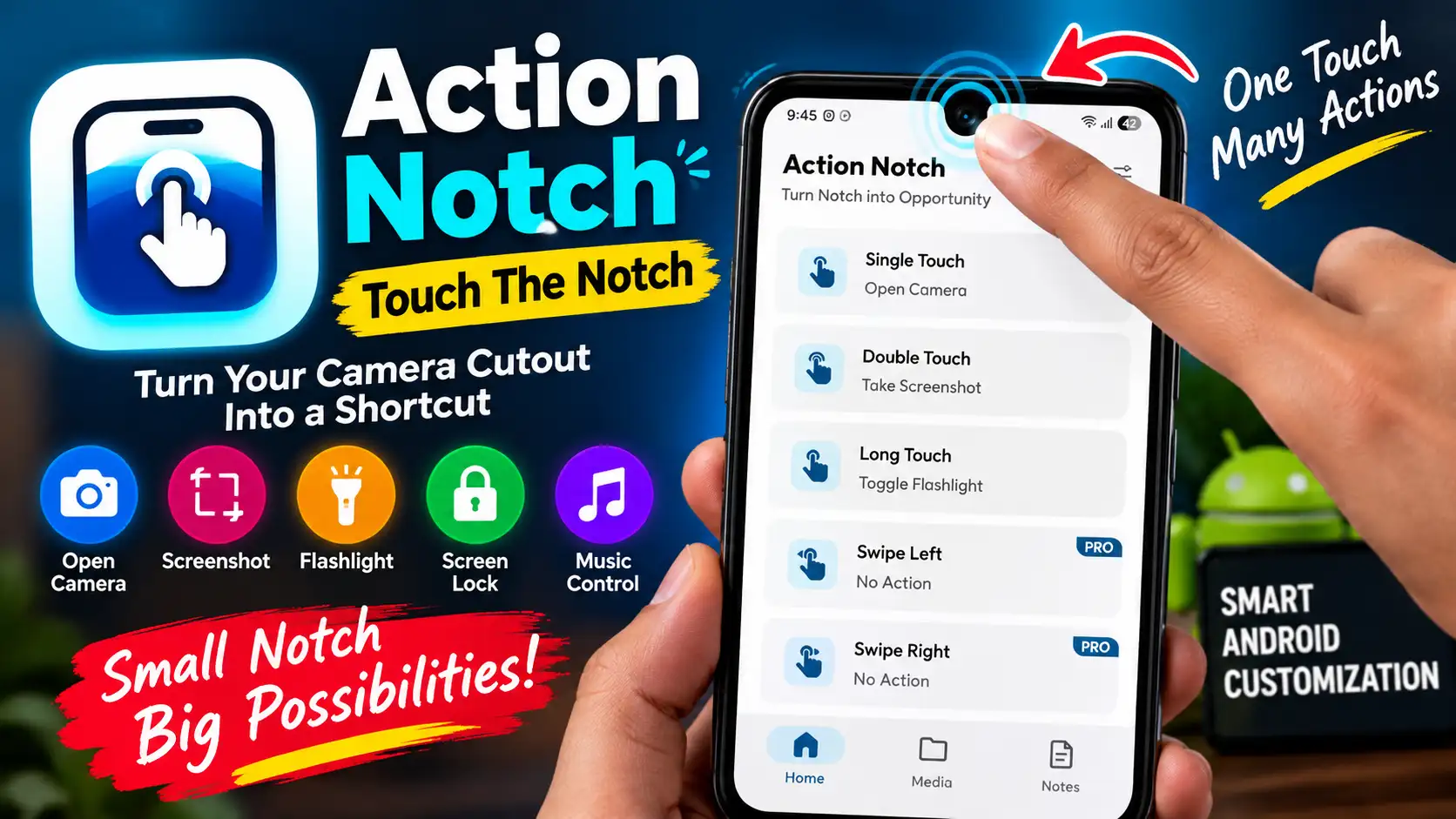
If you enjoy experimenting with different ways to access apps quickly on Android, you may also find our guide on Action Notch: Touch The Notch useful. It explores another approach to Android shortcuts and touch-based app access, making it a relevant comparison if you like customizing how you interact with your phone.
Final Verdict
Gravity Locket takes a familiar idea—quick app shortcuts—and gives it a more visual and interactive approach. Its combination of a floating locket, accelerometer-based movement, custom images, adjustable appearance, and gesture shortcuts makes it different from a standard Android shortcut.
The biggest reason to try it is not simply faster app access. The appeal is the combination of personalization and motion. You can choose your own image, change its appearance, position it where you want, and assign gestures to frequently used apps.
If you enjoy customizing Android beyond wallpapers and icons, Gravity Locket is an interesting option to explore. Just remember that the exact interface and available settings can change with future updates, so checking the current Google Play listing and privacy information is the safest way to confirm the latest details.