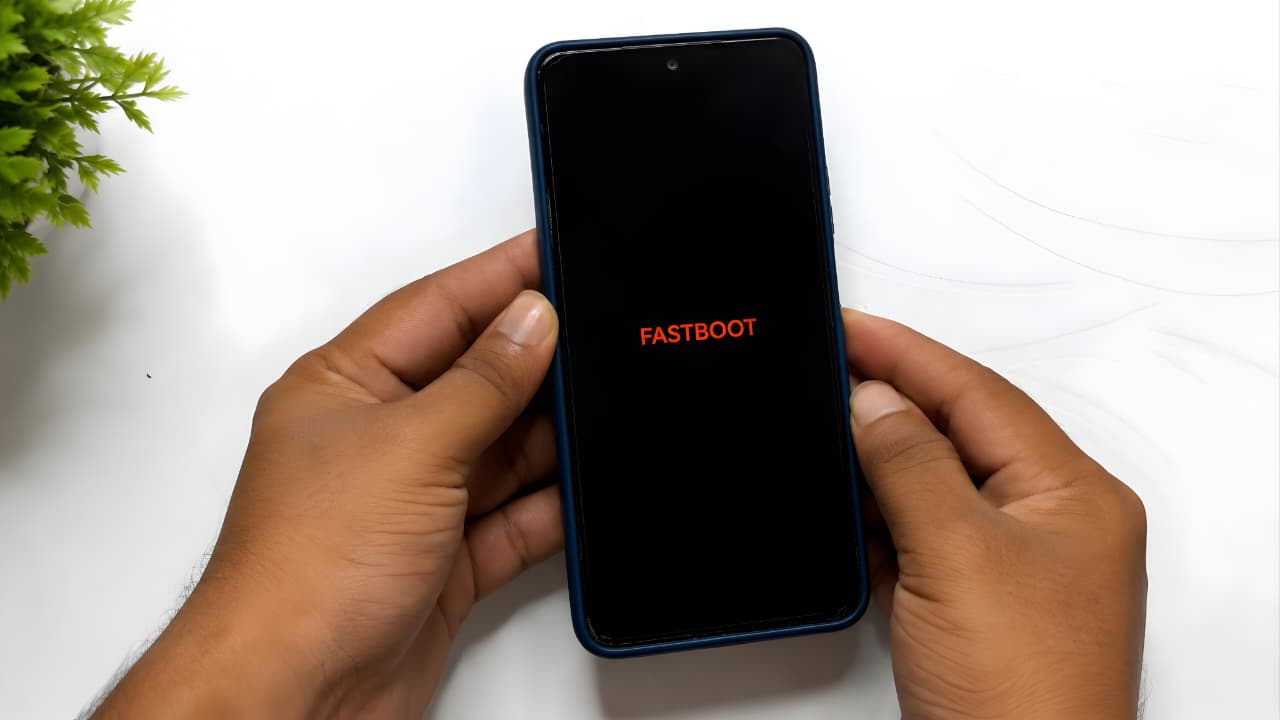
Imagine pressing the power button on your Android phone, expecting it to start normally, only to see a screen that says FASTBOOT instead of the home screen. It can be frustrating, especially if you have important photos, contacts, or work files stored on your device. Many users immediately assume their phone is permanently damaged or that all their data has been lost. Fortunately, that is rarely the case.
In most situations, a phone entering Fastboot Mode is a temporary issue that can be resolved without deleting your personal data. Whether you own a Xiaomi, Redmi, POCO, Samsung, OPPO, vivo, realme, Motorola, OnePlus, Google Pixel, or another Android device, the troubleshooting methods are often very similar.
This Android Fastboot Mode Fix guide explains everything you need to know from understanding what Fastboot Mode is to identifying the real cause of the problem and safely getting your phone back to normal. Every solution in this article is arranged from the simplest to the most advanced, allowing you to try safe methods first before considering more technical repairs.
The goal is not only to help you exit Fastboot Mode but also to explain why it happened and how you can prevent it from happening again. By the end of this guide, you will have a clear understanding of Fastboot Mode and the confidence to troubleshoot the issue without unnecessary stress or expensive repairs.
This Android Fastboot Mode Fix guide is designed to help beginners and experienced Android users safely troubleshoot Fastboot Mode using proven step-by-step solutions.
By the end of this guide, you will have a clear understanding of Fastboot Mode and the confidence to troubleshoot the issue without unnecessary stress or expensive repairs. You can also explore other common Android troubleshooting guides to resolve everyday smartphone problems more effectively.
What Is Fastboot Mode?
Fastboot Mode is a built-in diagnostic environment included in most Android smartphones. It allows the phone to communicate directly with a computer before the Android operating system starts. Manufacturers and technicians use this mode to perform advanced software maintenance, install official firmware, unlock or relock the bootloader, and recover devices that cannot boot normally.
Unlike the standard Android interface, Fastboot Mode does not load your apps, settings, or home screen. Instead, it starts a minimal environment designed specifically for system-level operations.
For everyday users, Fastboot Mode is rarely needed. However, it becomes useful when repairing software problems or restoring a phone that is unable to boot into Android.
Simply seeing the Fastboot screen does not mean your phone has been damaged. In many cases, the operating system is still intact, and the device only needs a normal restart or a simple hardware check to return to working condition.
Understanding how Fastboot works is the first step toward finding the right Android Fastboot Mode Fix without making unnecessary changes to your device.
Fastboot is an official Android feature intended for device maintenance and software recovery. If you’d like to learn more about Android’s official development and device tools, you can refer to the Android Developers documentation.
Fastboot Mode vs Recovery Mode
Many Android users confuse Fastboot Mode with Recovery Mode because both appear before Android starts. Although they may look similar, they serve different purposes.
Fastboot Mode is mainly used for advanced software maintenance. It allows communication with a computer using Android Platform Tools and is commonly used to flash firmware, unlock the bootloader, or repair system software.
Recovery Mode, on the other hand, is designed for troubleshooting directly on the phone. It allows users to reboot the device, clear the cache partition (on supported models), install official updates, or perform a factory reset if necessary.
In short:
- Fastboot Mode is primarily intended for software flashing and bootloader-related tasks.
- Recovery Mode is designed for troubleshooting and recovery without requiring a computer.
Understanding this difference helps prevent accidental actions that could affect your device.
Understanding the difference between these two modes can help you choose the correct Android Fastboot Mode Fix without performing unnecessary troubleshooting steps.
Why Does an Android Phone Enter Fastboot Mode?
Fastboot Mode does not appear randomly. Your phone enters this mode because it detects a specific hardware input or encounters a software condition that prevents Android from loading normally.
Below are the most common reasons.
1. The Volume Down Button Is Stuck
A stuck Volume Down button is one of the most frequent causes of unexpected Fastboot Mode.
If the button remains pressed due to dust, dirt, physical damage, or normal wear, the phone may interpret it as the startup key combination required to launch Fastboot.
In many real-world cases, users discover that simply removing the phone case or gently pressing the volume button several times allows the phone to boot normally again.
2. A Tight Phone Case Is Pressing the Buttons
This is another surprisingly common reason.
Some protective cases fit too tightly around the side buttons, causing continuous pressure on the Volume Down button without the user noticing.
When the phone restarts, it detects the pressed button and automatically enters Fastboot Mode.
If you recently installed a new case before the problem started, remove it and restart the device before trying more advanced solutions.
3. Accidental Button Combination During Startup
Most Android phones enter Fastboot when a specific combination of hardware buttons is pressed while the device is powering on.
If the Power button and Volume Down button are pressed together accidentally such as while removing the phone from a pocket or bag the phone may boot directly into Fastboot instead of Android.
Fortunately, this type of issue is temporary and can usually be fixed with a simple restart.
4. Interrupted Software Update
Android updates modify important system files.
If the battery runs out, the phone suddenly shuts down, or the update is interrupted for any reason, Android may fail to complete the installation correctly.
Instead of loading the operating system, the phone may boot into Fastboot Mode because the software cannot start normally.
Software-related startup problems are not limited to Fastboot Mode. Learning how to identify and fix other common Android issues can help you keep your device running smoothly.
5. Corrupted Android System Files
Although Android is designed to be stable, system files can occasionally become corrupted due to failed updates, storage errors, unexpected crashes, or incomplete installations.
When critical startup files are damaged, Android may be unable to load, causing the device to enter Fastboot or another recovery environment.
6. Bootloader Unlocking or Custom Software
Users who unlock the bootloader, install custom ROMs, root their phones, or flash unofficial firmware are more likely to encounter Fastboot-related issues if the process is interrupted or performed incorrectly.
If you have never modified your phone’s software, this is unlikely to be the cause.
7. Physical Hardware Problems
In some cases, the issue is not related to software at all.
A damaged Volume Down button, faulty Power button, or worn internal button flex cable can continuously send incorrect signals during startup, forcing the device into Fastboot Mode every time it is turned on.
If your phone automatically lowers the volume or a button feels loose, hardware inspection may be necessary.
Identifying the exact cause is essential because the best Android Fastboot Mode Fix depends on whether the issue is related to software or hardware.
Common Signs That Your Phone Is Stuck in Fastboot Mode
Recognizing the symptoms can help you identify the problem quickly.
Your Android phone may show one or more of the following:
- The screen displays FASTBOOT immediately after turning on the device.
- The phone restarts but always returns to the Fastboot screen.
- Android never reaches the lock screen or home screen.
- The device becomes stuck on the manufacturer’s Fastboot logo.
- Pressing the Power button only restarts the phone back into Fastboot.
- The phone is detected by a computer but refuses to boot normally.
These symptoms are common across many Android brands, although the appearance of the Fastboot screen may vary depending on the manufacturer.
Recognizing these symptoms early can help you apply the correct Android Fastboot Mode Fix before the problem becomes more serious.
Is Fastboot Mode Dangerous?
No.
Fastboot Mode is an official Android feature designed for maintenance and software recovery. It does not damage your phone, and simply entering Fastboot Mode does not erase your personal data.
However, problems can occur if advanced Fastboot commands are used incorrectly. Flashing incompatible firmware, unlocking the bootloader without proper knowledge, or formatting system partitions can result in data loss or prevent Android from starting.
If your goal is simply to restore your phone, avoid making advanced software changes until you have completed the safe troubleshooting methods explained later in this guide.
In most situations, a simple Android Fastboot Mode Fix is enough to restore your phone without losing personal data.
How to Fix Android Phone Stuck in Fastboot Mode
If your phone is stuck in Fastboot Mode, there’s no need to panic. In most situations, the issue can be resolved using simple troubleshooting methods that do not erase your personal data. The key is to start with the safest solutions before moving on to advanced repair options.
Follow each method in the order below. After completing one step, restart your phone to check whether it boots into Android normally. If the issue persists, continue to the next solution.
Solution 1: Perform a Force Restart
A force restart is the easiest and most effective solution for many Fastboot-related problems. It forces the device to shut down completely and attempts a fresh boot into the Android operating system.
How to do it
- Press and hold the Power button.
- Continue holding it for 20 to 30 seconds.
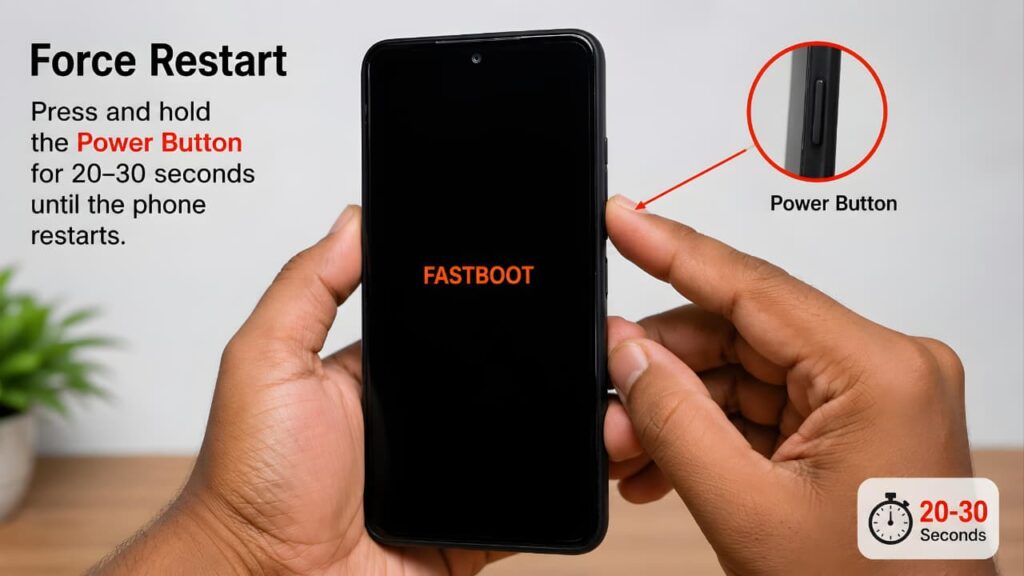
3. Do not release the button immediately when the screen turns black.
4. Wait until the manufacturer’s logo appears.
Many Android phones automatically exit Fastboot Mode after a successful force restart.
This method is completely safe and does not delete your apps, photos, videos, contacts, or documents.
For many users, this is the quickest Android Fastboot Mode Fix and often resolves the problem within a few seconds.
Solution 2: Remove the Phone Case
A surprisingly common cause of Fastboot Mode is a phone case that presses the side buttons.
Some protective cases fit tightly around the Volume Down button. Even slight pressure can make the phone believe the button is being held during startup, causing it to enter Fastboot Mode.
What to do
- Remove the protective case completely.
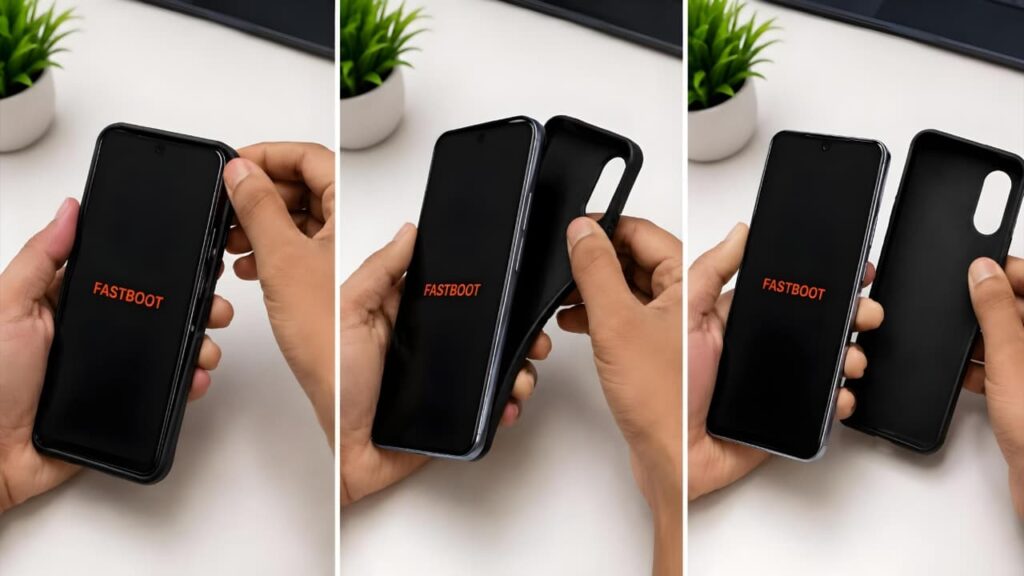
- Restart the phone.
- Check whether Android loads normally.
If the problem disappears after removing the case, consider replacing it with a better-fitting case that does not apply pressure to the side buttons.
This simple Android Fastboot Mode Fix has helped many users resolve the problem without requiring any software changes.
Solution 3: Check the Volume Down Button
A faulty or stuck Volume Down button is one of the most common hardware-related causes of Fastboot Mode.
Inspect the button carefully.
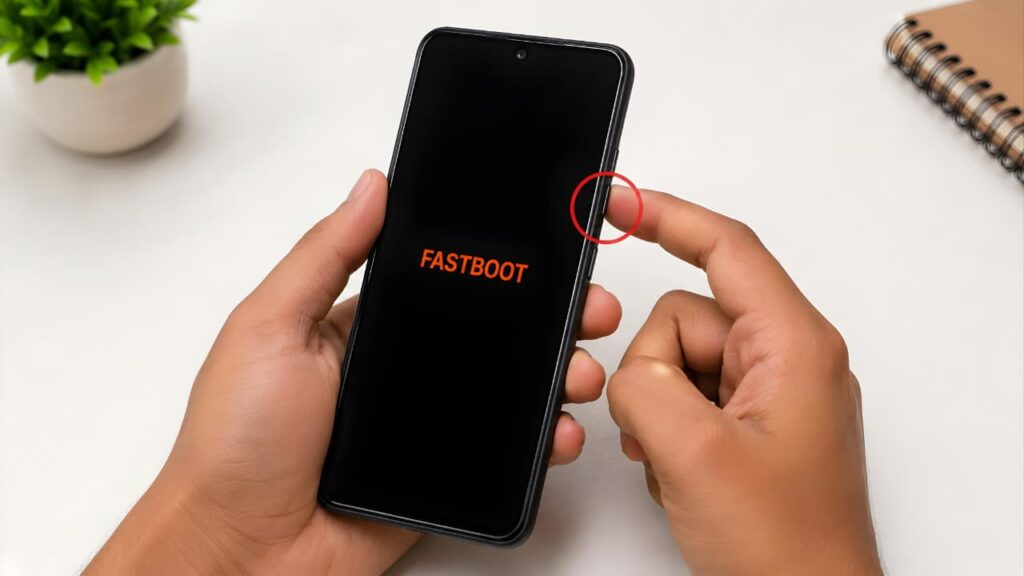
Look for these signs:
- The button feels loose.
- The volume decreases automatically.
- The button does not return properly after being pressed.
- Dust or debris is trapped around the button.
- The button responds without being touched.
Try pressing the Volume Down button several times to free any dust or minor obstruction.
If the button continues to behave abnormally, professional repair may be required.
A faulty button is one of the most common reasons why an Android Fastboot Mode Fix becomes necessary.
Solution 4: Charge Your Phone
Although uncommon, a critically low battery can interrupt the startup process and prevent Android from loading correctly.
Connect your phone to the original charger and allow it to charge for at least 30 minutes.
After charging:
- Disconnect the charger.
- Hold the Power button for 20–30 seconds.
- Wait for the phone to restart.
If the battery level was the problem, Android should boot normally.
Although simple, this Android Fastboot Mode Fix can resolve startup issues caused by an extremely low battery.
If your device still doesn’t respond after charging, the problem may be related to battery health or another charging issue rather than Fastboot Mode itself.
Solution 5: Restart Through Recovery Mode
If a normal restart does not work, Recovery Mode may allow you to restart Android without losing your data.
The button combination varies slightly between manufacturers, but for many Android phones:
- Turn the phone off completely.
- Press and hold Power + Volume Up.
- Release the buttons when Recovery Mode appears.
Once inside Recovery Mode, select:
- Reboot System Now
- Restart
The wording may vary depending on your device.
If a normal restart doesn’t work, this Android Fastboot Mode Fix method is worth trying before considering advanced repairs.
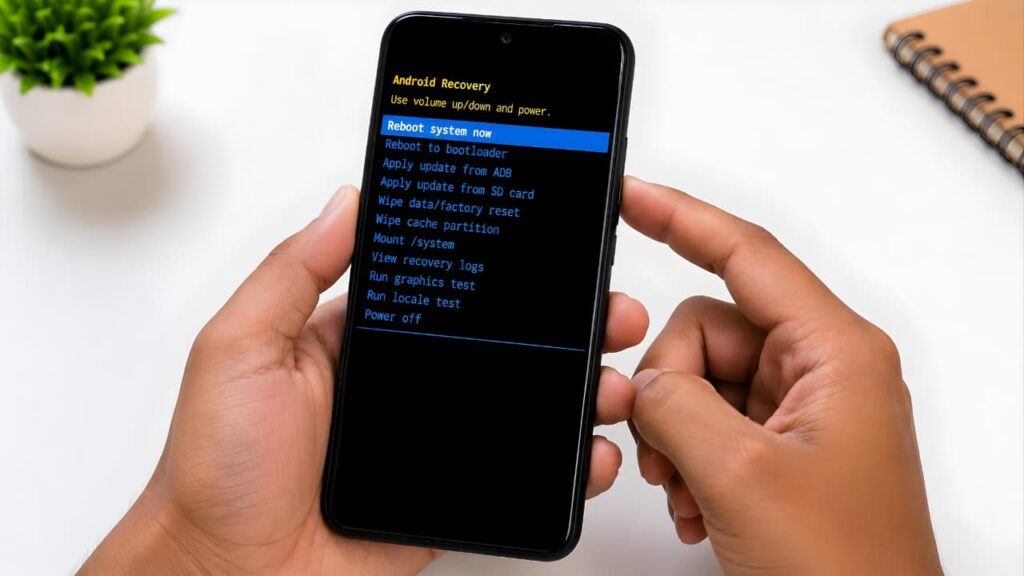
Important
Do not choose:
- Factory Reset
- Wipe Data
- Format Data
unless you understand that these options erase personal data.
Solution 6: Disconnect All External Accessories
External accessories can occasionally interfere with the startup process.
Disconnect everything connected to your phone, including:
- USB cable
- OTG adapter
- USB flash drive
- External keyboard
- Mouse
- USB hub
- Memory card reader
Once everything has been removed, restart the device again.
Although this solution is less common, it eliminates another possible cause without any risk.
While this situation is uncommon, it remains an important Android Fastboot Mode Fix to try before moving on to advanced solutions.
If your phone continues to behave unexpectedly after restarting, checking other connectivity-related problems may also help identify the root cause.
Solution 7: Let the Phone Remain Idle
Some Android devices automatically leave Fastboot Mode after remaining inactive for a short period.
Leave the phone untouched for five to ten minutes.
If the device detects no activity, it may restart automatically and load Android.
While this method does not work on every model, it is completely safe to try.
Waiting a few minutes may seem simple, but it can occasionally serve as an effective Android Fastboot Mode Fix on certain devices.
Solution 8: Determine Whether the Problem Is Temporary or Persistent
At this stage, pay close attention to how your phone behaves.
If the phone starts normally after one restart, the issue was likely caused by:
- An accidental button press
- A temporary software glitch
- A tight phone case
However, if the phone enters Fastboot Mode every time you restart it, the cause is usually more serious.
Possible reasons include:
- A damaged Volume Down button
- Corrupted Android system files
- Failed software update
- Bootloader-related problems
- Internal hardware faults
Identifying whether the issue is temporary or persistent helps determine the next troubleshooting step.
Understanding whether the issue is temporary or persistent helps you choose the most appropriate Android Fastboot Mode Fix.
Solution 9: Restart Using Android Platform Tools (Advanced Users)
If basic troubleshooting has not resolved the problem, you can restart the phone using Android Platform Tools on a Windows, macOS, or Linux computer.
After installing the official Platform Tools package:
- Connect the phone to your computer using a USB cable.
- Open Command Prompt or Terminal.
- Confirm that the device is detected.
- Run the reboot command.
If the operating system is intact, the phone should restart normally.
This method is recommended only for users who are familiar with Android development tools. Beginners should proceed carefully or seek professional assistance.
This advanced Android Fastboot Mode Fix is recommended only for users familiar with Android Platform Tools.
Solution 10: Know When to Stop Troubleshooting
If you have already tried:
- Force Restart
- Removing the phone case
- Inspecting the Volume Down button
- Charging the battery
- Restarting through Recovery Mode
- Disconnecting accessories
- Using Android Platform Tools
and your phone still remains in Fastboot Mode, repeatedly attempting the same steps is unlikely to solve the issue.
At this point, the problem may involve:
- Corrupted firmware
- Damaged boot partition
- Bootloader errors
- Internal hardware failure
The next section explains the advanced repair methods that can restore your phone when basic troubleshooting is no longer enough.
If none of these methods work, a more advanced Android Fastboot Mode Fix may be required.
Mistakes to Avoid While Fixing Fastboot Mode
Many users unintentionally make the situation worse by trying random solutions found online.
Avoid these common mistakes:
- Do not repeatedly press every hardware button during startup.
- Do not flash unofficial firmware downloaded from unknown websites.
- Do not unlock the bootloader unless you fully understand the process.
- Do not disconnect the battery while the phone is starting.
- Do not perform a Factory Reset as your first troubleshooting step.
- Do not assume the phone is permanently damaged simply because it entered Fastboot Mode once.
A careful, step-by-step approach is far more effective than rushing into advanced repairs.
Following the correct Android Fastboot Mode Fix process reduces the risk of accidental data loss or software damage.
Advanced Android Fastboot Mode Fix Methods
These advanced Android Fastboot Mode Fix methods should only be used after completing the basic troubleshooting steps.
If your Android phone is still stuck in Fastboot Mode after trying all the basic troubleshooting methods, don’t panic. In most cases, the device can still be repaired. The issue may be related to damaged system software, bootloader problems, or a hardware fault rather than a permanently damaged phone.
This section explains the advanced solutions you should consider before deciding that your device needs to be replaced.
Solution 11: Reinstall the Official Firmware
When Android system files become corrupted, reinstalling the official firmware is often the most reliable solution.
Firmware contains the operating system and all the essential files required for your phone to start normally. If these files become damaged due to a failed software update, interrupted installation, or system corruption, Android may continue booting into Fastboot Mode.
Installing the latest official firmware replaces the damaged system files with fresh copies provided by the manufacturer.
This method is commonly recommended when:
- The phone always boots into Fastboot Mode.
- Android never reaches the lock screen.
- Recovery Mode does not solve the problem.
- A software update failed before the issue started.
- The operating system has become corrupted.
Always download firmware designed specifically for your phone model and regional variant. Installing the wrong firmware may prevent the device from starting correctly.
If you are unfamiliar with firmware installation, it is safer to let an authorized service center complete the process.
Reinstalling official firmware should only be considered after every basic Android Fastboot Mode Fix has been attempted.
Solution 12: Repair Bootloader-Related Problems
The bootloader is responsible for loading Android during startup.
If the bootloader has been modified, unlocked, or affected by an incomplete software installation, the phone may repeatedly enter Fastboot Mode instead of starting Android.
This situation is more common if the device has previously been:
- Rooted
- Bootloader unlocked
- Flashed with a custom ROM
- Modified using unofficial software
If you have never performed any of these actions, this is unlikely to be the cause.
For advanced users, restoring the original software configuration can often resolve bootloader-related problems.
This Android Fastboot Mode Fix is intended for advanced users who understand bootloader modifications.
Solution 13: Check for Hardware Button Failure
Hardware problems are just as common as software issues.
A damaged Volume Down button can continuously send input signals during startup, causing the phone to enter Fastboot Mode every time it powers on.
Signs of a faulty button include:
- Volume decreases automatically.
- The button feels loose.
- The button does not click normally.
- The button remains pressed after being released.
- Fastboot appears randomly without any user action.
If you notice any of these symptoms, the button assembly may need professional repair or replacement.
Fortunately, replacing a damaged side button is usually much less expensive than replacing the entire phone.
If the button is physically damaged, replacing it may be the most effective Android Fastboot Mode Fix.
Solution 14: Visit an Authorized Service Center
If none of the previous solutions work, it is time to have the phone professionally diagnosed.
An authorized service center has specialized diagnostic tools that can identify hardware failures that are impossible to detect through normal troubleshooting.
Examples include:
- Faulty motherboard components
- Damaged storage chip
- Power management IC failure
- Broken button flex cable
- Boot partition damage
- Internal circuit problems
Attempting to repair these components without proper equipment can permanently damage the device.
Whenever possible, choose an authorized service center rather than an unofficial repair shop, especially if your phone is still under warranty.
When all troubleshooting methods fail, professional diagnosis becomes the safest Android Fastboot Mode Fix.
Can Fastboot Mode Be Fixed Without Losing Data?
Yes.
One of the biggest concerns users have is whether Fastboot Mode will erase their personal files.
The answer is no.
Fastboot Mode itself does not delete:
- Photos
- Videos
- Contacts
- Messages
- Documents
- Installed apps
Most troubleshooting methods explained in this guide are completely safe and do not affect your data.
Data is usually lost only if you intentionally perform actions such as:
- Factory Reset
- Format Data
- Flashing firmware with data wipe enabled
- Unlocking the bootloader on certain devices
For this reason, always begin with the simplest solutions before considering advanced repair methods.
Choosing the correct Android Fastboot Mode Fix early can often help you avoid unnecessary data loss.
How to Prevent Fastboot Mode in the Future
Although Fastboot Mode is useful for maintenance, most users never need to access it intentionally.
Following these preventive tips can significantly reduce the chances of experiencing the problem again.
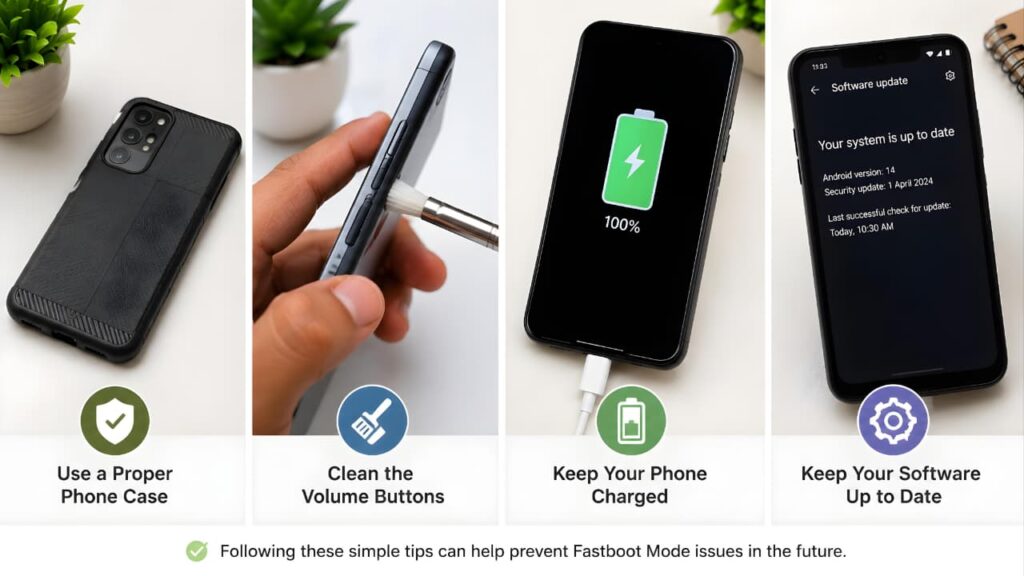
Use a High-Quality Phone Case
Choose a protective case that does not press against the Power or Volume buttons.
Before using a new case:
- Press each button several times.
- Make sure they move freely.
- Confirm that none of the buttons remain partially pressed.
A poorly fitting case is one of the most common causes of accidental Fastboot Mode.
Keep the Side Buttons Clean
Dust, pocket lint, and small particles can accumulate around the side buttons over time.
Clean the button area regularly using a soft brush or compressed air.
Avoid using sharp objects, as they may damage the button mechanism.
Install Only Official Software Updates
Always update your phone using software provided by the manufacturer.
Official updates improve stability, fix known bugs, and reduce the risk of software corruption.
Avoid installing unofficial operating systems unless you fully understand the process.
Maintain Sufficient Battery Charge
Never begin a major software update with a nearly empty battery.
A sudden shutdown during installation can damage important system files and lead to boot problems.
Keeping the battery above 50% before installing updates is a good practice.
Avoid Unnecessary System Modifications
Rooting, unlocking the bootloader, and installing custom ROMs provide additional customization but also increase the risk of startup problems if something goes wrong.
If you use your phone for everyday tasks, keeping the original software is generally the safest option.
Protect Your Phone from Physical Damage
Dropping your phone can damage internal components even if the screen remains intact.
A damaged button, connector, or flex cable may later cause unexpected startup issues, including Fastboot Mode.
Using a protective case and handling your device carefully can help prevent hardware-related problems.
Following these preventive tips can reduce the need for another Android Fastboot Mode Fix in the future.
Keeping your Android device updated and maintaining good security practices can help prevent many software-related issues before they occur.
Real-World Example
Real-World Example: While troubleshooting a POCO M4 Pro, the device repeatedly booted into Fastboot Mode every time it was turned on. After inspecting the phone, it was found that a tight protective case was constantly pressing the Volume Down button. Removing the case and performing a force restart immediately resolved the issue. This example shows that a simple hardware-related issue can sometimes be mistaken for a serious software problem.
This real-world experience demonstrates how a simple Android Fastboot Mode Fix can solve what initially appears to be a serious software problem.
Final Verdict
This Android Fastboot Mode Fix guide shows that most Fastboot problems can be resolved safely by following the correct troubleshooting steps in the right order.
Getting stuck in Fastboot Mode can be stressful, but it does not automatically mean your Android phone is permanently damaged. In fact, most Fastboot issues are caused by simple problems such as a stuck Volume Down button, an accidental button combination during startup, a tight phone case, or a temporary software glitch. These issues can often be resolved within a few minutes without deleting your personal data.
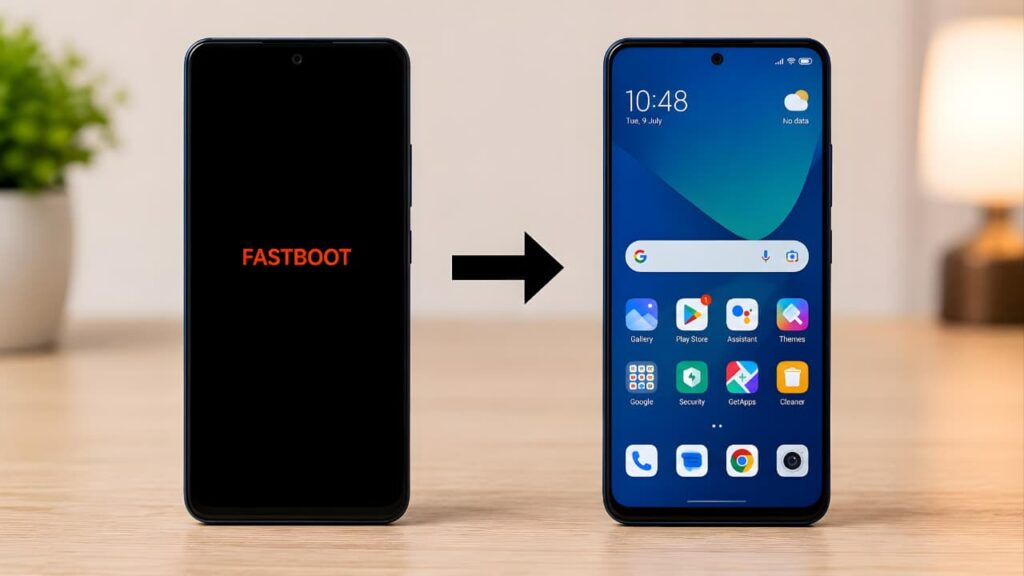
The safest approach is to begin with the basic troubleshooting methods explained in this guide. Start by performing a force restart, removing the phone case, checking the side buttons, charging the battery, and restarting through Recovery Mode if necessary. These steps solve the majority of Fastboot-related problems on Android devices.
If your phone continues to boot into Fastboot Mode after trying every recommended solution, the problem may be related to corrupted firmware, bootloader issues, or hardware failure. In those situations, reinstalling the official firmware or visiting an authorized service center is the safest course of action.
Avoid rushing into a factory reset or installing unofficial firmware from unknown sources. These actions are unnecessary in many cases and may result in permanent data loss or additional software issues.
By understanding what Fastboot Mode is, recognizing its common causes, and following the step-by-step solutions in this guide, you can troubleshoot the problem with confidence and restore your Android phone safely.
If you’re interested in learning more practical Android fixes and smartphone troubleshooting tips, explore our growing collection of mobile guides for additional step-by-step solutions.
If advanced troubleshooting becomes necessary, always refer to official Android documentation or your device manufacturer’s support resources before making software-level changes.
Frequently Asked Questions
1. What is Fastboot Mode on Android?
Fastboot Mode is a built-in Android maintenance environment that allows advanced software operations such as firmware installation, bootloader management, and system recovery.v
2. Can Fastboot Mode be fixed without losing data?
Yes. In most cases, Fastboot Mode can be resolved using a force restart, Recovery Mode, or by fixing a stuck button without deleting any personal files.
3. Does Fastboot Mode erase photos, videos, or apps?
No. Simply entering Fastboot Mode does not erase your data. Personal files are only removed if you perform actions such as a Factory Reset or formatting the device.
4. Why does my phone keep booting into Fastboot Mode?
Common causes include:
- A stuck Volume Down button
- A tight phone case pressing the buttons
- A failed software update
- Corrupted Android system files
- Bootloader issues
- Hardware button failure
5. Is Fastboot Mode the same as Recovery Mode?
No. Fastboot Mode is mainly used for firmware flashing and bootloader operations, while Recovery Mode is designed for troubleshooting, installing updates, and restarting the device.
6. Should I perform a Factory Reset immediately?
No. A Factory Reset should always be the last option because it permanently deletes your personal data. Always try the non-destructive troubleshooting methods first.
7. Which Android phones support Fastboot Mode?
Most Android smartphones support Fastboot Mode, including devices from:
- Samsung
- Xiaomi
- Redmi
- POCO
- OPPO
- vivo
- realme
- Motorola
- OnePlus
- ASUS
- Nokia
- Sony
- Google Pixel
8. Can a damaged phone case cause Fastboot Mode?
Yes. A poorly fitting phone case can continuously press the Volume Down button, causing the phone to enter Fastboot Mode during startup.
9. When should I visit a service center?
If your phone still remains in Fastboot Mode after completing every troubleshooting method in this guide, or if the Power or Volume buttons appear physically damaged, you should have the device inspected by an authorized service center.
10. What Is the Best Android Fastboot Mode Fix?
The best Android Fastboot Mode Fix is to begin with a force restart, inspect the Volume Down button, remove the phone case if necessary, and then proceed to Recovery Mode before attempting advanced software repairs.