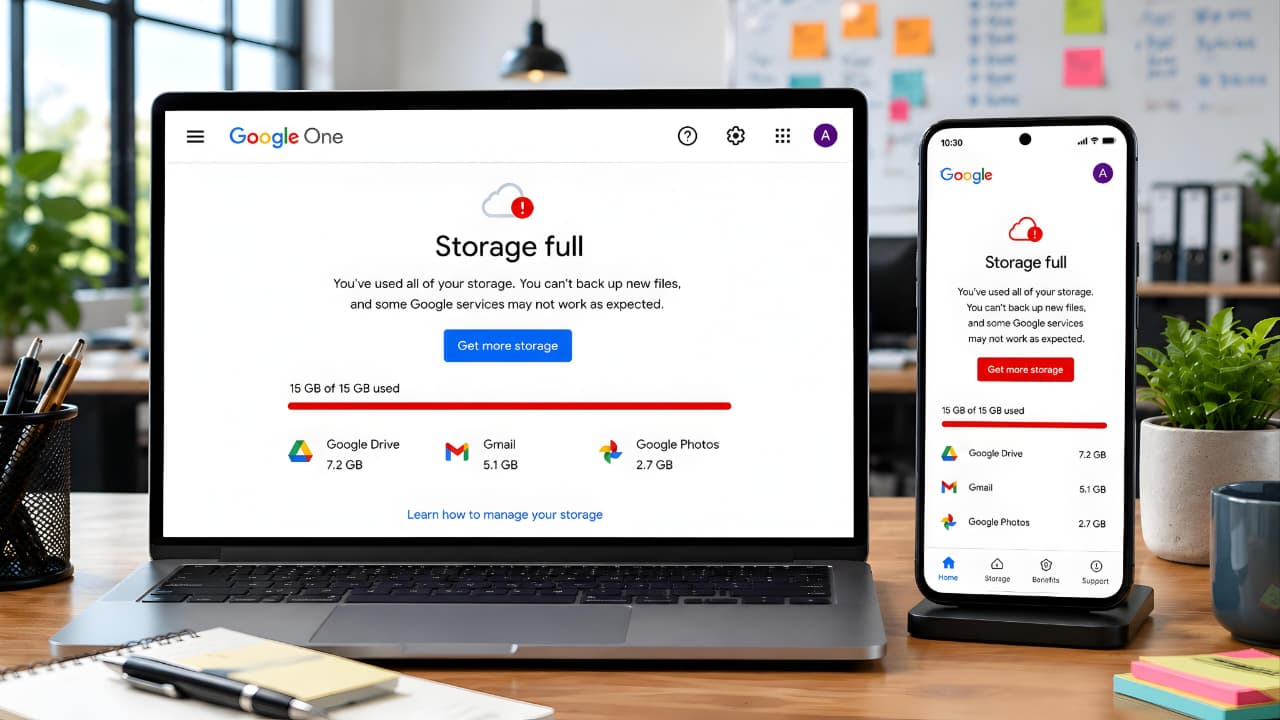
Running out of storage in your Google Account can be frustrating, especially when important services suddenly stop working as expected. Many users first notice the problem after seeing a Google Storage Full warning or discovering that Gmail is no longer receiving emails, Google Photos has stopped backing up pictures, or Google Drive refuses to upload files.
Because Google services are deeply connected, a storage problem in one area can affect your entire Google Account. Fortunately, most storage issues can be fixed without immediately purchasing additional storage.
In this guide, you’ll learn what Google Storage Full means, why it happens, how to identify the cause, and the most effective ways to free up storage across Gmail, Google Drive, and Google Photos.
What Does Google Storage Full Mean?
The Google Storage Full warning appears when your Google Account reaches its available storage limit.
Many users mistakenly believe that Gmail, Google Drive, and Google Photos each have separate storage limits. In reality, these services share the same storage pool.
The shared storage is used by:
- Gmail emails and attachments
- Google Drive files and folders
- Google Photos images and videos
- Android device backups
- Other Google account data
When this storage pool becomes full, several Google services may stop functioning normally.
Understanding how cloud storage works can help users better manage their files and avoid future storage issues.
Why Is Google Storage Shared Across Multiple Services?
Google uses a unified storage system to make account management simpler.
Instead of assigning separate limits to Gmail, Drive, and Photos, Google combines everything into one storage allocation.
For example:
- A large video uploaded to Google Photos consumes storage.
- A Gmail email with a huge attachment consumes storage.
- Files stored in Google Drive consume storage.
All of these count toward the same limit.
Because of this shared system, users often experience Google Storage Full problems without realizing which service is consuming most of the space.
How Much Free Storage Does Google Provide?
Google provides free storage that is shared across Gmail, Google Drive, and Google Photos.
For casual users, this may be sufficient for years.
However, storage can fill quickly if you:
- Take lots of photos
- Record videos regularly
- Receive large email attachments
- Store work documents online
- Use Android device backups
As digital files continue growing in size, many users eventually encounter storage limitations.
Many users begin experiencing storage issues shortly after creating and actively using multiple Google services without understanding how shared storage works.
Signs Your Google Storage Is Full
A Google Storage Full issue doesn’t always appear immediately.
In many cases, warning signs start appearing before the storage limit is completely reached.
Recognizing these symptoms early can help prevent disruptions.
Gmail Is Not Receiving New Emails
One of the most common warning signs is Gmail delivery problems.
You may notice:
- Missing emails
- Delayed messages
- Incoming emails being rejected
- Storage warning notifications
Since Gmail requires available storage to receive new messages, a full account can interfere with normal email delivery.
Google Photos Backup Stops Working
Google Photos automatically backs up photos and videos for many users.
When storage becomes unavailable, you may see:
- Backup paused
- Sync failed
- Upload errors
- Missing recent photos
This often causes users to realize they have a storage problem.
Google Drive Upload Failures
Google Drive requires available storage to save files.
If storage is full, you may experience:
- Upload failures
- File synchronization problems
- Save errors
- Storage warnings
This can be especially problematic for students and professionals who rely on cloud storage daily.
Android Backup Failures
Android devices often use Google services for automatic backups.
When storage becomes full, backups may stop working.
This can impact:
- Device recovery
- App restoration
- Settings synchronization
- Backup history
Constant Storage Warning Notifications
Google usually warns users before storage reaches its maximum limit.
Common messages include:
- Storage almost full
- Storage full
- Action required
- Upgrade storage
Ignoring these warnings can eventually lead to service interruptions.
Why Does Google Storage Fill Up Quickly?
Many users are surprised when they receive a Google Storage Full warning even though they rarely upload files manually.
The reality is that storage consumption often happens gradually over time.
Large Gmail Attachments
Email attachments are one of the most overlooked storage consumers.
Examples include:
- PDFs
- Presentations
- Spreadsheets
- Videos
- Images
- ZIP archives
Over several years, these files can consume a significant amount of storage.
Photos and Videos
Photos and videos are usually the biggest storage consumers.
Modern smartphones create:
- High-resolution photos
- 4K videos
- Screenshots
- Downloaded media
Thousands of these files can quickly fill available storage.
Google Drive Files
Many users forget about old files stored in Google Drive.
Examples include:
- Reports
- School assignments
- Presentations
- Archived projects
- Large downloads
These files often remain untouched for years while continuing to consume storage.
Spam and Trash Folders
Deleting a file doesn’t always remove it immediately.
Items stored in:
- Gmail Trash
- Gmail Spam
- Google Drive Trash
- Google Photos Trash
may continue using storage until they are permanently deleted.
Device Backups
Android backups can consume more storage than users expect.
Older backups from devices that are no longer used may still be stored in your account.
Removing outdated backups can often recover a surprising amount of space.
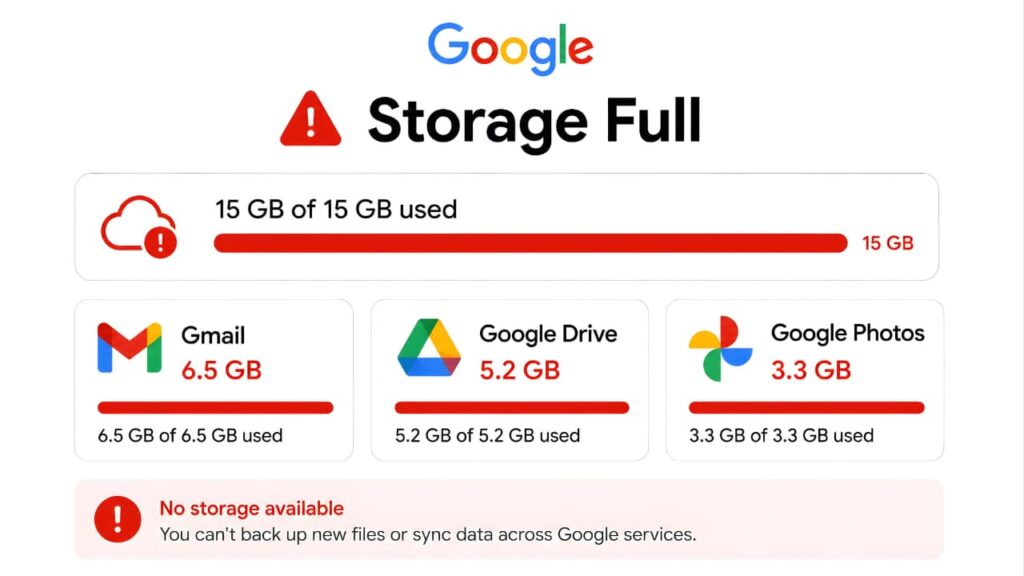
How to Check Google Storage Usage
Before deleting files, it’s important to understand exactly where your storage is being used.
Google provides storage management tools that show usage across:
- Gmail
- Google Drive
- Google Photos
This breakdown makes it easier to identify the biggest storage consumers.
Google’s official storage management dashboard helps users review storage usage and identify opportunities to free space.
Steps to Check Storage Usage
Step 1
Open your Google Account.
Step 2
Navigate to Storage Management.
Step 3
Review the storage breakdown.
Step 4
Identify which service is consuming the most space.
Step 5
Prioritize cleanup based on storage usage.
For many users, photos and videos are responsible for the majority of storage consumption.
Understanding this breakdown is the first step toward solving a Google Storage Full problem effectively.
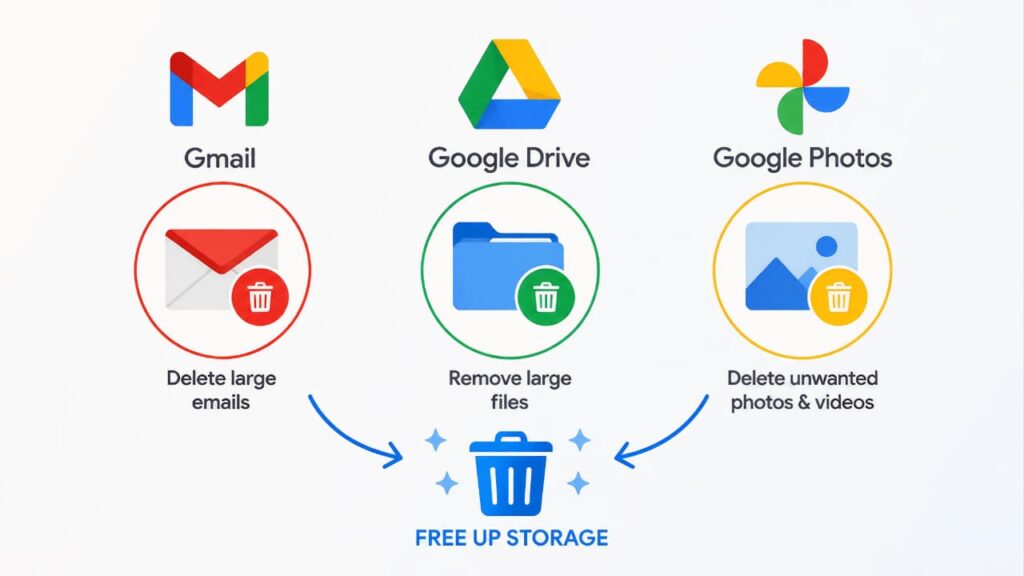
How to Free Up Google Account Storage
If you’re seeing a Google Storage Full warning, don’t rush to buy additional storage immediately.
In many cases, users can recover several gigabytes of space simply by cleaning unnecessary files and removing forgotten data.
The key is knowing where your storage is being used and prioritizing the biggest storage consumers first.
Delete Large Emails with Attachments
One of the fastest ways to fix a Google Storage Full problem is by removing large email attachments.
Over time, Gmail accumulates:
- PDFs
- Presentations
- Video files
- Images
- ZIP archives
- Work documents
Many of these emails are never opened again.
How to Find Large Emails
Open Gmail search and use: has:attachment larger:10M
This displays emails containing attachments larger than 10 MB.
Review the results carefully and remove emails you no longer need.
Even deleting a few hundred large emails can free a significant amount of storage.
Empty Gmail Trash and Spam
Many users delete emails but forget to empty Trash and Spam folders.
Messages stored in these folders may continue consuming storage until permanently removed.
Steps
- Open Gmail.
- Go to Trash.
- Permanently delete all messages.
- Open Spam.
- Delete all spam messages permanently.
This simple cleanup often recovers storage instantly.
Remove Unnecessary Photos and Videos
For most users, Google Photos consumes more storage than Gmail and Google Drive combined.
Common storage-heavy content includes:
- 4K videos
- Duplicate photos
- Screenshots
- Downloaded media
- Blurry images
- Social media downloads
Reviewing these files can quickly free valuable storage space.
Delete Large Videos First
Videos consume much more storage than photos.
A single large video may use more space than hundreds of images.
Prioritize deleting:
- Old recordings
- Duplicate videos
- Screen recordings
- Social media exports
- Unused downloads
Removing only a few large videos can recover several gigabytes.
Remove Duplicate Photos
Many users unknowingly store:
- Multiple versions of the same image
- Edited copies
- Downloaded duplicates
Deleting duplicates is one of the easiest ways to free storage without losing important memories.
Delete Old Device Backups
Google may store backups from:
- Old phones
- Previous Android devices
- Unused tablets
These backups often remain long after the device has been replaced.
Removing outdated backups can recover significant storage.
Clean Up Google Drive Files
Google Drive often becomes cluttered over time.
Common storage-consuming files include:
- Video projects
- Large PDFs
- ZIP files
- Archived documents
- Shared folders
Many users forget these files exist until they receive a Google Storage Full warning.
Remove Large Files First
Instead of deleting hundreds of small files, focus on the largest items.
Check for:
- Videos
- Software installers
- Archived projects
- Backup folders
Removing a few large files usually provides the biggest storage savings.
Empty Google Drive Trash
Deleting files from Drive isn’t enough.
Items moved to Trash continue consuming storage until permanently removed.
Always:
- Open Google Drive Trash.
- Review deleted items.
- Permanently delete unnecessary files.
Remove Unused Shared Files
Shared folders and documents can accumulate over time.
Review old collaborations and remove files that are no longer needed.
Delete Old Downloads and Archives
Many users upload files for temporary purposes and never remove them.
Examples include:
- Old project archives
- Software packages
- Temporary backups
These files often consume storage unnecessarily.
Storage Cleanup Tips That Actually Work
When trying to solve a Google Storage Full issue, follow this order:
- Delete large videos.
- Remove large email attachments.
- Empty Trash folders.
- Remove duplicate photos.
- Delete old backups.
- Clean Google Drive archives.
This approach usually provides the fastest results.
Following these cleanup methods can quickly resolve Google Storage Full issues for most users without requiring additional storage purchases.
How to Free Up Gmail Storage
Gmail is often responsible for hidden storage usage.
Fortunately, Gmail provides powerful search tools that make cleanup easier.
Delete Emails with Large Attachments
Use Gmail search operators such as:
has:attachment larger:20M
or
older_than:2y
These searches help identify messages consuming storage.
Delete Promotional Emails
Promotional messages accumulate quickly.
Examples include:
- Shopping offers
- Newsletters
- Marketing campaigns
- Discount alerts
Many users have thousands of promotional emails that provide little value.
Removing them can free meaningful storage.
Remove Social Notifications
Social media notifications often generate large amounts of email.
Examples include:
- Likes
- Comments
- Activity updates
- Connection requests
Deleting these emails can reduce clutter and recover space.
Unsubscribe from Unwanted Lists
Reducing future storage growth is just as important as deleting old content.
Unsubscribe from:
- Marketing emails
- Promotional newsletters
- Unused subscriptions
This prevents future storage accumulation.
Google provides official guidance for managing Gmail storage and account usage.
How to Free Up Google Photos Storage
Google Photos is often the largest storage consumer in a Google Account.
Remove Blurry Photos
Most smartphone galleries contain:
- Accidental photos
- Out-of-focus images
- Unwanted shots
Deleting them is an easy way to recover space.
Delete Screenshots
Screenshots accumulate quickly.
Many users keep thousands of screenshots they no longer need.
Reviewing and deleting outdated screenshots can free significant storage.
Remove Downloaded Media
Messaging apps often save:
- Images
- Memes
- Videos
- Shared files
Many of these downloads provide only temporary value.
Deleting unnecessary content can recover storage quickly.
Review Large Videos
High-resolution videos are usually the biggest storage consumers.
Removing old videos often provides the fastest storage recovery.
Use Storage Saver Settings
Google Photos offers storage-saving options that reduce future storage usage.
Users should review these settings and choose the option that best fits their needs.
How to Free Up Google Drive Storage
Google Drive is another major contributor to Google Storage Full problems.
Identify Large Files
Sort files by size and review:
- Videos
- ZIP archives
- Backup folders
- Large PDFs
- Presentation files
Large files should be your first cleanup target.
Delete Outdated Projects
Old work and school projects often remain stored long after completion.
Review:
- Reports
- Presentations
- Assignments
- Temporary project folders
Remove anything no longer needed.
Review Shared Documents
Shared files can create clutter and confusion.
Periodically review collaboration folders and remove unnecessary content.
Empty Google Drive Trash
Even after deleting files, storage may not be recovered immediately.
Always empty Drive Trash after cleanup.
Organize Files Regularly
A well-organized Drive is easier to maintain.
Creating folders and archiving important files properly helps prevent future storage problems.
Google provides official Drive storage documentation and file management resources for users who need additional assistance.
Should You Upgrade to Google One?
Many users who encounter a Google Storage Full warning immediately assume they need to purchase additional storage.
However, upgrading should usually be considered only after cleaning unnecessary files.
In many situations, users can recover several gigabytes of storage simply by deleting old emails, duplicate photos, large videos, and unused files.
If your storage fills up again shortly after cleanup, upgrading may be a practical option.
What Is Google One?
Google One is Google’s subscription service that provides additional cloud storage and account management benefits.
It is designed for users who need more space than the free storage allocation provides.
Benefits may include:
- Additional cloud storage
- Family sharing options
- Extra account management tools
- Additional Google services and benefits
Users can compare available plans and storage options through Google’s official website.
Who Should Upgrade to Google One?
Google One may be useful for:
Content Creators
Content creators often store:
- Videos
- Raw footage
- Photos
- Project files
These files consume storage quickly.
Students
Students frequently store:
- Assignments
- Presentations
- Research documents
- Study materials
Cloud storage becomes increasingly valuable over time.
Professionals
Professionals often manage:
- Reports
- Client documents
- Business files
- Collaborative projects
Additional storage can improve productivity.
Families
Families sharing photos, videos, and backups across multiple devices may benefit from larger storage plans.
Important Tip Before Upgrading
Even if you plan to purchase additional storage, you should still clean unnecessary files first.
Paying for more storage does not automatically remove clutter or improve file organization.
Good storage habits remain important regardless of storage capacity.
Common Google Storage Full Problems and Fixes
When a Google Storage Full issue occurs, users often experience specific service-related problems.
Here are the most common issues and their solutions.
Gmail Is Not Receiving New Emails
Cause
Account storage has reached its limit.
Fix
- Delete large email attachments
- Empty Trash
- Empty Spam
- Remove old emails
After freeing storage, Gmail usually resumes normal operation.
Google Photos Backup Failed
Cause
No available storage space remains.
Fix
- Delete duplicate photos
- Remove large videos
- Clear screenshots
- Review backup settings
Google Drive Upload Failed
Cause
Storage quota exceeded.
Fix
- Remove large files
- Empty Drive Trash
- Delete old projects
Android Backup Failed
Cause
Insufficient storage available.
Fix
- Remove old backups
- Free account storage
- Review backup settings
Storage Warning Notifications Continue Appearing
Cause
Storage remains close to maximum capacity.
Fix
- Perform regular cleanup
- Monitor storage usage
- Delete unnecessary files monthly
Tips to Prevent Google Storage Full Issues
Preventing storage problems is easier than fixing them later.
The following habits can help keep your account organized and avoid future storage issues.
Perform Monthly Storage Cleanup
Set aside a few minutes each month to review:
- Gmail
- Google Drive
- Google Photos
- Device backups
Regular maintenance prevents storage from becoming unmanageable.
Delete Unused Files Regularly
Remove:
- Duplicate photos
- Old downloads
- Unnecessary backups
- Archived projects
Small cleanup efforts make a big difference over time.
Monitor Storage Usage Frequently
Checking storage usage regularly helps identify problems before they become serious.
Google’s storage dashboard makes this process simple.
Organize Google Drive Files
Creating folders and maintaining a clean file structure makes future storage management easier.
Protect Your Google Account
Storage management is important, but account security is equally critical.
Users should regularly review security settings and enable modern security features.
Modern authentication methods such as passkeys can significantly improve account security while reducing reliance on traditional passwords.
Storage notifications should never be confused with security alerts. Users should understand the difference between genuine Google notifications and potential phishing attempts.
Protecting personal information stored in cloud services is also essential for long-term privacy and security.
Developing good storage habits is one of the most effective ways to prevent future Google Storage Full warnings.
Frequently Asked Questions (FAQ)
Why Is My Google Storage Full?
Your storage may be full because Gmail, Google Drive, Google Photos, and Android backups share the same storage allocation.
How Much Free Storage Does Google Provide?
Google provides a shared storage allocation that is used across Gmail, Google Drive, and Google Photos.
Can I Receive Emails If My Storage Is Full?
In many cases, Gmail may stop receiving new emails when storage reaches its limit.
Does Deleting Gmail Emails Free Storage?
Yes.
Deleting emails, especially those with large attachments, can recover storage space.
Remember to empty Trash and Spam folders afterward.
Does Deleting Photos Free Storage?
Yes.
Photos and videos are often the largest storage consumers in a Google Account.
Is Google One Worth It?
For users who frequently store large amounts of content, Google One can be a valuable upgrade.
However, unnecessary files should always be cleaned up first.
How Often Should I Clean My Google Storage?
A monthly review is recommended for most users.
Regular maintenance helps prevent future storage problems.
How Do I Fix Google Storage Full Quickly?
The fastest way to fix Google Storage Full problems is to:
- Delete large email attachments
- Remove unnecessary videos
- Empty Trash folders
- Delete old device backups
- Clean up Google Drive files
These actions usually provide the quickest storage recovery.
Conclusion
A Google Storage Full warning can seem frustrating at first, but it is usually easy to resolve once you understand where your storage space is being used.
Because Gmail, Google Drive, Google Photos, and Android backups all share the same storage pool, even moderate usage across multiple services can eventually fill available storage.
The most effective way to solve a Google Storage Full problem is to:
- Delete large email attachments
- Remove duplicate photos
- Delete unnecessary videos
- Empty Trash folders
- Clean up Google Drive files
- Remove outdated backups
Most users can recover a significant amount of storage without purchasing additional space.
For users who need more storage for work, content creation, education, or family use, Google One may provide a practical long-term solution.
Understanding how to manage Google Storage Full issues helps improve productivity, reduce service interruptions, and keep your Google Account organized.
By following the strategies explained in this guide, you can fix Google Storage Full problems, prevent future storage issues, and make better use of your Google Account storage.
As cloud services continue to play a larger role in daily life, learning how to handle Google Storage Full warnings is becoming an increasingly important digital skill for every internet user.