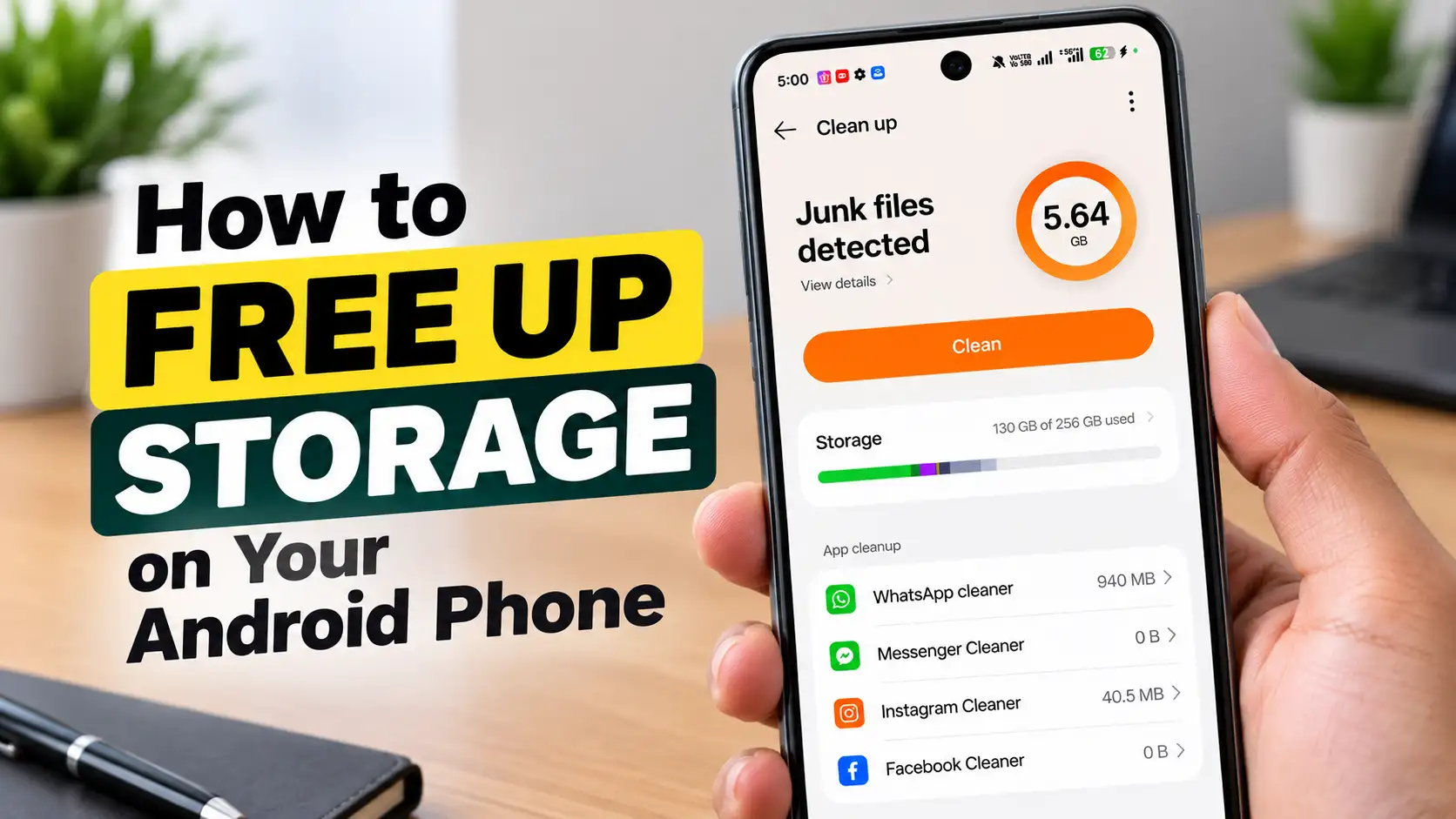
If you’re wondering how to free up storage on Android, the fastest way is to open your phone’s built-in cleaning tool first app cache, unused apps, and deleted files all in one place. The steps below work on any Android phone. I’ve added my Oppo Reno 15 Pro Mini as an example, because the name and location of this tool differ between brands.
Step 1: Find your phone's cleaning tool
Most Android phones have a built-in tool that scans for things you can safely remove. It may sit inside Settings, Storage, or inside the file manager app, or as a separate app called something like Phone Manager or Cleaner. If you don’t see it in Settings, check your file manager app next.
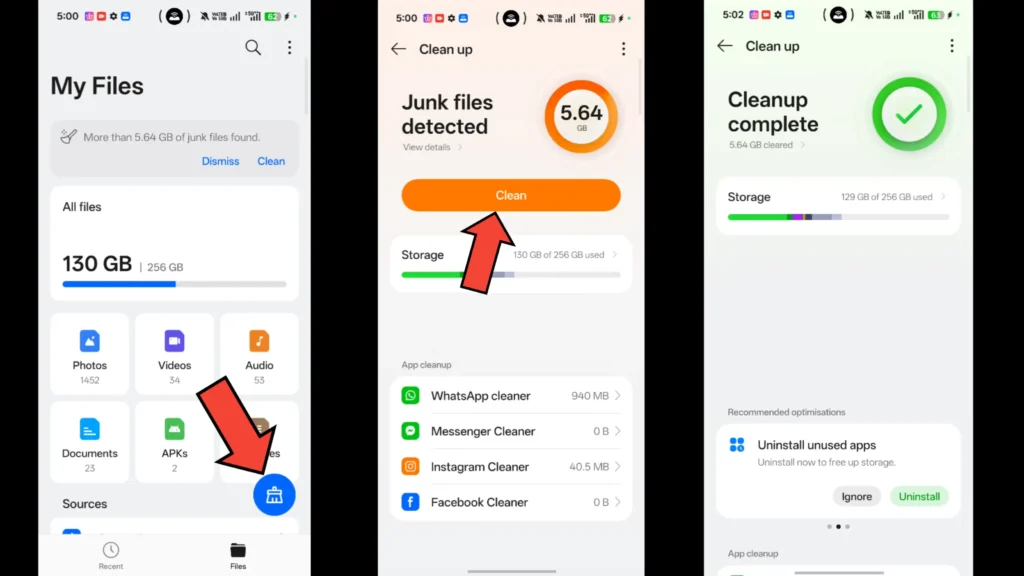
Oppo example: On my Oppo Reno 15 Pro Mini, this isn’t in Settings, Storage. It’s inside the My Files app. Open My Files and look for a junk icon.
Step 2: Clean junk files
Tap the junk clean-up option and let the phone scan. It shows how much space junk files are taking up, things like temporary files and old installers, and lets you clear them with one tap. This is safe and usually the quickest win.
My experience: On my phone, this scan found about 5 GB of junk files, and clearing them freed that space right away.
Step 3: Use the same screen for cache, unused apps, and deleted files
Here’s the part that’s easy to miss: on many phones, that same cleaning tool offers more than just junk files, often on the same page or one tap away. Look for options to:
- Clear cache for individual apps, which is data apps store to load faster
- Remove apps you haven’t opened in a while
- Permanently delete photos, videos, or files sitting in a “recently deleted” folder, since these still use space until that folder is emptied
You don’t need to jump between different settings menus for each of these. On most phones, they’re grouped together in this one cleaning tool, so it’s worth exploring every option on that screen before you go looking elsewhere.
My experience: After the junk file clean-up, I used the same My Files tool to clear the cache on one app and uninstall another app I wasn’t using. That freed about 2 GB more, taking my total saved space to roughly 7 GB. I only tried this on one or two apps, so there’s more to gain by going through your full app list the same way.
Step 4: Back up photos and videos before deleting more
For anything the cleaning tool doesn’t cover, like photos and videos you still want to review yourself, back them up to a cloud service or a computer first. Open the backup and confirm everything is there before deleting the originals from your phone. Then look for old screenshots, blurry shots, and duplicates, and sort videos by size, since a few large videos can use more space than hundreds of photos.
Step 5: Check your messaging apps
Messaging apps save everything people send you, including forwarded videos and voice notes. Most have their own storage screen that lists the largest files, which is faster than scrolling through chats one by one.
Step 6: Clean the Downloads folder
Open your file manager and go to Downloads. This folder collects PDFs, documents, and installer files you only needed once. Sort by size and delete what you no longer need.
If your phone has no memory card slot
Some phones let you move files to an SD card, but many modern phones, including the Oppo Reno 15 Pro Mini, don’t have a slot. In that case, your options are cloud backup, moving files to a computer, or an external drive that connects through USB.
Keep it from filling up again
- Turn on automatic photo backup so you can delete originals with confidence.
- Switch off automatic media downloads in messaging apps.
- Set a monthly reminder to run the cleaning tool and check your Downloads folder.
- Leave some free space. A nearly full phone can run slower and may struggle to install updates.
Where to start
Open your phone’s built-in cleaning tool first and go through every option on that one screen, junk files, cache, unused apps, and deleted files. That alone can free several gigabytes in a few minutes, like it did on mine. Then work through backups and the Downloads folder at your own pace for the rest.