WhatsApp Web is one of the easiest ways to continue your conversations from a computer without constantly picking up your phone. Whether you’re replying to work messages, sharing files, or chatting with friends, it offers a seamless experience across devices.
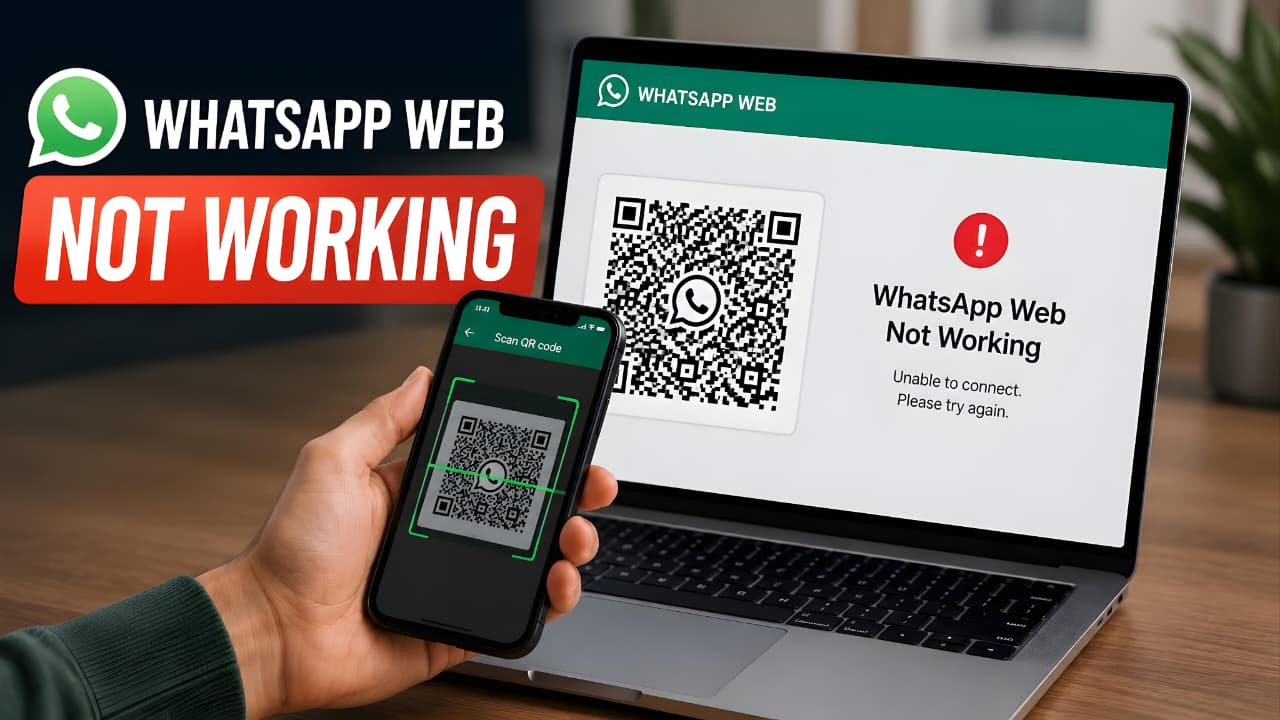
However, there are times when WhatsApp Web suddenly stops working. You may see a blank screen, an endless loading icon, a QR code that refuses to load, or messages that stop syncing. In some cases, the website won’t open at all, while in others you may be logged out unexpectedly.
The good news is that most of these problems can be fixed in just a few minutes. In this guide, you’ll learn how to fix WhatsApp Web not working using practical troubleshooting methods that are safe, easy to follow, and based on common causes. Whether the issue is related to your internet connection, browser settings, linked devices, or temporary software glitches, the solutions below will help you get WhatsApp Web running again.
Before You Start
Before you begin troubleshooting WhatsApp Web, make sure you have the following:
- A smartphone with the latest version of WhatsApp installed.
- A stable internet connection on both your phone and computer.
- A supported web browser, such as Google Chrome, Microsoft Edge, Mozilla Firefox, or Safari.
- Access to your WhatsApp account so you can scan the QR code if required.
- Your phone unlocked if WhatsApp asks you to verify your identity during the linking process.
Taking a minute to confirm these basic requirements can save time and help you identify the cause of the problem more quickly.
Before you begin, understanding how to fix WhatsApp Web not working becomes much easier when your phone, browser, and internet connection are ready for troubleshooting.
Quick Fix Checklist
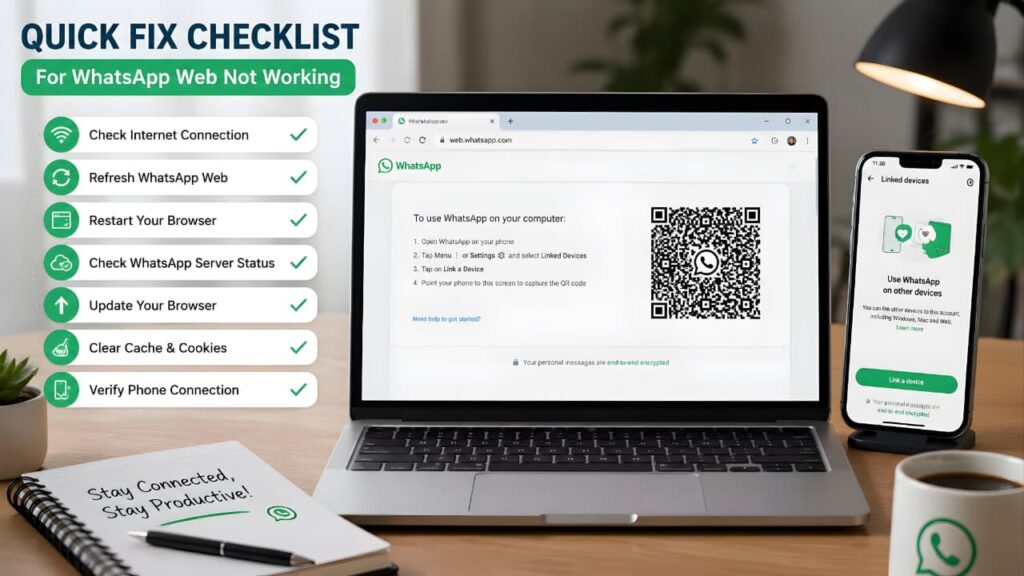
Before moving on to advanced troubleshooting, try these quick fixes:
- Make sure your internet connection is stable.
- Refresh the WhatsApp Web page.
- Restart your browser.
- Check whether WhatsApp services are experiencing an outage.
- Update your browser to the latest version.
- Clear your browser’s cache and cookies.
- Open WhatsApp on your phone and ensure it is connected to the internet.
If the issue still isn’t resolved, continue with the step-by-step solutions below.
These quick checks can help you fix WhatsApp Web not working without performing advanced troubleshooting steps. If the problem continues, follow the detailed solutions below.
Why Is WhatsApp Web Not Working?
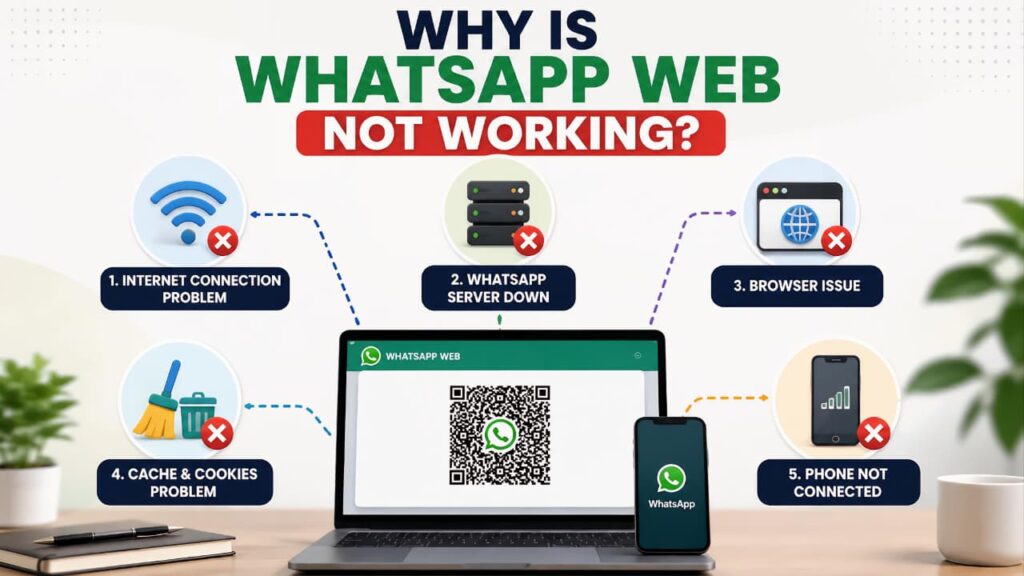
Understanding the cause of the problem makes troubleshooting much easier. The most common reasons include:
- Unstable internet connectivity.
- Temporary WhatsApp server issues.
- Outdated web browser.
- Corrupted browser cache or cookies.
- Browser extensions interfering with the website.
- VPN or proxy conflicts.
- Problems with linked devices.
- Outdated WhatsApp application.
- Incorrect computer date and time.
- Firewall or antivirus restrictions.
Now, let’s fix each issue one by one.
Understanding the possible causes is the first step in learning how to fix WhatsApp Web not working quickly and effectively.
Solution 1: Check Your Internet Connection
A slow or unstable internet connection is one of the most common reasons why WhatsApp Web stops working. Even if other websites appear to load, an unreliable connection can interrupt message synchronization and prevent WhatsApp Web from connecting properly.
How to Check
- Open a few different websites to confirm your connection is working.
- If you’re using Wi-Fi, move closer to the router or reconnect to the network.
- If possible, switch between Wi-Fi and mobile hotspot to see if the issue is network-related.
- Restart your modem or router if your connection remains unstable.
Once your internet connection becomes stable, refresh WhatsApp Web and check whether it reconnects automatically.
Helpful Tip: If you’re using public Wi-Fi at a café, airport, or hotel, the network may restrict certain services. Connecting to a trusted private network or your phone’s hotspot can often resolve the issue.
If you’re looking for how to fix WhatsApp Web not working, checking your internet connection should always be the first step. A stable connection resolves many common WhatsApp Web issues quickly.
If you’re looking for how to fix WhatsApp Web not working, start by checking your internet connection. If your connection seems stable but messages still fail to sync or load properly, the issue may not be limited to WhatsApp Web. You can also follow our WhatsApp Not Sending Messages guide for additional troubleshooting steps.
Solution 2: Check Whether WhatsApp Is Experiencing a Server Outage
Sometimes the problem isn’t on your device at all. If WhatsApp’s servers are temporarily unavailable due to maintenance or an unexpected outage, WhatsApp Web may fail to load, messages may stop syncing, or login attempts may not work.
Before changing browser settings or reinstalling apps, confirm whether the service is experiencing a widespread issue.
If a server outage is affecting many users, the only solution is to wait until WhatsApp restores normal service. In most cases, these interruptions are resolved within a short time.
Helpful Tip: If WhatsApp also isn’t working properly on your phone, the issue is more likely to be service-related than browser-related.
Understanding how to fix WhatsApp Web not working starts with identifying whether the problem is on your device or with WhatsApp’s servers.
If you’ve tried every solution to fix WhatsApp Web not working but the issue still persists, the problem may be caused by a temporary WhatsApp server outage. Before making further changes to your device or browser, check the WhatsApp Server Status to see whether other users are reporting similar issues. If the servers are down, you’ll simply need to wait until WhatsApp restores the service.
Solution 3: Refresh WhatsApp Web
Temporary loading errors can sometimes prevent WhatsApp Web from displaying correctly. Refreshing the page forces your browser to request the latest version of the website and establish a new connection.
To refresh WhatsApp Web:
- Click your browser’s Refresh button or press the refresh shortcut on your keyboard.
- Wait for the page to reload completely.
- If a QR code appears, scan it again using your phone if required.
If refreshing doesn’t solve the problem after a couple of attempts, move on to the next troubleshooting step.
Helpful Tip: Avoid repeatedly refreshing the page every few seconds. Give the website enough time to reconnect before trying again.
Refreshing the page is one of the easiest ways to fix WhatsApp Web not working when temporary loading issues occur.
Solution 4: Restart Your Browser
Web browsers can occasionally develop temporary issues after running for extended periods. Background processes, memory usage, or conflicting browser tabs may interfere with websites like WhatsApp Web.
Completely closing and reopening your browser gives it a fresh start and often resolves temporary glitches.
Steps
- Close every browser window.
- Wait for about 10 seconds.
- Open the browser again.
- Visit WhatsApp Web.
- Check whether the issue has been resolved.
If the problem continues, proceed to the next solution.
Restarting your browser can often fix WhatsApp Web not working by removing temporary browser-related problems.
Solution 5: Clear Browser Cache and Cookies
Browsers store temporary files, images, and cookies to improve loading speed. Over time, this stored data can become outdated or corrupted, leading to problems such as login failures, blank pages, or QR code loading issues.
Clearing your browser cache and cookies removes outdated website data and allows WhatsApp Web to load fresh files.
General Steps
- Open your browser’s Settings.
- Navigate to Privacy or Browsing Data.
- Select Cookies and Cached Images and Files.
- Clear the selected data.
- Restart your browser.
- Open WhatsApp Web again.
Clearing browser data will not delete your WhatsApp chats. However, you may need to scan the QR code again to sign in.
Helpful Tip: Clearing cached data every few months can improve overall browser performance and reduce unexpected website issues.
Clearing your browser cache is an effective way to fix WhatsApp Web not working when corrupted website data is causing loading issues. If browser-related problems continue across multiple websites, learning how cloud storage works can also help you better understand how online data is stored and synchronized.
Corrupted cache and cookies can prevent WhatsApp Web from loading properly. Clearing your browser’s browsing data often resolves loading and syncing issues. If you’re using Google Chrome, you can follow the official Google Chrome Help guide to clear cache and cookies safely.
Solution 6: Update Your Browser
An outdated browser may not fully support the latest web technologies used by WhatsApp Web. As browsers receive regular security patches and compatibility improvements, using an older version can lead to loading issues, login failures, or unexpected errors.
Keeping your browser updated helps ensure better performance, stronger security, and smoother communication with WhatsApp Web.
How to Update Your Browser
- Open your browser’s Settings menu.
- Navigate to the About section.
- Check for available updates.
- Install the latest version if one is available.
- Restart your browser after the update is complete.
- Open WhatsApp Web and see if the issue has been resolved.
Expected Result: If browser compatibility was causing the problem, WhatsApp Web should load normally after the update.
Helpful Tip: Enable automatic browser updates so you always receive the latest security and performance improvements.
Using the latest browser version is an important step if you’re trying to fix WhatsApp Web not working on your computer.
Updating WhatsApp is one of the easiest ways to fix WhatsApp Web not working because it installs the latest bug fixes, compatibility improvements, and security patches. Keeping your apps updated is also part of maintaining your Google account security for a safer overall experience.
Solution 7: Disable VPN or Proxy Services
A Virtual Private Network (VPN) or proxy server can sometimes interfere with secure web connections. While these tools improve privacy, certain VPN servers or network configurations may prevent WhatsApp Web from connecting properly.
How to Fix It
- Disconnect your VPN or proxy temporarily.
- Refresh WhatsApp Web.
- Try signing in again.
- If the website loads successfully, reconnect using a different VPN server if needed.
If you’re using a school, office, or public Wi-Fi network, network restrictions may also affect WhatsApp Web. Testing the website on another network or your mobile hotspot can help identify whether the issue is network-related.
Expected Result: WhatsApp Web should establish a normal connection if the VPN or proxy was causing the problem.
Helpful Tip: Only use trusted VPN services, and avoid connecting through overloaded or unreliable servers.
If a VPN or proxy is interfering with your connection, disabling it may immediately fix WhatsApp Web not working.
If you’re trying to fix WhatsApp Web not working, temporarily disabling your VPN or proxy can help restore a stable connection. Understanding how to protect your personal data online also helps you balance privacy and performance.
Solution 8: Disable Browser Extensions
Browser extensions can sometimes conflict with websites by blocking scripts, modifying page content, or preventing secure connections. This is especially common with ad blockers, privacy tools, and script-blocking extensions.
How to Check
- Open your browser’s Extensions page.
- Disable all extensions temporarily.
- Refresh WhatsApp Web.
- If the website works, enable the extensions one at a time until you identify the one causing the issue.
Instead of removing the extension completely, you can usually add web.whatsapp.com to its allowlist or trusted websites.
Expected Result: If an extension was interfering with WhatsApp Web, the website should function normally after it is disabled.
Helpful Tip: Install only the browser extensions you actually need. Fewer extensions generally mean better browser performance and fewer compatibility issues.
Disabling unnecessary browser extensions is another useful way to fix WhatsApp Web not working, especially when extensions interfere with web pages or login sessions. If you suspect unusual browser activity, review our Google Critical Security Alert guide.
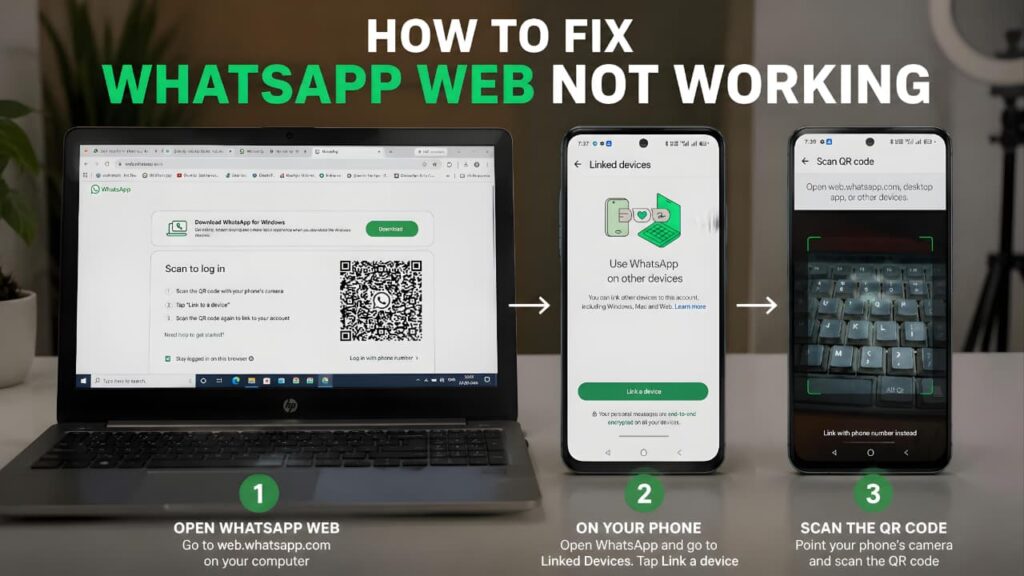
Solution 9: Relink Your Device
If your linked session has become corrupted or expired, creating a fresh connection often resolves login and synchronization problems.
Steps to Relink Your Device
- Open WhatsApp on your phone.
- Go to Settings > Linked Devices (or Menu > Linked Devices on Android).
- Select the connected computer.
- Tap Log Out.
- Visit web.whatsapp.com on your computer.
- Scan the new QR code using your phone.
This creates a fresh encrypted session between your phone and your computer.
Expected Result: Login issues, session errors, and message synchronization problems should be resolved.
Helpful Tip: Review your linked devices regularly and remove computers you no longer use. This improves both account security and device management.
Creating a new linked session is one of the most reliable ways to fix WhatsApp Web not working after login or sync issues.
Solution 10: Check Your Phone's Internet Connection
Even though WhatsApp Web supports multi-device functionality, your phone still needs to stay in good condition for account synchronization and security. If your phone has an unstable internet connection, you may notice delayed messages, syncing issues, or temporary disconnections.
What to Check
- Make sure Wi-Fi or mobile data is working properly.
- Turn off Airplane Mode if it is enabled.
- Disable Data Saver or Battery Saver if they are limiting WhatsApp.
- Open WhatsApp on your phone and wait a few seconds for it to reconnect.
- Switch between Wi-Fi and mobile data to test your connection.
If your phone reconnects successfully, WhatsApp Web should automatically resume syncing your conversations.
Expected Result: Message synchronization should return to normal once your phone has a stable internet connection.
Helpful Tip: If you frequently use WhatsApp Web for work, connecting your phone to a reliable Wi-Fi network can provide a more consistent experience.
A reliable phone connection plays an important role when you need to fix WhatsApp Web not working and restore message synchronization.
A stable internet connection on your phone is essential if you’re trying to fix WhatsApp Web not working. Since WhatsApp Web depends on your phone to sync messages in real time, poor connectivity can interrupt the connection. If you’re also experiencing problems with chat backups or cloud synchronization, check our WhatsApp Backup Stuck guide for step-by-step solutions to resolve backup issues on both Android and iPhone.
Quick Progress Check
By now, you should have completed the following troubleshooting steps:
✔ Checked your internet connection.
✔ Confirmed whether WhatsApp is experiencing a server outage.
✔ Refreshed WhatsApp Web.
✔ Restarted your browser.
✔ Cleared your browser cache and cookies.
✔ Updated your browser.
✔ Disabled your VPN or proxy.
✔ Turned off problematic browser extensions.
✔ Relinked your WhatsApp account.
✔ Verified your phone’s internet connection.
If WhatsApp Web is still not working, don’t worry. The remaining solutions cover advanced troubleshooting techniques that can resolve more persistent connection and compatibility issues.
If you’ve completed every step above, you’re already much closer to fixing WhatsApp Web not working. Continue with the remaining solutions if the issue still persists.
Solution 11: Update WhatsApp on Your Phone
Running an outdated version of WhatsApp can sometimes cause compatibility issues with WhatsApp Web. Meta regularly releases updates that improve security, fix bugs, and enhance the way linked devices communicate with each other.
If your app hasn’t been updated for a while, installing the latest version may immediately resolve login or synchronization problems.
How to Update WhatsApp
- Open the Google Play Store or Apple App Store.
- Search for WhatsApp.
- Tap Update if a newer version is available.
- Wait for the installation to finish.
- Restart WhatsApp on your phone.
- Reopen WhatsApp Web on your computer.
Expected Result: If an outdated app was causing the issue, your chats should begin syncing normally after the update.
Helpful Tip: Enable automatic app updates so you always receive the latest security patches and feature improvements.
Installing the latest version of WhatsApp can help fix WhatsApp Web not working by improving compatibility with linked devices.
Solution 12: Restart Both Your Phone and Computer
Sometimes the simplest solution is also one of the most effective. Temporary software glitches, background processes, or memory conflicts can interrupt the connection between your phone and WhatsApp Web.
Restarting both devices clears temporary system resources and establishes a fresh network connection.
Steps to Restart Your Devices
- Close WhatsApp Web completely.
- Restart your computer.
- Restart your phone.
- Wait until both devices reconnect to the internet.
- Open WhatsApp on your phone.
- Visit WhatsApp Web and check whether it works correctly.
Expected Result: Temporary software issues should disappear, allowing WhatsApp Web to reconnect successfully.
Helpful Tip: Restarting your devices regularly can improve overall performance and reduce unexpected connection problems.
Restarting both devices is a simple but effective way to fix WhatsApp Web not working when temporary software issues are involved.
Solution 13: Try Incognito Mode or a Different Browser
If WhatsApp Web still isn’t working, the issue may be related to your browser’s settings rather than the website itself.
Opening WhatsApp Web in an Incognito (Private Browsing) window disables most extensions and starts a fresh browsing session without using existing cookies.
How to Test
- Open an Incognito or Private Browsing window.
- Visit web.whatsapp.com.
- Scan the QR code.
- Check whether WhatsApp Web loads normally.
If it works in Incognito mode, your regular browser profile is likely causing the issue.
You can also test WhatsApp Web using another supported browser such as:
- Google Chrome
- Microsoft Edge
- Mozilla Firefox
- Safari (macOS)
Expected Result: If the problem is browser-specific, WhatsApp Web should function normally in another browser or in Incognito mode.
Helpful Tip: Avoid using outdated or unsupported browsers, as they may not fully support the latest WhatsApp Web features.
Trying another browser can help fix WhatsApp Web not working if the issue is related to your current browser profile.
Trying another browser is another simple way to fix WhatsApp Web not working if the problem is caused by browser settings or extensions. Similar browser troubleshooting is also useful when fixing Facebook Password Change Errors.
Solution 14: Check Your Computer's Date and Time Settings
Incorrect system date or time can interfere with secure HTTPS connections. Since WhatsApp Web depends on secure encryption, an inaccurate system clock may prevent the website from loading correctly.
How to Fix It
- Open your computer’s Date & Time settings.
- Enable Set Time Automatically.
- Enable Set Time Zone Automatically, if available.
- Restart your browser.
- Open WhatsApp Web again.
Expected Result: After correcting your system clock, secure connections should work normally.
Helpful Tip: If your computer frequently displays the wrong time after restarting, check your operating system settings or hardware clock.
Correct date and time settings are essential if you’re trying to fix WhatsApp Web not working on a secure connection.
Solution 15: Review Firewall or Antivirus Settings
Some firewall or antivirus programs can accidentally block secure browser connections. If you’ve recently installed new security software or changed network settings, they may be preventing WhatsApp Web from loading.
What You Can Do
- Temporarily disable web protection for testing.
- Refresh WhatsApp Web.
- If it works, add web.whatsapp.com to your security software’s trusted or allowed list.
- Re-enable your antivirus or firewall immediately after testing.
If you’re using a work or school computer, access to WhatsApp Web may be restricted by your organization’s network policies. In that case, contact your IT administrator.
Expected Result: If your security software was blocking the connection, WhatsApp Web should work after the appropriate exception is added.
Helpful Tip: Never leave your antivirus or firewall permanently disabled. They are essential for protecting your device from online threats.
Checking your firewall and antivirus configuration may finally fix WhatsApp Web not working if security software is blocking the connection.
Advanced Troubleshooting Summary
If you’ve completed all 15 solutions and WhatsApp Web is still not working, you’ve already ruled out nearly every common cause, including:
- Internet connectivity issues
- Temporary WhatsApp service interruptions
- Browser compatibility problems
- Corrupted cache and cookies
- VPN or proxy conflicts
- Browser extension interference
- Linked device issues
- Phone connectivity problems
- Outdated WhatsApp versions
- Temporary software glitches
- Incorrect date and time settings
- Firewall or antivirus restrictions
If the issue persists after trying every solution in this guide, the next step is to review common error messages and contact WhatsApp Support if necessary.
If none of the previous methods worked, don’t worry. The next section provides additional guidance on how to fix WhatsApp Web not working by addressing common error messages and advanced troubleshooting scenarios.
Common WhatsApp Web Error Messages and How to Fix Them
Even after following the troubleshooting steps above, you may still see an error message. Understanding what each message means can help you identify the root cause more quickly.
"Phone Not Connected"
This message usually appears when your phone has lost its internet connection for an extended period.
How to fix it:
- Make sure your phone is connected to Wi-Fi or mobile data.
- Turn off Airplane Mode if it’s enabled.
- Open WhatsApp on your phone and wait a few seconds for it to reconnect.
- Refresh WhatsApp Web.
"Computer Not Connected"
This error indicates that your computer cannot reach the internet.
How to fix it:
- Check your Wi-Fi or Ethernet connection.
- Restart your router if necessary.
- Open another website to verify that your internet connection is working.
- Refresh WhatsApp Web after your connection is restored.
"QR Code Not Loading"
If the QR code doesn’t appear, the issue is often related to your browser, internet connection, or cached website data.
How to fix it:
- Refresh the page.
- Clear your browser’s cache and cookies.
- Disable browser extensions temporarily.
- Try another supported browser.
"Session Expired"
This message appears when your login session has timed out or the connection has been interrupted.
How to fix it:
- Refresh the page.
- Scan the QR code again.
- If necessary, remove the linked device and reconnect it from your phone.
"Messages Are Not Syncing"
Delayed or missing messages usually indicate a temporary connection issue.
How to fix it:
- Verify that both your phone and computer are connected to the internet.
- Open WhatsApp on your phone.
- Disable Battery Saver or Data Saver if they are restricting the app.
- Wait a few moments for synchronization to complete.
Knowing what each error message means can make how to fix WhatsApp Web not working much easier, as it helps you identify the root cause more quickly.
Understanding these error messages makes it easier to fix WhatsApp Web not working and identify the root cause. If your messages are also failing to send, read our WhatsApp Not Sending Messages guide.
Security Best Practices for WhatsApp Web
Keeping your WhatsApp account secure is just as important as fixing technical issues. Following these recommendations can help protect your conversations and linked devices.
- Always use the official WhatsApp Web website.
- Log out after using WhatsApp Web on a shared or public computer.
- Regularly review your Linked Devices list and remove devices you no longer use.
- Enable Two-Step Verification in WhatsApp for additional account security.
- Keep your browser, operating system, and WhatsApp app updated.
- Avoid using unofficial or modified versions of WhatsApp.
- Never scan QR codes from unknown websites or suspicious sources.
Developing these habits can help prevent unauthorized access to your account and improve your overall online security.
Following these security recommendations not only protects your account but also helps prevent issues that may cause WhatsApp Web not working in the future.
Following these recommendations not only helps fix WhatsApp Web not working but also protects your personal information. For more safety tips, read How to Protect Your Personal Data Online.
Before Contacting WhatsApp Support
If How to Fix WhatsApp Web Not Working remains unresolved after trying every solution in this guide, gather the following information before contacting WhatsApp Support:
- Your phone model.
- Your Android or iPhone version.
- The installed WhatsApp version.
- Your browser name and version.
- Your computer’s operating system.
- A brief description of the issue.
- Any error message displayed.
- The troubleshooting steps you’ve already completed.
Providing accurate information helps the support team understand your issue and recommend the most appropriate solution.
If you’ve tried every solution in this guide on how to fix WhatsApp Web not working, providing complete information to WhatsApp Support will help them investigate your issue more efficiently.
If none of the troubleshooting methods help fix WhatsApp Web not working, it’s best to visit the WhatsApp Help Center for official troubleshooting guides and support articles. You can also contact WhatsApp Support directly if the issue is related to your account or device.
Frequently Asked Questions (FAQ)
Why is WhatsApp Web not working even though my internet connection is fine?
The problem may be caused by an outdated browser, corrupted cache, browser extensions, VPN settings, or a temporary issue with your linked device. Follow the troubleshooting steps in this guide to identify the exact cause.
Can I use WhatsApp Web if my phone is offline?
WhatsApp’s multi-device feature allows linked devices to work independently for a period of time. However, your phone must be linked successfully, and it should not remain disconnected for an extended period.
Will clearing my browser's cache delete my WhatsApp chats?
No. Your conversations are stored securely in your WhatsApp account. Clearing browser data only removes temporary website files and may require you to sign in again.
Which browser works best with WhatsApp Web?
The latest versions of Google Chrome, Microsoft Edge, Mozilla Firefox, and Safari generally provide the best compatibility and performance.
Is WhatsApp Web safe to use?
Yes. WhatsApp Web uses end-to-end encryption to help protect your personal conversations. For the best security, always access the official WhatsApp Web website and avoid signing in on untrusted devices.
These frequently asked questions answer some of the most common concerns related to how to fix WhatsApp Web not working and improve your overall troubleshooting experience.
Final Conclusion
Experiencing problems with WhatsApp Web can be frustrating, especially when you rely on it for work, study, or everyday communication. Fortunately, most issues can be resolved by following a structured troubleshooting process instead of trying random fixes.
This guide has explained how to fix WhatsApp Web not working by covering the most common causes, from internet connectivity and browser settings to linked devices, software updates, and security configurations. By completing each step carefully, you can resolve the majority of login, loading, and synchronization problems without advanced technical knowledge.
If the issue still persists after trying all 15 solutions, the most likely causes are a temporary service interruption, a network restriction, or a device-specific configuration problem. In that situation, contacting WhatsApp Support with complete troubleshooting details is the best next step.
Keeping your browser, operating system, and WhatsApp application updated will also help reduce the chances of similar problems in the future.
We hope this complete guide on how to fix WhatsApp Web not working helped you resolve the issue successfully. Bookmark this page for future reference, as we’ll continue updating it whenever WhatsApp introduces significant changes.
Final Troubleshooting Checklist
Before contacting support, confirm that you’ve completed every step below:
✔ Checked your internet connection.
✔ Confirmed whether WhatsApp services were experiencing an outage.
✔ Refreshed WhatsApp Web.
✔ Restarted your browser.
✔ Cleared browser cache and cookies.
✔ Updated your browser.
✔ Disabled your VPN or proxy.
✔ Turned off unnecessary browser extensions.
✔ Relinked your WhatsApp account.
✔ Verified your phone’s internet connection.
✔ Updated WhatsApp on your phone.
✔ Restarted both your phone and computer.
✔ Tested WhatsApp Web in Incognito mode or another browser.
✔ Checked your computer’s date and time settings.
✔ Reviewed your firewall or antivirus configuration.
✔ Followed the recommended security best practices.
✔ Prepared the required information before contacting WhatsApp Support if necessary.
By following this complete guide, you should be able to restore WhatsApp Web quickly and enjoy a smoother, more reliable messaging experience on your computer.