Table of Contents
- Introduction
- Why Is WhatsApp Not Working?
- Common WhatsApp Problems at a Glance
- How to Check if WhatsApp Is Down
- How to Fix WhatsApp Not Opening
- How to Fix WhatsApp Not Loading
- How to Fix WhatsApp Not Connecting
- Check Your Internet Connection
- Restart WhatsApp
- Restart Your Phone
- Update WhatsApp to the Latest Version
- Fix WhatsApp Update Problems
- Clear WhatsApp Cache (Android)
- Check Available Storage
- Check App Permissions
- Disable Battery Optimization
- Fix WhatsApp Messages Not Sending
- Fix WhatsApp Messages Not Receiving
- Fix WhatsApp Calls Not Working
- Fix WhatsApp Notifications
- Fix WhatsApp Media Download Problem
- Fix WhatsApp Backup Failed
- Fix WhatsApp Verification Code Issue
- Fix WhatsApp Login Problem
- Fix WhatsApp Web Not Working
- Fix WhatsApp App Keeps Crashing
- Android-Specific Fixes
- iPhone-Specific Fixes
- Reinstall WhatsApp Safely
- Contact WhatsApp Support
- Frequently Asked Questions
- Final Verdict
Introduction
WhatsApp is one of the world’s most widely used messaging platforms, helping billions of people stay connected through text messages, voice calls, video calls, file sharing, group conversations, and business communication. Because the app plays such an important role in daily life, even a small problem can quickly interrupt your work, studies, or personal conversations.
If you’re searching for How to Fix WhatsApp Not Working, you’re probably dealing with an issue such as WhatsApp not opening, WhatsApp not loading, WhatsApp not connecting, messages not sending, notifications not arriving, or the app crashing unexpectedly. These problems can occur on both Android and iPhone devices, and they’re often caused by internet connectivity issues, incorrect device settings, outdated software, insufficient storage, or temporary server outages.
The good news is that most WhatsApp issues can be fixed without deleting your chats or performing complicated technical procedures. In many cases, a few simple troubleshooting steps are enough to restore normal functionality.
This complete guide explains How to Fix WhatsApp Not Working using practical, safe, and official troubleshooting methods. Every solution is arranged in a logical order, starting with the simplest checks before moving to more advanced fixes. Whether you’re facing a WhatsApp not opening issue, a WhatsApp login problem, WhatsApp backup failed, WhatsApp media download problem, or WhatsApp verification code issue, you’ll find detailed step-by-step solutions throughout this guide.
By the end of this article, you’ll know how to diagnose common WhatsApp problems, understand their causes, and apply the most effective fixes while protecting your chats and important data.
Why Is WhatsApp Not Working?
Before applying any troubleshooting steps, it’s important to understand why WhatsApp may stop working. Identifying the actual cause saves time and prevents unnecessary changes to your device.
Most users searching for How to Fix WhatsApp Not Working discover that the problem falls into one of the following categories:
- Temporary WhatsApp server down situation
- Weak or unstable internet connection
- WhatsApp not connecting to the internet
- WhatsApp update problems
- Corrupted app cache
- Low storage space
- Missing permissions
- Battery optimization restrictions
- VPN or proxy interference
- Incorrect date and time settings
- Operating system compatibility issues
In rare cases, the issue may also be caused by your mobile network provider or a temporary software bug introduced after an app or operating system update.
Instead of trying random fixes, work through each troubleshooting method in this guide one by one. This approach makes it much easier to identify the root cause and fix WhatsApp not working without risking your chat history.
Common WhatsApp Problems at a Glance
The table below summarizes the most common issues users encounter along with their likely causes and recommended solutions.
| Problem | Possible Cause | Recommended Solution |
|---|---|---|
| WhatsApp not opening | Corrupted cache or outdated app | Restart the device, clear cache, and update WhatsApp |
| WhatsApp not loading | Slow or unstable internet | Switch between Wi-Fi and mobile data |
| WhatsApp not connecting | Network interruption or server issue | Check internet connection and server status |
| WhatsApp messages not sending | Weak internet or temporary outage | Reconnect to the internet and retry |
| WhatsApp messages not receiving | Battery optimization or notification restrictions | Allow WhatsApp to run in the background |
| WhatsApp app keeps crashing | Corrupted cache or outdated software | Clear cache and install the latest version |
| WhatsApp media download problem | Low storage or unstable internet | Free storage and verify download settings |
| WhatsApp backup failed | Insufficient cloud storage or interrupted connection | Check backup settings and available storage |
| WhatsApp verification code issue | Network or SIM-related problem | Verify your phone number and mobile signal |
| WhatsApp login problem | Verification failure or account issue | Review verification steps and account details |
This table provides a quick overview, but each issue is explained in detail throughout the rest of this guide.
1. How to Check if WhatsApp Is Down
Before changing any settings on your phone, check whether the problem is caused by a temporary WhatsApp server down incident.
Although WhatsApp is highly reliable, server outages occasionally affect users across different countries. During these periods, you may notice:
- WhatsApp not loading chats.
- WhatsApp not connecting to the server.
- Messages remaining stuck with a single check mark.
- Voice and video calls failing.
- Status updates not loading.
- WhatsApp Web disconnecting unexpectedly.
- Media uploads and downloads failing.
If thousands of users are reporting the same issue at the same time, the problem is likely related to WhatsApp’s servers rather than your phone.
In this situation, there’s usually nothing you need to fix. Wait for the service to be restored before attempting further troubleshooting.
To confirm whether the issue is widespread, check the WhatsApp Status before trying other troubleshooting steps.
2. How to Fix WhatsApp Not Opening
One of the most common complaints is WhatsApp not opening after tapping the app icon.
This problem may occur after an interrupted update, corrupted temporary files, insufficient storage, or a software compatibility issue.
Try These Solutions
- Restart your smartphone.
- Update WhatsApp to the latest version.
- Clear the app cache (Android).
- Free up available storage.
- Install the latest Android or iOS updates.
- Restart your device again.
- Reinstall WhatsApp only after confirming that your chats have been backed up.
If WhatsApp not opening continues even after reinstalling the app, the issue may be related to your operating system or device configuration rather than WhatsApp itself.
3. How to Fix WhatsApp Not Loading
If WhatsApp opens but stays on a blank screen, displays an endless loading animation, or takes a long time to load your chats, you’re likely experiencing a WhatsApp not loading issue.
This problem is commonly caused by an unstable internet connection, background app restrictions, temporary cache corruption, or a recent software update that hasn’t completed correctly.
Unlike WhatsApp not opening, where the app doesn’t launch at all, WhatsApp not loading means the application starts but cannot fully load its data.
Common Reasons
- Slow or unstable internet connection
- Corrupted cache files
- Temporary server issues
- Battery optimization restrictions
- Low available storage
- Background app limitations
How to Fix WhatsApp Not Loading
Try the following troubleshooting steps:
- Switch between Wi-Fi and mobile data.
- Restart WhatsApp completely.
- Restart your phone.
- Clear the WhatsApp cache (Android).
- Update WhatsApp.
- Check whether WhatsApp is experiencing a temporary outage.
- Free up storage if your phone is almost full.
In most cases, WhatsApp not loading is resolved after restoring a stable internet connection or restarting the app.
4. How to Fix WhatsApp Not Connecting
If WhatsApp displays “Connecting…” for an extended period or fails to sync messages, you’re facing a WhatsApp not connecting problem.
This usually means the app cannot establish a secure connection with WhatsApp’s servers.
Why Is WhatsApp Not Connecting?
Several factors can interrupt the connection:
- Weak Wi-Fi signal
- Mobile data problems
- VPN interference
- Router issues
- Incorrect date and time settings
- Temporary WhatsApp server down incident
Steps to Fix WhatsApp Not Connecting
- Turn Airplane Mode on and off.
- Restart your Wi-Fi router.
- Try a different internet connection.
- Disable any VPN or proxy service.
- Verify that mobile data is enabled for WhatsApp.
- Restart your smartphone.
If WhatsApp not connecting continues on multiple networks, check whether a global server outage has been reported before changing additional settings.
5. Check Your Internet Connection
A reliable internet connection is essential for every WhatsApp feature, including messaging, voice calls, video calls, backups, media downloads, and WhatsApp Web.
Even if other apps appear to work, an unstable connection can still prevent WhatsApp from functioning correctly.
Before moving on to advanced troubleshooting, perform these quick checks:
- Open a website in your browser.
- Stream a short YouTube video.
- Perform a speed test.
- Switch between Wi-Fi and mobile data.
If your connection appears unstable:
- Restart your router.
- Move closer to the Wi-Fi access point.
- Disable Data Saver if it’s limiting background activity.
- Contact your mobile service provider if mobile data isn’t working correctly.
Many users searching for How to Fix WhatsApp Not Working discover that restoring a stable connection immediately resolves problems such as WhatsApp not loading, WhatsApp not connecting, and WhatsApp messages not sending.
If mobile data sharing isn’t working, check our Mobile Hotspot Not Working guide.
6. Restart WhatsApp
Restarting WhatsApp refreshes its active processes and clears minor temporary glitches.
Android
- Open the Recent Apps screen.
- Swipe WhatsApp away to close it.
- Wait a few seconds.
- Launch WhatsApp again.
iPhone
- Open the App Switcher.
- Swipe WhatsApp upward.
- Open the app again.
Although simple, this step often resolves temporary synchronization problems.
7. Restart Your Phone
If restarting WhatsApp doesn’t help, restart your entire device.
A phone restart refreshes:
- Network services
- Temporary memory
- System processes
- Background applications
This is particularly useful after software updates or when your device has been running continuously for a long period.
8. Update WhatsApp to the Latest Version
Running an outdated version of WhatsApp can result in compatibility issues, performance problems, and missing security updates.
Keeping the app updated is one of the easiest ways to fix WhatsApp not working and reduce the chances of encountering unexpected errors.
Benefits of Updating
- Bug fixes
- Improved stability
- Better performance
- Security improvements
- Compatibility with newer Android and iOS versions
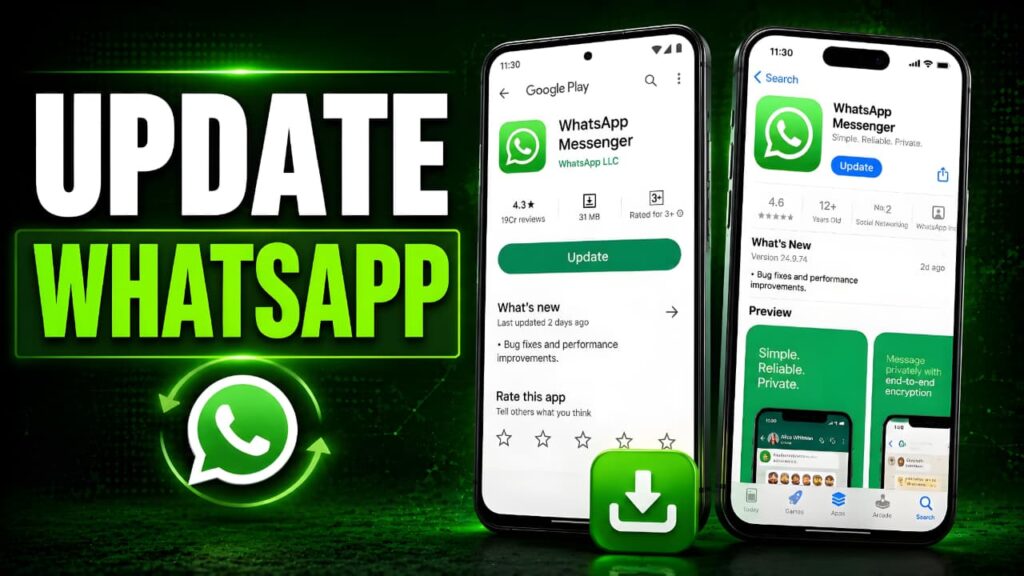
Android
- Open the Google Play Store.
- Search for WhatsApp.
- Tap Update if a newer version is available.
iPhone
- Open the App Store.
- Search for WhatsApp.
- Install the latest update.
If you recently updated WhatsApp and started experiencing problems, continue reading the next section on WhatsApp update problems.
Always download the latest version from the Google Play Store to receive bug fixes and security updates.
iPhone users should update WhatsApp through the Apple App Store for the latest improvements.
9. Fix WhatsApp Update Problems
Sometimes the update itself becomes the source of the issue. Users may notice that WhatsApp stops working immediately after installing a new version or that the update refuses to install.
Common WhatsApp Update Problems
- Update won’t download.
- Installation fails.
- App crashes after updating.
- New version won’t open.
- “Pending” update for a long time.
How to Fix WhatsApp Update Problems
Try these solutions:
- Ensure your internet connection is stable.
- Check that your device has enough free storage.
- Restart your phone.
- Update Android or iOS first if a system update is available.
- Open the app store again and retry the installation.
- If necessary, reinstall WhatsApp after confirming your backup.
Most WhatsApp update problems are caused by insufficient storage, interrupted downloads, or temporary app store issues.
10. Clear WhatsApp Cache (Android)
Temporary cache files help WhatsApp load faster, but corrupted cache data can also cause unexpected issues.
Symptoms of Corrupted Cache
- Slow performance
- App freezing
- Media loading errors
- Random crashes
- Delayed chat synchronization
Steps
- Open Settings.
- Go to Apps.
- Select WhatsApp.
- Tap Storage & Cache.
- Tap Clear Cache.
Important: Do not tap Clear Storage unless you’ve already backed up your chats.
11. Check Available Storage
Low storage affects almost every feature in WhatsApp.
When storage becomes critically low, you may experience:
- WhatsApp media download problem
- WhatsApp backup failed
- App crashes
- Update failures
- Slow performance
Keeping at least 2–5 GB of free storage is recommended for smooth operation.
Delete unnecessary files, unused apps, and duplicate media to improve overall performance.
Learn how cloud storage works in our How Cloud Storage Works guide.
12. Check WhatsApp App Permissions
WhatsApp relies on several device permissions to function properly. If one or more permissions are disabled, you may experience problems with calls, media downloads, notifications, or contact synchronization.
Many users searching for How to Fix WhatsApp Not Working overlook this step, even though incorrect permissions are a common cause of unexpected app behavior.
Essential Permissions for WhatsApp
| Permission | Purpose | Problem If Disabled |
|---|---|---|
| Camera | Video calls and taking photos | Camera won’t open in WhatsApp |
| Microphone | Voice messages and calls | Voice messages and calls won’t work |
| Contacts | Display saved contacts | Contact names may not appear |
| Photos & Storage | Download and share media | Media downloads may fail |
| Notifications | Receive alerts | New message notifications won’t appear |
| Location | Share Live Location | Live Location won’t update |
Review your phone’s settings and ensure WhatsApp has access to the permissions it needs.
13. Disable Battery Optimization
Battery optimization helps extend battery life, but it can also prevent WhatsApp from maintaining a stable background connection.
If battery optimization restricts WhatsApp, you may notice:
- WhatsApp messages not receiving
- Delayed notifications
- Calls not ringing
- Background synchronization stopping
- Backup interruptions
Android
Go to:
Settings → Battery → Battery Optimization
Locate WhatsApp and allow it to run without optimization.
Some Android manufacturers also include features such as:
- Adaptive Battery
- Sleeping Apps
- Background Limits
- Auto Optimization
If available, remove WhatsApp from these restricted lists.
14. How to Fix WhatsApp Messages Not Sending
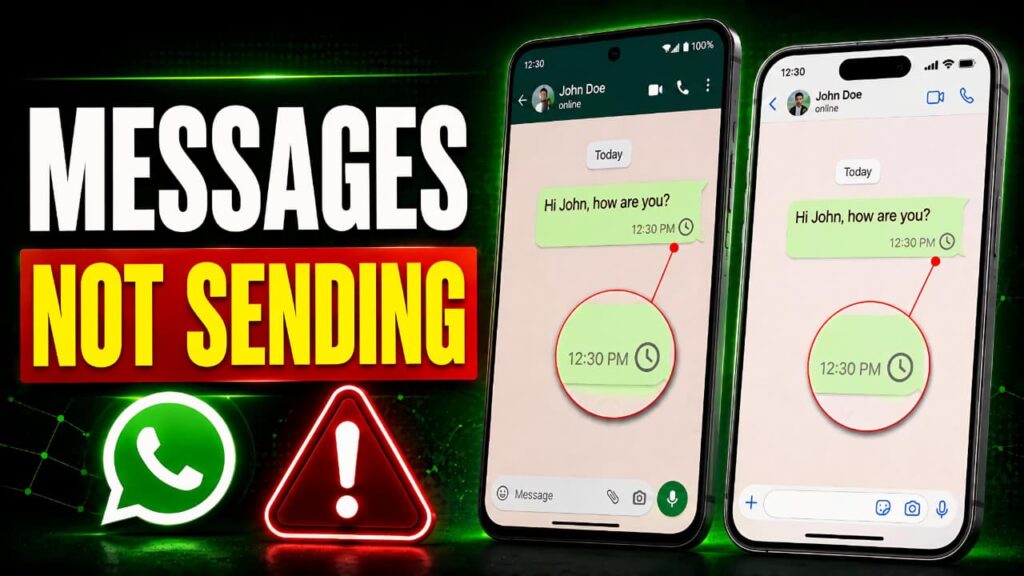
One of the most common issues users report is WhatsApp messages not sending.
Messages may remain stuck with a clock icon or display only a single gray check mark.
Common Causes
- Poor internet connection
- WhatsApp server down
- VPN interference
- Background restrictions
- Temporary software glitch
- Mobile data disabled
Solutions
Follow these troubleshooting steps:
- Confirm your internet connection is stable.
- Switch between Wi-Fi and mobile data.
- Restart WhatsApp.
- Restart your phone.
- Disable VPN or proxy services.
- Update WhatsApp.
- Wait if WhatsApp is experiencing a temporary outage.
If WhatsApp messages not sending affects only one contact, the recipient may be offline or unavailable.
If the issue continues, read our WhatsApp Not Sending Messages guide.
15. How to Fix WhatsApp Messages Not Receiving
Another common issue is WhatsApp messages not receiving until the app is opened manually.
This usually happens because background activity has been restricted.
Possible Causes
- Battery optimization
- Disabled background data
- Notification restrictions
- Weak internet connection
- Outdated WhatsApp version
Solutions
- Disable Battery Saver.
- Allow WhatsApp to run in the background.
- Enable Background Data.
- Check notification permissions.
- Restart your phone.
- Update WhatsApp.
After making these changes, ask someone to send you a test message to verify that notifications are arriving correctly.
16. Fix WhatsApp Calls Not Working
Voice and video calls require a stable internet connection along with camera and microphone permissions.
If calls fail to connect, verify:
- Wi-Fi signal quality
- Mobile data availability
- Camera permission
- Microphone permission
- Available bandwidth
Avoid downloading large files while making WhatsApp calls, as heavy network usage can reduce call quality.
17. Fix WhatsApp Notifications Not Working
Delayed or missing notifications can cause you to miss important messages.
Common Reasons
- Do Not Disturb enabled
- Focus Mode enabled
- Battery optimization
- Background restrictions
- Notifications disabled
- Power Saving Mode
Troubleshooting Checklist
✔ Enable WhatsApp notifications.
✔ Disable Do Not Disturb.
✔ Disable Battery Saver.
✔ Allow Background Activity.
✔ Check notification settings for individual chats.
✔ Restart the device.
If your phone has general connectivity issues, read our Bluetooth Not Working on Android guide.
18. How to Fix WhatsApp Media Download Problem
A WhatsApp media download problem usually affects photos, videos, voice notes, GIFs, stickers, and documents.
Common Reasons
- Low storage space
- Slow internet
- Storage permission denied
- Auto-download settings disabled
- Temporary server issue
Solutions
- Connect to a stable internet connection.
- Free up storage space.
- Enable Storage permission.
- Review Media Auto-Download settings.
- Clear the app cache.
- Restart WhatsApp.
- Update the app.
Review Auto-Download Settings
Open:
WhatsApp → Settings → Storage and Data
Review:
- Mobile Data Download
- Wi-Fi Download
- Roaming Download
Choose the file types you want WhatsApp to download automatically.
If you see a “This media file doesn’t exist” error while opening photos or videos, follow our WhatsApp Media File Doesn’t Exist Guide for detailed troubleshooting.
19. How to Fix WhatsApp Backup Failed
If you see a WhatsApp backup failed message, your chats may not be protected if you reinstall the app or change devices.
Why Does WhatsApp Backup Fail?
- Cloud storage is full.
- Internet connection interrupted.
- Phone storage is full.
- Battery Saver interrupted the backup.
- Incorrect Google or Apple account.
Before Running Another Backup
Check the following:
- Stable Wi-Fi connection
- Sufficient cloud storage
- Enough free phone storage
- Latest version of WhatsApp
- Battery Saver disabled
Avoid closing WhatsApp while the backup is running.
Android users can learn more about cloud backups in the Google Drive Help Center.
If your Google account storage is full, follow our Google Storage Full Fix Guide before trying the backup again.
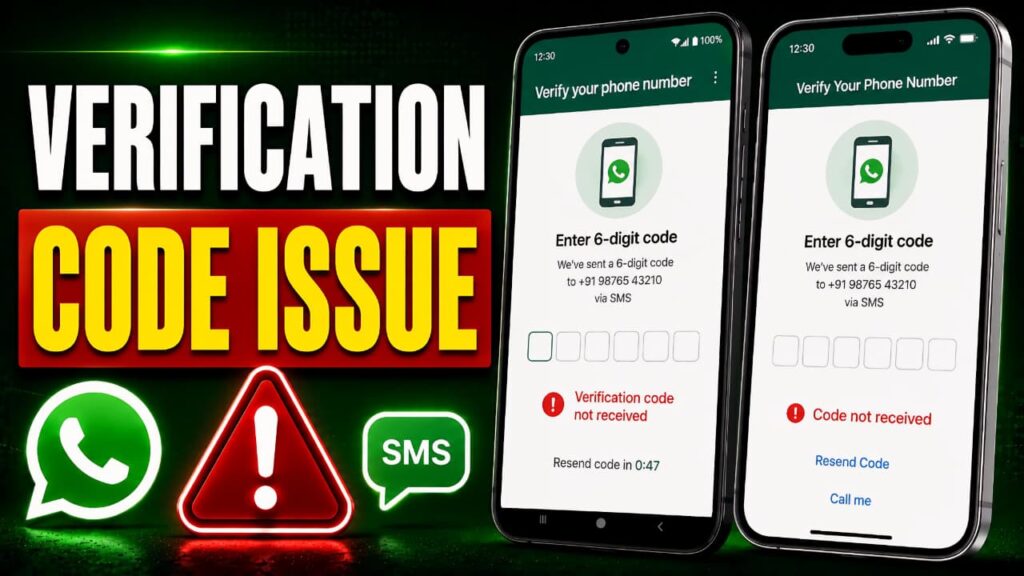
20. How to Fix WhatsApp Verification Code Issue
A WhatsApp verification code issue prevents you from activating your account on a new device or after reinstalling the app.
Common Reasons
- Wrong phone number
- Incorrect country code
- Poor mobile signal
- SIM card problem
- SMS service unavailable
- Airplane Mode enabled
Solutions
✔ Confirm your phone number.
✔ Verify the country code.
✔ Ensure your SIM card can receive SMS.
✔ Turn off Airplane Mode.
✔ Restart your device.
✔ Wait before requesting another code if you’ve already made multiple attempts.
Repeated verification requests within a short period may trigger a temporary waiting period before another code can be sent.
If you’re still not receiving the code, see our WhatsApp Verification Code Not Received Guide.
21. How to Fix WhatsApp Login Problem
A WhatsApp login problem often occurs immediately after reinstalling the app, changing your phone, or verifying your phone number.
If you can’t log in successfully:
- Confirm your phone number is correct.
- Check that your internet connection is stable.
- Complete the verification process.
- Install the latest version of WhatsApp.
- Ensure your device’s date and time are set automatically.
If the login problem continues after completing these checks, verify that there are no temporary WhatsApp server issues affecting account verification.
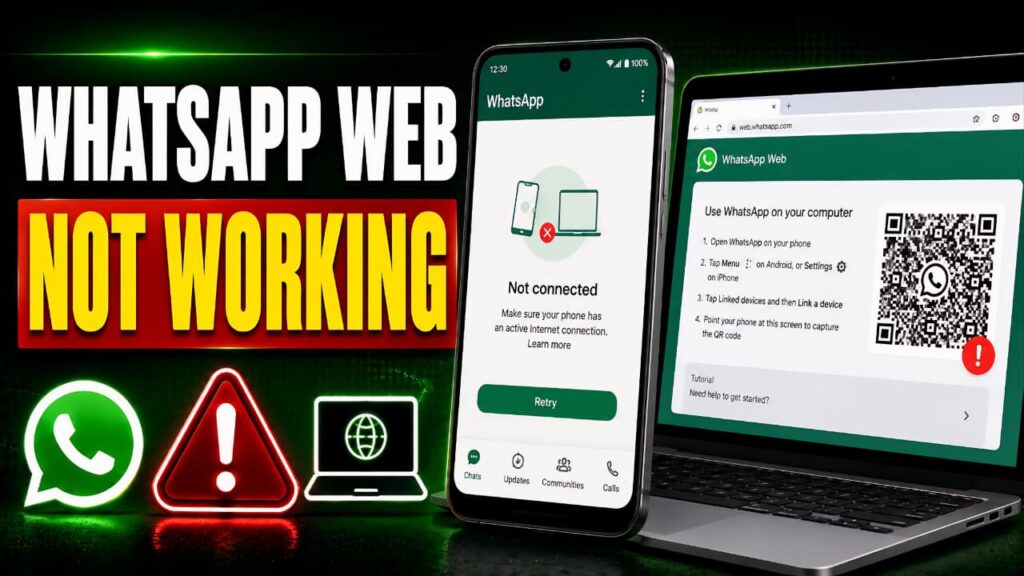
22. How to Fix WhatsApp Web Not Working
WhatsApp Web lets you continue your conversations from a computer, but sometimes it may fail to connect, stop syncing messages, or repeatedly log you out.
Common Causes
- Unstable internet connection
- Browser cache issues
- Outdated browser version
- Phone disconnected from the internet
- Temporary WhatsApp server outage
How to Fix WhatsApp Web
Try these solutions:
- Ensure your phone is connected to the internet.
- Refresh the WhatsApp Web page.
- Clear your browser’s cache and cookies.
- Update your web browser to the latest version.
- Log out of WhatsApp Web and link your device again.
- Restart both your phone and computer.
If WhatsApp Web still doesn’t work after these steps, check whether WhatsApp is experiencing a temporary server issue.
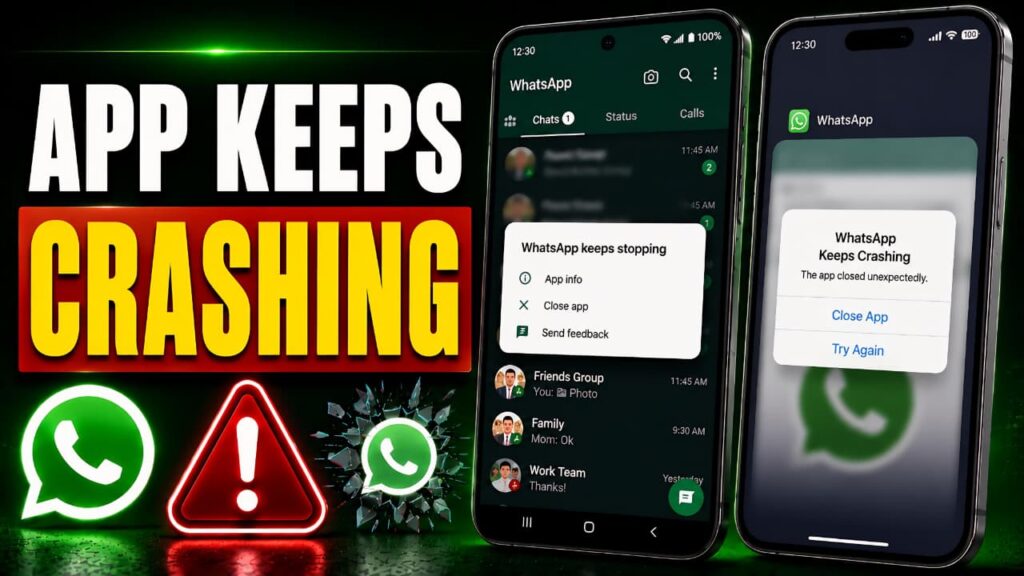
23. How to Fix WhatsApp App Keeps Crashing
If the app closes immediately after opening or crashes while you’re using it, you’re facing the WhatsApp app keeps crashing problem.
Possible Causes
- Corrupted cache files
- Outdated WhatsApp version
- Insufficient storage
- Software compatibility issues
- Temporary system glitches
Solutions
- Restart your phone.
- Clear the WhatsApp cache (Android).
- Install the latest version of WhatsApp.
- Update Android or iOS.
- Free up storage space.
- Reinstall WhatsApp only after confirming that your chats are backed up.
If WhatsApp app keeps crashing even after reinstalling, the issue may be related to your device software rather than the app itself.
If your phone has other system issues, read our Android Fastboot Mode Fix guide.
24. Android-Specific Fixes
Some WhatsApp issues are caused by Android system settings instead of the app.
Recommended Android Checks
- Restart your phone.
- Install the latest Android security updates.
- Clear the WhatsApp cache.
- Enable Background Data.
- Disable Battery Optimization.
- Turn off Data Saver for WhatsApp.
- Verify App Permissions.
- Check available storage.
Note: Menu names may vary depending on your phone brand (Samsung, Xiaomi, OnePlus, vivo, OPPO, realme, Motorola, Google Pixel, and others).
25. iPhone-Specific Fixes
If you’re using an iPhone, these additional checks may help.
Recommended iPhone Checks
- Update to the latest iOS version.
- Allow Background App Refresh for WhatsApp.
- Verify Cellular Data access.
- Check Notification settings.
- Ensure Low Power Mode is not restricting background activity.
- Restart your iPhone.
These simple checks resolve many WhatsApp issues without requiring a reinstall.
26. Before You Reinstall WhatsApp
Reinstalling WhatsApp should be your last troubleshooting step.
Before uninstalling the app:
- Confirm that your chats have been backed up successfully.
- Verify your Google Account (Android) or Apple ID (iPhone).
- Ensure you know the phone number registered with WhatsApp.
- Check that you can receive the verification code after reinstalling.
Important: If you uninstall WhatsApp without a recent backup, you may permanently lose chats and media that haven’t been backed up.
Before reinstalling the app, review our WhatsApp Backup Stuck Guide if your backup hasn’t completed successfully.
Protect your account by following our Protect Your Google Account guide.
27. How to Reinstall WhatsApp Safely
If none of the previous solutions fix How to Fix WhatsApp Not Working, reinstalling the app can often resolve persistent software issues.
Steps
- Verify that your latest backup completed successfully.
- Uninstall WhatsApp.
- Restart your phone.
- Download WhatsApp from the official app store.
- Verify your phone number.
- Restore your backup when prompted.
Avoid downloading WhatsApp from unofficial websites or third-party app stores, as these versions may not be secure.
28. Contact WhatsApp Support
If you’ve tried every solution in this guide and WhatsApp is still not working, it’s time to contact the official WhatsApp Support team.
When contacting support, include:
- Device model
- Android or iOS version
- WhatsApp version
- Description of the problem
- Screenshots (if applicable)
- Steps you’ve already tried
Providing this information helps the support team diagnose the issue more quickly.
If the issue continues, contact WhatsApp Help Center for official troubleshooting and support.
Frequently Asked Questions (FAQ)
Why is WhatsApp not working today?
The problem may be caused by a poor internet connection, an outdated app version, low storage, incorrect permissions, or a temporary WhatsApp server outage.
Why is WhatsApp not opening?
Corrupted cache files, outdated software, or insufficient storage are among the most common reasons. Restart your device, clear the app cache (Android), and update WhatsApp.
Why is WhatsApp not loading?
This is usually caused by an unstable internet connection or temporary server problems. Switching between Wi-Fi and mobile data often resolves the issue.
Why are my WhatsApp messages not sending?
Check your internet connection first. If the connection is stable, verify whether WhatsApp is experiencing a temporary server outage.
Why am I not receiving WhatsApp messages?
Battery optimization, disabled background data, or notification restrictions can delay incoming messages.
Why did my WhatsApp backup fail?
A WhatsApp backup failed error is commonly caused by insufficient cloud storage, interrupted internet connectivity, or low phone storage.
Why can't I receive the WhatsApp verification code?
A WhatsApp verification code issue may occur if your SIM card isn’t receiving SMS messages, your phone number is incorrect, or you’ve requested too many codes in a short period.
How do I fix WhatsApp login problems?
A WhatsApp login problem is usually caused by an incorrect phone number, poor internet connection, or verification issues. Verify your number, update WhatsApp, and restart your device before trying again.
Why is WhatsApp Web not working?
WhatsApp Web may stop working if your phone is offline, your browser is outdated, or WhatsApp is experiencing a temporary server issue. Refresh the page, reconnect your phone, and update your browser if needed.
How do I contact WhatsApp Support?
If none of the solutions in this guide work, contact WhatsApp Support through Settings → Help → Contact Us. Provide your device details and a clear description of the issue to receive appropriate assistance.
Final Verdict
If you’re searching for How to Fix WhatsApp Not Working, the good news is that most problems can be resolved without losing your chats or reinstalling the app.
Whether you’re dealing with WhatsApp not opening, WhatsApp not loading, WhatsApp not connecting, WhatsApp messages not sending, WhatsApp messages not receiving, WhatsApp update problems, WhatsApp app keeps crashing, WhatsApp verification code issue, WhatsApp login problem, WhatsApp media download problem, or WhatsApp backup failed, following the troubleshooting methods in this guide step by step will resolve the vast majority of issues.
Start with the simplest fixes—check your internet connection, restart the app, update WhatsApp, and verify your device settings. Only move to advanced solutions, such as reinstalling the app, after confirming that your chats have been backed up.
Keeping WhatsApp and your device up to date, maintaining sufficient storage space, and using a stable internet connection will help prevent many common issues in the future.