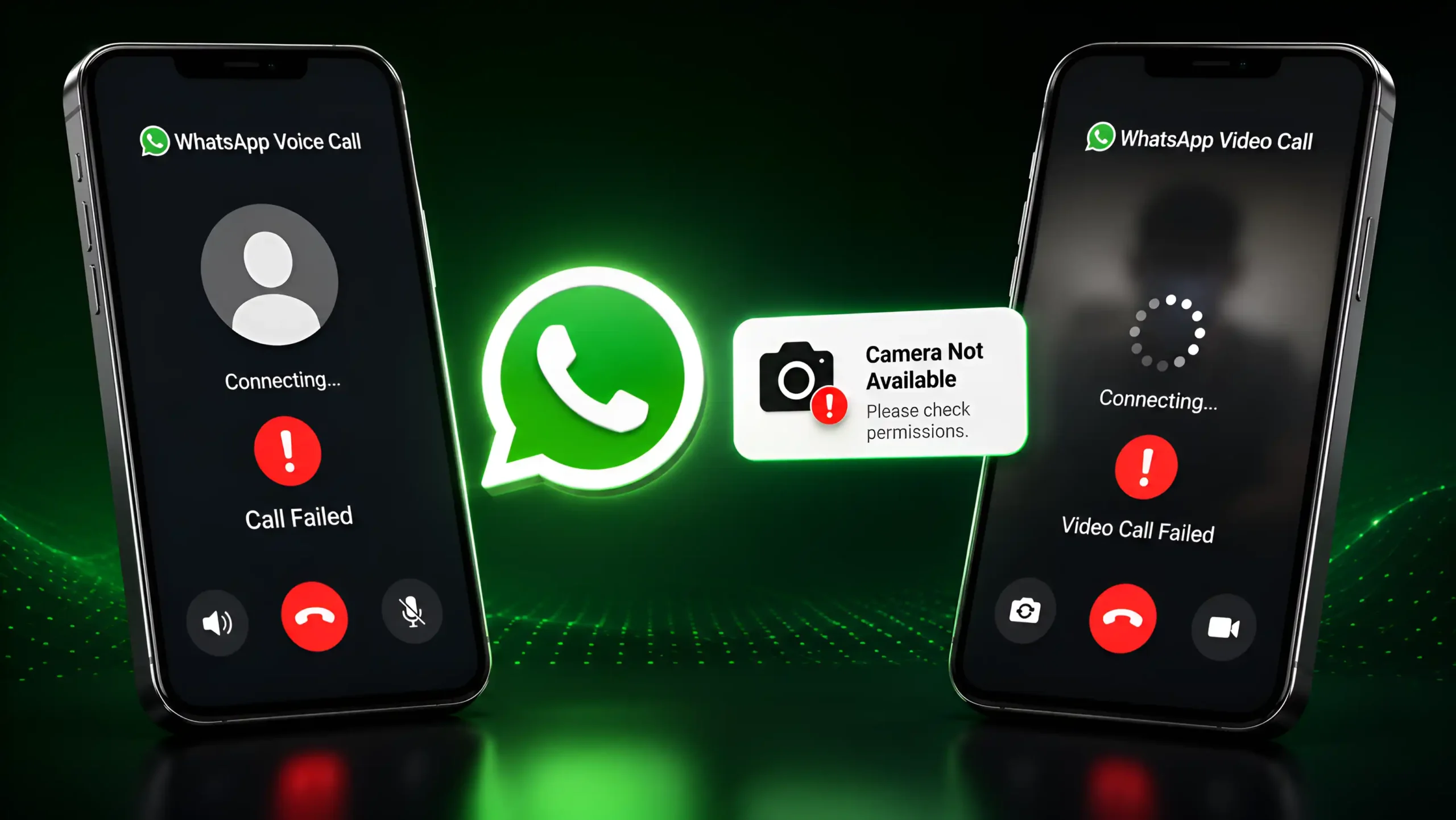
WhatsApp Call Not Working? Here's How to Fix It
WhatsApp is one of the most widely used messaging apps in the world, making it easy to stay connected through voice calls and video calls without paying traditional calling charges. Whether you’re speaking with family, attending an online interview, or joining a work meeting, WhatsApp calling has become part of everyday communication.
However, things become frustrating when a call refuses to connect, the screen stays on Connecting, the microphone stops working, or the other person cannot hear your voice. In some cases, video calls show a black screen, while in others the app displays a Call Failed message.
The good news is that most of these issues can be fixed within a few minutes. In many cases, the problem is related to internet connectivity, app permissions, Android settings, or an outdated version of WhatsApp rather than a serious hardware fault.
This guide explains the most effective solutions for WhatsApp Call Not Working on Android. It also covers common problems such as WhatsApp Video Call Not Working, WhatsApp Audio Call Not Working, WhatsApp Call Failed, WhatsApp Call Connecting Problem, microphone issues, camera problems, and poor call quality.
Each solution is explained in simple language, making it easy for beginners to follow.
Table of Contents
- Introduction
- Quick Fix Summary
- Before You Start
- Why Is WhatsApp Call Not Working?
- 19 Proven Fixes
- Common WhatsApp Calling Errors
- When to Contact WhatsApp Support
- Tips to Prevent Future Problems
- Frequently Asked Questions
- Final Checklist
- Final Thoughts
- Official References
Quick Fix Summary
| Problem | Recommended Fix |
|---|---|
| WhatsApp Call Not Working | Check your internet connection |
| Video Call Not Working | Allow camera permission |
| Audio Call Not Working | Check microphone permission |
| Call Failed | Update WhatsApp |
| Call Connecting Problem | Switch between Wi-Fi and mobile data |
| No Sound During Calls | Disable Bluetooth and increase volume |
| Camera Black Screen | Restart the phone and verify camera access |
| Calls Disconnect Frequently | Disable battery optimization |
If the problem isn’t solved after trying one solution, continue with the next one. Most users resolve the issue before reaching the advanced troubleshooting steps.
Before You Start
Before changing any settings, spend a minute checking these basics.
✔ Your internet connection is stable.
✔ WhatsApp is updated to the latest version.
✔ Your Android phone has enough battery.
✔ Camera permission is enabled.
✔ Microphone permission is enabled.
✔ Battery Saver mode is turned off.
✔ VPN is disabled temporarily.
✔ Your phone has been restarted recently.
Completing this checklist saves time and helps eliminate the most common causes of calling issues.
Identify Your WhatsApp Calling Problem First
Before you start changing settings, take a moment to identify the exact problem you’re experiencing. This can save time and help you jump directly to the most relevant solution.
- Calls won’t connect: Check your internet connection, network settings, and WhatsApp server status.
- Video calls aren’t working: Review your camera permission, internet speed, and camera availability.
- Audio calls have no sound: Verify microphone permission, call volume, and Bluetooth settings.
- Calls disconnect after a few seconds: Look for unstable internet, Battery Optimization restrictions, or VPN interference.
- The other person can’t hear or see you: Check your microphone and camera permissions, then restart WhatsApp.
- Incoming calls don’t ring: Review notification settings, background activity, and Battery Optimization.
Once you’ve identified the symptom, follow the corresponding troubleshooting steps below instead of trying every solution at random.
Identifying the exact symptom makes it much easier to fix WhatsApp Call Not Working without trying unnecessary solutions.
Why Is WhatsApp Call Not Working?
There isn’t a single reason why WhatsApp calls stop working. The issue can occur because of network problems, Android settings, app permissions, or temporary software glitches.
Some of the most common causes include:
- Weak or unstable internet connection
- Mobile data restrictions
- Wi-Fi connectivity issues
- Camera or microphone permission denied
- Battery optimization limiting background activity
- Outdated WhatsApp version
- Corrupted app cache
- Android software bugs
- VPN or Private DNS conflicts
- Temporary WhatsApp server outages
Instead of trying random solutions, follow the fixes below in order. This approach helps identify the exact cause without changing unnecessary settings.
Understanding the root cause is the first step toward fixing WhatsApp Call Not Working successfully.
Fix 1: Check Your Internet Connection
A stable internet connection is essential for WhatsApp voice and video calls. While text messages can often be sent over a slow connection, calls require continuous data transfer. Even small interruptions may prevent a call from connecting or cause it to disconnect unexpectedly.
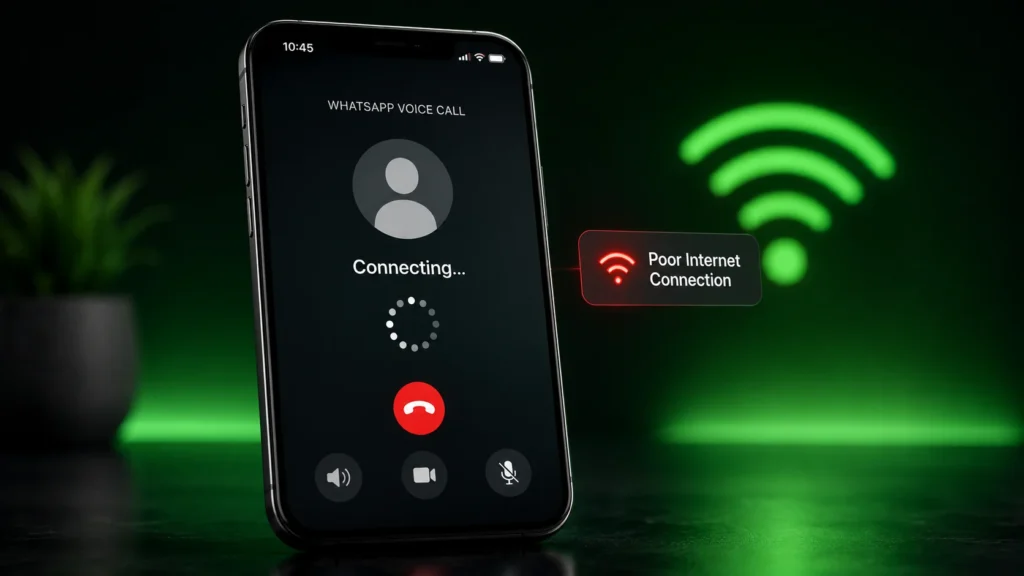
If You're Using Wi-Fi
- Move closer to your Wi-Fi router.
- Restart the router.
- Disconnect and reconnect to the network.
- Test another website or video to confirm your connection is working properly.
If You're Using Mobile Data
- Ensure mobile data is turned on.
- Verify that you still have an active data plan.
- Move to an area with stronger signal coverage.
- Toggle Airplane Mode on for about 20 seconds, then turn it off.
💡 Pro Tip: If calls work on Wi-Fi but not on mobile data, the issue is usually related to your carrier or mobile network rather than WhatsApp.
Overall, these steps should help resolve most WhatsApp Call Not Working issues caused by internet connectivity.
If your internet connection appears normal but WhatsApp calls still fail, you can also check the official WhatsApp Help Center for additional troubleshooting recommendations.
If your internet connection seems stable but WhatsApp still cannot make or receive calls, read our detailed WhatsApp Internet Connection Problem Guide for additional troubleshooting steps.
Fix 2: Verify WhatsApp Permissions
WhatsApp requires permission to use your phone’s microphone and camera. If either permission is denied, voice or video calls may not function correctly.
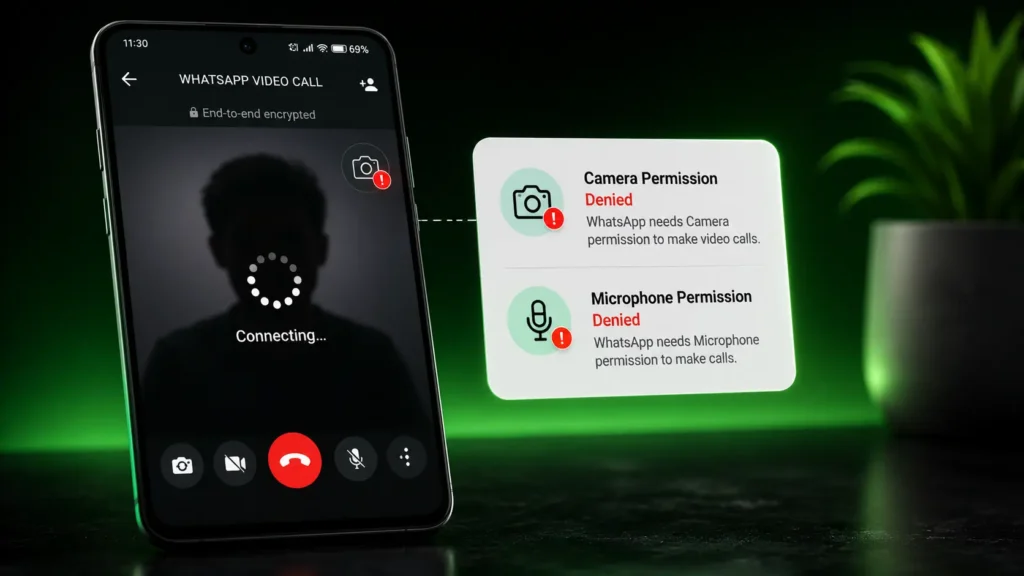
To Check Permissions
- Open Settings.
- Tap Apps.
- Select WhatsApp.
- Tap Permissions.
Ensure these permissions are allowed:
- Camera
- Microphone
- Phone (if available)
- Nearby Devices (on supported Android versions)
After enabling the required permissions, restart WhatsApp and place a test call.
⚠️ Important: If you recently denied a permission request, WhatsApp cannot access that feature until you manually allow it in your phone’s settings.
Proper app permissions can quickly fix many WhatsApp Video Call Not Working problems.
If you’re unsure how Android app permissions work, refer to the official Android Help: Change App Permissions guide.
If your phone has broader Android-related issues affecting apps, check our Android Fastboot Mode Fix Guide for additional troubleshooting tips.
Fix 3: Restart Your Android Phone
Restarting your device is one of the simplest and most effective troubleshooting methods.
A restart refreshes Android’s system processes, reconnects network services, clears temporary memory, and often resolves minor software glitches that interfere with WhatsApp.
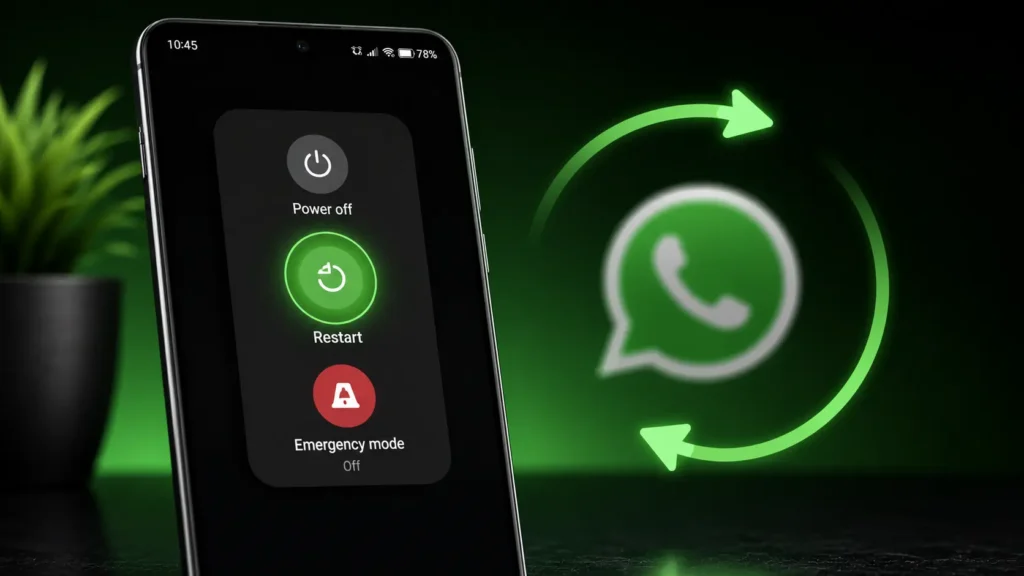
To restart your phone:
- Press and hold the Power button.
- Tap Restart.
- Wait for the device to boot completely.
- Open WhatsApp and test a voice or video call.
Although this solution may seem basic, it frequently resolves temporary calling issues without requiring additional troubleshooting.
Restarting your device is often enough to solve a temporary WhatsApp Call Not Working issue.
If your phone is overheating or slowing down frequently, it can also affect WhatsApp call performance. Learn more in our Phone Overheating Causes and Fixes Guide.
Fix 4: Update WhatsApp to the Latest Version
Running an outdated version of WhatsApp can lead to compatibility problems, especially after Android receives a system update.
Developers regularly release updates that fix bugs, improve stability, and enhance voice and video call performance.
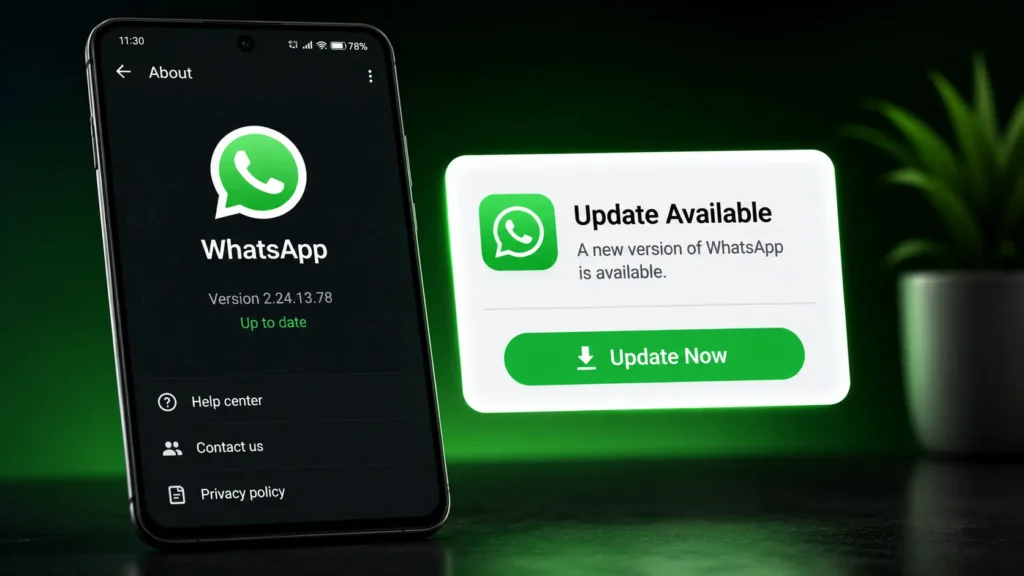
To Update WhatsApp
- Open the Google Play Store.
- Search for WhatsApp.
- If an Update button appears, install the latest version.
- Restart the app after the update is complete.
Keeping WhatsApp up to date also improves security and ensures access to the latest features.
Using the latest app version can prevent many WhatsApp Voice Call Not Working errors.
Always install the latest version directly from the official Google Play Store to receive bug fixes and security updates.
If updating the app doesn’t resolve the issue, follow our complete How to Fix WhatsApp Not Working guide for more advanced troubleshooting.
Fix 5: Check Whether WhatsApp Is Down
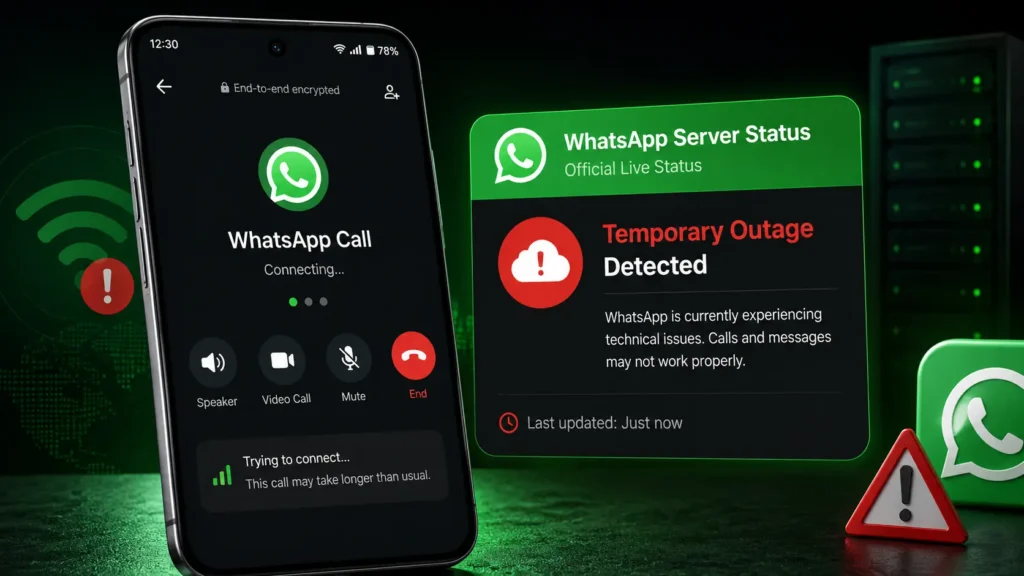
Sometimes the issue is not with your phone.
Although uncommon, WhatsApp servers may experience temporary outages that affect voice calls, video calls, messaging, or status updates.
Possible signs of a server issue include:
- Calls fail for multiple contacts.
- Messages are delayed.
- Status updates do not load.
- Friends report experiencing the same problem.
If the problem is caused by a temporary server outage, the only solution is to wait until the service is restored.
Server outages can temporarily cause WhatsApp Call Not Working for users worldwide.
If you suspect a server outage, visit the official WhatsApp Help Center to check for known service issues and support information.
Fix 6: Disable Battery Optimization
Many Android phones automatically restrict background activity to extend battery life. While this feature is useful, it can prevent WhatsApp from maintaining a stable voice or video call.
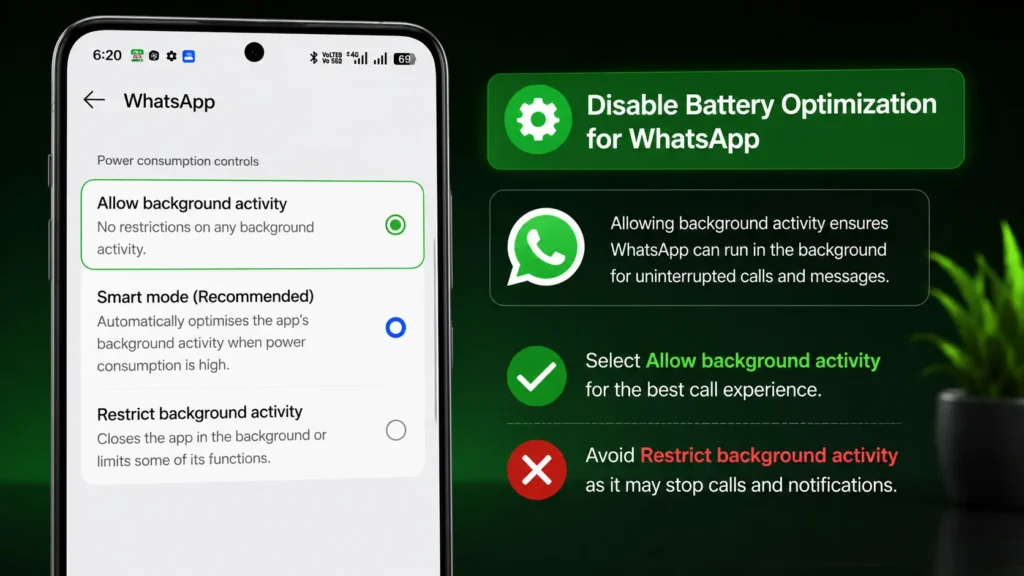
To Disable Battery Optimization
- Open Settings.
- Tap Apps.
- Select WhatsApp.
- Open Battery.
- Choose Unrestricted or Don’t Optimize, depending on your device.
This allows WhatsApp to remain active in the background, improving call reliability.
💡 Pro Tip: If incoming WhatsApp calls are delayed or never ring until you open the app, battery optimization is often the cause.
Battery optimization settings may silently trigger WhatsApp Call Not Working problems.
You can learn more about battery optimization settings in the official Android Help Center.
If your phone’s battery drains unusually fast after long WhatsApp calls, our Battery Fast Drain Problem Solution Guide can help improve overall performance.
Fix Video Calls, Audio Calls, Camera, Microphone, and Network Issues
If WhatsApp Call Not Working even after completing the basic troubleshooting steps, don’t worry. Many calling problems are caused by Android settings that are easy to overlook. This section covers the most common issues that affect voice calls, video calls, microphones, cameras, and network connectivity.
Work through each solution in order. Even if a setting appears correct, checking it carefully can save you hours of frustration.
Fix 7: Clear the WhatsApp Cache
Temporary cache files help WhatsApp load faster, but they can sometimes become corrupted after an app update or unexpected system error. When this happens, voice calls or video calls may not work correctly.
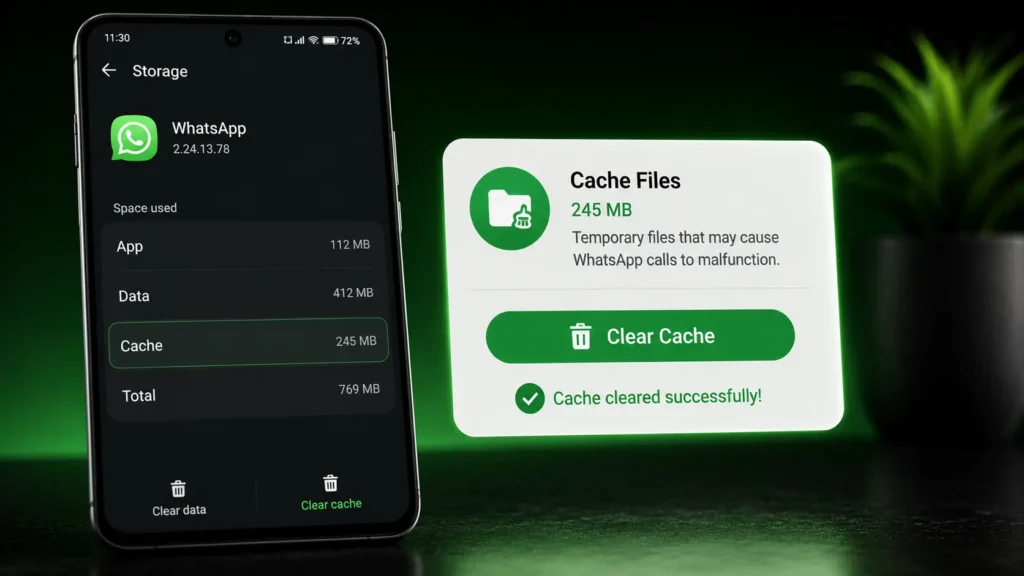
How to Clear the Cache
- Open Settings.
- Tap Apps.
- Select WhatsApp.
- Open Storage or Storage & Cache.
- Tap Clear Cache.
Restart WhatsApp and test another call.
Important: Choose Clear Cache, not Clear Storage. Clearing storage removes your local app data. If you ever need to reinstall WhatsApp, make sure you have a recent chat backup first.
Clearing the cache is one of the easiest ways to fix WhatsApp Call Not Working without losing chats.
If clearing the cache doesn’t help and the app still behaves unexpectedly, read our How to Fix WhatsApp Not Opening guide for additional solutions.
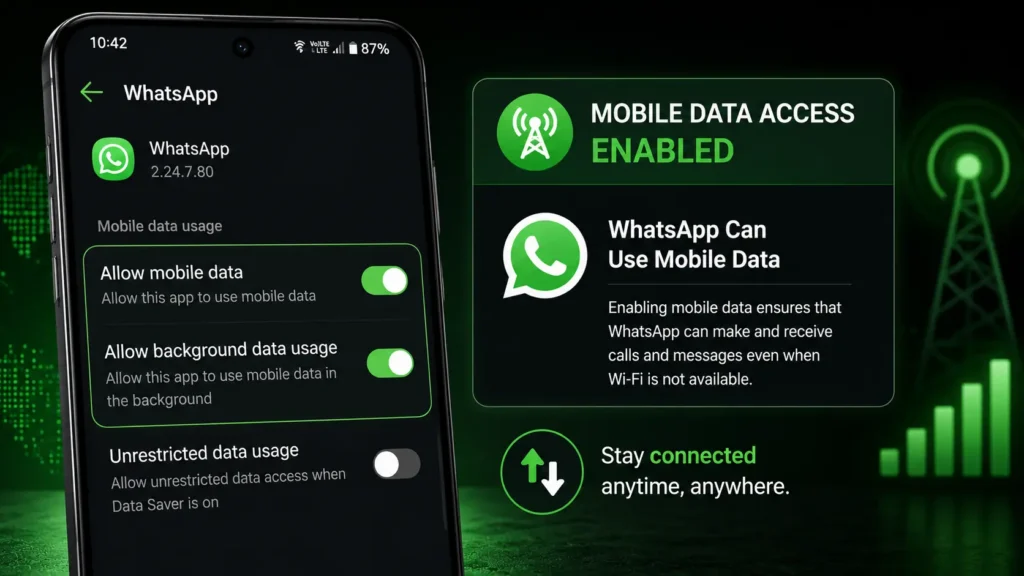
Fix 8: Allow WhatsApp to Use Mobile Data
Some Android phones allow you to restrict internet access for individual apps. If WhatsApp cannot use mobile data in the background, calls may fail or disconnect unexpectedly.
Check Your Data Settings
- Open Settings.
- Tap Apps.
- Select WhatsApp.
- Open Mobile Data & Wi-Fi or Data Usage.
- Make sure these options are enabled:
- Mobile Data
- Background Data
- Unrestricted Data Usage (if available)
After making changes, close WhatsApp completely and open it again.
Correct mobile data settings often resolve WhatsApp Audio Call Not Working issues.
If mobile data isn’t working properly on your phone, check our detailed Mobile Data Not Working Guide before trying WhatsApp again.
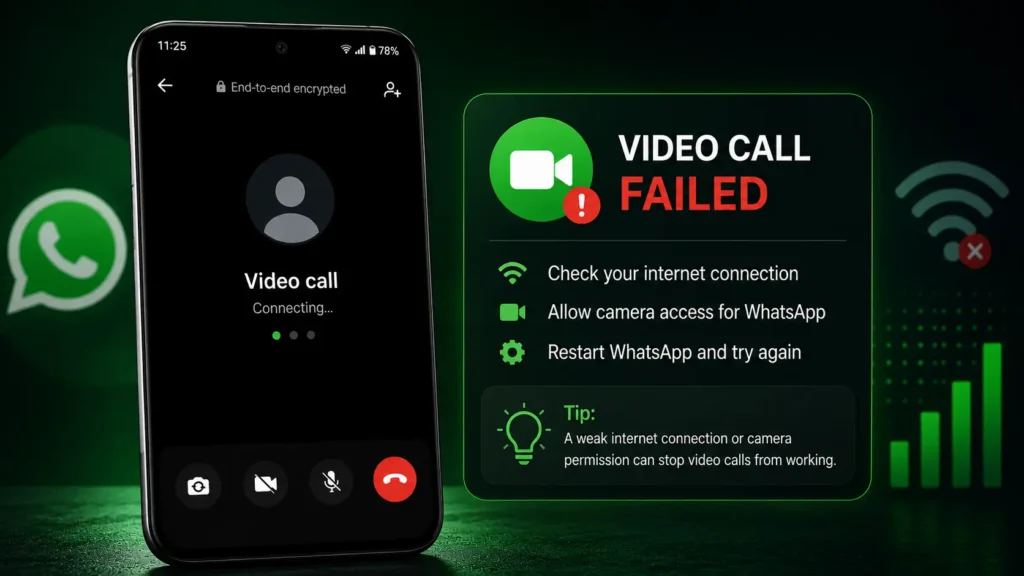
Fix 9: Solve WhatsApp Video Call Not Working
If voice calls work but video calls do not, the problem usually involves camera access, internet speed, or another app using the camera.
Check Camera Permission
Go to:
Settings → Apps → WhatsApp → Permissions
Confirm that Camera permission is allowed.
Test Your Camera
Open the default Camera app on your phone.
- If the camera works normally, the problem is likely limited to WhatsApp.
- If the camera does not open, the issue may be related to your phone rather than the app.
Improve Video Call Quality
- Use a strong Wi-Fi connection whenever possible.
- Avoid large downloads while on a video call.
- Close apps that are using the camera in the background.
💡 Pro Tip: Low internet speed often affects video calls before it affects voice calls.
A stable internet connection is essential to fix WhatsApp Video Call Not Working successfully.
Fix 10: Fix WhatsApp Audio Call Not Working
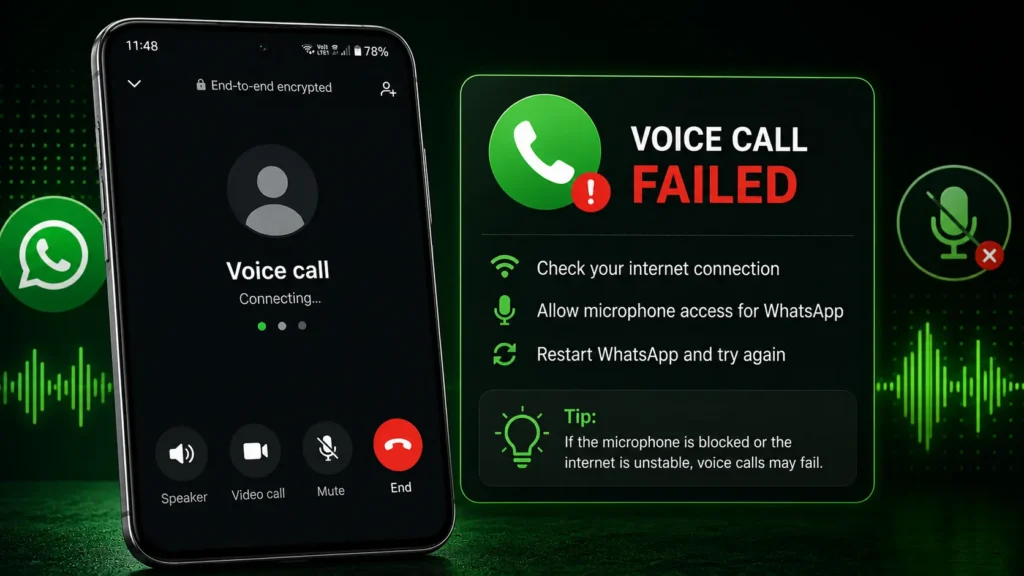
Sometimes a WhatsApp call connects successfully, but no one can hear anything.
This problem can happen because of:
- Disabled microphone permission
- Bluetooth audio routing
- Muted microphone
- Temporary Android software bugs
- Hardware issues
Try These Solutions
- Increase your call volume.
- Turn Bluetooth off if you are not using wireless earbuds.
- Restart WhatsApp.
- Test your microphone with the Voice Recorder app.
- Check microphone permission again.
If your microphone works in every other application except WhatsApp, updating or reinstalling the app may resolve the issue.
Most WhatsApp Voice Call Not Working issues can be solved by checking audio settings.
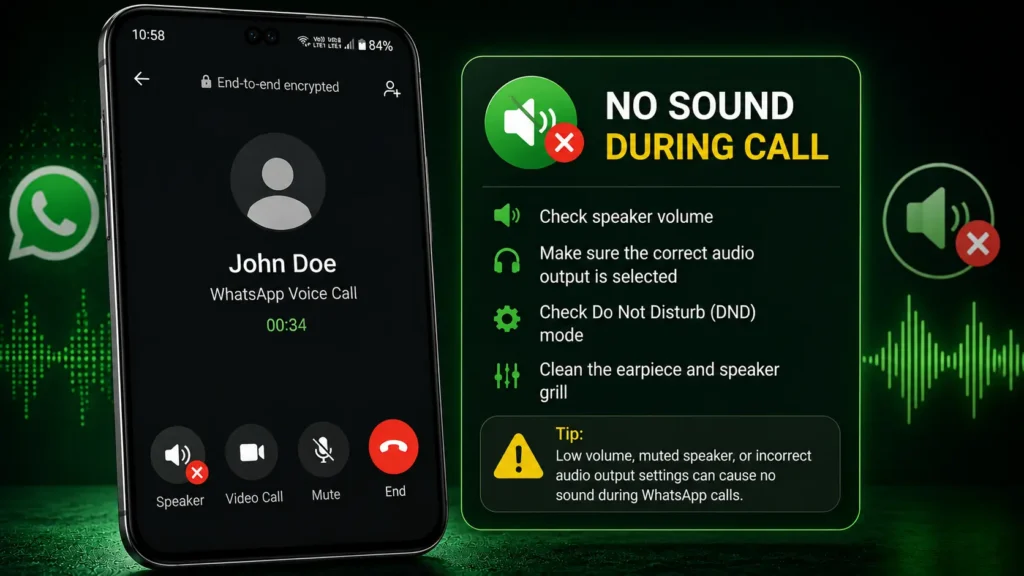
Fix 11: Fix No Sound During WhatsApp Calls
Audio problems are among the most common WhatsApp calling complaints.
If You Can't Hear the Other Person
- Increase the media volume.
- Enable Speaker mode.
- Disconnect Bluetooth devices.
- Restart the call.
If the Other Person Can't Hear You
- Make sure your microphone isn’t muted.
- Remove any phone case that blocks the microphone.
- Test the microphone using another app.
- Confirm that WhatsApp has microphone permission.
If both users experience audio issues, check the internet connection on both devices.
These troubleshooting steps should eliminate common WhatsApp Audio Call Not Working problems.
If audio problems continue while using wireless earbuds or speakers, see our Bluetooth Not Working on Android guide for additional fixes.
Fix 12: Resolve Camera and Microphone Access Problems
Modern Android versions include privacy controls that allow you to disable camera and microphone access for all apps.
If either control is turned off, WhatsApp cannot use those features even when permissions are granted.
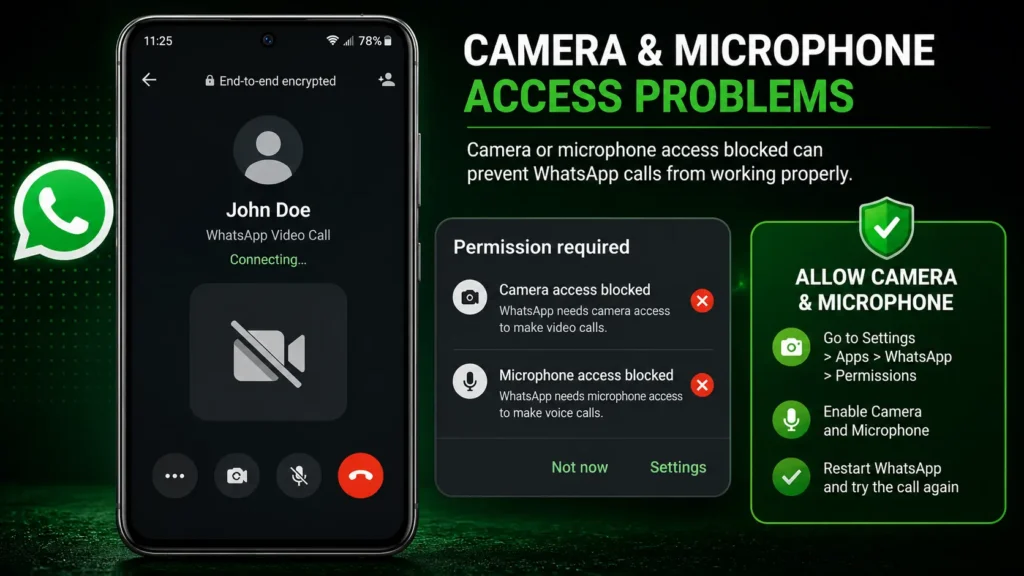
Check Android Privacy Controls
- Open the Quick Settings panel.
- Ensure Camera Access is turned on.
- Ensure Microphone Access is turned on.
Once enabled, reopen WhatsApp and place a test call.
Camera and microphone permissions play a major role in fixing WhatsApp Video Call Not Working.
If media files are missing or unavailable inside WhatsApp, our WhatsApp Media File Doesn’t Exist Guide explains how to recover access.
Fix 13: Turn Off VPN and Check Private DNS
A VPN or custom Private DNS service may interfere with WhatsApp’s connection to its servers.
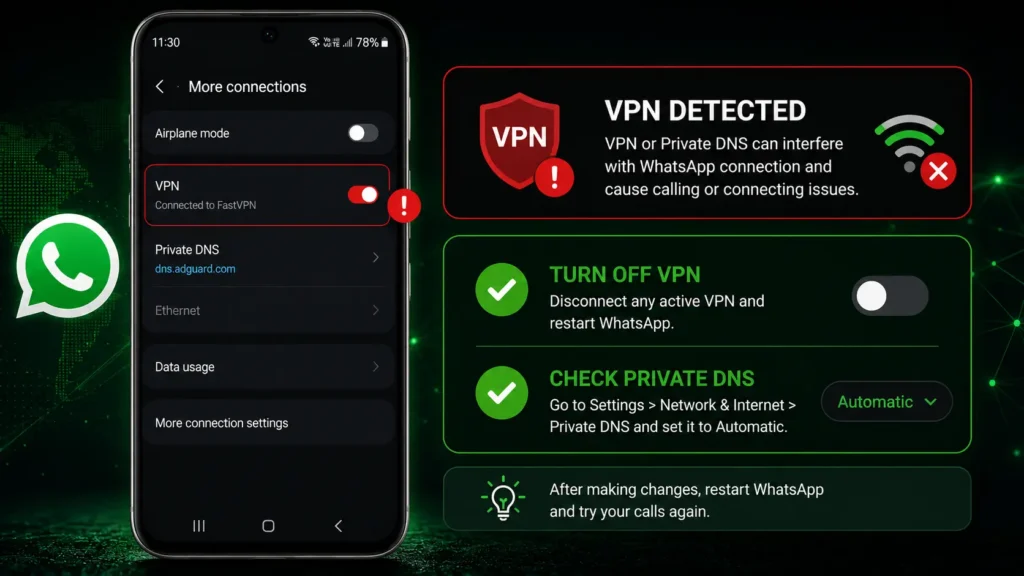
Temporarily Disable Your VPN
- Disconnect the VPN.
- Close WhatsApp completely.
- Open the app again and place a test call.
Check Private DNS
- Open Settings.
- Go to Network & Internet.
- Tap Private DNS.
- Choose Automatic or Off.
If calls start working after changing these settings, the VPN or DNS configuration was likely causing the issue.
Disabling VPN services can often resolve WhatsApp Call Not Working on Android.
Fix 14: Stop WhatsApp Calls From Disconnecting
If calls connect but disconnect after a few seconds, unstable network conditions are often responsible.
Try these steps:
- Move to an area with stronger signal strength.
- Restart your Wi-Fi router.
- Switch between Wi-Fi and mobile data.
- Turn Battery Saver mode off.
- Close apps that are heavily using your internet connection.
Pro Tip: If video calls disconnect repeatedly but voice calls remain stable, your connection may not have enough bandwidth for video streaming.
A stable network helps prevent WhatsApp Call Not Working and unexpected call drops.
If your Wi-Fi connection keeps dropping during calls, our Wi-Fi Not Working Guide can help you identify and fix the problem.
Fix 15: Reset Network Settings
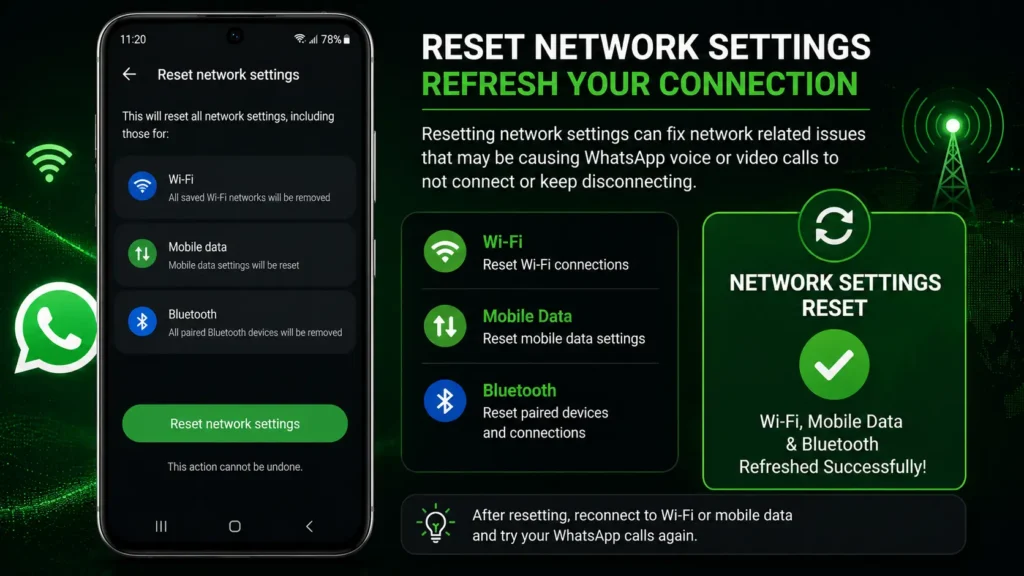
If none of the previous solutions work, resetting your network settings can resolve hidden configuration problems.
A network reset restores:
- Wi-Fi settings
- Mobile network settings
- Bluetooth settings
Your photos, apps, contacts, and WhatsApp chats are not deleted.
After the reset:
- Reconnect to Wi-Fi.
- Turn mobile data back on if necessary.
- Open WhatsApp and test another call.
Resetting network settings can fix persistent WhatsApp Call Not Working issues.
Common WhatsApp Calling Errors Explained
Understanding the error message helps you choose the right solution more quickly.
WhatsApp Call Failed
Usually caused by poor internet connectivity, outdated app versions, or temporary server issues.
WhatsApp Call Connecting Problem
Often appears when one or both users have unstable internet connections or network restrictions.
WhatsApp Video Call Black Screen
Most commonly related to camera permission, another app using the camera, or temporary software glitches.
WhatsApp Call Keeps Disconnecting
Usually linked to unstable Wi-Fi, weak mobile signal, Battery Saver restrictions, or VPN interference.
WhatsApp Call Not Ringing
Can occur when background activity is restricted, notifications are disabled, or Battery Optimization prevents WhatsApp from running properly.
Knowing what these errors mean can help you troubleshoot WhatsApp Call Not Working more effectively.
Quick Reminder Before Moving to Advanced Fixes
Before continuing to the final section, confirm that:
- Your internet connection is stable.
- WhatsApp is fully updated.
- Android software is up to date.
- Camera and microphone permissions are enabled.
- Battery Optimization is disabled for WhatsApp.
- VPN is turned off.
- WhatsApp cache has been cleared.
If the issue still remains, the final section will cover advanced troubleshooting, safe reinstallation, prevention tips, and frequently asked questions.
Advanced Troubleshooting, FAQs, Prevention Tips, and Final Conclusion
If you’ve reached this section, you’ve already tried the most common fixes for WhatsApp Call Not Working. In most cases, one of the previous solutions resolves the problem. However, if your voice or video calls still aren’t working properly, the following advanced troubleshooting methods can help identify and fix more complex issues.
Fix 16: Check for Android System Updates
Even when WhatsApp is fully updated, an outdated Android version can cause compatibility issues with newer app features.
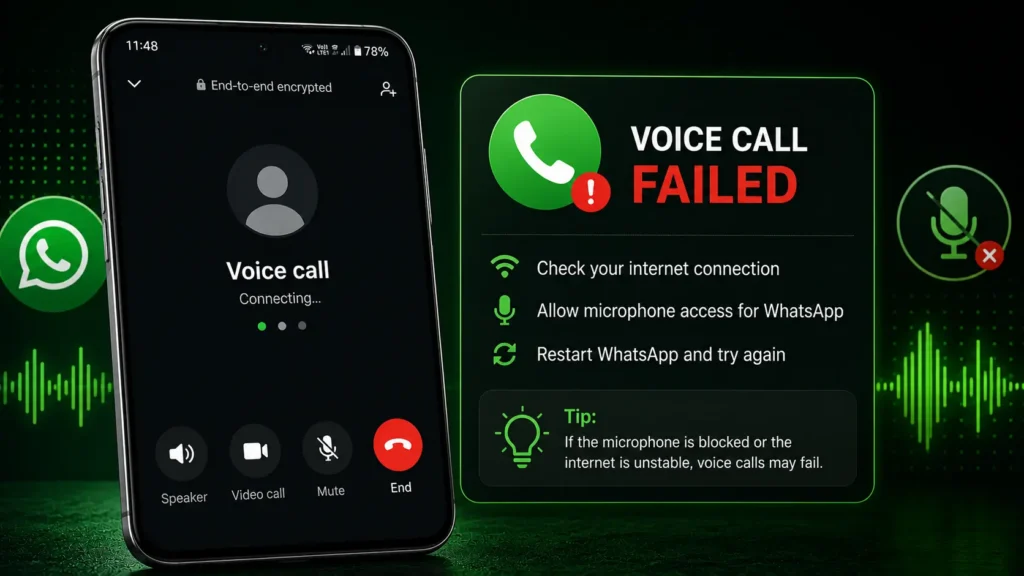
How to Check for Updates
- Open Settings.
- Go to System or Software Update.
- Tap Check for Updates.
- Install any available update.
- Restart your phone after installation.
System updates often include improvements for network connectivity, camera stability, microphone performance, and security.
Keeping Android updated helps reduce WhatsApp Call Not Working caused by software bugs.
Fix 17: Reinstall WhatsApp Safely
If the problem continues after trying every solution, reinstalling WhatsApp can replace corrupted app files.
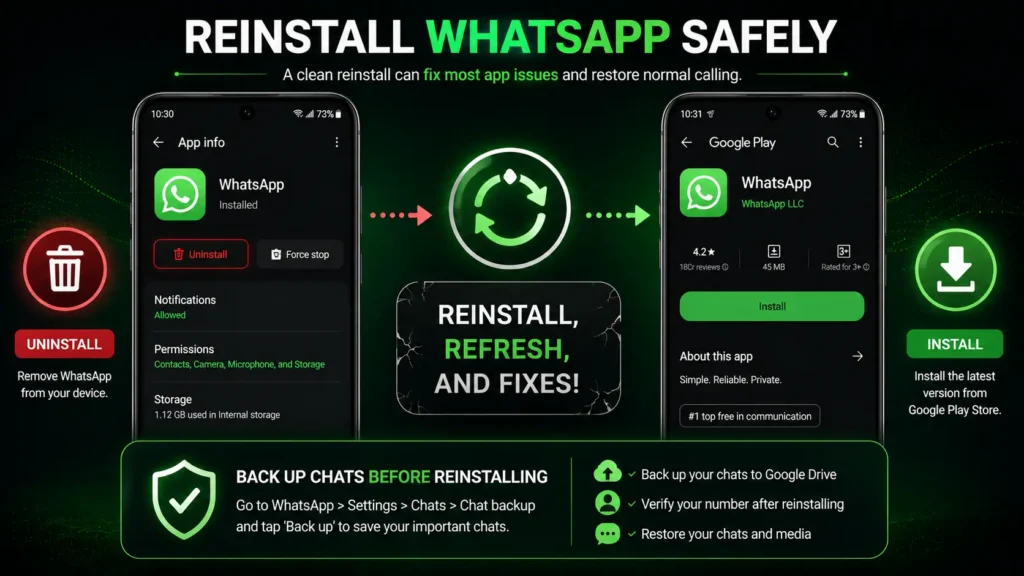
Back Up Your Chats First
Before uninstalling WhatsApp, create a recent backup.
- Open WhatsApp.
- Go to Settings → Chats → Chat Backup.
- Tap Back Up.
- Wait until the backup finishes successfully.
Now:
- Uninstall WhatsApp.
- Restart your phone.
- Install WhatsApp again from the Google Play Store.
- Verify your phone number.
- Restore your backup when prompted.
Important: Never uninstall WhatsApp before confirming that your backup has completed successfully.
Reinstalling the app is an effective solution for stubborn WhatsApp Call Not Working problems.
If reinstalling WhatsApp doesn’t solve the issue, follow our complete WhatsApp Backup Stuck Guide to restore your chats successfully before trying again.
Fix 18: Test WhatsApp on Another Network
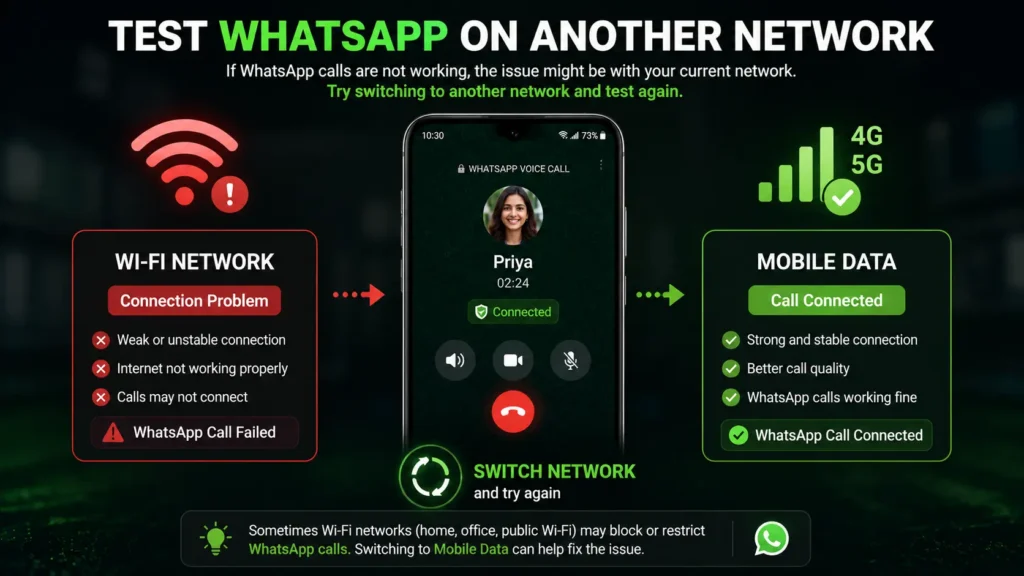
Sometimes the problem is caused by your internet provider rather than your phone.
Try switching between:
- Wi-Fi
- Mobile Data
- Another Wi-Fi network
If WhatsApp calls work on another connection, your original network may be blocking or limiting internet traffic.
Testing another network can quickly identify the cause of WhatsApp Call Not Working.
Fix 19: Check Whether the Issue Is Limited to One Contact
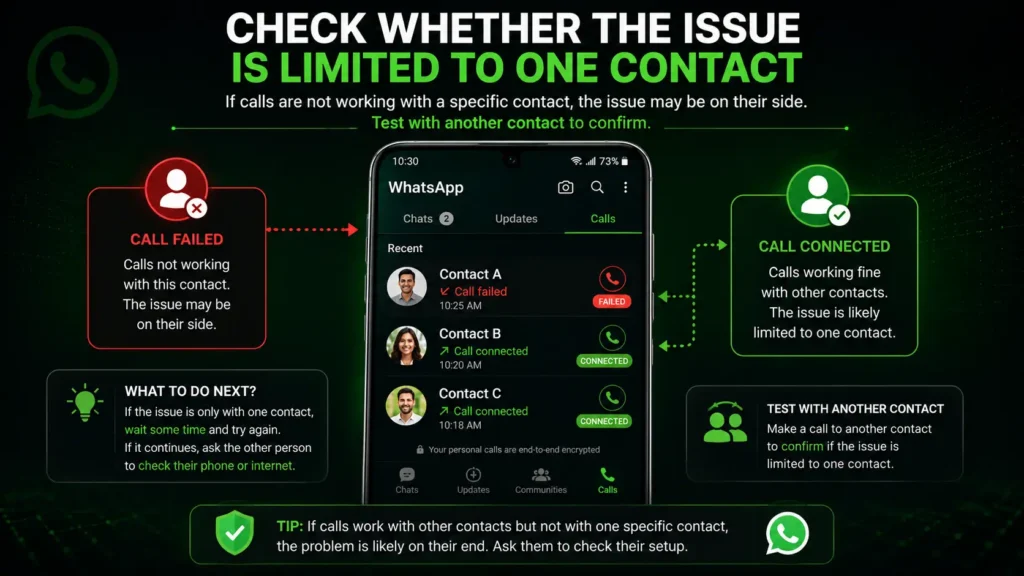
If only one person cannot receive your WhatsApp calls, the issue may be on their device.
Ask them to check:
- Internet connection
- Camera permission
- Microphone permission
- WhatsApp updates
- Battery Optimization settings
Testing calls with another contact helps determine whether the issue is device-specific or account-specific.
If the problem affects only one person, WhatsApp Call Not Working is likely related to that specific contact rather than your device.
When Should You Contact WhatsApp Support?
If you’ve completed every troubleshooting step in this guide and WhatsApp calls still aren’t working, it may be time to contact WhatsApp Support.
Consider reaching out if:
- WhatsApp crashes every time you start a voice or video call.
- Calls fail only on your account, even after reinstalling the app.
- Your camera and microphone work in other apps but never in WhatsApp.
- The issue started after changing your phone number or moving to a new device.
- The problem continues even after updating Android and WhatsApp to the latest versions.
Before contacting support, make sure you’ve backed up your chats and note the steps you’ve already tried. This information can help speed up the troubleshooting process.
If every solution has failed, contacting support is the next step to resolve WhatsApp Call Not Working.
When Is the Problem on WhatsApp's Side?
Although uncommon, WhatsApp occasionally experiences temporary server outages.
You may notice:
- Voice calls fail for multiple contacts.
- Video calls won’t connect.
- Messages remain pending.
- Status updates fail to load.
- Several users report similar problems.
In this situation, changing settings on your phone usually won’t help. The best option is to wait until WhatsApp restores its services.
Sometimes WhatsApp Call Not Working is caused by temporary server issues that can only be resolved by WhatsApp.
If messages are also failing to send or receive along with calling issues, check our WhatsApp Not Sending Messages Guide for additional troubleshooting steps.
Tips to Prevent Future WhatsApp Calling Problems
Once your calls are working again, these simple habits can help keep them reliable.
Keep WhatsApp Updated
Install updates regularly to receive bug fixes, security improvements, and performance enhancements.
Update Android
System updates improve compatibility with newer WhatsApp releases.
Use a Stable Internet Connection
Voice and video calls require a reliable connection. Whenever possible, use strong Wi-Fi or good-quality mobile data.
Avoid Restricting WhatsApp
Don’t block background activity, mobile data, camera access, or microphone access unless necessary.
Restart Your Phone Occasionally
A simple restart clears temporary software issues before they become noticeable.
Keep Enough Free Storage
Low storage space can affect app performance and update installation.
Clear Cache Occasionally
Removing temporary files helps maintain smooth performance without deleting chats.
Following these tips can significantly reduce the chances of WhatsApp Call Not Working in the future.
Common Mistakes to Avoid
Many WhatsApp calling problems become more difficult to fix because of simple mistakes during troubleshooting. Avoid the following to save time and prevent unnecessary data loss.
- Don’t clear WhatsApp storage unless you’ve confirmed that your chat backup is complete.
- Avoid installing unofficial or modified versions of WhatsApp, as they can cause compatibility and security issues.
- Don’t ignore Android or WhatsApp updates, since updates often include important bug fixes.
- Disable VPN services temporarily while troubleshooting, as they may interfere with call connections.
- Avoid keeping Battery Saver mode enabled if WhatsApp calls are delayed or frequently disconnect.
- Don’t assume the problem is with your phone immediately. Test another Wi-Fi network or mobile data connection before making major changes.
Following these recommendations can help you troubleshoot more safely and reduce the chances of encountering the same problem again.
Avoiding these common mistakes can prevent WhatsApp Call Not Working from happening again.
Frequently Asked Questions
Why is WhatsApp Call Not Working even though my internet is connected?
Your connection may not be stable enough for real-time calling. Permissions, Battery Optimization, VPNs, outdated software, or temporary server issues can also prevent WhatsApp calls from working correctly.
Why does WhatsApp keep saying "Connecting"?
This usually indicates that one or both devices cannot establish a stable internet connection. Switching networks or disabling VPN services often resolves the problem.
Why is my WhatsApp Video Call Not Working?
Video call issues are commonly caused by denied camera permission, poor internet speed, another app using the camera, or temporary software glitches.
Why can't the other person hear me?
Check whether:
- Microphone permission is enabled.
- Your microphone is muted.
- Bluetooth audio is connected.
- The microphone works in another app.
If the microphone works everywhere except WhatsApp, updating or reinstalling the app may solve the issue.
Will clearing the WhatsApp cache delete my chats?
No.
Clearing the cache only removes temporary files that help the app run faster.
Your chats, photos, videos, and account remain safe.
Should I clear WhatsApp storage?
Only if absolutely necessary.
Unlike clearing the cache, clearing storage resets the app and requires you to sign in again. Always verify that your latest chat backup is available before choosing this option.
Is reinstalling WhatsApp safe?
Yes.
As long as your chats are backed up successfully, reinstalling WhatsApp is a safe way to replace damaged app files.
These answers cover the most common questions related to WhatsApp Call Not Working.
Final Checklist
Before contacting WhatsApp Support, confirm that you have completed every step below.
✅ Internet connection tested
✅ Mobile Data working
✅ Wi-Fi tested
✅ WhatsApp updated
✅ Android updated
✅ Camera permission enabled
✅ Microphone permission enabled
✅ Battery Optimization disabled
✅ VPN disabled
✅ Private DNS checked
✅ Cache cleared
✅ Phone restarted
✅ Network settings reset
✅ WhatsApp reinstalled (after backup)
If every item above has been completed and the issue still exists, the problem may be related to your device hardware, network provider, or a temporary WhatsApp service issue.
Review this checklist to make sure you’ve completed every important step to fix WhatsApp Call Not Working.
Final Thoughts
Experiencing WhatsApp Call Not Working can interrupt important conversations, but most voice and video call problems are easier to fix than they first appear.
In many cases, the solution is as simple as improving your internet connection, updating WhatsApp, checking permissions, or adjusting Android settings. Working through the fixes in this guide step by step allows you to identify the root cause without making unnecessary changes to your phone.
If the issue continues after completing every troubleshooting method, wait briefly to rule out a temporary WhatsApp service interruption. If the problem persists, contact your device manufacturer or network provider for additional assistance.
Keeping WhatsApp and Android updated, maintaining a reliable internet connection, and reviewing your app permissions regularly will help prevent future calling problems and ensure the best voice and video calling experience.
By following this guide, you should now have a clear understanding of how to diagnose and fix the most common WhatsApp calling issues on Android.
By following this complete guide, you should be able to fix almost every WhatsApp Call Not Working issue on Android.
Official References
For the most accurate and up-to-date information, refer to:
These trusted resources provide additional information for resolving WhatsApp Call Not Working and related issues.